Fallout 2 on iPad. Touch the world, not a virtual mouse.
VaultPad pairs Fallout 2 Community Edition with direct taps, explicit combat controls, an iPad-scale HUD, native settings, and local saves—without replacing the original game interface.






> [!IMPORTANT]
> VaultPad does **not** include Fallout 2 or any Bethesda, ZeniMax, or Microsoft assets. You need data from a legally purchased copy. Import happens locally; VaultPad does not download or upload your game files.
> [!NOTE]
> **AI disclosure:** VaultPad uses substantial AI assistance for code, tests,
> documentation, debugging and maintenance. Some support replies and maintenance
> tasks are automated. There is no audited percentage of AI-generated code.
> Build, test and device records describe what was checked. This disclosure
> concerns VaultPad's workflow, not the authorship of its upstream projects.
## Built for fingers. Faithful to Fallout 2.
Fallout 2 Community Edition makes the game portable. VaultPad makes it playable by touch. Instead of asking every finger movement to impersonate a mouse, VaultPad turns the actions you need into clear, persistent choices.
- **Tap what you mean.** Tap the ground to walk or run, a door to use it, a dialogue response to choose it, or an enemy to attack.
- **Pan without losing your action.** Two-finger drag moves the map only while both fingers are down, then returns you to the selected action.
- **Read combat at a glance.** The dock names the current attack, its action-point cost, the alternate action, and End Turn.
- **Keep Fallout's interface intact.** Full HUD preserves the original 4:3 presentation and adds controls only where touch needs help.
- **Choose your control style.** Hybrid is touch-first, Direct puts every tap under your finger, and Trackpad remains available for precision screens.
- **Protect your progress.** Background quicksave, foreground audio recovery, and save import/export are built into the iPad shell.
## See touch in action
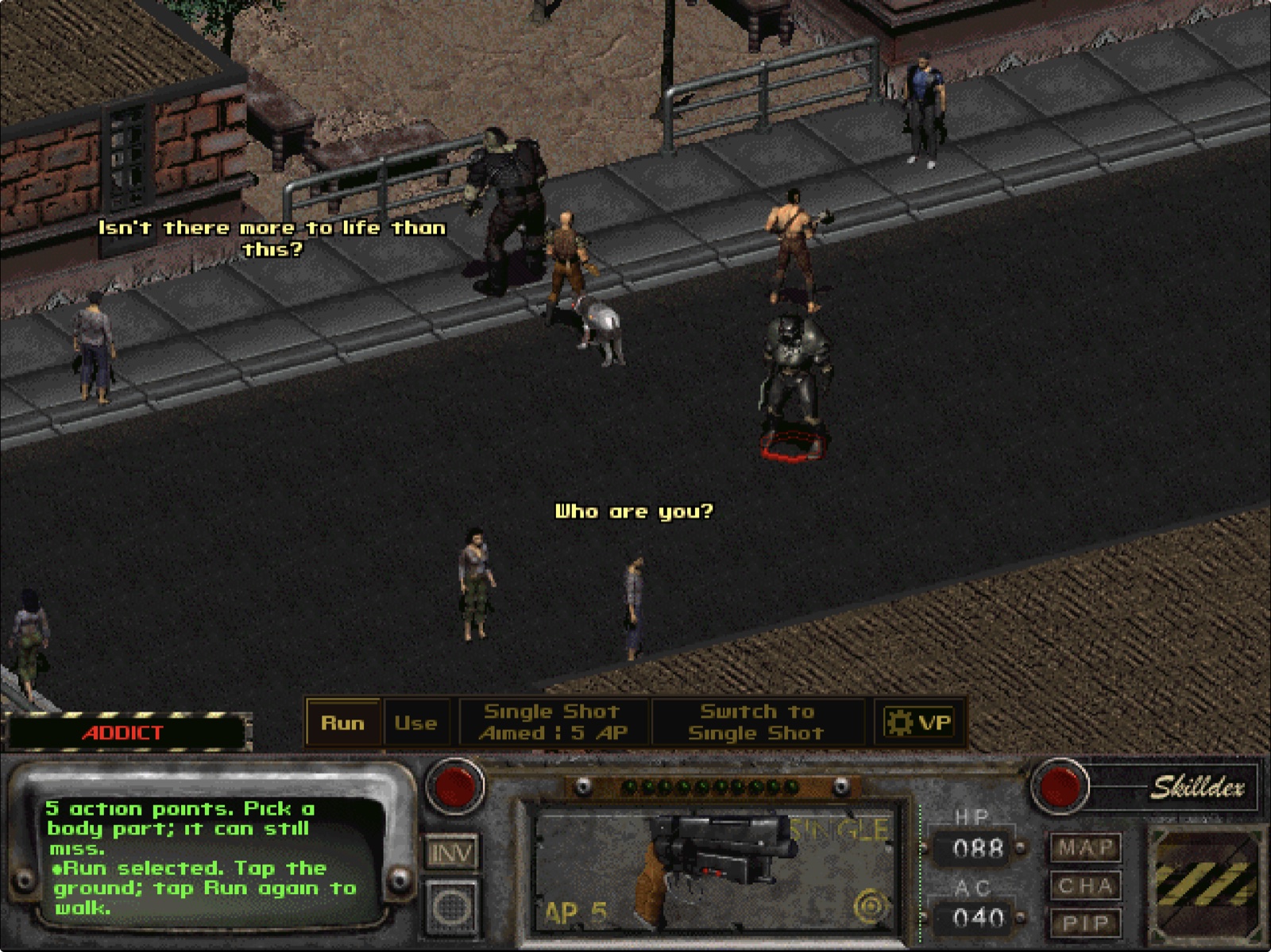
Tap the world directly. Walk or Run, Use, action cost, alternate action, and VaultPad settings stay close to Fallout's original HUD.
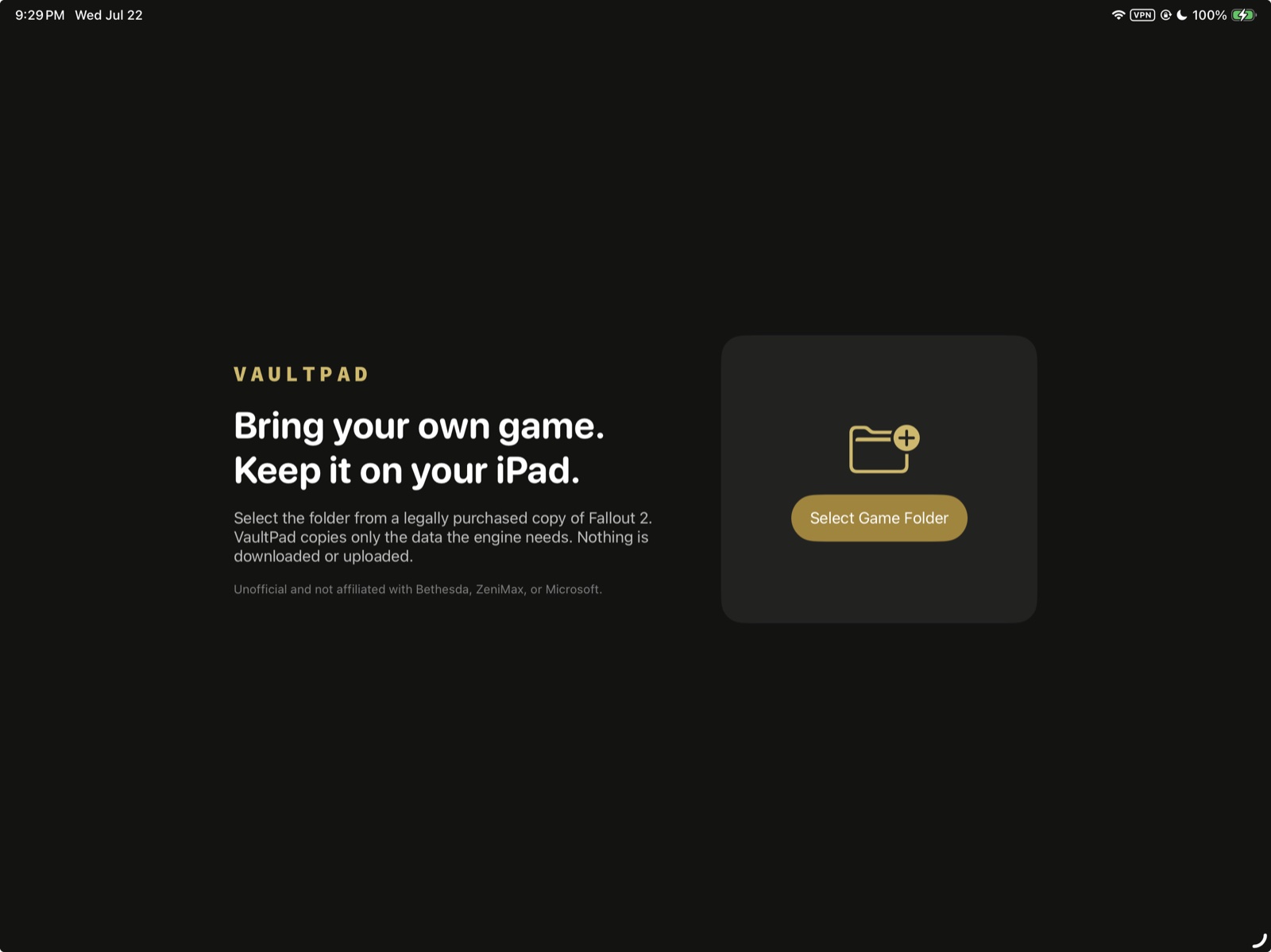
Native first launch. Select your local Fallout 2 folder in Files; VaultPad validates it and keeps the imported data on the iPad.
|
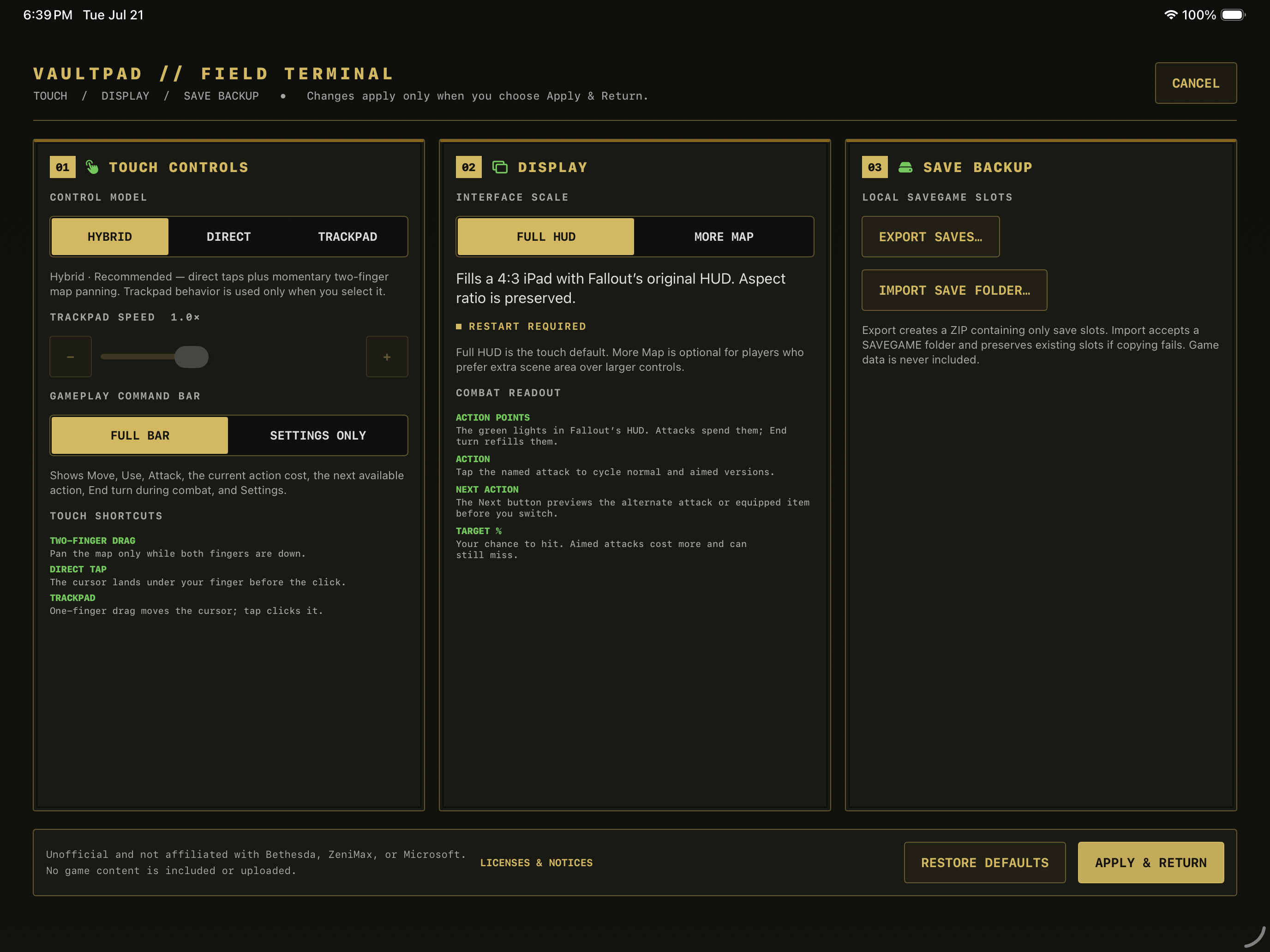
One native field terminal. Configure controls, display scale, dock visibility, and local save backups without editing configuration files.
|
## Features
| Experience | What VaultPad adds |
| --- | --- |
| Direct gameplay | Tap-to-move, tap-to-use, direct dialogue choices, and finger-sized targets for inventory, barter, character creation, and save/load |
| Control model | Touch-first Hybrid, fully direct taps, optional Trackpad precision, persistent sensitivity, and multi-finger shortcuts |
| Combat | Compact Walk / Run / Use / Attack dock with current action cost, alternate action preview, and explicit End Turn guidance |
| Map navigation | Momentary two-finger panning that releases cleanly back to the selected gameplay action |
| Display | **Full HUD** for the original 640×480 interface or **More Map** for extra scene area |
| First launch | Native Files folder picker, required-file validation, import progress, and recoverable errors |
| iPad lifecycle | Background quicksave, safe pause/resume, audio-session recovery, and touch-state reset |
| Saves | Local save archive export and validated `SAVEGAME` folder import |
| Product layer | Original VaultPad onboarding, icon, Field Terminal, legal notices, and iPad-only configuration |
| Builds | Reproducible Apple-silicon Simulator build and unsigned arm64 iPad build |
## Install on an iPad
Download `VaultPad--unsigned.ipa` from the
[latest release](https://github.com/chrissotraidis/vaultpad/releases), check it
against its `.sha256` file, and install it with AltStore Classic, SideStore or
Sideloadly. The app contains no game data; on first launch, choose the folder
with your own legally obtained game files. To build it yourself instead, follow
the steps below.
### Build from source requirements
- Apple-silicon Mac
- Xcode with the iOS platform installed
- CMake 3.25 or newer (`brew install cmake` if you use Homebrew)
- Git
- iPad running iPadOS 15 or newer
- Apple account added in **Xcode → Settings → Apple Accounts**
- Data from a legally purchased copy of Fallout 2
### 1. Clone and prepare
```bash
git clone --recursive https://github.com/chrissotraidis/vaultpad.git
cd vaultpad
./scripts/setup.sh
```
`setup.sh` checks the toolchain, initializes the engine submodule, creates your ignored local signing file, and generates the Simulator project. The first configure may download the engine's pinned open-source dependencies.
### 2. Add your development team
Open `ios/Config/Signing.xcconfig` and replace `YOURTEAMID` with the team ID shown by your Apple developer account:
```xcconfig
DEVELOPMENT_TEAM = YOURTEAMID
CODE_SIGN_STYLE = Automatic
```
If the default bundle identifier is already registered to another team, choose a unique identifier for your private build in `ios/Config/VaultPad.xcconfig`, for example:
```xcconfig
PRODUCT_BUNDLE_IDENTIFIER = com.yourname.vaultpad
```
### 3. Generate the device build
```bash
./scripts/build-device.sh Debug
open out/build/engine-ios-device/fallout2-ce.xcodeproj
```
In Xcode:
1. Select the `fallout2-ce` target.
2. Open **Signing & Capabilities**, enable automatic signing, and select your team.
3. Connect and trust your iPad, then choose it as the run destination.
4. Press **Run**.
5. If iPadOS asks, enable **Developer Mode** under **Settings → Privacy & Security**, restart the iPad, and run again.
Xcode registers the device and creates a development provisioning profile when automatic signing is available. Apple maintains the current device steps in [Running your app on simulated or physical devices](https://developer.apple.com/documentation/xcode/running-your-app-on-simulated-or-physical-devices) and [Enabling Developer Mode on a device](https://developer.apple.com/documentation/xcode/enabling-developer-mode-on-a-device).
### 4. Import your game
On first launch, tap **Select Game Folder** and choose the folder containing:
```text
master.dat required
critter.dat required
patch000.dat optional
data/ optional
```
VaultPad validates the selection, copies the data into its private Documents container, and launches the game. Nothing is sent off the iPad.
Preview 2 stages and checks every input before replacing installed data. Missing
or incomplete source files report an error, and empty required files return to
setup instead of skipping it. If importing fails, keep the original folder,
download any cloud files locally, and choose it again. Update over the existing
app with the same signing account and bundle identifier to keep your saves.
> [!WARNING]
> Deleting VaultPad also deletes its app container, including imported game data and saves. Export saves from the Field Terminal before uninstalling. Installing a new development build over the existing app preserves the container when the bundle identifier stays the same.
## Run in the iPad Simulator
The Simulator is the fastest path for development and UI review. It still needs your local game data.
```bash
git clone --recursive https://github.com/chrissotraidis/vaultpad.git
cd vaultpad
./scripts/setup.sh
xcrun simctl list devices available
./scripts/build-simulator.sh Debug
./scripts/install-simulator.sh YOUR-IPAD-SIMULATOR-UDID
```
VaultPad launches automatically. Use the first-run folder picker to import your data, or pass a local data folder as the second install-script argument during development:
```bash
./scripts/install-simulator.sh YOUR-IPAD-SIMULATOR-UDID /absolute/path/to/your/fallout2-data
```
The import folder must contain `master.dat` and `critter.dat`. `ref/`, build output, signing configuration, game data, saves, and IPA files are excluded from Git.
## Touch controls
VaultPad starts in **Hybrid** mode: direct taps for play, plus momentary two-finger map panning. The Field Terminal can switch modes at any time.
| Input | Result |
| --- | --- |
| One-finger tap | Walk or run, choose, interact, attack, or activate the control under your finger |
| Two-finger drag | Pan the map while both fingers remain down; lifting restores the selected command |
| Three-finger swipe down | Back / Escape |
| Three-finger hold | Highlight nearby interactive objects |
| Four-finger hold | Quicksave |
The VaultPad dock keeps the active interaction explicit:
- **Walk / Run** — tap the ground to move; tap the selected button again to switch pace.
- **Use** — tap a person, door, or object.
- **Attack** — selects the targeting cursor and arms the next tap.
- **Current action** — shows the attack name, Normal or Aimed, and its action-point cost.
- **Switch to** — previews and selects the alternate attack or equipped hand.
- **End Turn** — appears in combat and advances the turn.
- **Gear + VP** — opens the VaultPad Field Terminal.
For inventory, barter, character creation, and the full gesture reference, see [Touch controls](docs/CONTROLS.md).
## Your game stays yours
VaultPad's data boundary is deliberate:
- No game content is tracked in this repository or packaged in release artifacts.
- First-run import copies files locally into VaultPad's private app container.
- Save export creates a standard ZIP containing save slots only.
- The release verifier rejects proprietary DAT files, saves, `ref/`, AppleDouble metadata, and accidental game content.
- No account, telemetry service, game downloader, or upload path exists.
Run the repository safety checks at any time:
```bash
./scripts/verify-repository.sh
```
## Project status
**Developer preview.** The current build has been exercised in 11-inch and 13-inch iPad Pro simulators and installed on a physical 12.9-inch iPad Pro. Onboarding, direct touch, movement, inventory, dialogue, barter, combat, world-map travel, settings return, lifecycle saves, and in-place device updates have been tested through the real game UI.
The remaining acceptance work is touch comfort over longer sessions, hardware keyboard/mouse behavior, broader iPad coverage, and interruption/thermal testing. TestFlight and App Store availability are not claimed.
- [Documentation index](docs/README.md)
- [Installation guide](docs/INSTALL.md)
- [Touch controls](docs/CONTROLS.md)
- [Testing and acceptance](docs/TESTING.md)
- [Development workflow](docs/DEVELOPMENT.md)
## Build a release artifact
Create an unsigned arm64 app and IPA:
```bash
./scripts/package-release.sh 0.1.0-preview.1 Release
```
Artifacts are written under `out/release/` with a sibling SHA-256 file:
```bash
cd out/release
shasum -a 256 -c VaultPad-0.1.0-preview.1-unsigned.ipa.sha256
```
The IPA is intentionally unsigned. VaultPad does not ship credentials, certificates, provisioning profiles, or a signing service.
## Repository map
| Path | Purpose |
| --- | --- |
| `engine/` | Pinned Fallout 2 Community Edition engine snapshot and VaultPad's iPad engine changes |
| `ios/Launcher/` | Native onboarding, importer, settings, saves, and lifecycle shell |
| `ios/Assets.xcassets/` | Original VaultPad app artwork |
| `ios/Config/` | iPad metadata, build settings, and local signing template |
| `scripts/` | Setup, Simulator/device builds, install, packaging, and safety checks |
| `docs/` | Current installation, controls, compatibility, development, and testing guidance |
| `ref/` | Optional local-only game-data staging folder; ignored by Git |
## Mods
Vanilla Fallout 2, Unofficial Patch-class updates, and compatible language packs are the supported first-release boundary. Restoration Project Updated is experimental. Total conversions or mods that require unsupported sfall behavior are not promised. See [Mod compatibility](docs/MODS.md).
## Contributing
Bug reports are most useful when they include:
- iPad model and iPadOS version
- touch mode and display preset
- exact screen or game state
- steps to reproduce
- screenshot or short recording when the issue is visual
- whether the same behavior reproduces in the Simulator
Before opening a pull request:
```bash
./scripts/verify-repository.sh
./scripts/build-simulator.sh Debug
```
Never attach or commit game data, save files, signed IPAs, provisioning profiles, or Apple credentials.
## Community and support
[Join the Discord](https://discord.gg/xwHfUD2bxW) for help and news. It is one
community for VaultPad and its sibling projects, such as KartPad, BlueWake and
MeleePad: ask about setup and installing, share how it runs on your device, and
hear about new releases first.
Found a bug? [Open an issue](https://github.com/chrissotraidis/vaultpad/issues)
with your device, its OS version, and the steps that led to it.
## Credits and legal
VaultPad is built on [Fallout 2 Community Edition](https://github.com/fallout2-ce/fallout2-ce). The engine and VaultPad's modifications are distributed under the included [Sustainable Use License](LICENSE.md); dependency notices are in [THIRD_PARTY_NOTICES.md](THIRD_PARTY_NOTICES.md).
VaultPad is unofficial, free, and non-commercial. It is not affiliated with, endorsed, or sponsored by Bethesda Softworks, ZeniMax Media, or Microsoft. Fallout is a registered trademark of ZeniMax Media Inc. No game content is included. This README is not legal advice.
Built for touch. Faithful to Fallout 2.