Build Dungeon
It's time to use everything we've created to build a dungeon
Create Theme file
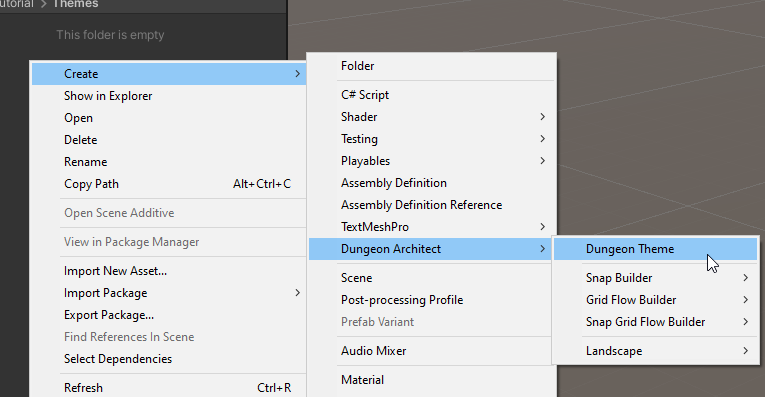
Create an empty theme file somewhere in the content browser. We'll visit this later to spawn items in our modules (like NPCs, Spawners, Pickups, player prefab etc.)
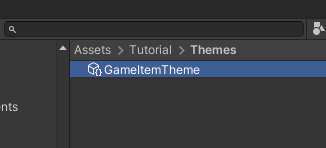
Rename it to GameItemTheme
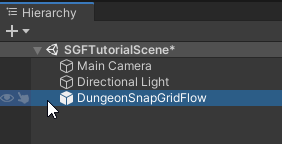
Setup Dungeon Game Object
Create a new scene and drop in a
DungeonSnapGridFlowprefab fromAssets > CodeRespawn > DungeonArchitect > Prefabs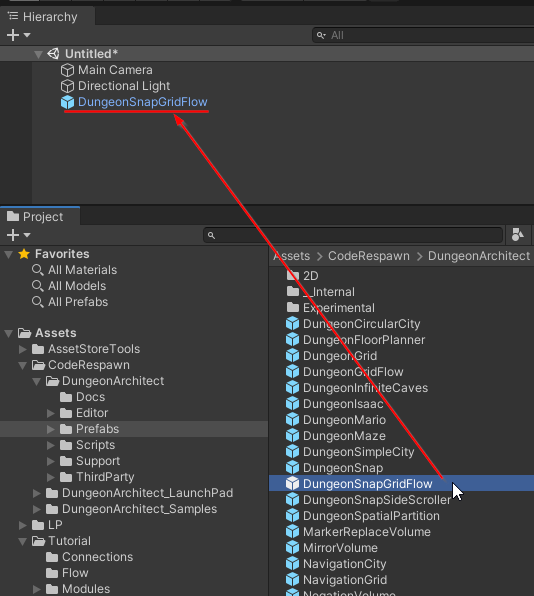
Select the
DungeonSnapGridFlowgame object and inspect the properties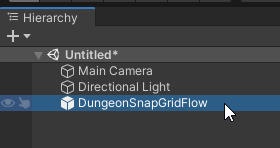
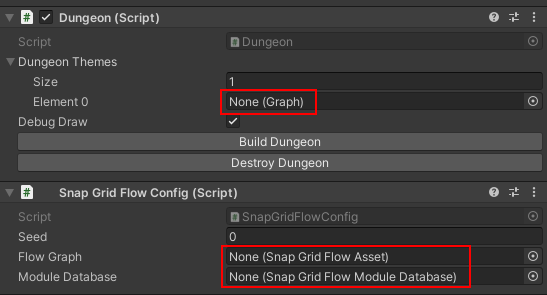
We'll assign the three assets we've created earlier
Assign the
GameItemThemecreate created above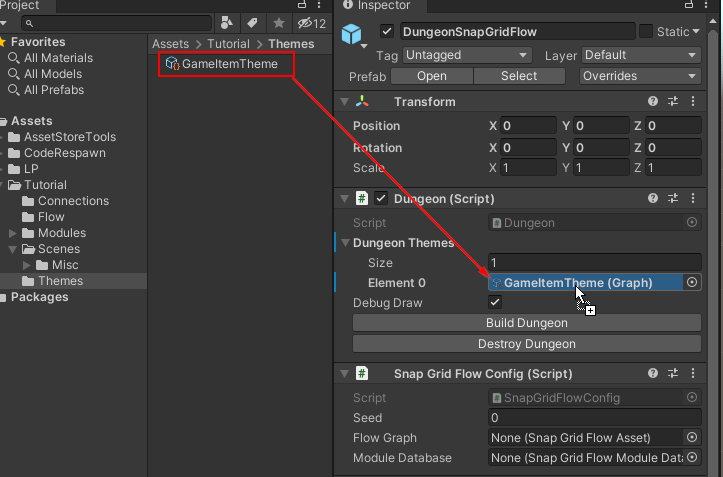
Assign the Snap Grid Flow Graph
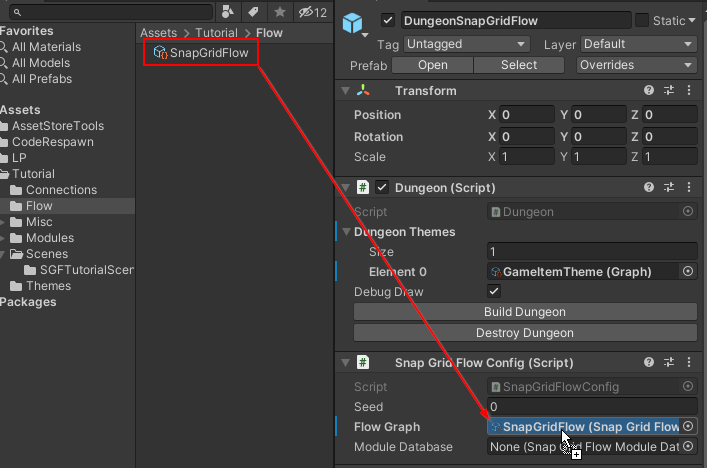
Assign the Module Database
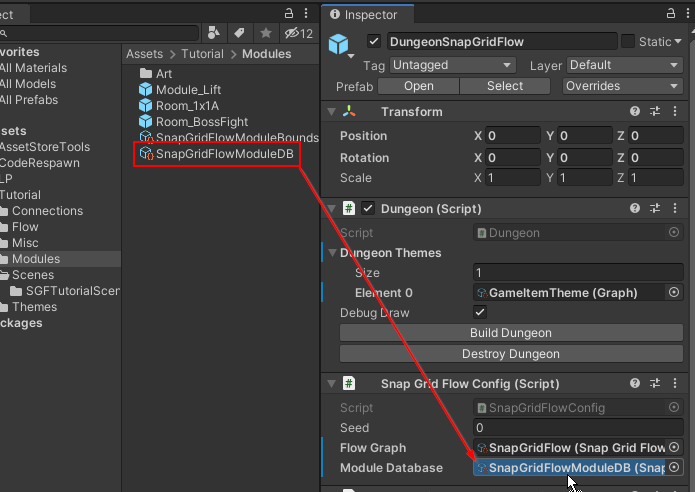
Build Dungeon
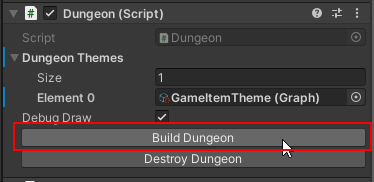
Select the DungeonSnapGridFlow game object and click Build Dungeon
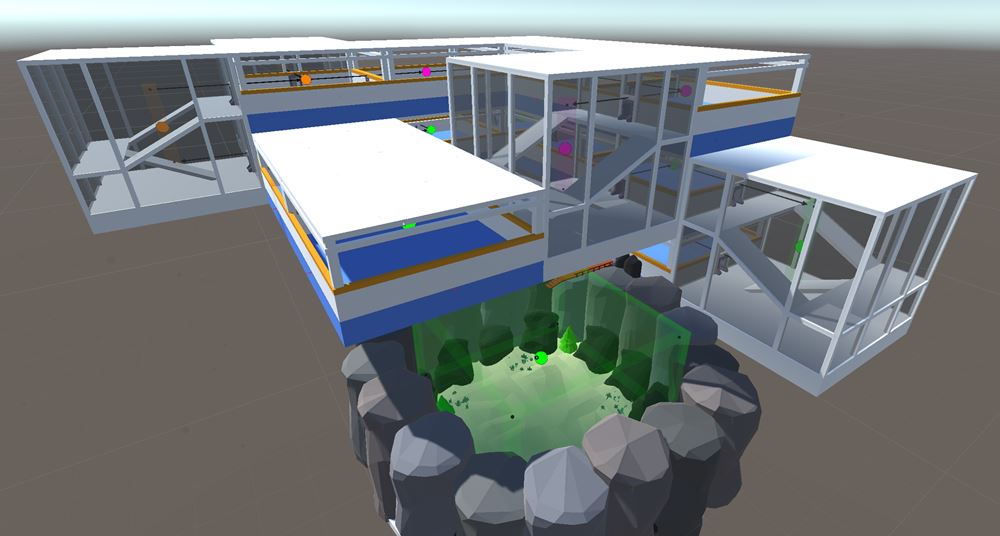
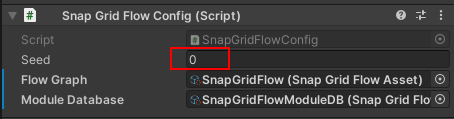
Change the seed and click build again to get a different dungeon
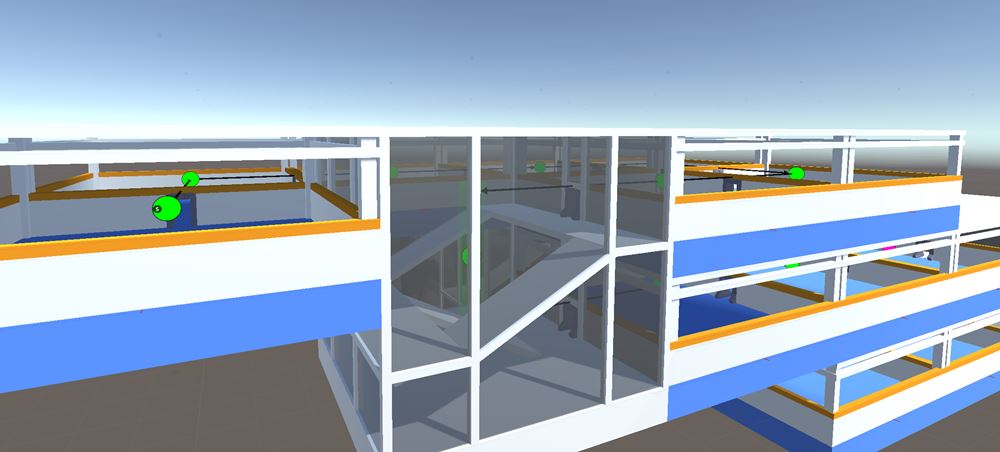
Debug Draw
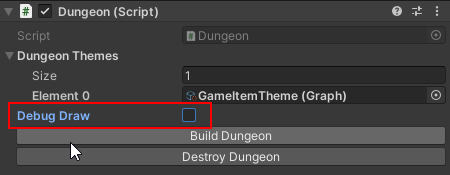
You get a debug overlay of the layout graph rendered by default when you build the dungoen. You'll want to turn this off in your final dungeon
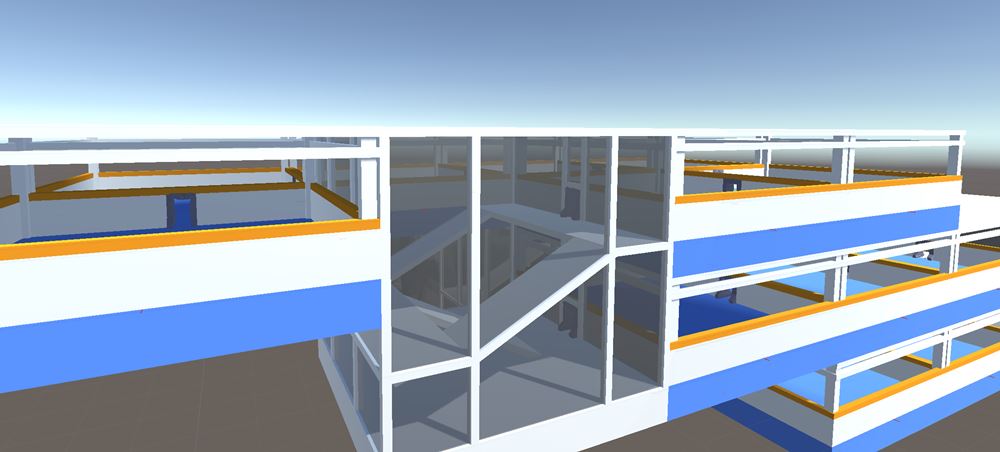
Do this by unchecking the Debug Draw check box and rebuild the dungeon
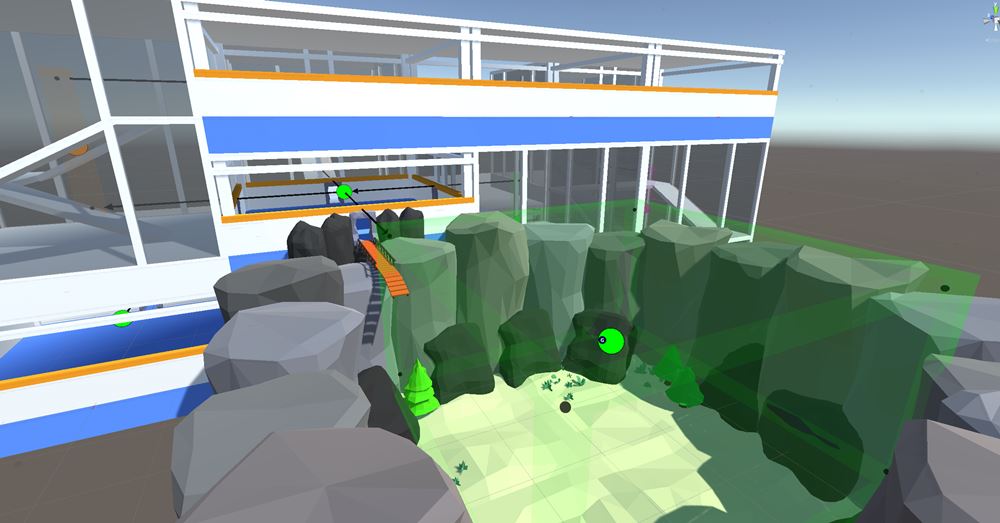
Let's keep the Debug Draw check box on for now so we can see the layout graph overlayed in the scene
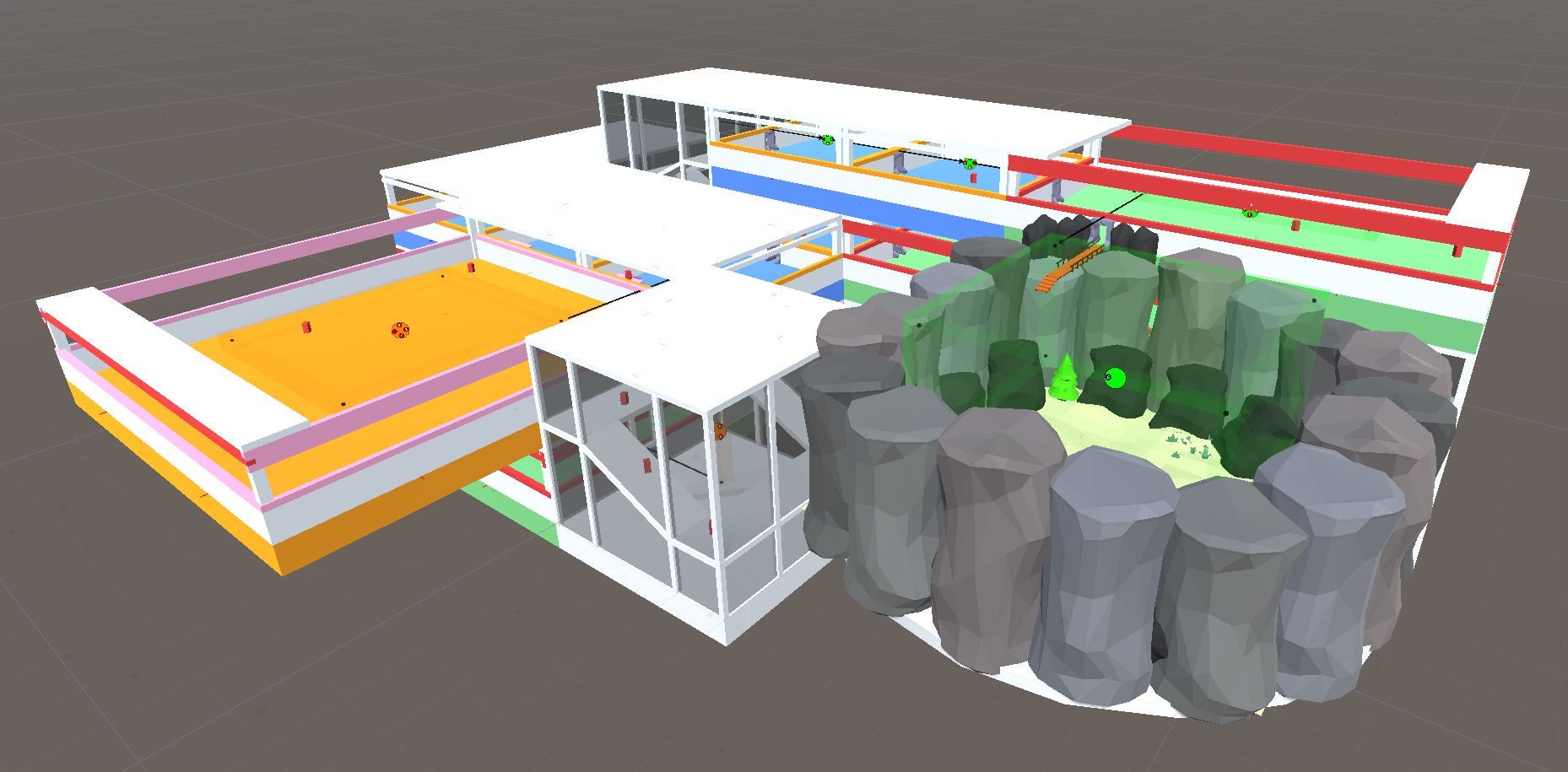
Keep Things Organized
When you build the dungeon, it clutters up the hierarchy
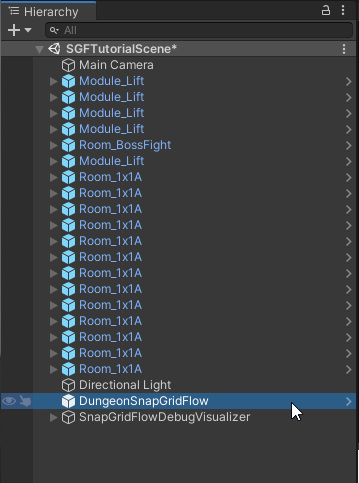
We'll configure it so that our dungeon is built under a certain game object and won't clutter the root.
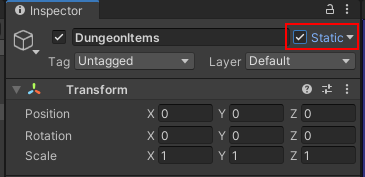
Create a new empty game object and name it
DungeonItems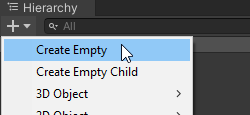

Reset the transform
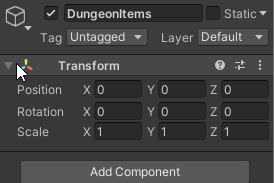
Set it to static
Assign this game object to the DungeonSnapGridFlow gameobject's Pool Dungeon Scene Provider component
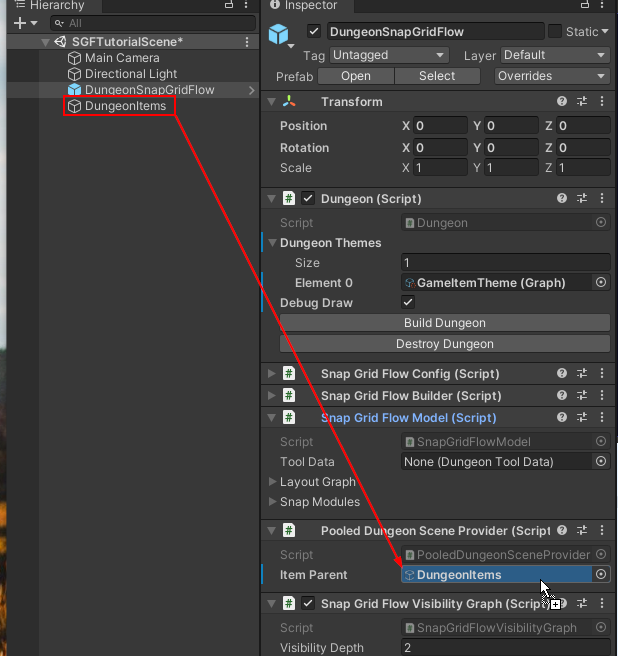
Click
Build Dungeonagain and our dungeon will be built under theDungeonItemsgame object
Save Map
We've set up our dungeon game object. Save this scene somewhere, we'll revisit it later