There are several ways to get rid of warnings you do not want to see. They differ in how long they last and where they are stored:
| Method | Lasts | Stored in | Best for |
|---|---|---|---|
| Hide | Until the next analysis | Nowhere | Getting warnings out of the way while you work |
| Severity buttons and filter | Until you change them | GUI settings | Concentrating on some kinds of warnings |
| Suppress from the context menu | Permanent | Project file | Turning off a kind of warning for the whole project |
| Suppressions in the project dialog | Permanent | Project file | Suppressions for some files, lines or symbols |
| Inline suppressions | Permanent | Source code | A single false warning |
| Excluding files | Permanent | Project file | Code you do not want to analyze at all |
The difference between hiding and suppressing: a hidden warning comes back the next time you analyze the code. A suppressed warning is not reported again until you remove the suppression.
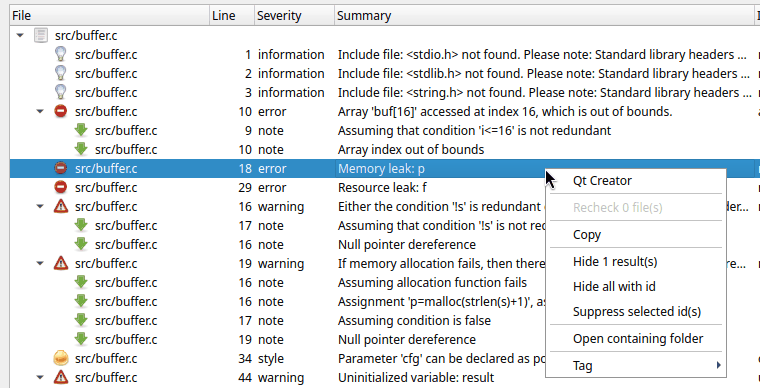
Select one or more warnings, right-click and choose Hide N result(s). To hide all warnings with the same id as the selected warning, choose Hide all with id.
Hidden warnings are not deleted. Use View > Show hidden to show them again. They are also shown again after the next analysis.
By default, hidden warnings are not saved when you save the results to a file. Enable Save all errors when creating report in the preferences to save them too.
The buttons in the severity toolbar show or hide all warnings of a severity, and the quick filter shows only warnings that contain some text. See The main window. These do not change the results; they only change what you see.
Select one or more warnings, right-click and choose Suppress selected id(s). All warnings with the ids of the selected warnings are removed from the list, and a suppression for each id is added to the project file. The warnings are not reported in future analyses.
Note: this suppresses the id in all files of the project, not only the selected warning. If you only want to suppress one warning, use an inline suppression, or add a suppression with a file name or line number in the project dialog.
This only works when a project is open. Without a project the warnings are removed from the list, but nothing is saved. Critical errors, such as syntax errors, can not be suppressed this way.
Open File > Edit Project File... and go to the Warning options tab. The Suppressions list shows all suppressions of the project, including the ones made with the context menu.
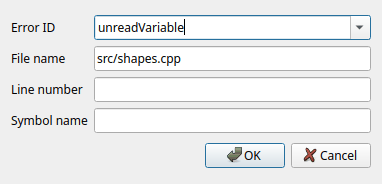
Click Add to add a suppression. You must give the Error ID; the other fields make the suppression more specific:
* and
? can be used, for example src/legacy/*.Some examples:
| Error ID | File name | Line | Effect |
|---|---|---|---|
unusedFunction | No unused function warnings at all, for example for a library whose functions are called by other programs. | ||
* | src/generated/* | No warnings in generated code (but the code is still analyzed). | |
nullPointer | src/io.c |
120 | No null pointer warning on line 120 of
src/io.c. |
Double-click a suppression to edit it, or select it and click Remove to remove it. After you click OK, the project is analyzed again.
An inline suppression is a comment in the source code, just before the line with the warning, or at the end of that line:
void f()
{
    char *p = get_buffer();
    // cppcheck-suppress nullPointer
    *p = 0;

    *p = 1; // cppcheck-suppress nullPointer
}
You can suppress several ids at once, and add a comment that explains why:
// cppcheck-suppress[nullPointer,uninitvar] get_buffer() never returns NULL
Inline suppressions are the best way to suppress a single false warning: they stay with the code when it is moved, and the next person who reads the code sees that the warning was looked at. See the Cppcheck manual for more forms, for example suppressing a whole block or file.
Inline suppressions must be enabled:
To not analyze some files or folders at all, add them to Exclude source files on the Warning options tab of the project dialog. See Exclude source files.