---
title: SQL parameters
description: Declare named values in a workbook, use them as :name placeholders in a report's Semantic SQL, set them per report, and fill them from dashboard filters.
---
A SQL parameter is a named value that a workbook declares once and its reports
use in their Semantic SQL as a `:name` placeholder. Each parameter has a type
and a default. A report can set its own value, and a [dashboard
filter](#filling-parameters-from-a-dashboard) can fill the parameter for every
chart that uses it.
Use a parameter for a value that the semantic view's members can't express as
a filter, or that several reports should share: a threshold in a `HAVING`
clause, a row limit, a date inside a [CTE][ref-advanced-queries], or a value
that one dashboard filter sets across charts built on different semantic views.
```sql
SELECT
status,
MEASURE(count)
FROM orders
WHERE created_at >= :start_date
GROUP BY 1
HAVING MEASURE(count) > :min_orders
```
## Creating a parameter
Parameters belong to the workbook, so every report in it can use them. To
create one in a workbook report:
- Open the "…" menu in the semantic view's header in the left pane and choose
**Create parameter**.
- Or, once the workbook has a parameter or the report's SQL uses a `:name`,
click **+** in the **Parameters** section of the left pane.
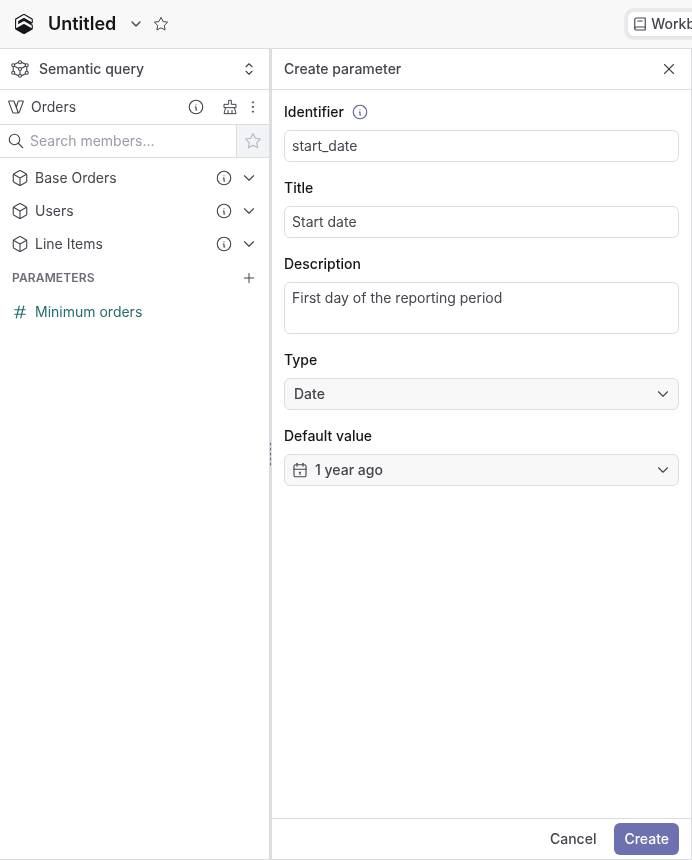
The **Create parameter** panel has these fields:
| Field | Description |
|---|---|
| **Identifier** | The name you write in SQL after a colon, such as `start_date`. Letters, digits and underscores, not starting with a digit, up to 63 characters. Two parameters can't have identifiers that differ only in case. |
| **Title** | Optional. Shown instead of `:name` in the left pane, on the report's chip and in a dashboard filter. |
| **Description** | Optional. Shown on the chip's popover. |
| **Type** | **String**, **Number**, **Date** or **Boolean**. See [Types](#types). |
| **Default value** | The value a report uses until it sets its own. Only a **String** default can be empty. |
Click **Create** to save it. **Create** stays disabled while the default isn't
a valid value for the type.
 If a report's SQL uses a `:name` that the workbook doesn't have, the
**Parameters** section lists it as a muted `:name` row. Click the row to open
**Create parameter** with that identifier filled in. The report doesn't run
until the parameter exists: instead of an error, it shows *Create a parameter
to run this query* (or *Create parameters to run this query* when several are
missing) with a **Create :name** button for the first one. With
[auto-run][ref-auto-run] on, the report runs as soon as you create the last
missing parameter.
### Types
The type decides what the default and every value must be, and how Cube writes
the value into the SQL:
| Type | Value | Written into the SQL as |
|---|---|---|
| **String** | Any text | A quoted string, such as `'completed'`. Single quotes in the value are escaped. |
| **Number** | A finite number | The number, such as `100`. A negative number is wrapped in parentheses, such as `(-1)`. |
| **Date** | A fixed date, or a relative one such as `7 days ago` | A date, such as `CAST('2026-01-31' AS DATE)` |
| **Date and time** | A fixed date and time, such as `2026-01-31 08:30`, or a relative one | A timestamp, such as `CAST('2026-01-31 08:30' AS TIMESTAMP)` |
| **Boolean** | `true` or `false` | `TRUE` or `FALSE` |
A parameter holds a single value. There is no list type, so a parameter can't
stand for the values of an `IN (…)` list.
**Type** lists **Date and time** only when you edit a parameter that already
has that type. A new parameter can't take it. A bare date, such as
`2026-01-31`, is that day's midnight.
Changing the type resets the default.
### Relative date defaults
The **Default value** of a **Date** parameter opens the same popover as a
[date filter][ref-time-filter-values], with the **Presets**, **Relative** and
**Fixed** tabs. Pick a fixed date, or a relative one such as **Today**,
**7 days ago** or **Start of last month**.
A relative default is resolved again on every run, so a report that opens on
"7 days ago" always shows the last week without editing.
### Editing and deleting a parameter
Open a parameter's "…" menu in the **Parameters** section and choose **Edit
parameter** or **Delete parameter**. Users who can't edit the workbook see its
parameters but can't create, change or delete them.
Changing the **Identifier** doesn't change the SQL that uses it. Reports that
still use the old name stop running until you update their SQL or create a
parameter with that name again. The same happens to reports that use a deleted
parameter.
## Using a parameter in SQL
Write `:name` anywhere the SQL takes a value: in a `WHERE` or `HAVING`
condition, in `LIMIT`, in a select expression, or inside a CTE. Parameters work
in reports built on a semantic view and in [advanced semantic
queries][ref-advanced-queries]. [Edit the Semantic SQL][ref-edit-sql] to add
one. The editor highlights each placeholder.
```sql
SELECT
customer_name,
MEASURE(total_amount)
FROM orders
GROUP BY 1
ORDER BY 2 DESC
LIMIT :top_customers
```
- The name is case-sensitive: `:Start` doesn't match a parameter named `start`.
- A `:name` inside a string literal, a quoted identifier or a comment is left as
it is. So is the second colon of a `::type` cast.
- Before the query runs, Cube replaces each placeholder with its value, as
[Types](#types) describes. The **Generated SQL** tab shows the database SQL
that Cube generates from the filled query. There, a value can appear as a
literal or as a `?` placeholder that the database fills.
Every way a report runs uses the filled SQL: the report itself, drill-downs,
period-over-period comparisons, dashboard charts, and [Python
analysis][ref-python-analysis].
### Errors
| Message | Cause |
|---|---|
| *Create the :name parameter to run this query* | The SQL uses a name the workbook doesn't declare. A report shows the notice from [Creating a parameter](#creating-a-parameter) instead; this message appears where there's no such notice, such as a dashboard chart or Python analysis. |
| *The :name parameter cannot hold … as a …* | The value doesn't fit the parameter's type. |
| *Parameters can't be filled in a query that uses dollar-quoted strings, E'…' strings or nested comments* | Cube can't tell placeholders from text in such a query. Use ordinary quoted strings and comments. |
### Using a parameter in a filter
A [filter][ref-filtering] on a member can take a parameter instead of a fixed
value. In the filter's value popover, switch from **Value** to **Parameter**
and pick the parameter. On a time member, open the **Parameter** tab next to
**Presets**, **Relative** and **Fixed**. A `between` filter takes a **Start**
and an **End** parameter.
The list offers only the parameters whose type fits the member and the
operator. The **contains**, **starts with** and **ends with** family takes
**String** parameters only. Filters on calculated fields and buckets can't take
a parameter. If the chosen parameter is deleted or no longer fits, the filter
shows *The :name parameter can't be used for this filter*.
The filter writes `:name` into the Semantic SQL where its value would go, so
the parameter behaves as if you had typed it.
## Setting a report's value {#setting-a-reports-value}
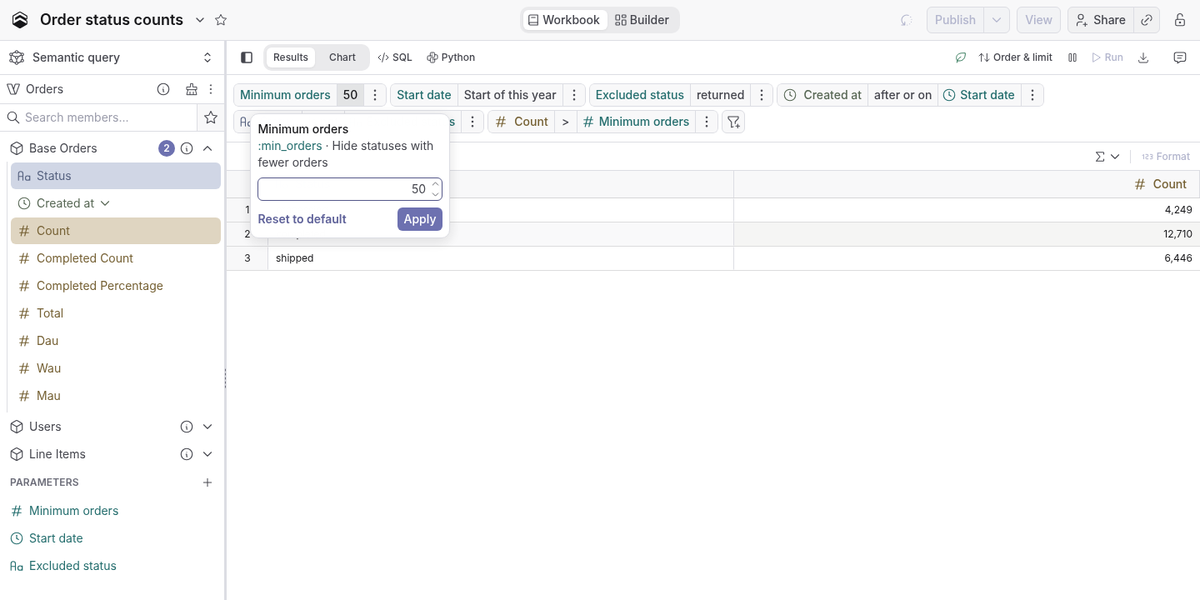
Each parameter that the report's SQL uses has a chip in the filter row, ahead
of the filter chips. The chip shows the parameter's title, or `:name`, and its
current value. In an advanced semantic query, the parameter chips are the only
chips in the row.
Click the chip to set the report's own value:
- For a **String**, **Number** or **Boolean** parameter, enter the value and
click **Apply**, or press Enter.
- For a **Date** parameter, the chip opens the date popover with the **Presets**,
**Relative** and **Fixed** tabs. Its footer shows *Default: …*.
The report saves the value and runs again. **Reset to default** removes the
report's value, so the report uses the parameter's default again. A chip with
the report's own value also has a ⋮ menu with **Reset to default**. A report
uses its own value if it has one, and the default otherwise.
 ## Filling parameters from a dashboard
A dashboard [filter][ref-filter-parameter] can fill a parameter instead of
filtering a member. In **Configure filter**, switch from **Member** to
**Parameter** and pick the parameter. A filter on a **Date** parameter can also
fill an **End of range** parameter, so one date range control sets both
`:start_date` and `:end_date`.
The filter fills every chart whose SQL uses the parameter, whatever semantic
view the chart is built on, and its value wins over the report's own value. A
chart can [opt out][ref-parameter-filters] in **Controls mapping**.
[ref-advanced-queries]: /docs/explore-analyze/workbooks/querying-data#advanced-semantic-queries
[ref-edit-sql]: /docs/explore-analyze/workbooks/querying-data#editing-semantic-sql-by-hand
[ref-filtering]: /docs/explore-analyze/workbooks/querying-data#filtering
[ref-auto-run]: /docs/explore-analyze/workbooks/querying-data#running-queries
[ref-time-filter-values]: /docs/explore-analyze/dashboards/widgets/controls#operators-by-dimension-type
[ref-python-analysis]: /docs/explore-analyze/workbooks/python-analysis#running-and-refreshing
[ref-filter-parameter]: /docs/explore-analyze/dashboards/widgets/controls#filling-a-sql-parameter
[ref-parameter-filters]: /docs/explore-analyze/dashboards/widgets/controls#parameter-filters