# StormDesk technical reference
This guide keeps the detailed setup, integration, hosting, and development notes out of the main
[README](../README.md). Start there if you only want to install and use StormDesk.
Radar comes from [HookEcho](https://hookecho.io/) — my own NEXRAD viewer,
embedded here and centered on the station.
If StormDesk is useful to you, please [give the project a star](https://github.com/d4vid87/stormdesk/stargazers).
## The three destinations
On Samsung Smart Hub/Family Hub, ChromeOS, and small-memory browsers, the hosted dashboard opens **StormDesk Lite** before loading the full dashboard modules. Lite has Today, Forecast, still Radar, and basic History. A full dashboard boot that fails once also opens Lite on the next visit. Use `?full=1` to retry the full dashboard. Lite browser samples cover up to seven days, are collected while the page is running, and are replaced by longer station history when a StormDesk host or Tempest history is available. The live radar viewer is optional in Lite and is disabled on constrained browsers.
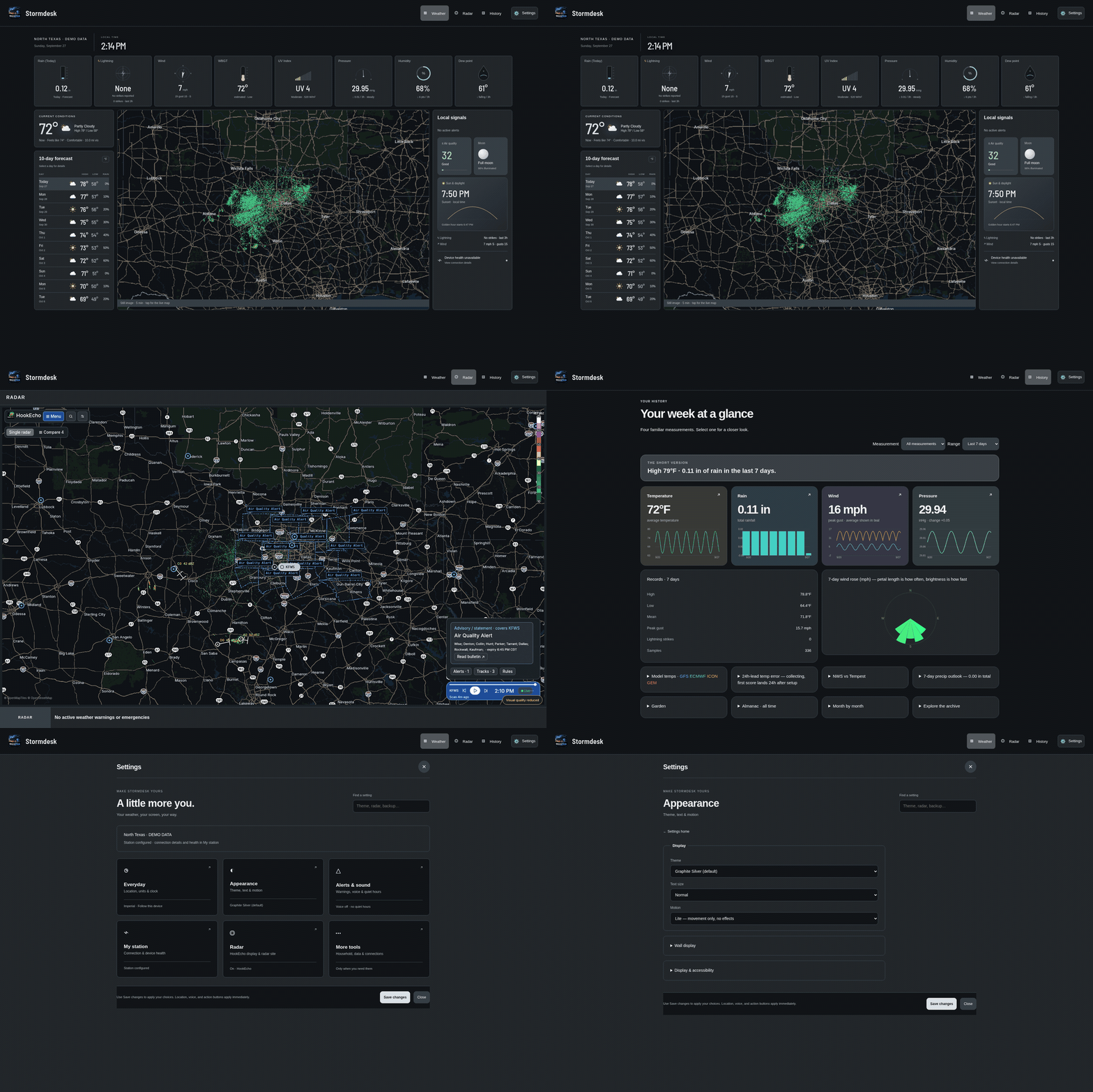
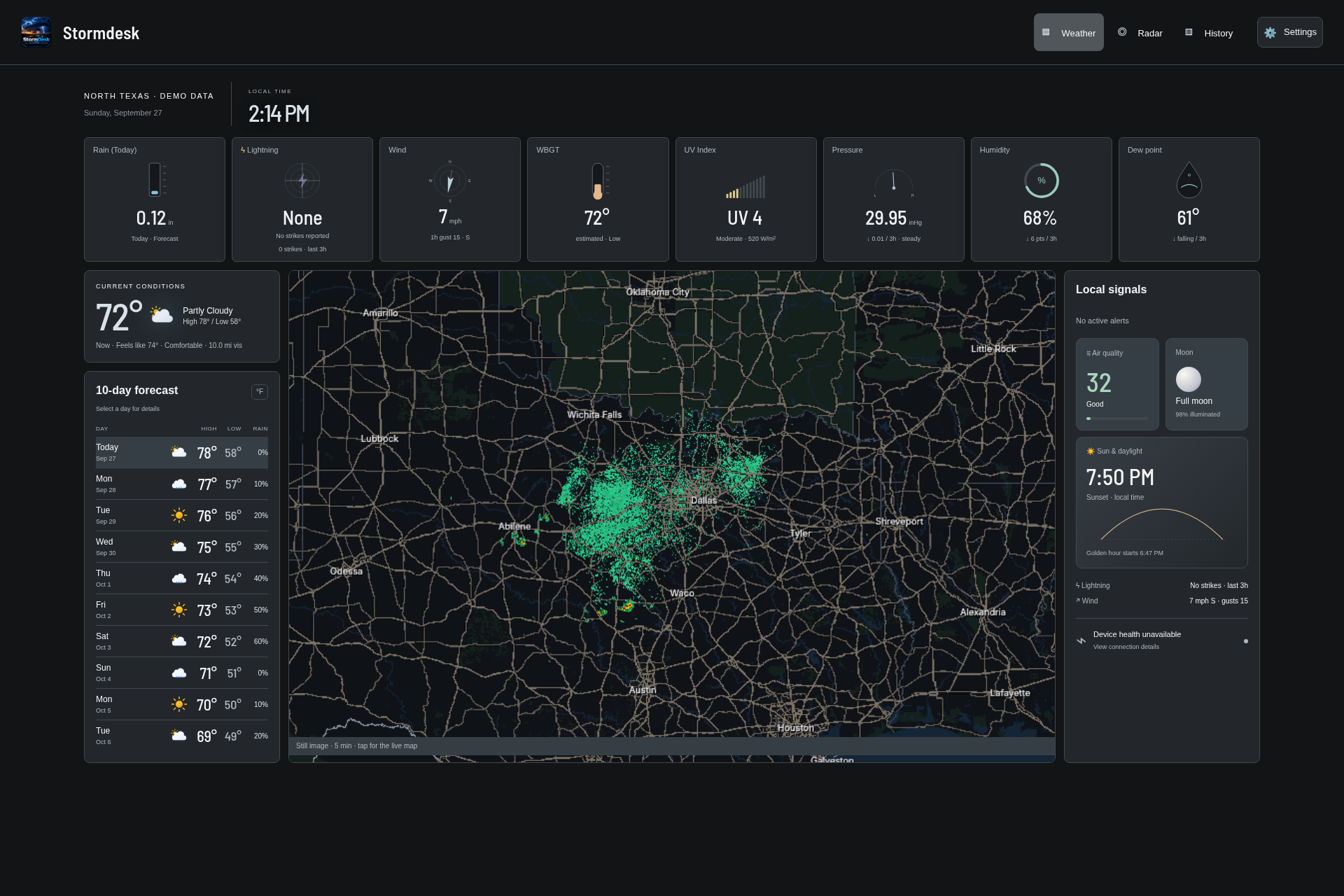
- **Weather** uses the Observatory layout: seven top metrics, compact current conditions and a forecast list on the left, HookEcho radar in the center (enabled by default for new screens; saved on/off choices are preserved), and local signals, alerts, astronomy, and device health on the right. The list shows up to ten forecast days; providers may supply fewer. A live local clock and a banner for nearby official warnings and emergencies sit in the header. **More weather details & analysis** retains the timeline, additional charts, and advanced tools.
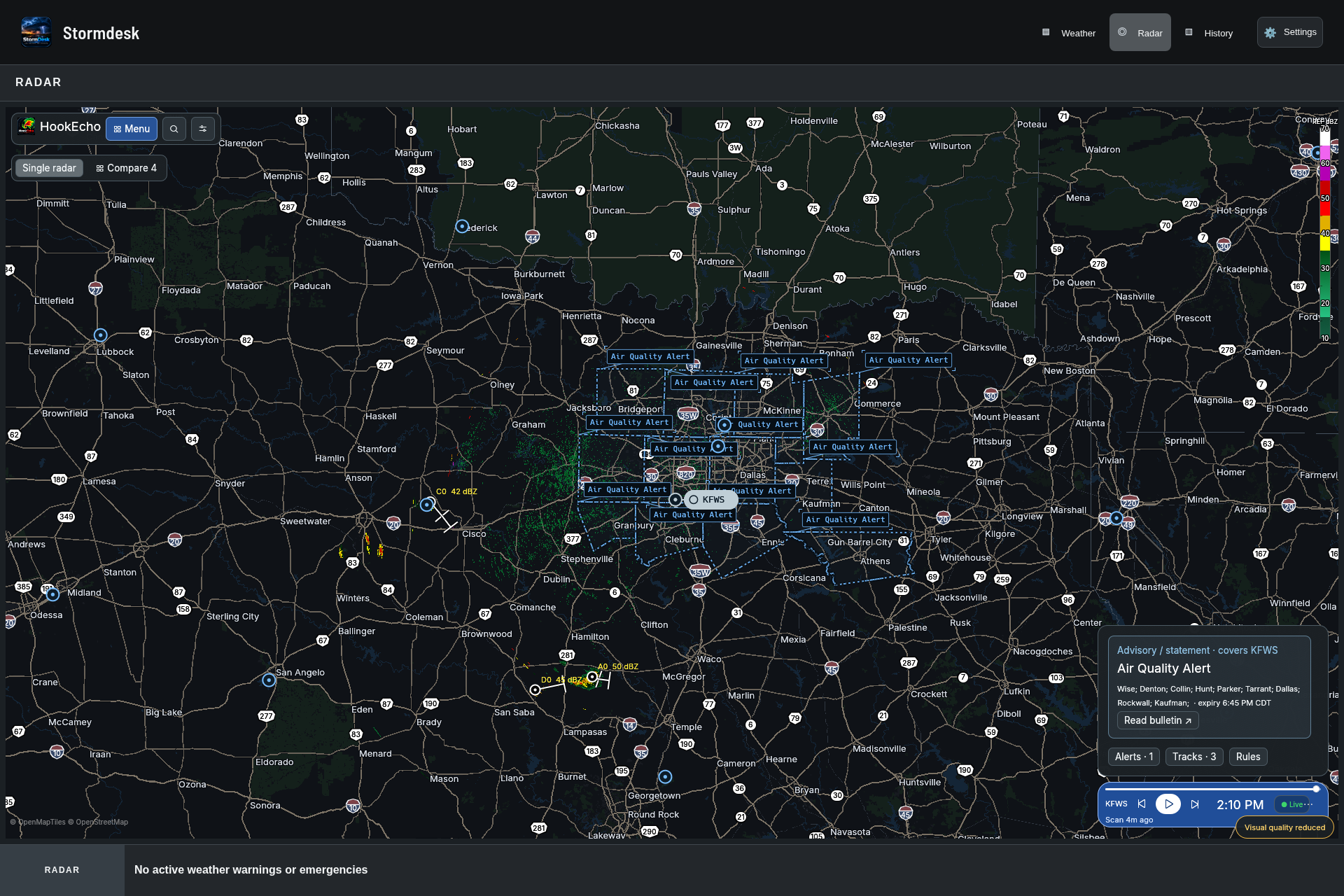
- **Radar** gives the embedded [HookEcho](https://hookecho.io/) map the page. Official warnings and emergencies appear in a bottom banner. Radar controls and playback remain available inside HookEcho.
- **History** starts with temperature, rain, wind, and pressure snapshots. Selecting a measurement or changing the range opens charts and records. Gauge details link to the relevant filtered History view.
The top metric order is **Rain, Lightning, Wind, WBGT, UV Index, Pressure, Humidity**. Layout editing is retired. Existing installations retain their saved settings and layout data; the visible arrangement adapts to the screen width. Additional measurements remain available in weather details and History.
The right column presents local signals and official alert information alongside sunrise, sunset, and moon details. Device health uses the station and hub information actually available from the connected source; missing telemetry is not presented as a healthy device. Alert coverage follows the official source for the saved location.
The welcome screen offers three setup cards: **Find my weather** (town or postcode), **Bring my station** (brand-specific connection), and **Join my home** (connect to an existing Stormdesk host). Choose a location first to open Weather; a station connection is optional. The dashboard distinguishes station readings from forecast and other sources; an unavailable or stale measurement is labeled instead of shown as zero.
Settings now opens to a searchable home with six category cards: Everyday, Appearance, Alerts & sound, My station, Radar, and More tools. Specialist controls expand on demand. Save changes applies form edits; location selection, speech enablement and action buttons apply immediately.
Settings → Appearance → Theme opens new installs in **Graphite Silver** and offers ten dark palettes: Graphite Silver, Midnight Violet, Carbon Lime, Ocean Abyss, Night Spruce, Oxblood Rose, Burnished Copper, Electric Indigo, Petrol Citron, and Espresso Gold. Classic themes remain available, including OLED black, blue, light, high contrast, orange & red, solarized, and e-ink. Each screen keeps its own appearance choice, and saved choices are preserved. See the [theme screenshots](../README.md#screenshots).
These screenshots and layout notes describe the current web/source UI. The latest packaged release is **4.5.2**; an existing downloaded installer may show the earlier interface until it updates.
The Radar viewer remembers its selected site, product, tilt, basemap, and zoom. Settings → Radar → Radar site selects a radar explicitly; *Nearest to my station* follows the saved place.
The embedded map can be expensive on older WebKit devices. Motion and eco settings reduce activity, and a still preview may appear when the live viewer would overload the screen. The latest NEXRAD frame is normally several minutes behind conditions outside because each volume scan and its delivery take time.
## Quiet hours and speech
`Settings → Alerts & sound → Quiet hours` silences the chime and every push channel between two times — Severe and
Extreme warnings still come through, because that is what the setting is for. On a kiosk, **Read
severe alerts aloud** speaks them. On the desktop, an alert raised while the window is hidden
becomes a real OS notification.
**Tap the hero icon** and the dashboard reads the day out: what it is doing now, the high and low,
the 24-hour story and whether anything is out. `Settings → Alerts & sound → Warnings & voice → Spoken briefing at` schedules the same
thing once a day at a fixed time. Browsers refuse to speak before a page has been touched, so a
briefing on a tablet nobody has touched since boot waits for the first tap.
`Settings → Dim the screen overnight` fades a wall panel down over the hour after sunset and back
up over the hour before sunrise, using the station's own sun times.
The seven top Weather metrics keep their order. Appearance changes their colors without changing the layout.
`Settings → LAN dashboard port` moves the server off 8088 (restart to apply); the window title
always shows the address a tablet should open.
## Alert rules and push
Settings → **Alerts & sound → Custom alert rules** builds thresholds on live readings: a metric (temperature, dew point,
gust, wind, humidity, rain rate, UV, 3h lightning count, 3h pressure change, the change in
temperature / pressure / humidity over the last hour, and four straight off the forecast — the low
over the next 18 hours, the rain chance over the next six, the peak gust over the next day and
tomorrow's high), above or below, a
value, and how long it has to hold. **+ AND** adds a second condition and then both have to hold —
"gust above 25 AND humidity below 40" is a fire day; either half alone is a Tuesday. A rule fires
once and re-arms when the reading falls back through 90% of its threshold, so a gust hovering on
the line does not notify all afternoon. A forecast rule is checked the moment a new forecast
lands rather than waiting for the next reading from the station, which is the whole point of one.
Any alert can leave the machine:
- **ntfy** — put a topic in Settings and install the ntfy app on your phone. The topic is the
whole of the security on ntfy.sh, so make it long and unguessable, or run your own server and
point the ntfy server field at it.
- **Webhook** — a POST of `{title, body, category, t}` to any URL. Discord and Telegram webhook
URLs are recognised from the URL itself and sent in the shape those two accept, so pasting one
in is the whole setup.
- **MQTT** — every alert is also published to `stormdesk//alert` when a broker is
configured.
None of these ever carry your Tempest token, station ID or broker password — title, body and
category only.
## Motion, eco mode and pacing
Settings → **Motion** decides how much the dashboard moves: *Full* is the live sky, animated
icons, particle weather and the full broadcast choreography; *Lite* keeps the movement that
carries meaning (counting numbers, swinging needles, sliding panels, the alert crawl) and drops
the effects; *Off* is a still page. *Auto* — the default — picks Full on a desktop and Lite on
the hardware eco mode calls slow. Asking your OS for reduced motion, or picking the e-ink
palette, forces Off. `?motion=full|lite|off` overrides it for one page load.
Anything below Full — so a wall tablet, an old Chromebook, or any box eco mode has picked up —
gets a **still radar picture**, refreshed every five minutes, instead of the live radar viewer,
which is megabytes of WebAssembly repainting itself. Tapping it opens the full map. Setting Motion
to Full puts the live loop back on the Desk.
Settings → **Eco mode** halves how often everything polls and drops the seconds from the clock.
On *Auto* it turns itself on when the browser reports four cores or fewer, which covers the
tablets and old laptops this is often left running on. Overnight (sunset+1h to
sunrise−1h) everything slows further on its own, and an active Severe or Extreme NWS alert puts
the whole dashboard back to full speed — and brings the radar panel up if it was hidden.
A panel that has stopped updating keeps its last good numbers and marks itself with its age in the
corner, rather than blanking or lying. The forecast and current observations are cached, so a
reload during an outage still renders something.
## Fixed gauge arrangement
The seven top Weather metrics load automatically in the same order across mouse, touch, keyboard, reload, and restart. Earlier saved layouts remain in storage for existing installations, but no longer change the visible arrangement. Desktop, tablet, and phone layouts adapt without a separate editing mode. Additional charts and tools remain under **More weather details & analysis**.
## Tests
`cargo test --manifest-path src-tauri/Cargo.toml` covers the server, the archive and every unit
conversion. `bash .github/ci/selftest.sh` loads the whole site in headless Chrome at three motion
levels and three screen sizes, fails on any in-page self-check, and leaves a screenshot of each in
`shots/` (`CHROME=chromium` if that is what you have). Both run on every pull request.
## Data sources
| Feature | Endpoint |
|---|---|
| Station meta, observations, forecast | `swd.weatherflow.com/swd/rest/` |
| Live 3-second wind, lightning strikes | `wss://ws.weatherflow.com/swd/data` |
| The same, straight off the hub's LAN broadcast (desktop app only) | UDP `50222` |
| Watches and warnings, gridpoint forecast | `api.weather.gov` |
| Multi-model agreement, 15-minute nowcast, AQI | `api.open-meteo.com` |
| Radar | [HookEcho](https://hookecho.io/) at `hookecho.pages.dev` |
| Place search | `photon.komoot.io` |
| County drought class | `usdmdataservices.unl.edu` + `geo.fcc.gov` (via the app's own server) |
| Still radar image | `img.hookecho.io` |
| Other brands of station (see below) | your own LAN, `rt.ambientweather.net` |
## Other weather stations
StormDesk was written around a Tempest, but the Tempest tuple is only the internal format — the
desktop app can take a report from most other consumer stations, convert it once on the way in and
drive the whole dashboard from it. Everything downstream (archive, charts, CSV export, MQTT, alert
rules, CWOP) works the same, and the forecast comes from open-meteo instead of WeatherFlow.
Pick your brand under Settings → **My station → Station connection**, and set the station's latitude and
longitude (the first-run wizard's "Not a Tempest?" section does both at once).
**Ecowitt — Wittboy, GW1100 / GW1200 / GW2000 / GW3000.** WSView Plus → your gateway → *Customized*
upload. Protocol **Ecowitt**, server the app's IP, path `/ingest`, port `8088`, interval 16 s or
slower. Nothing else to fill in here.
**Ambient Weather — WS-2902 / WS-2000 / WS-5000 / WS-1550-IP.** Console firmware 4.2.8 or newer,
then the awnet app → *Custom server*, same address and path. Ambient's consoles speak their own
query-string format; the server recognises it.
**Weather Underground protocol.** Many other consoles can only be told a WU server — Vevor,
Sainlogic, Fine Offset and most of the rest. Point them at the app's IP and port and leave the path
alone; every spelling those firmwares use is answered (`/weatherstation/updateweatherstation.php`,
the bare `/updateweatherstation.php`, `/data/report`), with the `success` body they look for. Two
things catch people out: the console must be allowed plain **HTTP**, not HTTPS, and it must accept
a port other than 80. Firmware that insists on either needs a router rule forwarding port 80 to
8088 on this machine.
**WeeWX.** WeeWX already speaks the WU protocol, so it needs no plugin — in `weewx.conf`, under
`[StdRESTful] [[Wunderground]]`, set `server_url = http://:8088/ingest`, any `station` and
`password`, and `enable = true`. Pick *Weather Underground protocol* as the brand here. That also
covers every driver WeeWX has, which is most hardware that exists (issue #47).
**Davis — Vantage Pro2, Vantage Pro2 Plus, Vantage Vue.** Needs a WeatherLink Live (or a Console
6313) on the network. Put its IP in *WeatherLink Live address*; the app polls its local API every
ten seconds. No cloud, no key.
**KestrelMet 6000, or any Ambient console you would rather leave on Ambient's servers.** Both keys
from ambientweather.net → *My devices* → API keys, into *AWN API key* and *AWN application key*.
Polled once a minute.
**AcuRite Iris (5-in-1).** AcuRite publish no API, local or otherwise. What works is listening to
the sensor directly with an RTL-SDR dongle and piping the result in:
```sh
rtl_433 -C si -F json | while read -r line; do
curl -s -XPOST -H 'Content-Type: application/json' --data "$line" http://:8088/ingest
done
```
Anything `rtl_433` decodes lands the same way, so this is also the escape hatch for a station no
other section covers.
**On the phone app.** The Android build is a dashboard, not a server: it has no address a console
can upload to. Cloud sources (*Ambient Weather Network*, *La Crosse*) work there directly; for a
push brand, run the desktop build or the Docker image on a machine that stays on and point the
phone at that address.
**La Crosse Technology (C85845 and friends).** Account email and password. This one is unofficial —
it reads the API their own app uses, and it can stop working without notice. Those readings are
tagged separately in the archive so they can be deleted on their own if it ever goes wrong.
Notes that apply to all of them:
- **One station per install.** The archive keys on the timestamp with no room for a second
station; two consoles pointed at one app would interleave.
- **Rain and lightning** arrive as running daily totals and are stored as per-interval amounts.
A restart forfeits one interval — a minute of rain, once.
- **Ingest key.** Leave it blank on a network you trust (the same trust model as `/config`, below).
Set it and the console has to report to `/ingest/` instead.
- **Battery and sensor health** stay blank: every other brand reports a flag rather than a voltage,
and the health card's thresholds are a Tempest's.
## Smart home
StormDesk publishes your station to Home Assistant over MQTT, evaluates your alert rules
server-side, and reads Home Assistant entities back onto the dashboard. **Full guide:
[Home Assistant guide](homeassistant.md).** The short version:
**Publishing.** Settings → **More tools → Home Assistant & MQTT** → point *MQTT broker* at `mqtt://host:1883`
(`mqtts://` for TLS) and press **Test both** — it connects for real and waits for the broker to
acknowledge a message, because a broker that rejects your password accepts the TCP connection
first. Home Assistant then discovers one device with fifteen sensors under it, plus `feels_like`,
`pressure_trend` as a word, `alert` and `rule`. Nothing to add to `configuration.yaml`.
Readings are retained on `stormdesk//…`, **in SI units** (°C, m/s, hPa, mm) whatever
the dashboard displays — a units switch here must never rewrite months of Home Assistant history.
`stormdesk//status` is `online`/`offline`, the second written by the broker's
last will.
The server does this, not the page, so it keeps working with every window closed. Leave the
desktop app or the container running; that is the always-on copy.
> Upgrading from before 3.2.0? Publishing used to run in the browser over a WebSocket. Change the
> address from `ws://host:9001` to `mqtt://host:1883` — the app says so if you leave the old one
> there — and you can drop `protocol websockets` from mosquitto if nothing else used it.
**Alerts.** Your alert rules are evaluated by the server too, against the same thresholds, hold
times and re-arm behaviour the dashboard uses, and pushed through ntfy, a webhook and the broker.
Severe weather comes off the National Weather Service the same way. A tablet that sleeps at
midnight used to be a house with no frost warning. **Test push channels** sends one real
notification down every configured channel.
**Reading back.** Paste a Home Assistant URL and a long-lived access token, press **List
entities**, and tick what you want on the Desk. The list is fetched by the server, so the token
never reaches a browser and **you no longer need `cors_allowed_origins`** — the request is
same-origin. Read-only, deliberately: switching things is Home Assistant's job.
Broker topics can be read back too — Settings → **Broker topics to show** (`topic | label | unit`,
one per line), for sensors that never went near Home Assistant, like a greenhouse probe publishing
straight to mosquitto.
**Blueprints.** Three importable automations in
[`blueprints/automation/stormdesk`](../blueprints/automation/stormdesk): a severe alert to a
critical push, a gust threshold to any action, and skip-irrigation-after-rain.
**HomeKit, Alexa, Google.** Through Home Assistant, which already bridges all three — there is no
StormDesk-specific code for them and there shouldn't be. Add the MQTT integration (the device
above appears), then Settings → Devices & Services → Add Integration → **HomeKit Bridge** and pick
it; Alexa and Google go through Home Assistant Cloud or their own manual setups.
## Quick start
1. **Token** — tempestwx.com → Settings → **Data Authorizations** → *Create Token*. Any personal
use token works; paste it into Settings → *Tempest API token*.
2. **Station ID** — the number in your station's URL, `tempestwx.com/station/NNNNN`. That number,
not the station name and not the serial on the sensor.
3. **Device ID** — leave it blank. The station lookup fills it in. (A station ID pasted here is
numeric too, and used to break every history chart in silence; the app now corrects it and says
so.)
Everything is saved in the browser's `localStorage`, per install — the desktop app and a browser
tab don't share settings.
## Download & run
Grab the installer for your OS from [Releases](https://github.com/d4vid87/stormdesk/releases) and
double-click it. What changed in each version is in [CHANGELOG.md](../CHANGELOG.md). The app opens in its own window *and* serves the same dashboard to the rest of your
network on port 8088 — the wall tablet just opens the URL shown in the window title. Nothing else to
install; leave the app running. On Linux, the `.AppImage` runs on any distro and is the build
the in-app updater can update in place; the `.deb` updates through `apt` instead.
Already running [WeeWX](https://weewx.com)? It can feed StormDesk with a five-line config
stanza — see the [WeeWX guide](weewx.md).
**One config for the whole house.** The desktop app also keeps your settings and dashboard appearance
on the host computer. Any browser that opens the LAN URL loads that configuration — no re-typing the
token, no re-arranging panels per device — and a save from any of those browsers writes back, so the
next device to load picks it up. Open sessions don't update live; reload to fetch. Note that this
means anyone on your network can read the Tempest token from the host. Self-hosting the `site/`
folder statically has no config server, so those browsers keep their own settings as before.
The app also listens for your hub's UDP broadcasts on port 50222 and re-serves them to the tablet,
so live wind and lightning keep flowing with the internet unplugged. A browser can't hold a UDP
socket, so the no-install option below uses the cloud websocket only. If another Tempest app owns
port 50222 first, StormDesk skips it and falls back to the websocket by itself.
**UDP-only mode — no token at all.** On the desktop app, with your hub on the same network, leave
the token and station ID empty and the hub's own broadcasts still drive the hero, the wind, rain,
humidity, pressure, dew point and UV gauges, the live wind feed and the lightning log — and MQTT
publishing, if you use it. What needs the (free) token is everything that isn't your sensor:
forecasts, the 10-day list, history charts, model agreement, alerts. The pressure gauge reads
*station pressure* in this mode rather than sea-level pressure, because that is what the hub sends.
- **Windows** — run the `.msi`. The app is unsigned, so SmartScreen shows a warning: **More info →
Run anyway**. Allow the Windows Firewall prompt on first launch, or the tablet can't connect.
Defender occasionally quarantines a new unsigned installer outright — a false positive, reported
to Microsoft for each release. Windows Security → Protection history → the item → **Restore**,
then **Allow on device**. Every release ships a `SHA256SUMS.txt` to check the download against
first: `certutil -hashfile StormDesk_*.msi SHA256`.
- **macOS** — open the `.dmg`, drag StormDesk to Applications. Unsigned, so on first launch macOS
refuses it: **System Settings → Privacy & Security → Open Anyway**, or in a terminal
`xattr -dr com.apple.quarantine /Applications/StormDesk.app`.
- **Linux** — `sudo apt install ./StormDesk_*_amd64.deb` (Debian, Ubuntu, Mint, Pop!_OS). Other
64-bit distributions can use `StormDesk_*_amd64.AppImage`; add `--browser` if the desktop window
is blank on that graphics setup.
- **Raspberry Pi** — `sudo apt install ./StormDesk_*_arm64.deb` on 64-bit Raspberry Pi OS
(Bookworm or newer, Pi 4 / Pi 5). `uname -m` must say `aarch64`; the 32-bit image is not built.
To start it automatically: macOS System Settings → General → Login Items; Windows put a shortcut in
`shell:startup`; Linux and Raspberry Pi OS add a `.desktop` file to `~/.config/autostart`:
```ini
[Desktop Entry]
Type=Application
Name=StormDesk
Exec=stormdesk
```
A Pi with a screen attached is the whole appliance: it shows the dashboard itself *and* serves it to
any other tablet in the house. A Pi with no screen has no desktop for the window to open on — use
the server-only option below, which gives up the hub's UDP feed but nothing else.
## No-install / development option
```sh
git clone https://github.com/d4vid87/stormdesk
cd stormdesk
python3 -m http.server 8088 --bind 0.0.0.0 --directory site
```
Open `http://:8088`, then paste a WeatherFlow personal access token
(tempestwx.com → Settings → Data Authorizations) and a station ID into the settings drawer. The
station lookup fills in the name, coordinates and numeric device ID. Everything else — units,
refresh interval, saved places, notification categories, forecast snapshots and the verification
log — lives in `localStorage`; there is nothing to configure on the server.
### Headless / home lab
No screen, no desktop session — just serve `site/` and open it from anywhere. Drop this in
`~/.config/systemd/user/stormdesk.service`:
```ini
[Unit]
Description=StormDesk (static site)
After=network-online.target
[Service]
ExecStart=/usr/bin/python3 -m http.server 8088 --bind 0.0.0.0 --directory %h/stormdesk/site
Restart=on-failure
[Install]
WantedBy=default.target
```
```sh
loginctl enable-linger "$USER" # keeps it running with nobody logged in
systemctl --user daemon-reload
systemctl --user enable --now stormdesk
```
There is no hub UDP feed in this mode — a browser can't hold a UDP socket, so every client rides
WeatherFlow's websocket, which means it needs a token and the internet. The desktop app is the only
build that listens on 50222.
The desktop app serves from its own origin, so settings saved in a browser install (token included)
don't carry over — paste the token once more in the app.
**Android / Fire tablets.** `StormDesk.apk` is on the same Releases page. Sideload it — the
tablet will ask you to allow installs from whatever app you downloaded it with (on Fire OS:
Settings → Security & Privacy → Apps from Unknown Sources). One APK covers 64-bit and 32-bit
devices, Fire OS 6 and newer. The phone build talks to WeatherFlow's websocket only: it neither
listens for the hub's LAN broadcasts nor serves the dashboard to other devices, both of which stay
desktop jobs. Paste the token once per device.
**The observation archive.** The desktop app keeps every observation the hub broadcasts in a
SQLite database at `/stormdesk.db`. On first run of v3 it imports the v2 JSONL log and
then leaves those files alone forever as a backup.
About thirty seconds after start it also **backfills from WeatherFlow**: it walks backwards from
the oldest observation it holds, four days at a time, one request a second, until the station's own
history runs out. A station that has been up for years gets years of records on the first evening,
and the almanac says how much it has and whether it is still fetching. The walk is resumable — kill
the app halfway and it picks up from where it stopped.
`Settings → More tools → Data & backups → Keep history for` sets how far back the archive goes: forever, which is the default,
or 1, 2, 5 or 10 years. Anything older is deleted an hour after you save, a week at a time so an
incoming reading never has to wait for it. There is no undo and most stations have no cloud to
restore from, so it asks once before shortening the window. The file itself does not shrink — the
freed space is reused — and `sqlite3 stormdesk.db VACUUM` with the app stopped will reclaim it.
`Settings → History CSV` hands the whole archive over as a spreadsheet. `Complete backup` downloads
one `.wdbak` SQLite file containing the archive, settings, layouts, rules and metadata. `Restore
backup` inspects it first, shows its station, row count and date range, then applies it only after
confirmation. StormDesk keeps the previous state as `pre-restore.wdbak`; invalid or newer
formats do not touch the running data.
**CWOP.** Put a callsign in `Settings → CWOP station ID` and the app reports your readings to the
Citizen Weather Observer Program every ten minutes, where NOAA's MADIS feeds them to the models
this dashboard reads back out. Callsigns are public by design, so this one is not treated as a
secret.
**Live updates.** Every screen in the house holds one `/events` stream, so a gust shows up the
second the hub broadcasts it rather than on the next poll, and a setting changed on one screen
reaches the others without a reload. A browser that can't reach the stream falls back to polling
exactly as before.
**Updates.** `Settings → Check for updates` downloads and installs a signed release in place on
Windows, macOS and Linux packages. The version you are running is printed beside that button.
Flatpak installs update through Flatpak, and Android stays a sideload. Builds older than the
updater have to be reinstalled once from the releases page; settings and history survive.
**Re-uploading to Weather Underground or PWSWeather.** Most consoles hold one upload address, so
pointing yours at StormDesk takes it off whichever network it was on. Put the station ID and key
for either service under `Settings → More tools → Server & weather network reporting` and the app re-sends each reading once a
minute.
**Panels.** Weather gauges are permanently visible in their fixed order. Select a gauge to open its explanation and recent trend.
### Docker / no desktop at all
The same binary runs with no window and no Tauri in it:
```sh
docker run -d --name stormdesk --restart unless-stopped \
--network host -v "$PWD/data:/data" ghcr.io/d4vid87/stormdesk:latest
```
or the `docker-compose.yml` in this repo. Then open `http://:8088`.
**`--network host` is not optional on Linux.** The Tempest hub broadcasts to the subnet, and a
broadcast does not cross a bridged Docker network no matter how many ports you publish — without
host networking the container serves the dashboard but never hears the hub.
**Home Assistant users upgrading from 3.1.x:** publishing moved from the browser into the server,
so the broker address changes from `ws://host:9001` to `mqtt://host:1883`. The app says so if you
leave the old one there. See the [Home Assistant guide](homeassistant.md).
**Upgrading from 3.0.9 or older takes one `chown`.** The container runs as uid 1000 now instead of
root, and a `./data` directory left by an earlier image is owned by root. The server does not
complain about that — it starts, serves the dashboard and stores nothing. Once, before you pull:
```sh
sudo chown -R 1000:1000 ./data
```
Everything lands in `/data`: `config.json` and `stormdesk.db`. The image is built with
`--no-default-features`, so there is no GTK, no WebKit and no Tauri anywhere in it.
A local build of the same thing: `cargo build --release --no-default-features` in `src-tauri/`,
then run `stormdesk --headless`.
### Flatpak and AUR
`flatpak/io.github.davidmay87.stormdesk.yml` builds the Flathub package (regenerate
`cargo-sources.json` with flatpak-builder-tools whenever `Cargo.lock` changes), and `PKGBUILD`
builds the Arch package from a release tarball. A Flatpak install keeps its data under
`~/.var/app/io.github.davidmay87.stormdesk/` — copy `stormdesk.db` across if you are moving
from a .deb.
Building the desktop app yourself: `cargo tauri build` in `src-tauri/` (Rust + the Tauri
[prerequisites](https://tauri.app/start/prerequisites/) for your OS). Iterate on the HTML/JS with
the python command above; the app embeds `site/` at compile time.
## Sharing a read-only dashboard
The desktop app serves `http://:8088/public` — the same dashboard with the settings drawer
gone and a config the server strips every credential out of before sending. It is the URL to give
a family tablet, a guest, or a reverse proxy pointed at the outside world.
Note the trust model of the ordinary `/` dashboard: `GET /config` deliberately serves the whole
settings blob, token included, to anything on the LAN, because that is how a second browser in the
house sets itself up without being configured by hand. Anyone on your network can read your Tempest
token. `/public` is the address to hand out if that is not what you want, and the only one to put
behind a proxy.
## Installing on a phone
The dashboard ships a web manifest, so any phone browser pointed at the LAN URL can add it to the
home screen and run it full-screen.
Put it behind https and it also installs as a proper PWA: `site/sw.js` caches the shell — the page,
the modules, the icons — so the dashboard still draws when the wifi is down, with the last good
forecast and observation marked stale. The weather itself is never cached by the worker, and the
network wins whenever it answers, so an update can't be pinned by a stale cache. Over plain http
nothing registers, and behaviour is exactly what it was.
The simplest LAN https is Caddy with its own CA:
```
weather.home.arpa {
tls internal
reverse_proxy 127.0.0.1:8088
}
```
**That address is the whole dashboard, and `GET /config` serves the station token to anyone who
asks it** — put it in front of screens you trust, not the internet. What goes on the internet is
`/public` and nothing else (see the section above). On nginx, add `proxy_buffering off;` and a
long `proxy_read_timeout` or the `/events` stream dies after a minute.
With https there is also a **Browser notifications** checkbox in Settings: alerts become real
notifications while the tab is in the background. There is no push server, so the page has to be
open — for a phone that is asleep, use the ntfy channel.
## Other devices
- **Windows 10 / 11** — the `.msi` on the Releases page is the whole answer; it's a normal desktop
app on both.
- **iPad, iPhone, Echo Show, any other browser-only screen** — there is no native app, and there
won't be. Run the desktop app or the headless server on a machine that stays on, then point
Safari (or the Show's Silk browser) at that LAN URL. The Echo Show's browser is untested.
- **Android TV boxes (onn, Shield, Fire TV)** — the APK installs, but the dashboard is built for
touch and mouse: a D-pad remote can't reach the settings drawer or drag a panel. Plug in a USB or
Bluetooth mouse, or use an air-mouse remote.
- **Every public Tempest on a map** — that's WeatherFlow's own [tempestwx.com/map](https://tempestwx.com/map),
which is also where you find the IDs for the Local Signals comparison table.
## Troubleshooting
Settings → **Diagnostics** pings every source and prints ✓/✗ plus latency for each, along with the
viewport size. Start there — it separates "my token is wrong" from "NWS is down".
The **Health Center** adds server uptime, archive integrity and safe repair buttons. **Copy support
report** produces a redacted report with version, platform, viewport, renderer and source status;
it never contains credentials, webhook addresses or station coordinates.
| What you see | What it means |
|---|---|
| *token rejected: create or check a personal use token…* | The token is wrong, expired, or was never created. tempestwx.com → Settings → Data Authorizations. |
| *Token works but has no access to station N* | The token is valid but belongs to a different account, or the station ID isn't yours. The ID is the number in your `tempestwx.com/station/NNNNN` URL. |
| *not found: check the station/device ID* | A real 404 — usually a station ID typo, or a serial number (`ST-00176465`) where a numeric ID belongs. |
| *Device ID corrected* | Something that wasn't one of this station's devices was in the Device ID box. Fixed automatically; leave that box blank. |
| *Forecast stale — showing cached copy* | The last good forecast is on screen with its age marked; the source is unreachable right now. |
| *network unreachable* / *timed out (15s)* | Wi-Fi, DNS or the API itself. Diagnostics will show whether it's one source or all of them. |
| A nearby station row shows an error | Only **public** stations can be read. Pick one from tempestwx.com/map. |
On Windows, if the tablet can't load the LAN URL, it's the firewall prompt that was dismissed on
first launch — allow StormDesk on private networks.
**The window opens blank (Linux).** WebKitGTK's GPU paths do not survive every combination of
driver and compositor. Intel and AMD GPUs under the AppImage default to software compositing.
If the window is still blank, start it once with
the workarounds on:
```sh
WD_RENDER=safe ./StormDesk_*.AppImage # or: ./StormDesk_*.AppImage --render safe
```
If that draws, make it permanent in `Settings → Window rendering → Safe`, which you can set from
any browser on the LAN (`http://:8088`) — a blank window is still a working server.
The app prints one line at startup saying which mode it picked and what it set. The AUR build,
which links the system WebKitGTK, generally does not need any of this.
If the webview never becomes ready, StormDesk 4 opens its still-running LAN dashboard in the
default browser after 20 seconds. `stormdesk --browser` chooses that reliable mode immediately.
## Security
`GET /config` serves your station token to anything on the LAN, and any LAN client can write
settings back. That is deliberate — see [Sharing a read-only dashboard](#sharing-a-read-only-dashboard)
for what to hand out instead, which is `/public`.
To report something, or to read why the `rustls-webpki` advisory a scanner will find in
`src-tauri/Cargo.lock` is not reachable from this app, see [SECURITY.md](../SECURITY.md).
## License
MIT. See [LICENSE](../LICENSE).
## Notes
The service worker caches the shell only, and only on a secure origin — the plain-http LAN origin
can't register one, and every weather source is a cloud API, so offline means "the page still
draws, with the last reading marked stale". Alerts render as an in-page banner queue with a
WebAudio chime; on https they can also raise browser notifications, and the desktop build raises
real OS ones through Tauri. All three only fire when the window is hidden.
Releasing: the desktop updater needs `TAURI_SIGNING_PRIVATE_KEY` and
`TAURI_SIGNING_PRIVATE_KEY_PASSWORD` in the repo secrets, matching the public key in
`src-tauri/tauri.conf.json`. Lose that private key and no installed copy will ever accept another
update.
The layout follows the familiar shape of a wall-station dashboard. No code was copied from any
third-party weather service; this is written from
scratch against the same public APIs.