# figma-use
> **⚠️ Figma 126+ blocks remote debugging.** figma-use still works via `figma-use daemon start --pipe`. Or skip Figma entirely with **[OpenPencil](https://github.com/open-pencil/open-pencil)** — an open-source design editor that reads and writes .fig files, with built-in AI and P2P collaboration.
CLI for Figma. Control it from the terminal — with commands or JSX.
```bash
# Create and style
figma-use create frame --width 400 --height 300 --fill "#FFF" --layout VERTICAL --gap 16
figma-use create icon mdi:home --size 32 --color "#3B82F6"
figma-use set layout 1:23 --mode GRID --cols "1fr 1fr 1fr" --gap 16
# Or render JSX
echo '
' | figma-use render --stdin --x 100 --y 100
```
## Why
Figma's official MCP plugin can read files but can't modify them. This one can.
LLMs know CLI. LLMs know React. This combines both.
CLI commands are compact — easy to read, easy to generate, easy to chain. When a task involves dozens of operations, every saved token matters.
JSX is how LLMs already think about UI. They've seen millions of React components. Describing a Figma layout as `` is natural for them — no special training, no verbose schemas.
## Demo
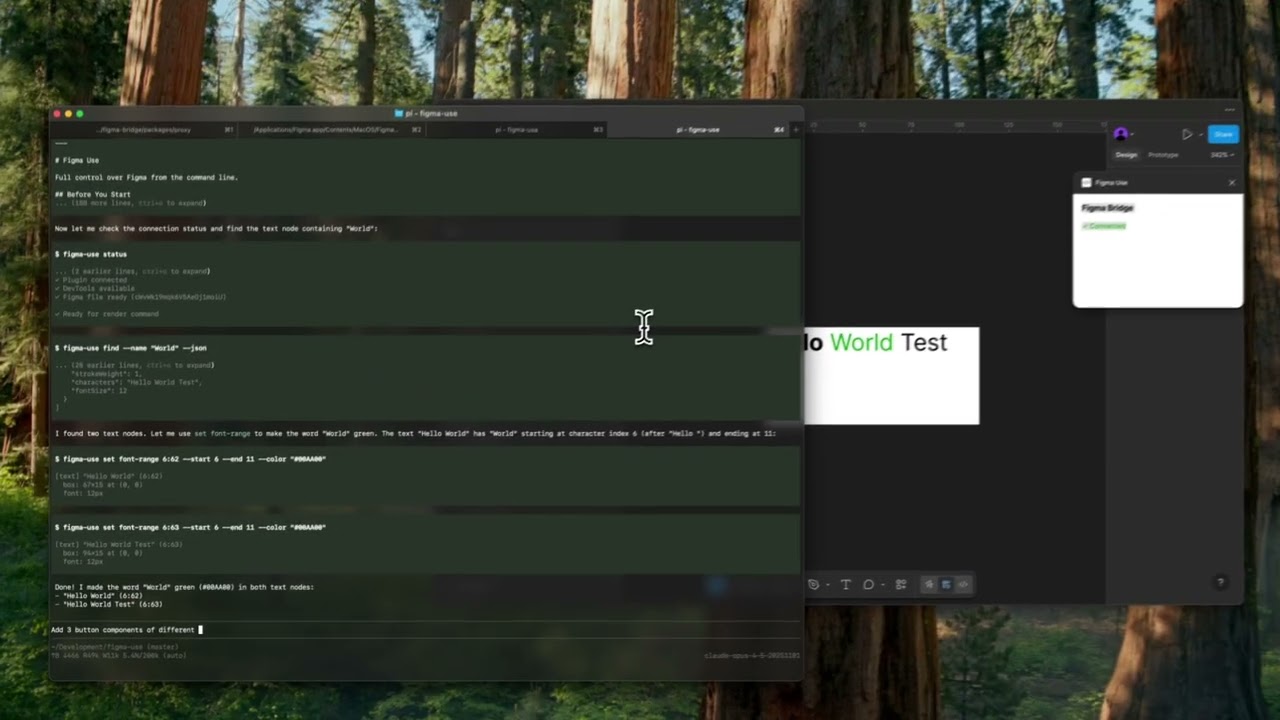
▶️ Button components
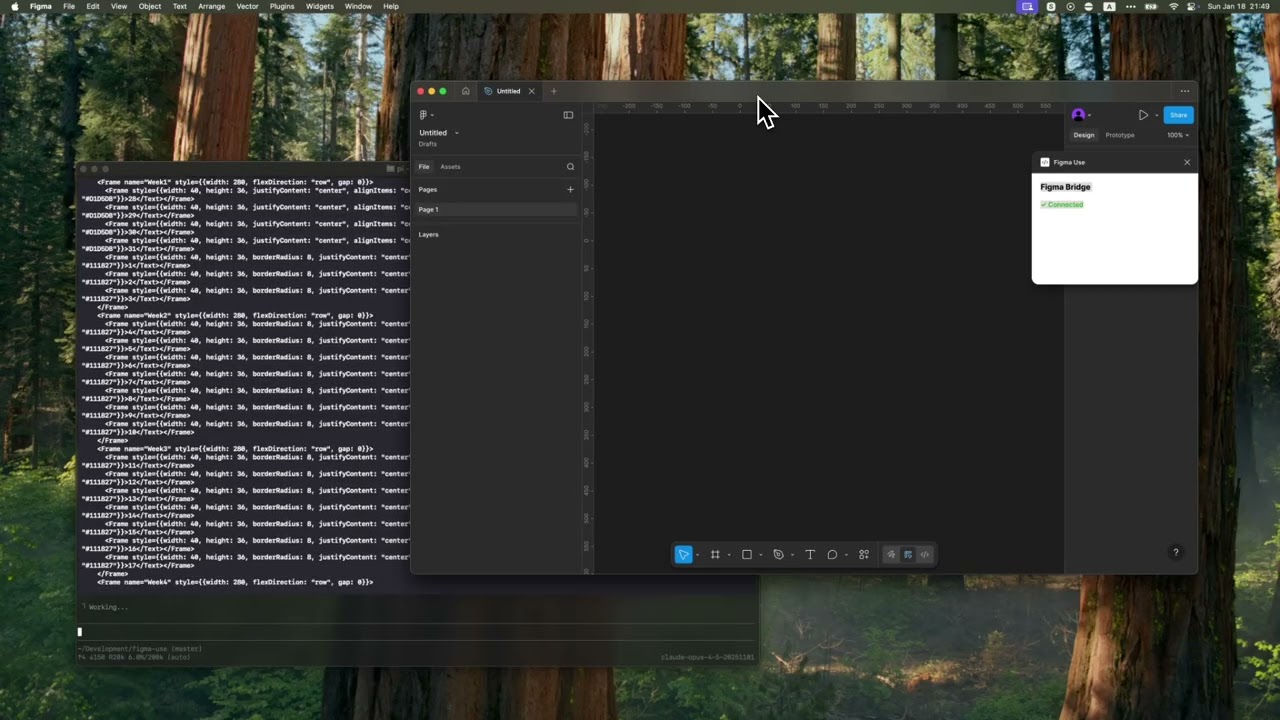
▶️ Tailwind UI calendar
## Installation
```bash
npm install -g figma-use
```
Or run directly without installing:
```bash
npx figma-use status
```
Start Figma with remote debugging enabled:
```bash
# macOS
open -a Figma --args --remote-debugging-port=9222
# Windows
"%LOCALAPPDATA%\Figma\Figma.exe" --remote-debugging-port=9222
# Linux
figma --remote-debugging-port=9222
```
Check connection:
```bash
figma-use status
```
That's it. No plugins to install.
## Two Modes
Imperative — one command at a time:
```bash
figma-use create frame --width 400 --height 300 --fill "#FFF" --radius 12 --layout VERTICAL --gap 16
```
Or declaratively — describe the structure in JSX and render it:
```bash
echo '
Card TitleDescription
' | figma-use render --stdin --x 100 --y 200
```
The stdin mode accepts pure JSX only — no variables, no logic. For components, variants, and conditions, use `.figma.tsx` files.
**Elements:** `Frame`, `Rectangle`, `Ellipse`, `Text`, `Line`, `Star`, `Polygon`, `Vector`, `Group`, `Icon`, `Image`
## Examples
### Icons
Insert any icon from Iconify by name. No downloading, no importing, no cleanup.
```bash
figma-use create icon mdi:home
figma-use create icon lucide:star --size 48 --color "#F59E0B"
```
In JSX:
```tsx
```
Browse 150k+ icons: [icon-sets.iconify.design](https://icon-sets.iconify.design/)
### Images
Load images from URL:
```tsx
```
### Export to JSX
Convert any Figma node back to JSX:
```bash
figma-use export jsx 123:456 --pretty
```
Output:
```tsx
import { Frame, Icon, Text } from 'figma-use/render'
export default function SaveButton() {
return (
Save
)
}
```
Match vector shapes to Iconify icons automatically:
```bash
npm install whaticon # Optional dependency
figma-use export jsx 123:456 --match-icons --prefer-icons lucide
```
Compare two nodes as JSX diff:
```bash
figma-use diff jsx 123:456 789:012
```
### Export to Storybook (Experimental)
Export components as Storybook stories:
```bash
figma-use export storybook --out ./stories
figma-use export storybook --out ./stories --match-icons --prefer-icons lucide
```
Generates `.stories.tsx` with typed props from component properties.
### Components
In a `.figma.tsx` file you can define components. First call creates the master, the rest create instances:
```tsx
import { defineComponent, Frame, Text } from 'figma-use/render'
const Card = defineComponent(
'Card',
Card
)
export default () => (
)
```
### Variants
ComponentSet with all combinations:
```tsx
import { defineComponentSet, Frame, Text } from 'figma-use/render'
const Button = defineComponentSet(
'Button',
{
variant: ['Primary', 'Secondary'] as const,
size: ['Small', 'Large'] as const
},
({ variant, size }) => (
{variant} {size}
)
)
export default () => (
)
```
This creates a real ComponentSet in Figma with all 4 variants, not just 4 separate buttons.
### Grid Layout
CSS Grid for 2D layouts — calendars, dashboards, galleries:
```tsx
```
Supports `px`, `fr`, and `auto`/`hug`. Separate gaps with `colGap` and `rowGap`.
In CLI:
```bash
figma-use set layout --mode GRID --cols "100px 1fr 100px" --rows "auto" --gap 16
```
### Variables as Tokens
Bind colors to Figma variables by name. The hex value is a fallback:
```tsx
import { defineVars, Frame, Text } from 'figma-use/render'
const colors = defineVars({
bg: { name: 'Colors/Gray/50', value: '#F8FAFC' },
text: { name: 'Colors/Gray/900', value: '#0F172A' }
})
export default () => (
Bound to variables
)
```
In CLI, use `var:Colors/Primary` or `$Colors/Primary` in any color option.
### Diffs
Compare two frames and get a patch:
```bash
figma-use diff create --from 123:456 --to 789:012
```
```diff
--- /Card/Header #123:457
+++ /Card/Header #789:013
@@ -1,5 +1,5 @@
type: FRAME
size: 200 50
pos: 0 0
-fill: #FFFFFF
+fill: #F0F0F0
-opacity: 0.8
+opacity: 1
```
Apply the patch to the original frame. On apply, current state is validated against expected — if they don't match, it fails.
Visual diff highlights changed pixels in red:
```bash
figma-use diff visual --from 49:275096 --to 49:280802 --output diff.png
```
| Before | After | Diff |
| --------------------------------- | ------------------------------- | ------------------------------- |
|  |  |  |
### Inspection
Page tree in readable form:
```
$ figma-use node tree
[0] frame "Card" (1:23)
400×300 at (0, 0) | fill: #FFFFFF | layout: col gap=16
[0] text "Title" (1:24)
"Hello World" | 24px Inter Bold
```
Export any node or screenshot with one command.
### Arrange
Tidy up canvas layout — especially useful after agents create multiple frames at the same position:
```bash
figma-use arrange # Grid-arrange all top-level nodes
figma-use arrange --mode row --gap 60 # Horizontal row
figma-use arrange --mode squarify --gap 60 # Smart packing for mixed sizes
```
Uses d3-hierarchy treemap for `squarify` and `binary` modes — size-aware rectangle packing.
### Vectors
Import SVG or work with paths directly — read, modify, translate, scale, flip:
```bash
figma-use path get
figma-use path set "M 0 0 L 100 100 Z"
figma-use path scale --factor 1.5
figma-use path flip --axis x
```
### Query
Find nodes using XPath selectors:
```bash
figma-use query "//FRAME" # All frames
figma-use query "//FRAME[@width < 300]" # Narrower than 300px
figma-use query "//COMPONENT[starts-with(@name, 'Button')]" # Name starts with
figma-use query "//FRAME[contains(@name, 'Card')]" # Name contains
figma-use query "//SECTION/FRAME" # Direct children
figma-use query "//SECTION//TEXT" # All descendants
figma-use query "//*[@cornerRadius > 0]" # Any node with radius
```
Full XPath 3.1 support — predicates, functions, arithmetic, axes.
### Analyze
Discovery tools for understanding design systems:
```bash
# Find repeated patterns (potential components)
figma-use analyze clusters
# Color palette — usage frequency, variables vs hardcoded
figma-use analyze colors
figma-use analyze colors --show-similar # Find colors to merge
# Typography — all font combinations
figma-use analyze typography
figma-use analyze typography --group-by size
# Spacing — gap/padding values, grid compliance
figma-use analyze spacing --grid 8
# Accessibility snapshot — extract interactive elements tree
figma-use analyze snapshot # Full page
figma-use analyze snapshot -i # Interactive elements only
```
Example output:
```
[0] 48× frame "Header" pattern (100% match)
1280×56 | Frame > [Frame×2, Text]
examples: 53171:21628, 53171:21704
#303030 ████████████████████ 1840× (var)
#E5E5E5 ████████████████████ 1726× (var)
#000000 ████████ 238×
```
### Lint (Experimental)
Check designs for consistency, accessibility, and best practices:
```bash
figma-use lint # Recommended rules
figma-use lint --page "Components" # Lint specific page
figma-use lint --preset strict # Stricter for production
figma-use lint --preset accessibility # A11y checks only
figma-use lint -v # With fix suggestions
```
Output:
```
✖ Header/Title (1:234)
✖ Contrast ratio 2.1:1 is below AA threshold (4.5:1) color-contrast
⚠ Touch target 32x32 is below minimum 44x44 touch-target-size
⚠ Card/Body (1:567)
⚠ Hardcoded fill color #1A1A1A no-hardcoded-colors
ℹ Frame with 3 children doesn't use Auto Layout prefer-auto-layout
────────────────────────────────────────────────────────────────
✖ 1 error ⚠ 3 warnings ℹ 1 info
```
**17 rules** across 6 categories:
| Category | Rules |
| ------------- | ------------------------------------------------------------------------------------------ |
| Design Tokens | `no-hardcoded-colors`, `consistent-spacing`, `consistent-radius`, `effect-style-required` |
| Layout | `prefer-auto-layout`, `pixel-perfect` |
| Typography | `text-style-required`, `min-text-size`, `no-mixed-styles` |
| Accessibility | `color-contrast`, `touch-target-size` |
| Structure | `no-default-names`, `no-hidden-layers`, `no-deeply-nested`, `no-empty-frames`, `no-groups` |
| Components | `no-detached-instances` |
JSON output for CI/CD:
```bash
figma-use lint --json > report.json
```
### Comment-Driven Workflow (Experimental)
AI agents can wait for Figma comments and respond:
```bash
figma-use comment watch --json # Blocks until new comment
figma-use comment resolve # Mark as done
```
Returns comment text, author, and `target_node` — the exact element under the comment pin. Agent processes the request, resolves the comment, then runs `watch` again for the next one.
## Full Command Reference
See [REFERENCE.md](./REFERENCE.md) for the complete list of 100+ commands.
## MCP Server
For AI agents that support Model Context Protocol:
```bash
figma-use mcp serve
```
Exposes 90+ tools. See [MCP.md](./MCP.md) for setup.
## Configuration
For Storybook export and linting, create a config file:
```bash
figma-use init
```
Creates `.figma-use.json`:
```json
{
"storybook": {
"page": "Components",
"out": "./stories",
"matchIcons": true,
"preferIcons": ["lucide", "tabler"]
},
"lint": {
"preset": "recommended"
},
"format": {
"pretty": true,
"semi": false,
"singleQuote": true
}
}
```
CLI arguments override config values.
## For AI Agents
Includes [SKILL.md](./SKILL.md) — a reference for Claude Code, Cursor, and other agents.
## How It Works
```
┌─────────────┐ ┌─────────────┐
│ Terminal │────CDP────▶│ Figma │
│ figma-use │ port 9222 │ │
└─────────────┘ └─────────────┘
```
figma-use communicates directly with Figma via Chrome DevTools Protocol (CDP). Just start Figma with `--remote-debugging-port=9222` and you're ready.
> **Non-default port?** Pass `--port ` to any command, or set the `FIGMA_PORT` env var:
> ```bash
> open -a Figma --args --remote-debugging-port=9333
> figma-use get components --port 9333
> # or
> FIGMA_PORT=9333 figma-use get components
> ```
Commands are executed via `Runtime.evaluate` in Figma's JavaScript context, with full access to the Plugin API.
### Daemon
Optional daemon keeps the CDP connection warm for faster sequential commands:
```bash
figma-use daemon start # Background daemon (~25% faster commands)
figma-use daemon stop # Stop daemon
figma-use daemon status # Check if running
```
### Pipe Transport
For Figma 126+ without admin access to patch, the daemon can launch Figma with `--remote-debugging-pipe` instead:
```bash
figma-use daemon start --pipe # Launches Figma, connects via stdio pipes
```
Set `FIGMA_BIN` for custom binary locations. The daemon holds the pipe connection — all commands route through it automatically.
## License
MIT