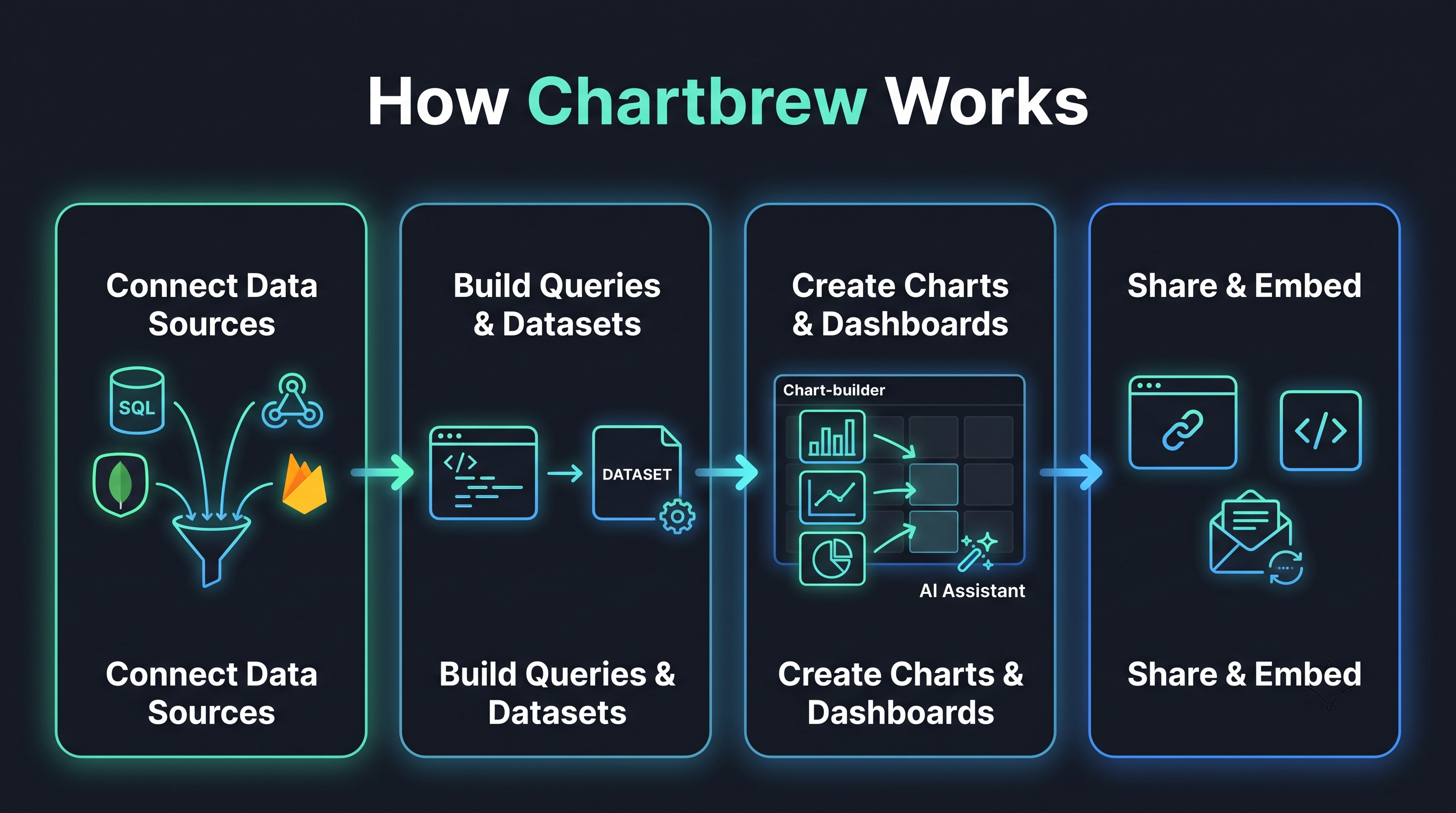
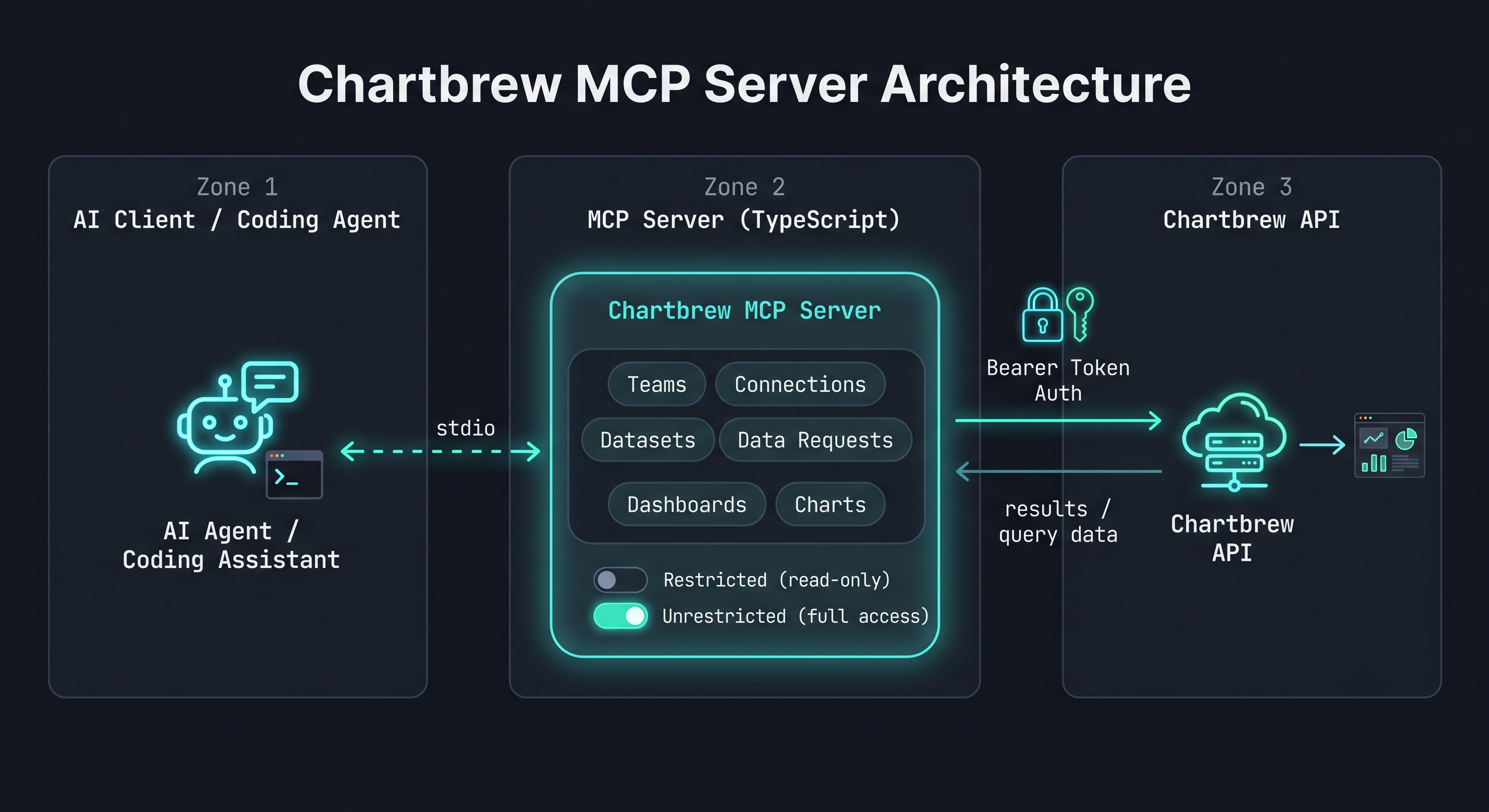
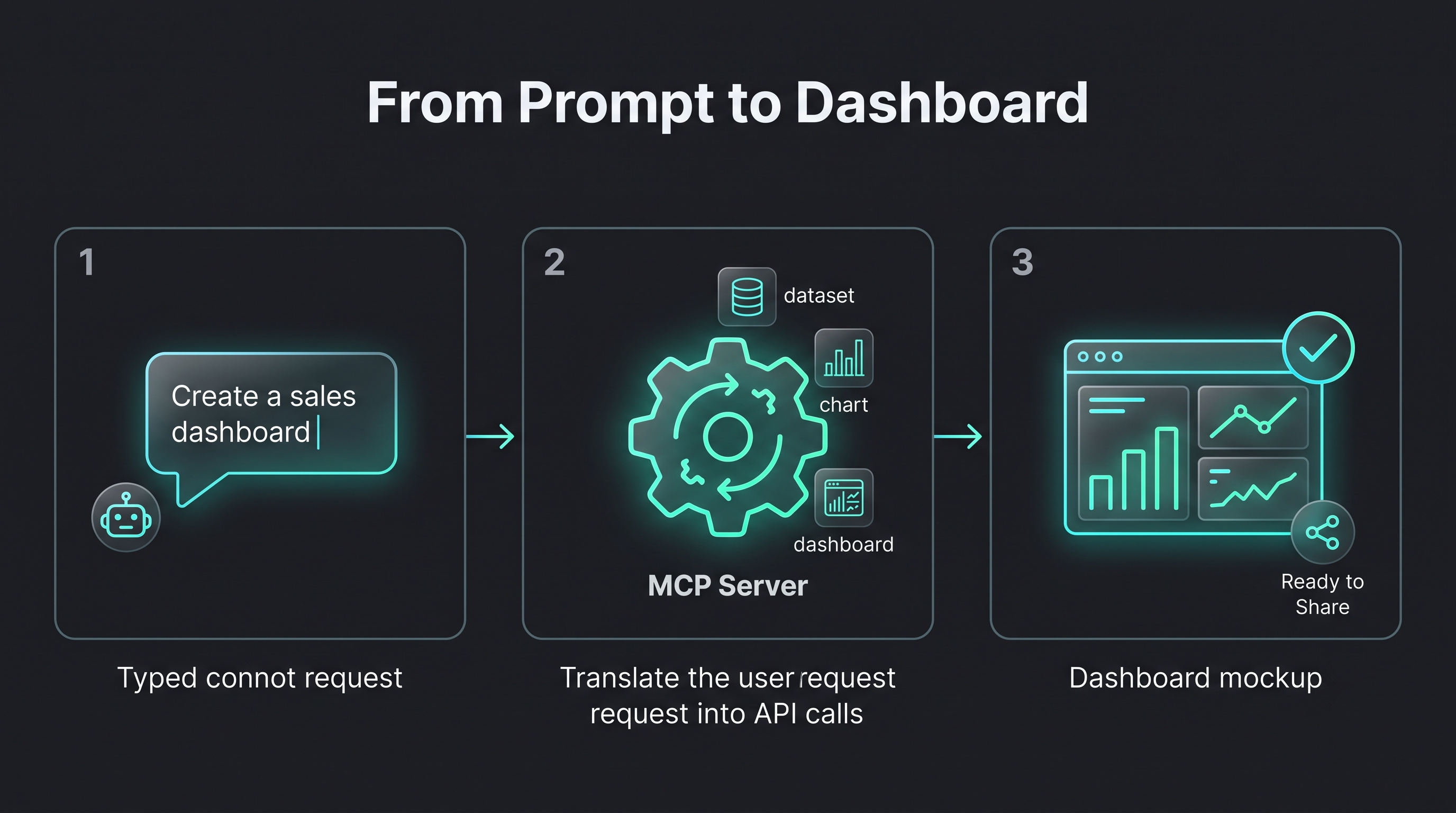
The Chartbrew MCP server exposes Chartbrew's documented API to AI coding agents and MCP-compatible clients — letting them list and inspect teams, connections, datasets, dashboards, and charts, run live queries, fetch data, manage share policies/tokens for secure embedding, and create or update resources, all through natural language.
# Chartbrew MCP Server
TypeScript MCP server built on the official MCP SDK for documented Chartbrew API endpoints.
## Showcase
Chartbrew MCP in action — managing analytics resources through natural language.
## Prerequisites
- **Node.js** and **npm** installed (used to install dependencies and build the server).
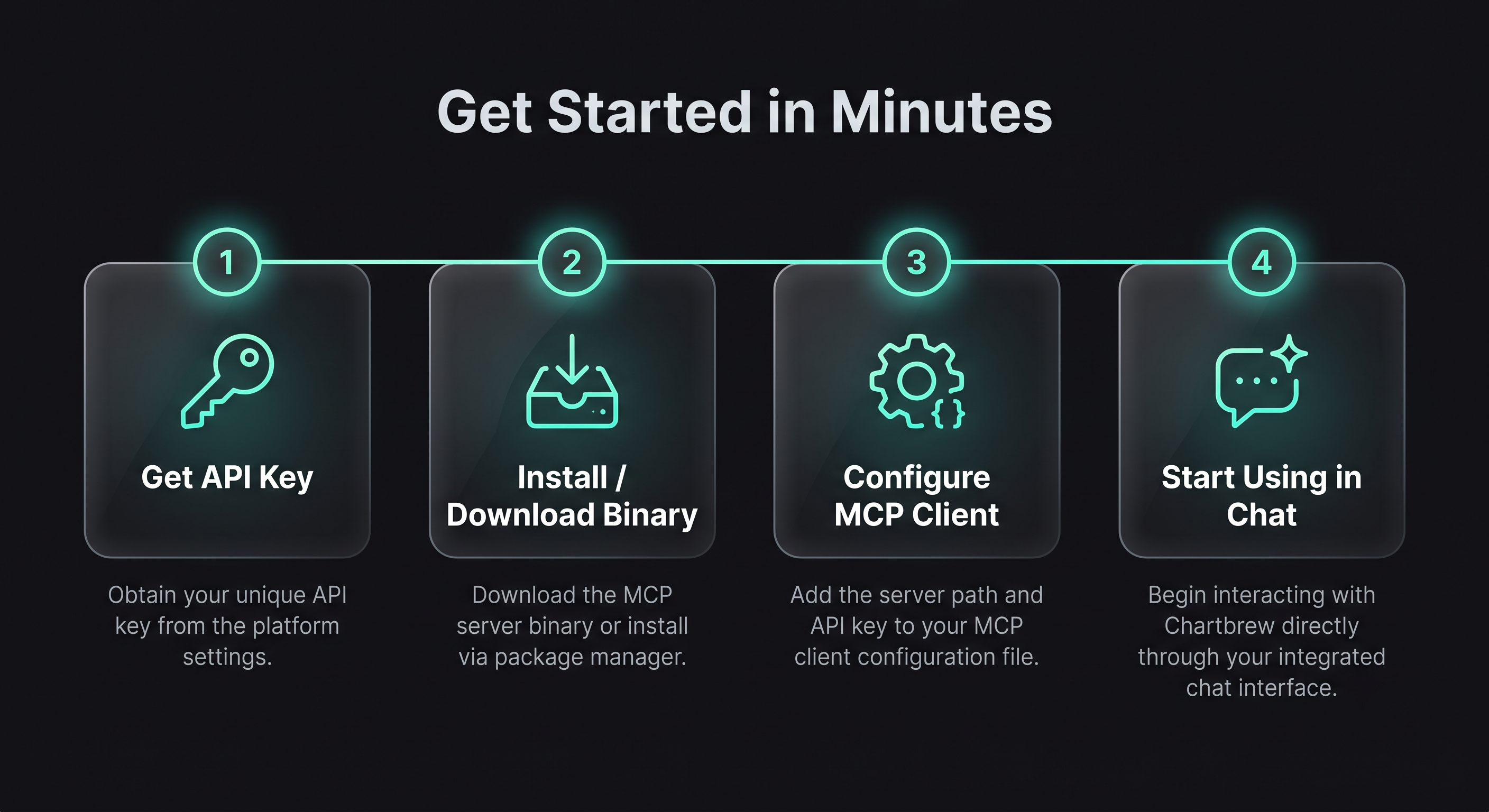
- A **Chartbrew API key** — create one in your Chartbrew account (cloud or self-hosted). See [How to create API keys in Chartbrew](https://chartbrew.com/blog/how-to-create-api-keys-in-chartbrew).
- For a self-hosted Chartbrew instance, the API base URL of that instance (default `http://localhost:4019`).
- An **MCP-compatible client** to host the server (e.g. Claude Code, Claude Desktop, Cursor, VS Code, Codex, GitHub Copilot, OpenCode, Kimi Code).
## Scope
This server only implements operations documented in the official [Chartbrew API](https://docs.chartbrew.com/api-reference/introduction) reference and avoids undocumented behavior.
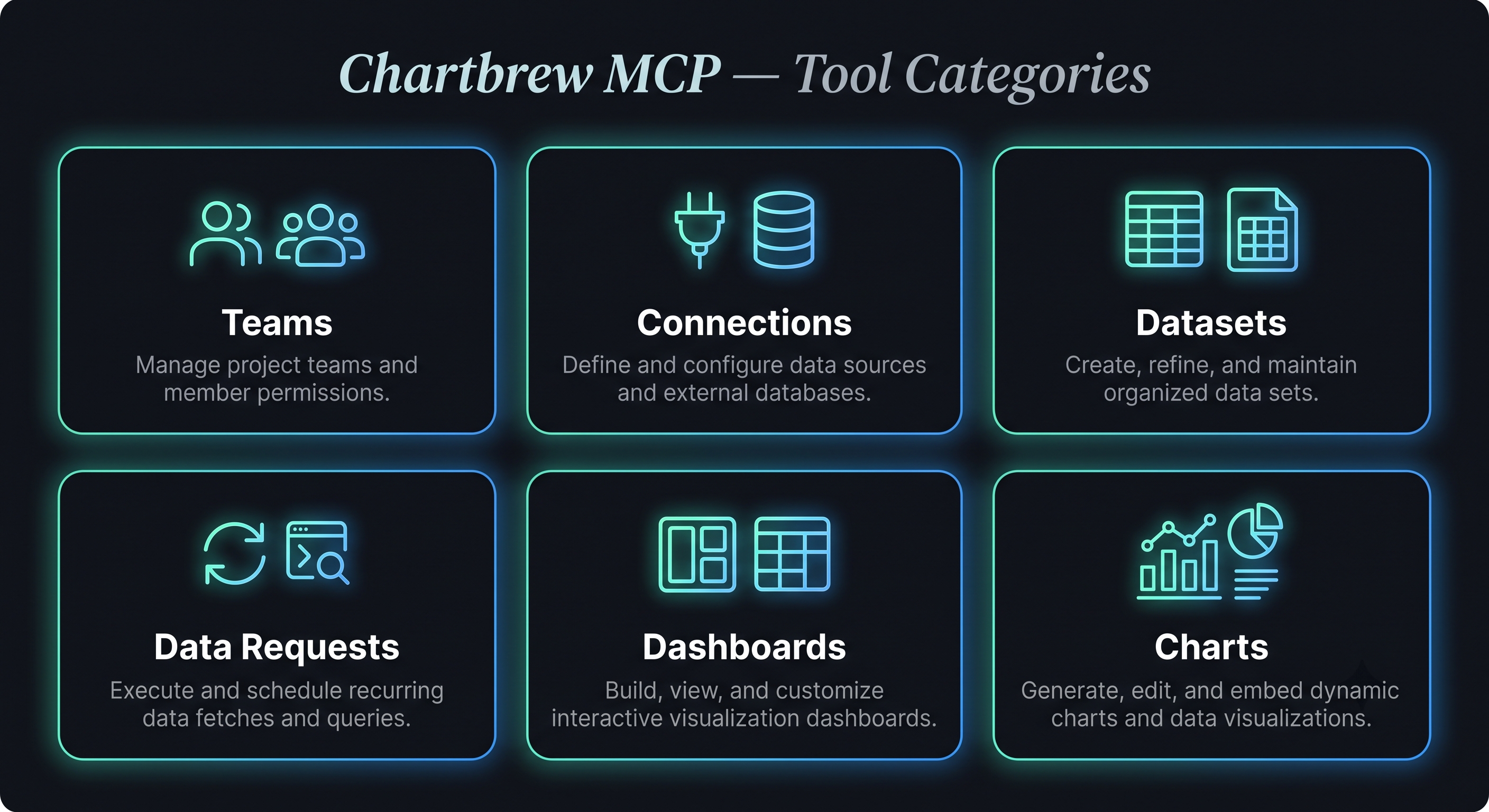
Implemented resources:
- Teams: list, get
- Connections: list, get, test, create, update, delete
- Datasets: list, get, fetch data, create, update, delete
- Data Requests: list, run
- Dashboards (projects): list, get, create, update, delete
- Charts: get, create, query, delete
Not implemented in this version:
- Variable binding create/update endpoints
These can be added later if needed.
## Authentication
Chartbrew API docs specify Bearer token authentication.
Required header used by this server:
- Authorization: Bearer
## Configuration Options
| Variable | Description | Required |
| ------------------------------ | ---------------------------------------------------------------------------------------------------------------------------------------------------------------------------------- | ----------------------------------------- |
| `CHARTBREW_API_KEY` | Chartbrew API key used for Bearer token authentication | Yes |
| `CHARTBREW_API_BASE_URL` | API base URL. Use `https://api.chartbrew.com` for an official Chartbrew cloud account, or your self-hosted URL (default `http://localhost:4019`; change the port if yours differs) | No (default: `https://api.chartbrew.com`) |
| `CHARTBREW_REQUEST_TIMEOUT_MS` | Request timeout in milliseconds to prevent hanging requests | No (default: `30000`) |
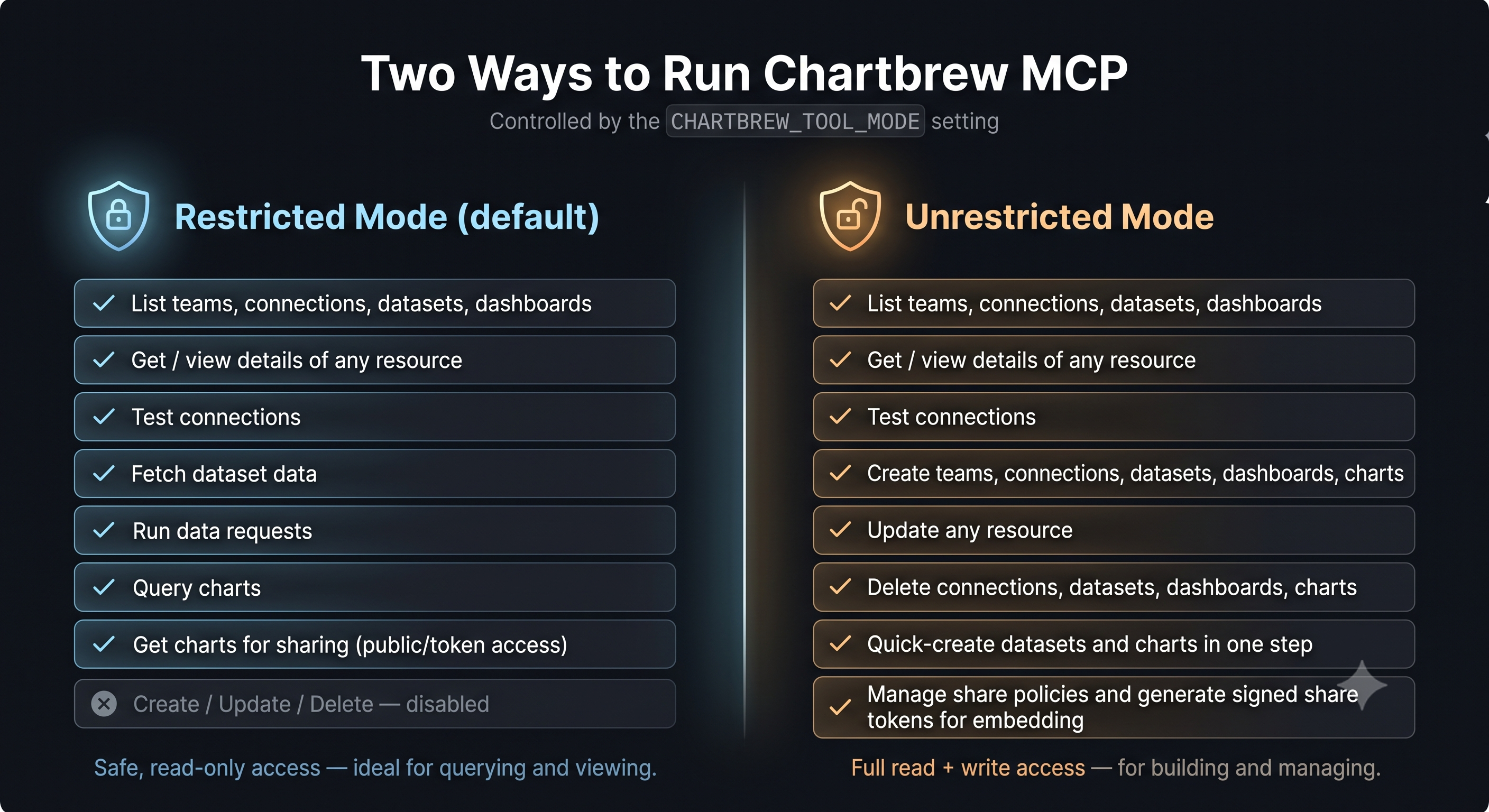
| `CHARTBREW_TOOL_MODE` | Tool exposure mode. Allowed values: `restricted`, `unrestricted`. If unset or set to any value other than `unrestricted`, the server runs in `restricted` mode | No (default: `restricted`) |
Tool mode behavior:
- unrestricted: all implemented tools are available.
- restricted: only data-retrieval/query tools are available (list/get/fetch/query/run/test). Create/update/delete tools are disabled.
You can provide these values in either of two ways (pick one):
- **`.env` file in this `mcp` folder** — copy `.env-template` to `.env` and fill in the values. The server auto-loads it on startup.
- **The `env` block of your coding agent's MCP config** — set the variables directly in the `env` object of the server entry (e.g. `.mcp.json` for Claude Code, or the equivalent MCP config for Codex, GitHub Copilot, OpenCode, Kimi Code, etc.). Use this when you don't want a local `.env` file.
## Install
1. Change directory to `mcp`.
2. Install dependencies:
```bash
npm install
```
3. Build:
```bash
npm run build
```
4. Run
```bash
npm start
```
The server uses stdio transport and is intended to be launched by an MCP client host.
## Standalone binary (no Node.js required)
Prefer not to install Node.js? Download a prebuilt binary from the [Releases](https://github.com/dhavanikgithub/chartbrew-mcp/releases) page and run it directly. Binaries are provided for:
| OS | x64 (Intel/AMD) | arm64 (Apple Silicon / ARM) |
| ------- | ----------------------------- | ----------------------------- |
| Windows | `chartbrew-mcp-windows-x64.exe` | `chartbrew-mcp-windows-arm64.exe` |
| Linux | `chartbrew-mcp-linux-x64` | `chartbrew-mcp-linux-arm64` |
| macOS | `chartbrew-mcp-darwin-x64` | `chartbrew-mcp-darwin-arm64` |
**Setup:**
Releases include both raw binaries and compressed archives (`.zip` for Windows, `.tar.gz` for Linux/macOS) — grab the archive for a smaller download, then extract it.
- **Windows:** download `chartbrew-mcp-windows-x64.zip` (or `arm64`), extract, run the `.exe`.
- **macOS / Linux:** download e.g. `chartbrew-mcp-darwin-arm64.tar.gz`, extract, then make it executable once: `chmod +x chartbrew-mcp-darwin-arm64`
- **macOS Gatekeeper:** if macOS blocks the unsigned binary, remove the quarantine attribute: `xattr -d com.apple.quarantine chartbrew-mcp-darwin-arm64`
You do **not** need a `.env` file — set configuration through your MCP client's `env` block (or the OS environment). Example for Claude Desktop / Claude Code (`.mcp.json` or `claude_desktop_config.json`):
```json
{
"mcpServers": {
"chartbrew": {
"command": "/absolute/path/to/chartbrew-mcp-darwin-arm64",
"env": {
"CHARTBREW_API_KEY": "your-api-key",
"CHARTBREW_API_BASE_URL": "https://api.chartbrew.com",
"CHARTBREW_TOOL_MODE": "restricted"
}
}
}
}
```
### Build the binaries yourself
From a checkout, install [Bun](https://bun.sh) (the compiler), then:
```bash
npm install
npm run build:bin # writes binaries to dist-bin/
```
Full setup, Bun install commands, and the Windows cross-compile caveat are in [CONTRIBUTING.md](./CONTRIBUTING.md#building-standalone-binaries).
## Add to an MCP client
After `npm install` and `npm run build`, register the server with your MCP host. The server runs over stdio via `node dist/index.js`. Replace `` with the absolute path to this `mcp` directory and set your API key.
### Claude Code CLI (`claude mcp add`)
If you use Claude Code, you can register the server directly from the terminal instead of editing a config file:
```bash
claude mcp add chartbrew \
-e CHARTBREW_API_KEY=your-api-key \
-e CHARTBREW_API_BASE_URL=https://api.chartbrew.com \
-e CHARTBREW_TOOL_MODE=restricted \
-- node /dist/index.js
```
- Use `http://localhost:4019` for `CHARTBREW_API_BASE_URL` on a self-hosted instance (change the port if yours differs).
- Add `-s user` (or `-s project`) to control the scope the server is registered in.
- Verify with `claude mcp list`; remove with `claude mcp remove chartbrew`.
### Claude Desktop / Claude Code (`claude_desktop_config.json` or `.mcp.json`)
```json
{
"mcpServers": {
"chartbrew": {
"command": "node",
"args": ["/dist/index.js"],
"env": {
"CHARTBREW_API_KEY": "your-api-key",
"CHARTBREW_API_BASE_URL": "https://api.chartbrew.com",
"CHARTBREW_TOOL_MODE": "unrestricted"
}
}
}
}
```
### Cursor / VS Code (settings UI → MCP servers)
```json
{
"mcpServers": {
"chartbrew": {
"command": "node",
"args": ["/dist/index.js"],
"env": {
"CHARTBREW_API_KEY": "your-api-key"
}
}
}
}
```
> **API base URL:** use `https://api.chartbrew.com` for an official Chartbrew cloud account. For a self-hosted instance use your local URL — default `http://localhost:4019` (change the port if yours differs).
Notes:
- `CHARTBREW_API_KEY` is required. See [How to create API keys in Chartbrew](https://chartbrew.com/blog/how-to-create-api-keys-in-chartbrew).
- The MCP host launches the server; it does not need to be run manually.
- The default tool mode is `restricted` (read/query only). Set `CHARTBREW_TOOL_MODE: "unrestricted"` to also enable create/update/delete tools.
- Alternatively, set the env vars in a `.env` file in the `mcp` directory and omit the `env` block.
## Available Tools
| Tool | Category | Description |
| ------------------------------------------- | ------------- | -------------------------------------------------------------------------------------------------------- |
| `chartbrew_teams_list` | Teams | List teams available to the authenticated API key |
| `chartbrew_teams_get` | Teams | Get details for one team by `team_id` |
| `chartbrew_teams_create` | Teams | Create a new team; owner is derived from the authenticated API key |
| `chartbrew_teams_update` | Teams | Update an existing team by `team_id` |
| `chartbrew_connection_providers_list` | Connections | List all supported connection providers |
| `chartbrew_connections_schema_get` | Connections | Get the schema structure for a specific connection |
| `chartbrew_connections_list` | Connections | List all connections in a team |
| `chartbrew_connections_get` | Connections | Get one connection by `connection_id` |
| `chartbrew_connections_test` | Connections | Run the Chartbrew connection test for a team connection |
| `chartbrew_connections_create` | Connections | Create a new connection in a team |
| `chartbrew_connections_update` | Connections | Update an existing connection |
| `chartbrew_connections_update_files` | Connections | Upload SSL CA/cert/key files (base64) for a connection via multipart — for PostgreSQL/MySQL SSL/TLS auth |
| `chartbrew_connections_delete` | Connections | Delete a connection; optionally remove linked datasets |
| `chartbrew_datasets_list` | Datasets | List datasets for a team |
| `chartbrew_datasets_get` | Datasets | Get one dataset by `dataset_id` |
| `chartbrew_datasets_fetch_data` | Datasets | Run a dataset request and return the dataset data |
| `chartbrew_datasets_create` | Datasets | Create a new dataset in a team |
| `chartbrew_datasets_quick_create` | Datasets | Create a dataset and all its data requests in a single call |
| `chartbrew_datasets_update` | Datasets | Update an existing dataset by `dataset_id` |
| `chartbrew_datasets_delete` | Datasets | Delete a dataset |
| `chartbrew_data_requests_list` | Data Requests | List data requests for a dataset |
| `chartbrew_data_requests_run` | Data Requests | Execute one dataset data request |
| `chartbrew_dashboards_list` | Dashboards | List dashboards for a team |
| `chartbrew_dashboards_get` | Dashboards | Get dashboard details by `project_id` |
| `chartbrew_dashboards_create` | Dashboards | Create a new dashboard (Project); private by default |
| `chartbrew_dashboards_update` | Dashboards | Update an existing dashboard by `project_id` |
| `chartbrew_dashboards_delete` | Dashboards | Delete a dashboard by `project_id` |
| `chartbrew_dashboards_create_share_policy` | Dashboards | Create a share policy for secure sharing via signed URLs |
| `chartbrew_dashboards_update_share_policy` | Dashboards | Update a dashboard share policy (params, `allow_params`, expiration) |
| `chartbrew_dashboards_delete_share_policy` | Dashboards | Delete a share policy for a dashboard |
| `chartbrew_dashboards_generate_share_token` | Dashboards | Generate a signed JWT for secure dashboard embedding |
| `chartbrew_charts_get` | Charts | Get a chart by `project_id` and `chart_id` |
| `chartbrew_charts_create` | Charts | Create a chart inside a dashboard project |
| `chartbrew_charts_quick_create` | Charts | Create a chart and its chart dataset configurations in a single call |
| `chartbrew_chart_dataset_configs_create` | Charts | Attach a dataset to a chart via `ChartDatasetConfig` |
| `chartbrew_chart_dataset_configs_update` | Charts | Update an existing `ChartDatasetConfig` by `cdc_id` |
| `chartbrew_chart_dataset_configs_delete` | Charts | Delete a `ChartDatasetConfig` by `cdc_id` |
| `chartbrew_charts_query` | Charts | Run the chart query endpoint and return result data |
| `chartbrew_charts_delete` | Charts | Delete a chart by `project_id` and `chart_id` |
| `chartbrew_charts_create_share_policy` | Charts | Create a share policy for a chart for secure embedding |
| `chartbrew_charts_update_share_policy` | Charts | Update a chart share policy (params, `allow_params`, expiration) |
| `chartbrew_charts_delete_share_policy` | Charts | Delete a share policy for a chart |
| `chartbrew_charts_generate_share_token` | Charts | Generate a signed JWT for secure chart embedding |
| `chartbrew_charts_get_for_sharing` | Charts | Retrieve a chart for embedding via public access or SharePolicy token |
## Known documentation limitations reflected in implementation
- ID types are inconsistent in docs (number vs string), so tool inputs accept strings.
- Some create/update payload required fields are not consistently documented, so payload is typed as flexible object.
- Dataset fetch filters query-object encoding is undocumented; this server sends object values as JSON strings.
- Error response schemas vary by endpoint; parser handles both error and message fields when available.