# Rasptele
Rasptele is a private Telegram control plane for monitoring and managing a Raspberry Pi Docker server without exposing an inbound port.
[](https://github.com/maddhruv/rasptele/actions/workflows/ci.yml)
[](LICENSE)
[](https://www.python.org/)
Rasptele gives one trusted Telegram account a narrow interface to host health, Docker containers, and Pi-hole v6. It runs as three containers, keeps the Docker socket isolated in an allowlisted guard service, and delivers alerts through outbound Telegram long polling.
## What Rasptele does
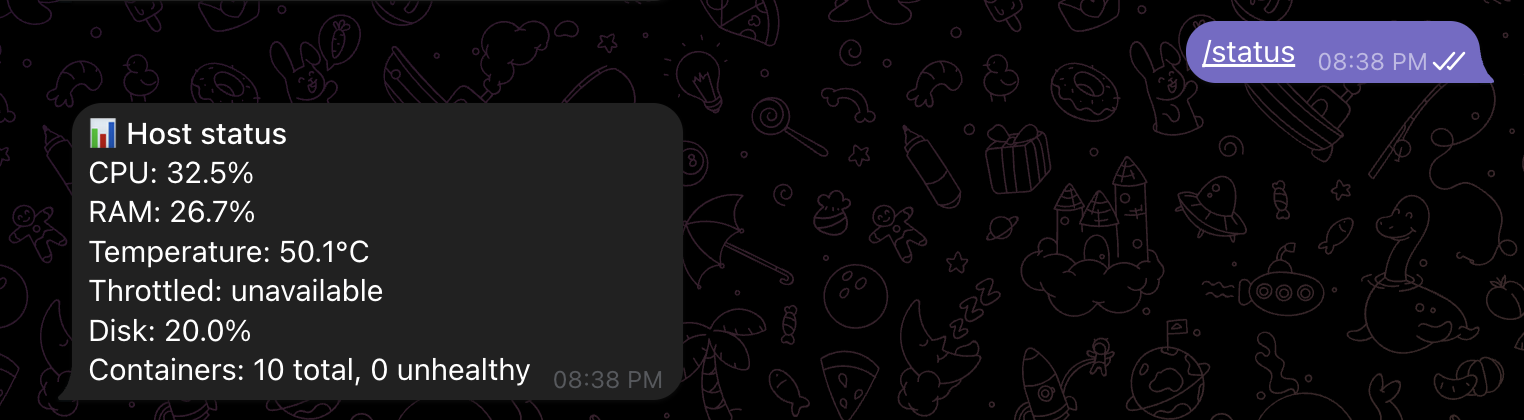
- Reports CPU, memory, disk, temperature, throttling, and container health with `/status`.
- Lists Docker containers and restarts only explicitly allowlisted names after confirmation.
- Reports Pi-hole v6 statistics and can temporarily disable or immediately restore blocking.
- Sends stateful alerts for host, container, Docker guard, watchdog, and Pi-hole failures.
- Retries unsent Telegram notifications from a durable SQLite outbox.
- Records recent incidents and actions for `/audit`.
- Restricts commands and confirmations to one numeric Telegram user ID in a private chat.
qBittorrent, Jellyfin, Coolify API, and OpenWrt integrations are not implemented.
## Quick start
You need:
- A 64-bit Raspberry Pi with Docker Engine and the Docker Compose plugin.
- A Telegram account.
- Outbound access from the Raspberry Pi to Telegram and GitHub Container Registry.
### 1. Create your Telegram bot
1. Open [`@BotFather`](https://t.me/BotFather) in Telegram.
2. Send `/newbot` and follow the prompts.
3. Save the bot token. Treat it like a password.
4. Open your new bot and send it any message.
### 2. Find your Telegram user ID
1. Open [`@userinfobot`](https://telegram.me/userinfobot) in Telegram.
2. Select **Start**.
3. Copy the positive number shown next to `Id`. This is your `TELEGRAM_ALLOWED_USER_ID`.
### 3. Download an exact release
Wait for the [v0.3.0 release workflow](https://github.com/maddhruv/rasptele/actions/workflows/release.yml) to pass, then run:
```bash
git clone --branch v0.3.0 --depth 1 https://github.com/maddhruv/rasptele.git
cd rasptele
cp .env.example .env
chmod 600 .env
```
Using an exact release tag keeps the Compose definition and container image on the same version.
### 4. Add the required credentials
Open `.env` and set these two values:
```dotenv
TELEGRAM_BOT_TOKEN=
TELEGRAM_ALLOWED_USER_ID=
```
Leave the remaining variables at their defaults for your first deployment. You do not need to create a YAML configuration file.
### 5. Start Rasptele
```bash
docker compose config --quiet
docker compose pull
docker compose up -d
docker compose ps
```
The stack starts `rasptele`, `docker-guard`, and `rasptele-watchdog`. It publishes no host ports. Send `/start`, then `/status`, to your bot in a private Telegram chat.
## Add Pi-hole v6
Pi-hole support is optional. Set both variables in `.env`, or in your platform's environment-variable editor:
```dotenv
PIHOLE_URL=http://192.168.68.110:8081
PIHOLE_PASSWORD=
```
Use the Pi-hole base URL, including its port when needed. Do not include `/admin` or `/api`. `PIHOLE_PASSWORD` is your Pi-hole v6 web or application password.
Apply the change:
```bash
docker compose up -d
```
Send `/pihole` to view live statistics, disable blocking for five minutes, or restore blocking immediately.
## See Rasptele in Telegram
### `/status` shows host and container health
### `/pihole` shows Pi-hole statistics and controls
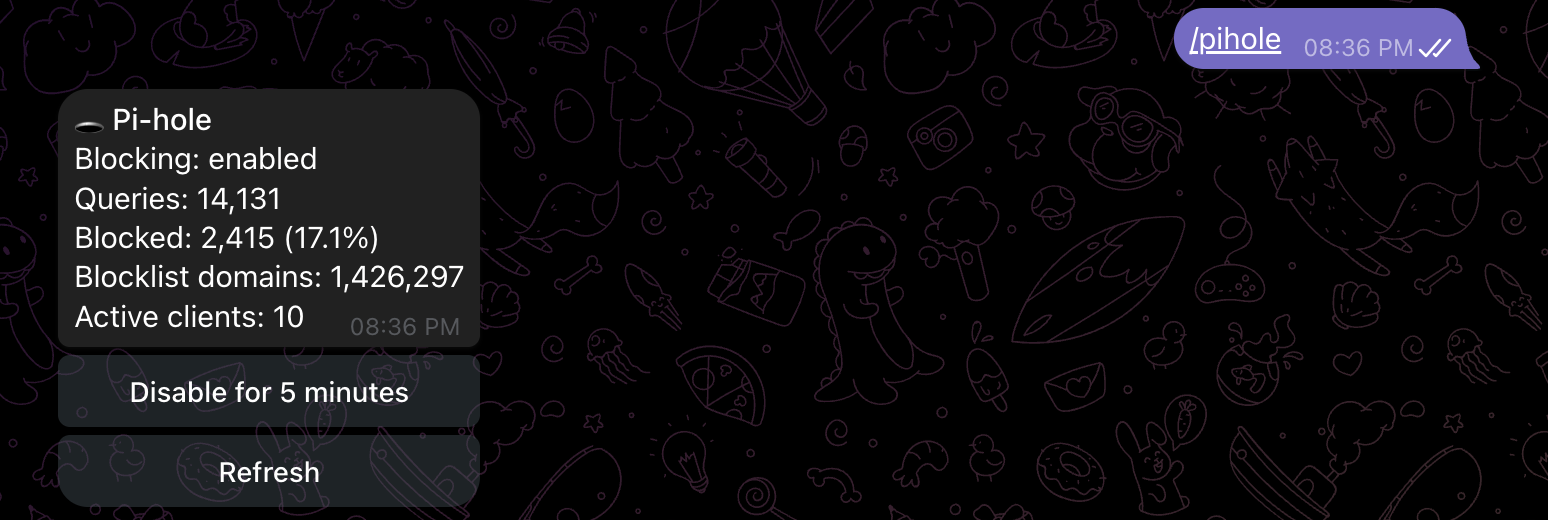
## Choose a deployment method
| Method | Image source | Guide |
| --- | --- | --- |
| Docker Compose | Released image from canonical Compose | [Deploy with Docker Compose](docs/deployment.md#deploy-with-docker-compose) |
| Coolify | Public Git repository at an exact release tag | [Deploy with Coolify](docs/deployment.md#deploy-with-coolify) |
| Portainer | Released canonical Compose | [Deploy with Portainer](docs/deployment.md#deploy-with-portainer) |
## Documentation
- [Deploy your first Rasptele bot](docs/getting-started.md) — newcomer tutorial
- [Deploy and update Rasptele](docs/deployment.md) — deployment how-to guides
- [Configure Rasptele](docs/configuration.md) — configuration reference
- [Operate and troubleshoot Rasptele](docs/operations.md) — operational how-to guides
- [Release Rasptele](docs/releasing.md) — maintainer release process
## Security
Rasptele operates close to the Docker host. The bot has no Docker socket mount; only `docker-guard` holds the socket, and it exposes a small allowlisted API inside the Compose network. Host filesystem mounts are read-only, but they still expose sensitive metadata to the bot container.
Keep the stack on a dedicated, trusted Raspberry Pi. Never publish its internal services. Read the [security policy](SECURITY.md) before deployment and use private vulnerability reporting for suspected security issues.
## Contributing and support
Read [CONTRIBUTING.md](CONTRIBUTING.md) before opening a pull request. Use [SUPPORT.md](SUPPORT.md) to choose the right support channel, and follow the [Code of Conduct](CODE_OF_CONDUCT.md) in all project spaces.
User-visible changes are recorded in [CHANGELOG.md](CHANGELOG.md).
## License
Rasptele is licensed under the [Apache License 2.0](LICENSE).