
# Dopamine
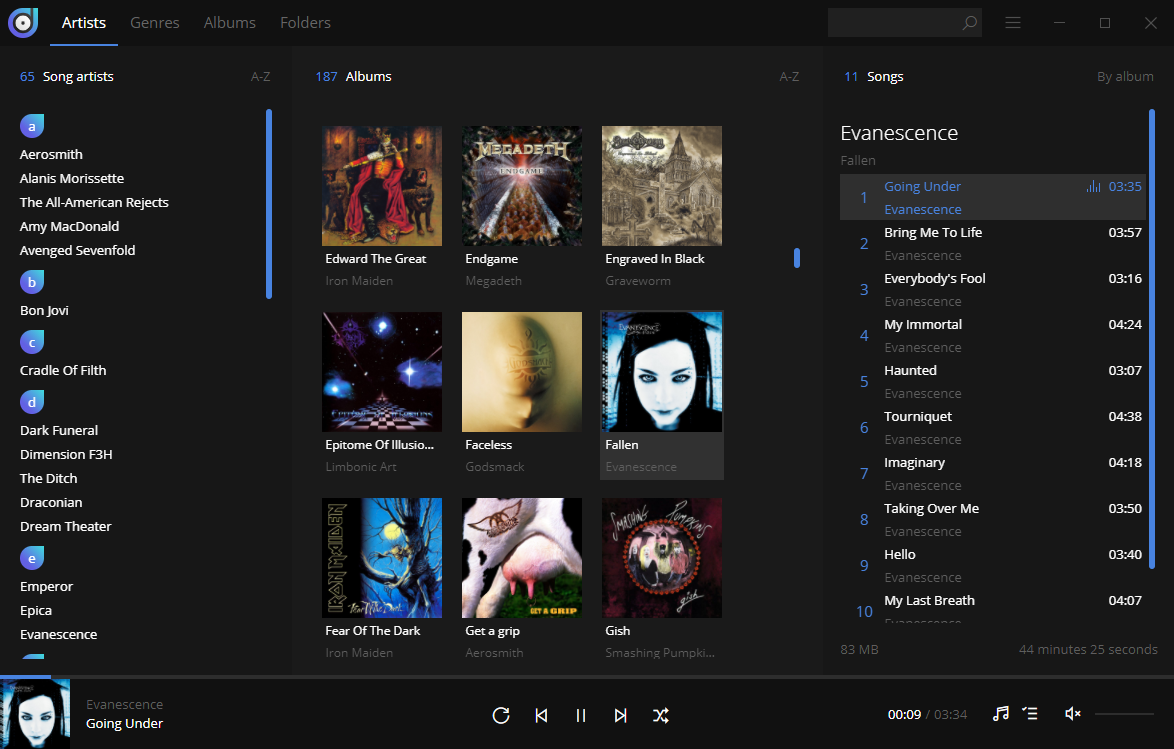
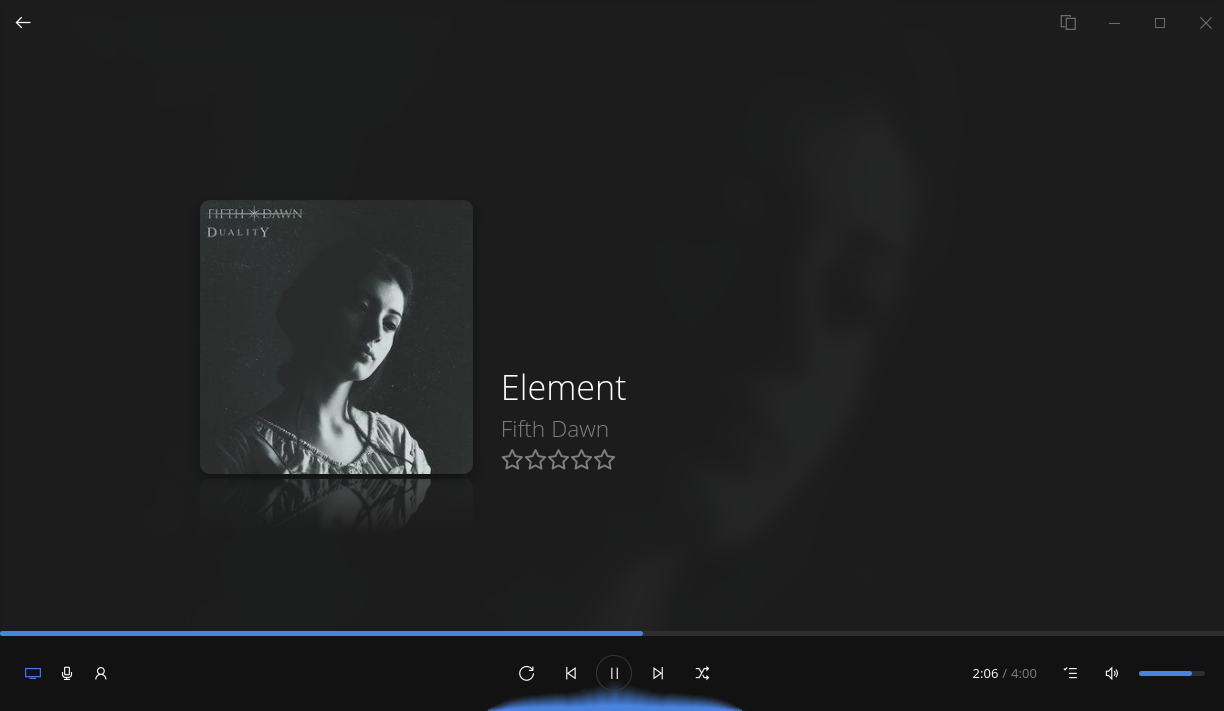
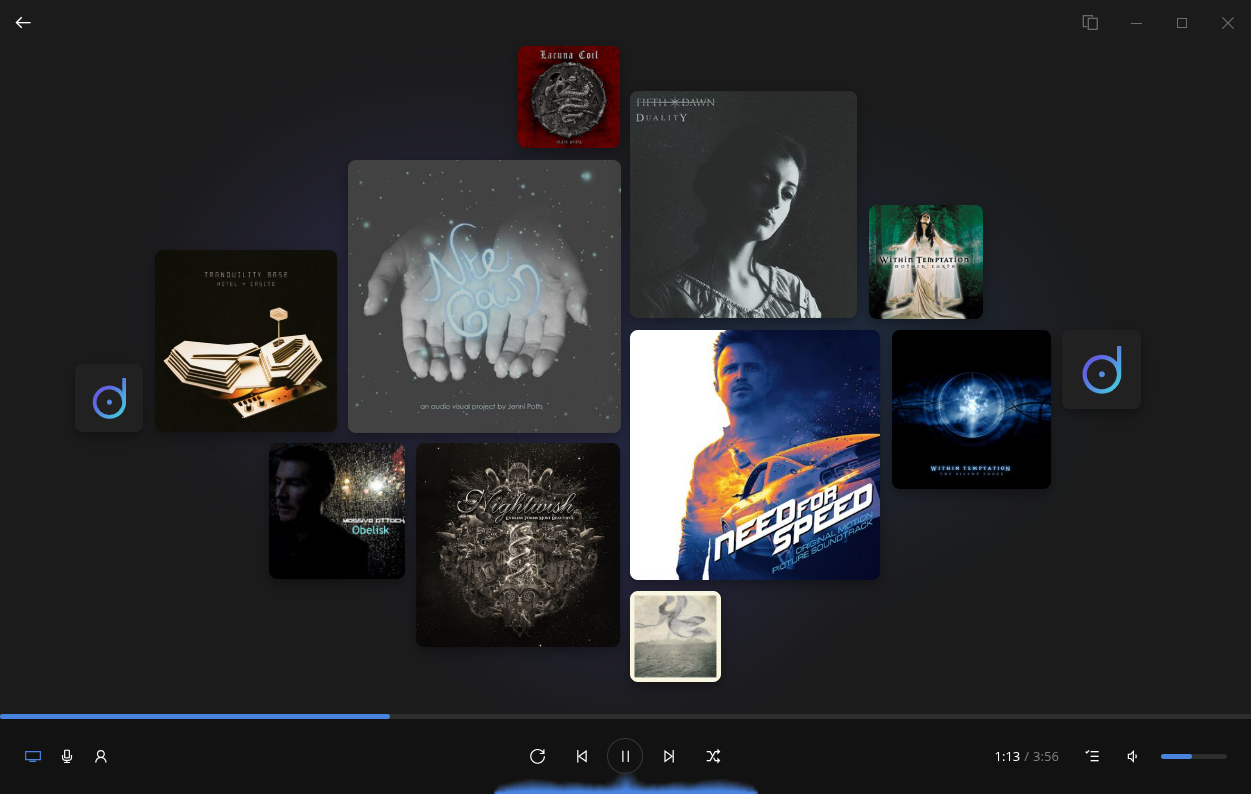
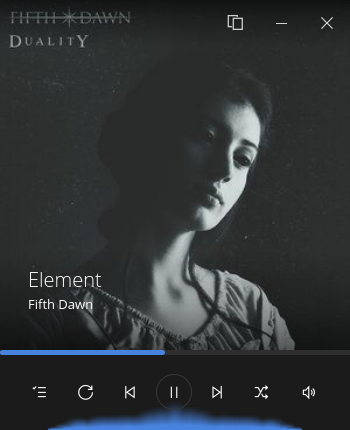
Dopamine is an elegant audio player which tries to make organizing and listening to music as simple and pretty as possible. This version is written using Electron, Angular and Typescript and works on Windows, Linux and Mac.
[](https://snapcraft.io/dopamine)
 Dopamine icons created by Sharlee.
[](https://github.com/digimezzo/dopamine/releases/latest)
[](https://github.com/digimezzo/dopamine/actions/workflows/nightly.yml)
[](https://github.com/digimezzo/dopamine/issues)
[](https://www.paypal.com/cgi-bin/webscr?cmd=_s-xclick&hosted_button_id=MQALEWTEZ7HX8)
## Debugging
I recommend using JetBrains Rider or WebStorm to debug this project. The **.run** folder contains a debugging configuration **Debug renderer** that allows you to attach to the Dopamine instance that is started when running `npm start`. Most of the code runs in the Electron renderer. That is why only a renderer configuration is provided for now.
## Build prerequisites
- rpm: required to build rpm package
- libarchive-tools: contains bsdtar, which is required to build pacman package.
**Build prerequisites on Ubuntu:**
- Install Node.js 22
- Install your IDE of choice (Rider, WebStorm, Visual Studio Code, ...)
- Install rpm (required to build rpm package) and libarchive-tools (contains bsdtar, which is required to build pacman package): `sudo apt install rpm libarchive-tools`
Follow the build instructions below to start or build Dopamine for your platform.
**Build prerequisites on Manjaro:**
- Install Node.js 22:
- `yay -S nvm`
- `nvm install 22`
- Install your IDE of choice (Rider, WebStorm, Visual Studio Code, ...)
- Install rpm (required to build rpm package): `sudo pacman -S rpm-tools`
Follow the build instructions below to start or build Dopamine for your platform.
**Build prerequisites on Windows:**
- Download and install Node.js 22 from https://nodejs.org (During the installation, select all features and check the box to install **Tools for Native Modules**).
- After the installation of Node.js, restart computer to ensure that npm is added to the path.
- Install your IDE of choice (Rider, WebStorm, Visual Studio Code, ...)
- Download the Dopamine source code
- Open the "dopamine" folder (the folder containing package.json) in your IDE
Follow the build instructions below to start or build Dopamine for your platform.
**Build prerequisites on MacOS:**
- Install Node.js 22 from https://nodejs.org (During the installation, select all features and check the box to install Tools for Native Modules).
- Make sure npm is accessible via the console
- Press command + space and search for console
- Write `npm --v` and press enter, this should give you the version number if npm is properly installed.
- Install your IDE of choice (Rider, WebStorm, Visual Studio Code, ...)
- Download the Dopamine source code
- Open the "dopamine" folder (the folder containing package.json) in your IDE
## Build instructions
Due to the native dependency better-sqlite3, this project cannot be built for all platforms on GNU/Linux. The GNU/Linux packages must be built on GNU/Linux, the Windows package must be built on Windows and the MacOS package must be built on MacOS.
```bash
$ git clone https://github.com/digimezzo/dopamine.git
$ cd dopamine
$ npm install # Install dependencies
$ npm start # Start Dopamine
$ npm run electron:windows # Build for Windows
$ npm run electron:linux # Build for Linux
$ npm run electron:mac # Build for Mac
```
## Pacman
### Installation
The pacman package can be installed using this command (replace x.y.z with the correct version number):
`sudo pacman -U Dopamine-x.y.z.pacman`
If you're getting an error concerning a missing package libappindicator-sharp, use this command to perform the installation instead (replace x.y.z with the correct version number):
`sudo pacman -U Dopamine-x.y.z.pacman --assume-installed libappindicator-sharp`
## Rpm
### Installation
The rpm package can be installed using this command (replace x.y.z with the correct version number):
`sudo dnf install Dopamine-x.y.z.rpm`
## Arch User Repository (AUR)
### Installation
Dopamine is available in the AUR as `dopamine-official`. So the installation is as simple as:
```
yay -S dopamine-official
```
> Note: the `dopamine` package in the AUR is not maintained by me. My package is `dopamine-official`.
## Snap Store
### Installation
Dopamine is available in the Snap store. So the installation is as simple as:
```
snap install dopamine
```
If you wish to install a manually downloaded snap package, the command is as follows (replace x.y.z with the correct version number):
```
snap install --dangerous Dopamine-x.y.z.snap
```
### Access to /media
I've added the `removable-media` plug to the Dopamine Snap configuration to allow access to `/media`. However, unlike the `home` plug, `removable-media` is not auto-connected by default. After installing your Dopamine snap, verify its connections:
```
snap connections dopamine
```
You should see:
```
removable-media dopamine:removable-media - -
```
If it says `-`, it’s not connected yet. You'll have to connect it manually by running this command:
```
sudo snap connect dopamine:removable-media
```
Once you've done that, your Dopamine should be able to access `/media`.
Dopamine icons created by Sharlee.
[](https://github.com/digimezzo/dopamine/releases/latest)
[](https://github.com/digimezzo/dopamine/actions/workflows/nightly.yml)
[](https://github.com/digimezzo/dopamine/issues)
[](https://www.paypal.com/cgi-bin/webscr?cmd=_s-xclick&hosted_button_id=MQALEWTEZ7HX8)




## Debugging
I recommend using JetBrains Rider or WebStorm to debug this project. The **.run** folder contains a debugging configuration **Debug renderer** that allows you to attach to the Dopamine instance that is started when running `npm start`. Most of the code runs in the Electron renderer. That is why only a renderer configuration is provided for now.
## Build prerequisites
- rpm: required to build rpm package
- libarchive-tools: contains bsdtar, which is required to build pacman package.
**Build prerequisites on Ubuntu:**
- Install Node.js 22
- Install your IDE of choice (Rider, WebStorm, Visual Studio Code, ...)
- Install rpm (required to build rpm package) and libarchive-tools (contains bsdtar, which is required to build pacman package): `sudo apt install rpm libarchive-tools`
Follow the build instructions below to start or build Dopamine for your platform.
**Build prerequisites on Manjaro:**
- Install Node.js 22:
- `yay -S nvm`
- `nvm install 22`
- Install your IDE of choice (Rider, WebStorm, Visual Studio Code, ...)
- Install rpm (required to build rpm package): `sudo pacman -S rpm-tools`
Follow the build instructions below to start or build Dopamine for your platform.
**Build prerequisites on Windows:**
- Download and install Node.js 22 from https://nodejs.org (During the installation, select all features and check the box to install **Tools for Native Modules**).
- After the installation of Node.js, restart computer to ensure that npm is added to the path.
- Install your IDE of choice (Rider, WebStorm, Visual Studio Code, ...)
- Download the Dopamine source code
- Open the "dopamine" folder (the folder containing package.json) in your IDE
Follow the build instructions below to start or build Dopamine for your platform.
**Build prerequisites on MacOS:**
- Install Node.js 22 from https://nodejs.org (During the installation, select all features and check the box to install Tools for Native Modules).
- Make sure npm is accessible via the console
- Press command + space and search for console
- Write `npm --v` and press enter, this should give you the version number if npm is properly installed.
- Install your IDE of choice (Rider, WebStorm, Visual Studio Code, ...)
- Download the Dopamine source code
- Open the "dopamine" folder (the folder containing package.json) in your IDE
## Build instructions
Due to the native dependency better-sqlite3, this project cannot be built for all platforms on GNU/Linux. The GNU/Linux packages must be built on GNU/Linux, the Windows package must be built on Windows and the MacOS package must be built on MacOS.
```bash
$ git clone https://github.com/digimezzo/dopamine.git
$ cd dopamine
$ npm install # Install dependencies
$ npm start # Start Dopamine
$ npm run electron:windows # Build for Windows
$ npm run electron:linux # Build for Linux
$ npm run electron:mac # Build for Mac
```
## Pacman
### Installation
The pacman package can be installed using this command (replace x.y.z with the correct version number):
`sudo pacman -U Dopamine-x.y.z.pacman`
If you're getting an error concerning a missing package libappindicator-sharp, use this command to perform the installation instead (replace x.y.z with the correct version number):
`sudo pacman -U Dopamine-x.y.z.pacman --assume-installed libappindicator-sharp`
## Rpm
### Installation
The rpm package can be installed using this command (replace x.y.z with the correct version number):
`sudo dnf install Dopamine-x.y.z.rpm`
## Arch User Repository (AUR)
### Installation
Dopamine is available in the AUR as `dopamine-official`. So the installation is as simple as:
```
yay -S dopamine-official
```
> Note: the `dopamine` package in the AUR is not maintained by me. My package is `dopamine-official`.
## Snap Store
### Installation
Dopamine is available in the Snap store. So the installation is as simple as:
```
snap install dopamine
```
If you wish to install a manually downloaded snap package, the command is as follows (replace x.y.z with the correct version number):
```
snap install --dangerous Dopamine-x.y.z.snap
```
### Access to /media
I've added the `removable-media` plug to the Dopamine Snap configuration to allow access to `/media`. However, unlike the `home` plug, `removable-media` is not auto-connected by default. After installing your Dopamine snap, verify its connections:
```
snap connections dopamine
```
You should see:
```
removable-media dopamine:removable-media - -
```
If it says `-`, it’s not connected yet. You'll have to connect it manually by running this command:
```
sudo snap connect dopamine:removable-media
```
Once you've done that, your Dopamine should be able to access `/media`.