Angular 2/4/5/6/7
=====================
Welcome
---------------------
Hi All, I'm **`Dinanath Jayaswal, Senior UI/Web Developer and Adobe Certified Expert Professional`**, I wanna welcome you to `Angular7 step by step guide`. In this course/tutorial will go over and learn all the fundamental building blocks of Angular, which a developer needs to know to get started developing Angular applications. Will cover from Node/NPM/Angular CLI Setup, Angular basic+advanced and common concepts like Components, Interpolation, Data Binding, Pipes, Services, Directives, Routing and Nativation, Forms, Http and Observables, etc.
Who is this for?
---------------------
This course is for anyone and everyone, Almost everyone! Fresher/Newcomer as well as experienced UI/frontend/Web Developers who are interested in boost skills and further career - by learning new latest dynamic JavaScript framework from Google to become a hi-tech developer.
Topics include
=====================
1. [Angular7 Introduction](#01-angular7-introduction)
2. [Getting Started](#02-getting-started)
3. [Angular First Hello World App](#03-angular-first-hello-world-app)
4. [Components](#04-components)
5. [Interpolation (Data Binding)](#05-interpolation-data-binding)
6. [Property Binding](#06-property-binding)
7. [Class Binding](#07-class-binding)
8. [Style Binding](#08-style-binding)
9. [Event Binding](#09-event-binding)
10. [Template Reference Variables](#10-template-reference-variables)
11. [Two Way Data Binding](#11-two-way-data-binding)
12. [ngIf Directive](#12-ngIf-directive)
13. [ngSwitch Directive](#13-ngSwitch-directive)
14. [ngFor Directive](#14-ngFor-directive)
15. [Component Interaction](#15-component-interaction)
16. [Pipes](#16-pipes)
17. [Services](#17-services)
18. [Dependency Injection (DI)](#18-dependency-injection-di)
19. [Using a Service](#19-using-a-service)
20. [HTTP and Observables](#20-http-and-observables)
21. [Fetch Data Using HTTP and Observables](#21-fetch-data-using-http-and-observables)
22. [Creating Custom Directives](#22-creating-custom-directives)
23. [Custom Directives with Events and @HostListener](#23-custom-directives-with-events-and-HostListener)
24. [Creating Custom Pipes](#24-creating-custom-pipes)
01 Angular7 Introduction
=====================
1.1. What is Angular:
---------------------
- Angular is a JavaScript (TypeScript based) open-source front-end web application framework from Google
- A framework to build a client-side application
- Great for SPAs (Single Page Application)
- Angular Ver2/4/5/6/7 frameworks target Mobile and Desktop
- The very first version `Angular 1.0 (1.xx)` is known as `AngularJS`, versions beyond `2+ `are generally known as `Angular`
1.2. SPA (Single Page Application)
---------------------
A SPA (Single Page Application) is a website/web applications in which part of page reload asynchronously without loading/re-loading whole page/app. It contains the menu, navigations, buttons, and blocks on a single page, as-and-when a user clicks on any of them; it dynamically rewrites/loads the current page rather than loading entire new pages from a server and so it is reactive, fast and speedy. (Web apps that load a single HTML page and dynamically update that page as the user interacts with the app).
1.3. Why to learn and use Angular:
---------------------
- Modular approach
- Re-usable code (Components)
- Development quicker and easier (Many inbuilt features helps to do development quicker+easier)
- Follows good programming practices and design patterns (MVC - Module View Controller)
- Inbuilt validations & Routing capabilities)
- Unit testable code
- Easily maintainable code
- Uses advanced features and principles like Dependency Injection, DRY (Do Not Repeat Yourself)
- Google + Microsoft collaboration (Angular + TypeScript)
1.4. Angular History:
---------------------
- The first version of Angular was Angular1.0 (AngularJS) which was released in 2010
| Year | Version |
| ------------------------------------------|-------------------------------------------|
| **AngularJs** = year 2010 = v1.XX (1.0 version) |
| **Angular** = year 2016 = Angular v2.0 and above (2/4/5/6/7 and coming future versions...) |
| 2010 | Angular JS (Angular v1.XX versions) |
| 2016 | Angular v2.0 |
| **Version v3.0 skipped to avoid routing version 3.3.0** |
| 2016 December | Angular v4.0 |
| 2017 November | Angular v5.0 |
| 2018 April | Angular v6.0 |
| 2018 October | Angular v7.0 |
1.5. Difference between AngularJS and Angular
What’s new in Angular compared to AngularJS
Let’s focus through some of the main differences between AngularJS and Angular:
| AngularJs | Angular |
| ------------------------------------------|-------------------------------------------|
| | **Angular is a complete rewrite of AngularJS** |
| AngularJS is the name of the `first version of v1.XX (1.0 version)`. | Angular is the name of the Angular's `version beyond 2+ (Angular v2.0 and above i.e. 2/4/5/6/7 and coming future angular versions...)` |
| AngularJS is a `JavaScript` based open-source front-end web application framework. | Angular is a `JavaScript/TypeScript/Dart` based open-source front-end web application framework. |
| AngularJS uses the concept of `scope($scope)` or `controller`. | Angular uses a hierarchy of `components` as its primary architectural base. |
| AngularJS has a simple syntax and uses to work with different directives like `ng-app`, `ng-init`, `ng-model`, `ng-for` etc. | In Angular syntax have been changed as it uses `[ ]` for property binding, and `( )` for event binding. |
1.6. Semantic Versioning System:
---------------------
- Change is nature's thumb rule, so every tool/technology/framework/library developed have to room for improvement
- Google team decided and declared that Angular major version will be upgraded twice a year with `Semantic Versioning System`
- **`Semantic Versioning System`** = `Major.Minor.Fix Patch, example: 0.0.1`
- `Fix Patch` - can increase any time with bug fixes/patch release
- `Minor version` - increases with every feature release which does not break any functionalities
- `Major version` - Break in the functionalities/ extraordinary feature achievements
02 Getting Started
=====================
2.1. Pre-requisites:
---------------------
Basic familiarity with HTML, CSS and JavaScript is must.
- HTML - Markup
- CSS - Style, Formates
- JavaScript - Behaviour, Click, Validations
- TypeScript basics - Advanced JS features (Class, Arrow Function, Spread Operator)
- Text Editor / Visual Text Editors
2.2. Setup the Angular development environment:
---------------------
In this section, we will learn how to set up a local development environment to start developing Angular apps.
- `Node`, (website: https://nodejs.org/en)
- `NPM`, (Node Package Manager - comes inbuilt with Node)
- `Angular CLI = Command Line Interface`, Angular CLI (Command Line Interface) for angular (website: https://cli.angular.io/),
- it allows the developer to build/generate building blocks of angular application like component, services, routings, modules, etc. with best practices quicker and easier)
- `Text Editor`
- Visual Studio Code / Visual Studio Code Insiders (website: https://code.visualstudio.com)
- Sublime Text,
- Atom,
- Brackets etc.
2.3. Steps to Setup the Angular development environment:
---------------------
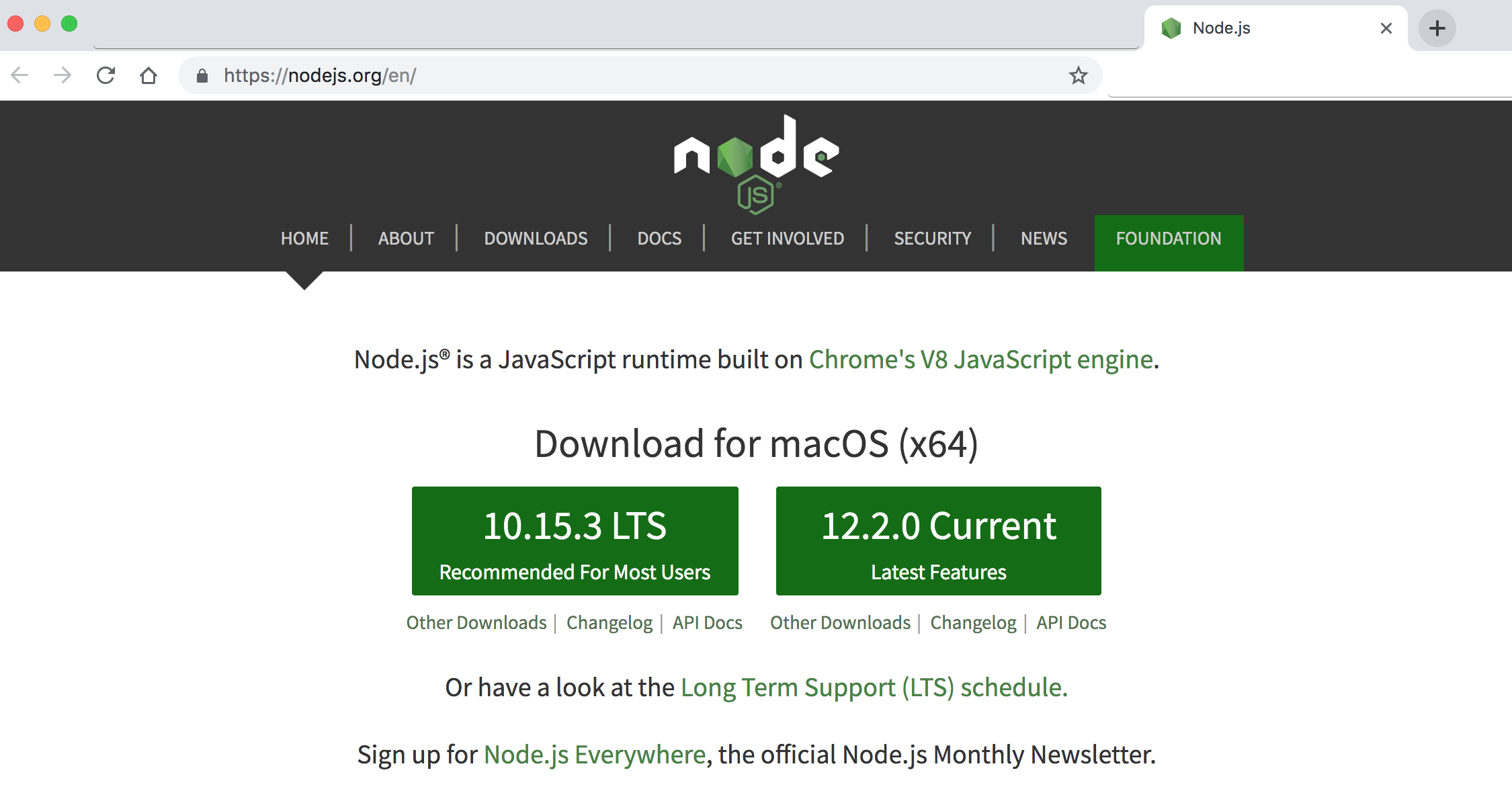
1. Download and Install node (node comes with npm) (website: https://nodejs.org/en)
Image - Nodejs website - https://nodejs.org/en
2. After installation check version of node and npm by command: `node -v` / `node --version` OR `npm -v` / `npm --version`
3. Install Angular CLI (website https://cli.angular.io/) by using command: `npm install -g @angular/cli` (it will install Angular CLI globally)
4. After installation check version of angular CLI by using the command: `ng -v` OR `ng --version`, you can also verify angular CLI installation by command: `ng` OR `ng --help`
5. Create a new app with angular CLI by using syntax: `ng new project/appName` example: command: `ng new angular6-1-demo`
6. Go inside the project/app directory, command: `cd angular6-1-demo`
7. Build and run Angular App, command: `ng serve` OR `ng serve -o` OR `ng serve --open`
8. Go to the browser and launch/check Angular App by entering the web address: `localhost:4200`
2.4. Commonly / widely used node/npm commands:
---------------------
- to get Node version, type command: `node -v` OR `node --version`
- to get NPM version, type command: `npm -v` OR `npm --version`
- to install Angular CLI, type command: `npm install -g @angular/cli`
- to get angular CLI version, type command: `ng -v` OR `ng --version` (this command displays details of a node, npm, and other angular package versions)
- to get various angular CLI commands, type command: `ng` OR `ng --help`
03 Angular First Hello World App
=====================
3.1. Creating new Angular App
---------------------
- If using Visual Studio Code / Insiders, open Command panel/terminal from menu: View -> Terminal (shortcut key is `CTRL + BackTick` OR `COMMAND + J`)
- To create a new app with angular CLI by using syntax: `ng new project/appName` example: command: `ng new angular6-1-demo`
- Go inside the project/app directory, command: `cd angular6-1-demo OR cd appName`
- To Build and run Angular App, command: `ng serve / npm start` OR `ng serve -o` OR `ng serve --open`
- To change port from 4200 to other port - type command: `ng serve --port 5000`
- To check the application in browser type path/url: `localhost:4200 / 5000`
3.2. Working with existing/cloned/copied Angular App
---------------------
- Clone or Download the project/app from Github or any other sources
- If using Visual Studio Code / Insiders, open Command panel/terminal from menu: View -> Terminal (shortcut key is `CTRL + BackTick` OR `COMMAND + J`)
- Go inside the project/app directory, command: `cd _examples-angular6-1-demo OR cd appName`
- Run command: `npm install` to install project/app dependencies `(node_modules)`
- To Build and run Angular App, command: `ng serve / npm start` OR `ng serve -o` OR `ng serve --open`
- To change port from 4200 to other port - type command: `ng serve --port 5000`
- To check the application in browser type path/url: `localhost:4200 / 5000`
3.3. Angular application Architecture summary:
---------------------
- `Angular app`: (Show graphical representation of `src -> app -> components` folder)
- Angular apps are modular in nature
- Consists of one or more modules (Angular App is a collection of one or many modules)
- Modules are main feature area - User module, Admin module, Dashboard module, Employee module)
- `Angular Application Root Module is AppModule (app.module.ts) `
- `Modules` are lines of code which can be IMPORTed or EXPORTed
- Module consists of one or more Components and Services
- `Components` - .HTML Template + .ts Class + .CSS
- A component represents/controls view in the browser
- (example: header, footer, sidebar, common panels, common search utility, similar feature components used throughout the application)
- `Angular Application Root (bootstrapped) component is AppComponent (app.comoponent.ts)`
- `Services` - Class which consists of Business logic (common programming feature used throughout the application)
Image - Angular Application Folder Architecture
Modules interact and ultimately render Components+Services view in the browser.
3.4. Angular application File / Folder Architecture summary:
---------------------
- `package.json`: consists of Node/NPM library/package/module dependencies for application development
- `node_modues` - folder consists of all installed packages
- `src/main.ts` - entry point to angular application. src/index.html
- `app/app.module.ts` - route module of application
- `app/app.component.ts` - route component of application
- `ng serve / npm start` -> main.ts (index.html) -> app.module.ts -> app.component.ts -> (app.component.html + css)
04 Components
=====================
- The core/key idea behind Angular is to build application using `reusable parts/chunks i.e. components`
- Components are main building blocks of UI and an/any angular application. (Show graphical representation)
- `Angular Application Root (bootstrapped) component is AppComponent (app.comoponent.ts)`
Image - Angular Components
A component is self contained, reusable piece of UI made up of 3 important parts:
1. `Template` - `View, HTML code` (User Interface for application also known as view)
2. `Class` - `Business logic/Application logic` for the view, `TypeScript/JavaScript code`, (Data, Methods & properties)
3. `Decorator/Metadata` - `Metadata, a @function` which provide more information for angular class. example: app.component.ts:
> **Syntax & Example**: app.component.ts
```typescript
@Component({
selector: 'app-root', // selector - a custom html tag
templateUrl: './app.component.html', // template/templateUrl - html view,
styleUrls: ['./app.component.css'] // styleUrls - css style sheet
})
```
4.1. Creating component:
---------------------
- We can create component manually, but in that scenario, we need to do and follow various steps/manual entries
- It's advisable to use angular CLI to create a component, services, routing, etc.
`To create a component using angular CLI`:
- `syntax`: ng generate component componentName OR ng generate component path/componentName
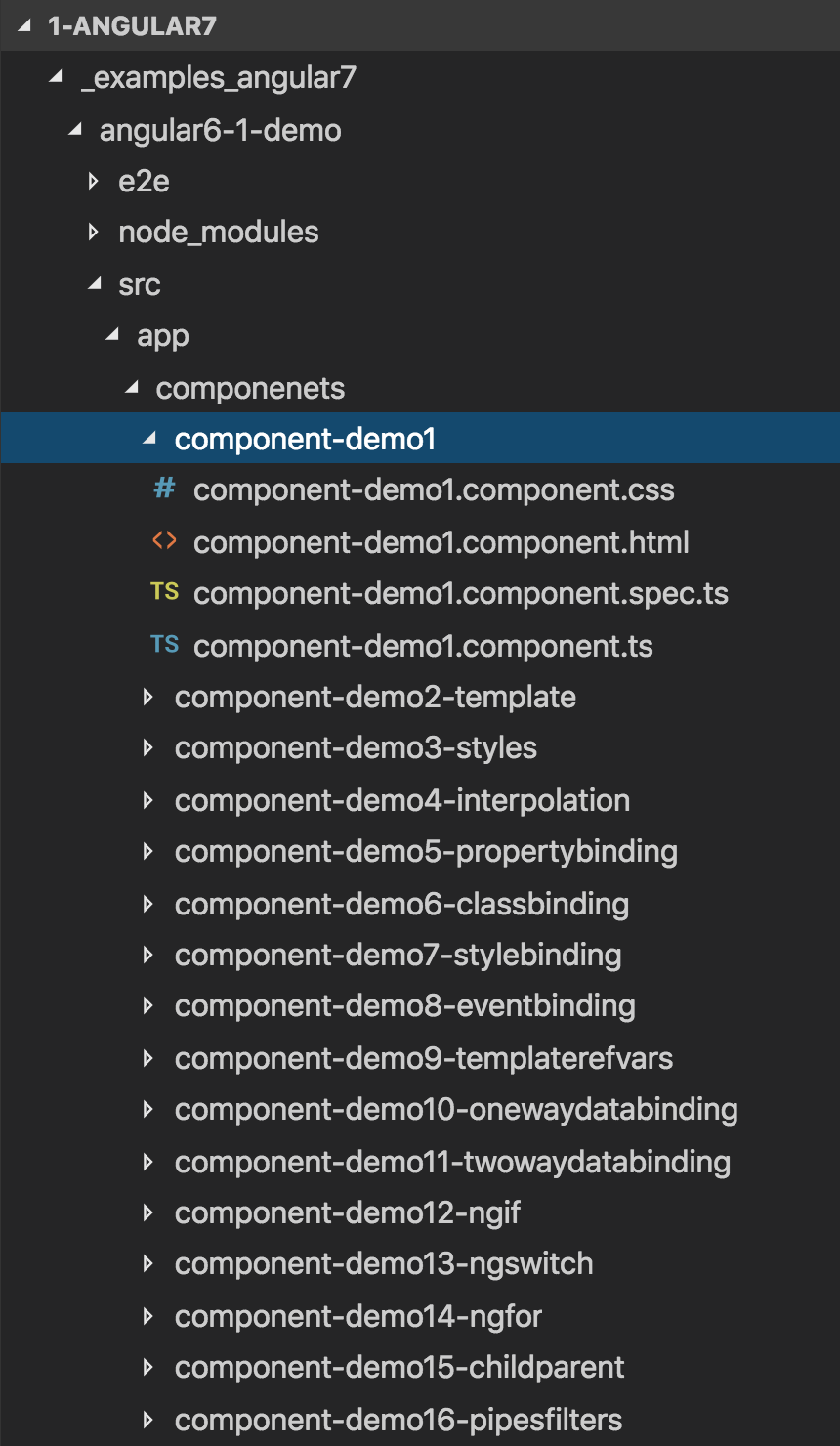
- `command`: ng generate component components/component-demo1 OR ng g c components/component-demo1
- **`It generates 4 new files: .css-styles, .html-markup, .spec.ts-test, .ts-class`**
- Also, an automated `import` /update/entry of components is done in `app.module.ts` file at the top `imports section` and in `declarations array` which consists of all the components used in the application
- A component must be a member of/belongs to an `@NgModule - declarations array` in order for it to be usable by another component or application
- To use current component in application, copy and paste new component `'selector'` from .ts file i.e. `'app-component-demo1'` as a tag in `app.component.html `
4.2. @Component/Decorator/Metadata details:
---------------------
### 4.2.1. selector:
- Selector is basically a `custom HTML tag used to represent current component`
- Selector helps to `render .html file/html template` in browser
- Example: index.html: ``
- Example: app.component.html: ``
- There are total 3 ways to specify/write and use selectors:
> **Syntax & Example**: component-demo1.component.ts
```
1. tag: < > selector: 'app-test', example:
2. class: . selector: '.app-test', example:
```
### 4.2.2. template:
- `template` property denotes writing html markup in current class .ts file only
- `template` property can help to write all html/markup in .ts typescript file itself
- single line can be written directly:
> **Syntax & Example**:
```typescript
template: '
Inline single template Heading used - template written in same .ts file
',
```
- multi line html can be written with back-tick ` ` symbol:
> **Syntax & Example**:
```typescript
template: `
Multiple line template
template written in same .ts file
`,
```
### 4.2.3. templateUrl:
- `templateUrl` denotes/points to an `external .html` file OR
- Write html code in another .html file and call the file path with `templateUrl` property (separation of concern)
> **Syntax & Example**:
```typescript
templateUrl: './app.component.html', // template/templateUrl - html view,
```
> **Syntax & Example**: component-demo2-template.component.ts
```typescript
import { Component, OnInit } from '@angular/core';
@Component({
selector: 'app-component-demo2-template',
templateUrl: './component-demo2-template.component.html',
// single line template
// template: '
Inline single template para used
',
// multi line template
template:`
component-demo2-template templateUrl works!
template
template denotes writing html markup in current class file only, template property can help to write all html/markup in .ts typescript file itself.
```
> **Syntax & Example**: app.component.ts
```typescript
import { Component } from '@angular/core';
@Component({
selector: 'app-root',
templateUrl: './app.component.html',
styleUrls: ['./app.component.css']
})
export class AppComponent {
// create a property to send from parent to child
parentMessage = 'From Parent';
//
}
```
> **Syntax & Example**: app.module.ts
```typescript
import { BrowserModule } from '@angular/platform-browser';
import { NgModule } from '@angular/core';
import { AppComponent } from './app.component';
import { ComponentDemo1Component } from './componenets/component-demo1/component-demo1.component';
@NgModule({
declarations: [
AppComponent,
ComponentDemo1Component,
],
imports: [
BrowserModule,
],
bootstrap: [AppComponent]
})
export class AppModule { }
```
> **Syntax & Example**: styles.css
```css
/* You can add global styles to this file, and also import other style files */
/* common global generic styles */
.custom-divider {
margin: 30px 0px;
border-bottom:2px dashed gray;
}
h1,h2,h3 {
text-transform: uppercase;
/* text-transform: capitalize; */
}
h2 {
text-decoration: underline;
}
body {
font-family: Cambria, Cochin, Georgia, Times, 'Times New Roman', serif;
letter-spacing: 2px;
}
li {
margin: 10px 0px;
}
input{
padding: 5px;
}
button {
border-radius: 5px;
padding: 10px 15px;
background-color: teal;
border: none;
outline: none;
cursor: pointer;
color: lightcyan;
}
/* class binding */
.text-primary {
color: blue;
}
.text-danger {
color: red;
}
.text-success {
color: lawngreen;
}
.text-special {
font-weight:bold;
font-style: italic;
color:orchid;
}
.text-strikethrough {
text-decoration: line-through;
}
```
> **Syntax & Example**: index.html
```html
Angular7Demo
```
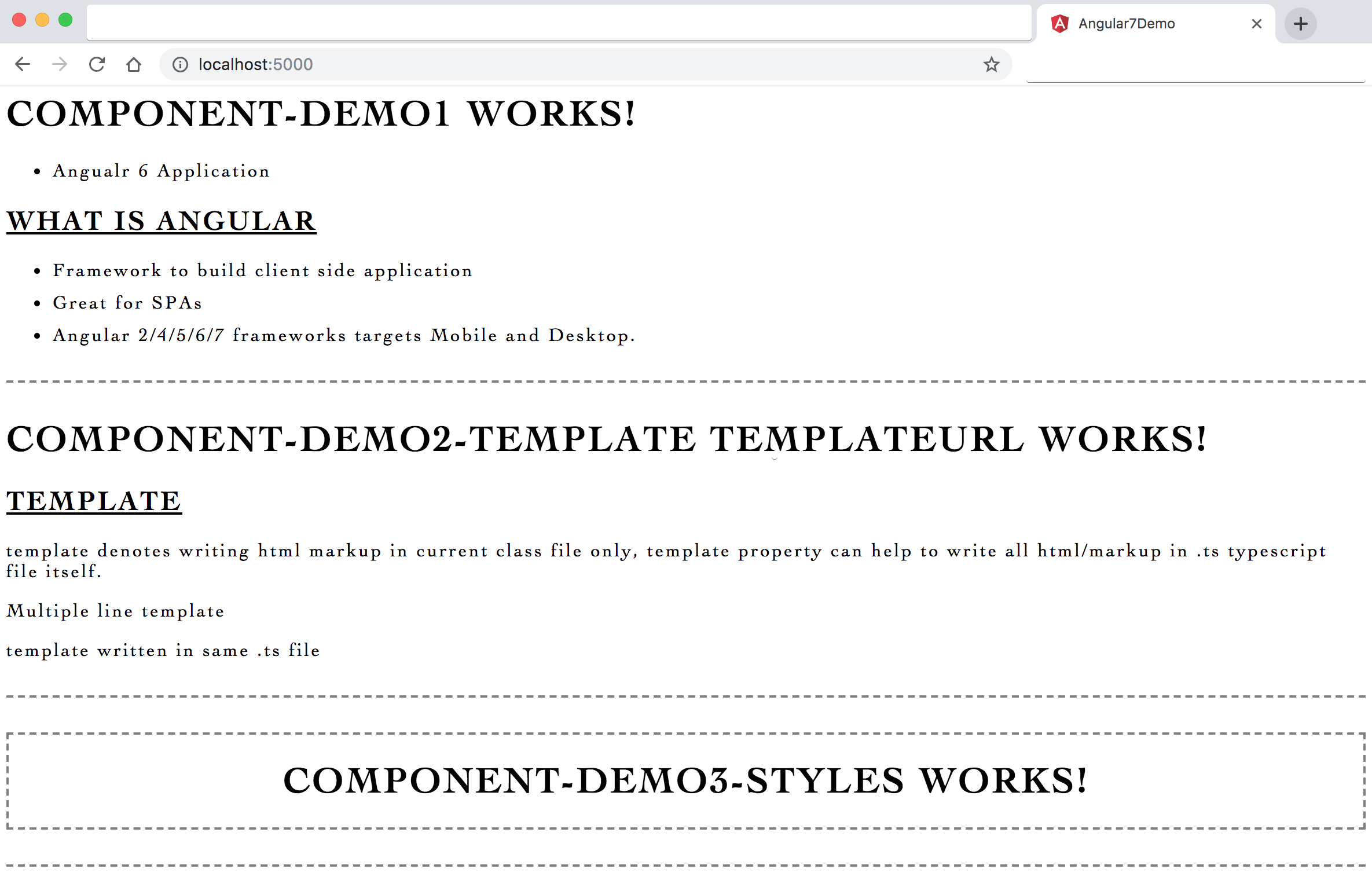
Image - Output - selector, templateUrl, styleUrls
05 Interpolation Data Binding
=====================
- Interpolation denotes/evaluates the content inside `{{ }} braces` and displays the value in component view file
- Interpolation = expressions, data-binding to text nodes and attribute values
- interpolation expression = {{ varName }} or {{ fn_anyReturnFunction() }}
- Angular expressions are much like `JavaScript expressions` and they can contain literals, operators, and variables
- Data binding in Angular is the `synchronization/communication between the model and the view`
- `String interpolation` is used to display dynamic data on HTML template (front end / at user end)
- Variable value assignment not possible with interpolation, Example: `{{ name = 'Dinanath' or Total = 10 + 20 }}`
> **Syntax & Example**: component-demo4-interpolation.component.ts
```typescript
import { Component, OnInit } from '@angular/core';
@Component({
selector: 'app-component-demo4-interpolation',
templateUrl: './component-demo4-interpolation.component.html',
styleUrls: ['./component-demo4-interpolation.component.css']
})
export class ComponentDemo4InterpolationComponent implements OnInit {
// variables - class members
public technology = 'Angular 6';
public userName = 'Dinanath';
// public siteUrl = 'http://www.google.com';
public siteUrl = window.location.href;
fn_showGreetingsToUser() {
return 'Welcome ' + this.userName;
}
fn_showMessage() {
return 'Welcome to ' + this.technology + ' ' + this.userName;
}
constructor() { }
ngOnInit() {
}
}
```
> **Syntax & Example**: component-demo4-interpolation.component.html
```html
component-demo4-interpolation works!
maths = 2+2 = {{ 2+2 }}
{{ "Welcome " + userName }}
userName.length = {{ userName.length }}
toUpperCase = {{ userName.toUpperCase() }}
toLowerCase = {{ userName.toLowerCase() }}
current Site URL: {{ siteUrl }}
function call: {{ fn_showGreetingsToUser() }}
function call: {{ fn_showMessage() }}
```
> **Syntax & Example**: app.module.ts
```typescript
import { BrowserModule } from '@angular/platform-browser';
import { NgModule } from '@angular/core';
import { AppComponent } from './app.component';
import { ComponentDemo1Component } from './componenets/component-demo1/component-demo1.component';
import { ComponentDemo2TemplateComponent } from './componenets/component-demo2-template/component-demo2-template.component';
import { ComponentDemo3StylesComponent } from './componenets/component-demo3-styles/component-demo3-styles.component';
import { ComponentDemo4InterpolationComponent } from './componenets/component-demo4-interpolation/component-demo4-interpolation.component';
import { ComponentDemo5PropertybindingComponent } from './componenets/component-demo5-propertybinding/component-demo5-propertybinding.component';
@NgModule({
declarations: [
AppComponent,
ComponentDemo1Component,
ComponentDemo2TemplateComponent,
ComponentDemo3StylesComponent,
ComponentDemo4InterpolationComponent,
],
imports: [
BrowserModule,
],
bootstrap: [AppComponent]
})
export class AppModule { }
```
> **Syntax & Example**: app.component.html
```html
```
Image - Output - Interpolation Data Binding {{ }}
06 Property Binding
=====================
- String Interpolation and Property binding both are used for the same purpose i.e. one-way Data Binding
- String Interpolation and Property Binding both `flow value in one direction from our components to HTML elements`
- Basic Attributes are defined by HTML BUT `"value"` kind of dynamic attributes (properties) which are like properties are defined and managed by DOM
- `Attributes and properties are NOT the same`
- `Attributes` = HTML | `Properties` = DOM (Document Object Model)
- Attributes initialise DOM properties and then they are done - cannot change once they are initialised
- Property values however can change, HTML attribute value specifies initial value and the `DOM value property is the current value`
> **Syntax & Example**: Property Binding is done with [square bracket] OR bind-properyName:
```html
example:
```
- type in console:$0.getAttribute("value"); output:"dinanath"
- type in console:$0.value; output:"dinanath"
- Now type something new in text field "new Text"
- type in console:$0.getAttribute("value"); output:"dinanath"
- type in console:$0.value; output:"new Text"
- > **Note**: Attribute does not changed but `value property changed`
- `Property Binding done with [ ] square bracket` also with `{{ interpolation }}` But its advisable to use [ ] as its supports string, boolean all property types, boolean value like true/false etc does not works well with {{ interpolation }}
> **Syntax & Example**: component-demo5-propertybinding.component.ts
```typescript
import { Component, OnInit } from '@angular/core';
@Component({
selector: 'app-component-demo5-propertybinding',
templateUrl: './component-demo5-propertybinding.component.html',
styleUrls: ['./component-demo5-propertybinding.component.css']
})
export class ComponentDemo5PropertybindingComponent implements OnInit {
public _id = 'id1';
public _isDisabled1 = true;
public _isDisabled2 = false;
constructor() { }
ngOnInit() {
}
}
```
> **Syntax & Example**: component-demo5-propertybinding.component.html
```html
component-demo5-propertybinding works!
attributes vs value
property binding [ ] vs interpolation {{ ngNonBindable }}
attribute boolean (property) interpolation does not support
property binding boolean values supported
property binding boolean property with variable
property binding with bind-
```
Image - Output - Property binding with {{}}, [ ] and bind-
07 Class Binding
=====================
- Class binding refers to applying different classes normally or depends on condition (dynamically)
- Class binding is very important and really useful as it allows developer to apply/add and remove classes to html element dynamically based on condition or user interaction
- Class Binding Syntax: ``, here `varName holds css className`
- If `[class] binding` and `class=" "` attribute both present in tag, `[class] binding` get first/higher priority and `class=" "` attribute becomes null & void (class style properties not applied to text - so its advisable to use any one either class binding or class attribute)
- `[ngClass]` directive/attribute helps to apply multiple classes conditionally ` **Syntax & Example**: styles.css (write css classes in any file)
```css
.text-primary {
color: blue;
}
.text-danger {
color: red;
}
.text-success {
color: lawngreen;
}
.text-special {
font-weight:bold;
font-style: italic;
color:orchid;
}
.text-strikethrough {
text-decoration: line-through;
}
.text-orange {
color: orange;
}
```
> **Syntax & Example**: component-demo6-classbinding.component.ts
```typescript
import { Component, OnInit } from '@angular/core';
@Component({
selector: 'app-component-demo6-classbinding',
templateUrl: './component-demo6-classbinding.component.html',
styleUrls: ['./component-demo6-classbinding.component.css']
})
export class ComponentDemo6ClassbindingComponent implements OnInit {
public successClass = 'text-success';
public dangerClass = 'text-danger';
public isSpecialClass = true;
public isErrorClass = true;
public messageClasses = {
'text-primary': this.isSpecialClass,
'text-strikethrough': this.isSpecialClass
}
constructor() { }
ngOnInit() {
}
}
```
> **Syntax & Example**: component-demo6-classbinding.component.html
```html
component-demo6-classbinding works!
[class]="varName" (varName holds css className present in css)
simple class attribute
This is class binding with []
This is class binding with interpolation
This is class binding with [] also class attribute
This is class binding with boolean variable condition
This is class binding with boolean variable condition
This is ngClass binding to deal with multiple classes at once
```
Image - Output - Class binding with {{}}, [ ] and ngClass
08 Style Binding
=====================
- Style binding is similar to class binding but it refers to applying different inline styles to html element instead of applying css classes
- Style Binding Syntax:
```
text
OR
text
```
- `[ngStyle]` directive/attribute helps to apply multiple inline styles ` **Syntax & Example**: component-demo7-stylebinding.component.ts
```ts
import { Component, OnInit } from '@angular/core';
@Component({
selector: 'app-component-demo7-stylebinding',
templateUrl: './component-demo7-stylebinding.component.html',
styleUrls: ['./component-demo7-stylebinding.component.css']
})
export class ComponentDemo7StylebindingComponent implements OnInit {
public greenColor = 'green';
public redColor = 'red';
public orangeColor = 'orange';
public hasError = true;
public headerStyles = {
color: 'blue',
textDecoration: 'line-through',
fontStyle: 'italic'
}
constructor() { }
ngOnInit() {
}
}
```
> **Syntax & Example**: component-demo7-stylebinding.component.html
```html
component-demo7-stylebinding works!
<tag [style.color]="'orange'"> text </tag>
applying inline styles
<tag [style.color]="'varName'"> text </tag>
applying inline styles with variable
<style.color]="hasError ? 'red' : 'green' "> text </tag>
applying inline styles with variable conditions
applying multiple inline styles
```
Image - Output - Style binding with [style.] and [ngStyle]
09 Event Binding
=====================
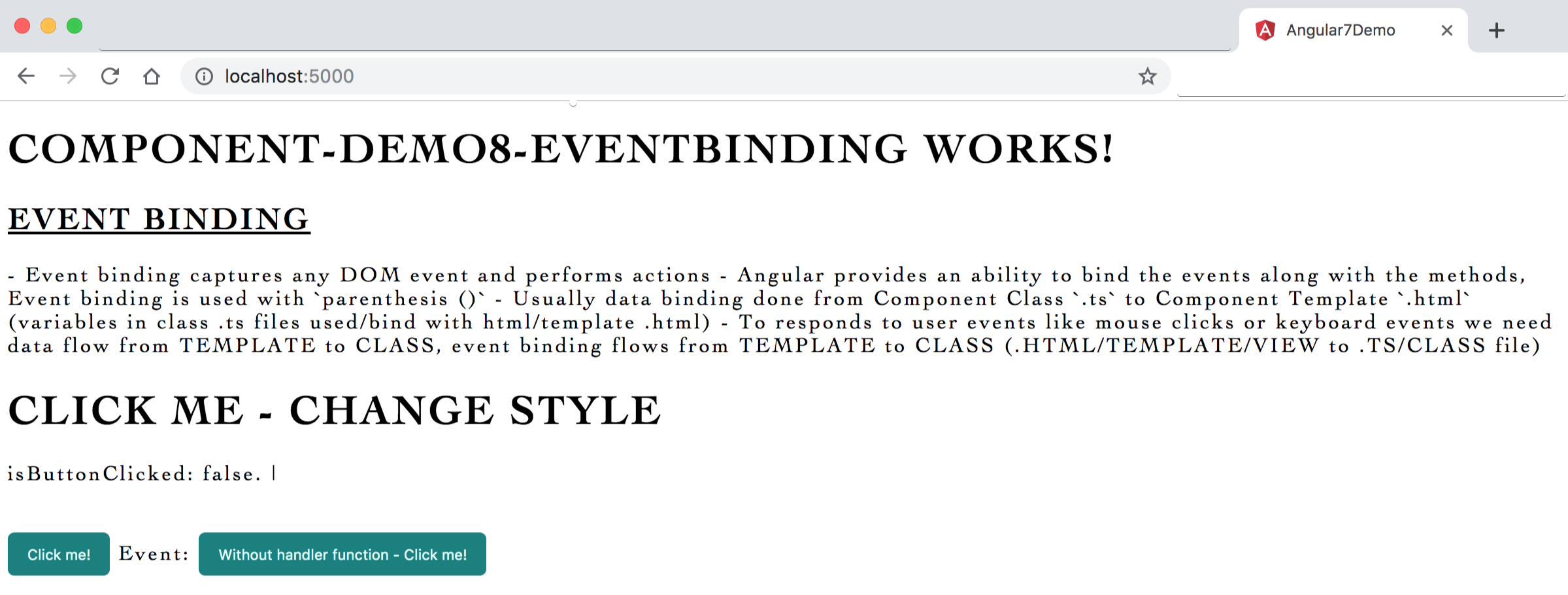
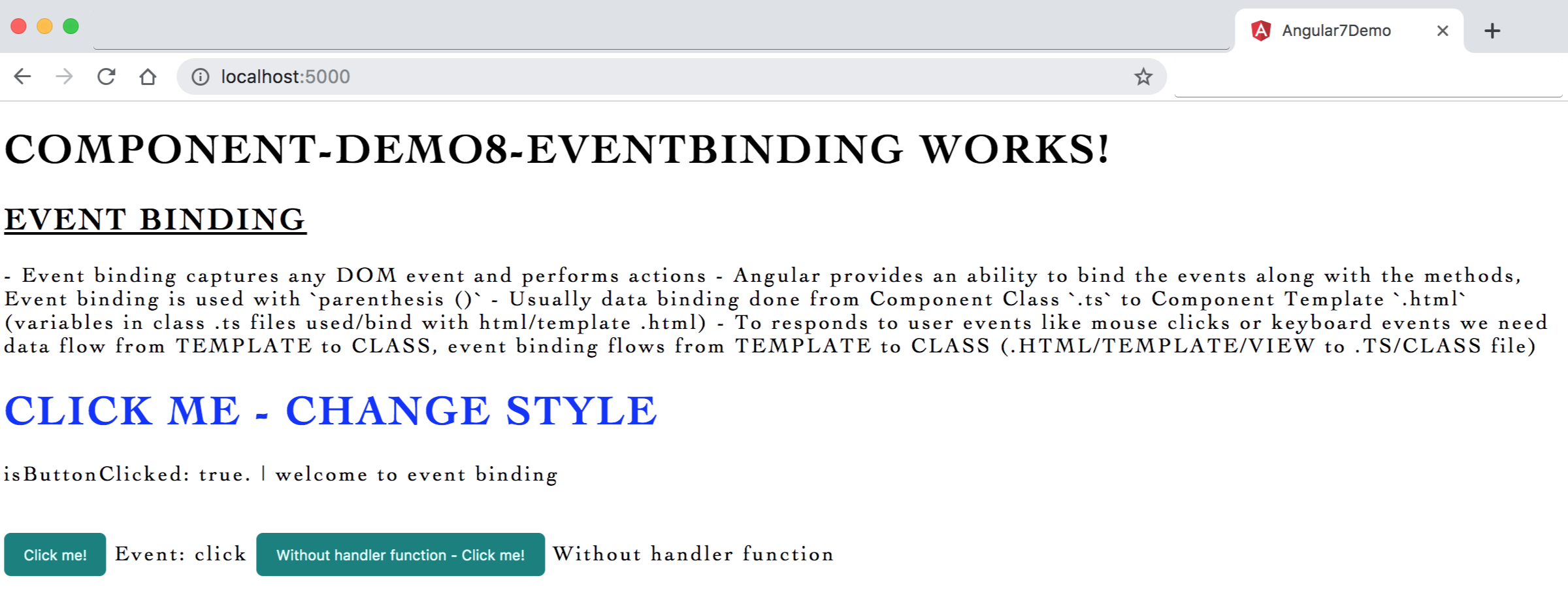
- Event binding captures any DOM event and performs actions
- Angular provides an ability to bind the events along with the methods, Event binding is used with `parenthesis ()`
- Usually data binding done from Component Class `.ts` to Component Template `.html` (variables in class .ts files used/bind with html/template .html)
- To responds to user events like mouse clicks or keyboard events we need data flow from TEMPLATE to CLASS, event binding flows from TEMPLATE to CLASS (.HTML/TEMPLATE/VIEW to .TS/CLASS file)
- Syntax: `
Image - Output - Event binding with (click) - After Click
10 Template Reference Variables
=====================
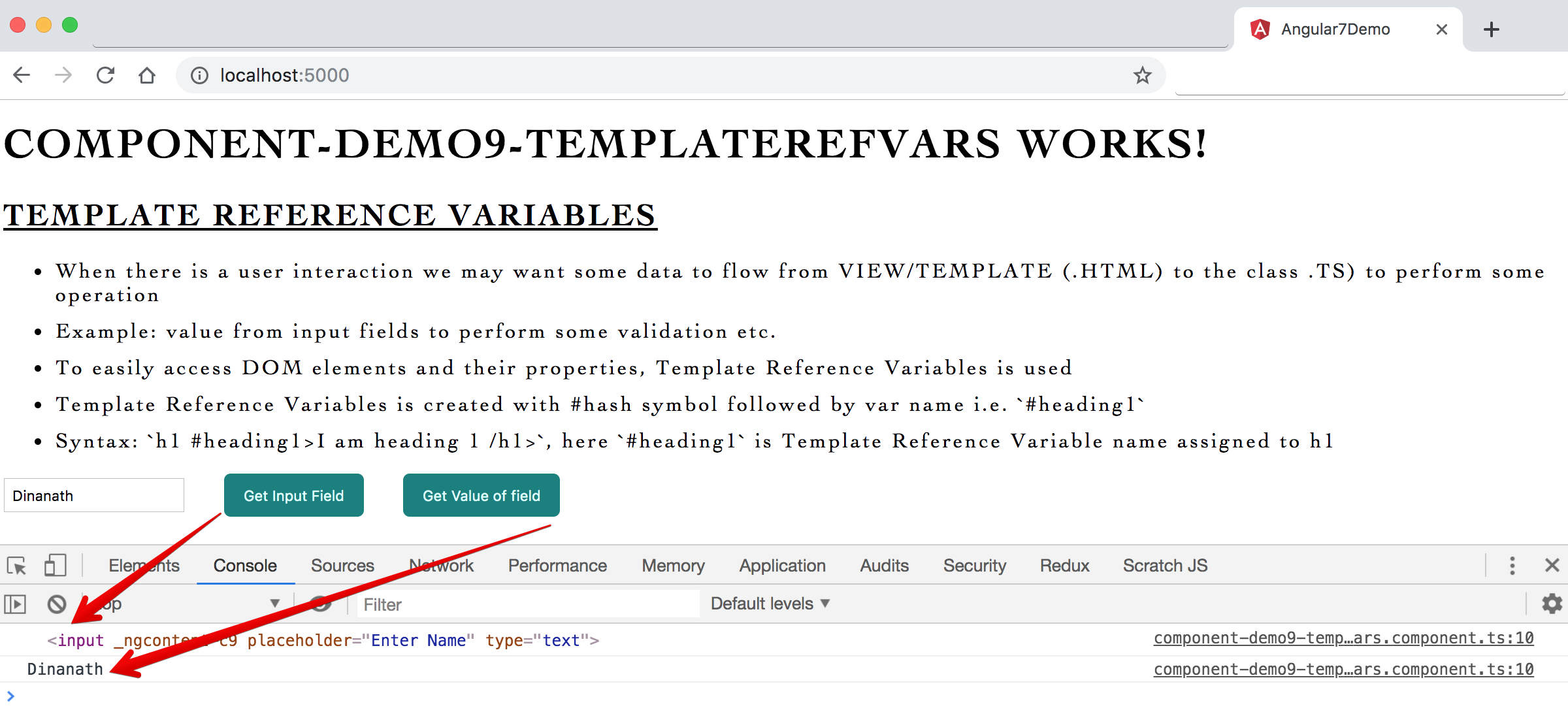
- When there is a user interaction we may want some data to flow from VIEW/TEMPLATE (.HTML) to the class .TS) to perform some operation
- Example: value from input fields to perform some validation etc
- To easily access DOM elements and their properties, Template Reference Variables is used
- Template Reference Variables is created with #hash symbol followed by var name i.e. `#heading1`
- Syntax: `
I am heading 1
`, here `#heading1` is Template Reference Variable (a dynamic name/id) assigned to h1 tag
> **Syntax & Example**: component-demo9-templaterefvars.component.ts
```ts
import { Component, OnInit } from '@angular/core';
@Component({
selector: 'app-component-demo9-templaterefvars',
templateUrl: './component-demo9-templaterefvars.component.html',
styleUrls: ['./component-demo9-templaterefvars.component.css']
})
export class ComponentDemo9TemplaterefvarsComponent implements OnInit {
logDetails(_value) {
console.log(_value);
}
constructor() { }
ngOnInit() {
}
}
```
> **Syntax & Example**: component-demo9-templaterefvars.component.html
```html
component-demo9-templaterefvars works!
Template Reference Variables
```
Image - Output - Template Reference Variables
11 Two Way Data Binding
=====================
- Data binding is one of the most powerful features of Angular, used widely for communication between TypeScript code (.ts - business logic) and different components (.html - view/template) shown to the users
- Whenever we work with Input Form fields its necessary/essentials that MODEL (data) and VIEW (template) both syncs well (any changes into HTML field should update the model/property and any updates/changes in model/property/variable than view should reflect those updated values)
- There are two types of data binding:
1. One way data binding
2. Two way data binding
11.1. One way data binding
---------------------
- One way data binding is a simple/normal one way communication where HTML template is changed when any changes to TypeScript code/model/data/variable
- In one way data binding value of Model is used in the View (HTML) but we can't update Model from the View (.HTML Template)
- Example: Interpolation / String Interpolation, Property Binding, and Event Binding
- One way data binding works from class .ts file to template/view .html file:
> **Syntax & Example**: component-demo10-onewaydatabinding.component.ts
```ts
import { Component, OnInit } from '@angular/core';
@Component({
selector: 'app-component-demo10-onewaydatabinding',
templateUrl: './component-demo10-onewaydatabinding.component.html',
styleUrls: ['./component-demo10-onewaydatabinding.component.css']
})
export class ComponentDemo10OnewaydatabindingComponent implements OnInit {
public inputResultValue = 'One Way Data Binding!';
public userNameText = 'Angular 7';
public changeInputText(evt) {
console.log(evt);
this.userNameText = evt.target.value;
}
constructor() { }
ngOnInit() {
}
}
```
> **Syntax & Example**: component-demo10-onewaydatabinding.component.html
```html
component-demo10-onewaydatabinding works!
One way data binding
One way data binding works from class .ts file to template/view .html file:
One Way Data Binding works as Two way (work around)
{{userNameText}}
```
Image - Simple one way data binding with {{}}, [ ] and bind-
Image - Output - Simple one way data binding with {{}}, [ ] and bind-, used as two way data binding
11.2. Two way data binding
---------------------
- Two Way Data Binding helps to update the property at the same time displays the value of the property
- In two way data binding, `automatic synchronization of data happens between the Model and the View`
- Here whenever we make changes in the Model(data/variable) it will be reflected in the View and when you make changes in View(HTML/template) it will be reflected in Model
- `"ngModel"` Directive is used to implement Two Way Data Binding (basically VIEW & MODEL should always be sync)
- `[ ] square bracket/property binding` is used for data flow from class to the template and `( ) parentheses/event binding` for data from template to class
- `[(ngModel)]` - this syntax is known as `[(banana in the box)]`
- To use `[(ngModel)]` Directive we must need to `import FormsModule` from `@angular/forms` and also add to imports array in app.module.ts: `import { FormsModule } from '@angular/forms';`
- > **Note**: In two way data binding value flow from an Input Text field to the class file and then to view/template file
> **Syntax & Example**: app.module.ts
```ts
// import forms module for two way data binding
import { FormsModule } from '@angular/forms';
imports: [
BrowserModule,
FormsModule
],
```
> **Syntax & Example**: component-demo11-twowaydatabinding.component.ts
```ts
import { Component, OnInit } from '@angular/core';
@Component({
selector: 'app-component-demo11-twowaydatabinding',
templateUrl: './component-demo11-twowaydatabinding.component.html',
styleUrls: ['./component-demo11-twowaydatabinding.component.css']
})
export class ComponentDemo11TwowaydatabindingComponent implements OnInit {
public nameText = 'Angular 6';
constructor() { }
ngOnInit() {
}
}
```
> **Syntax & Example**: component-demo11-twowaydatabinding.component.html
```html
component-demo11-twowaydatabinding works!
Two way data binding
{{nameText}}
```
Image - Output - Two way data binding with [(ngModel)], FormsModule
12 ngIf Directive
=====================
- Directives are an `instructions in the DOM`, they specify how to place your components and business logic in the Angular
- Directives are js class and `declared as @directive`
- There are 3 main types of directives in Angular:
1. **Component Directives** - Component directives are used in `main class (app.component.ts)`. They contain the detail of how the component should be processed, instantiated and used at runtime
2. **Structural Directives** - Structural Directives let us `Add or Remove (Show or Hide) HTML elements` from DOM. Structural directives `start with a * sign`. These directives are used to `manipulate and change the structure of the DOM elements`. For example, *ngIf and *ngFor etc.
3. **Attribute Directives** - Attribute directives `look like a normal HTML Attribute` and mainly used in `databinding and event binding`. Attribute directives are used to `change the look and behavior of the DOM elements`. Attribute Directives affect only the element they are added to. For example: ngClass, ngStyle etc.
- Most important/widely used inbuilt Structural directives are:
- **ngIf** - conditionally render/show-hide html elements
- **ngSwitch** - conditionally render/show-hide html elements
- **ngFor** - render/show list of html elements through loop
*ngIf
---------------------
- *ngIf directive is used to change the output conditionally
- If the condition is false, the DOM element does not render
- With *ngIf use truthy or falsy value which conditionally renders the DOM elements
- `ng-template` is like a container for chunks/group of HTML elements controlled once
> **Syntax & Example**: component-demo12-ngif.component.ts
```ts
import { Component, OnInit } from '@angular/core';
@Component({
selector: 'app-component-demo12-ngif',
templateUrl: './component-demo12-ngif.component.html',
styleUrls: ['./component-demo12-ngif.component.css']
})
export class ComponentDemo12NgifComponent implements OnInit {
public isShow=true;
public hasDisplay=false;
constructor() { }
ngOnInit() {
}
}
```
> **Syntax & Example**: component-demo12-ngif.component.html
```html
component-demo12-ngif works!
*ngIf
Show me
I am NOT rendered in DOM
Please show me - conditional variable/property from class
ngIf else ng-template
If condition is false, different DOM element renders as specified in "ng-template else">
I have used in ngIf TRUE part
I am using ngIf FALSE/ELSE part in ng-template
ngIf - ng-template else ng-template
depends on variable/condition show ng-template1 else show other ng-template2
I am #trueTemplate
I am #falseTemplate
```
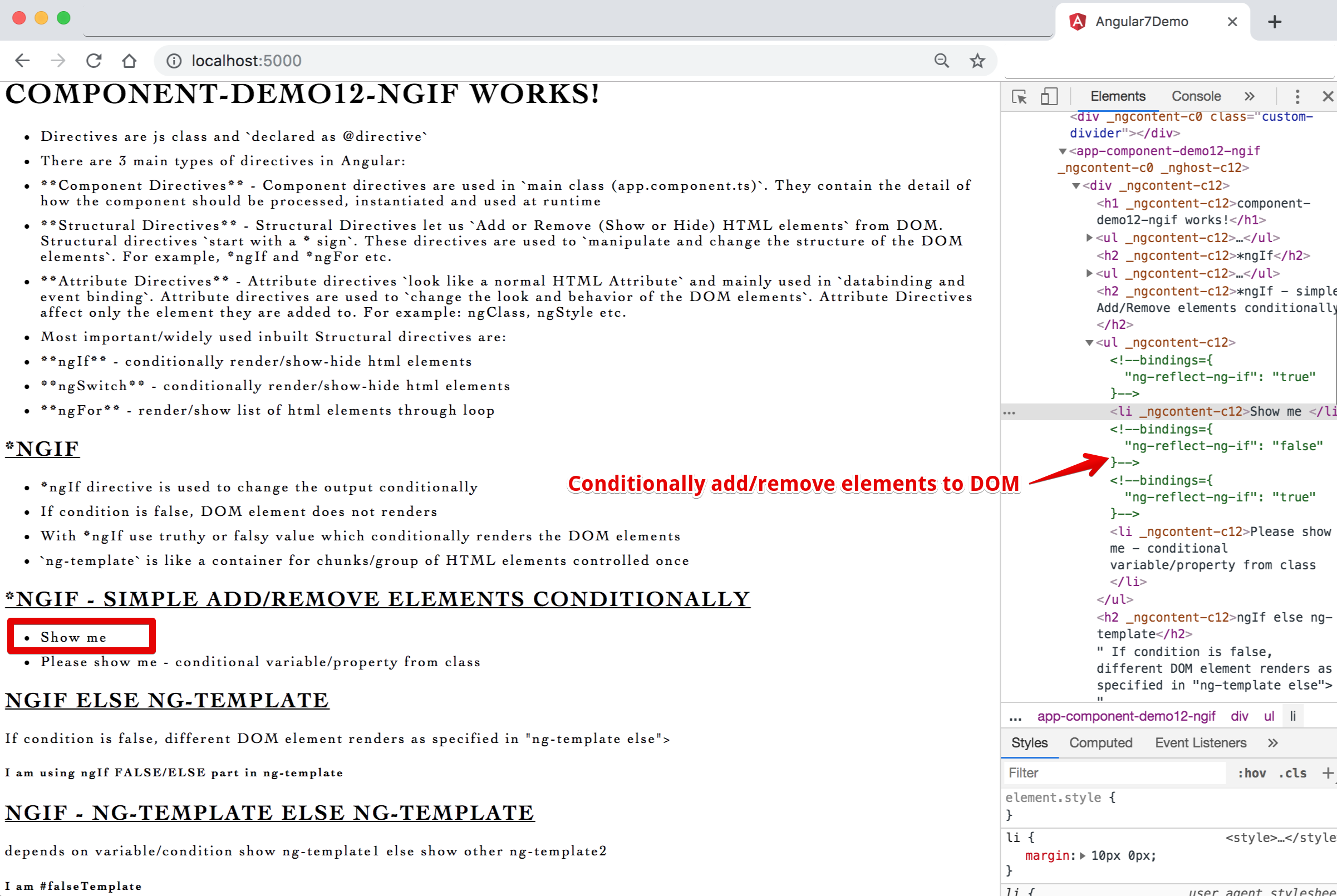
Image - Output - *ngIf - Structural directive to control/add/remove elements to DOM conditionally
13 ngSwitch Directive
=====================
- ngSwitch directive is similar to other programming languages swtich statement, only the `difference is with angular we render HTML elements instead of executing logics`
> **Syntax & Example**: component-demo13-ngswitch.component.ts
```ts
import { Component, OnInit } from '@angular/core';
@Component({
selector: 'app-component-demo13-ngswitch',
templateUrl: './component-demo13-ngswitch.component.html',
styleUrls: ['./component-demo13-ngswitch.component.css']
})
export class ComponentDemo13NgswitchComponent implements OnInit {
public curColor='red';
// public curColor='green';
// public curColor = 'blue';
// public curColor = 'black';
constructor() { }
ngOnInit() {
}
}
```
> **Syntax & Example**: component-demo13-ngswitch.component.html
```html
component-demo13-ngswitch works!
*ngSwtich
RED | {{curColor}} | color
GREEN | {{curColor}} | color
BLUE | {{curColor}} | color
Default BLACK
```
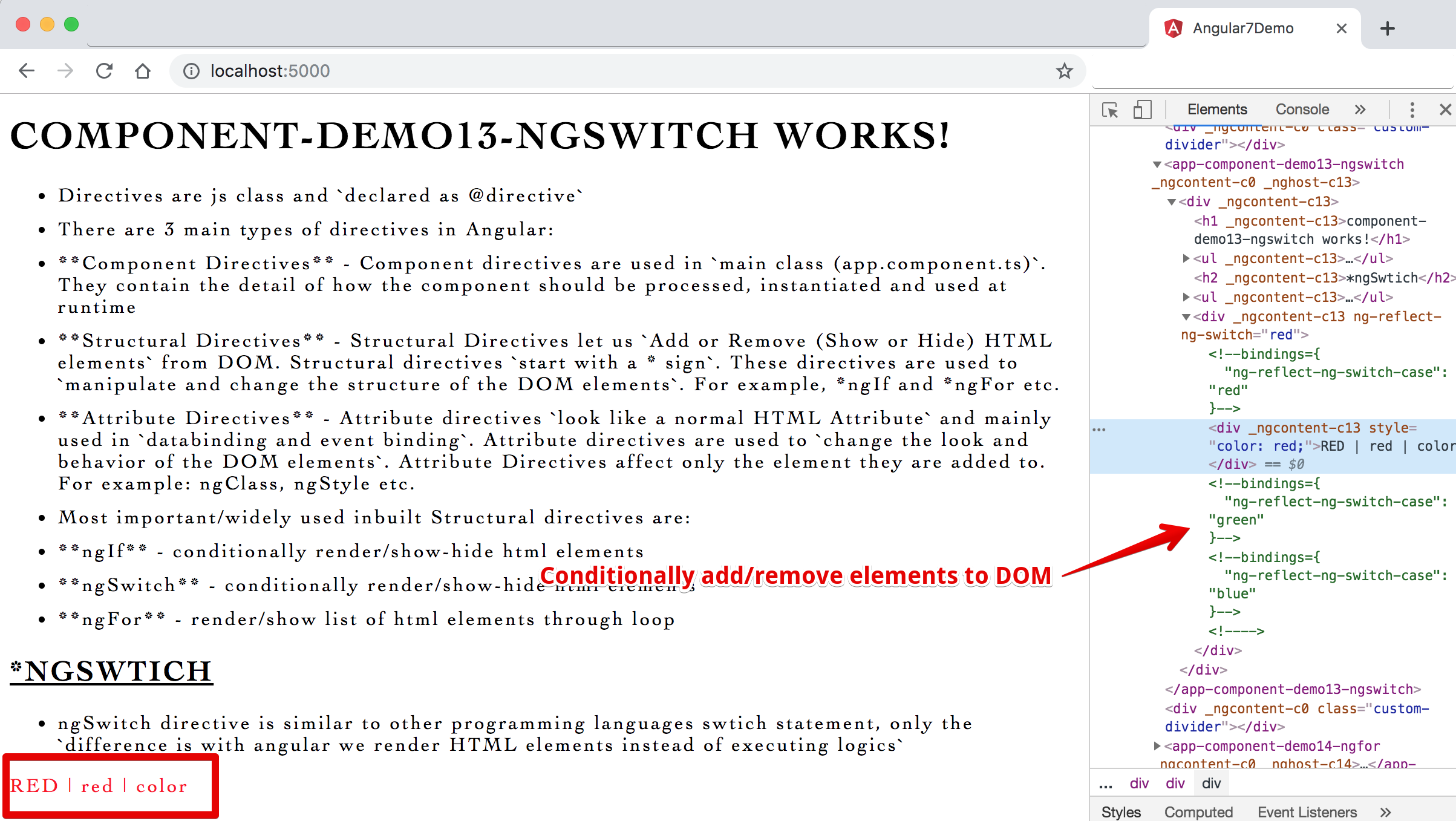
Image - Output - *ngSwitch - Structural directive to control/add/remove elements to DOM conditionally
14 ngFor Directive
=====================
- ngFor directive is similar to other programming languages for loop statement, only the `difference is with angular we render the list of HTML elements instead of executing logics`
> **Syntax & Example**: component-demo14-ngfor.component.ts
```ts
import { Component, OnInit } from '@angular/core';
@Component({
selector: 'app-component-demo14-ngfor',
templateUrl: './component-demo14-ngfor.component.html',
styleUrls: ['./component-demo14-ngfor.component.css']
})
export class ComponentDemo14NgforComponent implements OnInit {
// public arrColors = ['red', 'green', 'blue','cyan','magenta','black'];
public arrColors = ['red', 'green', 'blue'];
constructor() { }
ngOnInit() {
}
}
```
> **Syntax & Example**: component-demo14-ngfor.component.html
```html
component-demo14-ngfor works!
*ngFor
*ngFor Basics
{{color}}
*ngFor with id and class
{{color}}
*ngFor with index
Index is: {{curIndex + 1 }}. {{color}}
*ngFor with index - first / last / even / odd
{{curIndex}}. {{color}} :--: First Item: {{firstIndex}} :--: Last Item: {{lastIndex}} :--: Odd: {{oddIndex}} :--: Even: {{evenIndex}} :--:
```
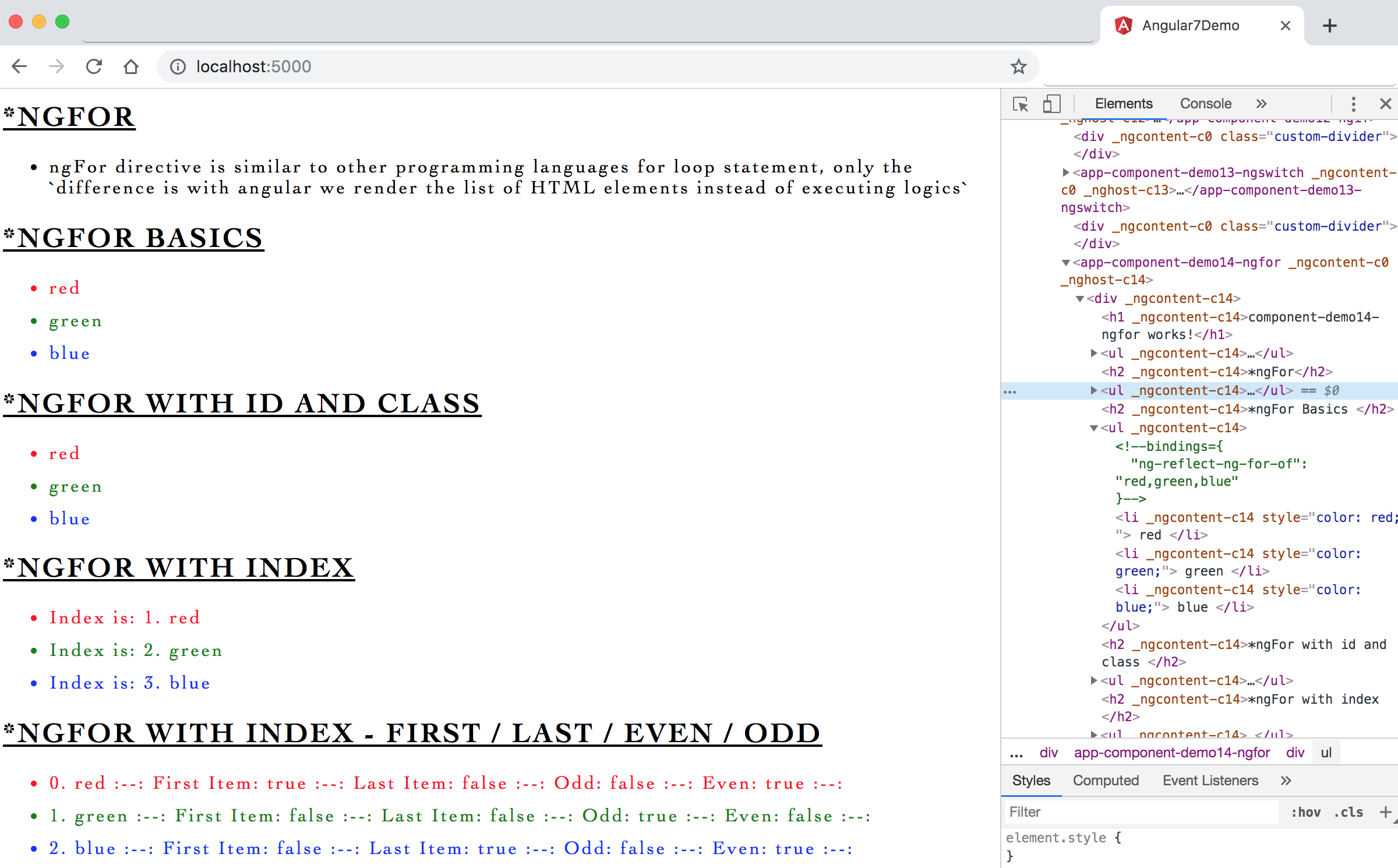
Image - Output - *ngFor - Structural directive to render/loop html elements from an array/object
15 Component Interaction
=====================
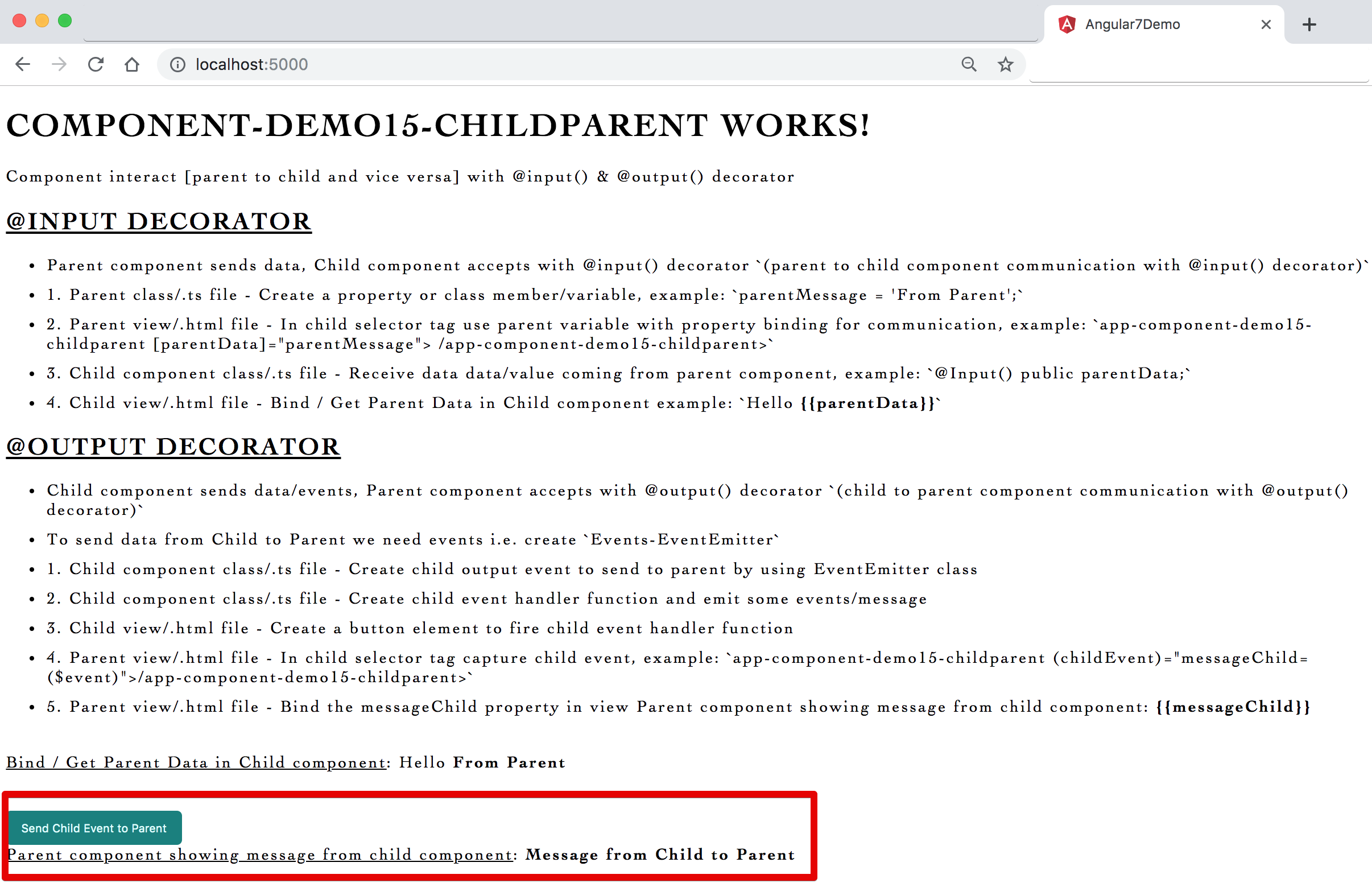
- Component interact [parent to child and vice versa] with @input() & @output() decorator
- **@input() decorator** - Parent component sends data, Child component accepts with @input() decorator `(parent to child component communication with @input() decorator)`
- **@output() decorator** - Child component sends data/events, Parent component accepts with @output() decorator `(child to parent component communication with @output() decorator)`
- To send data from Child to Parent we need events i.e. create `Events-EventEmitter`
15.1. Parent to child communication with @Input() decorator:
------------------------------
1. Parent class/.ts file - Create a property or class member/variable, example: `parentMessage = 'From Parent';`
2. Parent view/.html file - In child selector tag use parent variable with property binding for communication, example: ``
3. Child component class/.ts file - Receive data data/value coming from parent component, example: `@Input() public parentData;`
4. Child view/.html file - Bind / Get Parent Data in Child component example: `Hello {{parentData}}`
> **Syntax & Example**: parent component - app.component.ts
```ts
import { Component } from '@angular/core';
@Component({
selector: 'app-root',
templateUrl: './app.component.html',
styleUrls: ['./app.component.css']
})
export class AppComponent {
// create a property to send from parent to child
parentMessage = 'From Parent';
}
```
> **Syntax & Example**: parent component - app.component.html
```html
```
> **Syntax & Example**: child component - component-demo15-childparent.component.ts
```ts
import { Component, OnInit, Input, Output, EventEmitter } from '@angular/core';
@Component({
selector: 'app-component-demo15-childparent',
templateUrl: './component-demo15-childparent.component.html',
styleUrls: ['./component-demo15-childparent.component.css']
})
export class ComponentDemo15ChildparentComponent implements OnInit {
// parent to child
// receive data data/value coming from parent component
@Input() public parentData;
// @Input() public parentName;
// alias based method
// @Input('parentData') public parentName;
constructor() { }
ngOnInit() {
}
}
```
> **Syntax & Example**: child component - component-demo15-childparent.component.html
```html
component-demo15-childparent works!
Bind / Get Parent Data in Child component:
Hello {{parentData}}
```
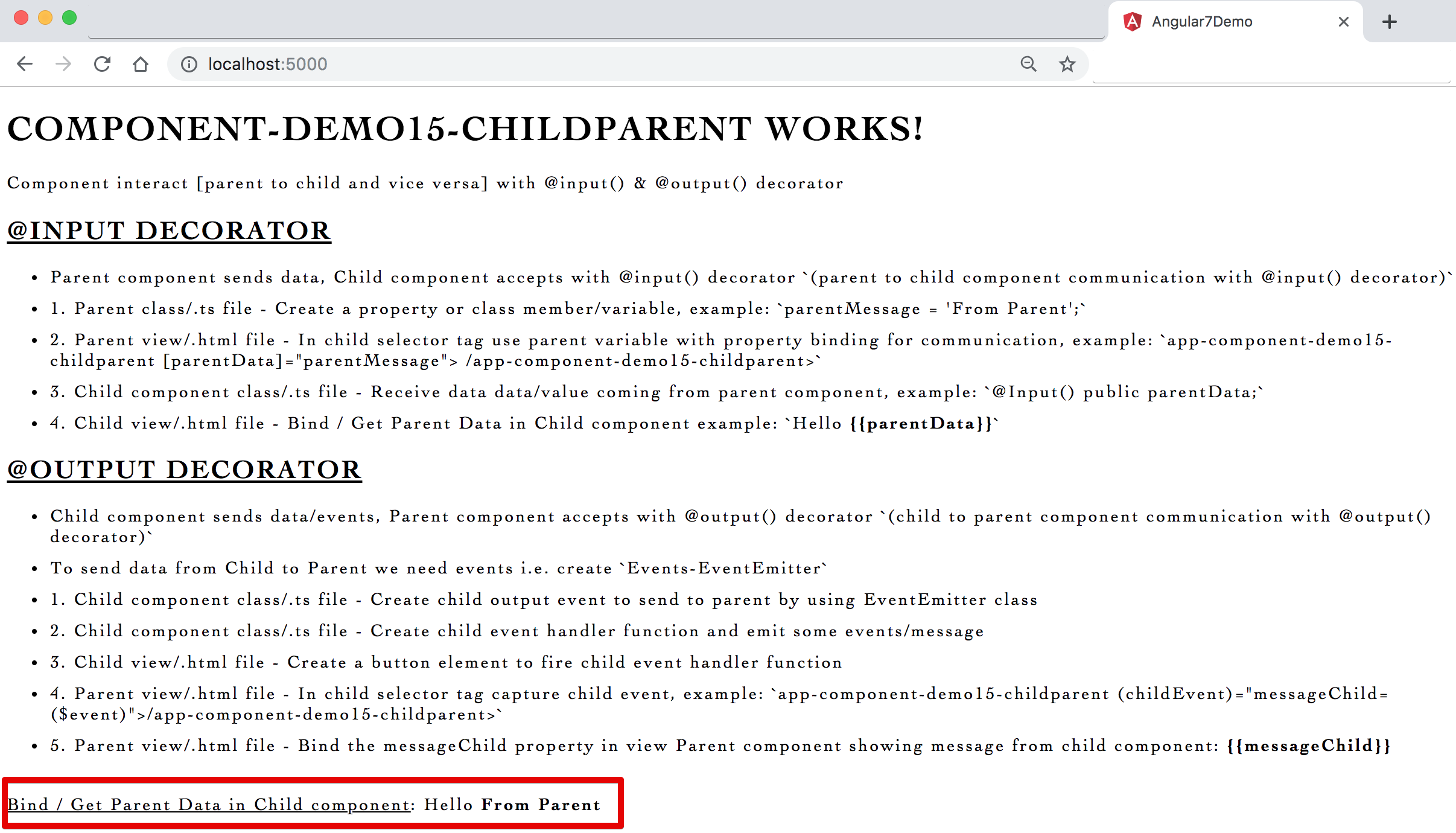
Image - Output - component communication parent to child with input decorator
15.2. Child to parent communication with @Ouput() decorator:
------------------------------
1. Child component class/.ts file - Create child output event to send to parent by using EventEmitter class
2. Child component class/.ts file - Create child event handler function and emit some events/message
3. Child view/.html file - Create a button element to fire child event handler function
4. Parent view/.html file - In child selector tag capture child event, example: ``
5. Parent view/.html file - Bind the messageChild property in view `Parent component showing message from child component: {{messageChild}}`
> **Syntax & Example**: child component - component-demo15-childparent.component.ts
```ts
import { Component, OnInit, Input, Output, EventEmitter } from '@angular/core';
@Component({
selector: 'app-component-demo15-childparent',
templateUrl: './component-demo15-childparent.component.html',
styleUrls: ['./component-demo15-childparent.component.css']
})
export class ComponentDemo15ChildparentComponent implements OnInit {
// parent to child
// receive data data/value coming from parent component
@Input() public parentData;
// @Input() public parentName;
// alias based method
// @Input('parentData') public parentName;
// child to parent
// create child event to send to parent
@Output() public childEvent = new EventEmitter();
// child event handler function
childFireEvent() {
this.childEvent.emit("Message from Child to Parent");
}
constructor() { }
ngOnInit() {
}
}
```
> **Syntax & Example**: child component - component-demo15-childparent.component.html
```html
component-demo15-childparent works!
```
> **Syntax & Example**: parent component - app.component.ts
```ts
import { Component } from '@angular/core';
@Component({
selector: 'app-root',
templateUrl: './app.component.html',
styleUrls: ['./app.component.css']
})
export class AppComponent {
// create a property to send from parent to child
parentMessage = 'From Parent';
// child to parent
messageChild;
}
```
> **Syntax & Example**: parent component - app.component.html
```html
```
Image - Output - component communication child to parent with ouput decorator
16 Pipes
=====================
- Pipes (Filters) helps to `transform data before displaying to view`
- Pipes (Filters) can be added in AngularJS to format data
- Pipes (Filters) is denoted by `piping |` symbol
- There are many built-in/default pipes available in angular like: `String related pipes` (uppercase, lowercase), `Number related pipes` (number), `Currency` pipes, `Date` pipes, `JSON` pipes.
- We can also create custom pipes as per out requirements with `Pipe, PipeTransform class & transform method`
> **Syntax & Example**: component-demo16-pipesfilters.component.ts
```ts
import { Component, OnInit } from '@angular/core';
@Component({
selector: 'app-component-demo16-pipesfilters',
templateUrl: './component-demo16-pipesfilters.component.html',
styleUrls: ['./component-demo16-pipesfilters.component.css']
})
export class ComponentDemo16PipesfiltersComponent implements OnInit {
public nameText = 'Angular js';
public messageText = 'Welcome to Angularjs';
public greetingText = 'angular 2/4/5/6 is component based';
public objTechnology = {
'firstName': 'angular',
'lastName': 'js',
'version': 6.0
}
public number1 = 5.786;
public currentDate = Date();
constructor() { }
ngOnInit() {
}
}
```
> **Syntax & Example**: component-demo16-pipesfilters.component.html
```html
component-demo16-pipesfilters works!
pipes
String based Pipes : Format string
uppercase: {{ nameText | uppercase }}
lowercase: {{ messageText | lowercase }}
titlecase: {{ greetingText | titlecase }}
slice:start:end (not including that letter): {{ greetingText | slice:8}}
slice:start:end (not including that letter): {{ greetingText | slice:14:15}}
JSON Pipes - Shows json representation of an object
json: {{ objTechnology | json }}
Number Pipes - Format Number, Integers
number (min integer digit. min decimal digit - max decimal digit): {{ 5.29898 | number:"1.2-3" }}
number (min integer digit. min decimal digit - max decimal digit): {{ 5.29898 | number:"2.2-2" }}
percent: {{ 0.29898 | percent }}
17 Services
=====================
- Programming Principles:
- **DRY** - Do not repeat yourself (DRY) - Avoid making copies of data in different files. (example: List & Details components using same employee object created twice in respective class file)
- **SRP** - Single Responsibility Principles (one class/function should perform one task/responsibility)
- **KISS** - Keep It Simple Stupid!
- Service is a class with a specific purpose and widely used to:
- Share data - Between multiple pages/components
- Implement application logic - Calculations, Repeatative tasks/functionalities etc.
- External Interaction - Database connectivity
- Services are a great and awesome way to share information among multiple classes/components, just create a service and inject it in respective classes/components
18 Dependency Injection DI
=====================
- Drawback of code without Dependency Injection (DI):
- Code is not flexible
- If main code (dependencies) changed we need to check and change our code
- Code is not suitable for testing
- Dependency Injection (DI) as a design pattern
- Dependency Injection DI is a coding pattern/standard in which a class receives its required dependencies from external sources rather than creating them itself to avoid tight coupling
- Dependency Injection (DI) as a Framework - Register all dependencies with Injector a central place/container
- 3 steps involved to create and use service in angular:
1. Define the Service class
2. Register with Injector
3. Declare as a dependency in List and Details both component
- `@Injectable()` decorator tells angular that this service might itself have injected dependencies
19 Using a Service
=====================
- 3 steps involved to create and use service in angular:
1. Define the Service class
2. Register with Injector
3. Declare as a dependency in List and Details both component
1.Define the Service class
---------------------
1. Create service (which is responsible for providing employee data) with the command `"ng g s employee"` OR `"ng generate service employee"`
> **Syntax & Example**: employee.service.ts
```ts
import { Injectable } from '@angular/core';
@Injectable({
providedIn: 'root'
})
export class EmployeeService {
// 1.1. create a new method which holds employee data
getEmployees() {
return [
{ 'id': 1, 'name': 'Amitabh', 'age': 75, 'city': 'Alahabad' },
{ 'id': 2, 'name': 'Akshay', 'age': 55, 'city': 'Delhi' },
{ 'id': 3, 'name': 'RajaniKanth', 'age': 73, 'city': 'Chennai' },
{ 'id': 4, 'name': 'Rajesh Khanna', 'age': 85, 'city': 'Kolkatta' }
]
}
constructor() { }
}
```
2.Register with Injector
---------------------
2. Register with Injector in app module file `'app.module.ts'`
> **Syntax & Example**: app.module.ts
```ts
// 2.1. import custom created service to Register with Injector
import { EmployeeService } from './services/employee.service';
// 2.2. import service in providers its compulsion to insert services in the provider's array
providers: [ EmployeeService ]
```
3.Declare as a dependency in both List and Details component
---------------------
3. import service in necessary component files - Declare as dependency in constructor
employee-list.component.ts & employee-details.component.ts
> **Syntax & Example**: component-demo191-serviceemployeelist.component.ts & component-demo192-serviceemployeedetails.component.ts
```ts
import { Component, OnInit } from '@angular/core';
// 3.1. import service in necessary component files - Declared as dependency
import { EmployeeService } from '../../services/employee.service';
@Component({
selector: 'app-component-demo191-serviceemployeelist',
templateUrl: './component-demo191-serviceemployeelist.component.html',
styleUrls: ['./component-demo191-serviceemployeelist.component.css']
})
export class ComponentDemo191ServiceemployeelistComponent implements OnInit {
// 3.3. define an empty local employees array which will hold employees data after service all
public employees = [];
// 3.2. refer to service with local variable as dependency in constructor
constructor(private employeeService: EmployeeService) { }
ngOnInit() {
// 3.4. on component initialization get values from service method
this.employees = this.employeeService.getEmployees();
}
}
```
4.Add Markup and bind required data in template/view - employee-list.component.html (component-demo191-serviceemployeelist.component.html) file:
---------------------
> **Syntax & Example**:
```html
Employee list:
{{employee.id}} {{employee.name}}
```
5.Add Markup and bind required data in template/view - employee-details.component.html file: component-demo192-serviceemployeedetails.component.html
---------------------
> **Syntax & Example**:
```html
Image - Output - services and component folder structure
Image - Output - single service used in multiple component as per logic and requirement
20 HTTP and Observables
=====================
- Http services are used to fetch the data from web server (instead of using hard coded data/json files)
20.1. Http Mechanism:
---------------------
1. Send http request
2. Receive and process http response
### Request:
Component file calls -> Service -> Get -> HTTP -> request -> server (DB)
### Response:
Component file calls <- Service (cast data) <- Observable <- HTTP <- response <- server (DB)
### Observables:
The response/results/returns which we get from the HTTP call is nothing but an Observables. The service needs to cast Observables into an Array/Object and then pass to the required components.
20.2. What exactly are Observables?
---------------------
- A sequence of data/items that arrive asynchronously over time
- HTTP Call = Single item and Single item = HTTP response
- Observables are HTTP response which arrives asynchronously
20.3. HTTP, Observables, and RxJS:
---------------------
- 4 steps to fetch data from HTTP & observables:
1. HTTP Get request from service
2. Receive the observable and cast it into an array/Object
3. Subscribe to the observable from List and Details component class
4. Assign the received array/Object to a local variable
20.4. RxJS
---------------------
- Reactive Extensions for JavaScript
- External library to work with Observables
- No-where related to ReactJS library from Facebook
21 Fetch Data Using HTTP and Observables
=====================
- Http & HttpClientModule:
- Till Angular 4 - Http module used
- In Angular 5 - HttpClientModule used (HttpClientModule provides simplified APIs to work with http functionality)
- We know an Observables are return as result of a http call, to handle an exceptions on observables we make a use of 'catch' operator
- 4 steps to fetch data from http & observables:
1. HTTP Get request from service
2. Receive the observable and cast it into an array/Object
3. Subscribe to the observable from List and Details component class
4. Assign the received array/Object to local variable
- create a custom service to handle http data with command: ng g s employeeHttp
1.HTTP Get request from service
---------------------
> **Syntax & Example**: 1. app.module.ts
```ts
// import HttpClientModule and add to imports array
// 1a. import HttpClientModule
import { HttpClientModule } from '@angular/common/http'
// 1b. add to imports array
imports: [
BrowserModule,
BrowserAnimationsModule,
FormsModule,
HttpClientModule
],
// 1c. import custom created service Register with Injector
import { EmployeeHttpService } from './employee-http.service';
// import service in providers
providers: [EmployeeService, EmployeeHttpService],
```
2.Receive the observable and cast it into an array/Object
---------------------
> **Syntax & Example**: 2. employee-http.service.ts
```ts
import { Injectable } from '@angular/core';
import { HttpClient } from '@angular/common/http';
import { Observable } from 'rxjs';
import { IEmployee } from '../models/iemployee';
@Injectable({
providedIn: 'root'
})
export class EmployeehttpService {
// 2c. create json data file
private jsonUrl:string= "/assets/data/employees.json";
// 2a. create local variable for HttpClient as DI
constructor(private httpClient: HttpClient) { }
// 2b. http get
getEmployees(): Observable {
return this.httpClient.get(this.jsonUrl);
}
}
/*
// 2a. create local variable for HttpClient as DI
constructor(private _HttpClient:HttpClient) { }
import { HttpClient } from '@angular/common/http';
// 2b. in a getEmployees method make get request
// getEmployees(){
// return this._HttpClient.get(_jsonUrl);
// }
// 2b. http get
getEmployees():Observable{
return this._HttpClient.get(this._jsonUrl);
}
// 2c. create json data file
private _jsonUrl:string= "/assets/data/employees.json";
// import model/interface file
import { IEmployee } from './employee-model-interface';
import { Observable } from 'rxjs/Observable';
*/
```
> **Syntax & Example**: 3. ceate employees.json data file inside assets/data folder
```json
[
{ "id": 1, "name": "Amitabh", "age": 75, "city": "Alahabad" },
{ "id": 2, "name": "Akshay", "age": 55, "city": "Delhi" },
{ "id": 3, "name": "RajaniKanth", "age": 73, "city": "Chennai" },
{ "id": 4, "name": "Rajesh Khanna", "age": 85, "city": "Kolkatta" }
]
[
{"id":1, "name":"Ratan Tata", "age":75},
{"id":2, "name":"Adi Godrej", "age":65},
{"id":3, "name":"K M Birla", "age":55},
{"id":4, "name":"Laxmi Mittal", "age":58},
{"id":5, "name":"Chanda Kochar", "age":50},
{"id":6, "name":"Amitabh B", "age":76}
]
```
> **Syntax & Example**: 4. create IEmployee.ts an employee model/interface file to store exact data types and rules
```ts
export interface IEmployee {
id:number;
name:string;
age:number
}
```
3.Subscribe to the observable from List and Details component class
4.Assign the received array/Object to local variable
---------------------
> **Syntax & Example**: 3. employee-http-list.component.ts
```ts
import { Component, OnInit } from '@angular/core';
import { EmployeehttpService } from '../services/employeehttp.service';
@Component({
selector: 'app-component-demo211-httpemployeelist',
templateUrl: './component-demo211-httpemployeelist.component.html',
styleUrls: ['./component-demo211-httpemployeelist.component.css']
})
export class ComponentDemo211HttpemployeelistComponent implements OnInit {
public employees = [];
constructor(private employeehttpService: EmployeehttpService) { }
ngOnInit() {
// on component initialization get value from http subscribe
// data =>: argument of the function
// this.employees = data: body of the function
// subscribe: to receive data
this.employeehttpService.getEmployees().subscribe(data => this.employees = data)
}
}
```
> **Syntax & Example**: component-demo211-httpemployeelist.component.html
```html
Image - Output - http-observables services and component folder structure
Image - Output - http-observables
22 Creating Custom Directives
=====================
- We know that Directives are an `instructions in the DOM`, they specify how to place your components and business logic in the Angular
- There are many inbuilt structural directives like `ngIf`, `ngSwitch` and `ngFor` used widely in angular
- We can also create custom directives to implement some common logic/functionality (not existing) as a class `declared as @directive`
Let's create a custom attribute directive to highlight text with blue color & italic style
---------------------
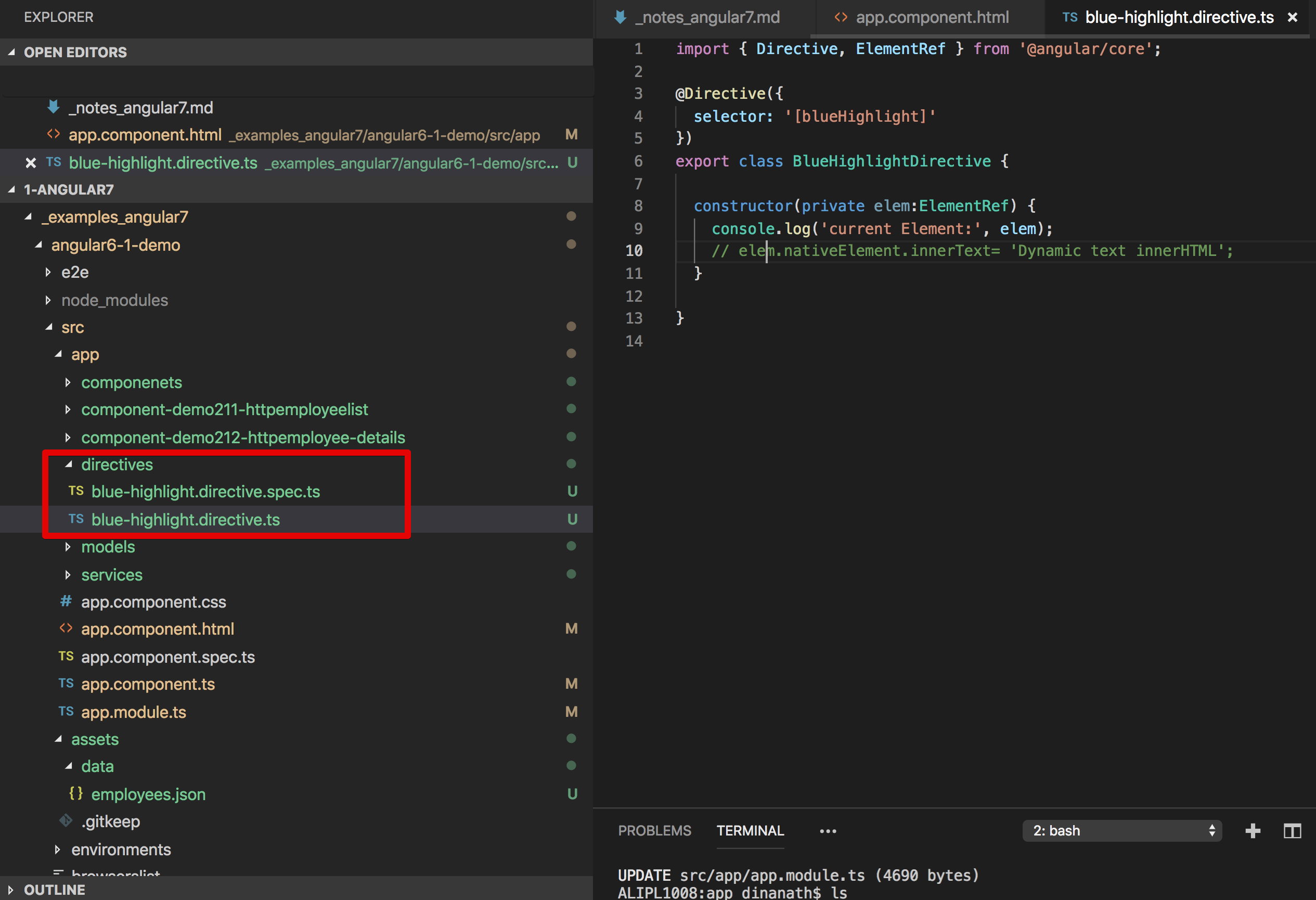
1. The command to create directive: `ng generate directive name` OR `ng g directive name`.
1. In the current app, we want to create all custom directives under `directives` folder so use command as: `ng generate directive directives/blueHighlight`
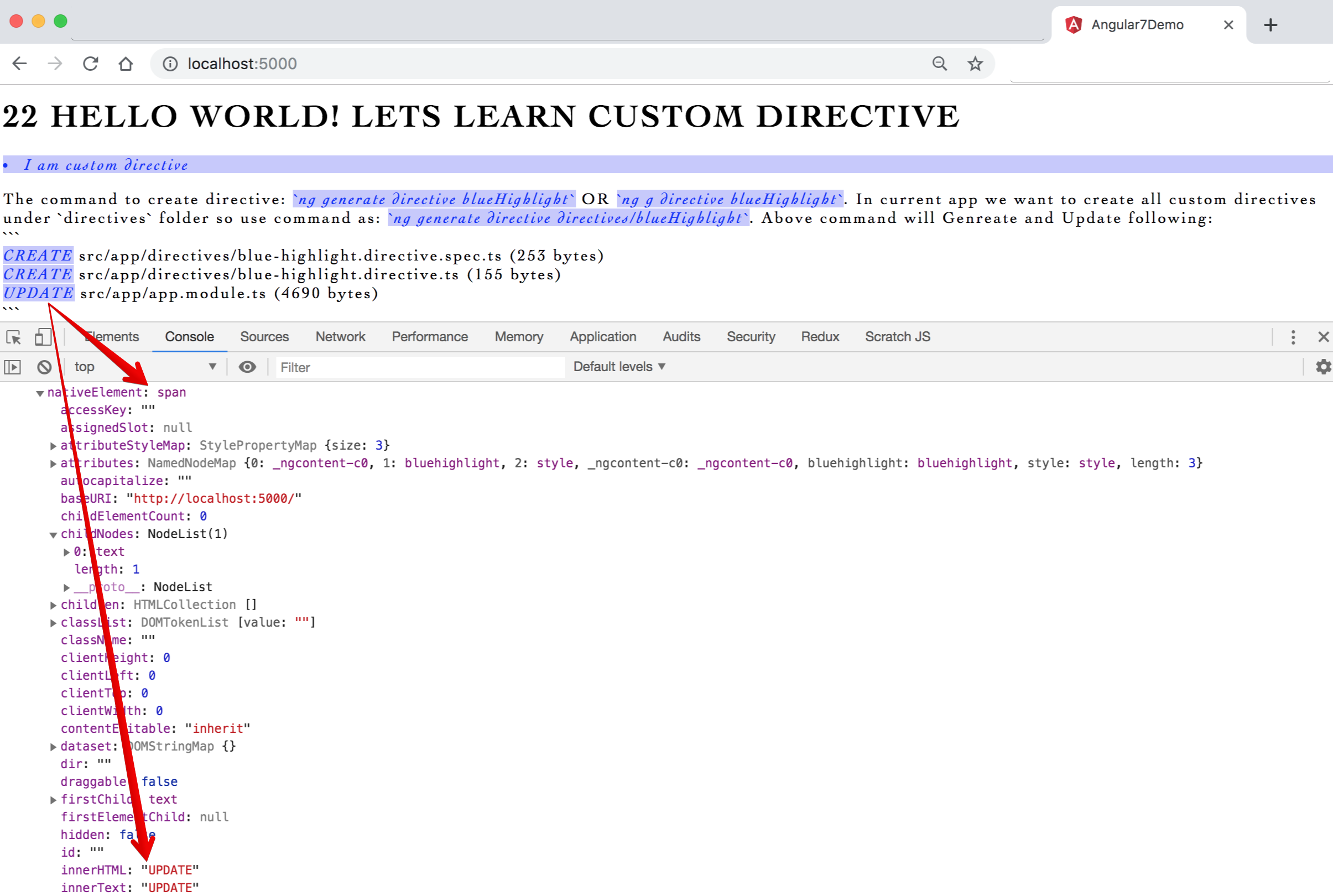
2. The above command will generate and update the following:
```
CREATE src/app/directives/blue-highlight.directive.spec.ts (253 bytes)
CREATE src/app/directives/blue-highlight.directive.ts (155 bytes)
UPDATE src/app/app.module.ts (4690 bytes)
```
> **Syntax & Example**: app.module.ts will be updated automatically with new directive entry
```ts
// 22. directives - import custom created directives
import { BlueHighlightDirective } from './directives/blue-highlight.directive';
declarations: [
BlueHighlightDirective
],
```
2. Once directive created, in `blue-highlight.directive.ts` assign/change selector name from `appBlueHighlight` to `"blueHighlight"` or so.
1. Open any component html file and use `"blueHighlight"` directive as a attribute (i am trying in app.component.html): `
Hello World! I am custom directive
`
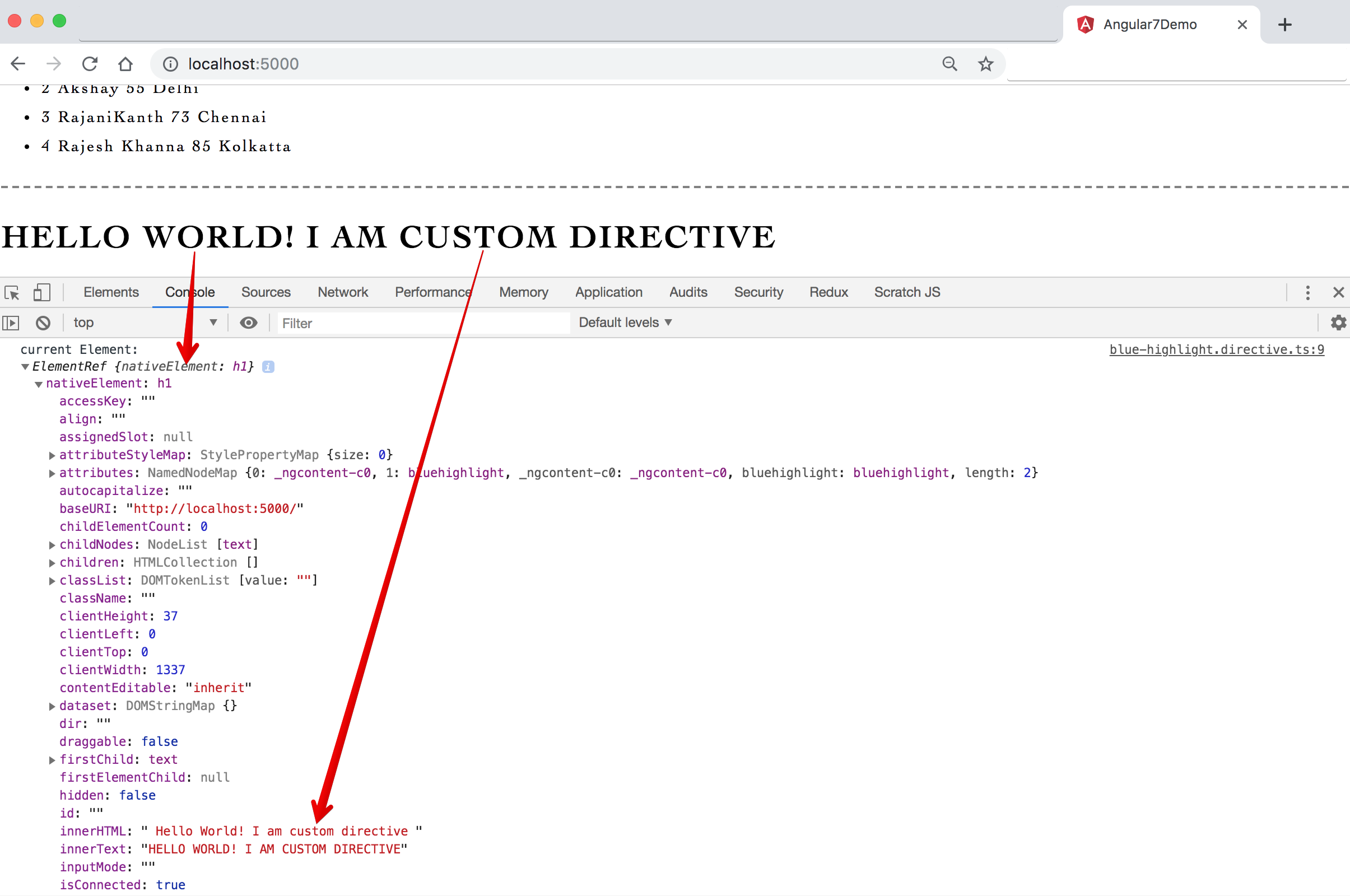
2. To target, get or capture the current html element we can import and use `ElementRef` and `nativeElement` utilities
3. Directives called before the element is rendered so it's advisable to perform all content related actions inside `ngOnInit()` life cycle hook
> **Syntax & Example**: blue-highlight.directive.ts
```ts
import { Directive, ElementRef } from '@angular/core';
@Directive({
selector: '[blueHighlight]'
})
export class BlueHighlightDirective {
constructor(private elem:ElementRef) {
console.log('current Element:', elem);
// elem.nativeElement.innerText= 'Dynamic text innerHTML';
elem.nativeElement.style.color = `#0000ff`;
elem.nativeElement.style.fontStyle = 'italic';
elem.nativeElement.style.backgroundColor = '#c7c7ff';
}
}
```
> **Syntax & Example**: app.component.html
```html
22 Hello World! Lets learn custom directive
I am custom directive
The command to create directive: `ng generate directive blueHighlight` OR `ng g directive blueHighlight`. In current app we want to create all custom directives under `directives` folder so use command as: `ng generate directive directives/blueHighlight`. Above command will Genreate and Update following:
23 Custom Directives with Events and HostListener
=====================
- In Angular, the `@HostListener() function decorator` allows you to handle events of the host element in the directive class
- `@HostListener Decorator` declares a DOM event to listen for, and provides a handler method to run when that event occurs
- Basic syntax of @Hostlistener is:
- `@Hostlistener('eventName',[args])` OR `@Hostlistener('target:EVENT',[args])`
- **eventName**: The CSS event to listen for
- **args**: A set of arguments to pass to the handler method when the event occurs
Let's create a custom attribute directive to highlight text and also have a click event
---------------------
1. The command to create directive: `ng generate directive name` OR `ng g directive name`.
1. In the current app, we want to create all custom directives under `directives` folder so use command as: `ng generate directive directives/highlightClick`
2. The above command will generate and update the following:
```
CREATE src/app/directives/highlight-cilck.directive.spec.ts (257 bytes)
CREATE src/app/directives/highlight-cilck.directive.ts (157 bytes)
UPDATE src/app/app.module.ts (4855 bytes)
```
> **Syntax & Example**: app.module.ts will be updated automatically with new directive entry
```ts
/// 23. directives - import custom created directives
import { HighlightCilckDirective } from './directives/highlight-cilck.directive';
declarations: [
HighlightCilckDirective
],
```
2. Once directive created, in `highlight-cilck.directive.ts` assign/change selector name from `appHighlightCilck` to `"highlightCilck"` or so.
1. Open any component html file and use `"highlightCilck"` directive as a attribute (i am trying in app.component.html): `
Hello World! I am custom directive with Click
`
2. To target, get or capture the current html element we can import and use `ElementRef` and `nativeElement` with `@HostListener` utilities
> **Syntax & Example**: blue-highlight.directive.ts
```ts
import { Directive, ElementRef, HostListener } from '@angular/core';
@Directive({
selector: '[highlightCilck]'
})
export class HighlightCilckDirective {
constructor(private elem: ElementRef) {
console.log('current Element:', elem);
// elem.nativeElement.innerText= 'Dynamic text innerHTML';
elem.nativeElement.style.color = `#ff0000`;
elem.nativeElement.style.backgroundColor = '#ffd5d5';
elem.nativeElement.style.cursor = 'pointer';
}
// element click event - @Hostlistener('eventName',[args])
@HostListener('click') showAlert() {
window.alert('Custom Directive - @HostListener events!');
}
// use global objects like document/window click - @Hostlistener('target:EVENT',[args])
// @HostListener('document:click', ['$event'])
// showElementClicked(elem) {
// window.alert('Document Clicked');
// }
}
```
> **Syntax & Example**: app.component.html
```html
23 Hello World! Lets learn custom directive with click
I am custom directive
The command to create directive: `ng generate directive highlightCilck` OR `ng g directive highlightCilck`. In current app we want to create all custom directives under `directives` folder so use command as: `ng generate directive directives/highlightCilck`. Above command will Genreate and Update following:
24 Creating Custom Pipes
=====================
- We learnt that Pipes (Filters) helps to `transform data before displaying to view`, `format the data`
- There are many inbuilt pipes like `uppercase`, `number`, `currency` and `date` used widely in angular to transform data
- We can also create custom pipes as per our requirements with `Pipe, PipeTransform class & transform method`
Let's create a custom pipe to get the square root of the given number
---------------------
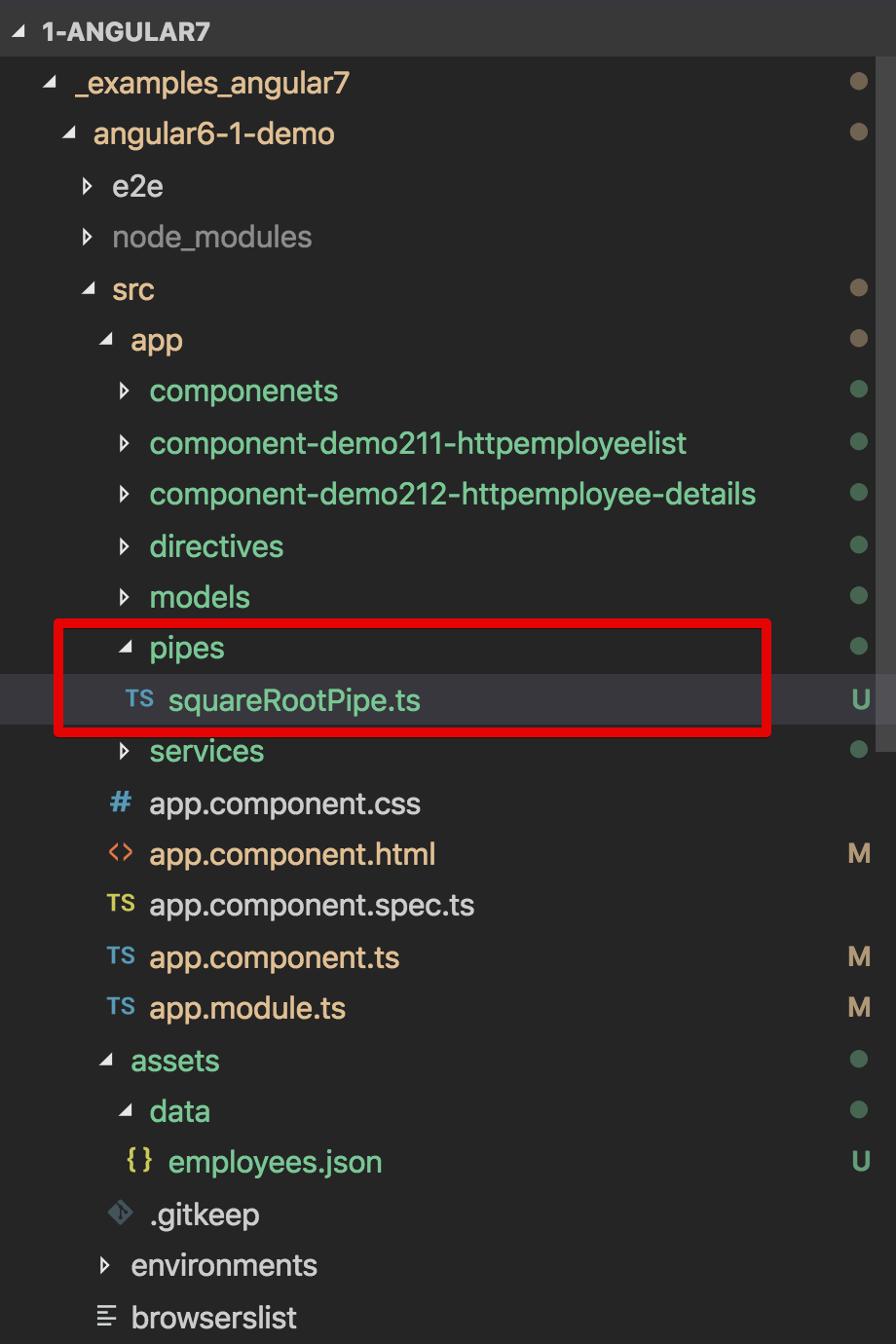
1. Inside `app/pipes` folder create a new .ts file named `squareRootPipe.ts`
2. In `squareRootPipe.ts` to create a custom pipe we need to import `Pipe, PipeTransform class from @angular/core and also use transform method`
3. Also in the `@Pipe directive` we have to give the name to the current pipe, which will be used in the .html file, like `name: 'squareRootPipe'`
4. In `app.module.ts` file import and add in declarations `squareRootPipe.ts` as it's created manually
* To create a pipe using angular CLI:
- `syntax`: ng generate pipe pipeName OR ng generate pipe path/pipeName
- `command`: ng generate pipe pipes/reversText
* The above command will generate pipe `reversTextPipe.ts` with `@Pipe` decorator, implements `PipeTransform` and also update the src/app/app.module.ts with necessary imports entries
> **Syntax & Example**: squareRootPipe.ts
```ts
import { Pipe, PipeTransform } from '@angular/core';
@Pipe({
name: 'squareRootPipe'
})
export class SquareRootPipe implements PipeTransform {
transform(curValue: number): number {
return Math.sqrt(curValue);
}
}
```
> **Syntax & Example**: app.module.ts
```ts
// 24. pipes - import custom created pipes
import { SquareRootPipe } from './pipes/squareRootPipe';
declarations: [
SquareRootPipe
],
```
> **Syntax & Example**: app.component.html
```html
24 Lets learn custom pipe to format/transform data



![Output - Property binding with {{}}, [ ] and bind-](./_images_angular7/6.property-binding.png "Output - Property binding with {{}}, [ ] and bind-")
![Output - Class binding with {{}}, [ ] and ngClass](./_images_angular7/7.class-binding.png "Output - Class binding with {{}}, [ ] and ngClass")
![Output - Style binding with [style.] and [ngStyle]](./_images_angular7/8.style-binding.png "Output - Style binding with [style.] and [ngStyle]")
![Simple one way data binding with {{}}, [ ] and bind-](./_images_angular7/11.one-way-data-binding-1.png "Simple one way data binding with {{}}, [ ] and bind-")
![Image - Output - Simple one way data binding with {{}}, [ ] and bind-, used as two way data binding](./_images_angular7/11.one-way-data-binding-2.png "Image - Output - Simple one way data binding with {{}}, [ ] and bind-, used as two way data binding")
![Image - Output - Two way data binding with [(ngModel)], FormsModule](./_images_angular7/12.two-way-data-binding.png "Image - Output - Two way data binding with [(ngModel)], FormsModule")