# DiskWise
**See where your Mac's disk actually went — then clear a slice with two taps. It lands in the Trash, and one tap puts it back.**
A free, open-source CleanMyMac alternative for macOS. No subscription, no telemetry, ~8 MB.





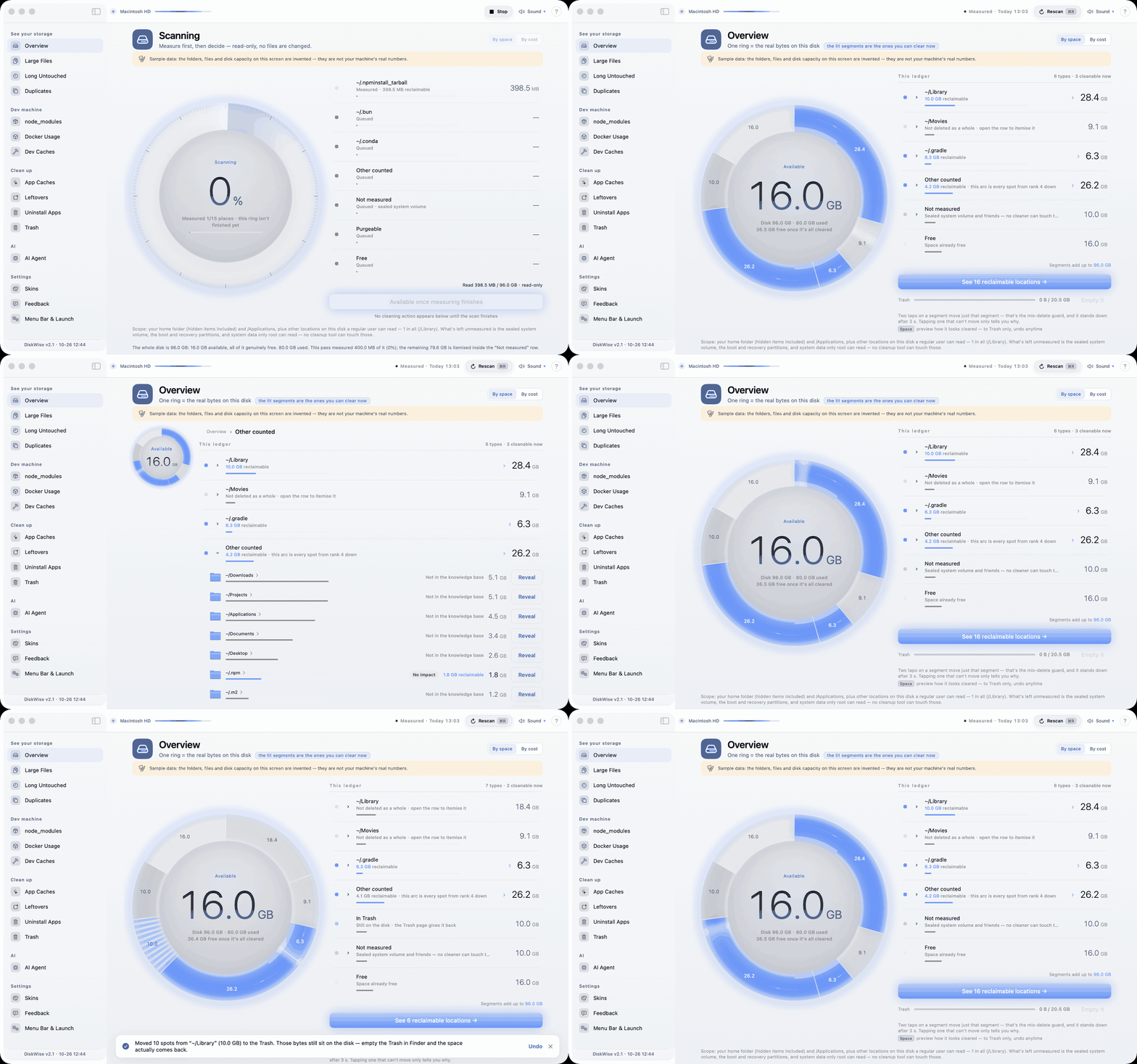
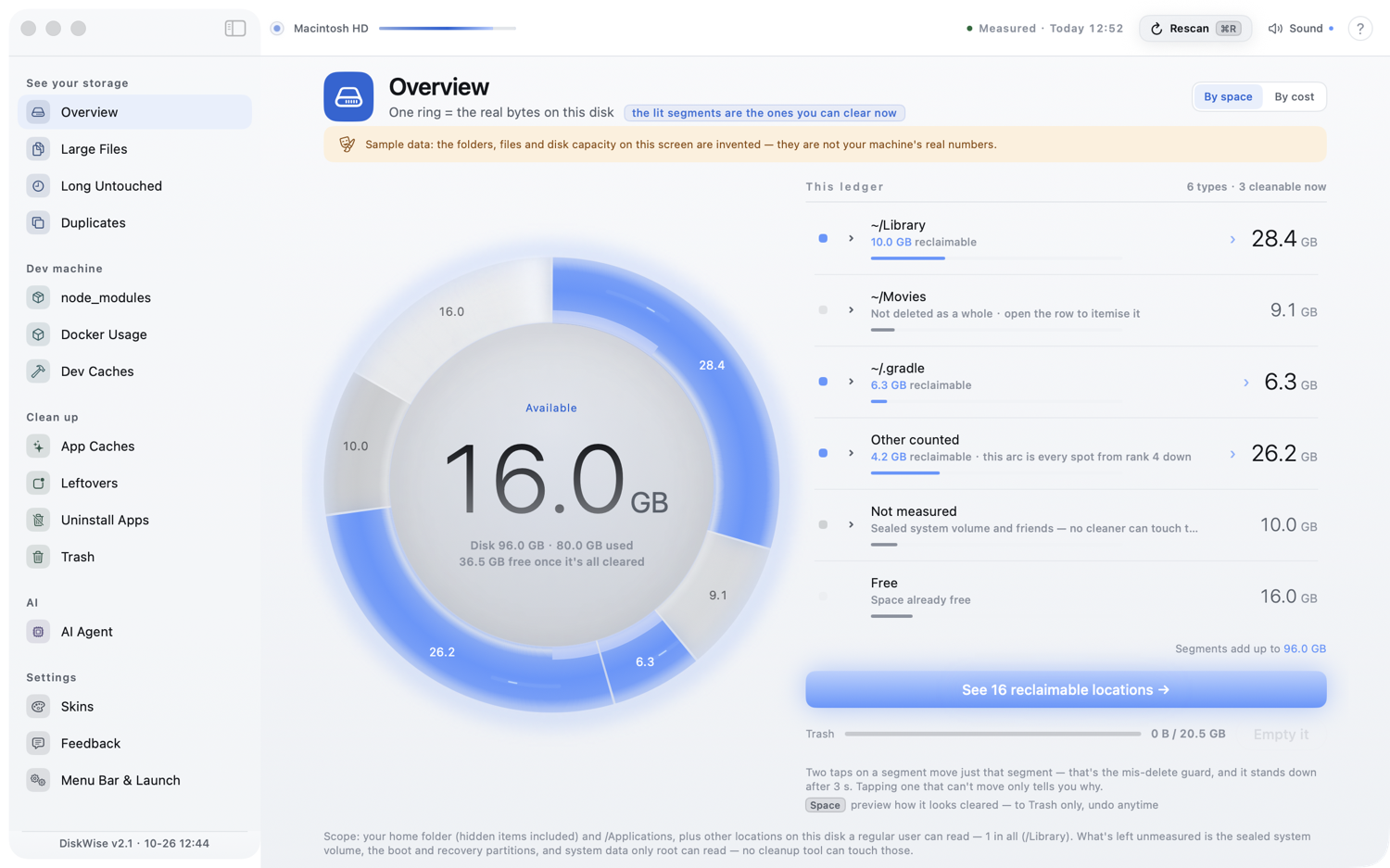
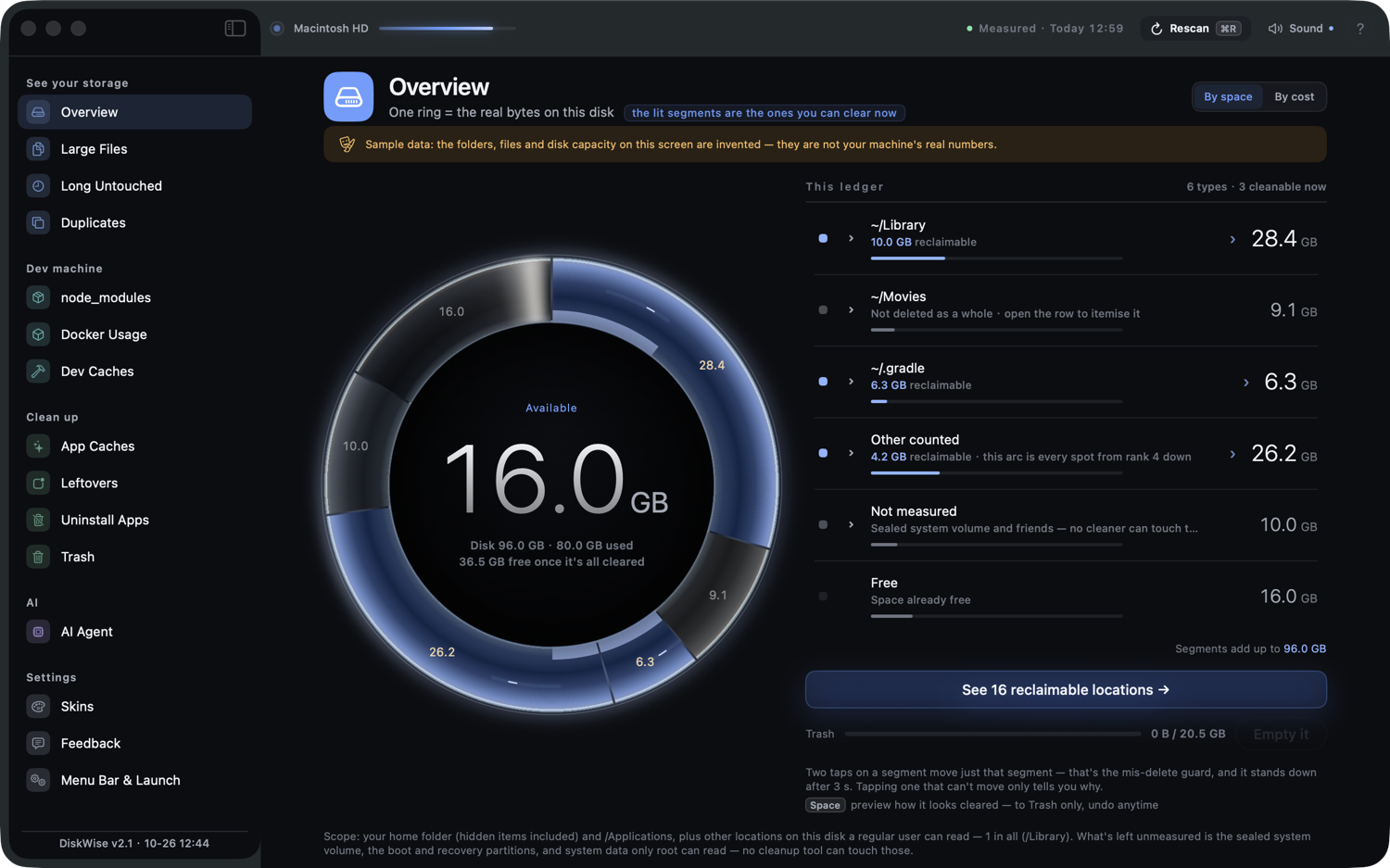
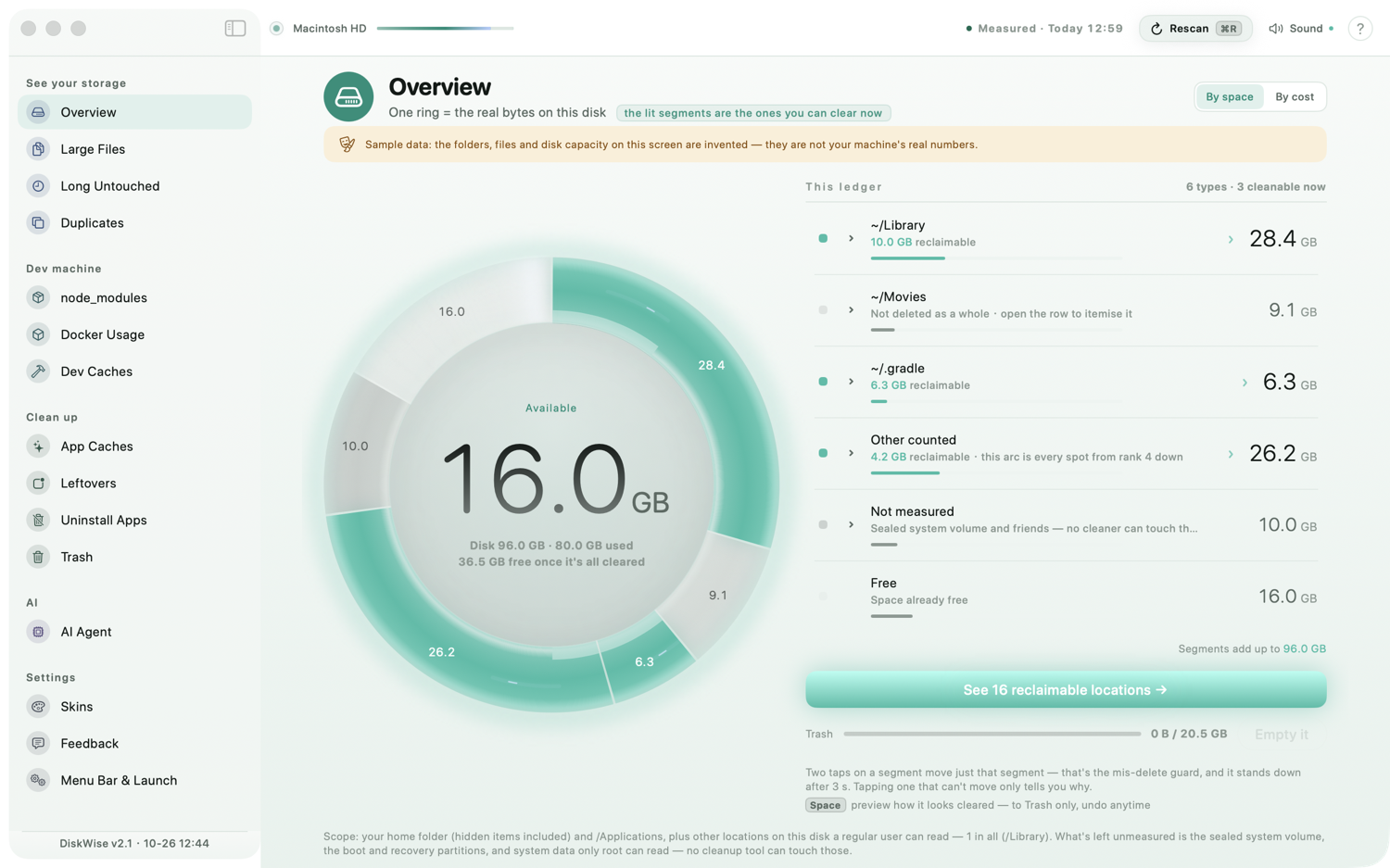
*Scan → open a row → two taps → undo. Shot against a synthetic home folder, so the numbers on screen are invented — the orange strip says so.*
English | [简体中文](./README.zh-CN.md) | [日本語](./README.ja.md) | [한국어](./README.ko.md)
```sh
brew install --cask dreamofxm/diskwise/diskwise
```
Or the **Mac App Store** (free, auto-updated by the store): [DiskWise: Storage Cleaner](https://apps.apple.com/app/id6813265402)
· [DMG from Releases](https://github.com/DreamOfXM/diskwise/releases/latest), every release with its SHA-256
· ▶ [22-second demo film](https://www.youtube.com/watch?v=0RfXNwNdzFg)
A native SwiftUI disk cleaner for `node_modules`, Xcode `DerivedData`, Docker volumes, app
caches and uninstall leftovers — and it never truly deletes anything: every removal goes to
the Trash and stays undoable until *you* empty it. No Electron, no Python sidecar, no local
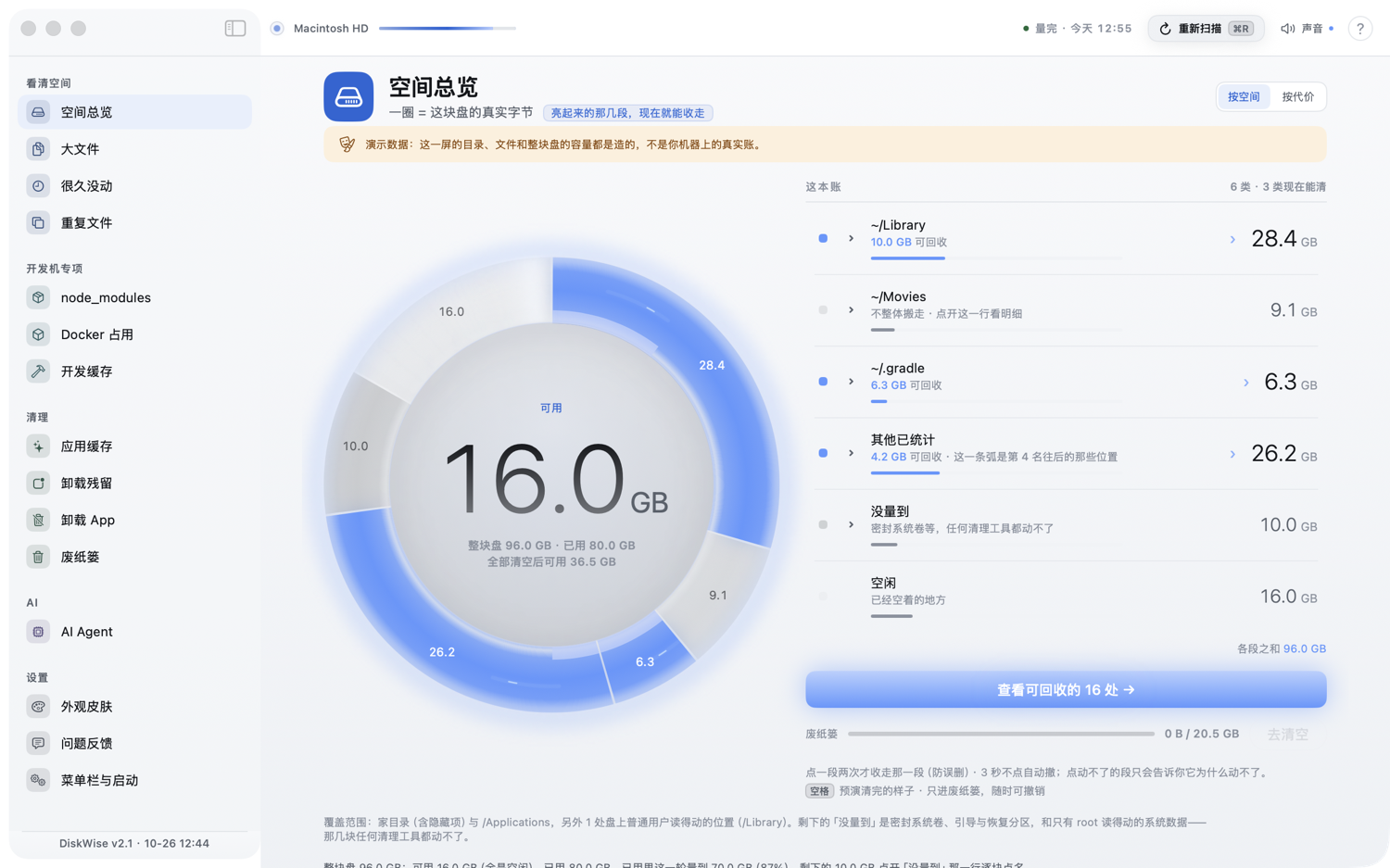
server, no telemetry, no subscription, and the whole UI in ten languages. A ~8 MB DMG, one
file for Apple Silicon and Intel.
Want to know what's actually safe to delete first? [docs/safe-to-delete.md](./docs/safe-to-delete.md) —
80 of the usual space hogs on macOS, each with what it is, what deleting it does and what it costs
if you were wrong. Generated from the same data the app reads at scan time (the tables are in
Chinese; `Sources/DiskCleaner/Resources/safety_db.json` is the machine-readable original).
---
## What's new in v2.1
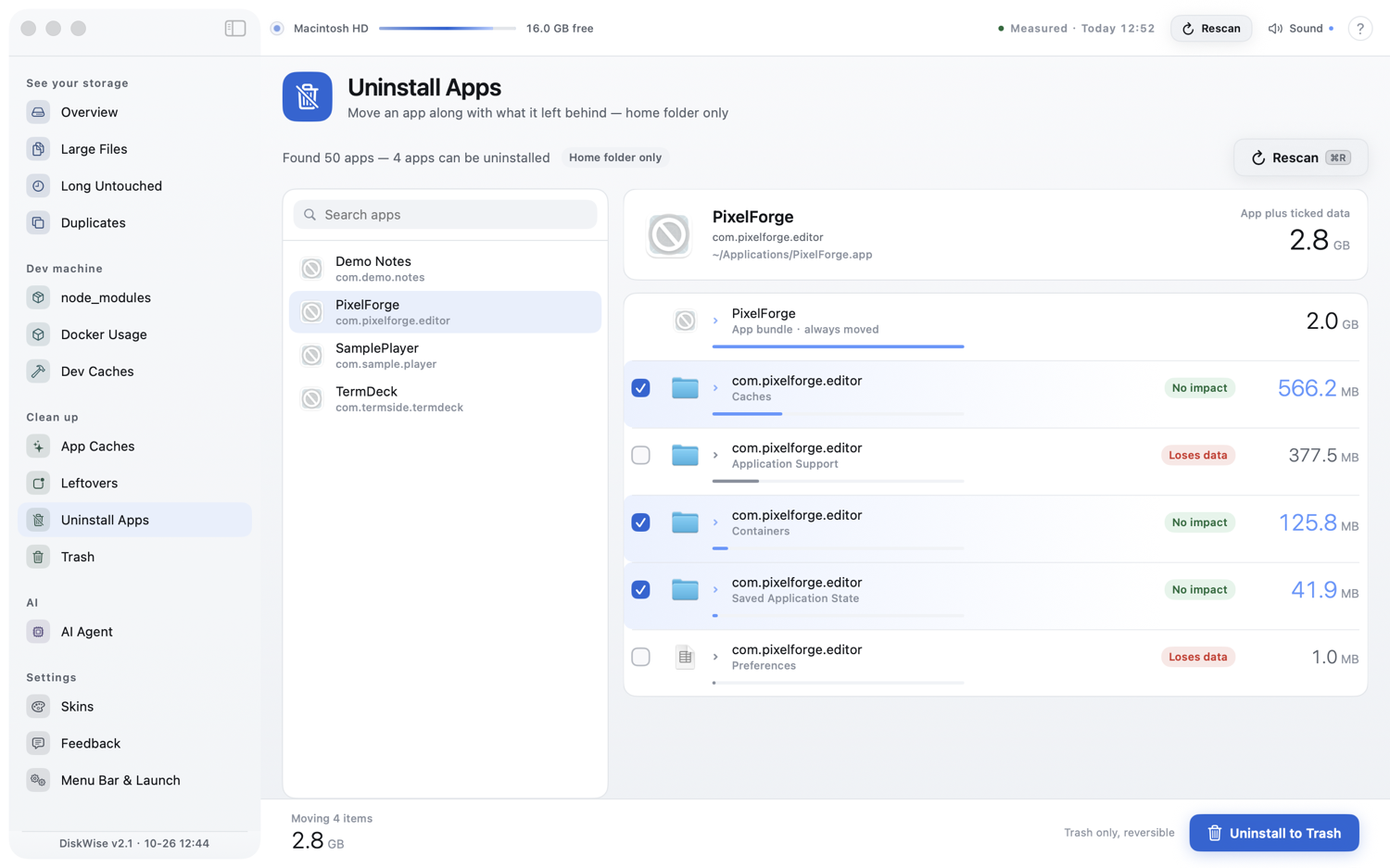
v2.1 adds an uninstall page. It doesn't just move the `.app` to the Trash — it finds what that app
left in your home folder and moves that too. Still one delete path: everything goes to the Trash,
everything stays undoable until you empty it.
- **One app at a time, both halves in view.** Pick an app on the left; the right side lists the
bundle plus every folder in `~/Library` that provably belongs to it, with size, path and what
wiping it costs.
- **Proven ownership only.** A folder is claimed when it carries the app's bundle ID or a name
derived from it. Fuzzy word matching stays where it belongs — the leftover page — so this page
never guesses. A folder that two installed apps both claim is dropped for both.
- **Checked and unchecked, by consequence.** Caches, containers, saved state, HTTP storages, WebKit
data, logs and app scripts start checked: they rebuild on their own. Application Support, Group
Containers, Preferences and LaunchAgents start unchecked, each marked as holding data.
- **Settings are a choice, not a side effect.** Leave Preferences unchecked and the app keeps its
settings and sign-ins; check it and the app opens as if freshly installed — possibly asking you
to sign in or re-enter a licence again.
- **App Store apps say where they came from.** They carry a line noting a free reinstall from the
App Store if you change your mind.
- **It won't uninstall itself.** The copy whose bundle ID matches the running DiskWise stays in the
list, greyed out and inert; another copy with a different ID can still be removed.
- **Home folder only.** No `/Library`, no admin password, no background helper. The bundle and the
data you picked move to the Trash as one undoable record.
## Contents
- [What's new in v2.1](#whats-new-in-v21)
- [Quick start](#quick-start)
- [For AI agents](#for-ai-agents)
- [Why this exists](#why-this-exists)
- [What you get](#what-you-get)
- [Screenshots](#screenshots)
- [Install](#install)
- [Build from source](#build-from-source)
- [FAQ](#faq)
- [Known limits](#known-limits)
- [Roadmap](#roadmap)
- [Feedback](#feedback)
- [Privacy](#privacy)
- [License](#license)
## Quick start
The GIF at the top of this page plays this exact order:
1. Open **Overview** — it walks the whole volume and draws the result as one ring, with the ledger
beside it.
2. Click any row in that ledger — the folders under it unfold right there, and the ring steps back
to a small reference dial.
3. Click the arc you can move **twice**: the first click arms it, the second moves it to the Trash.
*Undo* puts it back, and emptying the Trash stays Finder's call.
## For AI agents
The direct-download build ships a `diskwise` CLI (the App Store build doesn't), and it doubles as a
[Model Context Protocol](https://modelcontextprotocol.io) server — Claude Code, Cursor, Codex, Qoder,
OpenCode, Zed, ZCode and Claude Desktop can all reclaim disk space for you. It can't `rm -rf`: the only
removal path moves known-safe items to the Trash, every operation is undoable, and risky locations are
never touchable.
**Put DiskWise in `/Applications` before copying this.** The path below points at that copy; a build
left on the Desktop or run straight off the mounted DMG stops working the moment it moves or gets deleted.
Claude Code takes one line in Terminal:
```sh
claude mcp add diskwise -- "/Applications/DiskWise.app/Contents/MacOS/diskwise" mcp
```
Then just ask your agent *"see what's worth cleaning on my Mac"* — it scans, drafts a plan,
shows you the summary, and only moves anything after you agree. The eight above are the ones we
verified line by line; any client that can host a local stdio MCP server takes the same two values —
this binary's path, and the `mcp` argument. If one of them can't connect, that's on the client:
issues and PRs welcome. Details, snippets for the other seven
clients and the full safety model: [docs/AGENTS-CLI.md](docs/AGENTS-CLI.md).
## Why this exists
A disk cleaner has to read a lot of your machine before it can tell you anything useful. Most of
them are closed-source, ship a background daemon, and treat `rm -rf` as a feature.
We go the other way:
| | DiskWise |
|---|---|
| Delete path | **One** — `FileManager.trashItem`. Everything lands in the Trash. |
| Undo | Yes, per operation, for the whole session. |
| Protected paths | Home itself, `~/Library`, and friends can never be removed wholesale. |
| Emptying the Trash | Finder does it, never this app. Direct build: the app asks Finder and you confirm once more. App Store build: the sandbox kills that event — measured behaviour, no permission prompt even appears — so the same button opens the Trash and you press ⌘⇧⌫. |
| Docker images | Read-only. Virtual disks have no per-image path, so the app points instead of pretending. |
| Network | None. No updater, no analytics, no ads. |
| Price | Nothing. Every feature and all six skins ship unlocked in this build. |
| Runtime | A single `.app`. No Python, no port, no daemon. |
The cache list explains each entry it can — what it is, what happens if you delete it, how it comes
back. We only write that text for entries we actually understand, so some rows carry it and some
don't. WeChat, DingTalk and WeCom are covered, because on many machines those three alone hold tens
of gigabytes.
It is built for machines that have been used by a developer for a few years — the ones where
`node_modules`, Docker volumes, Xcode `DerivedData`, and ten GB of caches quietly took over.
## What you get
**See the space**
- **Overview** — the volume drawn as one ring: a slice is a block of bytes this pass actually
measured, and the slices add up to the whole disk (top folders + everything else counted + not
measured + purgeable + free).
- The light band sits exactly on the edge of what's been measured so far.
- A slice you can move away whole takes two taps: the first arms it, the second sends it to the
Trash, and it lets go on its own after 3 seconds.
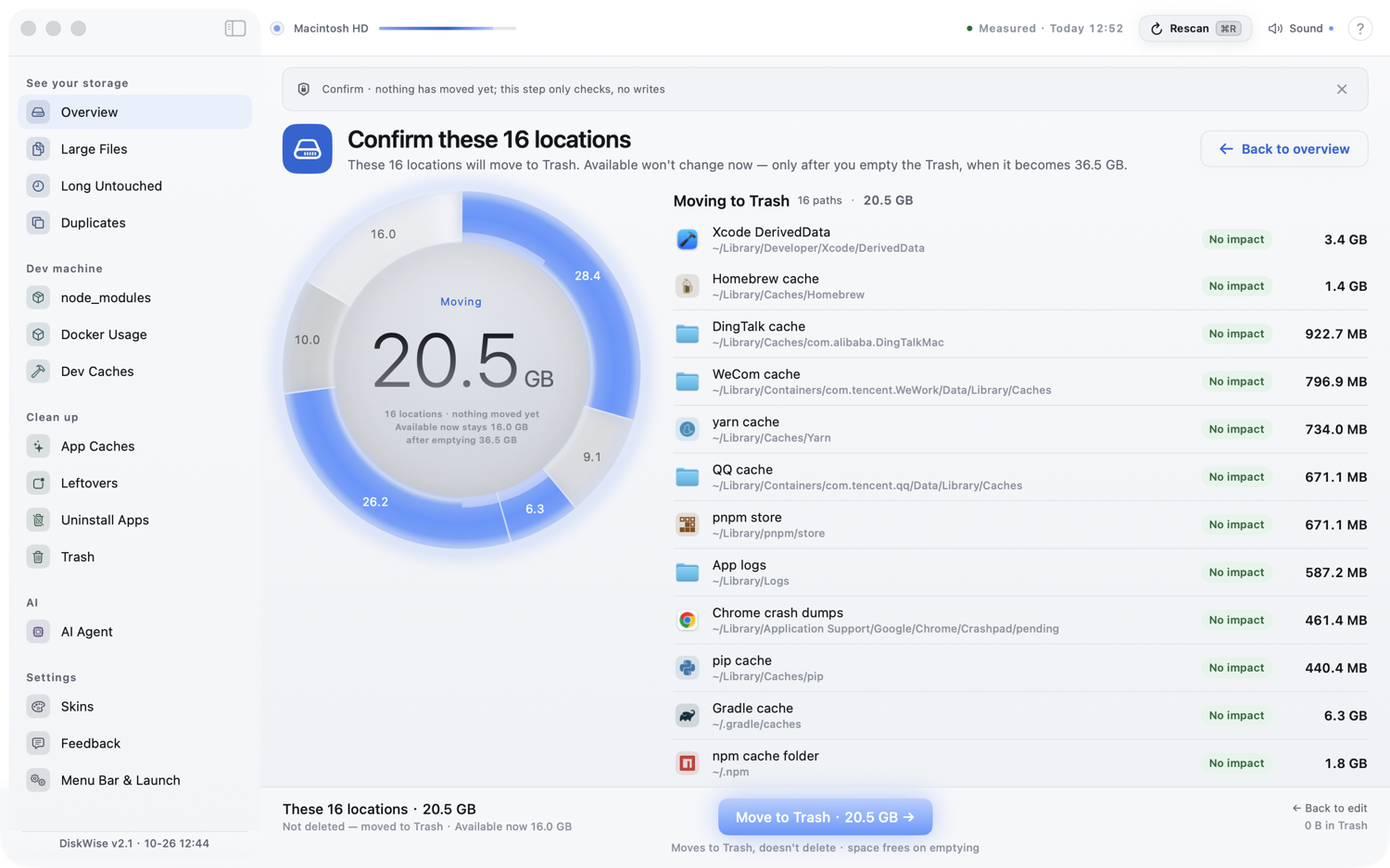
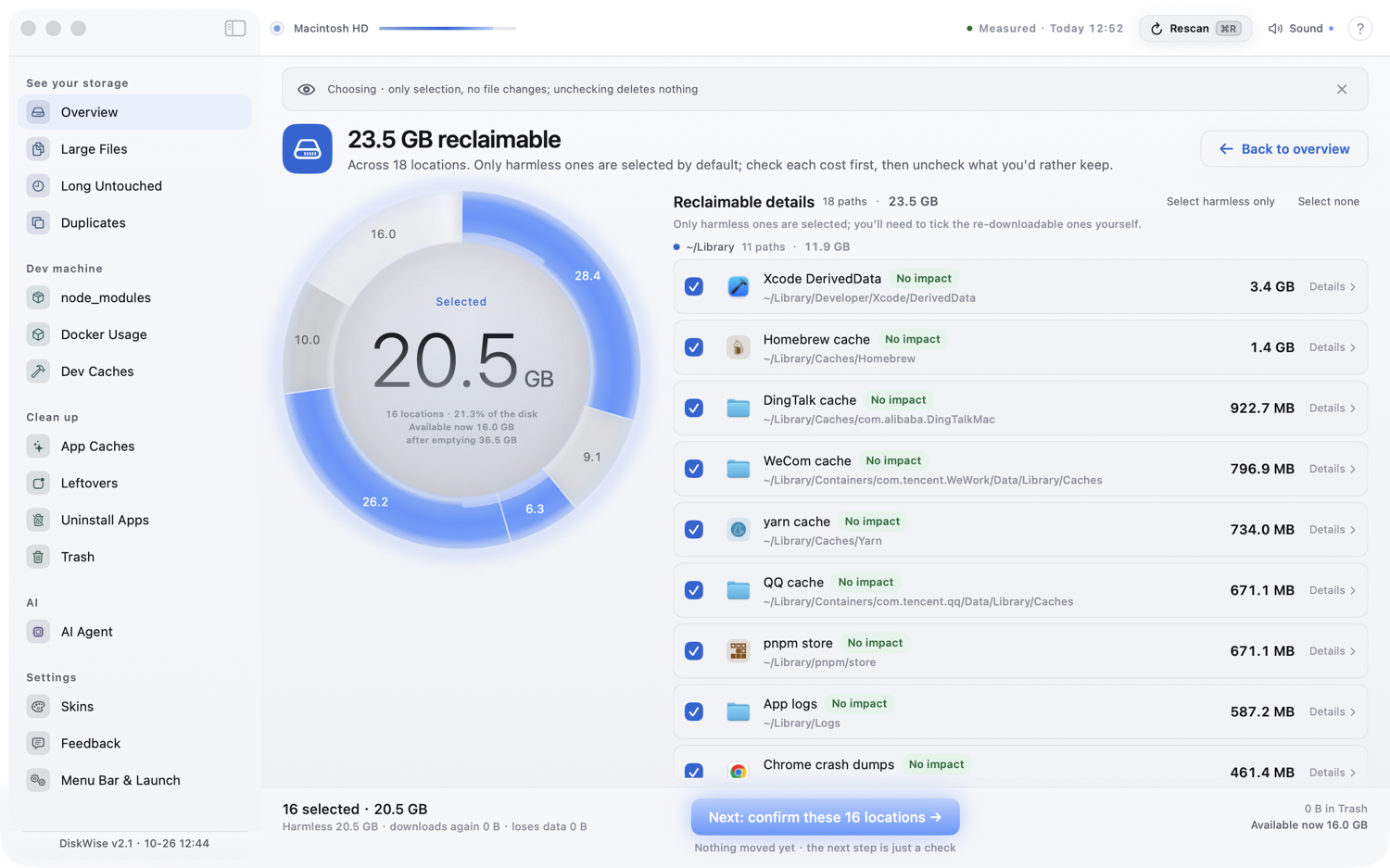
- The button under the ring opens a list, not a delete: one row per spot it can take, each
saying what removing it costs, with the harmless ones pre-ticked and the re-downloadable ones
left for you to tick. The next screen repeats that list as a confirmation, and only its button
moves anything — the result screen after it puts the whole batch back.
- There is one list, the ledger beside the ring. Open a row and its detail unfolds right there —
the folders under it, the places behind *Other counted*, the volumes behind *Not measured*.
- While a row is open the ring steps back to a small reference dial, and *Reveal* and *Dig in*
sit on that row.
- **Whole-disk sweep** — no scope to guess at. The open-source build walks the whole volume
(whitelisted system roots included, other users' homes included); the sandboxed Mac App Store
build walks everything its grant can reach and says so on screen.
- Either way it covers the volume, not just the tidy corners of your home folder.
- **A coverage line that names what it missed** — the overview states how much of your used space it
actually measured, and names the rest: system volumes, admin-only folders, and folders blocked on
Full Disk Access.
- The *Grant access* button only appears when a real read of a protected file says the permission
is actually missing, so a machine that already granted it never gets nagged again.
- Every number is decimal, so it matches Finder and About This Mac byte for byte.
- **The "Other counted" slice adds up** — open that row and every place behind the arc is listed
under it, and the last line spells the total out part by part (the rows listed, plus the ones
under the 100 MB floor), because "a hundred-plus GB, trust me" is not an explanation.
- **Large Files** — top N across the same roots, dev directories skippable.
- **Long Untouched** — files you haven't opened in N days, across the same roots.
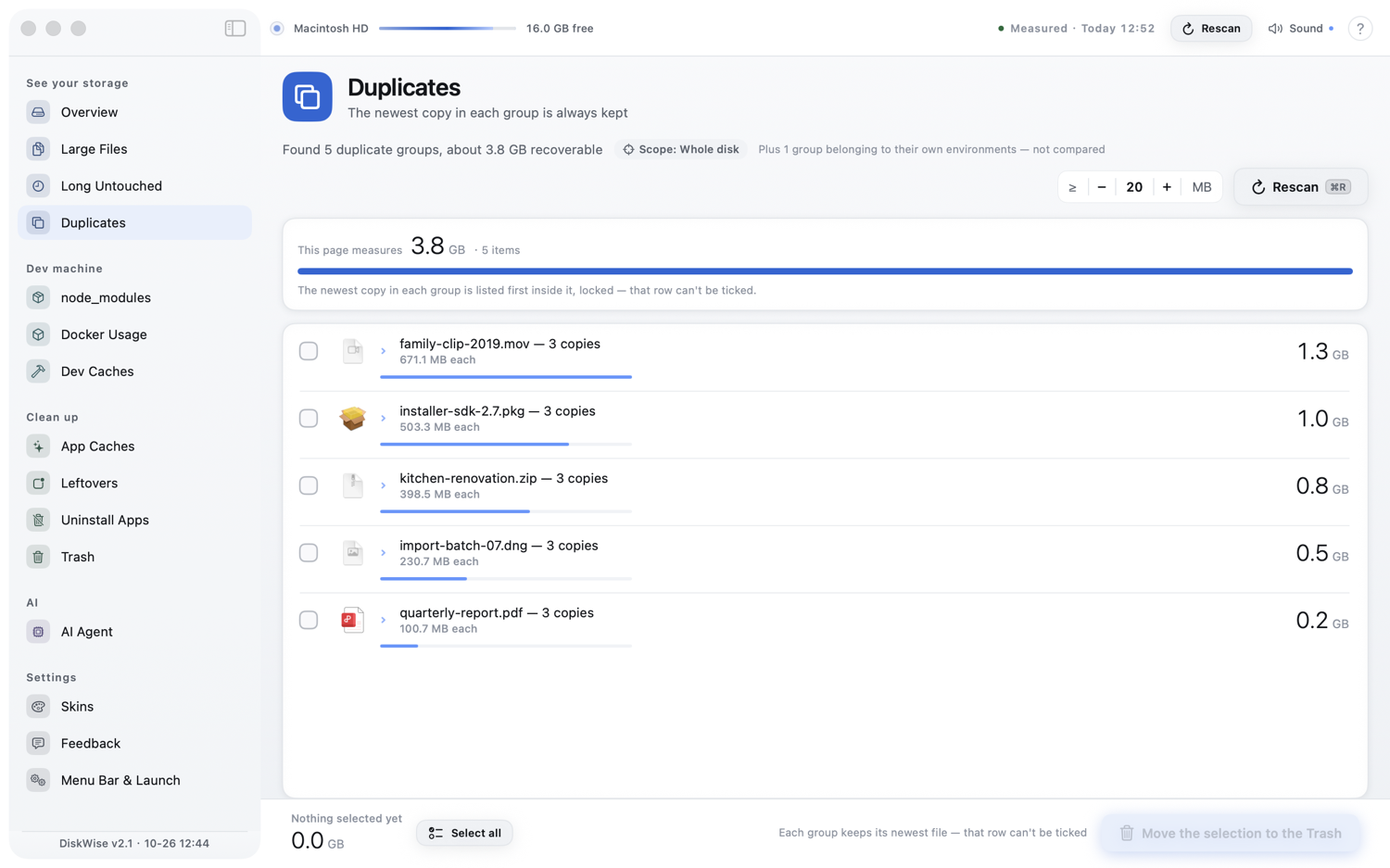
- **Duplicates** — size → partial hash → full hash, grouped, the newest copy in each group locked
so you can't nuke the only one.
- Copies that live inside a venv / site-packages / DerivedData never enter the comparison and are
listed separately: delete one and that environment is short a piece.
**Dev machine specials**
- **node_modules** — project sweep grouped per project, so you see "these 3 checkouts cost 4.7 GB".
- **Docker Usage** — one row per container runtime actually installed (Docker Desktop, OrbStack,
Podman, colima), measured as what its virtual disk takes on this disk, with the engine's own
figures listed under it. Read-only: it points at where to prune, it never deletes for you.
**Clean up**
- **App Caches** — a curated knowledge base (system caches, crash dumps, WeChat / DingTalk / WeCom /
QQ …). Every entry explains *what it is*, *what happens if you delete it*, and *how to get it
back*, with a badge saying what deleting costs — Safe, re-downloadable, or data loss.
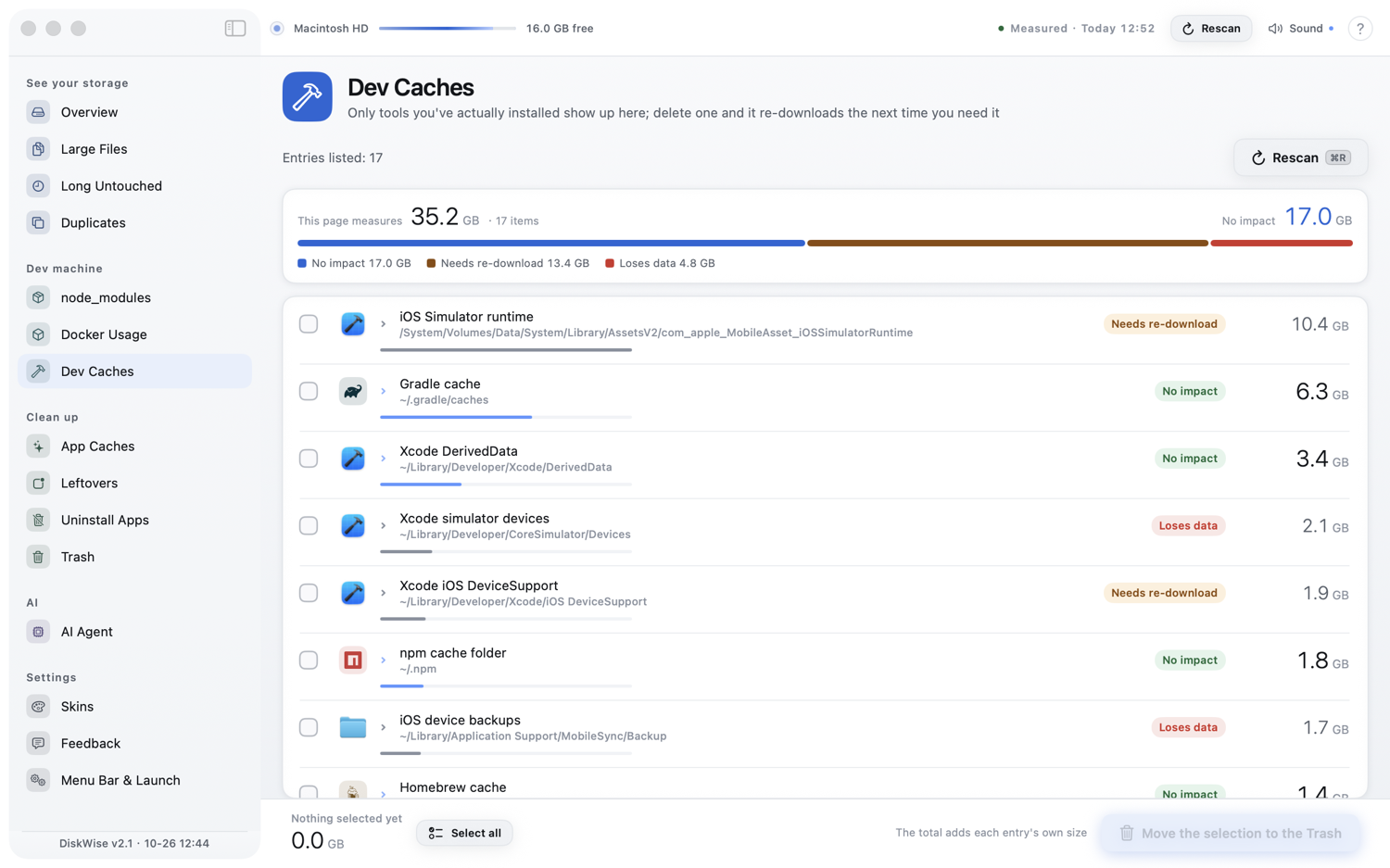
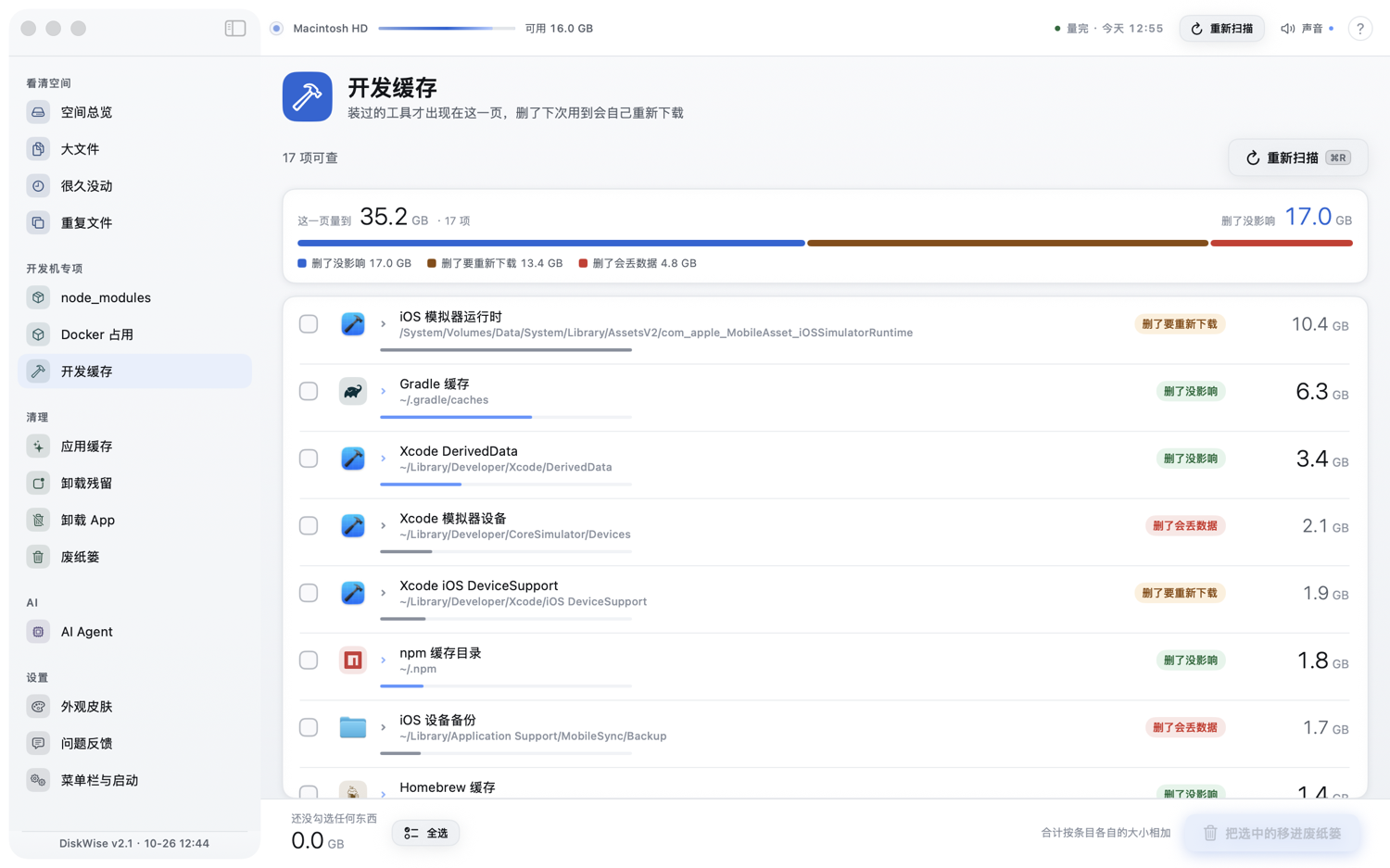
- **Dev Caches** — the same knowledge base, the tools half of these machines actually fill the disk
with: Homebrew, npm / pnpm / yarn, Maven, Gradle, conda, uv, cargo, Ollama models, Xcode archives,
DerivedData and every simulator device listed one by one.
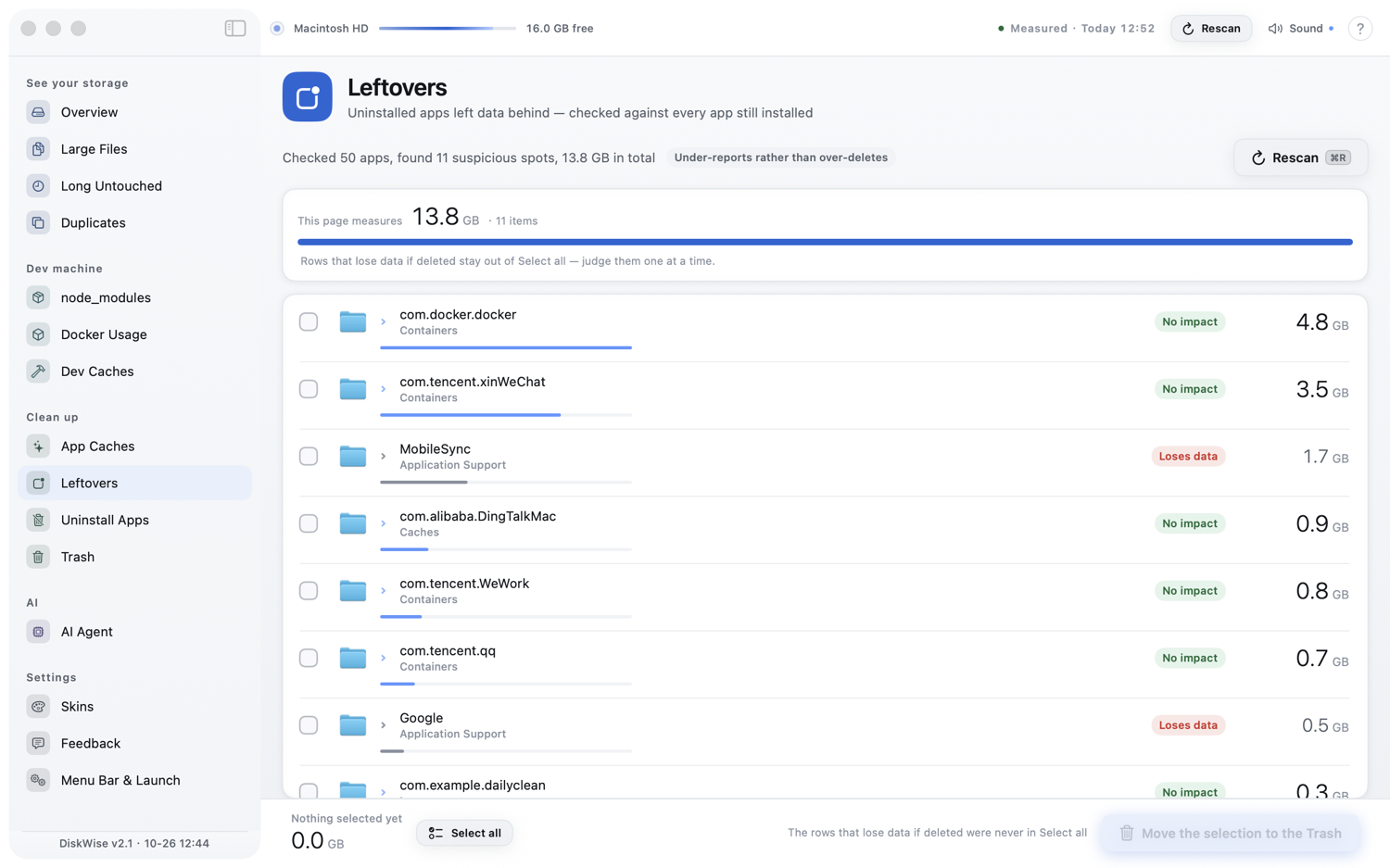
- **Leftovers** — data orphaned by apps you already uninstalled, matched against the bundle IDs of
everything still installed. Under-reports rather than over-deletes.
- **Trash** — session stats, undo stack, and an *Empty* button: outside the sandbox it asks Finder
to do the emptying, in the App Store build it opens the Trash so you can press ⌘⇧⌫.
**Personalize**
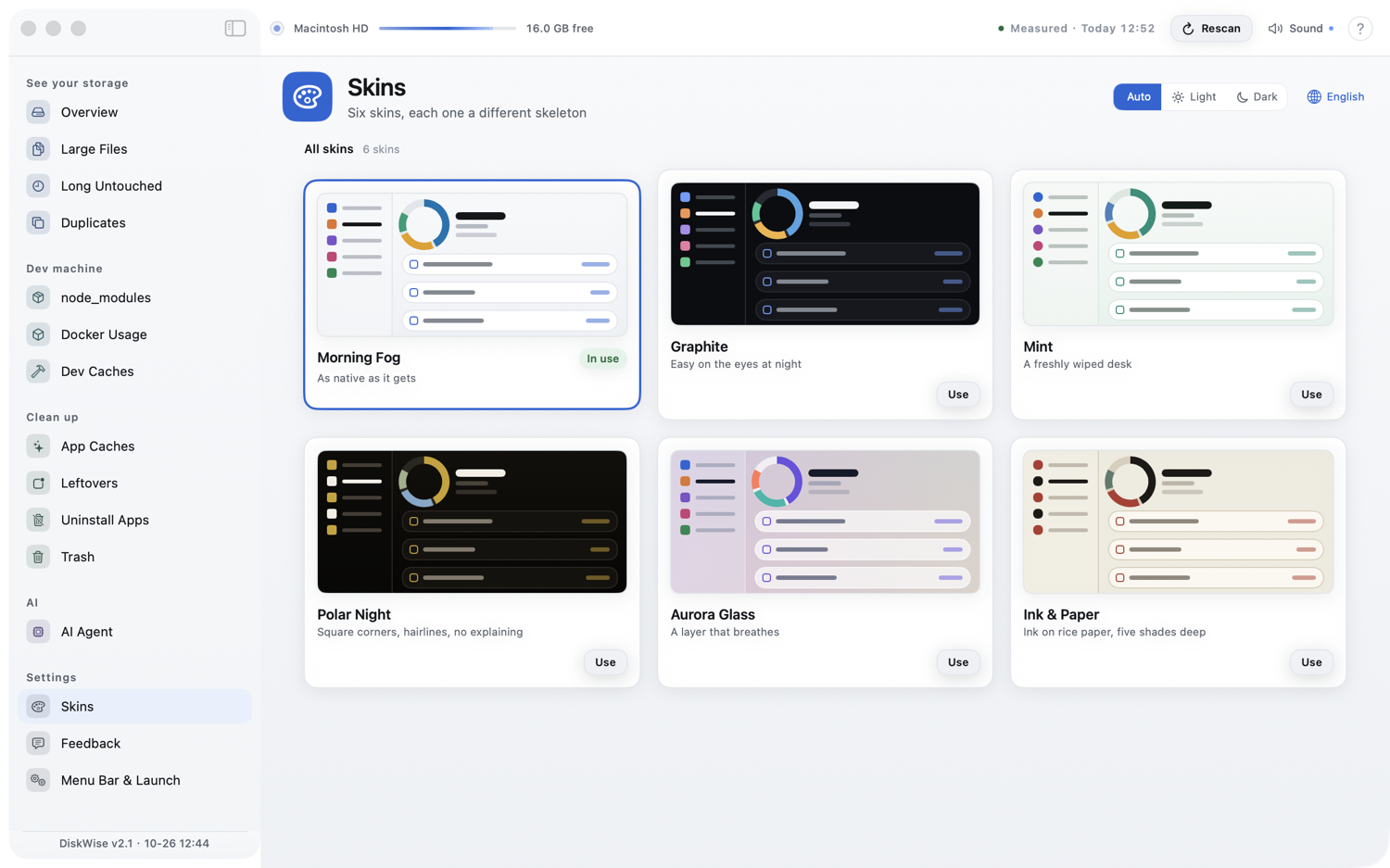
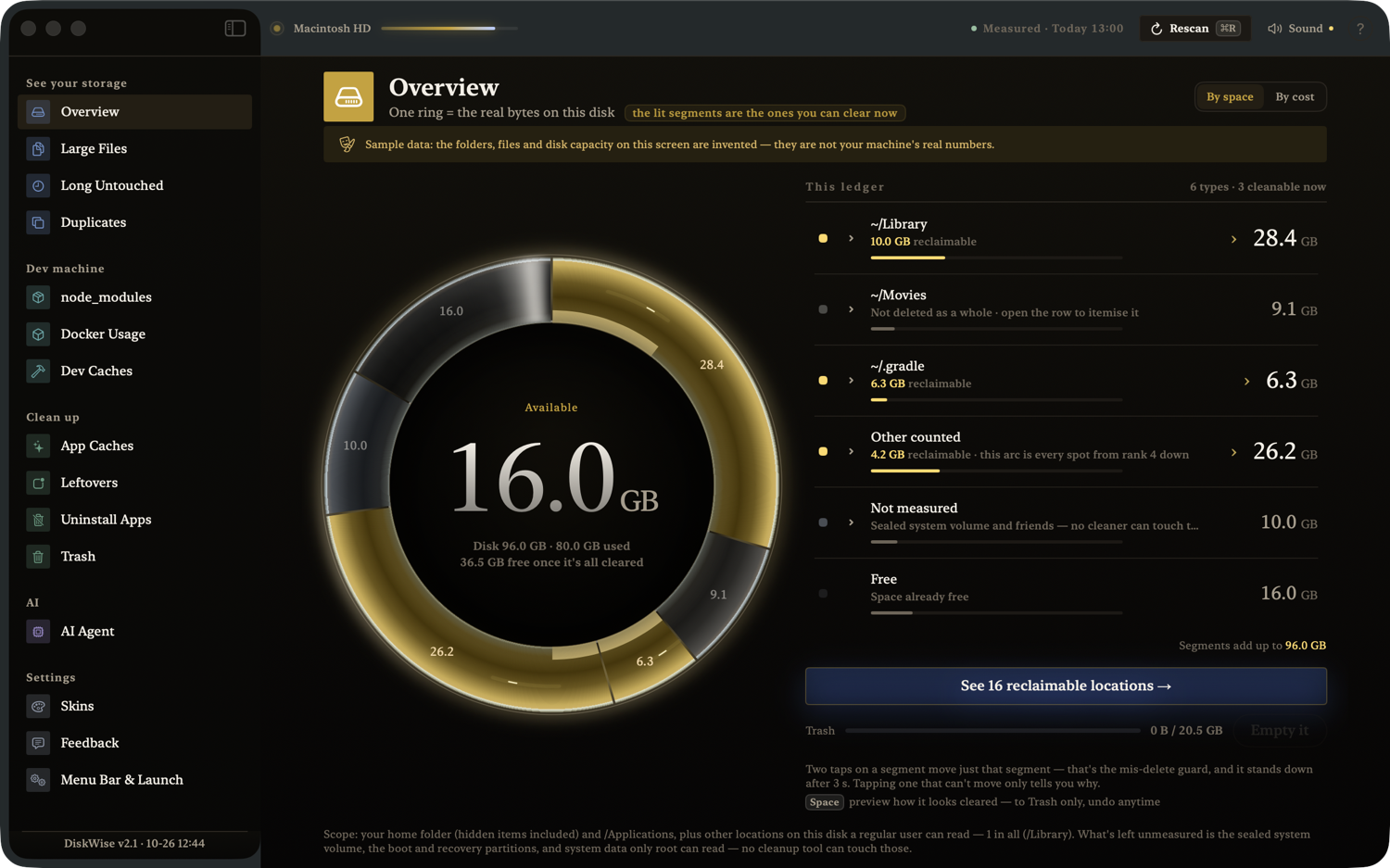
- **Skins** — 6 themes, and the interesting part is that they are not color swaps: each one changes
typeface, corner radius, elevation, motion signature and chart palette. Morning Fog, Graphite,
Mint, Polar Night, Aurora Glass, Ink & Paper — all six are in the box.
- **Skins are data, not code** — all six live in a single file,
[`Sources/DiskCleaner/Resources/skins.json`](Sources/DiskCleaner/Resources/skins.json), which
documents its own fields. A seventh theme is one JSON object: edit that file in the browser on
GitHub and open a PR — no Xcode, no build, no Swift.
## Screenshots
What the button under the ring opens — a list you tick, then a screen that repeats it back before
anything moves:
| Reclaimable list | Confirm |
|---|---|
|