# DrewMark JS Converter Documentation
---
## Table of Contents
1. [Project Introduction](#1-project-introduction)
2. [File Structure](#2-file-structure)
3. [Headless Mode](#3-headless-mode)
4. [UI Mode](#4-ui-mode)
5. [Conversion Rules](#5-conversion-rules)
---
## 1. Project Introduction
[DrewMark](https://github.com/drewneon/drewmark) is a full-featured markup language system inspired by [Markdown](https://daringfireball.net/projects/markdown/) and [Showdown](https://github.com/showdownjs/showdown).
To facilitate a quick transition for users accustomed to Markdown, as well as to assist those who have not yet adopted any markup language, *DrewMark JS Converter* is provided. Developed with Vanilla JavaScript, the Converter is capable of various conversion among [DrewMark](https://github.com/drewneon/drewmark), [Markdown](https://daringfireball.net/projects/markdown/), and HTML.
Supported Conversion Directions:
| Source → Target | Status |
| --------------------- | ----------------------------------------- |
| Markdown → DrewMark | ✅ |
| HTML → DrewMark | ✅ |
| DrewMark → Markdown | ✅ |
| DrewMark → HTML | ❌ Please use *DrewMark JS Parser* |
| Markdown → HTML | ❌ Please use a dedicated Markdown parser |
| HTML → Markdown | ✅ |
Two usage modes are available:
- **Headless Mode** — Returns the converted string directly by providing the necessary parameters to the main function.
- **UI Mode** — Renders an interactive converter interface into a specified DOM element, supporting file uploads.
---
## 2. File Structure
```javascript
drewmark-js-converter/
├── js/
│ └── drewmark-converter.min.js Main program
├── css/
│ └── drewmark-converter.min.css CSS styles
├── lang/
│ ├── en.json English UI strings (for translating into other languages)
│ └── zh-cn.json Chinese UI strings
├── docs/
│ ├── doc.md This documentation
│ └── doc-cn.md Chinese document
├── examples/
│ ├── sample.html Demo page (English interface)
│ └── sample-cn.html Demo page (Chinese interface)
├── README.md
└── README-cn.md
```
---
## 3. Headless Mode
More suitable for Bundled Projects (Node.js + Build Tools), i.e. projects using build tools such as Webpack, Vite, or Rollup.
### 3.1 Usage
**1. Install Dependencies**
```bash
npm install drewmark-converter
```
**2. Import and Use in Source Code**
Import the Converter and its stylesheet in your entry file or component, then call the initialization function:
```javascript
// Import the Converter
import { drewmarkConverter } from 'drewmark-converter';
const content = '# Heading\nThis is a **DrewMark** text.';
const result = drewmarkConverter({
source_text: content,
source_format: 'drewmark',
target_format: 'markdown',
}); // the actuall value is '# Heading This is a **DrewMark** text.'
// Render the result to the page or process it further
document.getElementById('output').innerHTML = html;
```
### 3.2 Required Parameters
The following three parameters are required in Headless Mode to return the converted string.
| Parameter (Abbreviation) | Description | Type | Accepted Values (Abbreviations) |
| ----------------------------- | ------------------- | -------- | -------------------------------------------------------------- |
| `source_format` (`sf`) | Source text format | `string` | `'drewmark'` (`dm`) \| `'markdown'` (`md`) \| `'html'` (`htm`) |
| `target_format` (`tf`) | Target text format | `string` | `'drewmark'` (`dm`) \| `'markdown'` (`md`) \| `'html'` (`htm`) |
| `source_text` (`st`) | Source text content | `string` | The string to be converted |
* Both parameter names and values support abbreviations. For example, the following calls are functionally identical:
```javascript
drewmarkConverter({source_format: 'markdown', target_format: 'drewmark', source_text: '# test'});
drewmarkConverter({source_format: 'md', target_format: 'dm', source_text: '# test'});
drewmarkConverter({sf: 'markdown', tf: 'drewmark', st: '# test'});
drewmarkConverter({sf: 'md', tf: 'dm', st: '# test'});
```
* Special Case: If the source format is DrewMark or Markdown and the target format is HTML, the Converter will not return parsed HTML. Instead, it will return a message prompting you to use the corresponding JS parser.
---
## 4. UI Mode
More suitable for plain HTML pages without a Node.js environment. When loaded via a `
```
+ Reference scripts directly from CDN (skips the download step):
```html
```
**3. Load the Converter in the Specified Container Element**
```html
```
+ The `converter_id` parameter can be abbreviated as `cid`. For example, the statement to load the Converter UI in the above example can also be written as: `drewmarkConverter({ cid: 'my-converter' });`.
+ *UI Mode* also supports the three parameters detailed in *Headless Mode* section, and their values are used as the initial values when the Converter's UI is loaded.
### 4.2 Interface Showcase
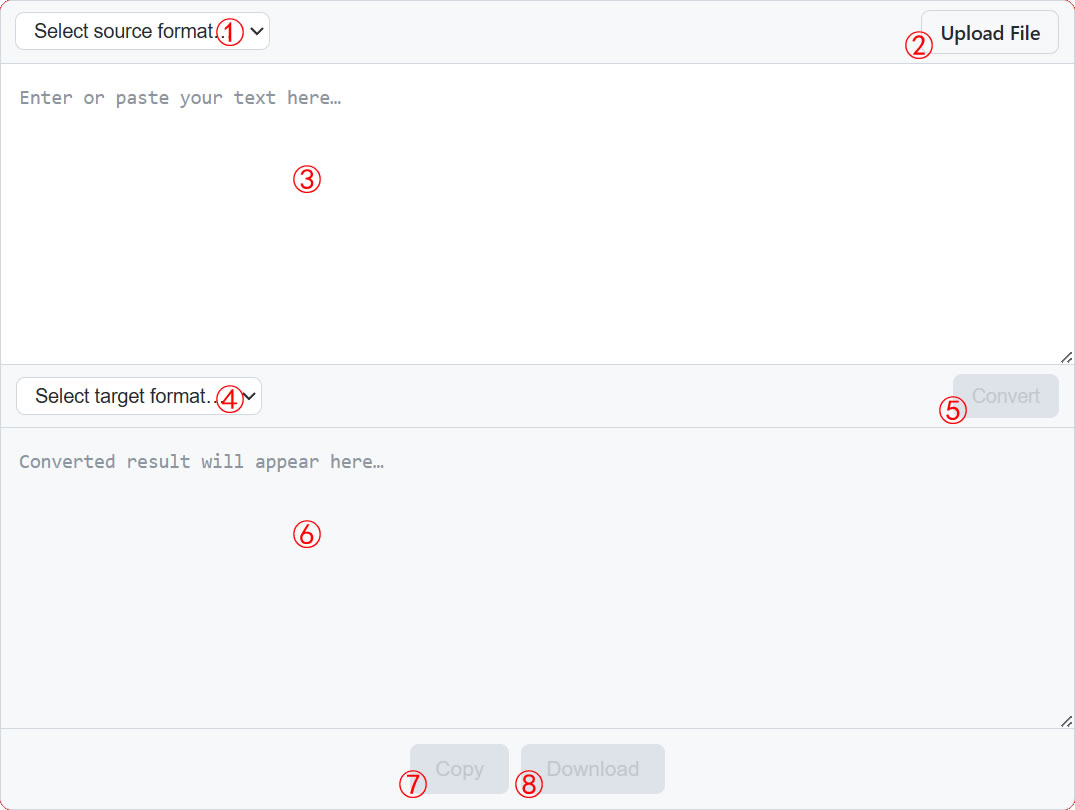
### 4.3 Feature Overview
1. The source format dropdown menu contains three options: `DrewMark (.dm)`, `Markdown (.md)`, and `HTML (.html)`.
2. Clicking the upload button allows you to upload local files with `.dm`, `.md`, `.html`, or `.htm` extensions. The file format is automatically detected, and its content is read and populated into the input box.
3. The source text input box also supports manual content entry.
4. The target format dropdown menu also contains three options: `DrewMark (.dm)`, `Markdown (.md)`, and `HTML (.html)`. When DrewMark or Markdown is selected as the source format, the only available target format will be automatically selected.
5. The Convert button is disabled (grayed out) by default. It becomes active when both dropdown menus (1 and 4) are selected and there is content in the source text box (3). By clicking this button, the conversion result will be presented in the output box below.
6. The result output box is for display purposes only and does not support editing; therefore, it remains disabled at all times.
7. The Copy button is disabled (grayed out) by default. It becomes active when there is content in the result output box. By clicking this button, the conversion result will be copied to the clipboard.
8. The Download button is disabled (grayed out) by default. It becomes active when there is content in the result output box. By clicking this button, the conversion result will be downloaded locally, the format and file extension determined by the selected target format.
---
### 4.4 Multilingual Support
On load, DrewMark JS Converter reads the `lang` attribute value of the `` tag or `navigator.lanugage` provided by the browser, and searches for a `.json` file named accordingly in the `lang` directory (sibling to `js`). If the language file exists and contains required UI entries, the Converter loads with that language. If no matching file is found or its content is invalid, the built-in English version is used. The project's `lang` directory includes an English source file (`en.json`) for translation purposes.
To modify the default multi-language behavior, use the `drewmarkConverterLang()` function:
**Method I**
1. The `