How to Use
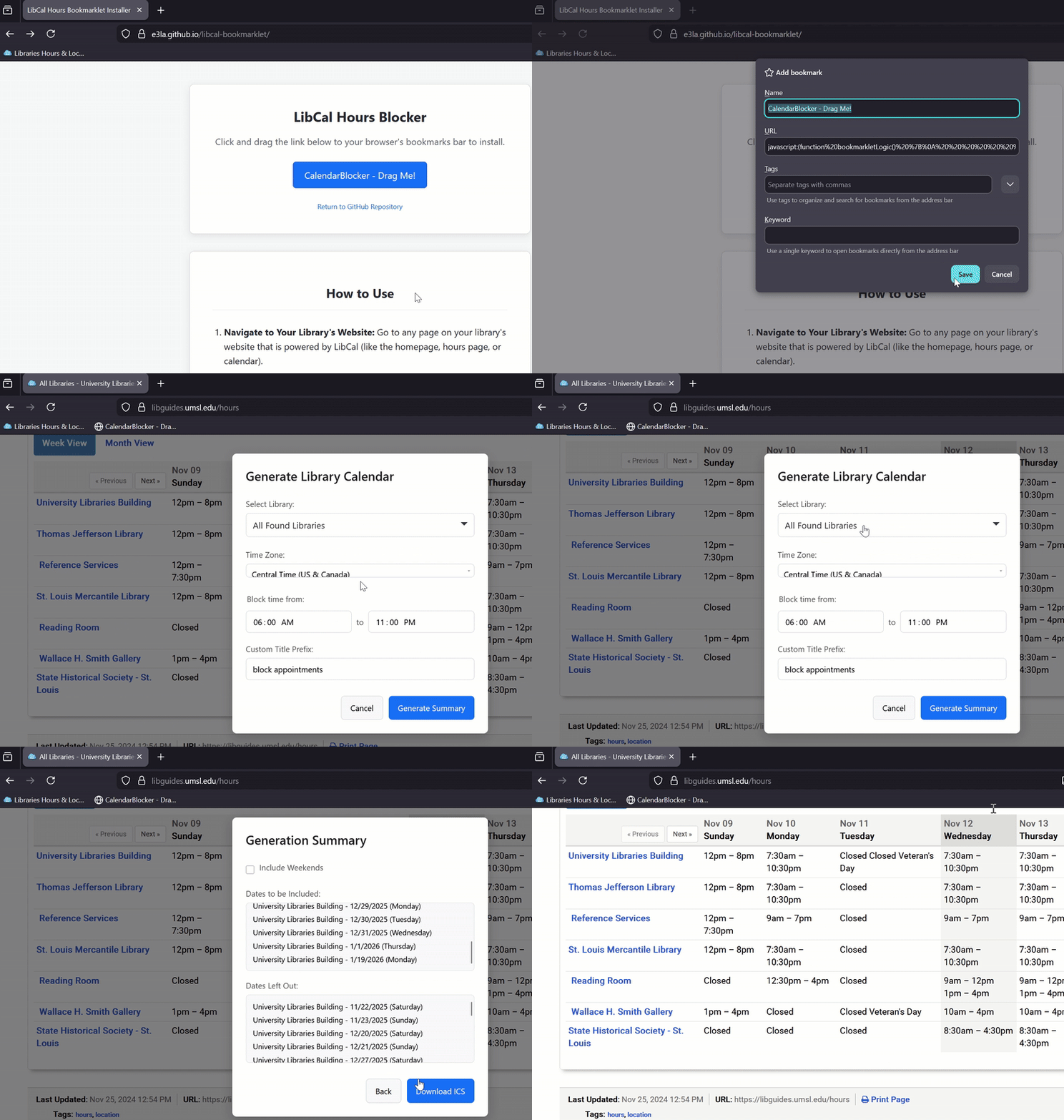
- Navigate to Your Library's Website: Go to any page on your library's website that is powered by LibCal (like the homepage, hours page, or calendar).
-
Click the Bookmarklet: Click the
CalendarBlockerbookmark in your bookmarks bar. -
Choose Your Options: A modal window will appear.
- Select the library location you want to generate the file for, or choose "All Found Libraries".
- Select the correct time zone for the library location(s). It defaults to your browser's time zone.
- Set the "Block time from" and "to" fields to cover your typical appointment hours.
- Customize the event title prefix if desired.
- Click "Generate Summary".
-
Review and Download:
- On the summary screen, you can see a list of dates that will be included in the
.icsfile. - Check the "Include Weekends" box if you need to block off Saturdays and Sundays.
- When you're ready, click "Download ICS".
- On the summary screen, you can see a list of dates that will be included in the
-
Import to Your Calendar:
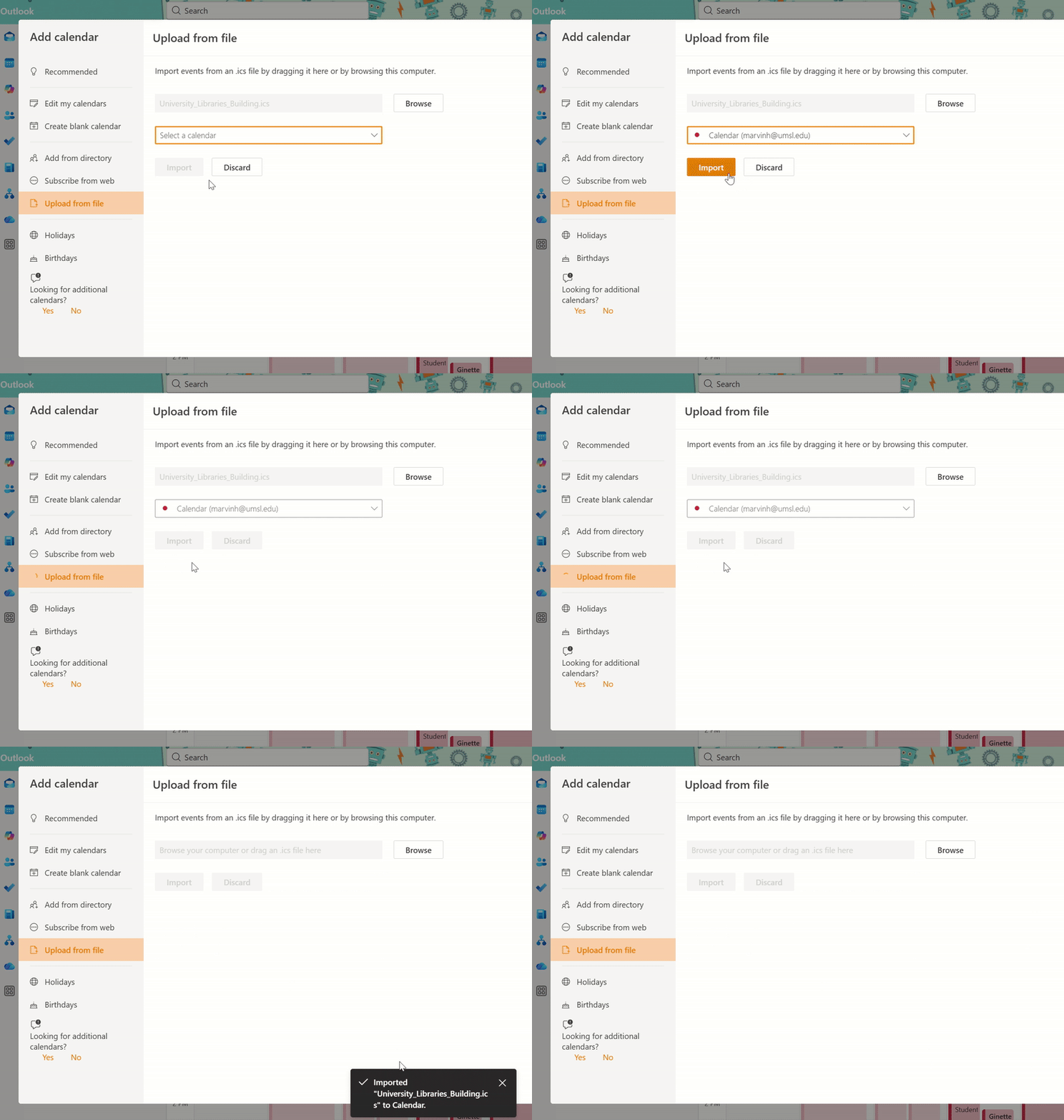
- Open the downloaded ICS file with your preferred calendar application.
- The dates will be added to your schedule, blocking off your availability.
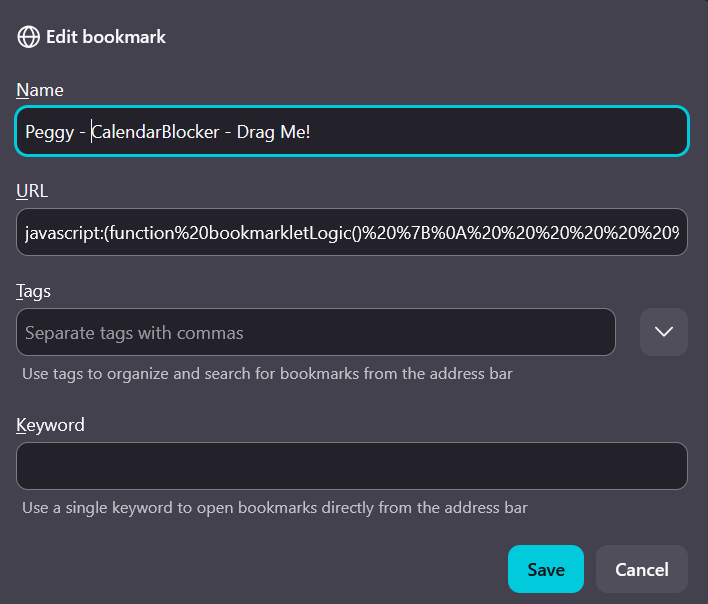
Now Andrew, you can generated calendar events to block off all closed dates in just a few clicks, no secretary needed! You can even rename the bookmarklet Peggy if you wish!