# Tempus Usage Guide
[<- back home](README.md)
## Table of Contents
- [Prerequisites](#prerequisites)
- [Getting Started](#getting-started)
- [Server Configuration](#server-configuration)
- [Main Features](#main-features)
- [Navigation](#navigation)
- [Playback Controls](#playback-controls)
- [Favorites](#favorites)
- [Playlist Management](#playlist-management)
- [Android Auto](#android-auto)
- [Settings](#settings)
- [Known Issues](#known-issues)
## Prerequisites
**Important Notice**: This app is a Subsonic-compatible client and does not provide any music content itself. To use this application, you must have:
- An active Subsonic API server (or compatible service) already set up
- Valid login credentials for your Subsonic server
- Music content uploaded and organized on your server
Tempus offers advanced features such as Instant Mix, Continuous Play, Artists Page, and many others, which require a properly configured server capable to respond to "similar songs" requests and correctly tagged music files.
### Verified backends
This app works with any service that implements the Subsonic API, including:
- [LMS - Lightweight Music Server](https://github.com/epoupon/lms) - *personal fave and my backend*
- [Navidrome](https://www.navidrome.org/)
- [Gonic](https://github.com/sentriz/gonic)
- [Ampache](https://github.com/ampache/ampache)
- [NextCloud Music](https://apps.nextcloud.com/apps/music)
- [Airsonic Advanced](https://github.com/kagemomiji/airsonic-advanced)
## Getting Started
### Installation
1. Download the APK from the [Releases](https://github.com/eddyizm/tempus/releases) section
2. Enable "Install from unknown sources" in your Android settings
3. Install the application
### First Launch
1. Open the application
2. You will be prompted to configure your server connection
3. Grant necessary permissions for media playback and background operation
## Server Configuration
### Initial Setup
**IN PROGRESS**
1. Enter your server URL (e.g., `https://your-subsonic-server.com`)
2. Provide your username and password. Or in some cases, API key (eg LMS: https://github.com/epoupon/lms/discussions/562).
3. Test the connection to ensure proper configuration
### Advanced Settings
**TODO**
## Main Features
### Library View
**Multi-library**
Tempus handles multi-library setups gracefully. They are displayed as Library folders.
However, if you want to limit or change libraries you could use a workaround, if your server supports it.
You can create multiple users , one for each library, and save each of them in Tempus app.
### Folder or index playback
If your Subsonic-compatible server exposes the folder tree **or** provides an artist index (for example Gonic, Navidrome, or any backend with folder browsing enabled), Tempus lets you play an entire folder from anywhere in the library hierarchy:
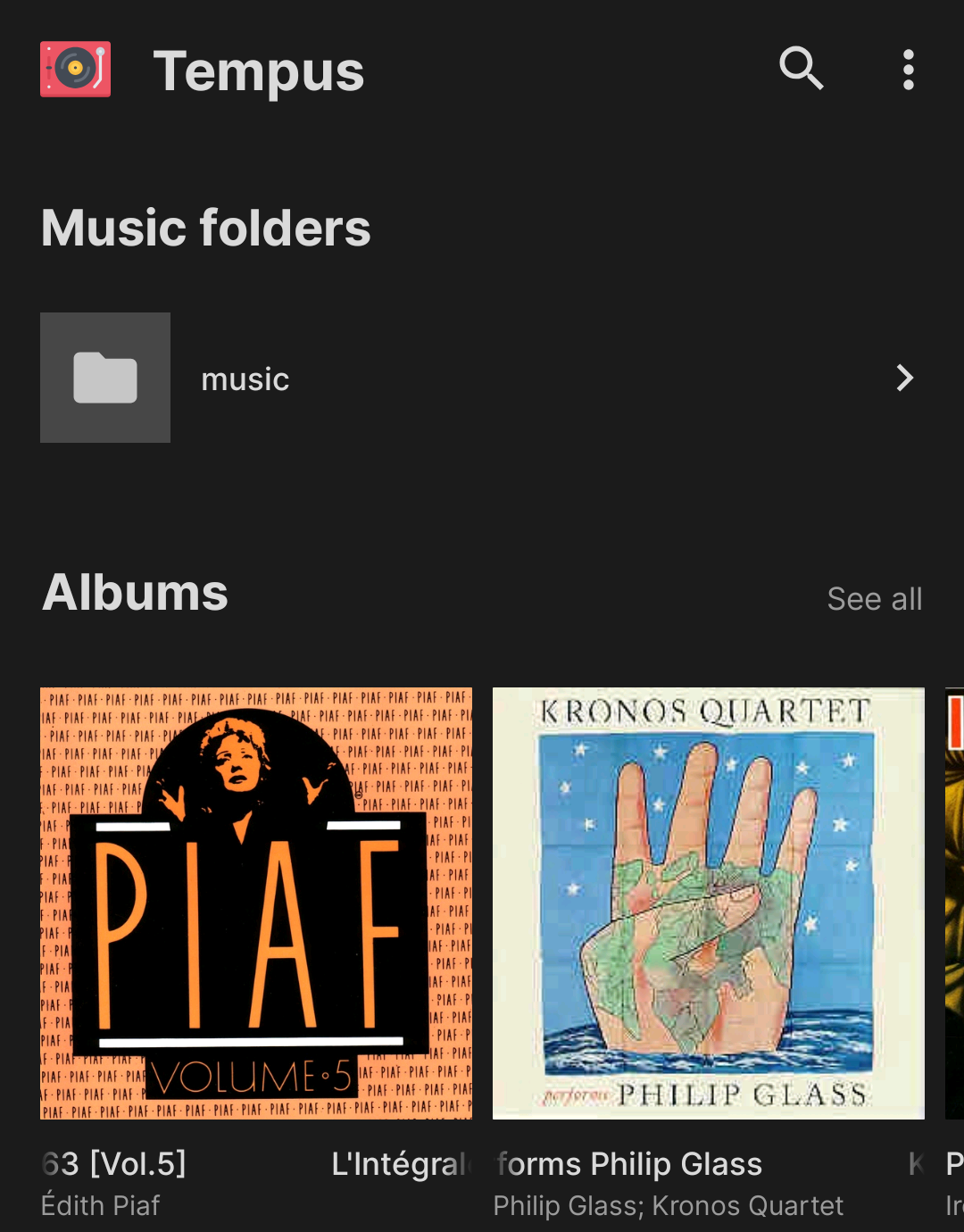
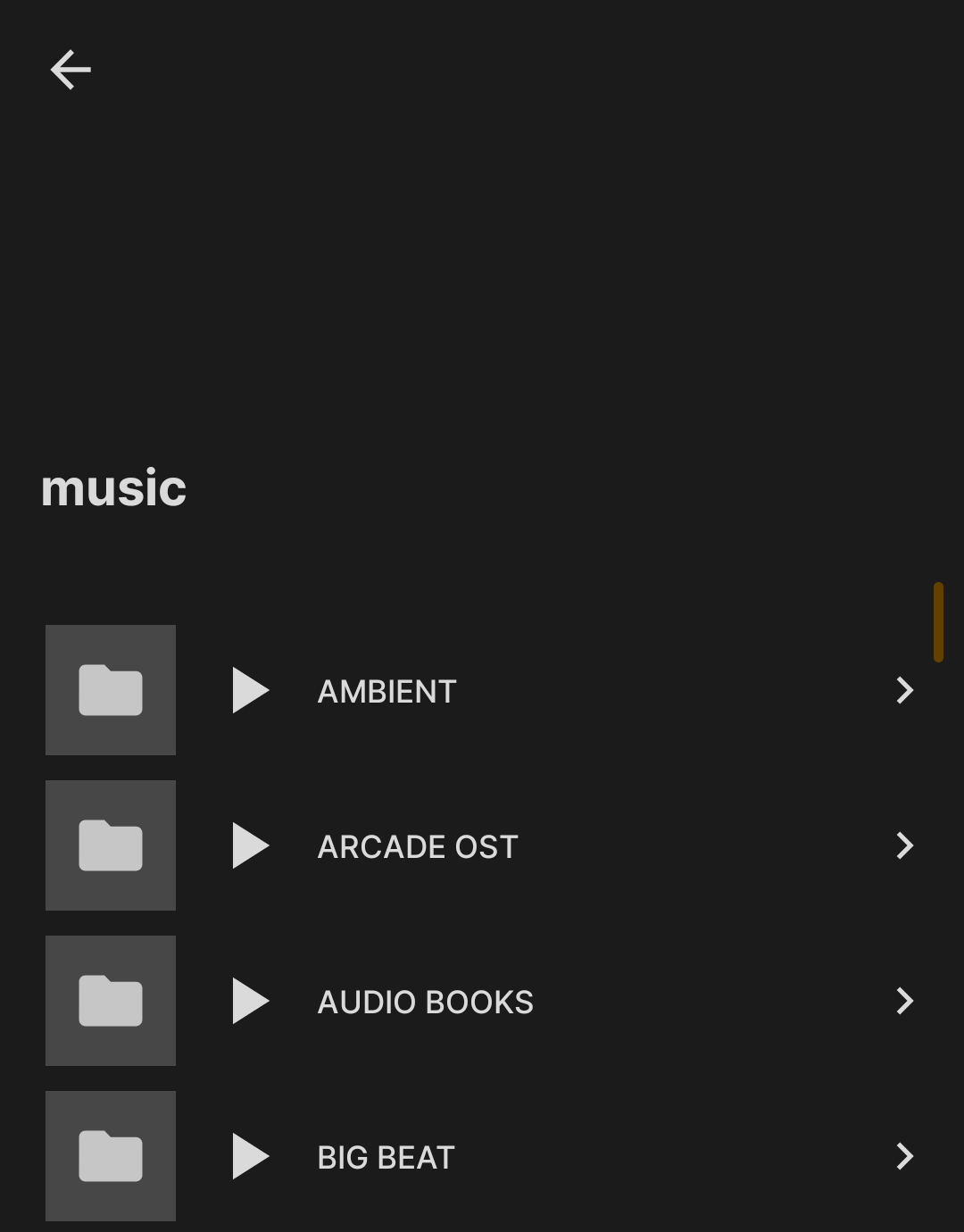
- The **Library ▸ Music folders** screen shows each top-level folder with a play icon only after you drill into it. The root entry remains a simple navigator.
- When viewing **inner folders** **or artist index entries**, tap the new play button to immediately enqueue every audio track inside that folder/index and all nested subfolders.
- Video files are excluded automatically, so only playable audio ends up in the queue.
No extra config is needed—Tempus adjusts based on the connected backend.
### Now Playing Screen
On the main player control screen, tapping on the artwork will reveal a small collection of 4 buttons/icons.
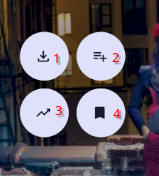
*marked the icons with numbers for clarity*
1. Downloads the track (there is a notification if the android screen but not a pop toast currently )
2. Adds track to playlist - pops up playlist dialog.
3. Adds tracks to the queue via instant mix function
* TBD: what is the _instant mix function_?
* Uses [getSimilarSongs](https://opensubsonic.netlify.app/docs/endpoints/getsimilarsongs/) of OpenSubsonic API.
Which tracks to be mixed depends on the server implementation. For example, Navidrome gets 15 similar artists from LastFM, then 20 top songs from each.
4. Saves play queue (if the feature is enabled in the settings)
* if the setting is not enabled, it toggles a view of the lyrics if available (slides to the right)
### Podcasts
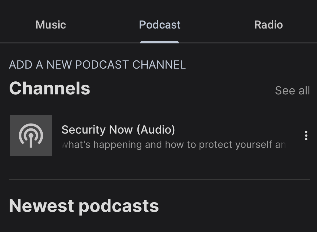
If your server supports it - add a podcast rss feed
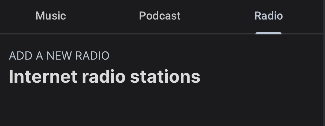
### Radio Stations
If your server supports it - add a internet radio station feed
## Navigation
### Bottom Navigation Bar
**IN PROGRESS**
- **Home**: Recently played and server recommendations
- **Library**: Your server's complete music collection
- **Download**: Locally downloaded files from server
## Playback Controls
### Streaming Controls
**TODO**
### Advanced Controls
**TODO**
## Favorites
### Favorites (aka heart aka star) to albums and artists
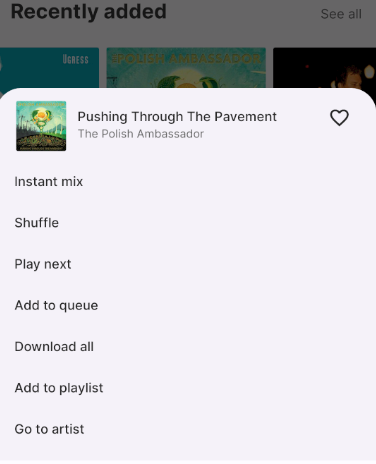
- Long pressing on an album gives you access to heart/unheart an album
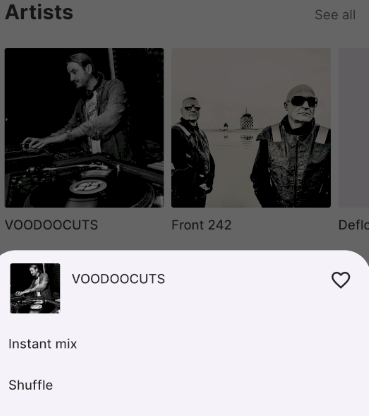
- Long pressing on an artist cover gets you the same access to to heart/unheart an album
## Playlist Management
### Server Playlists
**TODO**
### Creating Playlists
**TODO**
## Settings
## Android Auto
**Enabling on your head unit**
To allow the Tempus app on your car's head unit, "Unknown sources" needs to be enabled in the Android Auto "Developer settings". This is because Tempus isn't installed through Play Store. Note that the Android Auto developer settings are different from the global Android "Developer options".
1. Switch to developer mode in the Android Auto settings by tapping ten times on the "Version" item at the bottom, followed by giving your permission.


2. Go to the "Developer settings" by the menu at the top right.

3. Scroll down to the bottom and check "Unknown sources".

**Interface Configuration**
The Android Auto interface can be configured by user to best suit their preferences.
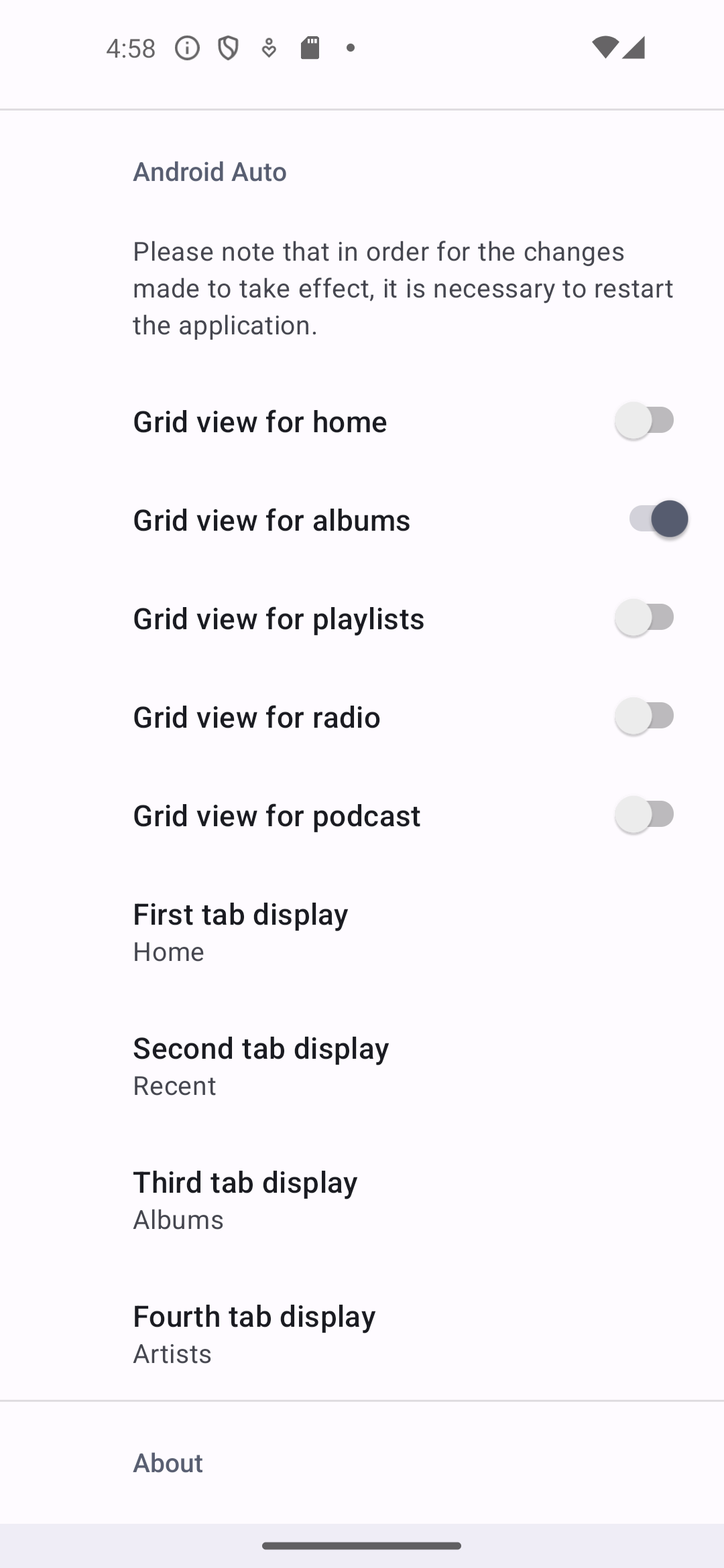
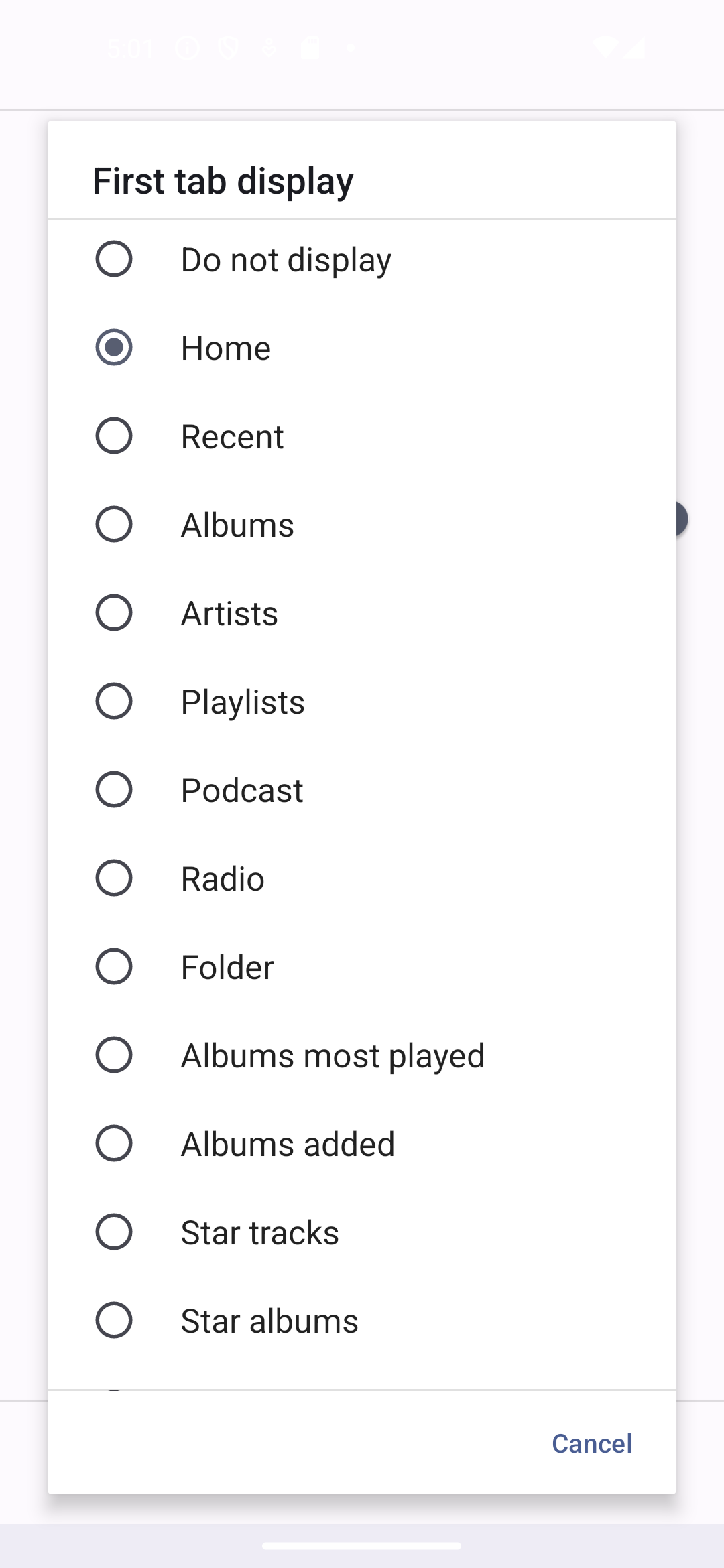
4 tabs can be configured with the following functions:
- Do not display : This tab is not used
- Home : Displays all functions not used in other tabs
- Recent : The 15 recently listened-to albums
- Albums : Albums sorted by name
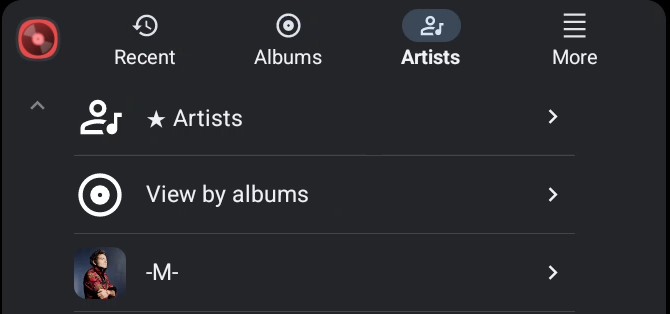
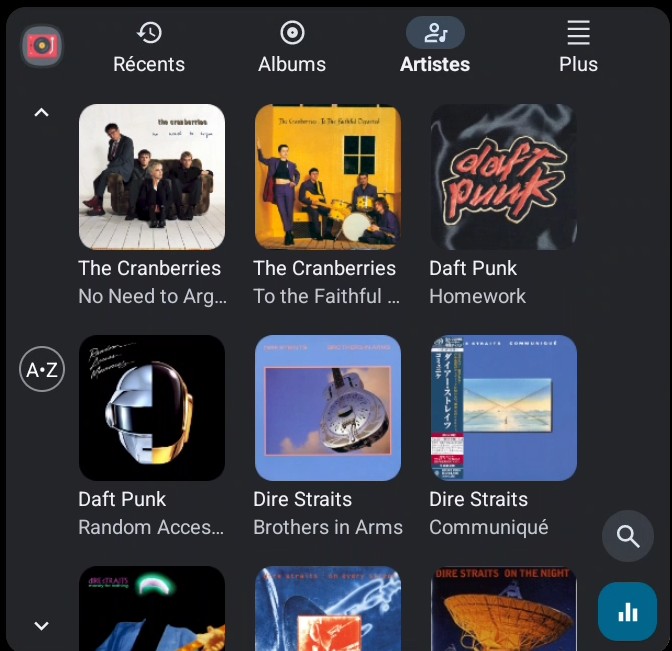
- Artists : Albums sorted by artist or Artists, selected by preference
- Playlists
- Podcast : The 100 podcasts recently added
- Radio
- Folder : Navigation through music directories
- Albums most played : The 15 most played albums
- Tracks played : The 100 last tracks that were completly played
- Albums added : The 15 recently added albums
- For You bundle
- Starred bundle
- Tracks bundle
- Genres : 500 songs of the chosen genre OR 100 random songs if "shuffle genre songs" is selected
- Downloads : the 500 first downloaded tracks OR 100 random downloaded tracks if "shuffle downloaded tracks" is selected. Shown at the top of the Home tab and playable without connectivity
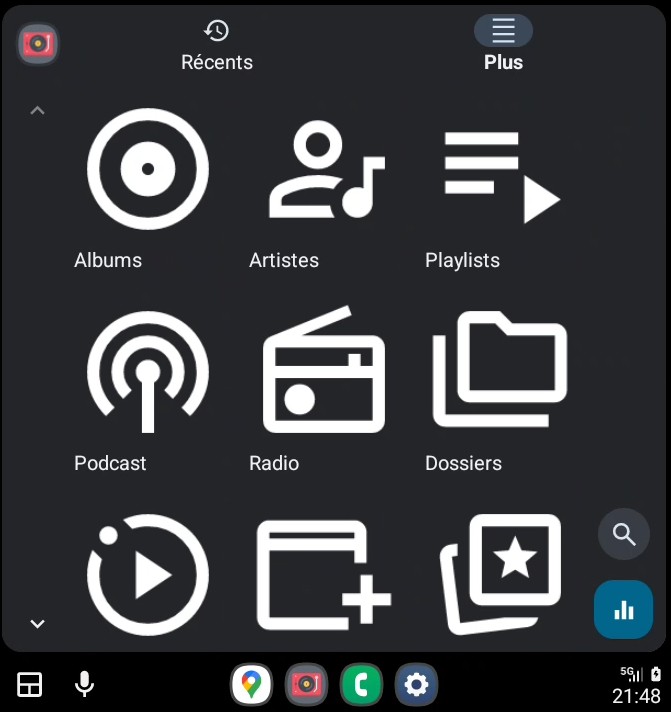
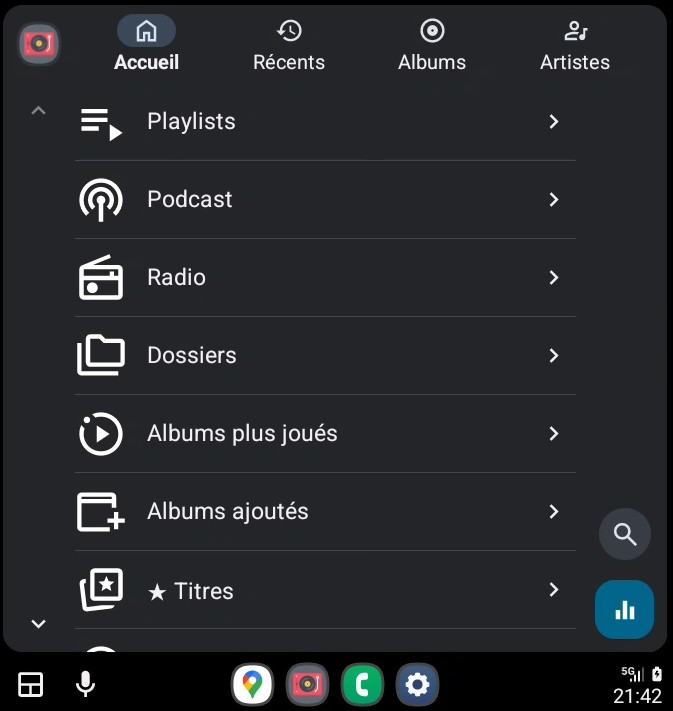
For You bundle includes:
- Quick mix : features 12 tracks chosen randomly from the 15 last played albums
- My mix : features 15 tracks chosen randomly from the 15 last played albums, and starred artists or starred albums, following preference
- Discovery mix : features 18 tracks, as My mix, with similar songs
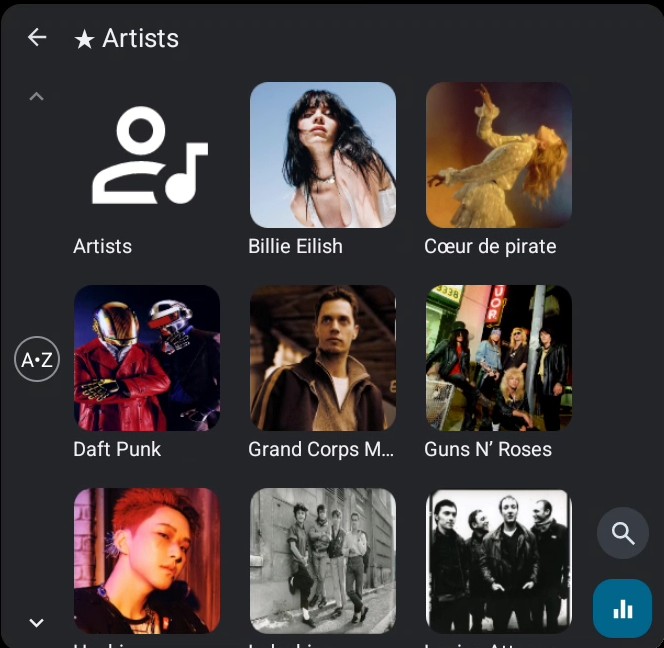
- Starred artists
- Starred albums
- Starred tracks : the 500 first starred tracks OR 100 random starred tracks if "shuffle starred tracks" is selected
Starred bundle includes:
- Starred artists
- Starred albums
- Starred tracks : the 500 first starred tracks OR 100 random starred tracks if "shuffle starred tracks" is selected
Tracks bundle includes:
- Random : 100 random songs
- Genres : 500 songs of the chosen genre OR 100 random songs if "shuffle genre songs" is selected
- Tracks played : The 100 recently listened-to tracks
- Starred tracks : the 500 first starred tracks OR 100 random starred tracks if "shuffle starred tracks" is selected
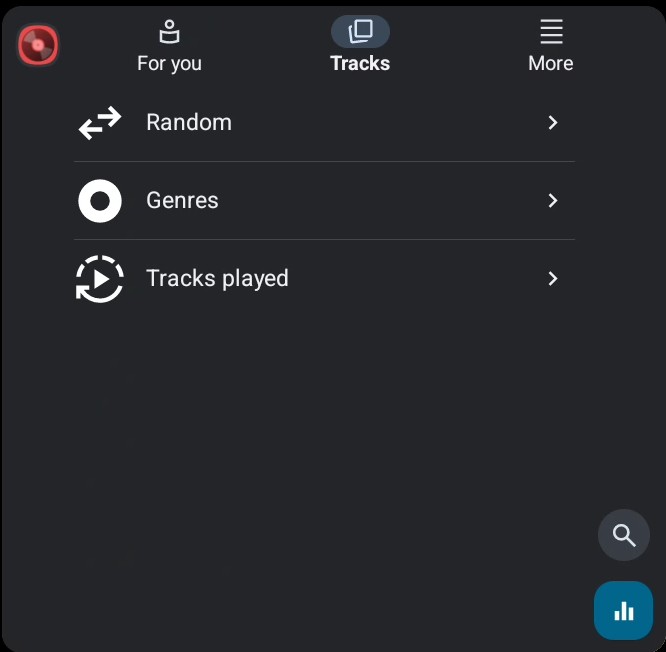
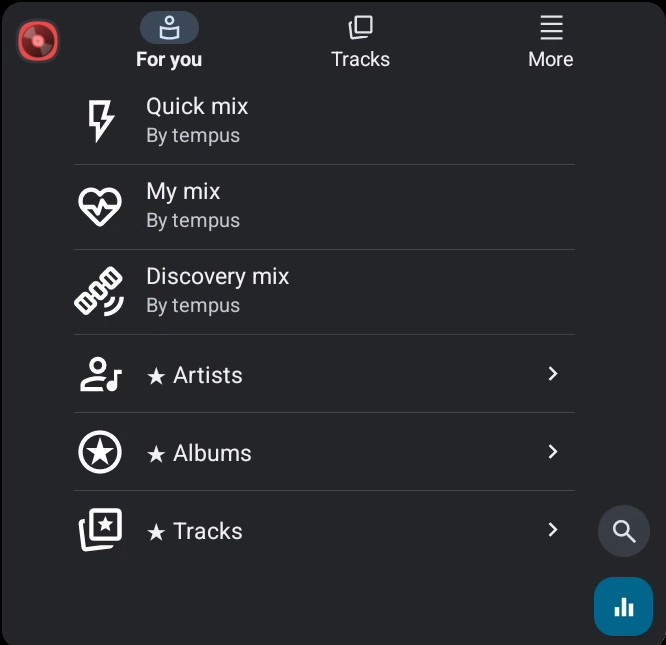
If all tabs are set to "Do not display", then "Home" tab will be created with all functions inside.
If "Home" is selected after another tab, it becomes "More".
In addition, you can choose to display the following functions as thumbnails or lists:
- Home, For You bundle, Starred bundle and Tracks bundle
- Albums (Last played, Most played, Recently added, Artists, Starred albums, Starred artists)
- Playlists
- Radio
- Podcast
As they displayed tracks, Tracks played, Starred tracks, Random and Genres are always be displayed as a list.
Artists view and View by albums:
Starred Artists view:
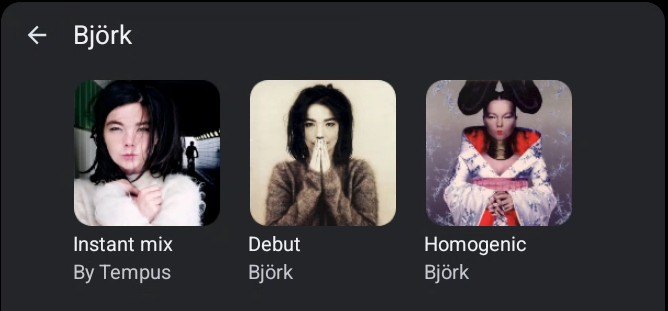
On an artist's page, if they have at least 2 albums with a minimum of 20 tracks, an "Instant Mix by Tempus" album is added at the beginning.
This album features 12, 15 ou 18 tracks chosen randomly from their discography and is an one click play.
The number of tracks on the album depends on the size of the artist's discography (>20, >30 or >40)
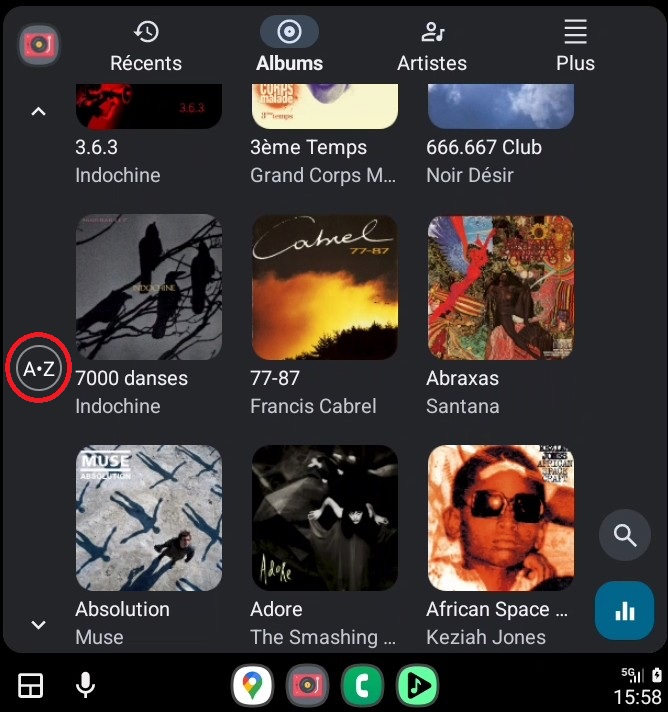
The A-Z button allows you to jump to items starting with the chosen letter.
Search button returns albums or artists, even if they are not displayed by the selected function.
Results of the A-Z jump will always be displayed as a list.
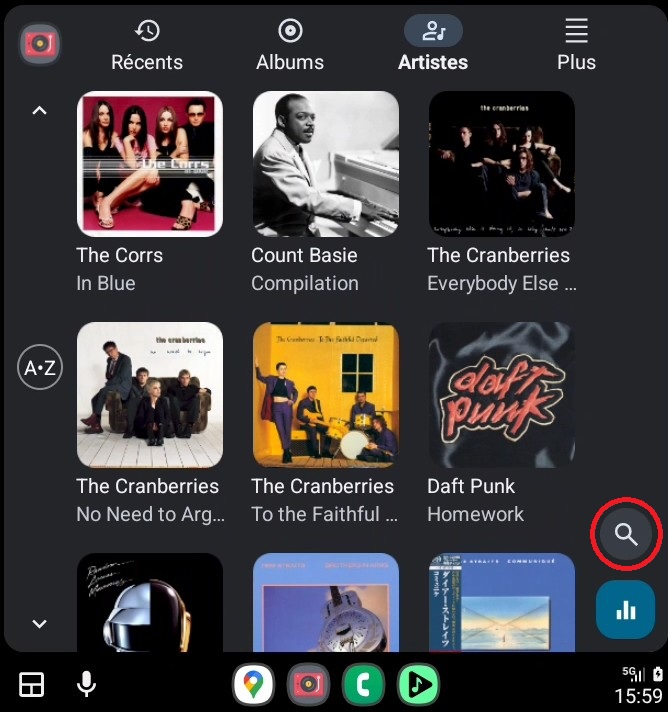
Display of albums and artists is limited to 500. For large libraries, it's preferable to use star albums or star artists.
Shortcuts are displayed only if the function is selected from root level:
- On albums page: jump to starred albums
- On starred albums page: jump to albums
- On artists page: jump to starred artists
- On starred artists page: jump to artists
### Server Settings
**IN PROGRESS**
- Manage multiple server connections
- Configure sync intervals
- Set data usage limits for streaming
### Audio Settings
**IN PROGRESS**
- Streaming quality settings
- Offline caching preferences
### Appearance
**TODO**
## Known Issues
### Airsonic Distorted Playback
First reported in issue [#226](https://github.com/eddyizm/tempus/issues/226)
The work around is to disable the cache in the settings, (set to 0), and if needed, cleaning the (Android) cache fixes the problem.
### Support
For additional help:
- Question? Start a [Discussion](https://github.com/eddyizm/tempus/discussions)
- Open an [issue](https://github.com/eddyizm/tempus/issues) if you don't find a discussion solving your issue.
- Consult your Subsonic server's documentation
---
*Note: This app requires a pre-existing Subsonic-compatible server with music content.*