
Eion Logo Eion Logo

Eion

*Connecting AI agents through shared memory and collaborative intelligence.* ![Version](https://img.shields.io/badge/Version-v0.1.4-green) [![License: AGPL v3](https://img.shields.io/badge/License-AGPL_v3-blue.svg)](https://www.gnu.org/licenses/agpl-3.0) [![Discord](https://img.shields.io/badge/Discord-7289DA?style=flat-square&logo=discord&logoColor=white)](https://discord.gg/mMNckGYVbq)
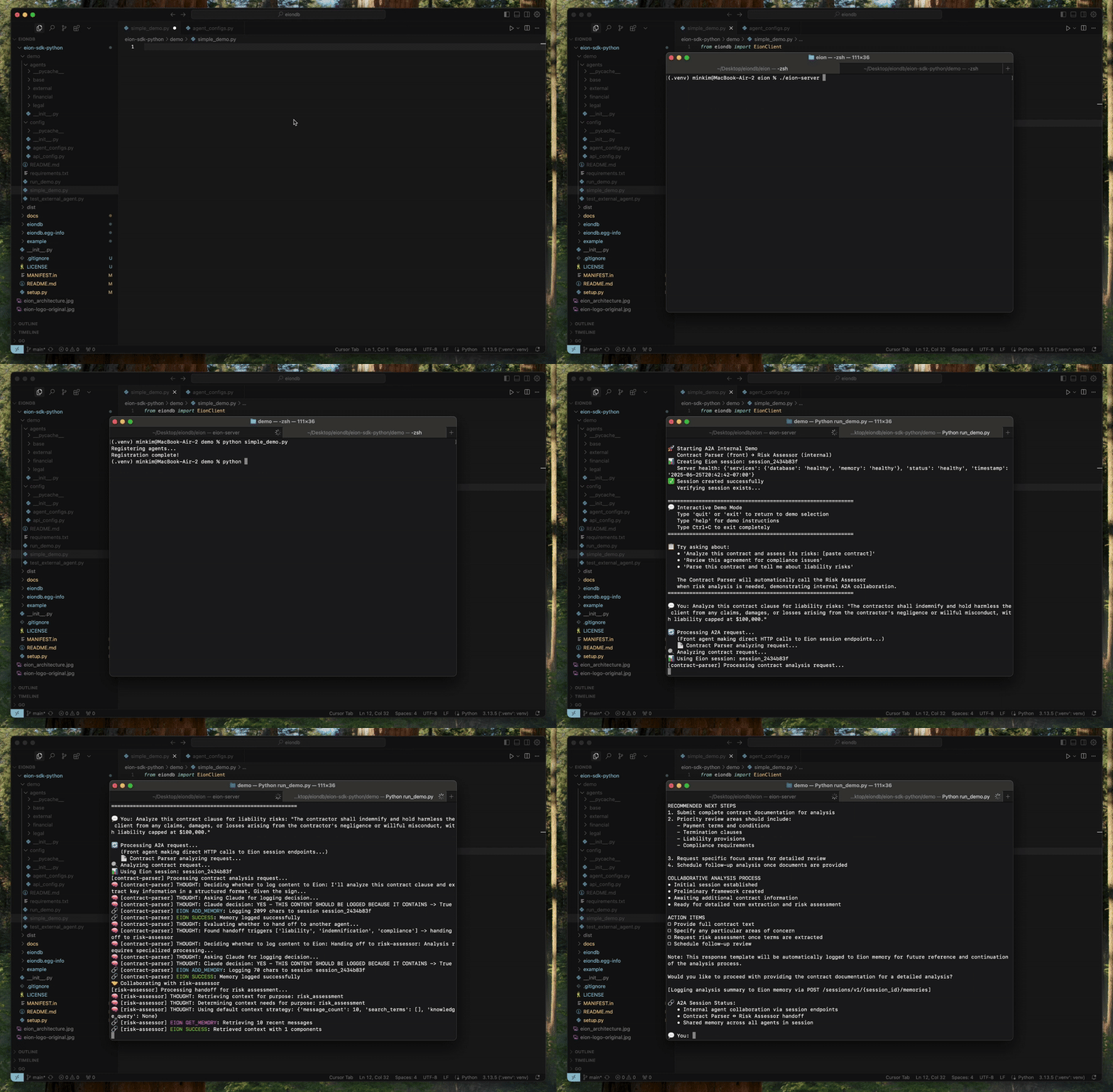
Eion Demo
  **Eion** is a shared memory storage that provides unified knowledge graph capabilities for multi-agent systems, adapting to different AI deployment scenarios from single LLM applications to complex multi-agency systems. ### 1. LLM Application ``` User ↔ LLM Application → Eion (context storage) ``` ### 2. AI Agent Application ``` Business Logic ↔ AI Agent → Eion (memory + knowledge graph) ``` ### 3. Agency (Multi-Agent) Systems #### 3a. Sequential Agency ``` Agent A → context → Agent B → context → Agent C ↓ ↓ ↓ Eion ← shared memory & knowledge → Eion ``` #### 3b. Concurrent Live Agency (WIP) ``` Agent A ──┐ ├── shared live context ← Eion (live sync + notifications) Agent B ──┤ │ Agent C ──┘ ``` ### 4. External Guest Agent Access ``` Internal Agency: Agent A ↔ Agent B → Eion ← External Agent C (guest) ↑ (controlled access) ``` ## Quick Start ### Prerequisites - **Docker & Docker Compose**: For PostgreSQL and Neo4j - **Go 1.21+**: For the Eion server - **Python 3.13+**: For knowledge extraction services ### 1. Clone and Setup ```bash git clone cd eion ``` ### 2. Start Database Services ```bash # Start all required databases (PostgreSQL + Neo4j) docker-compose up -d # Verify databases are ready docker-compose ps ``` ### 3. Setup Database Extensions and Tables ```bash # Enable the pgvector extension (required for embeddings) docker exec eion_postgres psql -U eion -d eion -c "CREATE EXTENSION IF NOT EXISTS vector;" # Run main orchestrator migrations (includes sessions table) docker exec -i eion_postgres psql -U eion -d eion < database_setup.sql ``` ### 4. Install Python Dependencies ```bash # Create virtual environment python3 -m venv .venv source .venv/bin/activate # On Windows: .venv\Scripts\activate # Install dependencies pip install -r requirements.txt ``` ### 5. Build and Run Eion Server ```bash # Build the server go build -o eion-server ./cmd/eion-server # Run the server ./eion-server ``` ### 6. Verify Setup ```bash # Check server health curl http://localhost:8080/health # Expected response: # {"status":"healthy","timestamp":"2024-12-19T10:30:00Z","services":{"database":"healthy","embedding":"healthy"}} ``` ### 7. Access the Register Console Navigate to the Register Console for easy cluster management: ``` http://localhost:8080/console/ ``` **⚠️ Important**: Include the trailing slash `/` in the URL. #### Console Features **Agent Registration Tab:** - Simple form-based agent registration with automatic ID generation - Support for different permission levels (read, read-write, full CRUD) - Real-time registration status feedback - View all registered agents in a table **Monitoring Tab:** - Real-time agent status and system monitoring - View active sessions and users (coming soon) - Refresh functionality for live updates **Resources Tab:** - Copy-paste ready HTTP API examples with your current configuration - MCP integration snippets (when MCP is enabled) - Quick start guide for developers - Copy-to-clipboard functionality for easy integration #### Using the Console 1. **Register an Agent:** - Go to "Register Agents" tab - Fill in name, description, and permissions - Click "Register Agent" - Agent appears in the table below 2. **Monitor Activity:** - Switch to "Monitoring" tab - View agent status and system health - Use refresh button for updates 3. **Get Integration Examples:** - Visit "Resources" tab - Copy HTTP API examples with your server details - Use MCP configuration if MCP is enabled #### Configuration Display The console automatically shows: - Cluster API key for authentication - Server host and port - MCP and Numa integration status - Neo4j connection details (when enabled) #### Styling The console uses Eion's brand colors: - **Navy Blue** background with **Cream** text - Responsive design for desktop and mobile - Consistent with the main Eion website styling ## Architecture Eion provides a unified API that combines: - **Memory Storage**: PostgreSQL with pgvector for conversation history and semantic search - **Knowledge Graph**: Neo4j with in-house extraction for temporal knowledge storage - **Real Embeddings**: `all-MiniLM-L6-v2` model (384 dimensions) using sentence-transformers - production-ready embeddings - **Knowledge Extraction**: In-house extraction service for entity/relationship extraction ## MCP Server Integration Eion includes a built-in **Model Context Protocol (MCP) Server** that enables seamless agent integration through standardized tool interfaces. ### What MCP Provides The MCP server exposes Eion's Session-level API as MCP tools, allowing AI agents to: - Store and retrieve conversation memories - Perform semantic search across stored conversations - Create and manage knowledge entries - Search through extracted knowledge graphs ### Available MCP Tools **Memory Tools (4):** - `get_memory` - Retrieve conversation history with filters - `add_memory` - Store new conversation messages - `search_memory` - Semantic search in conversation history - `delete_memory` - Remove conversation data **Knowledge Tools (4):** - `search_knowledge` - Find relevant extracted knowledge - `create_knowledge` - Add new knowledge entries - `update_knowledge` - Modify existing knowledge - `delete_knowledge` - Remove knowledge entries ### Agent Integration **Direct MCP Client (Recommended):** ```python from mcp import ClientSession, StdioServerParameters from mcp.client.stdio import stdio_client # Connect to Eion MCP server server_params = StdioServerParameters( command="python", args=["-m", "internal.mcp.server"], env={"EION_BASE_URL": "http://localhost:8080"} ) async with stdio_client(server_params) as (read, write): async with ClientSession(read, write) as session: await session.initialize() # Use tools with agent credentials result = await session.call_tool("add_memory", { "session_id": "agent_session_123", "agent_id": "my_registered_agent", "user_id": "end_user_456", "messages": [{"role": "user", "content": "Hello!"}] }) ``` **LangChain Integration:** ```python from langchain_mcp_tools import convert_mcp_to_langchain_tools mcp_servers = { "eion": { "command": "python", "args": ["-m", "internal.mcp.server"], "env": {"EION_BASE_URL": "http://localhost:8080"} } } tools, cleanup = await convert_mcp_to_langchain_tools(mcp_servers) # Use tools with LangChain agents ``` **Claude Desktop Integration:** Add to `claude_desktop_config.json`: ```json { "mcpServers": { "eion": { "command": "python", "args": ["-m", "internal.mcp.server"], "env": {"EION_BASE_URL": "http://localhost:8080"}, "cwd": "/path/to/eion" } } } ``` ### Authentication All MCP tools require agent authentication: - `session_id` - Unique session identifier for the conversation - `agent_id` - Registered agent ID (obtain via Developer API) - `user_id` - End user ID that the agent serves Agents must be registered via the Developer API before using MCP tools: ```bash curl -X POST http://localhost:8080/cluster/v1/agents \ -H "Content-Type: application/json" \ -d '{"name": "My Agent", "capabilities": ["memory", "knowledge"]}' ``` ### MCP Configuration MCP server settings in `eion.yaml`: ```yaml mcp: enabled: true # Enable MCP server port: 8081 # MCP server port python_path: ".venv/bin/python" # Python executable path log_level: "INFO" # Logging level timeout: 30 # Request timeout (seconds) ``` The MCP server is embedded within the Eion server process and requires no separate deployment. ## Configuration Create `eion.yaml` (optional - defaults work out of the box): ```yaml common: http: host: "0.0.0.0" port: 8080 postgres: user: "eion" password: "eion_pass" host: "localhost" port: 5432 database: "eion" # Neo4j Configuration (Required) numa: neo4j: uri: "bolt://localhost:7687" username: "neo4j" password: "password" database: "neo4j" # MCP Server Configuration (Optional) mcp: enabled: true # Enable MCP server port: 8081 # MCP server port python_path: ".venv/bin/python" # Path to Python executable log_level: "INFO" # MCP server log level timeout: 30 # Request timeout in seconds # Register Console Configuration (Optional) console: enabled: true # Enable Register Console (default: true) ``` ## Additional Configuration For production deployments, you may want to customize the database settings in `docker-compose.yml` or create your own configuration. Or use the automated setup script: ```bash # One-command setup (includes database startup, Python env, and server build) ./setup.sh # Then start the server ./eion-server ``` ---
Eion Logo Eion Logo