The *Atlas* toolkit is available for:
[](https://github.com/epeios-q37/atlas-java) [](https://github.com/epeios-q37/atlas-node) [](https://github.com/epeios-q37/atlas-perl) [](https://github.com/epeios-q37/atlas-python) [](https://github.com/epeios-q37/atlas-ruby)
To see the *Atlas* toolkit in action:
[](https://s.q37.info/sssznrb4)
## A GUI with *Python* in a couple of minutes
Click the animation to see a screencast of programming this ["Hello, World!" program](https://en.wikipedia.org/wiki/%22Hello,_World!%22_program) with *Python* in a matter of minutes:
[](https://s.q37.info/rt9wr4w3)
Same video on [*Peertube*](https://en.wikipedia.org/wiki/PeerTube): .
Click to see the corresponding source code
```python
import atlastk
BODY = """
"""
def atk(dom): # Callback called on new connections.
dom.inner("", BODY)
dom.focus("Input")
def atkSubmit(dom): # Callback for the 'Submit' action, hence the name.
name = dom.getValue("Input")
dom.begin("Output", f"
Hello, {name}!
")
dom.setValue("Input", "")
dom.focus("Input")
atlastk.launch(globals=globals())
```
### See for yourself right now - it's quick and easy!
```shell
git clone http://github.com/epeios-q37/atlas-python
cd atlas-python/examples
python Hello/
```
## *Android* devices
Applications made with the *Atlas* toolkit work perfectly on your [*Android*](https://en.wikipedia.org/wiki/Android_(operating_system)) devices (smartphone or tablet) using the [*Termux*](https://termux.com/) application. Simply install (``pkg intall …``) the *git* and *python* packages. That's all!
## *Jupyter* notebooks
When using the *Atlas* toolkit in a [*Jupyter* notebook](https://en.wikipedia.org/wiki/Project_Jupyter#Jupyter_Notebook), the GUI is embedded in the notebook, as shown here:
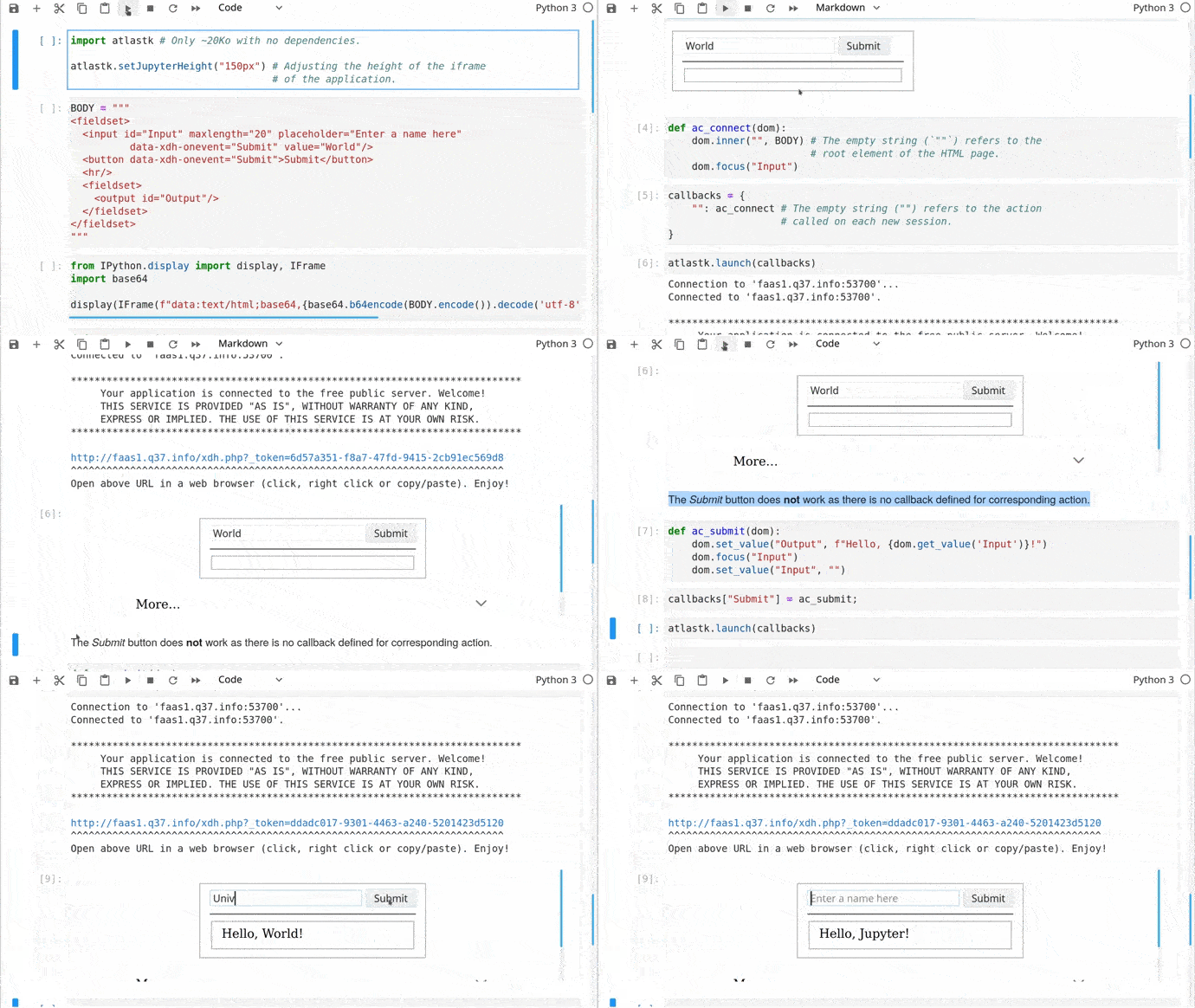
*Jupyter* notebook examples can be found in the *tutorials* directory.
## Your turn
If you want to take your code to the next level, from [CLI](https://s.q37.info/cnh9nrw9) to [GUI](https://s.q37.info/hw9n3pjs), then you found the right toolkit.
With the [*Atlas* toolkit](http://atlastk.org/), you transform your programs in modern web applications ([*SPA*](https://s.q37.info/7sbmxd3j)) without the usual hassles:
- no *JavaScript* to write; only *HTML*(/*CSS*) and *Python*,
- no [front and back end architecture](https://s.q37.info/px7hhztd) to bother with,
- no [web server](https://s.q37.info/n3hpwsht) (*Apache*, *Nginx*…) to install,
- no need to deploy your application on a remote server,
- no incoming port to open on your internet box or routeur.
The *Atlas* toolkit is written in pure *Python*, with no native code and no dependencies, allowing the *Atlas* toolkit to be used on all environments where *Python* is available.
And simply by running them on a local computer connected to internet, applications using the *Atlas* toolkit will be accessible from the entire internet on laptops, smartphones, tablets…
The *Atlas* toolkit is particularly well suited for educational purposes, to write modern programming exercises, i.e. with a true graphical interface instead of the usual old-looking textual one. More about this can be found [here](https://s.q37.info/cbms43s9).
*Python* is much more powerful then *Excel* macros to automate (boring) tasks, and you can also work with *PDF*, *Word*, *Google* files…. And with the *Atlas* toolkit, you have much more possibilities then with *VBA* forms. There are some examples [here](https://s.q37.info/97p44nh4).
> You will also find programs from [*The Big Book of Small Python Projects*](https://inventwithpython.com/bigbookpython/) by [Al Sweigart](http://alsweigart.com) to which a graphical user interface using the *Atlas* toolkit were added in this repository: [epeios-q37/AlSweigartTheBigBookPython](https://s.q37.info/kd3bwchj).
## Content of the repository
The `atlastk` directory contains the *Python* source code of the *Atlas* toolkit, which is the directory you have to reference in `PYTHONPATH` in order to use the *Atlas* toolkit in your own program, unless you have installed the [*atlastk* package](http://s.q37.info/9srmskcm) (`pip install atlastk`…).
You can also retrieve the `atlastk.zip` file, and add to your source code :
```python
__import__("sys").path.append("/atlastk.zip")
import atlastk
```
If the `atlastk.zip` file is in the current folder, replace `/atlastk.zip` with `./atlastk.zip` and not only `atlastk.zip`.
In the `examples` directory, you will found following examples:
- `Blank`: very basic example,
- `Hello`: ["*Hello, World!*"](https://en.wikipedia.org/wiki/%22Hello,_World!%22_program),
- `Chatroom`: multi-user chatroom,
- `Notes`: note taking program,
- `TodoMVC`: [*TodoMVC*](http://todomvc.com/),
- `Hangman`: [Hangman game](http://s.q37.info/gtdtk4hp),
- `15-puzzle`: [15-puzzle game](https://s.q37.info/jn9zg3bn),
- `Contacts`: a basic address book,
- `Widgets`: some widgets handled with the *Atlas* toolkit,
- `Chatrooms` : same as above `Chatroom`, but with several rooms,
- `PigGame`: [Pig game](https://en.wikipedia.org/wiki/Pig_(dice_game)) for one or two players,
- `Reversi`: [*Reversi* game](http://s.q37.info/zz3dzmf7) for one or two players,
- `MatPlotLib` : the *Atlas* toolkit displaying some graphics made with [*matplotlib*](https://matplotlib.org/); this example needs, of course, the *matplotlib* package to be installed…
Other examples are detailed in the next section.
Except for the *ErgoJr*, *GPIO* and *RGB* applications, which are detailed in the next section, to run an example, launch, from within the `examples` directory, `python /` (don't forget the final `/`), where `` is the name of the example (`Blank`, `Chatroom`…).
The *Stars* application is an example where the *Atlas* *toolkit* is used to control a [*Pygame*](https://en.wikipedia.org/wiki/Pygame) based application. Of course, *Pygame* needs to be installed.
The `tutorials` directory contains some [*Jupyter* notebooks](https://en.wikipedia.org/wiki/Project_Jupyter#Jupyter_Notebook) about the *Atlas* *toolkit*.
## *Raspberry Pi*/*ODROID-C2*
**If the applications does not work on your *Raspberry Pi*, please see this issue: **
The *GPIO* and *RGB* applications are designed to be used on a *Raspberry Pi* or a *ODROID-C2*.
Here is how the *WebGPIO* application looks like:
For the *Raspberry Pi*, the `RPi.GPIO` *Python* module have to be installed (this is probably already the case).
For the *ODROID-C2*, The *Python* version of *WiringPi* must be installed, and the application has to be launched, from within the `examples` directory, with `sudo` (`sudo python GPIO/` or `sudo python RGB/`).
The *ErgoJr* application is experimental and to control a *Poppy* *Ergo Jr* robot.
The *RGB* application is dedicated to the control of a RGB led, and the *GPIO* (aka *WebGPIO*) application allows to control the basic pins. Click below picture to see a *YouTube* video on how they work (same video on [*PeerTube*](https://en.wikipedia.org/wiki/PeerTube): ):