# User guide
[Back to PhoneBox](../README.md) · [Installation and connections](SETUP.md) · [Development](DEVELOPMENT.md)
[Appearance](#appearance) · [Control Deck](#control-deck) · [Pages & templates](#pages--templates) · [Widgets](#widgets) · [Layout editor & settings](#layout-editor--settings) · [Claude Code permission prompts](#claude-code-permission-prompts) · [Webhooks](#webhooks) · [Rules](#rules) · [Security & privacy](#security--privacy)
## Appearance
Set corner radius, widget spacing, inner padding, page padding, borders and shadows in **Settings → General →
Appearance**. Choose Original, Rounded cards, Flat, Content only or Seamless panel, then customize individual values.
Pages and individual widgets can override global defaults. Live preview shows unsaved changes before Save.
Existing layouts keep their original appearance. See the [appearance guide](APPEARANCE.md).
**OLED burn-in protection** (since 0.9.9), under **Settings → General → OLED burn-in protection**:
- move the panel by a few pixels every 2 minutes (and the night clock around the screen);
- dim the panel after a set time without a touch. The touch that brightens it again does not press anything.
The AMOLED black theme and the night screen help too.
## Control Deck
Turn a phone into a touch control deck with application audio faders, microphone controls, device selection,
push-to-talk, audio profiles, media controls, soundboard, window and system controls, OBS, meeting shortcuts,
development tasks, MIDI and OSC. Six new templates provide starting layouts; existing layouts are retained.
Open **Settings → General → Control Deck** to define computer-side bindings and capture audio profiles. Add the
matching widgets in Pages. Executable shortcuts and macros are configured in Shortcuts first; phone requests contain
only configured IDs. PC audio listening and hold-to-confirm power buttons require separate desktop opt-ins.
Spotify queue, library and playlist controls need a Spotify Developer Client ID and a connection through the
settings screen. OBS needs obs-websocket and widget control permission. Application routing uses an installed
SoundVolumeView executable; virtual-mixer controls use the installed Voicemeeter Remote DLL. MIDI requires an
output port. Missing integrations display their setup state. See the [setup and platform guide](CONTROL-DECK.md).
## Pages & templates
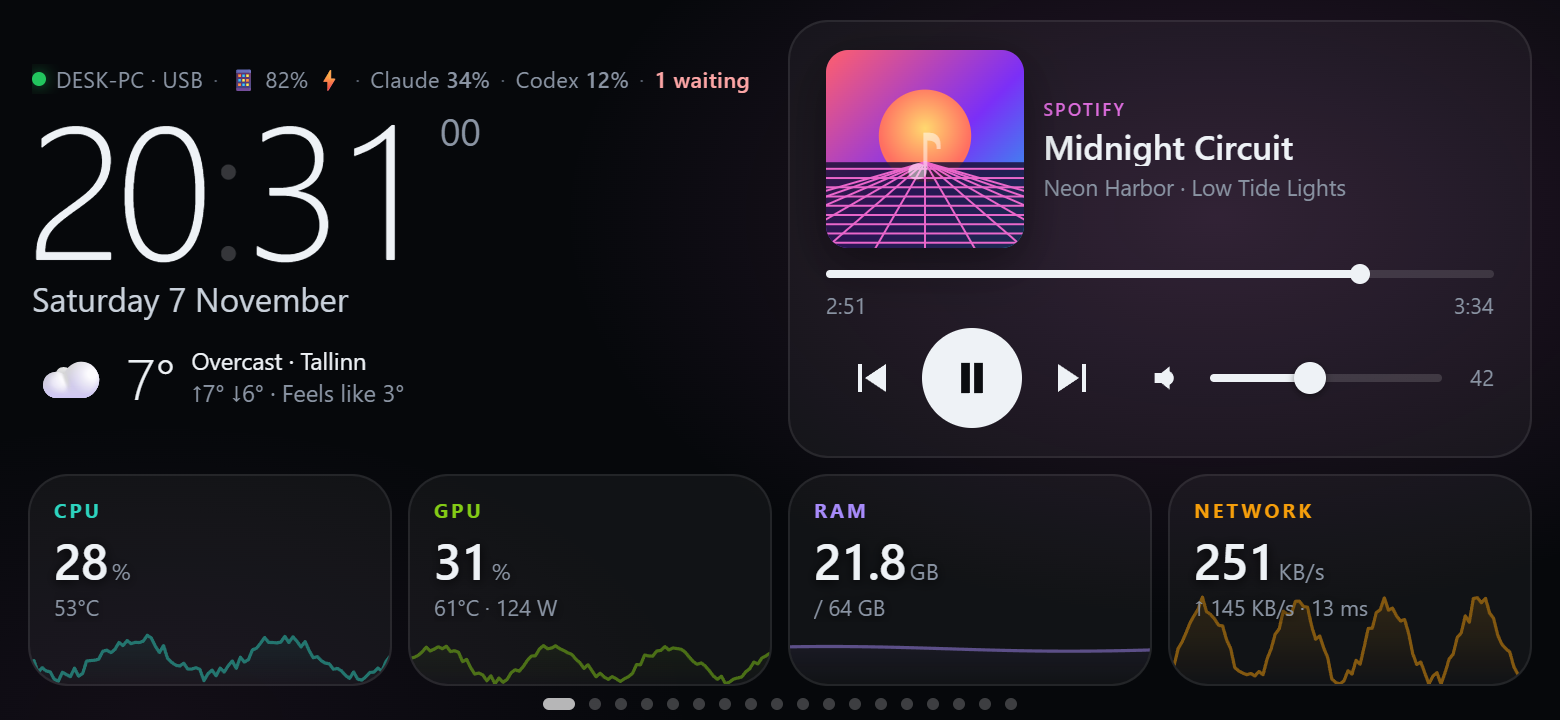
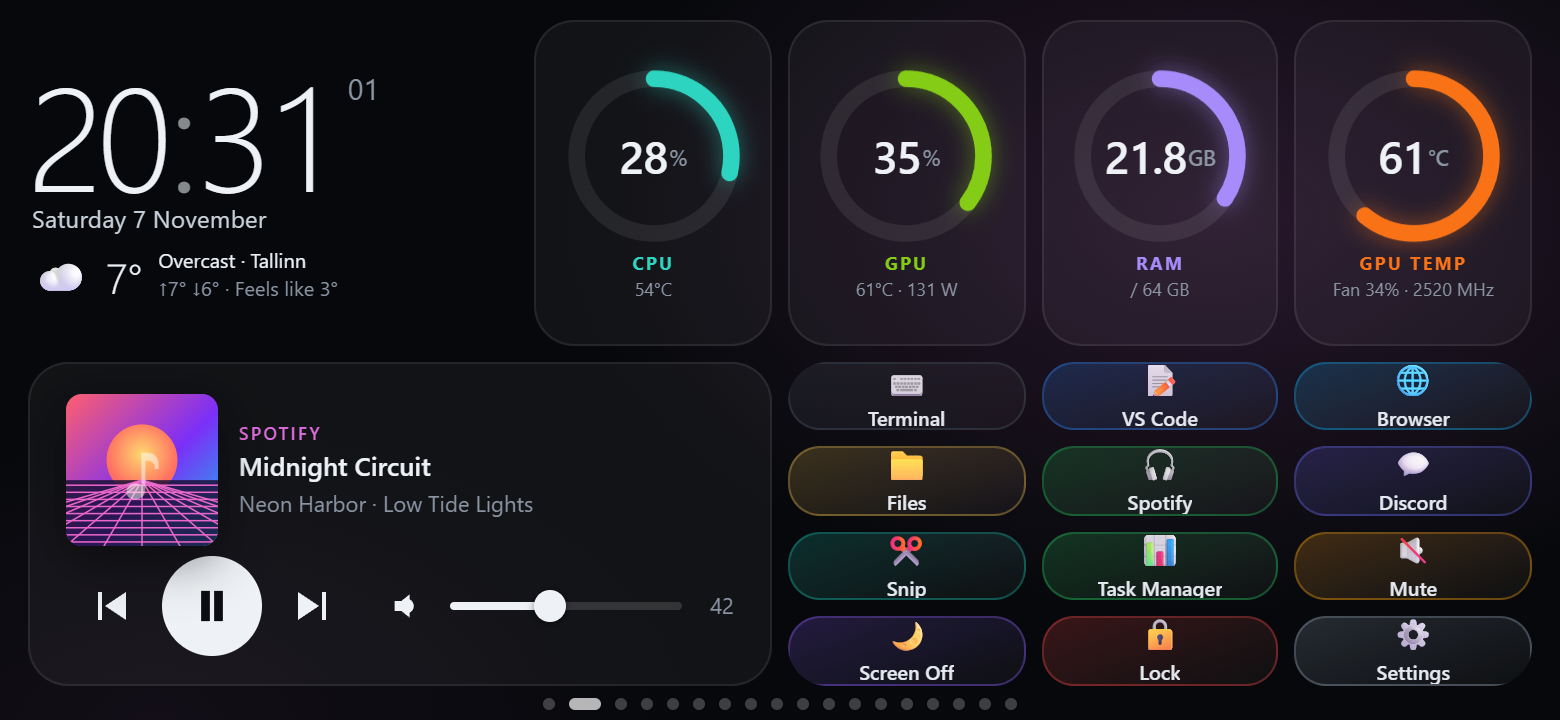
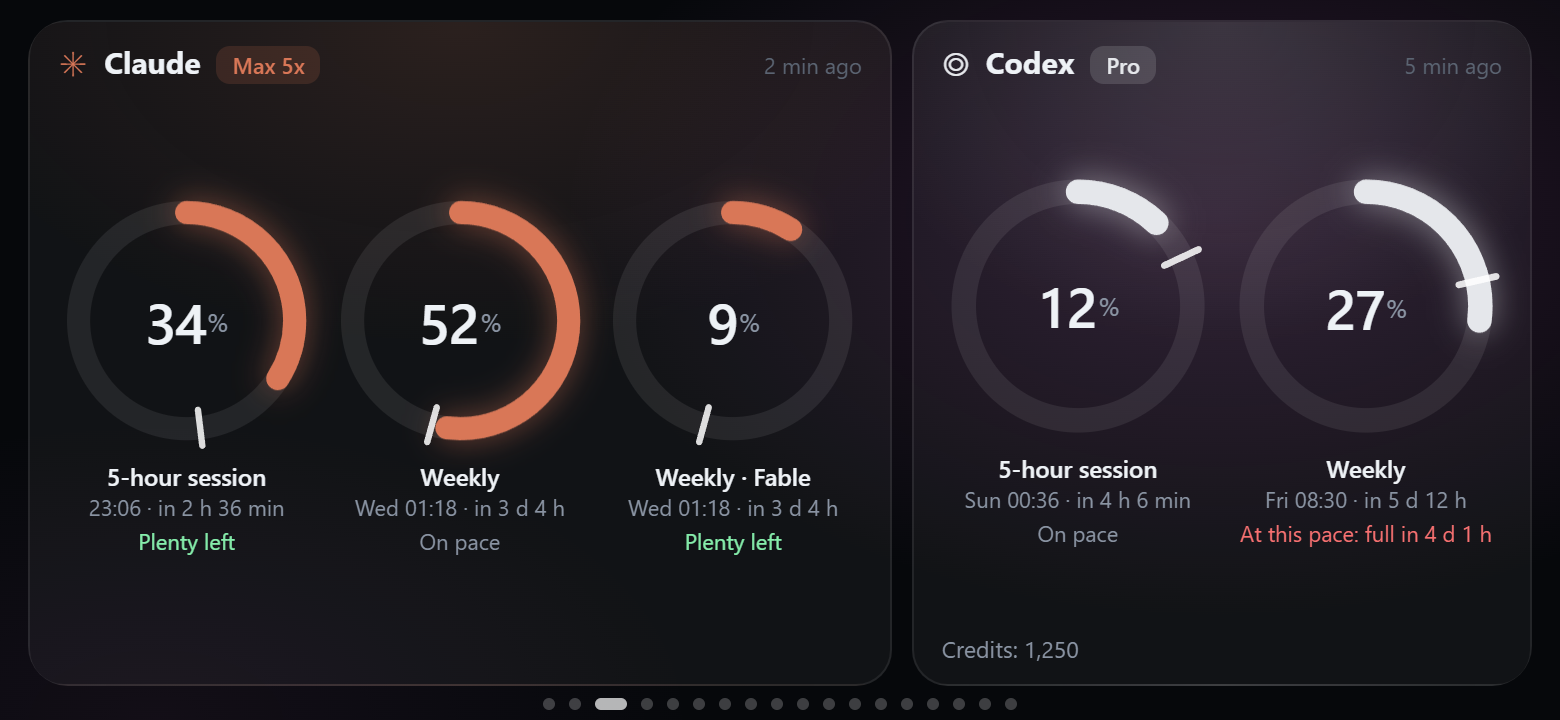
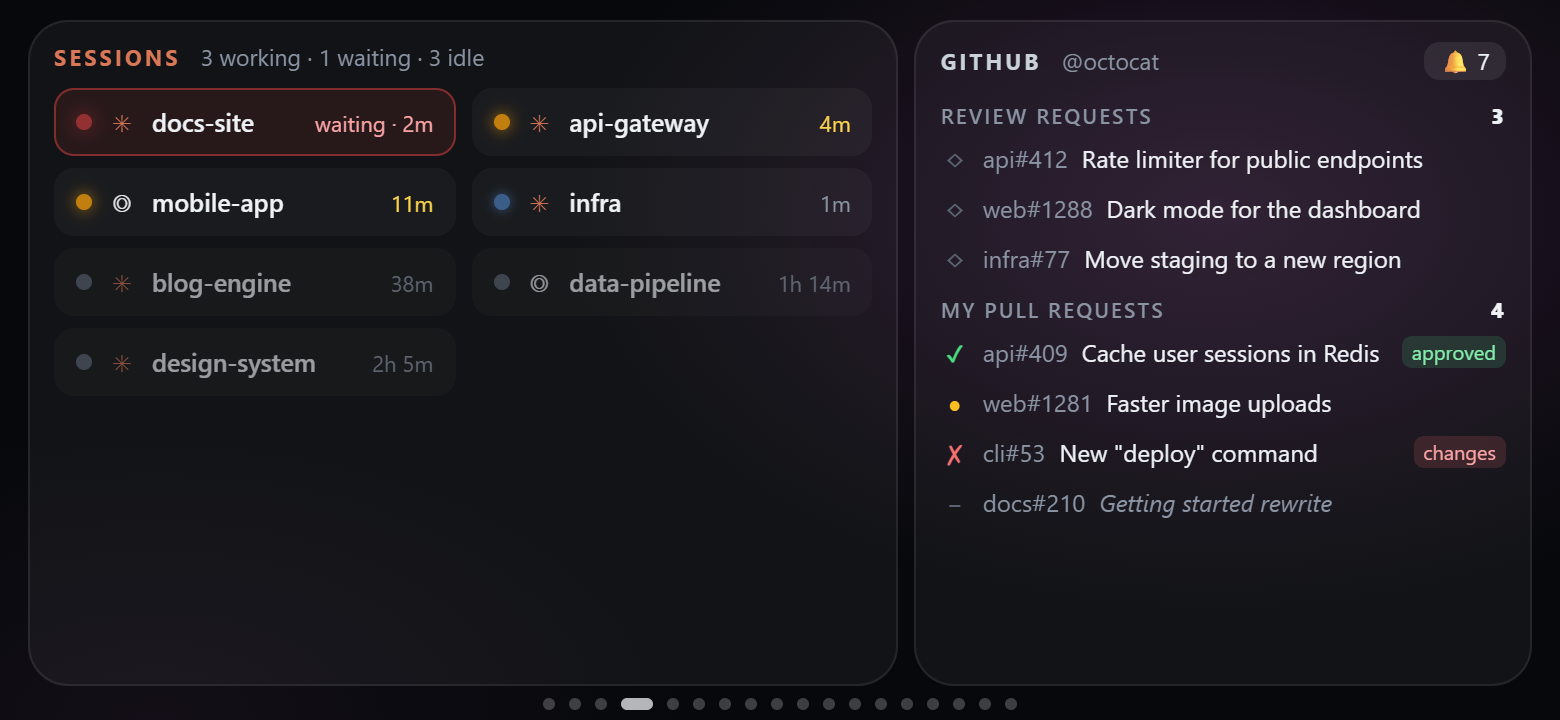
Every page is a 12 × 6 grid. Start a page from one of the 30 templates (or from scratch) and change anything.
| | |
|---|---|
| **Home** — clock, weather, now playing, CPU / GPU / RAM / network tiles | **Dashboard** — gauges, clock, media and a few shortcut keys |
|  |
 |
| **AI quotas** — Claude and Codex limits, reset times, "at this pace: full in 1 d 5 h" | **Sessions** — Claude Code / Codex sessions and GitHub |
|
 |
 |
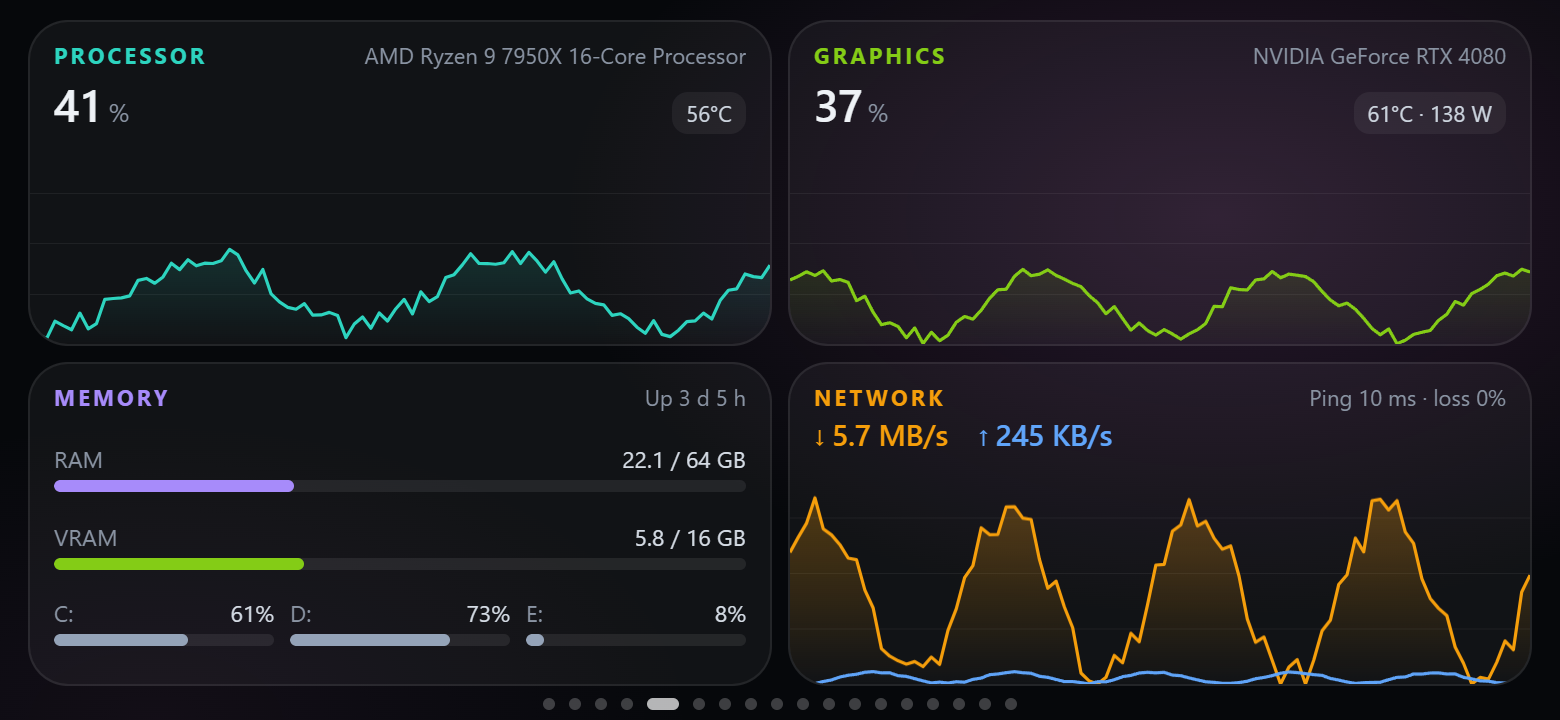
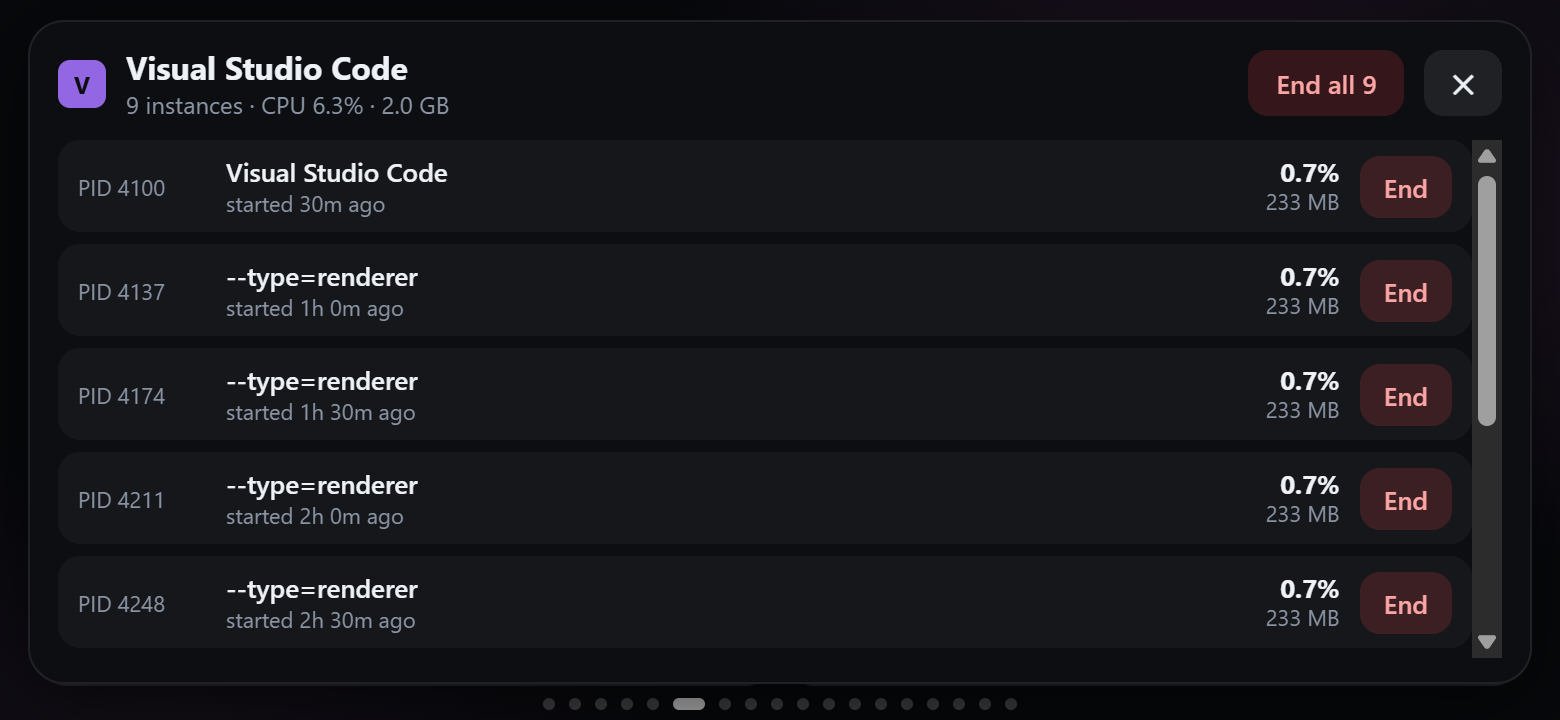
| **System** — CPU, GPU, memory, disks, network and ping charts | **Processes** — heaviest apps; tap one to end an instance or all of them |
|
 |
 |
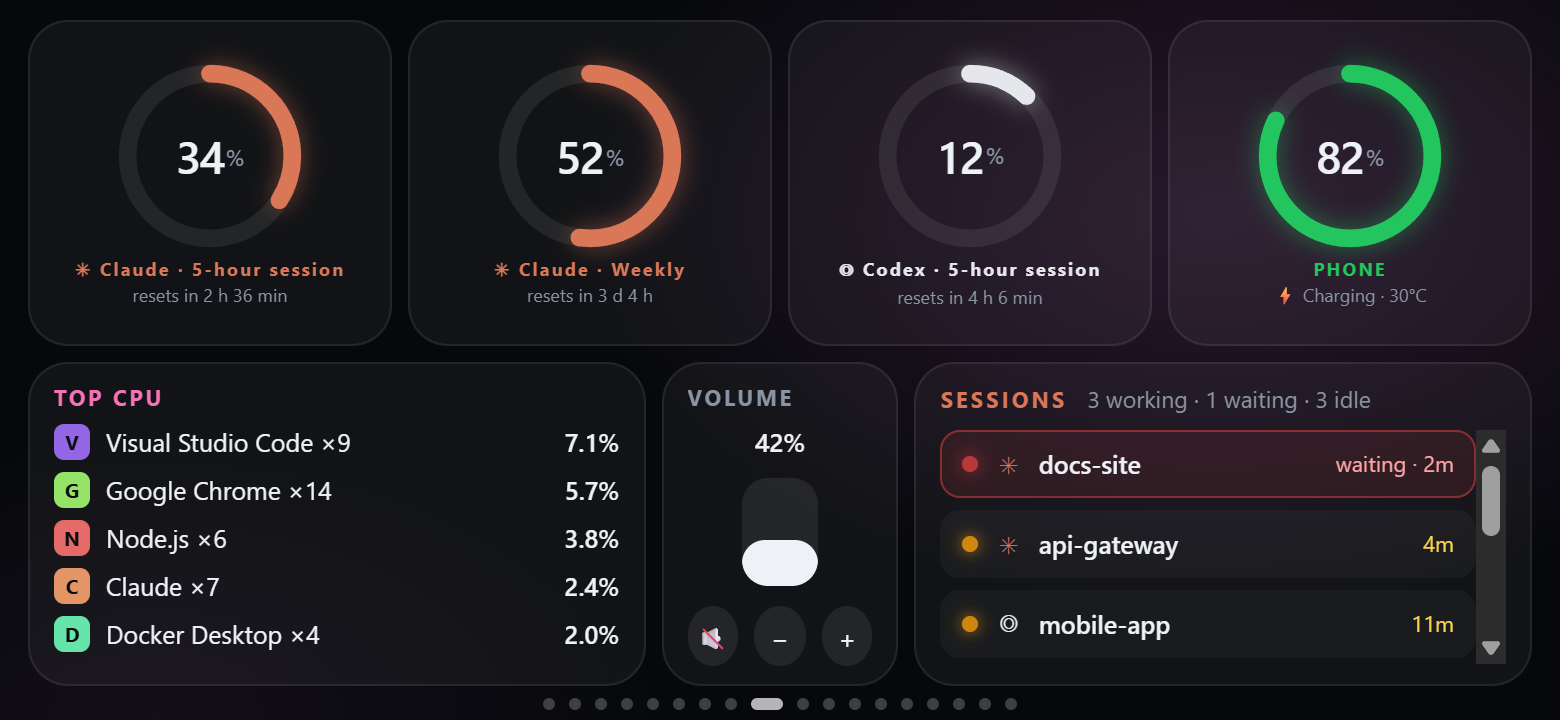
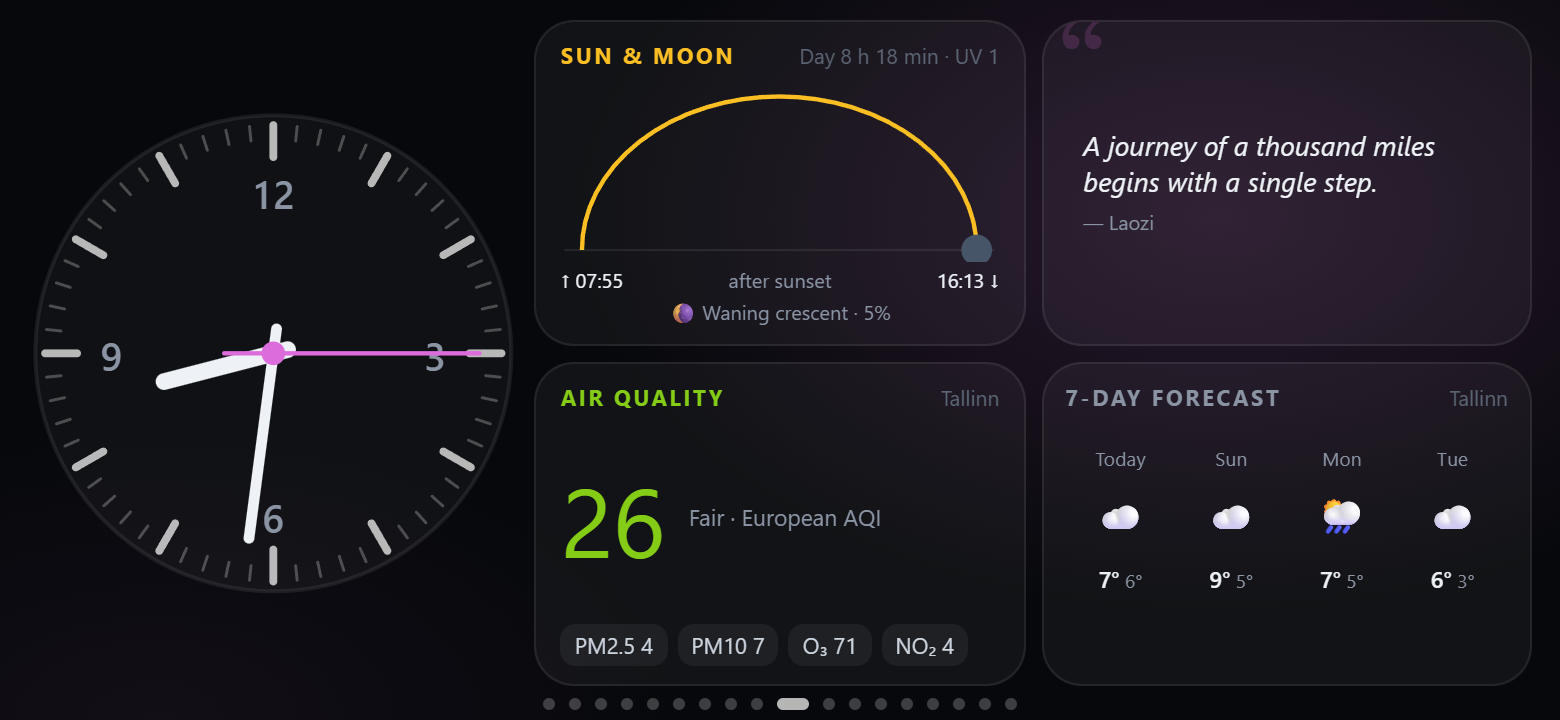
| **Status** — quota rings, phone battery, top CPU, volume, sessions | **Ambient** — analog clock, sun & moon, air quality, quote, forecast |
|
 |
 |
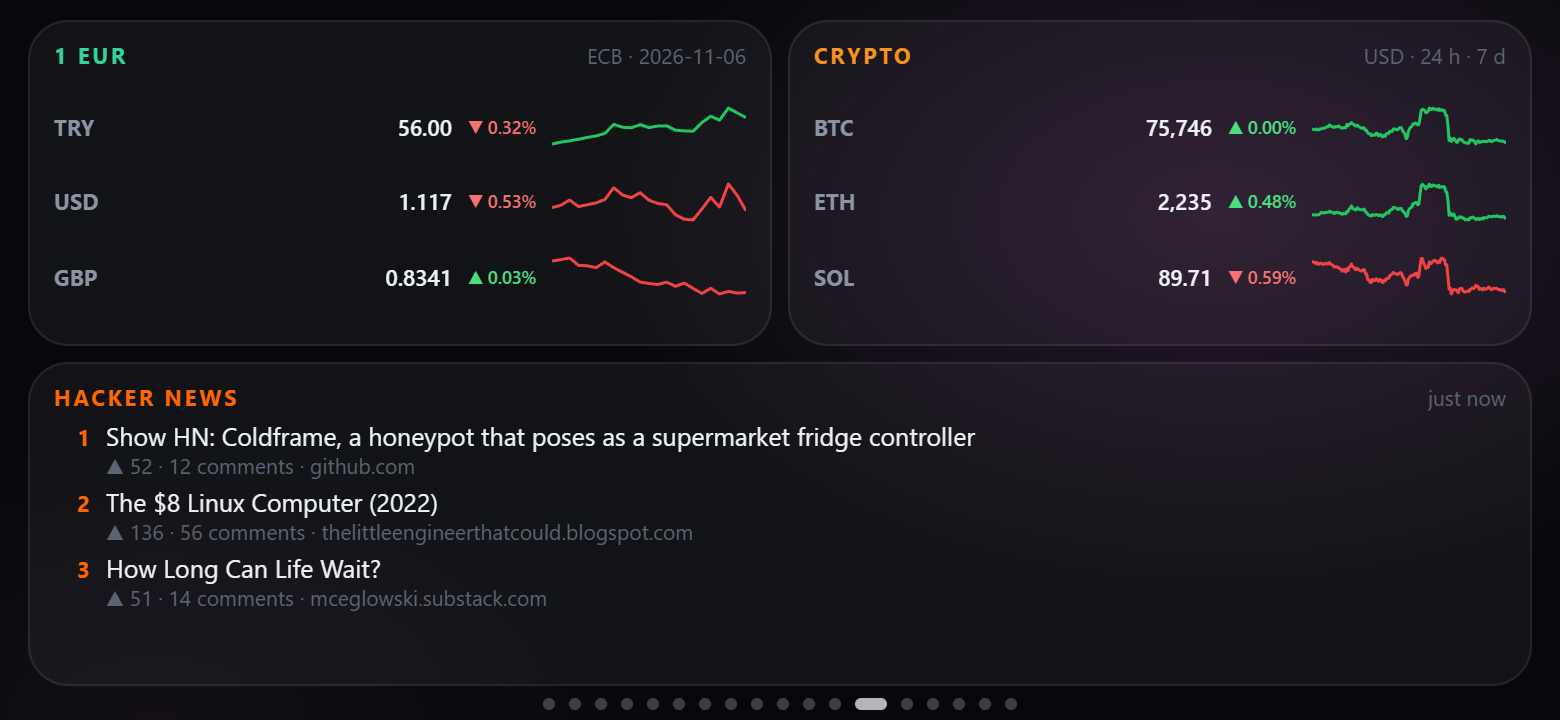
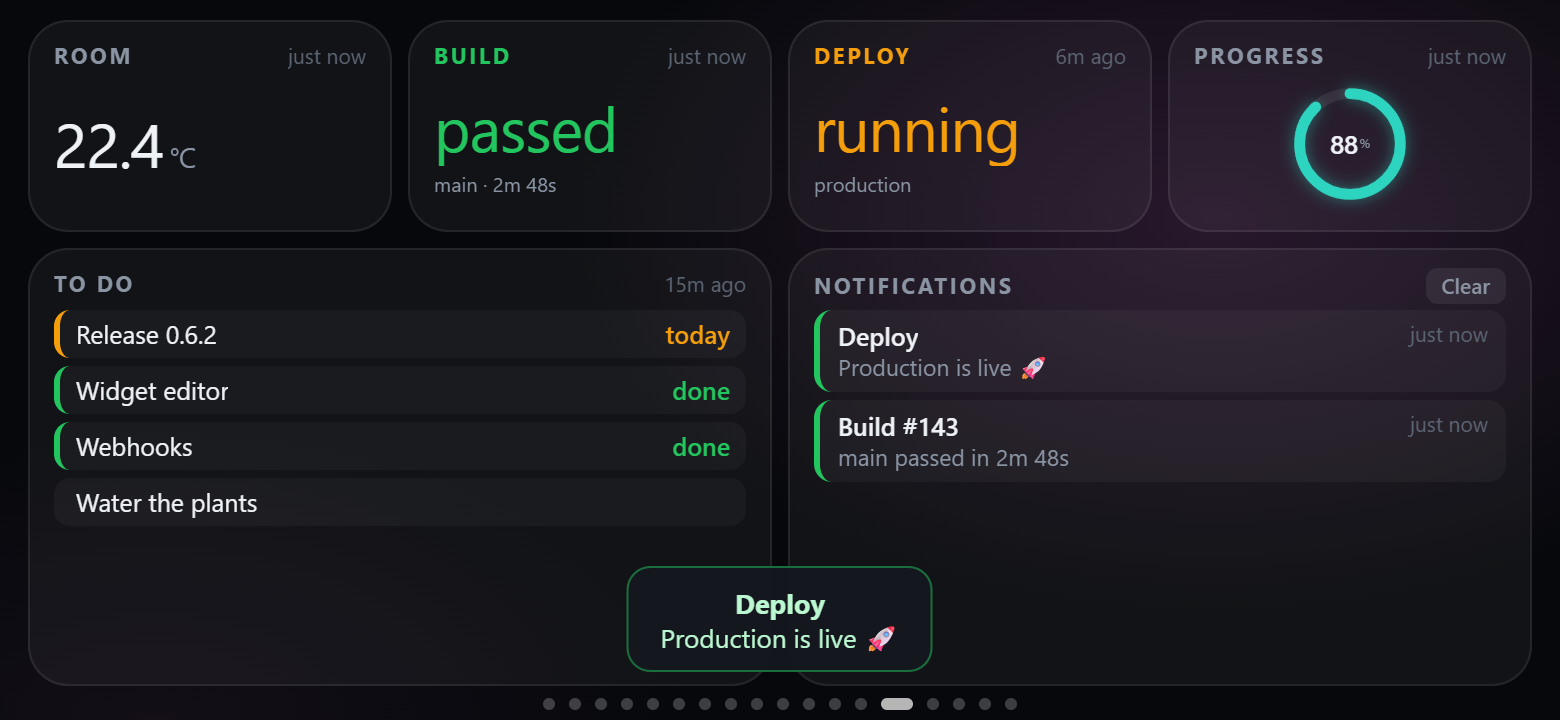
| **Markets** — exchange rates, crypto, Hacker News | **Feeds** — values and notifications pushed by webhooks |
|
 |
 |
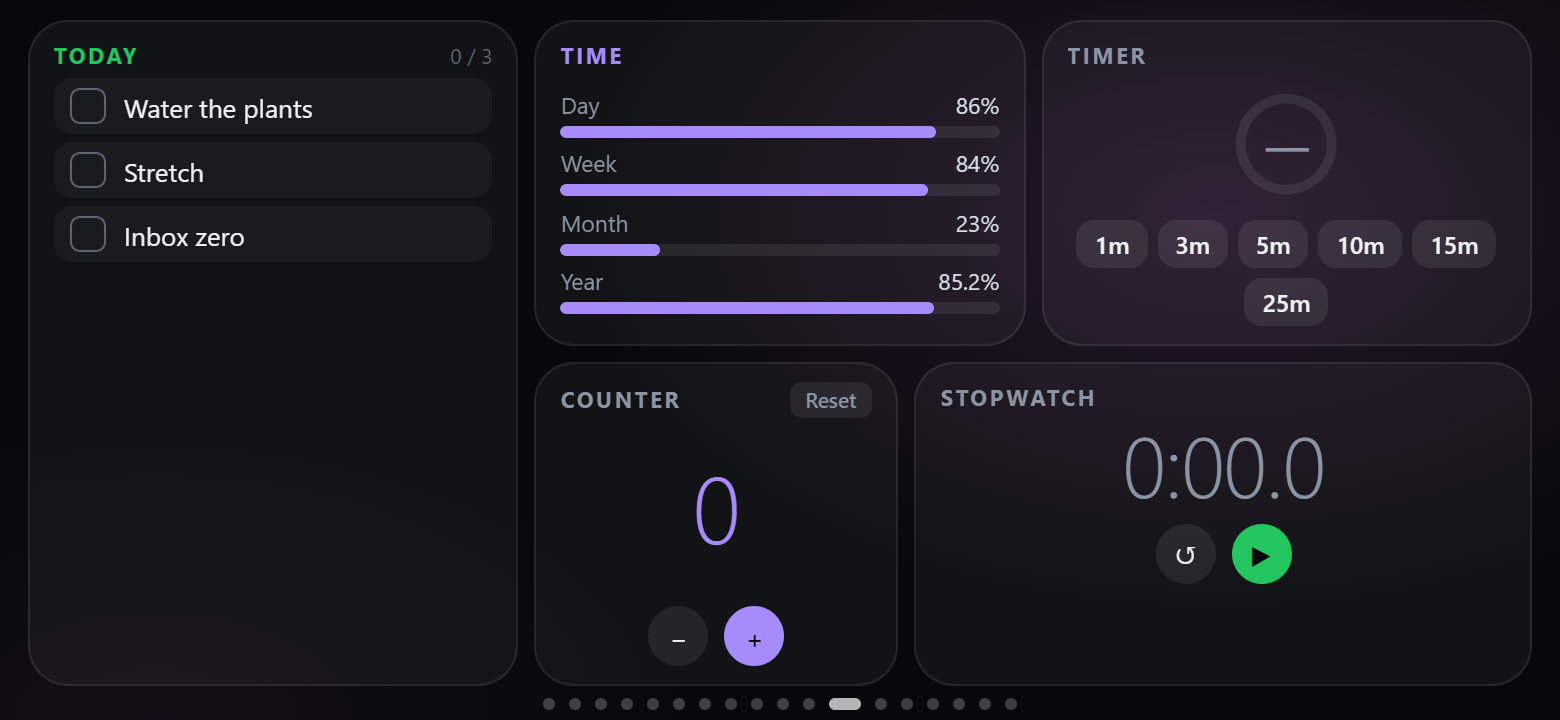
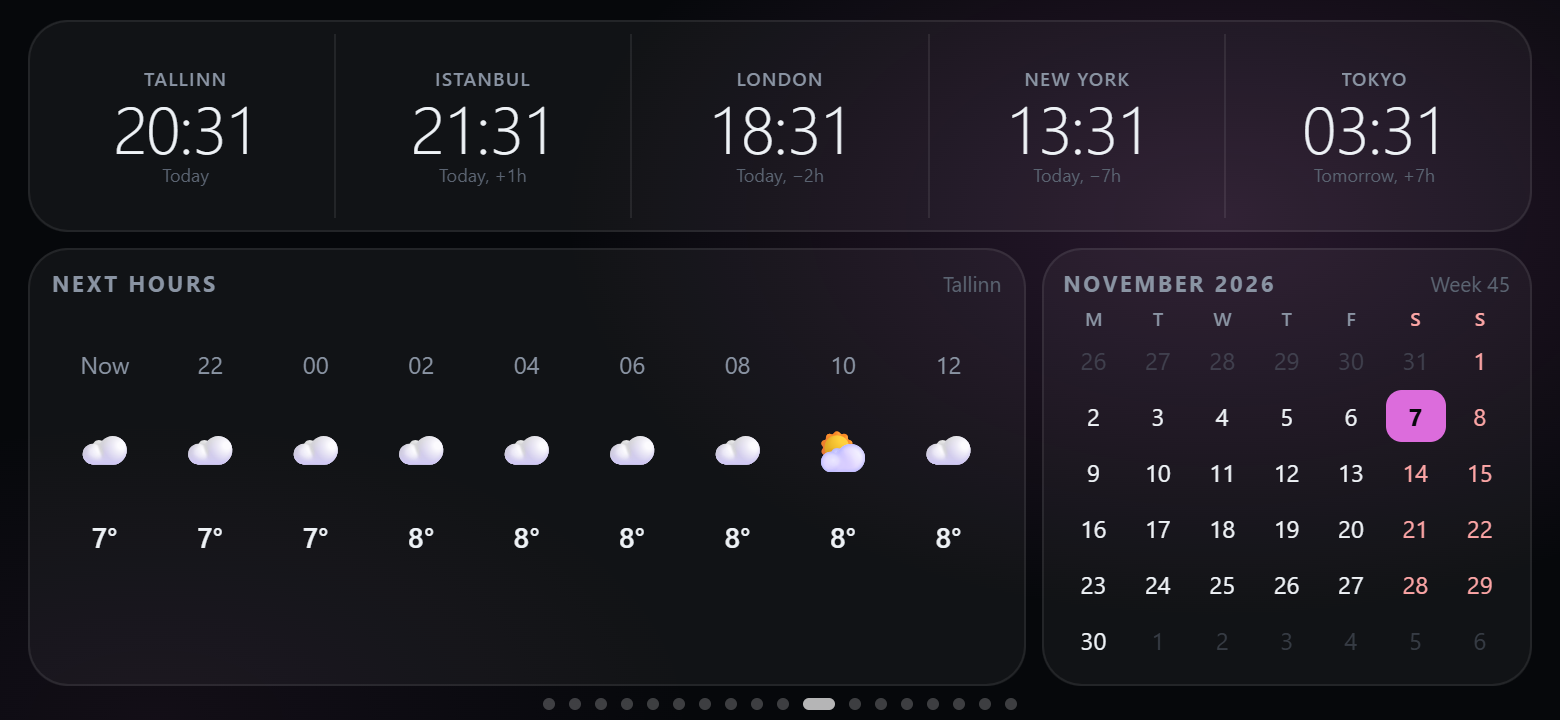
| **Daily** — checklist, time progress, timer, counter, stopwatch | **World** — world clocks, hourly forecast, calendar |
|
 |
 |
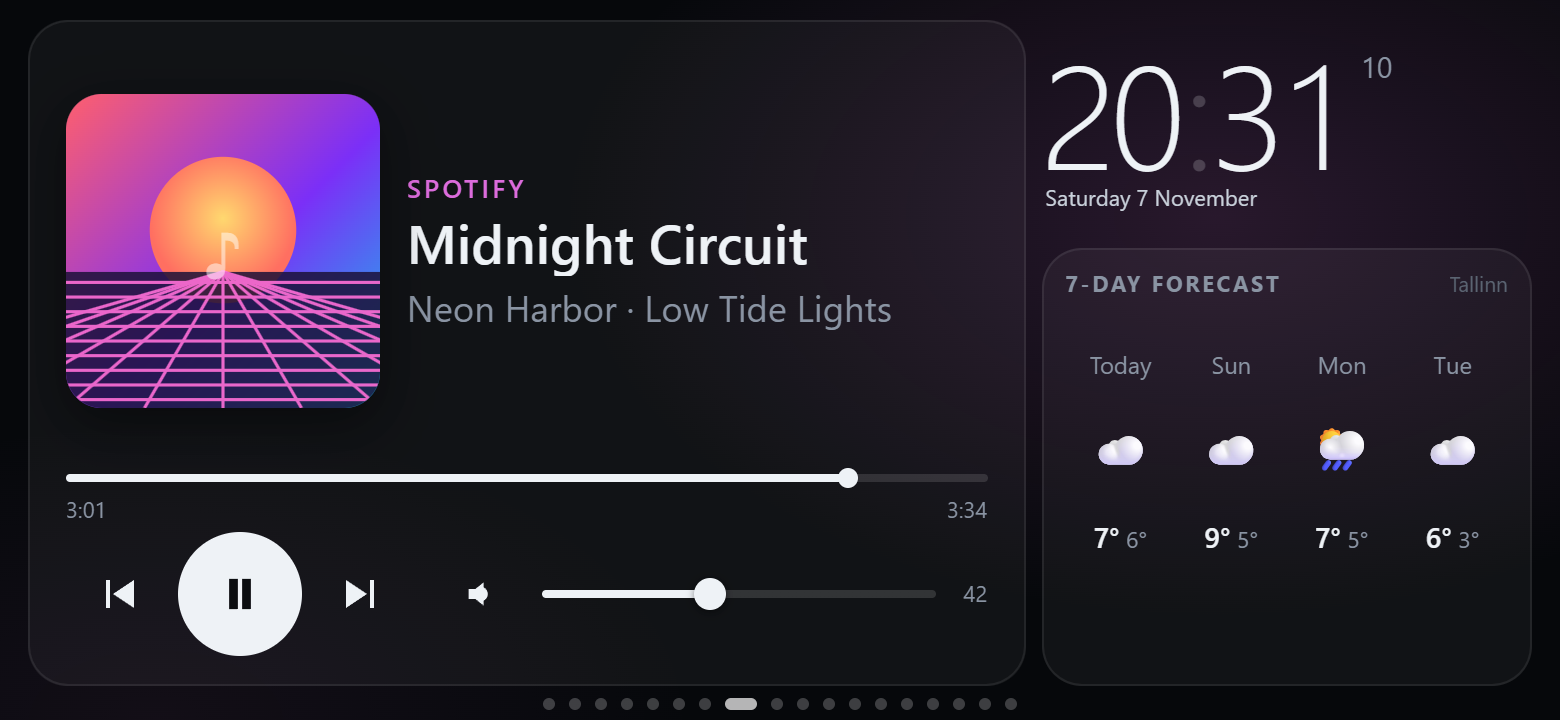
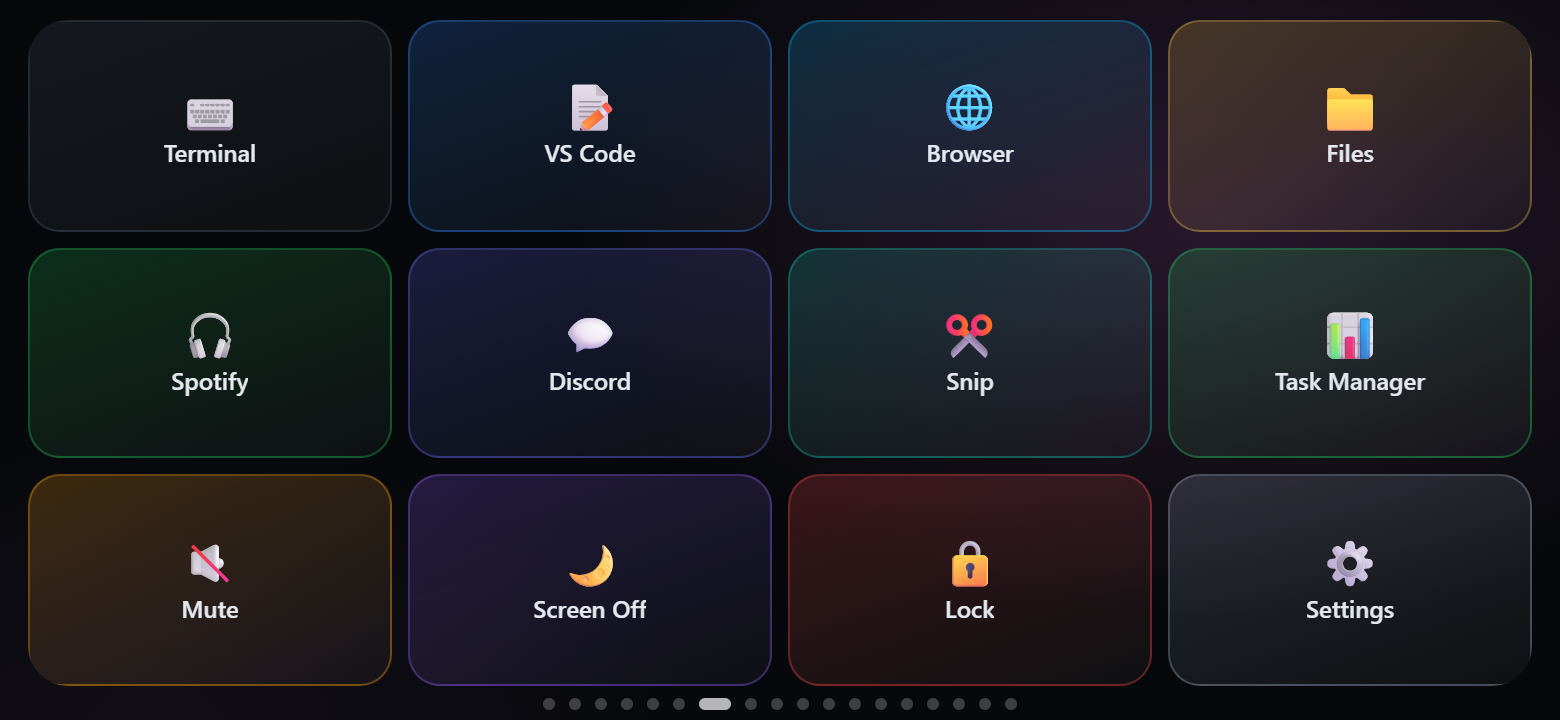
| **Music** — a big now-playing card | **Shortcuts** — Stream Deck–style keys |
|
 |
 |
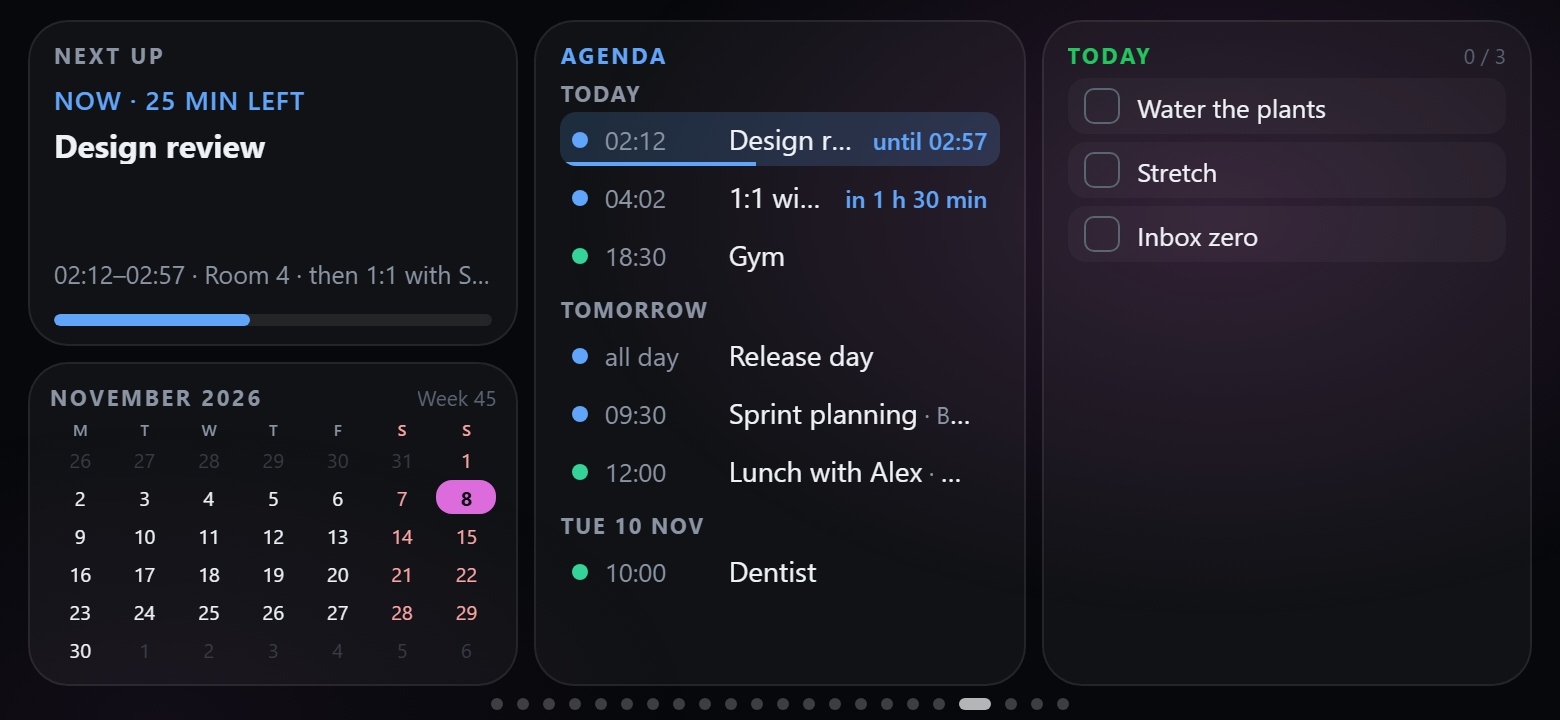
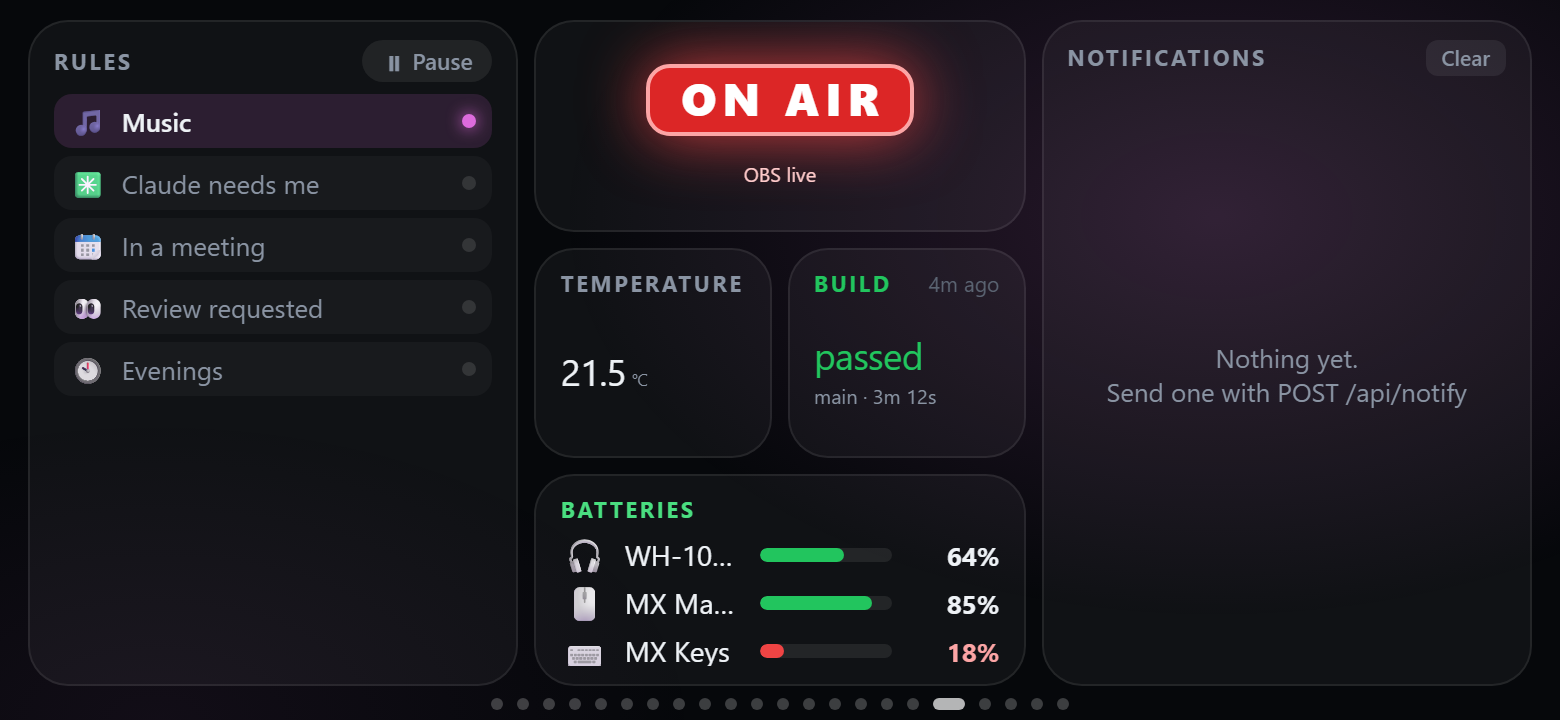
| **Planner** — next up, month, agenda, checklist | **Automation** — rules, on air, pushed values, device batteries, notifications |
|
 |
 |
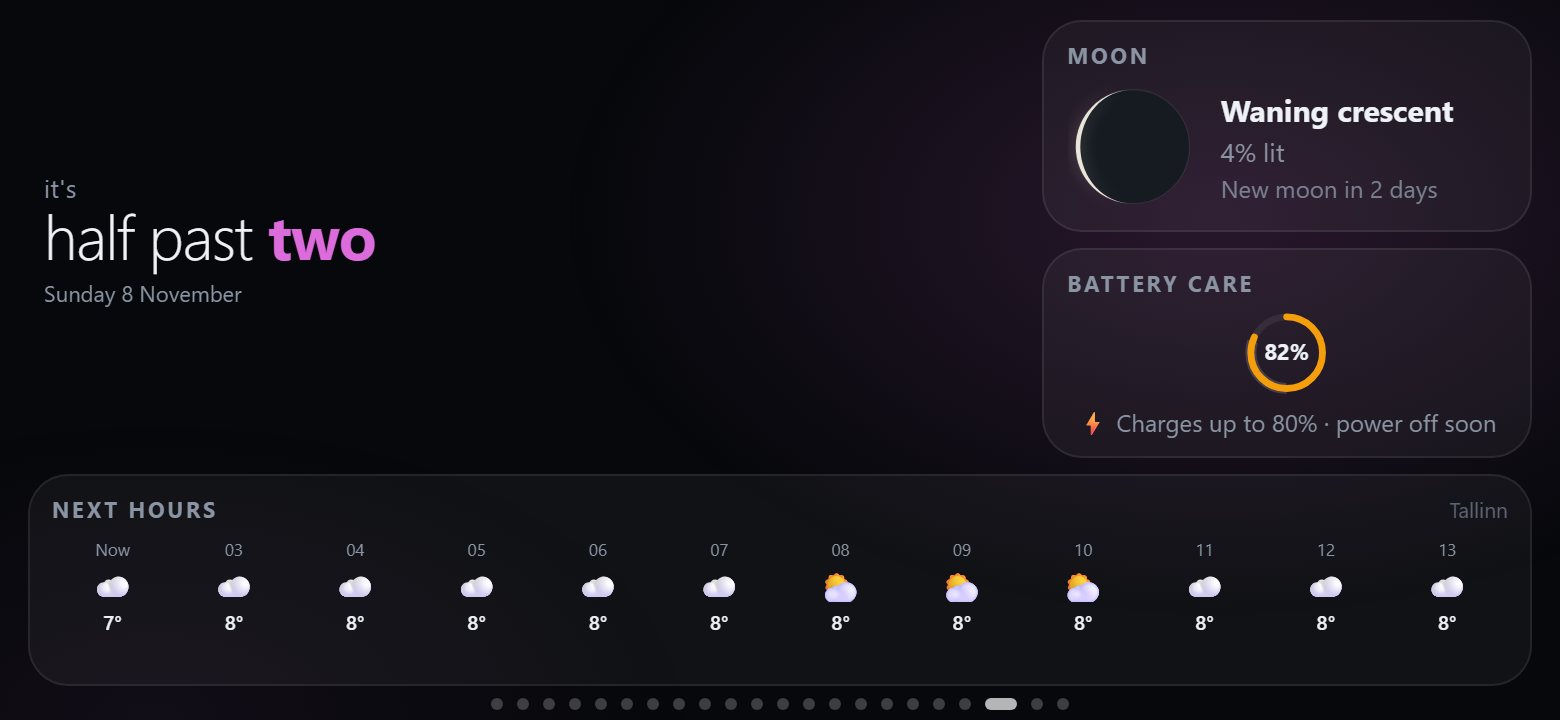
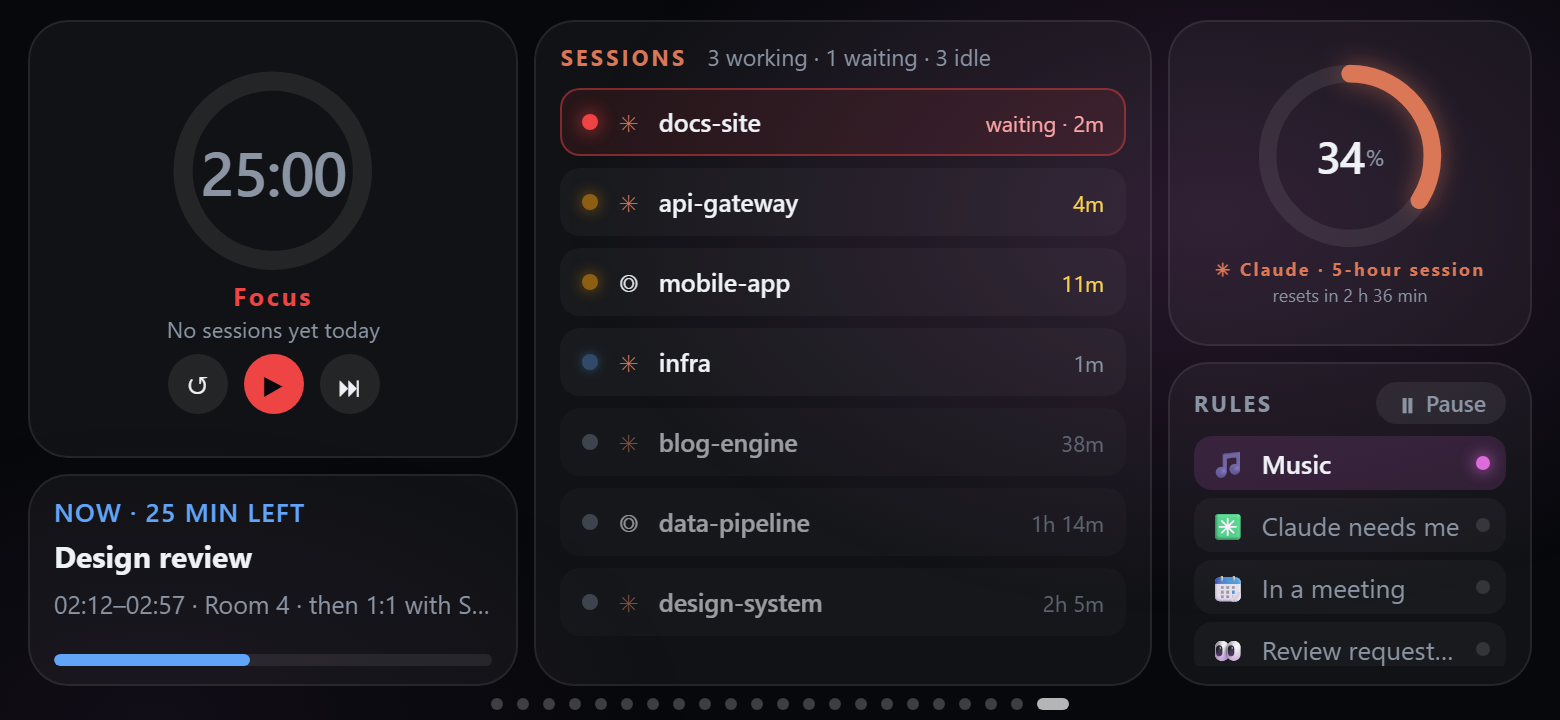
| **Nightstand** — word clock, moon, battery care, next hours | **Deep work** — pomodoro, next up, sessions, quota ring, rules |
|
 |
 |
More templates: **Clock**, **Focus** (pomodoro + note), **Calm** (breathing), **DevOps** (command widgets) and
**Weekend** (forecast, music, moon, analog clock, quote).
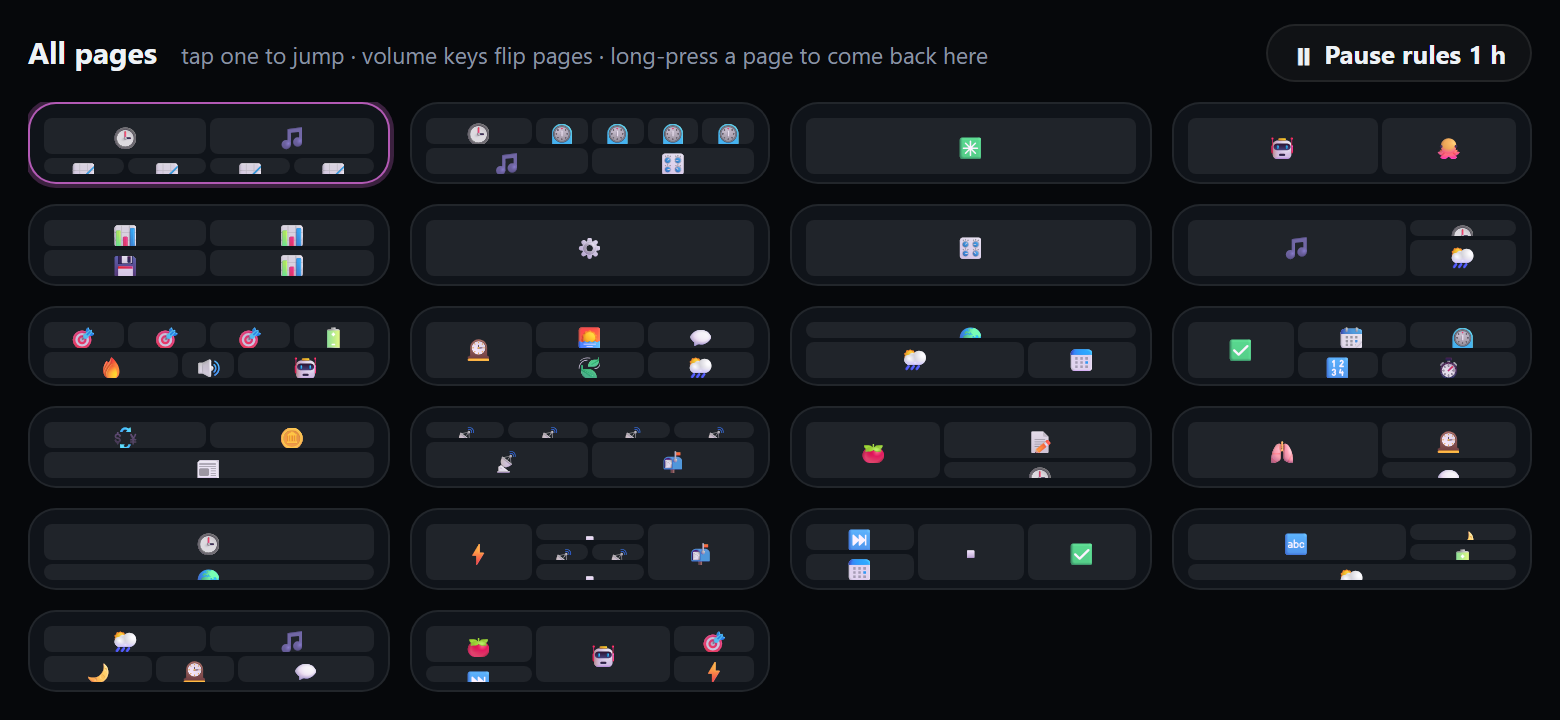
**Getting around.** Swipe; press the phone's **volume keys** to flip pages; tap the page dots (or long-press an empty
spot) for an overview of all pages and jump straight to one. Webhooks and rules can switch pages too; they count down
first (*"switching to AI in 3…"*, with Stay and Go now) and never pull a page away while you are using the panel. The
panel returns to the home page when idle (each page can stay longer, or for good), can dim to a clock at night and
keeps the screen on.
## Widgets
| Category | Widgets |
|---|---|
| **Time** | Clock (with status line and weather) · Analog clock (any time zone) · **Word clock** · World clocks · Calendar · **Next up** · Time progress (day / week / month / year) · Countdown · Pomodoro · Quick timer · Stopwatch |
| **Weather & sky** | Weather · Forecast (hourly / 7 days) · Sun & moon (daylight left, UV, moon phase) · **Moon** · Air quality (European AQI, PM2.5, PM10, O₃, NO₂) |
| **Computer** | **Rules** (which hold, pause) · **Battery care** · On air (microphone / camera / OBS) · OBS Studio (live, recording, scenes) · **Dictation** (speak on the phone, typed on the PC; the app asks for the microphone on first use) · **App console** (Windows: keys and a dial for the app in front, set per app in Settings › General; use the focused app's process name from Task Manager's Details tab; packaged Store apps can all show up as `ApplicationFrameHost` and terminal tabs as `WindowsTerminal`, so a profile for those names covers all of them) · Device batteries (headphones, mice, keyboards) · Docker / Podman (containers, start / stop) · Metric tile · Gauge · Chart · GPU details · Memory & disks · Top processes · Processes · Now playing · Radio · Volume · **Spectrum bars** (Windows: a live spectrum of what the PC is playing, like the classic LED bar visualizers) · Shortcut grid · Big button (optionally filled with the shortcut's uploaded picture) · **Command** (PowerShell / bash / zsh output, refreshed every N seconds) · **Trackpad** (control PC cursor, tap to click, hold to drag, scroll) |
| **AI & code** | AI quotas · Quota ring · AI sessions · GitHub |
| **Personal** | **Agenda** (Google / Outlook / iCloud calendars) · Note (edit it from the phone) · Checklist (resets daily) · Counter · Breathe · Quote · Title · Phone battery · **Computers** (switch between paired computers) · **Photo frame** (a slideshow from a photo folder on the PC) |
| **Web & data** | **Custom HTML** (your own widget, sandboxed) · **Home Assistant** (entities with their own name and icon, tap to switch) · **Pushed value** · **Notifications** (both fed by [webhooks](#webhooks)) · **News feeds** (your RSS and Atom feeds; with its "Open articles on the PC" option, a tap opens the article on the PC) · Hacker News · Exchange rates (ECB) · Crypto prices · Image / webcam · **Camera** (a live picture from an IP camera over RTSP, pulled by ffmpeg on the PC) |
Widgets scale to the size you give them. Weather, air quality, rates, crypto and Hacker News come straight from free
public APIs ([Open-Meteo](https://open-meteo.com), [Frankfurter](https://frankfurter.dev), [CoinGecko](https://www.coingecko.com),
[HN](https://github.com/HackerNews/API)) on the phone, without API keys, and keep their last data when offline.
If the phone has no internet, these five supported HTTPS feeds can fall back through the agent over USB.
The feed proxy is not available over Wi-Fi. See [PRIVACY.md](../PRIVACY.md) for the services contacted.
**Camera** shows an IP camera that streams over RTSP. Add it in **Settings › General › Cameras** with a name and its
RTSP address (`rtsp://user:password@192.168.1.20:554/…`; the camera's manual or app has the exact path), then pick it
in the widget. The agent pulls the stream with [ffmpeg](https://ffmpeg.org), which you install: `winget install
Gyan.FFmpeg` on Windows, `brew install ffmpeg` on macOS, your distribution's `ffmpeg` package on Linux. Restart
PhoneBox afterwards so it finds ffmpeg in PATH, or enter ffmpeg's full path in the same card. A camera runs only while
a Camera widget for it is on the phone's screen, at 5 frames a second by default; pick 1 to 10 next to the camera (smoother costs more CPU on the PC and more data to the phone), and expect a short delay. Choose
**UDP** for a camera that doesn't stream over TCP. At most 4 cameras play at the same time.
**Trackpad** turns a tile into a laptop-style touchpad for the computer with precision acceleration, tap to click, two fingers to right-click, hold to drag, and two-finger scrolling or an optional edge scrollbar. For safety, mouse control is turned off by default: check **Allow controlling the mouse from the phone** in the widget's settings on an enabled page. Supported on Windows (native input) and Linux (with `xdotool` under X11; Wayland sessions block synthetic mouse input); macOS is not supported yet.
**Smart Stack** combines up to 12 widgets in one slot. Add it from the Layout category, then drag widgets into it or
use its picker. Reorder cards, open their settings, or disable individual cards. Tap the dots or swipe vertically to
change cards; horizontal swipes still change pages. Focused controls pause rotation. Command widgets belong directly
on a page rather than inside a stack.
**CodexBar** is an optional source: install its `codexbar` CLI on the computer and the agent reads `usage --json`.
The CodexBar template and quota widget can show every provider reported by the CLI, with configurable provider rotation.
An optional cost overview shows the last 30 days of spend and tokens; it is off by default.
Local Claude, Codex and Antigravity sources keep refreshing when CodexBar is absent, fails, or reports stale data. General settings
provide defaults; a widget's own options override them, including an empty provider selection.
Install a compatible CLI from [CodexBar](https://github.com/steipete/CodexBar) if available for your system.
PhoneBox uses native local sources when no compatible CLI is installed.
**Claude quotas** need the sign-in of the Claude Code command-line tool (run `claude` and sign in). The Claude Desktop
app keeps its own sign-in to itself, so with only the desktop app the widget shows the plan and says so; its sessions
still show up in the Sessions widget.
**Native Antigravity quotas** use a running app/hub's advertised HTTP port and CSRF token, the HTTPS port of newer
IDE servers (2.32 picks it at start-up, so the agent tries the loopback ports that server process listens
on and accepts its self-signed certificate only for loopback addresses), or a signed-in
`agy` CLI (1.1.11 or later). The CLI fallback runs `agy -p /usage --output-format json`, without a model prompt,
and also finds the standard Windows installation in `%LOCALAPPDATA%\agy\bin`. Run `agy` in your terminal to sign
in if needed. The agent reads measured session and weekly buckets, plus the plan when the local server provides it;
CLI reports without plan metadata keep the neutral Antigravity title. Older IDE servers can supply model quotas
through `GetUserStatus`; unavailable measurements are skipped, and weekly limits are never invented. Refresh
failures retain the last measurements with an error.
Tap an AI session to see its model, timing and token details. Token counters describe the local session rather than
the account allowance. Prompt/response text and tool arguments are not included in this panel data.
## Layout editor & settings
Double-click the tray icon on Windows (or open ):
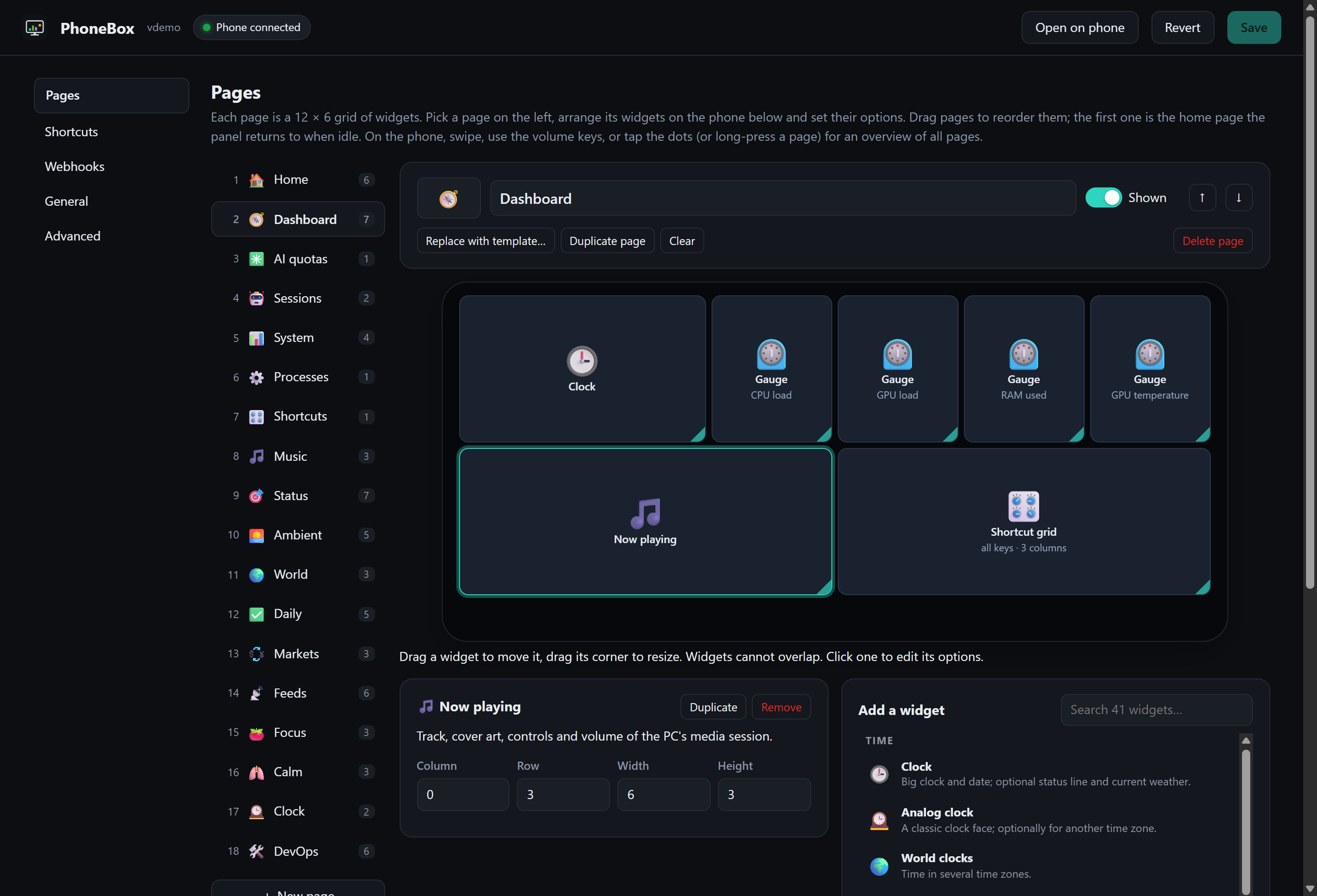
- **Pages**: add pages from templates, reorder, show/hide, export and import them as files, choose how long each page
may stay before the panel goes home; arrange widgets on a phone-sized canvas (drag to move, drag
the corner to resize) and set their options. The widget palette is grouped by category and searchable.
**Live preview** swaps the canvas for the real panel with your unsaved changes and live data.
- **Rules**: automations, see [Rules](#rules).
- **Shortcuts**: add, edit, reorder and test keys (label, emoji, colour). A key runs a program, presses a key
combination (`ctrl+shift+m`), types text or runs a macro (keys, text, waits, other shortcuts); on / off keys show
their state on the phone (mute does by itself, others from a pushed value).
- **Webhooks**: the webhook key, copy-paste examples, test buttons and the values pushed so far.
- **General**: weather location search and the temperature unit (°C or °F); calendars (ICS links from Google, Outlook or iCloud), Home Assistant and OBS
connections; night mode; theme and accent colour, orientation (landscape, portrait or follow the phone), clock seconds,
vibration, volume-key paging and the phone's sensors (brightness that follows the room, the night screen when the
room goes dark, wave to wake it); [OLED burn-in protection](#appearance); [page switching](#rules) (home page, countdown, back home after);
kiosk options (screen pinning, the panel as the phone's home screen so it starts after a reboot, keep the phone
awake on the charger; no root needed); on macOS, optionally follow the computer lock (sleep the phone on lock,
wake it and open PhoneBox on unlock, with an ADB connection; phones secured by a PIN or password must be unlocked
manually). Lock sync needs the agent to run in the macOS GUI session; [battery care](#rules);
[Claude Code permission prompts](#claude-code-permission-prompts);
phones (several at once, each with its own pages); Wi-Fi & Tailscale; updates.
- **Advanced**: the raw JSON.
Settings live in `%APPDATA%\PhoneBox\config.json` (Linux: `~/.config/PhoneBox`, macOS: `~/Library/Application Support/PhoneBox`);
the phone picks up changes within a few seconds.
Use UTF-8 when editing this file externally. Saved page and shortcut icons use JSON Unicode escapes to survive
ANSI-based editors; the settings editor displays the actual symbols. On startup, known double-encoded forms of
the four affected default icons are repaired, with the original file kept in `config.json.bak`.
## Claude Code permission prompts
When Claude Code asks for permission (run a command, edit a file, use an MCP tool…), the phone shows the request —
project, tool and the command or file — with **Allow** and **Deny**. Turn it on in **Settings › General › Claude Code
permission prompts** and press *Install hook*: PhoneBox adds a `PermissionRequest` hook to `~/.claude/settings.json`
(and keeps a backup next to it as `settings.json.phonebox.bak`). If the phone is not connected or nobody answers in
time, the hook returns no decision and Claude Code asks in the terminal as usual. Optionally only when you have been
away from the keyboard for a minute.
WorkBuddy speaks the same hook protocol. Add the same `PermissionRequest` entry to `~/.workbuddy/settings.json` by
hand: *Install hook* writes to `~/.claude/settings.json` only. WorkBuddy keeps its sessions in `~/.workbuddy`, so the
card takes the project name from the workspace name WorkBuddy stores
(`~/.workbuddy/workspace-display-names.json`) instead of the folder name.
## Webhooks
The agent accepts data as well as serving it, so anything that can make an HTTP request can put things on the panel:
```sh
curl -X POST http://127.0.0.1:8765/api/push/temperature -d 21.5 # shown by a "Pushed value" widget with key "temperature"
curl -X POST http://127.0.0.1:8765/api/push/build -H "Content-Type: application/json" \
-d '{"value":"passed","sub":"main · 3m 12s"}'
curl -X POST "http://127.0.0.1:8765/api/push/door?ttl=600" -d open # expires after 10 minutes
curl -X POST http://127.0.0.1:8765/api/notify -H "Content-Type: application/json" \
-d '{"title":"Deploy","text":"Production is live","level":"ok","page":"feeds"}' # toast + vibration (+ switch page)
curl -X POST http://127.0.0.1:8765/api/goto/music # switch the phone to a page (id or number)
curl -X POST "http://127.0.0.1:8765/api/goto/music?countdown=0" # …without the on-screen countdown
curl -X POST http://127.0.0.1:8765/api/refresh # refresh quotas/GitHub and the panel now (?reload=1 reloads it)
```
| Payload field | Meaning |
|---|---|
| `value`, `title`, `sub`, `unit`, `icon`, `color` | What the widget shows. Plain text or a number works too. |
| `level` | `ok` / `warn` / `error` colours it; values like `passed`, `failed`, `running` are coloured automatically. |
| `progress` | 0–1 or 0–100: a bar under the value, or the ring in gauge style. |
| `items` | A list (strings or `{label, value, level}`) for the list style. |
| `ttl` | Seconds until the value disappears (also `?ttl=`). |
Notifications take `title`, `text`, `level`, `vibrate`, `seconds`, `wake` (light up the night screen) and `page`.
`GET /api/push` lists the values and `DELETE /api/push/` removes one; values survive restarts.
From this PC no key is needed. With Wi-Fi on, other machines on the network or Tailscale can use the same endpoints
on `https://:8766` with the **webhook key** from the settings (`Authorization: Bearer `, or `?token=`
for senders that cannot set headers). That key opens only the webhook endpoints, never the phone API.
## Rules
**Settings › Rules** lets the panel react to what happens on the computer. Each rule is *when → then*:
| When | Then |
|---|---|
| an AI session needs you / is working (optionally for some projects) | show a page |
| music or video plays (optionally in some apps: `Spotify\|Music`) | show a notification (`{detail}` = what happened) |
| an app is running (`zoom\|Teams\|obs64`) | push a value (e.g. `onair`, shown by a Pushed value widget) |
| an app is in front (`Code\|obs64\|Safari` — needs Accessibility on macOS, `xdotool` on Linux; not on Wayland) | |
| the microphone / the camera is in use (Windows, Linux) | |
| a calendar event is on (optionally by title) | |
| OBS is recording or streaming | |
| the CPU stays above a percentage for 15 s | |
| you have been away from the keyboard for N minutes | |
| it is between two times (`22:00-07:00`) | |
| a pushed value is on, or above / at least / below / at most / equal to a value (a webhook from Home Assistant, a doorbell…) | run a shortcut |
| a pushed value has had no update for N seconds (a sensor or a bridge stopped posting). A missing value (never pushed, deleted, or expired by its `ttl`) counts at once, however recent its last push, but only after the agent has run for N seconds | |
| an AI quota is above a percentage | |
| a GitHub review is requested · CI fails on my pull request | |
| a device battery is low · the network is slow or unreachable | |
| always (with the days and hours below, for schedules) | |
Every rule can also be limited to **some days** and **some hours**, act only when its condition **lasts N seconds**,
**rest** for a while before acting again, and has a **priority** and its own **countdown** for page switches.
**Page switches are calm.** The phone counts down before a rule changes the page (*"Claude needs me — switching to
AI in 3…"*, tap **Stay** to keep the page or **Go now**), waits while you are using the panel, keeps a minimum time
between two automatic switches and lets the higher-priority rule go first; rules that end before their turn are
dropped, so a burst of rules never bounces the screen back and forth. Settings › General › Page switching sets the
countdown, how long to wait after a touch, the minimum time between switches, the home page and how long a rule may
keep its page (30 minutes by default, so a rule that never ends can't hold the panel for good; 0 keeps it for as long
as the rule lasts). The phone's overview (and the Rules widget) pauses all rules for an hour.
With **only while it lasts**, the effect ends with the condition: the phone goes back to the page it was on (unless
you moved on yourself) and stays on the rule's page instead of returning home when idle; a pushed value is removed
again. The editor starts from examples (Claude needs me → AI page, music → Music page, on air during calls, CPU busy,
away → Ambient, evenings → Calm, doorbell, quota warning, review requested, CI failed, workday mornings, low battery,
too warm) and has a Test button for each rule.
**Battery care** (Settings › General) keeps the phone's battery between two levels, 50–80 % by default, so a panel
that is always plugged in lasts longer. Phones cannot stop charging without root, so PhoneBox switches the power
where it comes from: a smart plug in Home Assistant, or two shortcuts (for example `uhubctl` for a USB hub with
switchable ports). The panel keeps running over Wi-Fi while the USB power is off.
## Security & privacy
- The agent listens on `127.0.0.1` only. Requests with a foreign `Host` header (DNS rebinding) or a cross-site
`Origin` (CSRF) are rejected; only the settings page itself is accepted from browsers.
- The optional Wi-Fi port (8766) only serves the panel API, only over TLS pinned to the paired certificate, and only
with the paired key. Settings, shortcut tests and pairing stay local. **New key** in the settings unpairs all phones.
- The phone only ever sends a shortcut **id**; commands are defined on the PC. Command widgets work the same way:
the phone asks for a widget's output and never sees the command.
- `config.json` (with the Wi-Fi, webhook and Home Assistant keys), its backup and the pushed data are readable only by
your user on macOS and Linux (0600); on Windows they live in your profile folder.
- Webhooks from other machines need the separate webhook key, which cannot open the phone API and can be replaced
on its own.
- Ending processes is limited to your own session, never touches a list of Windows-critical processes, and can be
switched off in the processes widget's options.
- **Claude Code permission prompts** are opt-in. The hook only posts the request to the agent on `127.0.0.1`; the
phone can only answer allow or deny for that one request.
- **Claude quota:** read with the OAuth token Claude Code stores in `~/.claude/.credentials.json`, sent only to
`api.anthropic.com/api/oauth/usage` (the endpoint behind Claude Code's `/usage`). The token is read-only: PhoneBox
never refreshes it, so it can't interfere with Claude Code. This endpoint is undocumented and may change.
It is rate limited per account and shared with Claude Code, so PhoneBox asks at most every 3 minutes, and waits
longer after errors and as long as a `429` asks for, across restarts too. An expired or refused token is not sent:
PhoneBox waits until Claude Code renews it.
- **Codex quota and sessions** are read from local files in `~/.codex/sessions`; Claude Code sessions from
`~/.claude/sessions`.
- **Native Antigravity quota:** the agent reads the running Antigravity server's port and CSRF token from its
process arguments and queries its loopback quota/status API, or invokes the signed-in CLI's structured usage
command. Only measured quota fields reach the panel; CLI conversation identifiers and token counters are omitted.
PhoneBox does not manage Google OAuth credentials; the CLI uses its own authentication. CLI auto-updates are
disabled for these probes.
- **No telemetry**: no accounts, no analytics, no crash reports. The [privacy policy](../PRIVACY.md) lists every
connection the agent and the app make (update check, weather, the widgets that use public APIs) and how to turn
each one off.