# Reasonix Bot Guide
README
·
简体中文
·
General guide
> For desktop users. This guide explains how to connect Feishu, Lark, and WeChat
> bots, how to use Reasonix from IM, and how approvals, Ask questions, YOLO, and
> bot commands work.
## Contents
- [What the bot does](#what-the-bot-does)
- [Connect the three channels](#connect-the-three-channels)
- [Run the bot headlessly](#run-the-bot-headlessly)
- [Usage flow](#usage-flow)
- [Channel interaction differences](#channel-interaction-differences)
- [Command quick reference](#command-quick-reference)
- [Approvals and YOLO](#approvals-and-yolo)
- [Do upgrades require rebinding?](#do-upgrades-require-rebinding)
- [Troubleshooting](#troubleshooting)
## What the bot does
After a bot is connected, you can send Reasonix messages from Feishu, Lark, or
WeChat. The desktop app handles the model, tools, permissions, sandboxing, and
local context, then sends progress and results back to the IM channel.
Common uses:
- Ask Reasonix to inspect code, read docs, explain errors, or summarize findings.
- Trigger tool calls from IM and receive progress or final results in the chat.
- Approve or deny sensitive actions such as file writes or shell commands.
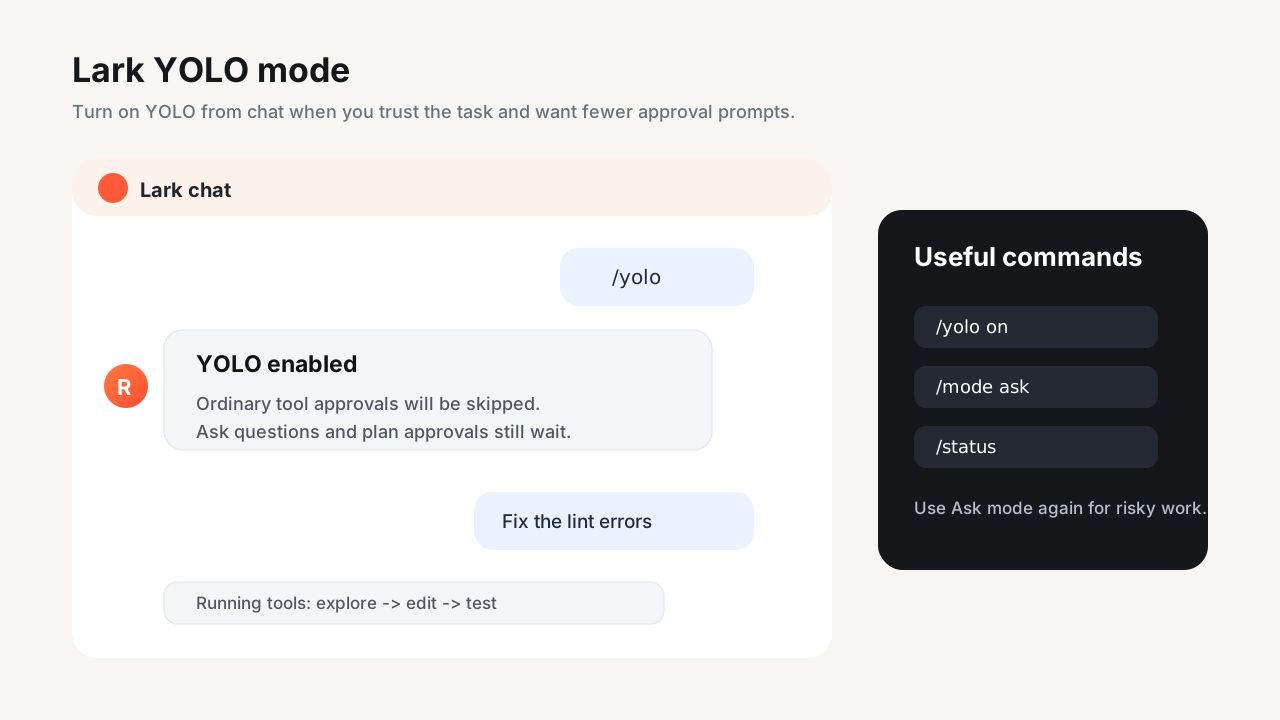
- Enable YOLO for trusted temporary work so ordinary tool approvals are skipped.
- Open the matching desktop IM session to inspect context, cost, tokens, and tool
traces.
## Connect the three channels
Open the Reasonix desktop app and go to **Settings -> Bots**. In **Add IM Bot**,
choose a channel and scan the QR code.
```mermaid
flowchart LR
A["Open desktop settings"] --> B["Bots"]
B --> C["Add IM Bot"]
C --> D{"Choose channel"}
D --> E["Scan with Feishu to create a PersonalAgent"]
D --> F["Scan with Lark to create a PersonalAgent"]
D --> G["Scan with WeChat to sign in Bot Assistant"]
E --> H["Connection is saved locally"]
F --> H
G --> H
H --> I["Send the first IM message"]
I --> J["Desktop creates the matching session"]
```
### Feishu
1. In **Settings -> Bots -> Add IM Bot**, choose **Feishu**.
2. Generate a QR code.
3. Scan it with Feishu and finish authorization.
4. Wait until the page shows the connection as connected.
5. Send the bot a message such as `hello` or `please inspect this error`.
### Lark
1. In **Settings -> Bots -> Add IM Bot**, choose **Lark**.
2. Generate a QR code.
3. Scan it with Lark and finish authorization.
4. Wait until the page shows the connection as connected.
5. Send the Lark bot a message.
Feishu and Lark share the same capability set, but they are saved as separate
connections. You can give them different models, working directories, or tool
approval modes.
### WeChat
1. In **Settings -> Bots -> Add IM Bot**, choose **WeChat**.
2. Generate a QR code.
3. Scan it with WeChat to sign in to Bot Assistant.
4. Wait until the page shows the connection as connected.
5. Send the WeChat bot a message.
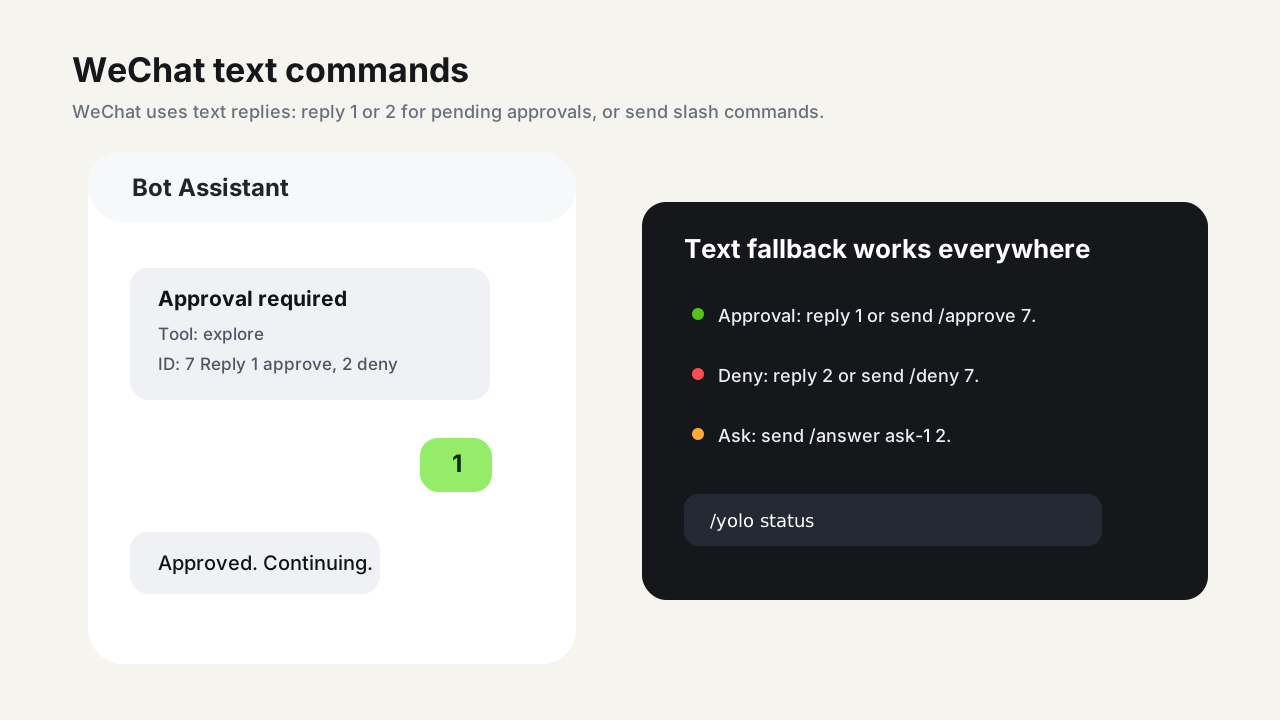
WeChat does not provide interactive card buttons here, so approvals and Ask
questions are handled through text commands.
## Run the bot headlessly
The desktop app is the easiest way to create and test bot connections, but the
runtime itself can also run as a long-lived headless gateway:
```sh
reasonix bot doctor
reasonix bot start --channels feishu,lark,weixin --dir /path/to/project
```
Use `--channels` to choose which configured IM inputs to accept. `feishu` and
`lark` select the matching Feishu-family connection; `weixin` selects the saved
WeChat iLink account; `qq` selects the configured QQ bot. Use `--dir` to attach
incoming messages to a project workspace and `--model` to override the default
model for this process.
The headless gateway uses the same config records as the desktop app:
- `[[bot.connections]]` identifies each IM input. `provider` is the adapter
family (`feishu`, `weixin`, or `qq`), while `domain` distinguishes variants
such as Feishu vs Lark.
- `credential.app_id`, `credential.app_secret_env`, `credential.account_id`,
and `credential.token_env` point to app IDs, app secrets, saved accounts, and
tokens. Secrets stay in environment variables or the Reasonix user credentials
store.
- `workspace_root`, `model`, and `tool_approval_mode` can be set per
connection. This lets different IM channels route to different local projects
or approval postures.
- `session_mappings` are filled from inbound messages with the remote chat ID
and scope. The desktop UI can open the matching conversation once the mapping
also has a local `session_id` target, such as a saved `path:` session target
from a desktop-managed bot runtime or a manually configured mapping.
Access control is still mandatory. Either enable an allowlist under
`[bot.allowlist]` with at least one relevant platform user ID, or set
`allow_all = true` deliberately. Group IDs are optional additional scoping for
group chats; they do not replace the required user allowlist. Remote users go
through the same controller, permission policy, tool approval mode, and sandbox
rules as local desktop or CLI turns.
## Usage flow
```mermaid
sequenceDiagram
participant U as "User"
participant IM as "Feishu / Lark / WeChat"
participant R as "Reasonix desktop"
participant T as "Local tools and model"
U->>IM: "Send a request"
IM->>R: "Message enters the local bot gateway"
R->>T: "Model reasons and calls tools"
alt "Normal reply"
R-->>IM: "Send answer"
else "Approval required"
R-->>IM: "Send approval card or approval text"
U->>IM: "Allow or deny"
IM->>R: "Approval command"
R->>T: "Continue or stop the tool call"
R-->>IM: "Send result"
else "User choice required"
R-->>IM: "Send Ask question"
U->>IM: "Choose an option or reply with /answer"
R-->>IM: "Continue and send result"
end
```
The **Bots** entry in the desktop sidebar lists connected bots. After the first
IM message arrives, you can open the matching local session from there to inspect
context, tool traces, cost, and runtime metrics.
## Channel interaction differences
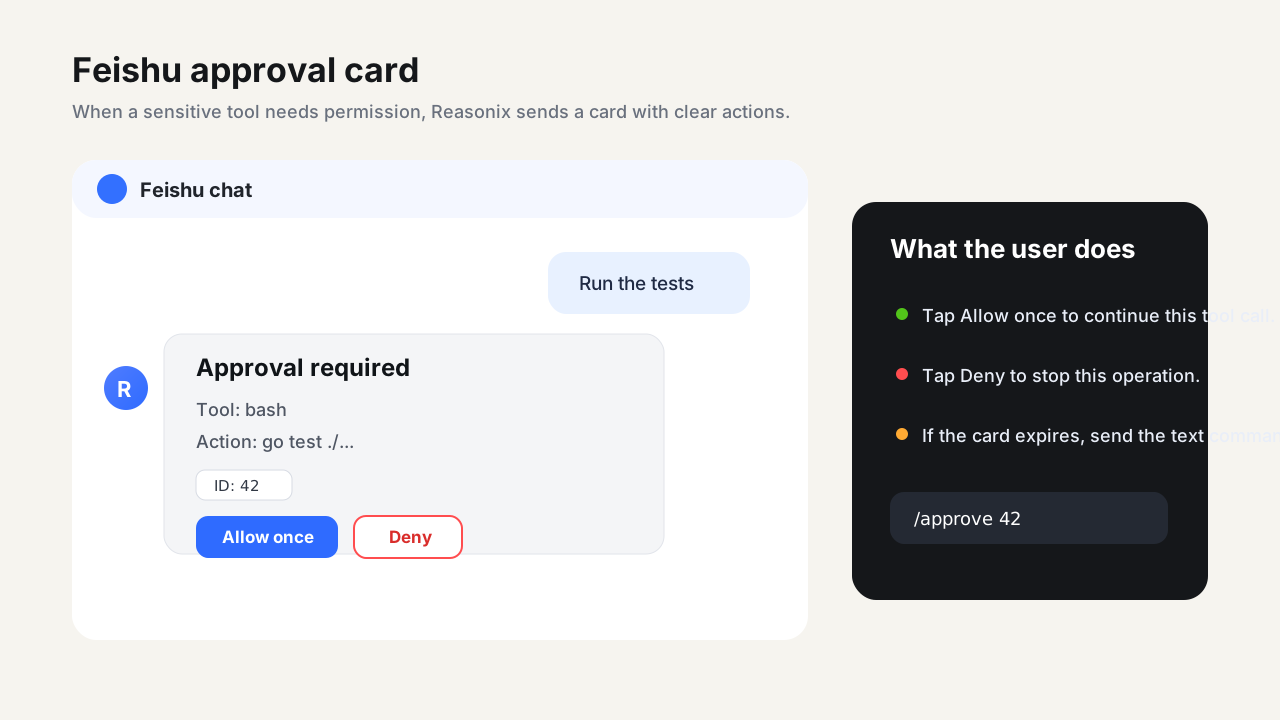
The following images are synthetic examples. They show the interaction shape
without exposing real account IDs, local paths, or private chat content.
| Channel | Connection | Approval | Ask questions | Best for |
| --- | --- | --- | --- | --- |
| Feishu | Scan to create a PersonalAgent | Interactive card buttons, or commands | Interactive card buttons, or commands | Feishu workspaces, DMs, and groups |
| Lark | Scan to create a PersonalAgent | Interactive card buttons, or commands | Interactive card buttons, or commands | International Lark workspaces |
| WeChat | Scan with WeChat | Reply `1` / `2`, or commands | Single-choice questions can use a number, or commands | Lightweight personal/mobile testing |
Feishu and Lark card buttons are converted into commands such as
`/approve `, `/deny `, or `/answer