
German /Jon·g·leur/ ~ Juggler
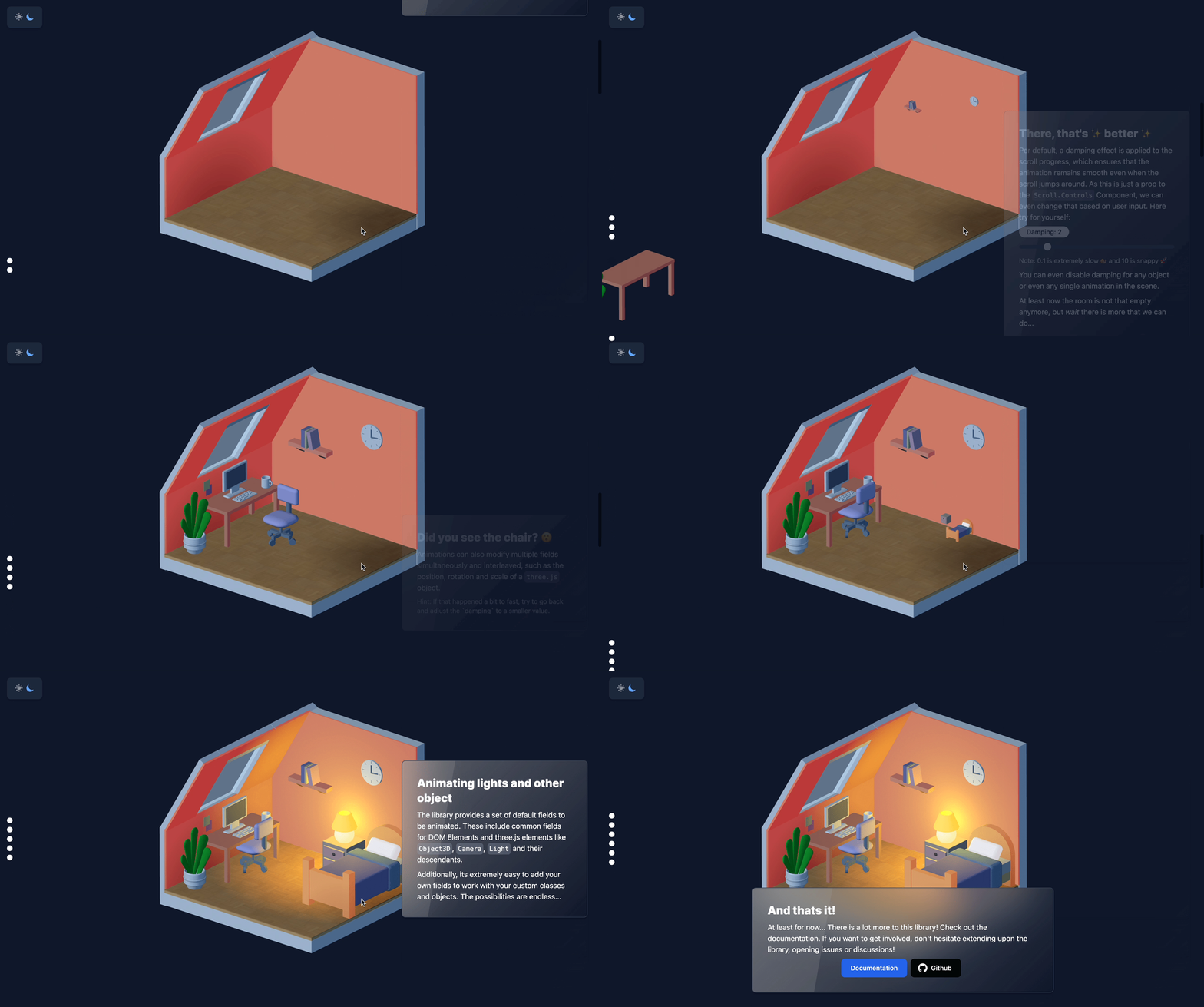 ## Description Jongleur is a library that serves two purposes. First it introduces a keyframe-based notation (think of a timeline editor in blender or video editors) to write animations for objects (three.js/r3f or vanilla DOM objects). Secondly, its provides a toolbox of utilities to bring the animations to life, either as a Scroll Animation or using different forms of progress. Using Jongleur, you can easily write engaging and interesting landingpages, that stand out, while also supporting a wide variety of devices and browsers as it is based on the fantastic [three.js](https://threejs.org/) and [react-three-fiber](https://github.com/pmndrs/react-three-fiber). Here are some of the main benefits of using _jongleur_: - 🔒 **Fully type safe**: Advanced typescript features ensure that animations are valid - 🏎 **Performance optimized**: Demand-based frameloop is fully supported. Since Jongleur knows your whole animation, only render a new frame if it is really needed. - 📒 **Single source of truth**: Simple maintenance of large scenes - ➡️ **Progress abstraction**: Animations can be driven by scroll, time or other forms of input - 🖱 **Scroll Utilities**: Create stunning scroll-based interactive sites with a toolbox of React components ⚠ ️This README will cover the basic usage of the library and how to get started quickly. If you want in depth explanations check out the [documentation site](https://jongleur.guythat.codes) ## Getting Started ```sh npm install jongleur # or pnpm add or yarn add ``` It is best to add jongleur to your already existing react-three-fiber and three.js scene. If you are starting from scratch make sure to install the peer dependencies as well: ```sh npm install react react-dom @react-three/fiber three ``` If you are using **typescript** (which is highly recommended), also install that: ```sh npm install --save-dev typescript @types/three ``` Next we will cover how to use the library. You can find the whole source of this mini tutorial as a CodeSandbox [here](https://codesandbox.io/s/jongleur-minimal-demo-fk4e2z). ## First create the animations The first step is to define how you want the scene to behave. This is the part that is inspired by keyframe editors. The first parameter is the base scene (eg. how do you want the scene to look at the beginning). The second parameter is basically a listing, for every object, at which stage (or progress) you want to object to have which state. The stages are identified by positive numbers. The third argument is for configuring the scene. The resulting store, per convention called `clips`, contains every information necessary to make the scene run. _Jongleur_ figures out the best way to transition between the stages you provided. ```tsx import { helpers, orchestrate } from "jongleur"; const clips = orchestrate( { box: { position: new Vector3(0, 0, 0), visible: false }, // a normal three.js Object3D camera: { position: new Vector3(0, 2, 0), lookAt: new Vector3(0, 0, 0) }, // a camera object (uses the lookAt field) div: { opacity: 0 } // HTML elements can be animated aswell }, { box: { 0.5: { visible: helpers.state(true) }, 1: { position: helpers.state(new Vector3(0, 1, 0)) } }, // box gets visible halfway through, and moves up as well camera: { 1: { lookAt: helpers.state(new Vector3(0, 1, 0)) } }, // camera rotates up during the animation, div: { 0.8: { opacity: helpers.inherit }, 1: { opacity: helpers.state(1) } } // div stays invisible for 80% of the animation, then transitions to full opacity }, { damping: true, interpolation: "ease-in-out" } ); ``` If you want to have more information on what can be passed to the `orchestrate` function, look [here](https://jongleur.guythat.codes/getting-started/keyframes). ## Registering objects to you scene Connecting your scene to the animation is simple. Just use the `ref` field where possible, via the `useRegister` hook, or use helper hooks for elements that are not declared in jsx. You can use the same hook for vanilla react elements as well. ```tsx import { useRegister } from "jongleur"; // This is a scene expected to live in your r3f Canvas const Scene = () => { const register = useRegister(clips); useThreeCamera(clips, "camera"); // camera is an object that is created by r3f return (