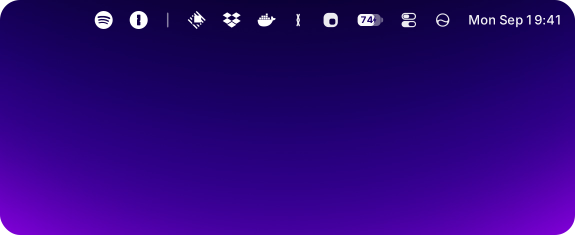
Dimble hides the icons you don't need until you do. Hover, click or press a
shortcut and they slide back in, or open in a panel. Small on purpose (three
sections, an editor, ⌘-drag in the bar) and native all the way down. macOS does
the hiding. Built for the menu bar Apple rebuilt in macOS 27. Free, open source,
no account, no analytics.
> [!TIP]
> **Beta channel.** Fixes and new features land there first, a stable release
> rolls them up every week or two. Turn on "Get beta releases" in
> Settings › About, or download the latest beta:
>
> [](https://github.com/fif7y/dimble/releases?q=prerelease%3Atrue)
Collapsed, and a hover later.
## Choose what stays
Three sections, one rule: **Visible** is always there, **Hidden** comes back
on a hover or a click, and **Always Hidden** only appears when you ask for it
(double-click or ⌥-click the chevron). Arrange them in the layout editor
(real app-icon previews, drag-and-drop ordering): the editor is a drawing
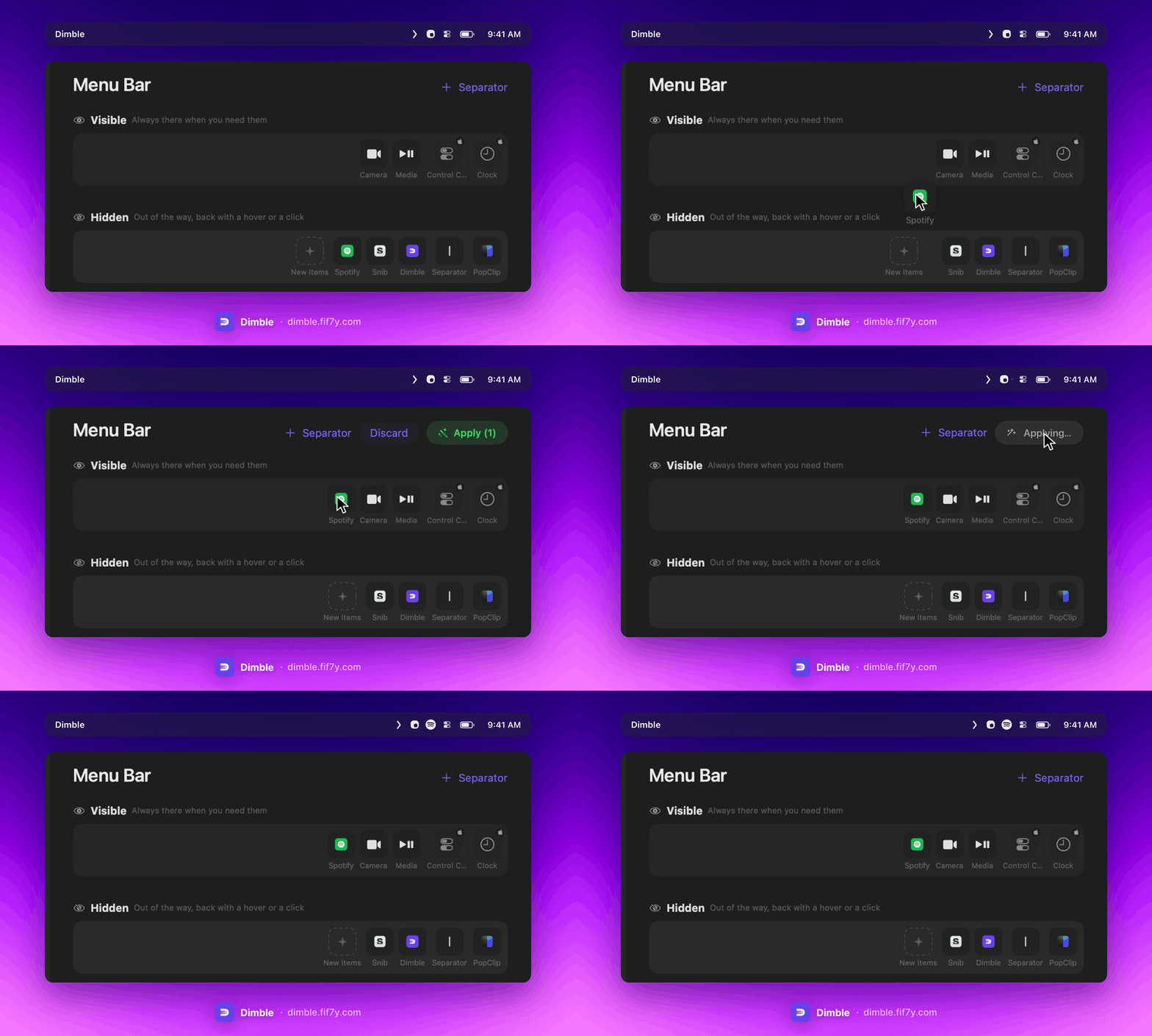
the bar follows, and **Apply** lays the bar out to match it in one pass. Or
skip the window entirely and ⌘-drag icons across the chevron right in the
menu bar. Dimble records that move in
the editor and leaves the rest where they are. And when macOS or an app
shifts an icon out of that order, Dimble puts it back on its own the next
time you pause.
The layout editor is a drawing the bar follows. Drag Spotify to Visible and nothing moves yet. Press Apply and it's there. Or leave it, and Dimble does it the next time you pause.
Apply reveals what it needs, lays the whole bar out in one pass with the
pointer hidden for a moment, and reports what it did next to the button. On a
full bar it opens macOS's own « for an icon drawn behind it, moves it, and
closes the « again. A "New items" tile shows where icons Dimble has never seen
will land. Updating leaves your bar alone. The first time Dimble sees a
section out of order, it takes that section's order from the bar instead of
moving anything. And a pending update shows as a banner on every Settings
pane, with a daily reminder until you install it.
System icons hide too. Sound, Battery and friends behave like any
other icon. The few macOS protects (Clock, Control Center) are shown
locked in the editor rather than pretended away, and anything macOS groups together
gets an honest badge instead of a fake handle. Siri and Time Machine, which
macOS only hides as a pair, come as Dimble's own items so each can go
wherever you like.
## Reveal on your terms
Every way back in is a setting: hover (with a delay from 0.1 to 0.5 seconds),
a click on empty menu bar space, a double-click for the always-hidden section,
or the chevron itself. The keyboard works too, from any app. ⌥⌘, shows the
hidden icons and ⌃⌥⌘, brings the always-hidden ones with them (you can change
both in Settings › General). Pick how it looks (**Instant**, **Smooth** or **Fade**)
and how it ends, either auto-rehide after a delay you set (instant to 5
seconds) or the moment you click somewhere else.
Your rules for revealing, and for putting everything back.
## Hidden icons in a panel
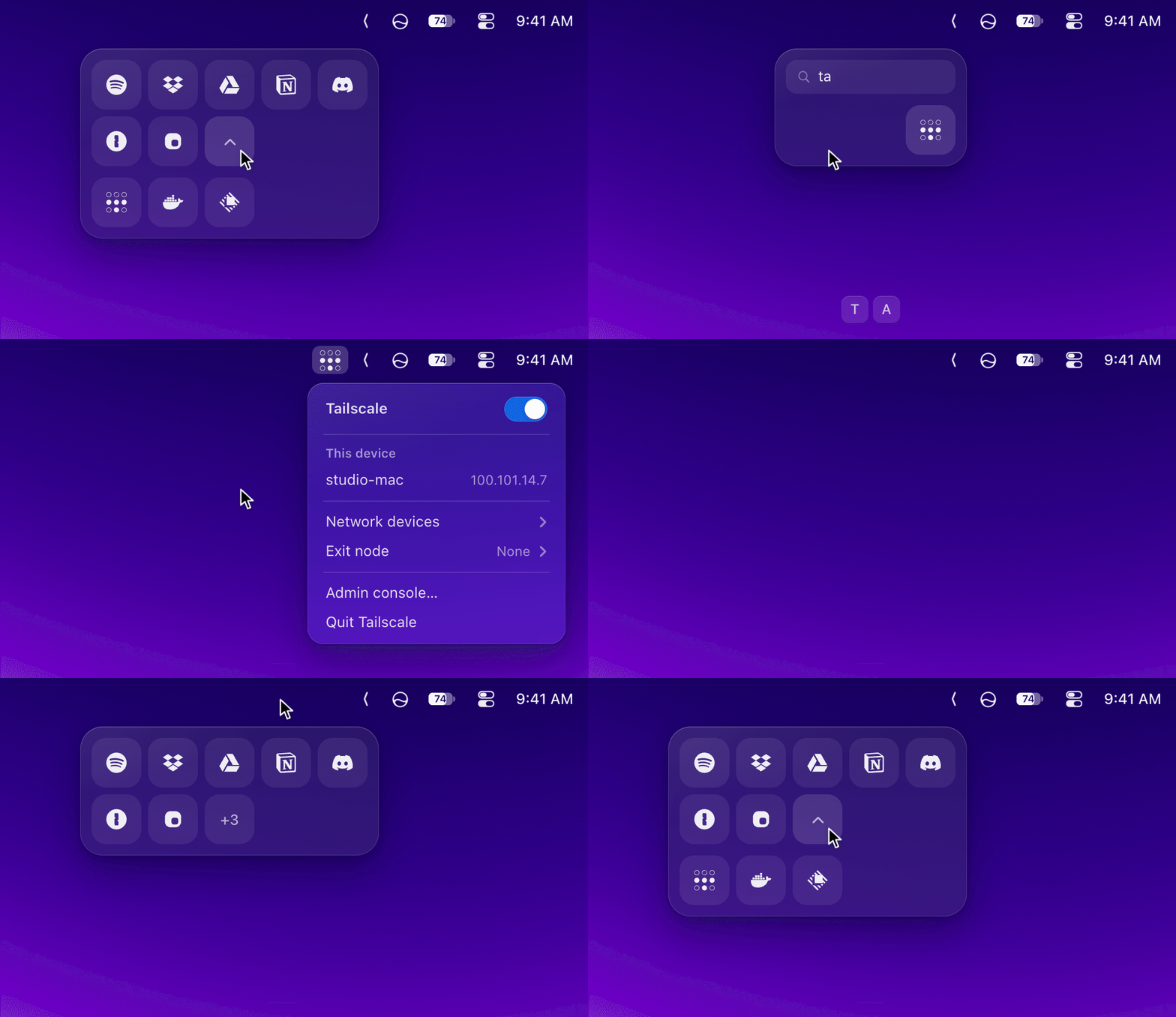
Hidden icons don't have to slide back into the bar. Turn on Panel and they open as tiles in a panel under the menu bar, and the bar stays put. Each tile is a picture of the real icon, and a click opens that icon's real menu. Settings › Panel has the switch, with Menu bar as the default and Row as the same tiles in one strip. It's the big new feature in 0.3.2 (#26).
- **Always Hidden sits behind a fold.** Click the fold at the end of the panel to open it.
- **Type to find.** Start typing and press Return. The top match's menu opens, and Esc closes the panel.
- **Drag tiles around.** Reorder a tile in its section, or drop it on another one. Drag it up onto the bar to show it there.
- **⌘-drag from the bar.** Drop an icon on the panel and it's filed in the section under the pointer.
Hover, open the fold, type "ta", Return. Tailscale's menu drops from its own icon.
Where hidden icons open, and how the panel looks.
## Search the menu bar
Press ⌥⌘K, type a few letters, press Return, and that icon's menu opens right
from its real icon, hidden or not. The arrow keys work in the menu like they
normally do. Search knows the short names people type (bt, wifi) and puts the
icons you open most first. It finds Dimble's settings too, and ⌘K on a result
moves it to another section or gives it its own shortcut. What it learns
stays on your Mac. New in 0.3.1.
⌥⌘K, "bt", Return. Bluetooth's menu drops from its own icon.
## And the rest
- **Per-display behavior.** Set a display to always show everything or to
collapse. Whichever display your pointer is on wins.
- **Built-in replacements.** Media controls, AirDrop, camera/mic indicator,
a timer, Focus, fast user switching and Shortcuts items that survive hiding, since macOS temporarily removes
its own extras while hiding is active. Media controls, Time Machine and Focus
show when active or always, and a ⌘-drag off the bar turns any of them off.
- **App launchers.** A Dimble icon for any app: click opens it, and it hides
like everything else. The fix for apps whose own icon can't be hidden (see
the [FAQ](docs/FAQ.md#app-launchers)), and a handy launcher for the rest.
- **Separators.** Visual dividers that behave like icons, with adjustable
opacity, edited on their tiles. A new one is part of the drawing until Apply
places it. ⌘-drag them anywhere in the bar.
- **Nothing to phone home about.** No account, no analytics, no server.
The only connection Dimble ever makes is checking for its own updates.
- **Signed updates.** Sparkle with EdDSA signatures, checked against a
signed appcast.
- **Your icon, or none.** Seven menu bar icon styles (chevron, arrow, eye,
dots, grid, panel, dot), or turn the icon off entirely and reach Settings by
shortcut or right-click.
- **Tighter icons.** One slider for the gap macOS leaves between menu bar
icons, down to 1 point. Dimble relaunches itself and the system icons so the
clock and Control Center follow at once, other apps pick it up the next time
they open.
- **Speaks your language.** English, German, French, Spanish, Italian,
Portuguese (Brazil), Japanese, Simplified Chinese, Korean and Russian.
Dimble follows your system language, or pick one in Settings › General ›
Language. Translations are machine-drafted for now, corrections are welcome
in `scripts/gen-xcstrings.py`.
General. Pick the icon Dimble wears, or your language.