Open-source CCU control system for Blackmagic Design cameras with vMix tally integration using the Blackmagic Arduino SDI Shield
TallyCCU Pro is an Arduino-based solution that provides full Camera Control Unit (CCU) functionality for Blackmagic cameras via SDI using the Blackmagic Arduino SDI Shield, along with real-time tally light integration with vMix. Control your cameras from a web browser, Bitfocus Companion, or build your own integration using the TCP API. --- ## Features ### Camera Control - **Full CCU Parameters**: Iris, focus, zoom, white balance, ISO, shutter, ND filters - **Color Correction**: Lift, gamma, gain, offset with visual color wheels - **Display Settings**: Zebra, peaking, focus assist, LUT selection - **Audio Control**: Mic levels, headphone mix, phantom power - **PTZ Support**: Pan/tilt velocity and memory presets (for supported cameras) ### Tally System - **vMix Integration**: Automatic tally lights from vMix program/preview state - **Flexible Mapping**: Map any vMix input to any camera ID - **Adjustable Brightness**: Independent front/rear tally brightness control ### Connectivity - **Web Interface**: Full control from any browser on your network - **Companion Module**: Stream Deck integration via Bitfocus Companion - **TCP API**: Real-time bidirectional sync on port 8098 - **Serial Configuration**: Initial setup without network access ### Real-Time Synchronization (v3.5+) - **Server-Sent Events (SSE)**: Instant parameter sync between web interface and Companion - **Bidirectional Sync**: Changes in Companion appear instantly in the web interface and vice versa - **Per-Camera State**: Browser maintains state for all 8 cameras, enabling seamless switching - **Automatic State Recovery**: When either client connects, it receives current state from the other - **Live Preset Updates**: Preset names sync instantly across all interfaces ### Safe Mode Recovery (v3.7+) - **Automatic Boot Loop Detection**: System detects consecutive boot failures - **Safe Mode**: After 3 failed boots, system starts without SDI Shield initialization - **Diagnostic Web Interface**: Access troubleshooting page at device IP when in Safe Mode - **Network Access Preserved**: Configure network, use vMix tally, and diagnose issues remotely - **One-Click Recovery**: Restart in normal mode from the web interface after fixing the issue ### Preset System - **Save/Load Presets**: Store complete camera configurations - **Per-Camera Presets**: 5 presets per camera, stored on SD card - **Group Selection**: Choose which parameter groups to include in presets 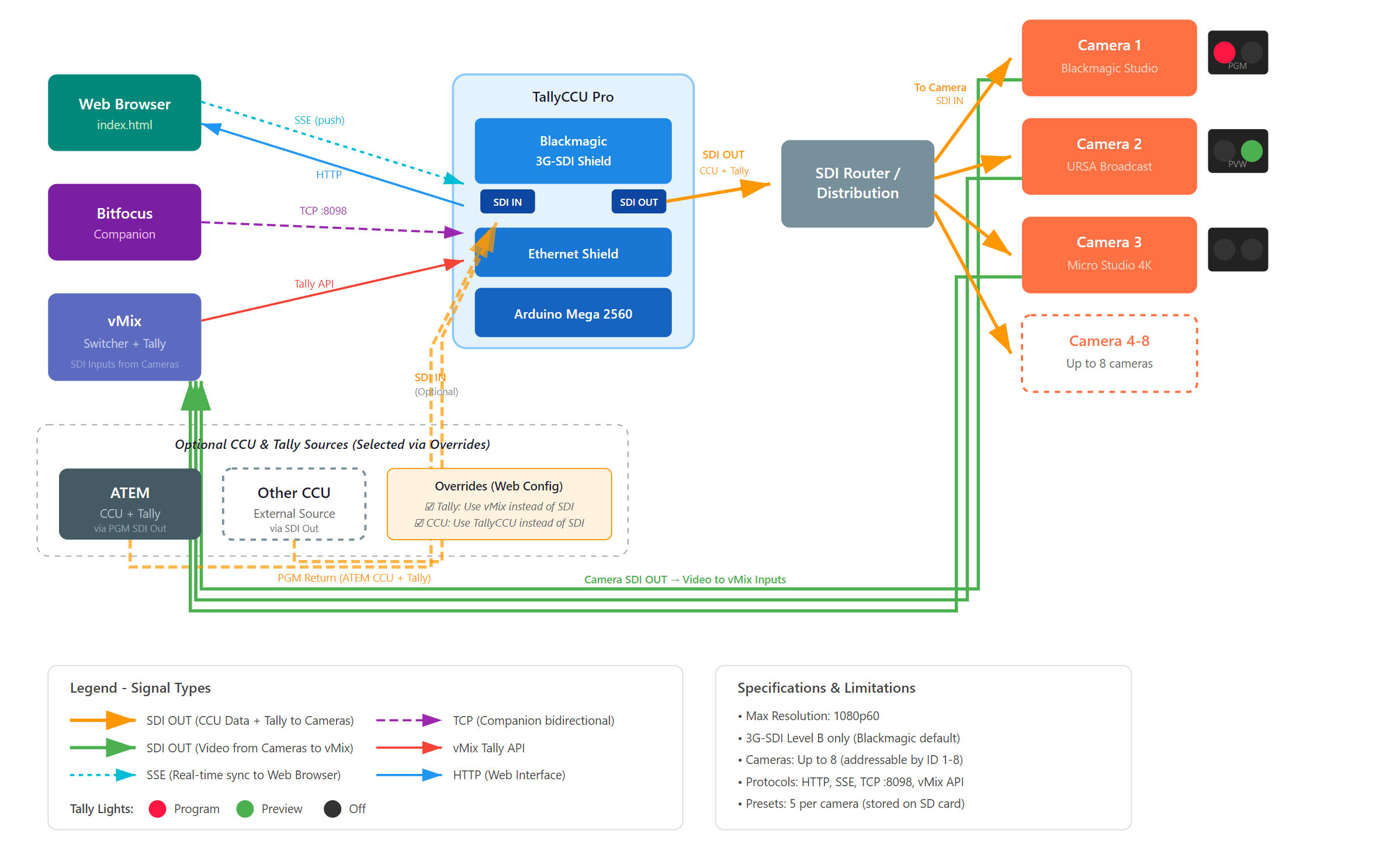 --- ## Hardware Requirements | Component | Model | Notes | |-----------|-------|-------| | Microcontroller | **Arduino Mega 2560** | Must be Mega (not Uno) due to memory requirements | | Network | **Arduino Ethernet Shield 2** | W5500 chipset, includes SD card slot | | SDI Interface | **Blackmagic 3G-SDI Shield** | For Arduino, directly from Blackmagic | | Storage | **MicroSD Card** | 1-32GB, must be formatted correctly (see below) | | Power | **9-12V DC Power Supply** | Required - USB power alone is insufficient | ### Shield Stacking Order ``` +---------------------+ 3 | Blackmagic SDI | <- Top +---------------------+ 2 | Ethernet Shield | <- Middle +---------------------+ 1 | Arduino Mega 2560 | <- Bottom +---------------------+ ``` 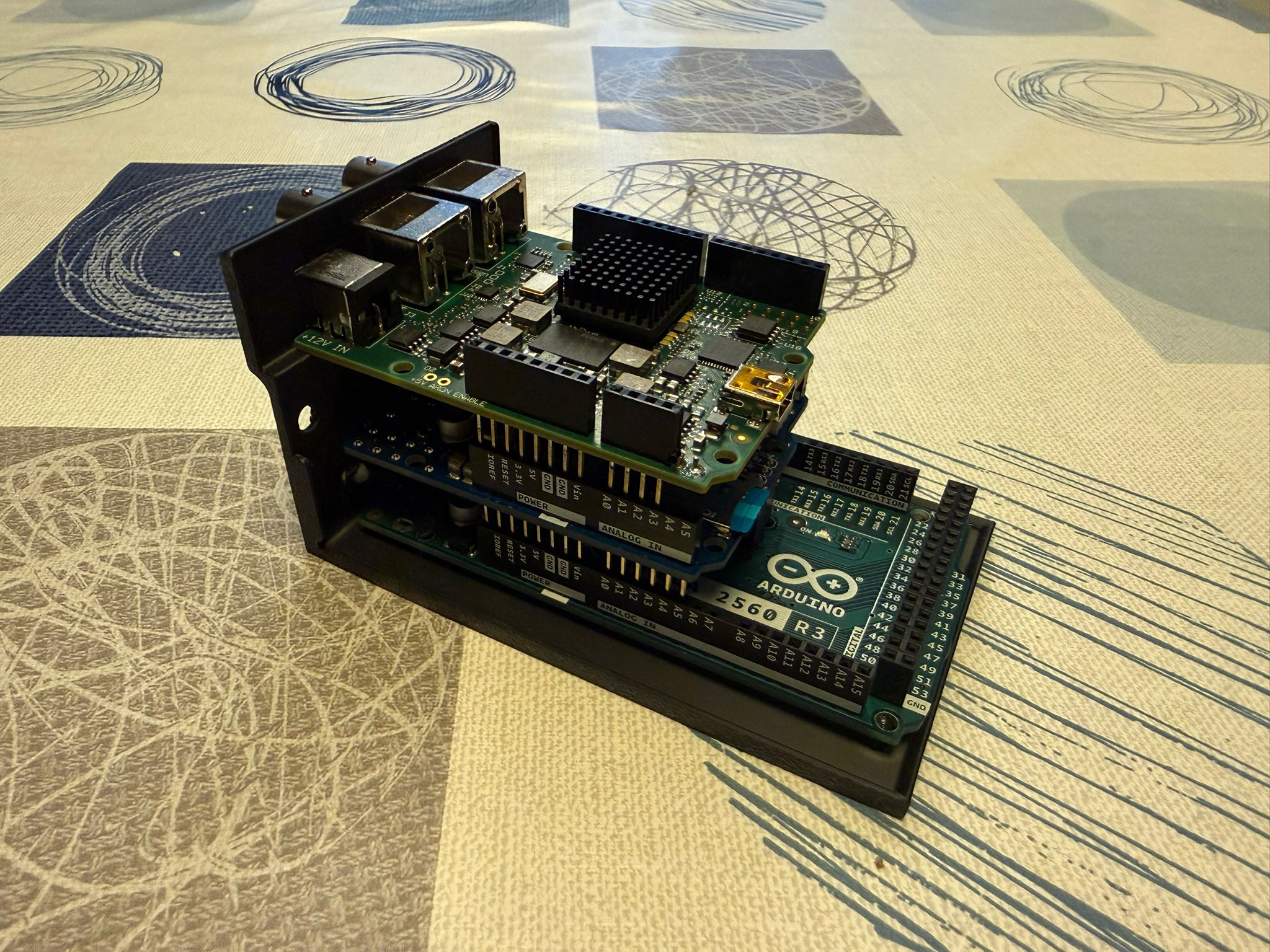 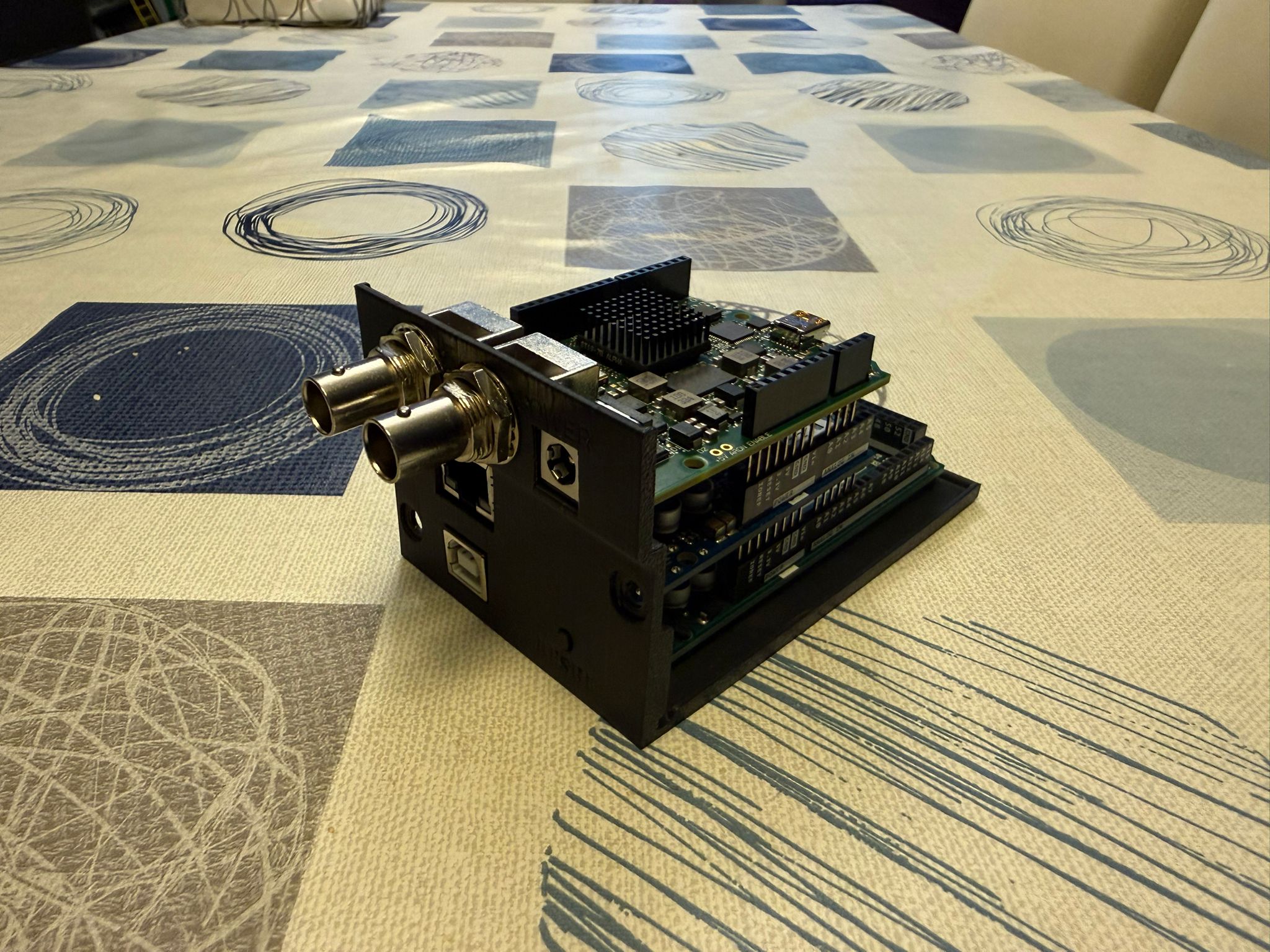 ### CRITICAL: I2C Bridge Wires Required The Blackmagic SDI Shield is designed for Arduino Uno, which has I2C pins at A4/A5. The Arduino Mega has I2C on different pins (20/21), so you MUST add two jumper wires on the **Blackmagic SDI Shield**: ``` Bridge connections on SDI Shield: - A4 --> SCL - A5 --> SDA ``` These bridges route the I2C signals to the correct pins. Without them, the SDI shield will not communicate with the Arduino Mega. ### CRITICAL: External Power Required The system requires external power (9-12V DC) connected to the Blackmagic SDI Shield's power input. USB power alone does not provide enough current and the system will fail to boot properly. > **Note**: Starting with v3.7, if the system detects repeated boot failures (e.g., due to missing 12V power or invalid SDI signal), it will automatically enter Safe Mode. See [Safe Mode](#safe-mode) for details. --- ## SD Card Setup ### Partition and Format Requirements The SD card MUST meet these requirements: 1. **MBR Partition Table** (not GPT) - Windows and Mac sometimes create GPT partitions 2. **Single Partition** - Only one partition on the card 3. **Correct Filesystem**: - Cards 2GB or smaller: FAT16 - Cards 4GB or larger: FAT32 - **exFAT will NOT work** ### Recommended Formatting Procedure **Do NOT use Windows Explorer or Mac Disk Utility** - they may create incompatible partition tables. Use the official SD Card Formatter from the SD Association: 1. Download from: https://www.sdcard.org/downloads/formatter/ 2. Select your SD card 3. Choose "Overwrite format" (not quick format) 4. Format the card If you still have issues, use the SdFormatter sketch included in the SdFat library examples. ### Copy Web Interface Files After formatting, copy these files to the SD card root: ``` SD Card Root/ ├── index.html (Main CCU interface) ├── tally.html (Tally configuration) ├── sdcard.html (SD Card File manager) └── safemode.html (Safe Mode diagnostics - v3.7+) ``` --- ## Installation ### Step 1: Hardware Assembly 1. Stack shields in order: Mega -> Ethernet -> SDI Shield 2. **Add I2C bridge wires**: A4 to pin 20, A5 to pin 21 3. Insert formatted SD card into Ethernet Shield slot 4. Connect 9-12V power supply to SDI Shield 5. Connect SDI output to your camera(s) ### Step 2: Arduino Firmware **Required Libraries** (install via Arduino Library Manager): - `SdFat` by Bill Greiman - `Ethernet` (built-in) **Blackmagic Library** (manual install): 1. Download from Blackmagic website (included with Desktop Video software) 2. Copy to Arduino libraries folder **Upload Firmware**: 1. Open `Arduino/TallyCCUPro.ino` in Arduino IDE 2. Select Board: `Arduino Mega or Mega 2560` 3. Select Port: Your Arduino's COM port 4. Click Upload ### Step 3: Initial Network Configuration Connect via serial monitor (115200 baud) or use the Serial Configurator tool: 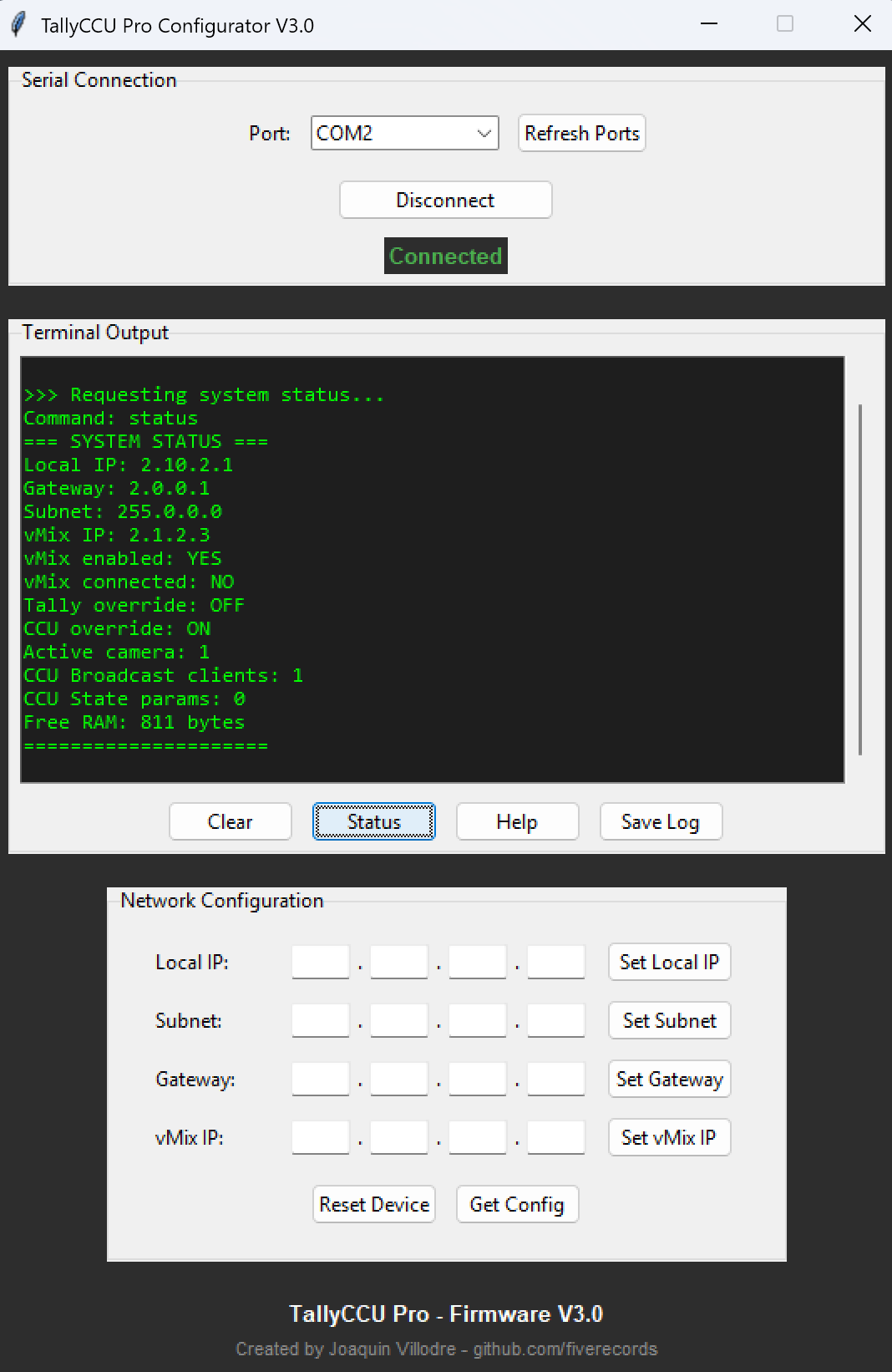 ``` Available commands: ip 192.168.1.100 Set Arduino IP address subnet 255.255.255.0 Set subnet mask gateway 192.168.1.1 Set gateway vmixip 192.168.1.50 Set vMix computer IP status Show current configuration reset Restart Arduino safemode Force safe mode on next boot (v3.7+) normalboot Exit safe mode and restart (v3.7+) ``` ### Step 4: Verify Installation 1. Open browser: `http://YOUR_ARDUINO_IP/` 2. You should see the CCU Control interface 3. Select a camera and adjust parameters to test --- ## Web Interface Access at `http://YOUR_ARDUINO_IP/` > **Note**: Always use `http://` explicitly. Some modern browsers default to HTTPS, which is not supported. See [Limitations](#limitations). ### CCU Control (index.html) The main control interface featuring: - **Camera Selector**: Switch between cameras 1-8 - **Parameter Groups**: Lens, Video, Audio, Color Correction, Display, Tally, PTZ - **Color Wheels**: Visual lift/gamma/gain/offset adjustment - **Sliders**: Precise control with step buttons and reset - **Presets**: Save and load 5 presets per camera - **Real-Time Sync**: Changes from Companion appear instantly via SSE - **Touch Support**: Full touch control on tablets and phones (v3.7.1+) 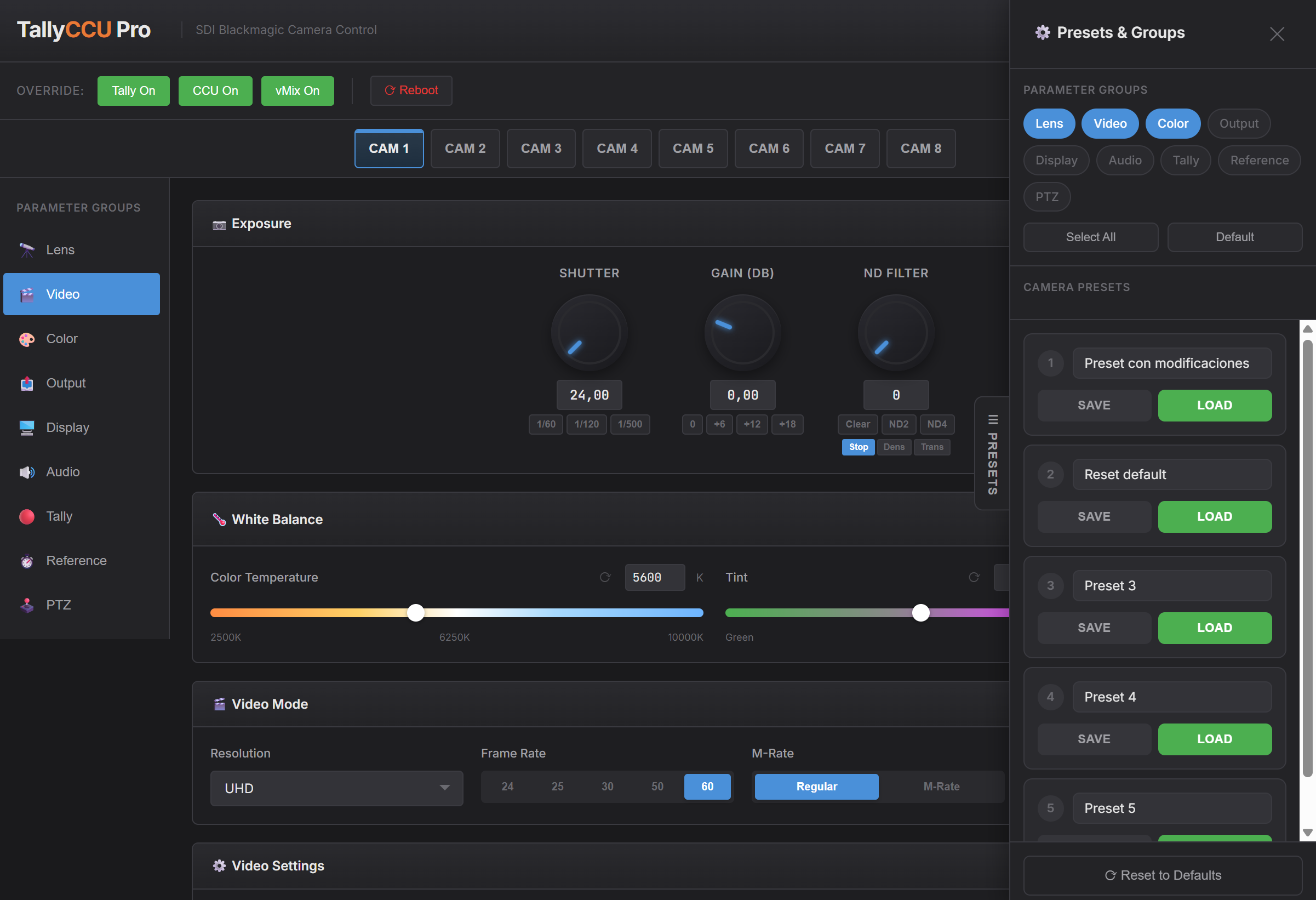 ### Tally Configuration (tally.html) - **vMix IP**: Address of computer running vMix - **Input Mapping**: Map vMix inputs to camera IDs - **Connection Status**: Real-time indicator 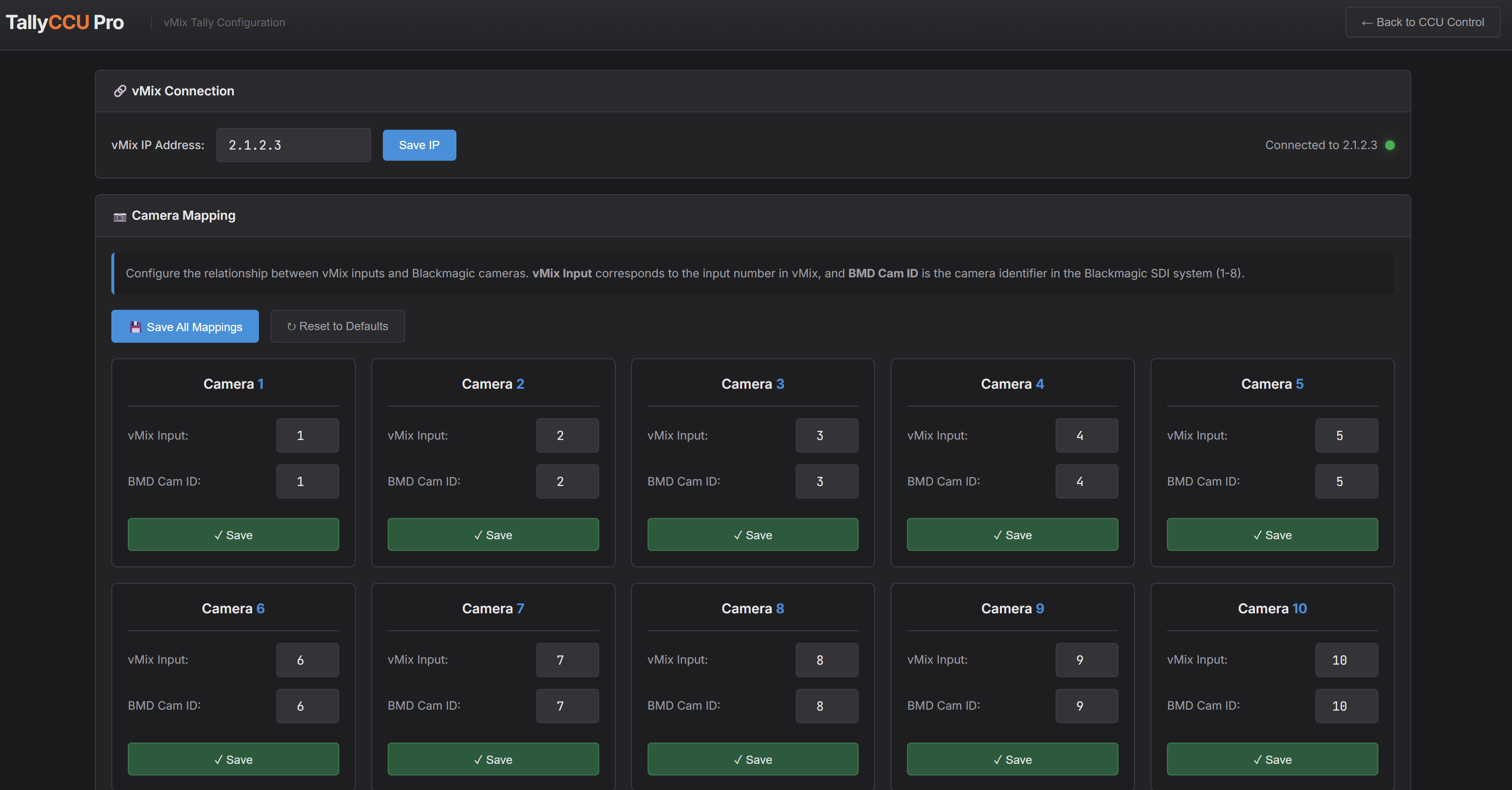 ### SD Card Manager (sdcard.html) - **Upload**: Drag and drop files - **Download**: Backup presets - **Delete/Rename**: File management 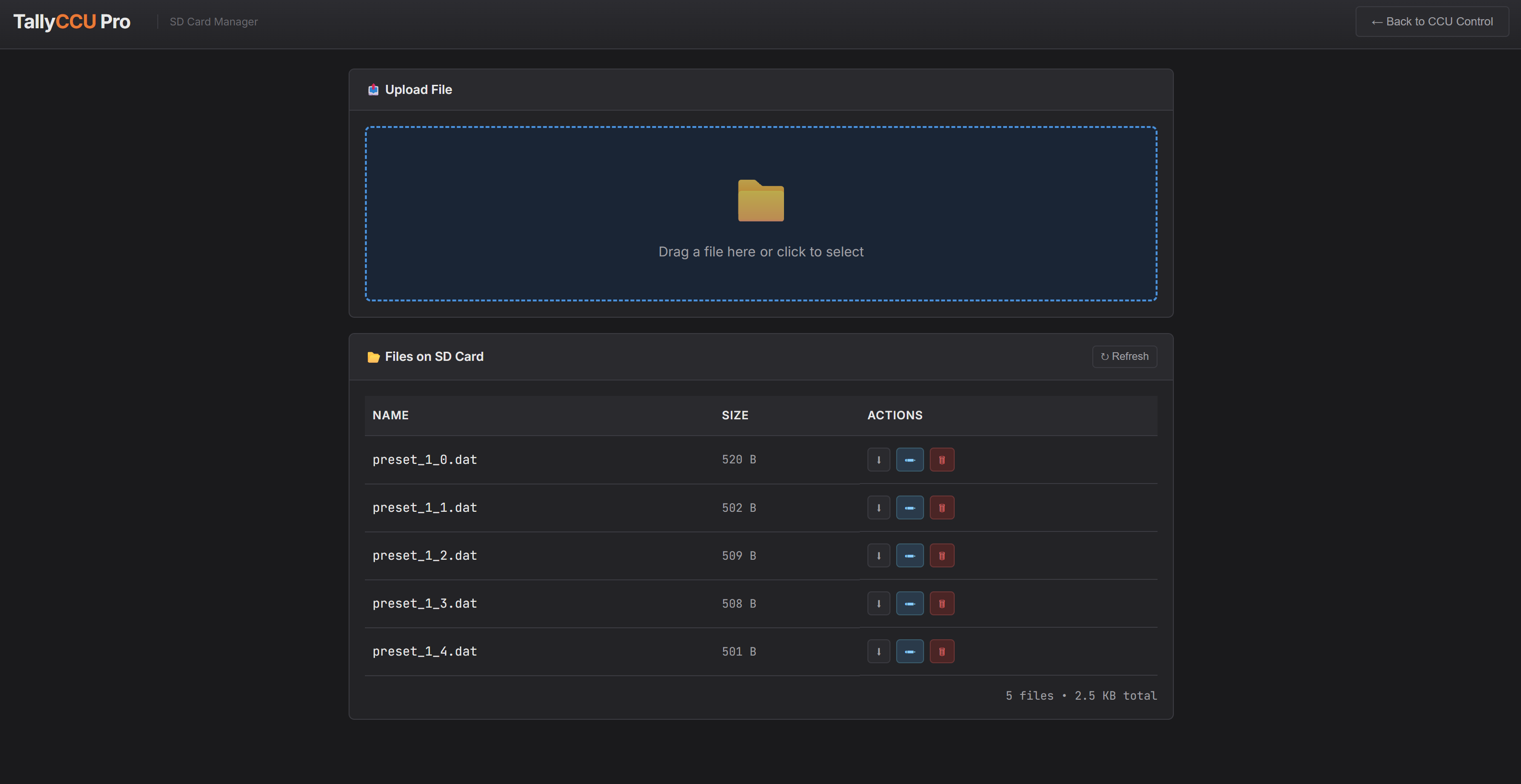 --- ## Safe Mode Safe Mode is a recovery feature introduced in v3.7 that helps diagnose and recover from hardware-related boot failures. ### When Does Safe Mode Activate? The system enters Safe Mode automatically after **3 consecutive boot failures**. Common causes: 1. **Missing 12V Power**: SDI Shield requires external 12V power 2. **Invalid SDI Signal**: 4K signals or Level A 3G-SDI are not supported 3. **SDI Cable Disconnected**: No signal during boot 4. **I2C Bus Conflict**: Missing or incorrect bridge wires ### What Works in Safe Mode? | Feature | Status | |---------|--------| | Web Interface | ✓ Available (diagnostic page) | | Network Configuration | ✓ Available | | vMix Tally Connection | ✓ Receive only (no SDI output) | | Companion TCP | ✓ Available | | Serial Console | ✓ Available | | **SDI Tally Output** | ✗ Disabled | | **CCU Camera Control** | ✗ Disabled | ### Exiting Safe Mode 1. **Fix the underlying issue** (connect 12V power, valid SDI signal, etc.) 2. Access the diagnostic page at `http://YOUR_ARDUINO_IP/` 3. Click **"Restart Normal Mode"** 4. The system will restart and attempt normal boot Alternatively, use the serial command `normalboot` to exit Safe Mode. ### Manual Safe Mode Entry For testing or troubleshooting, you can force Safe Mode on the next boot: - Serial command: `safemode` - The system will enter Safe Mode on the next restart --- ## Bitfocus Companion Module TallyCCU Pro is available as an **official Bitfocus Companion module**, so you can install it directly from within Companion — no manual setup required. ### Installation 1. Open Bitfocus Companion (v4 or later) 2. Go to the **Connections** tab 3. Click **Add connection** 4. Search for **"TallyCCU Pro"** (or *Fiverecords*) 5. Add the connection and configure it with your Arduino's IP address ### Actions Available - All CCU parameters (set/increase/decrease/reset) - Load/Save presets - Change active camera - vMix connection toggle ### Real-Time Sync The Companion module automatically syncs with the web interface: - Parameters changed in Companion are instantly reflected in the web UI - Parameters changed in the web UI are instantly reflected in Companion variables - When either client connects, it receives the current state from the other --- ## TCP Protocol (Port 8098) For custom integrations, connect via TCP to port 8098. ### Commands (send to Arduino) ``` SUBSCRIBE Subscribe to real-time updates UNSUBSCRIBE Unsubscribe from updates PING Keep-alive (responds with PONG) STATUS Get connection status ``` ### Events (from Arduino to subscribed clients) ``` CCU