


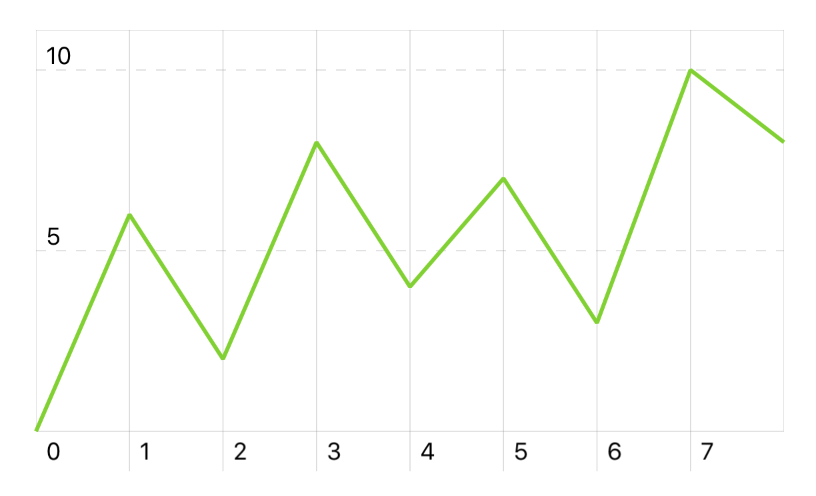
 As you can see, as default the values on the x-axis are the progressive indexes of the passed array. You can customize those values by passing an array of `(x: Double, y: Double)` tuples to the series initializer:
```swift
let chart = Chart(frame: CGRect(x: 0, y: 0, width: 200, height: 100))
// Create a new series specifying x and y values
let data = [
(x: 0, y: 0),
(x: 1, y: 3.1),
(x: 4, y: 2),
(x: 5, y: 4.2),
(x: 7, y: 5),
(x: 9, y: 9),
(x: 10, y: 8)
]
let series = ChartSeries(data: data)
chart.add(series)
```
**Result:**
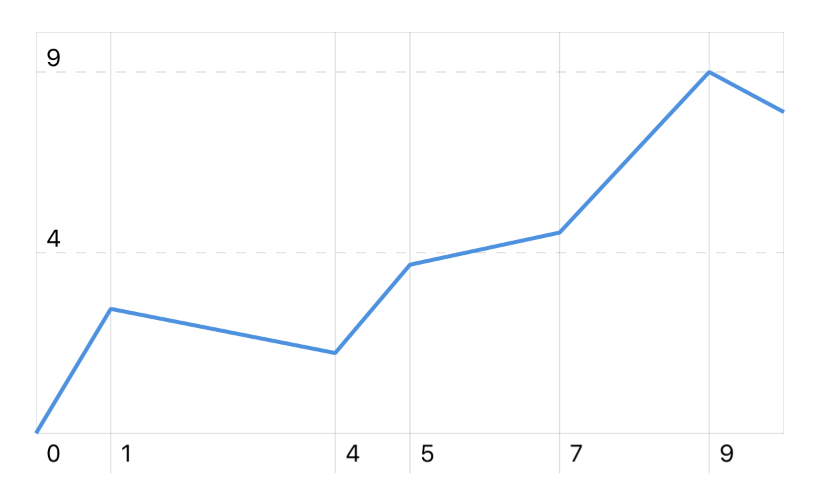
As you can see, as default the values on the x-axis are the progressive indexes of the passed array. You can customize those values by passing an array of `(x: Double, y: Double)` tuples to the series initializer:
```swift
let chart = Chart(frame: CGRect(x: 0, y: 0, width: 200, height: 100))
// Create a new series specifying x and y values
let data = [
(x: 0, y: 0),
(x: 1, y: 3.1),
(x: 4, y: 2),
(x: 5, y: 4.2),
(x: 7, y: 5),
(x: 9, y: 9),
(x: 10, y: 8)
]
let series = ChartSeries(data: data)
chart.add(series)
```
**Result:**
 ## Using partially filled series
Use the `chart.xLabels` property to make the x-axis showing more labels than those inferred from the actual data. For example,
```swift
let chart = Chart(frame: CGRect(x: 0, y: 0, width: 200, height: 100))
let data = [
(x: 0, y: 0),
(x: 3, y: 2.5),
(x: 4, y: 2),
(x: 5, y: 2.3),
(x: 7, y: 3),
(x: 8, y: 2.2),
(x: 9, y: 2.5)
]
let series = ChartSeries(data: data)
series.area = true
// Use `xLabels` to add more labels, even if empty
chart.xLabels = [0, 3, 6, 9, 12, 15, 18, 21, 24]
// Format the labels with a unit
chart.xLabelsFormatter = { String(Int(round($1))) + "h" }
chart.add(series)
```
**Result:**
## Using partially filled series
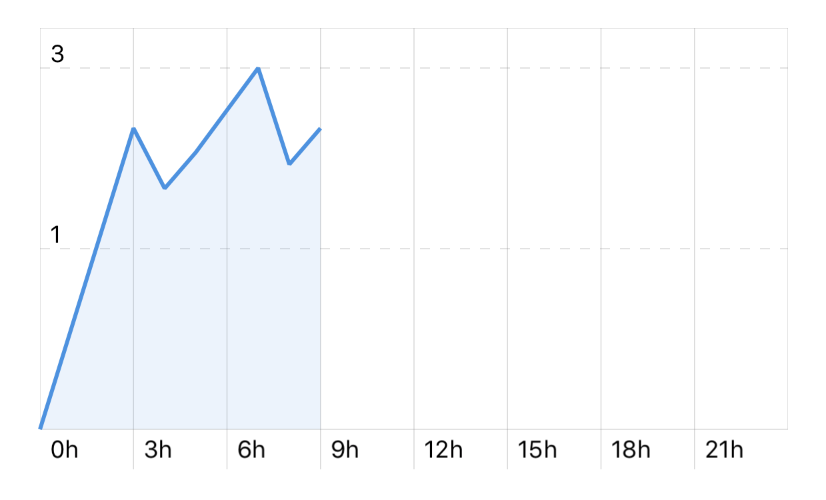
Use the `chart.xLabels` property to make the x-axis showing more labels than those inferred from the actual data. For example,
```swift
let chart = Chart(frame: CGRect(x: 0, y: 0, width: 200, height: 100))
let data = [
(x: 0, y: 0),
(x: 3, y: 2.5),
(x: 4, y: 2),
(x: 5, y: 2.3),
(x: 7, y: 3),
(x: 8, y: 2.2),
(x: 9, y: 2.5)
]
let series = ChartSeries(data: data)
series.area = true
// Use `xLabels` to add more labels, even if empty
chart.xLabels = [0, 3, 6, 9, 12, 15, 18, 21, 24]
// Format the labels with a unit
chart.xLabelsFormatter = { String(Int(round($1))) + "h" }
chart.add(series)
```
**Result:**
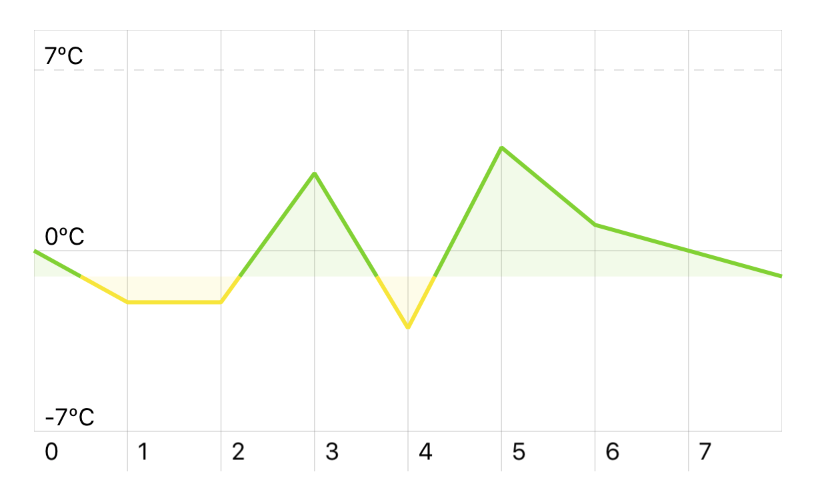
 ## Using different colors above and below zero
The chart displays the series in different colors when below or above the zero-axis:
```swift
let chart = Chart(frame: CGRect(x: 0, y: 0, width: 200, height: 100))
let data: [Double] = [0, -2, -2, 3, -3, 4, 1, 0, -1]
let series = ChartSeries(data)
series.area = true
chart.add(series)
// Set minimum and maximum values for y-axis
chart.minY = -7
chart.maxY = 7
// Format y-axis, e.g. with units
chart.yLabelsFormatter = { String(Int($1)) + "ºC" }
```
**Result:**
## Using different colors above and below zero
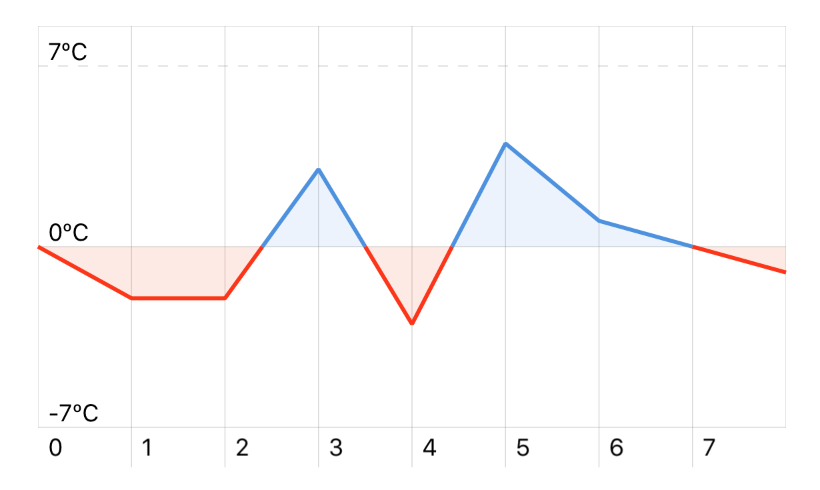
The chart displays the series in different colors when below or above the zero-axis:
```swift
let chart = Chart(frame: CGRect(x: 0, y: 0, width: 200, height: 100))
let data: [Double] = [0, -2, -2, 3, -3, 4, 1, 0, -1]
let series = ChartSeries(data)
series.area = true
chart.add(series)
// Set minimum and maximum values for y-axis
chart.minY = -7
chart.maxY = 7
// Format y-axis, e.g. with units
chart.yLabelsFormatter = { String(Int($1)) + "ºC" }
```
**Result:**
 You can customize the zero-axis and the colors with the `colors` options in the `ChartSeries` class.
```swift
series.colors = (
above: ChartColors.greenColor(),
below: ChartColors.yellowColor(),
zeroLevel: -1
)
```
**Result:**
You can customize the zero-axis and the colors with the `colors` options in the `ChartSeries` class.
```swift
series.colors = (
above: ChartColors.greenColor(),
below: ChartColors.yellowColor(),
zeroLevel: -1
)
```
**Result:**
 ## Adding multiple series to a chart
Using the `chart.add(series: ChartSeries)` and `chart.add(series: Array
## Adding multiple series to a chart
Using the `chart.add(series: ChartSeries)` and `chart.add(series: Array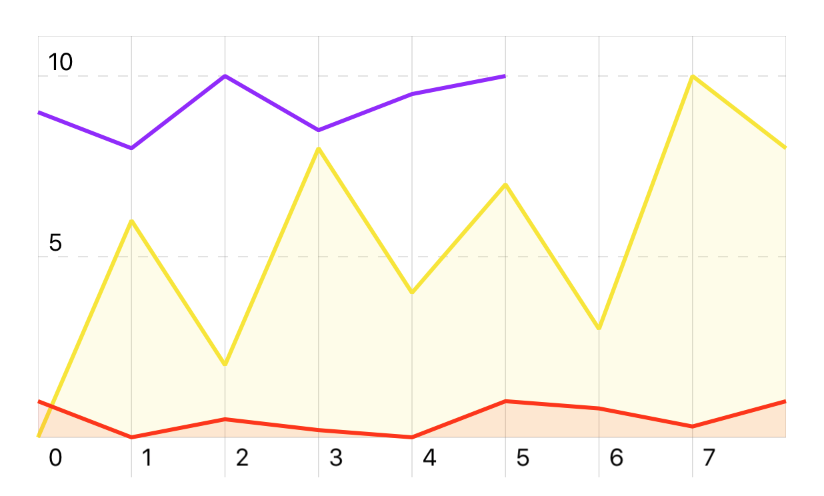 ## Configuring touch events
To make the chart respond to touch events, implement the `ChartDelegate` protocol in your class, e.g. a View Controller, and then set the chart’s `delegate` property:
```swift
class MyViewController: UIViewController, ChartDelegate {
override func viewDidLoad() {
let chart = Chart(frame: CGRect(x: 0, y: 0, width: 100, height: 200))
chart.delegate = self
}
// Chart delegate
func didTouchChart(chart: Chart, indexes: Array
# API
## `Chart` class
Use the `Chart` class to initialize and configure the chart’s content, e.g. for adding series or setting up the its appearance.
**Example**
```swift
let chart = Chart(frame: CGRect(x: 0, y: 0, width: 200, height: 100))
```
### Chart options
| Option Name | Description |
|-------------------------------|-------------------------------------------------------------------------------------------------------------------------------------------------------------------------------------------------------------|
| `areaAlphaComponent` | Alpha factor for the areas colors (`CGFloat`, default `0.1`) |
| `axesColor` | The color of the axes (`UIColor`, default `.gray`) |
| `bottomInset` | Height of the area at the bottom of the chart, containing the labels for the x-axis (`CGFloat`, default `20`) |
| `delegate` | The delegate to listen to touch events (`ChartDelegate`) |
| `highlightLineColor` | The color of the highlight line (`UIColor`, default `gray`) |
| `highlightLineWidth` | The width of the highlight line (`CGFloat`, default `0.5`) |
| `hideHighlightLineOnTouchEnd` | Hide the highlight line when the touch event ends, e.g. when stop swiping over the chart (`Bool`, default `false`) |
| `gridColor` | The color of the grid (`UIColor`, default `.gray`) |
| `labelColor` | The color of the labels (`UIColor`, default `.black`) |
| `labelFont` | The font used for the labels (`UIFont?`) |
| `lineWidth` | The width of the chart's lines (`CGFloat`, default `2`) |
| `maxX` | A custom maximum x-value (`Double?`) |
| `maxY` | A custom maximum y-value (`Double?`) |
| `minX` | A custom minimum x-value (`Double?`) |
| `minY` | A custom minimum y-value (`Double?`) |
| `showXLabelsAndGrid` | Enable the lines for the labels on the x-axis (`Bool`, default `true`) |
| `showYLabelsAndGrid` | Enable the lines for the labels on the y-axis (`Bool`, default `true`) |
| `topInset` | Height of the area at the top of the chart, acting a padding to make place for the top y-axis label (`CGFloat`, default `20`) |
| `xLabels` | The values to display as labels on the x-axis. You can format these values with the `xLabelFormatter` attribute. As default, it will display the values of the series which has the most data. `[Double]?` |
| `xLabelsFormatter` | Function to format the labels on the x-axis (`(Int, Double) -> String`) |
| `xLabelsOrientation:` | Set the x-axis labels orientation to `vertical` or `horizontal` (`ChartLabelOrientation`, default `.horizontal`) |
| `xLabelsTextAlignment:` | Alignment for the text in the x-labels (`NSTextAlignment`, default `.left`) |
| `xLabelsSkipLast:` | Skip the last x-label. Setting this to `false` will make the label overflow the frame width, so use carefully (`Bool`, default `true`) |
| `yLabels` | Values to display as labels of the y-axis. If not specified, will display the lowest, the middle and the highest values. |
| `yLabelsFormatter` | Function to format the labels on the y-axis (`(Int, Double) -> String`) |
| `yLabelsOnRightSide` | Place the y-labels on the right side (`Bool`, default `false`) |
### Public Methods
| Method Name | Description |
|-------------------|--------------------------------------------------------------------------------------------------------------------------|
| `add` | Add a series to the chart `(_ series: ChartSeries)` `(_ series: [ChartSeries])` |
| `removeSeriesAt` | Remove the series at the specified index `(_ index: Int)` |
| `removeAllSeries` | Remove all the series |
| `valueForSeries` | Returns the value for the specified series at the given index `(_ seriesIndex: Int, atIndex dataIndex: Int?) -> Double?` |
## `ChartSeries` class
Use the `ChartSeries` class to create a chart series and configure its appearance and behavior.
**Example**
```swift
let data: [Double] = [0, -2, -2, 3, -3, 4, 1, 0, -1]
let series = ChartSeries(data)
```
| Option Name | Description |
|-------------|----------------------------------------------------------------------------------------------------------------------------------------------------|
| `area` | Draws an area below the series line (`Bool`, default `false`) |
| `line` | When set to `false`, will hide the series line. Useful for drawing only the area with `area=true` (`Bool`, default `true`) |
| `color` | The series color. You can use the `ChartColors` struct for some colors shortcuts. (`UIColor`, default `.blueColor()`) |
| `colors` | A tuple to specify the color above or below the zero (or the value specified by `zeroLevel`) `(above: UIColor, below: UIColor, zeroLevel: Double)` |
## `ChartDelegate` protocol
Use the `ChartDelegate` protocol to tell other objects about the chart’s touch events.
| Method | Description |
|--------------------------|--------------------------------------------------------------------------------------------------------------------------------------------------------|
| `didTouchChart` | Tells the delegate that the specified chart has been touched |
| `didFinishTouchingChart` | Tells the delegate that the user finished touching the chart. The user will "finish" touching the chart only swiping left/right outside the chart. |
| `didEndTouchingChart` | Tells the delegate that the user ended touching the chart. The user will "end" touching the chart whenever the `touchesDidEnd` method is being called. |
## `ChartColors` enum
Shorthands for various colors.
**Example**
```swift
let series = ChartSeries([0, 6, 2, 8, 4, 7, 3, 10, 8])
series.color = ChartColors.blueColor()
```
# Common issues and solutions
If you have issue with this library, please tag your question with `swiftchart` on [Stack Overflow](http://stackoverflow.com/tags/swiftcharts/info).
## The chart is not showing
The `Chart` class inherits from `UIView`, so if your chart is not displaying it is likely a problem related to the view's size. Check your view constraints and make sure you initialize it on `viewDidLoad`, when UIKit can calculate the view dimensions.
Some tips for debugging an hidden chart:
* start your app and then debug the UI Hierarchy from the Debug navigator
* initialize a simple UIView with a colored background instead of the chart to easily see how the view is positioned
* try to not to nest the chart in a subview for better debugging
# License
SwiftChart is available under the MIT license. See the LICENSE file for more info.
## Configuring touch events
To make the chart respond to touch events, implement the `ChartDelegate` protocol in your class, e.g. a View Controller, and then set the chart’s `delegate` property:
```swift
class MyViewController: UIViewController, ChartDelegate {
override func viewDidLoad() {
let chart = Chart(frame: CGRect(x: 0, y: 0, width: 100, height: 200))
chart.delegate = self
}
// Chart delegate
func didTouchChart(chart: Chart, indexes: Array
# API
## `Chart` class
Use the `Chart` class to initialize and configure the chart’s content, e.g. for adding series or setting up the its appearance.
**Example**
```swift
let chart = Chart(frame: CGRect(x: 0, y: 0, width: 200, height: 100))
```
### Chart options
| Option Name | Description |
|-------------------------------|-------------------------------------------------------------------------------------------------------------------------------------------------------------------------------------------------------------|
| `areaAlphaComponent` | Alpha factor for the areas colors (`CGFloat`, default `0.1`) |
| `axesColor` | The color of the axes (`UIColor`, default `.gray`) |
| `bottomInset` | Height of the area at the bottom of the chart, containing the labels for the x-axis (`CGFloat`, default `20`) |
| `delegate` | The delegate to listen to touch events (`ChartDelegate`) |
| `highlightLineColor` | The color of the highlight line (`UIColor`, default `gray`) |
| `highlightLineWidth` | The width of the highlight line (`CGFloat`, default `0.5`) |
| `hideHighlightLineOnTouchEnd` | Hide the highlight line when the touch event ends, e.g. when stop swiping over the chart (`Bool`, default `false`) |
| `gridColor` | The color of the grid (`UIColor`, default `.gray`) |
| `labelColor` | The color of the labels (`UIColor`, default `.black`) |
| `labelFont` | The font used for the labels (`UIFont?`) |
| `lineWidth` | The width of the chart's lines (`CGFloat`, default `2`) |
| `maxX` | A custom maximum x-value (`Double?`) |
| `maxY` | A custom maximum y-value (`Double?`) |
| `minX` | A custom minimum x-value (`Double?`) |
| `minY` | A custom minimum y-value (`Double?`) |
| `showXLabelsAndGrid` | Enable the lines for the labels on the x-axis (`Bool`, default `true`) |
| `showYLabelsAndGrid` | Enable the lines for the labels on the y-axis (`Bool`, default `true`) |
| `topInset` | Height of the area at the top of the chart, acting a padding to make place for the top y-axis label (`CGFloat`, default `20`) |
| `xLabels` | The values to display as labels on the x-axis. You can format these values with the `xLabelFormatter` attribute. As default, it will display the values of the series which has the most data. `[Double]?` |
| `xLabelsFormatter` | Function to format the labels on the x-axis (`(Int, Double) -> String`) |
| `xLabelsOrientation:` | Set the x-axis labels orientation to `vertical` or `horizontal` (`ChartLabelOrientation`, default `.horizontal`) |
| `xLabelsTextAlignment:` | Alignment for the text in the x-labels (`NSTextAlignment`, default `.left`) |
| `xLabelsSkipLast:` | Skip the last x-label. Setting this to `false` will make the label overflow the frame width, so use carefully (`Bool`, default `true`) |
| `yLabels` | Values to display as labels of the y-axis. If not specified, will display the lowest, the middle and the highest values. |
| `yLabelsFormatter` | Function to format the labels on the y-axis (`(Int, Double) -> String`) |
| `yLabelsOnRightSide` | Place the y-labels on the right side (`Bool`, default `false`) |
### Public Methods
| Method Name | Description |
|-------------------|--------------------------------------------------------------------------------------------------------------------------|
| `add` | Add a series to the chart `(_ series: ChartSeries)` `(_ series: [ChartSeries])` |
| `removeSeriesAt` | Remove the series at the specified index `(_ index: Int)` |
| `removeAllSeries` | Remove all the series |
| `valueForSeries` | Returns the value for the specified series at the given index `(_ seriesIndex: Int, atIndex dataIndex: Int?) -> Double?` |
## `ChartSeries` class
Use the `ChartSeries` class to create a chart series and configure its appearance and behavior.
**Example**
```swift
let data: [Double] = [0, -2, -2, 3, -3, 4, 1, 0, -1]
let series = ChartSeries(data)
```
| Option Name | Description |
|-------------|----------------------------------------------------------------------------------------------------------------------------------------------------|
| `area` | Draws an area below the series line (`Bool`, default `false`) |
| `line` | When set to `false`, will hide the series line. Useful for drawing only the area with `area=true` (`Bool`, default `true`) |
| `color` | The series color. You can use the `ChartColors` struct for some colors shortcuts. (`UIColor`, default `.blueColor()`) |
| `colors` | A tuple to specify the color above or below the zero (or the value specified by `zeroLevel`) `(above: UIColor, below: UIColor, zeroLevel: Double)` |
## `ChartDelegate` protocol
Use the `ChartDelegate` protocol to tell other objects about the chart’s touch events.
| Method | Description |
|--------------------------|--------------------------------------------------------------------------------------------------------------------------------------------------------|
| `didTouchChart` | Tells the delegate that the specified chart has been touched |
| `didFinishTouchingChart` | Tells the delegate that the user finished touching the chart. The user will "finish" touching the chart only swiping left/right outside the chart. |
| `didEndTouchingChart` | Tells the delegate that the user ended touching the chart. The user will "end" touching the chart whenever the `touchesDidEnd` method is being called. |
## `ChartColors` enum
Shorthands for various colors.
**Example**
```swift
let series = ChartSeries([0, 6, 2, 8, 4, 7, 3, 10, 8])
series.color = ChartColors.blueColor()
```
# Common issues and solutions
If you have issue with this library, please tag your question with `swiftchart` on [Stack Overflow](http://stackoverflow.com/tags/swiftcharts/info).
## The chart is not showing
The `Chart` class inherits from `UIView`, so if your chart is not displaying it is likely a problem related to the view's size. Check your view constraints and make sure you initialize it on `viewDidLoad`, when UIKit can calculate the view dimensions.
Some tips for debugging an hidden chart:
* start your app and then debug the UI Hierarchy from the Debug navigator
* initialize a simple UIView with a colored background instead of the chart to easily see how the view is positioned
* try to not to nest the chart in a subview for better debugging
# License
SwiftChart is available under the MIT license. See the LICENSE file for more info.