AIConnect logo # AIConnect for Figma ### Your AI agent, designing in your real Figma file — 100% local, whole pages in one call. Open-source · fully local · no cloud, no telemetry · works with Claude Code, Cursor, or any MCP client. [![npm](https://img.shields.io/npm/v/aiconnect-figma-mcp.svg?color=cb3837&logo=npm)](https://www.npmjs.com/package/aiconnect-figma-mcp) [![License: MIT](https://img.shields.io/badge/License-MIT-1e7a7f.svg)](./LICENSE) [![Free for everyone](https://img.shields.io/badge/Free-individuals%20%26%20teams-2ea44f.svg)](#-license) [![MCP](https://img.shields.io/badge/Model%20Context%20Protocol-compatible-8A2BE2.svg)](https://modelcontextprotocol.io) [![Local-first](https://img.shields.io/badge/100%25-local%20%C2%B7%20no%20telemetry-2ea44f.svg)](#why-aiconnect) [![TypeScript](https://img.shields.io/badge/TypeScript-3178c6.svg?logo=typescript&logoColor=white)](#) [![PRs welcome](https://img.shields.io/badge/PRs-welcome-brightgreen.svg)](#-contributing) [![Stars](https://img.shields.io/github/stars/guptaprakhariitr/aiconnect-figma-mcp?style=social)](https://github.com/guptaprakhariitr/aiconnect-figma-mcp) AIConnect cover
**AIConnect is an MCP server + Figma plugin that hands your AI agent a real pen in your real Figma file.** It creates frames, text, auto‑layout, fills, gradients, effects, SVGs, imports images, clones nodes, builds a full design‑token system, and **assembles entire pages in one round‑trip** with `batch_ops`. Everything runs on your machine and talks only to a relay on `localhost` — **no cloud, no telemetry, nothing leaves your laptop.** > ⭐ If this saves you time, a star helps other people find it. --- ## ✨ See it in action > No hand‑placed layers. An agent was asked to design a hard‑water hair‑care brand and built it all **directly in Figma** through AIConnect — a landing page, a product page, and four full design‑direction boards, each assembled with `batch_ops`.
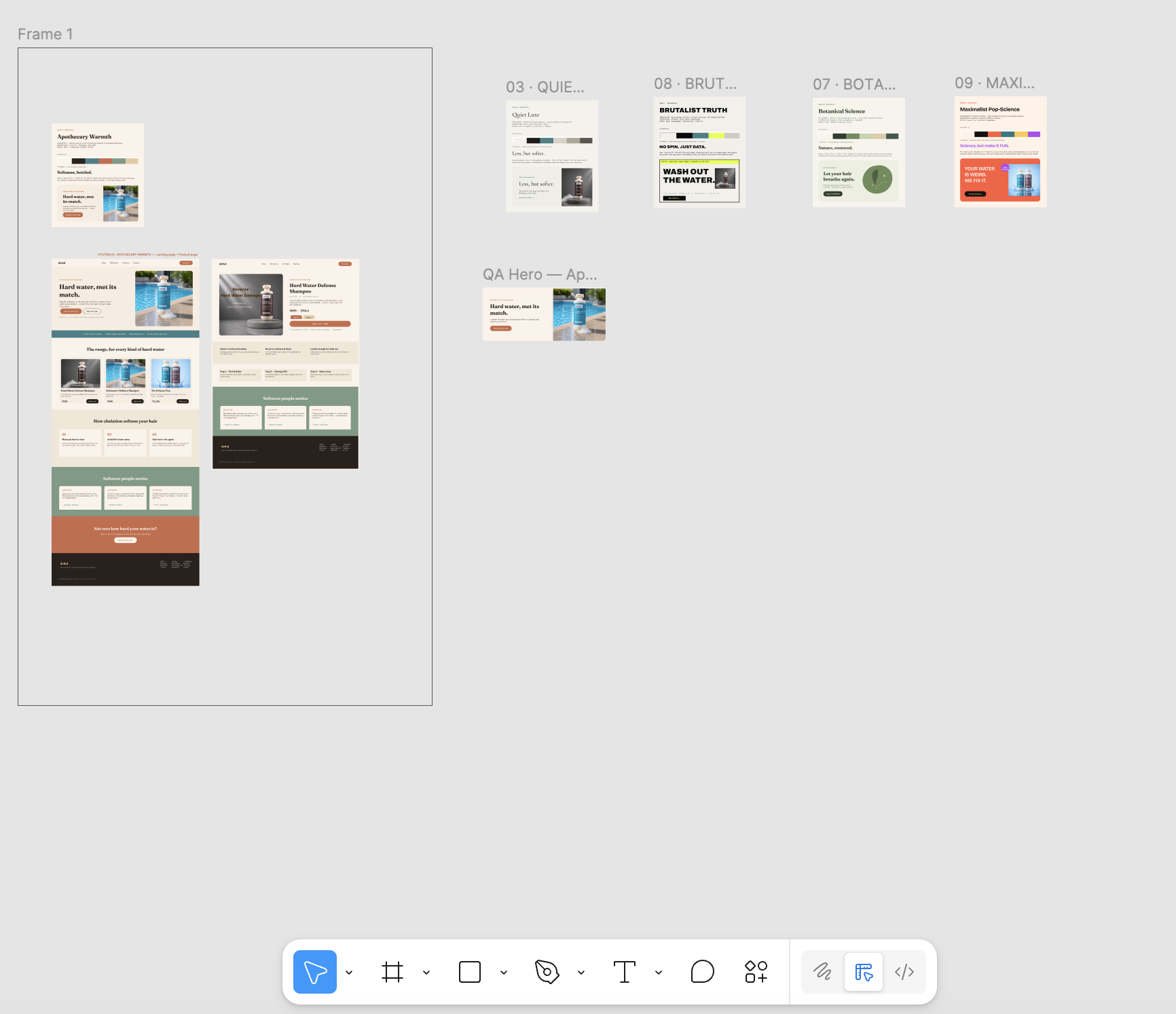
A full brand designed by an AI agent in Figma through AIConnect — landing page, product page, and design-direction boards
--- ## 🚀 Get started with Claude Code (or Cursor) The fastest way to get this running is to let your agent do it. Open **Claude Code** (or Cursor) and paste this: ```text Hi! Help me set up AIConnect for Figma on this machine and walk me through it. 1. Add the AIConnect MCP server to my MCP client config so it runs with: npx -y aiconnect-figma-mcp (it hosts the local relay itself — no separate process to start) 2. Walk me through downloading the plugin zip from the latest release (https://github.com/guptaprakhariitr/aiconnect-figma-mcp/releases/latest), unzipping it, and importing the manifest.json into the Figma desktop app. 3. Tell me to RESTART you (start a fresh session) so the new tools load — adding the server doesn't load its tools into this running session. Then, in that fresh session, connect WITHOUT waiting for me: - Don't ask me whether the plugin says connected/disconnected. The plugin panel being red just means no agent is attached yet — that's expected. - Just call get_status, and if it isn't joined, call join_channel with no arguments (it auto-detects the running plugin). Do this on your own at the start, then confirm we're connected and let's build. ``` That's it. It installs the server (which brings the relay up automatically), walks you through the one manual Figma step, and — in a fresh session — connects on its own before the first build. You never have to report the plugin's status. After that you just keep talking to it — _"apply the fintech-trust brand and build a pricing page,"_ _"generate a dark theme and bind it,"_ whatever. 🎉 > **Why restart?** MCP clients load a server's tools when a session starts. Right after you add AIConnect, the *current* session can't see `join_channel` yet — a fresh session loads it (and that session's server hosts the relay, which is what turns the plugin green). So the plugin showing red until your first message in a new session is normal; the agent connects itself from there. > Published on npm as [`aiconnect-figma-mcp`](https://www.npmjs.com/package/aiconnect-figma-mcp) — `npx` always pulls the latest. --- ## 🔓 What AIConnect unlocks for free Most of these are behind a paid Figma seat or a paid plugin. With AIConnect they're just MCP tools your agent can call — **keyless and local**. | You'd normally pay for… | AIConnect gives you | Tool(s) | |---|---|---| | **Dev Mode** inspect / CSS handoff (paid Dev seat) | Dev Mode‑equivalent CSS for any node — no Dev seat | `get_css` | | **Variables / design tokens** workflow (Dev Mode, Enterprise) | First‑class variables you can create, bind, and export to DTCG / CSS / Tailwind | `create_variable`, `bind_variable`, `export_tokens` | | **Palette / brand** generator plugins | Full token system (OKLCH ramps, semantic roles, type scale) from a preset, brand name, or one color | `apply_brand`, `generate_palette`, `generate_theme` | | **Stock photo & icon** plugins | 200k+ Iconify icons and openly‑licensed Openverse imagery, inserted in place | `insert_icon`, `search_icons`, `search_images` | | **Font‑pairing** plugins | Typeface pairing recommendations | `suggest_fonts` | | **Accessibility / contrast** plugins | WCAG contrast checks with auto‑fix suggestions | `check_contrast` | --- ## Why AIConnect | | | |---|---| | 🔒 **Local & private** | Talks only to a relay on `localhost`. No telemetry, no third‑party servers — nothing leaves your machine. | | 🤝 **Client‑agnostic** | Use it with Claude Code, Cursor, or any MCP client — not tied to one editor. | | ⚡ **`batch_ops`** | Build a whole page/section in **one** round‑trip instead of 100+ individual calls. | | 🚀 **Near‑zero latency** | Calls run over `localhost`, not a cloud hop — **~1 ms median, ~4 ms p90** per call (see [Performance](#-performance)). | | 🎨 **Rich commands** | Images, fonts, gradients, effects, SVG, auto‑layout, clone, reorder — **69 tools**. | | 🎯 **Design intelligence** | Keyless & local: `apply_brand` (full token systems from a preset/brand/color), OKLCH `generate_palette`/`generate_theme`, WCAG `check_contrast` (+auto‑fix), `suggest_fonts`, 200k+ `insert_icon` (Iconify), `search_images` (Openverse). | | 🎟️ **Design tokens & Dev Mode** | First‑class Figma variables (`create_variable`, `bind_variable`, `export_tokens`), plus `get_css` — Dev Mode‑equivalent inspect **without a paid Dev seat**. | | 🔍 **Debuggable** | `get_status`, `get_console_logs`, and `get_page_snapshot` — the agent literally sees its work and self-corrects. | | 🛠️ **Open & hackable** | MIT‑licensed, ~one file to extend. Wire it into your own agent skills. | --- ## ⚡ 2‑minute quickstart You install **two small pieces** (both free, both local): | Piece | What it is | How you get it | |---|---|---| | 🧠 **MCP server** | what your AI agent talks to | `npx` — nothing to clone | | 🎨 **Figma plugin** | what actually edits your file | one‑click zip from [Releases](https://github.com/guptaprakhariitr/aiconnect-figma-mcp/releases/latest) | A tiny **relay** (also via `npx`) connects them over `localhost`. **Prerequisites:** [Node ≥ 18](https://nodejs.org) (or [Bun](https://bun.sh)) and the free **[Figma desktop app](https://www.figma.com/downloads/)** (the browser version can't import plugins). ### 1 · Point your agent at the MCP server No clone, no build — `npx` fetches and runs the published server. Add this to your MCP client config (`.mcp.json` for Claude Code, `mcp.json` for Cursor): ```jsonc { "mcpServers": { "AIConnect": { "command": "npx", "args": ["-y", "aiconnect-figma-mcp"] } } } ``` ### 2 · (Nothing to do — the relay is built in) The MCP server hosts the localhost relay (`ws://localhost:3055`) itself, so there's **no separate process to start**. It binds the port on launch; if something already holds it, it connects to that instead. > Want to run the relay standalone anyway (e.g. to share one relay across agents)? > `npx -y aiconnect-figma-mcp relay` — plain Node, no Bun required. ### 3 · Install the Figma plugin **[⬇️ Download `aiconnect-figma-plugin.zip`](https://github.com/guptaprakhariitr/aiconnect-figma-mcp/releases/latest)** from the latest release and unzip it. Then in the **Figma desktop app** (not the browser): main menu → **Plugins → Development → Import plugin from manifest…** and pick the `manifest.json` inside the unzipped folder. You only do this once.
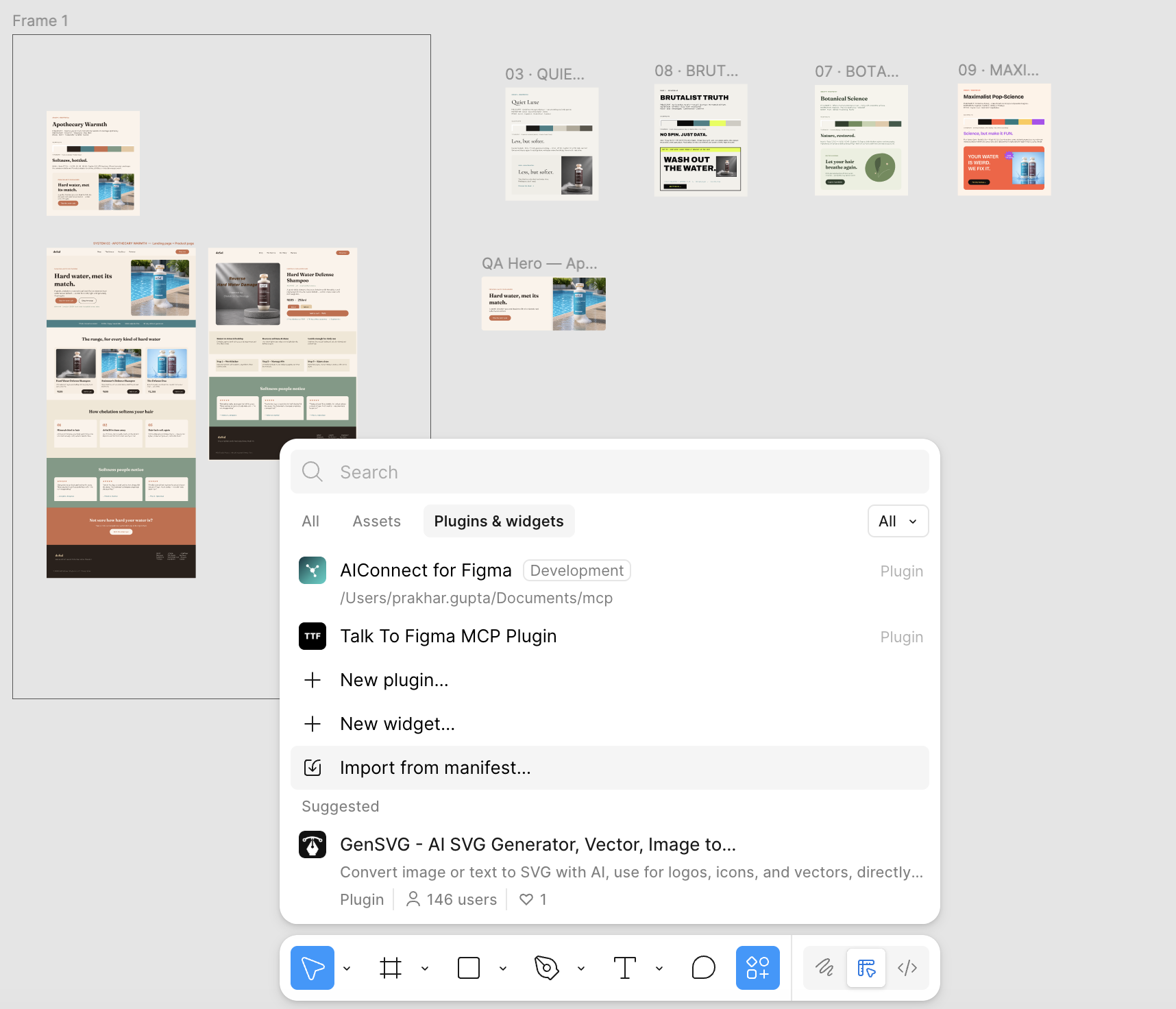
Figma → Plugins & widgets → Import from manifest
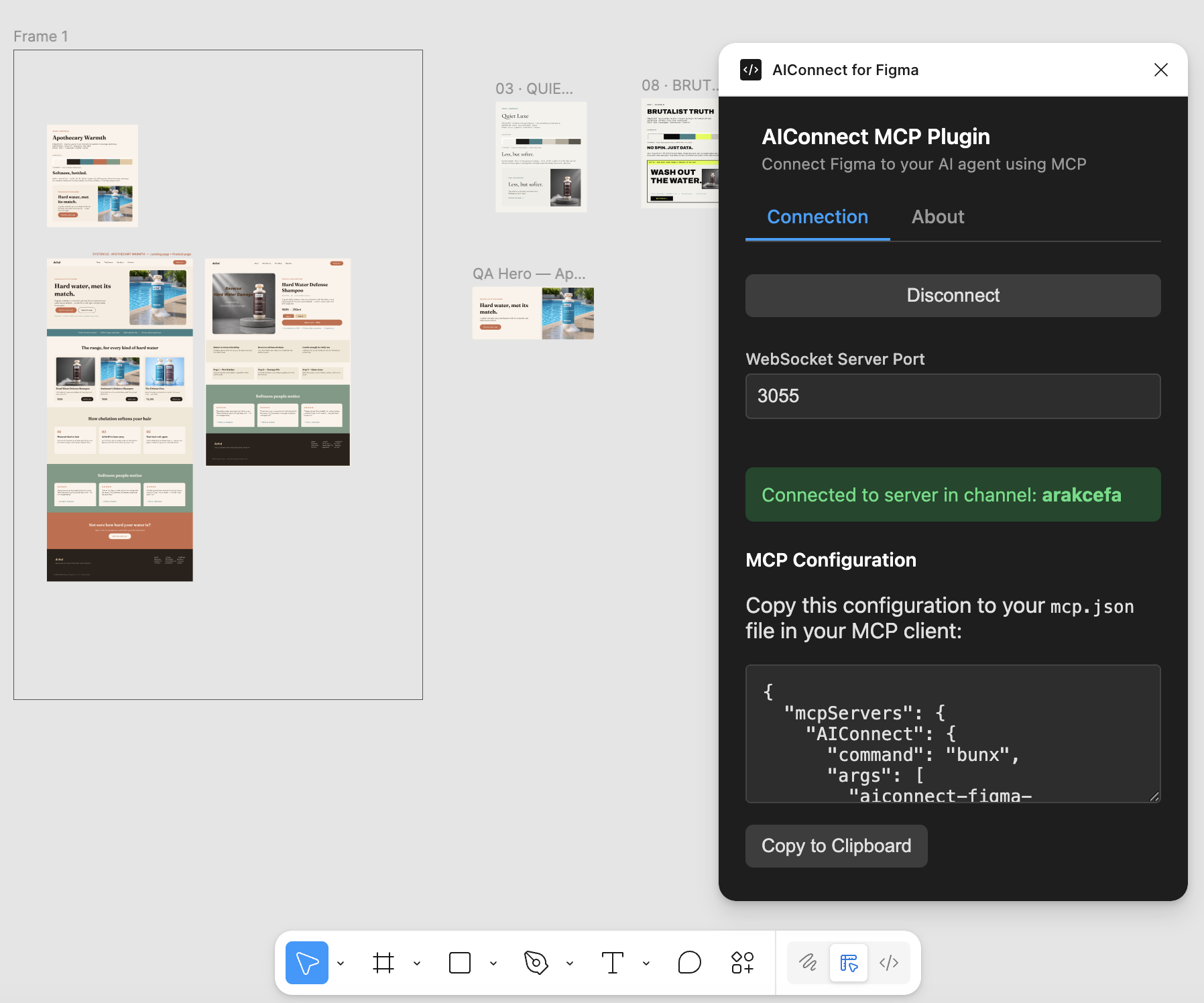
### 4 · Run the plugin Run **Plugins → Development → AIConnect for Figma**. The panel may show **red ("Disconnected")** until an agent is attached — that's normal, not an error. Once a Claude Code / Cursor **session that has the server loaded** is running, it turns **green** on its own — no button to press, no code to copy. > First time after adding the server, **start a fresh session** so its tools load (see the restart note above). That fresh session's server is what hosts the relay and flips the plugin green.
AIConnect plugin connected
### 5 · Connect and build You don't report the plugin's status — your agent connects itself. It calls **`join_channel`** with **no arguments** (it auto-detects the running plugin) at the start, then designs. Just say _"connect and build me a pricing page"_ and go. 🎉 (Running a relay standalone, or several plugins at once? Pass the channel code from the plugin: `join_channel("")`.) > 💡 Keep the Figma window **focused** while the agent works — Figma pauses background plugins, which surfaces as command timeouts.
Prefer to run from source? (Bun dev path)
```bash git clone https://github.com/guptaprakhariitr/aiconnect-figma-mcp cd aiconnect-figma-mcp bun run setup # installs, builds, writes a correctly-pathed .mcp.json, # and prints the plugin-import + channel steps ``` Then point your agent at the absolute `dist/server.js` path that `setup` printed, import [`src/figma_plugin/manifest.json`](src/figma_plugin/manifest.json), and call `join_channel` (no arguments — it auto-detects the plugin). The server hosts the relay itself, so no second terminal is needed — though you can still run one standalone with `bun run relay` (or `npx -y aiconnect-figma-mcp relay`) if you want to share one relay across agents.
--- ## 💬 Try these prompts Once your agent has joined the channel, paste any of these: ```text Apply the "fintech-trust" brand, then build a pricing page with 3 tiers (Starter / Pro / Enterprise), a feature list per tier, and a highlighted "most popular" middle card. Use batch_ops so it's one round-trip. ``` ```text Generate an OKLCH theme from the seed color #5B8DEF, create Figma variables for it, bind them to a hero section you build, then export the tokens as Tailwind config. ``` ```text Inspect my selected card with get_css and tell me the exact CSS. Then check the text contrast against its background and auto-fix anything that fails WCAG AA. ``` ```text Build a 4-feature "Why us" section: each feature is an Iconify icon (insert_icon), a heading, and a line of body text, in a responsive auto-layout row. Suggest a font pairing first and apply it. ``` --- ## ⚡ `batch_ops` — build pages in one call The headline feature. Children reference parents created earlier in the **same** batch via `@ref` placeholders, so a whole layout goes over the wire once: ```jsonc batch_ops({ ops: [ { "ref": "page", "command": "create_frame", "params": { "x": 0, "y": 0, "width": 1440, "height": 800, "name": "Landing", "layoutMode": "VERTICAL", "fillColor": { "r": 0.98, "g": 0.96, "b": 0.92 } } }, { "command": "set_layout_sizing", "params": { "nodeId": "@page", "layoutSizingVertical": "HUG" } }, { "ref": "title", "command": "create_text", "params": { "text": "Hello", "fontSize": 56, "parentId": "@page" } }, { "command": "set_font_name", "params": { "nodeId": "@title", "family": "Inter", "style": "Bold" } } ] }) // → { ok: true, ids: { page: "12:3", title: "12:4" }, errors: [] } ``` - `@ref` resolves anywhere a node id is expected (including nested objects/arrays). - Ops run **sequentially** in the plugin — no parallel‑crash risk. - Returns a compact `ids` + `errors` map, not a verbose node dump. - `set_image_fill` works in a batch too — the server pre‑encodes `imagePath` / `imageUrl`. --- ## 🧰 Tools
67 tools across reads, create/edit, style, layout, batch, tokens, debug & design intelligence
**Reads** — `get_document_info`, `get_selection`, `get_node_info`, `get_nodes_info`, `read_my_design`, `scan_text_nodes`, `scan_nodes_by_types`, `get_styles`, `get_local_components`, `get_annotations`, `get_reactions`, `export_node_as_image` **Create / edit** — `create_frame`, `create_text`, `create_rectangle`, `create_ellipse`, `create_svg`, `create_component_instance`, `clone_node`, `insert_child`, `move_node`, `resize_node`, `delete_node`, `delete_multiple_nodes` **Style** — `set_fill_color`, `set_stroke_color`, `set_gradient_fill`, `set_effect`, `set_corner_radius`, `set_image_fill`, `set_font_name`, `set_text_content`, `set_multiple_text_contents` **Layout** — `set_layout_mode`, `set_layout_sizing`, `set_padding`, `set_item_spacing`, `set_axis_align` **Design tokens / variables** — `get_variables`, `create_variable_collection`, `create_variable`, `set_variable_value`, `bind_variable`, `export_tokens` (DTCG/CSS/Tailwind) **Dev & debug** — `get_css` (Dev Mode‑equivalent, no paid seat), `get_status`, `get_console_logs`, `get_page_snapshot` **Design intelligence** (keyless, local) — `apply_brand`, `list_brand_presets`, `generate_palette`, `generate_theme`, `check_contrast`, `suggest_fonts`, `search_icons`, `insert_icon`, `search_images` **Batch & misc** — `batch_ops`, `join_channel`, annotations, connectors, focus/selection helpers
--- ## 🏗️ How it works ``` AI agent (MCP client) │ MCP (stdio) ▼ MCP server ──┐ │ WebSocket ws://localhost:3055 Figma plugin ─┘ (the relay / socket server) │ Plugin API ▼ Your Figma file ``` The **MCP server** ([`src/aiconnect_mcp/server.ts`](src/aiconnect_mcp/server.ts)) exposes the tools and runs under plain Node; it also **hosts the relay in-process** by binding port 3055 on startup (falling back to an existing relay if the port is taken), so there's normally nothing separate to run. The **relay** can also run standalone — `npx -y aiconnect-figma-mcp relay` (Node) or `bun socket` (Bun) — to share one broker across agents. The **plugin** ([`src/figma_plugin/`](src/figma_plugin/)) runs inside Figma. The agent and the plugin meet on the same **channel**; because the server observes the plugin's channel through the relay, `join_channel` needs no code in the normal case. --- ## 🚀 Performance Because everything runs over `localhost` (no cloud relay, no network round‑trip), tool calls are effectively instant. Measured over a stable session of **120 sequential calls**: | Metric | Result | |---|---| | Median latency (p50) | **0.9 ms** | | p90 / p99 latency | **3.6 ms / 6.9 ms** | | Slowest call (max) | 55 ms | | Throughput | **~490 calls/sec** | | Reliability | **120 / 120 (100%)**, zero failures | These are end‑to‑end round‑trips (agent → MCP server → relay → Figma plugin → back), measured on a developer laptop. The localhost transport is the reason — a hosted/cloud relay pays a network hop on every call. > Heads‑up: creating lots of **text** nodes is the one slow spot (Figma reflows on each insert). Parent text into a frame and set auto‑layout last — the built‑in guidance tells the agent to do this automatically. --- ## 🧪 Testing ```bash bun run test # connection-free: every MCP command has a matching plugin handler bun run test:smoke # live: drives the plugin through batch_ops + ~18 commands ``` > ℹ️ Use `bun run test` (not `bun test`) — bare `bun test` invokes Bun's built‑in test runner, which finds no spec files here. --- ## ❓ FAQ **What makes AIConnect special?** It's open‑source, runs fully locally, works with any MCP client, and centers on `batch_ops` for fast multi‑node builds — plus a keyless design‑intelligence layer (brand kits, palettes, contrast, fonts, icons, images) so your agent designs with taste, not guesses. **Is my data safe?** Yes. The plugin's only network use is `ws://localhost:3055` on your own machine. No telemetry, no external calls. **Which agents work?** Anything that speaks MCP — Claude Code, Cursor, and others. **Why do commands sometimes time out?** Figma pauses plugins whose window isn't focused. Keep Figma in front while the agent works. --- ## 🤝 Contributing PRs welcome. Run `bun run test` before opening a PR. --- ## 📄 License **Free for everyone — individuals and teams alike. No seat limits, no usage caps, no paywalls, no restrictions.** Use it at work or at home, on as many machines and projects as you like, forever. AIConnect is open source under the **MIT License** (see [LICENSE](./LICENSE)) — use, modify, redistribute, and embed it in commercial or closed‑source products freely. The only ask: keep the copyright and license notice. That's it. Builds on prior MIT‑licensed work — see [NOTICE](./NOTICE).