# KaraokeDock
A modern, full-featured web-based karaoke system with support for multiple media formats, real-time queue management, and external karaoke integration.
## Table of Contents
- [Features](#features)
- [Web Pages Overview](#web-pages-overview)
- [Quick Start with Docker](#quick-start-with-docker)
- [First-Time Setup](#first-time-setup)
- [Architecture](#architecture)
- [Development](#development)
- [Troubleshooting](#troubleshooting)
## Overview
KaraokeDock started because none of the apps out there really fit the way I wanted to run a show. I wanted something that gave me full control without forcing me to stand there all night acting as the DJ/KJ. The goal was to make hosting feel easier, more flexible, and less tied to one specific machine, setup, or location.
I also wanted a platform that could run anywhere, on almost anything, while still supporting the collection I’ve built over time. Just as important, I wanted it to work alongside the awesome creations the karaoke community has already made. KaraokeDock brings that together with local library playback, external song sources, and live queue syncing between the host, player, and singer request pages.
---
## Recent platform updates add:
- 🔐 **Library Browse** Added browse tab to request page
- 🔐 **OIDC/SSO authentication** with auto-provisioning options, role defaults, and optional password-login fallback
- 🔄 **Advanced rotation engine** with multiple rotation types (strict round robin, least recently sung, signup order, song-queue-only, manual, and hybrid) plus host overrides
- 🎶 **Break music management** with playlists, active playlist sync, volume control, and crossfade settings between karaoke tracks
- 🖥️ **Player/overlay controls** for QR visibility, ticker controls, queue privacy options, and live settings propagation over WebSocket
## ✨ Features
- 🎤 **Multi-format support**: MP4 videos, CDG+MP3 files (raw and zipped)
- 🔄 **Real-time queue updates** via WebSocket
- 📱 **Mobile-friendly interface** with QR code for easy guest access
- 🌐 **External karaoke integration** (Karaoke Nerds)
- ⚡ **Auto-play mode** with configurable delays
- 🎚️ **Configurable rotation policies** with host controls
- 🎶 **Break music playlists** with crossfade and live controls
- 🎵 **CDG to MP4 streaming** transcoding on-the-fly
- 🔐 **Flexible authentication**: local sessions + OIDC/SSO
- 📊 **Admin dashboard** for library management and statistics
- 🎯 **Host panel** for queue control and playback management
## Web Pages Overview
---
### Requests Page
**URL:** `http://your-server:5173/`
The main interface for guests to browse and request songs. Fully mobile-responsive and accessible via QR code.
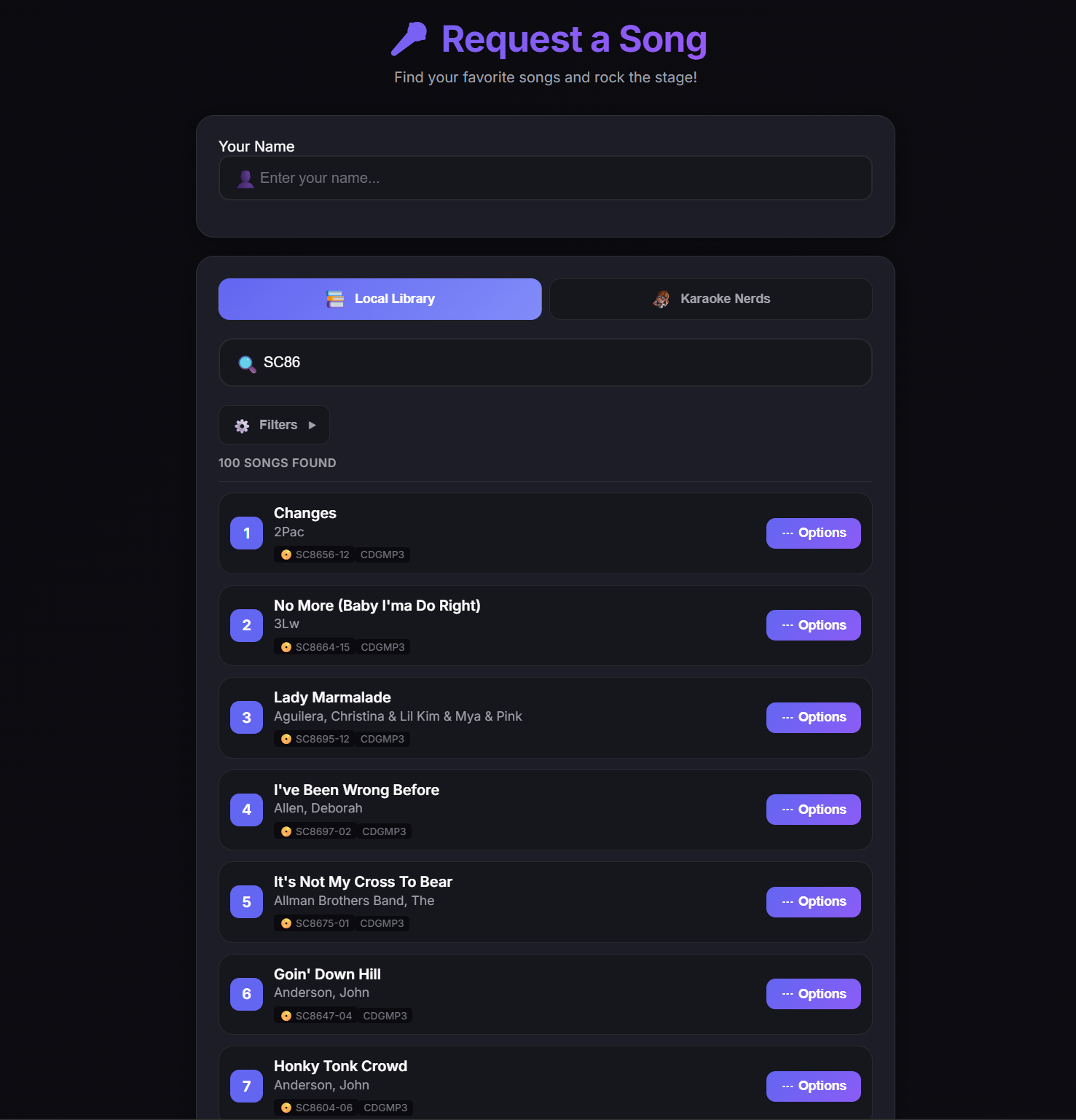
**Functions:**
- Search local karaoke library
- Browse songs by title or artist
- Filter results with advanced options
- Submit song requests with your name
- Switch to Karaoke Nerds for online songs
### Karaoke Nerds Integration
**URL:** `http://your-server:5173/` (switch to Karaoke Nerds tab)
Access thousands of online karaoke tracks from Karaoke Nerds directly within the app.
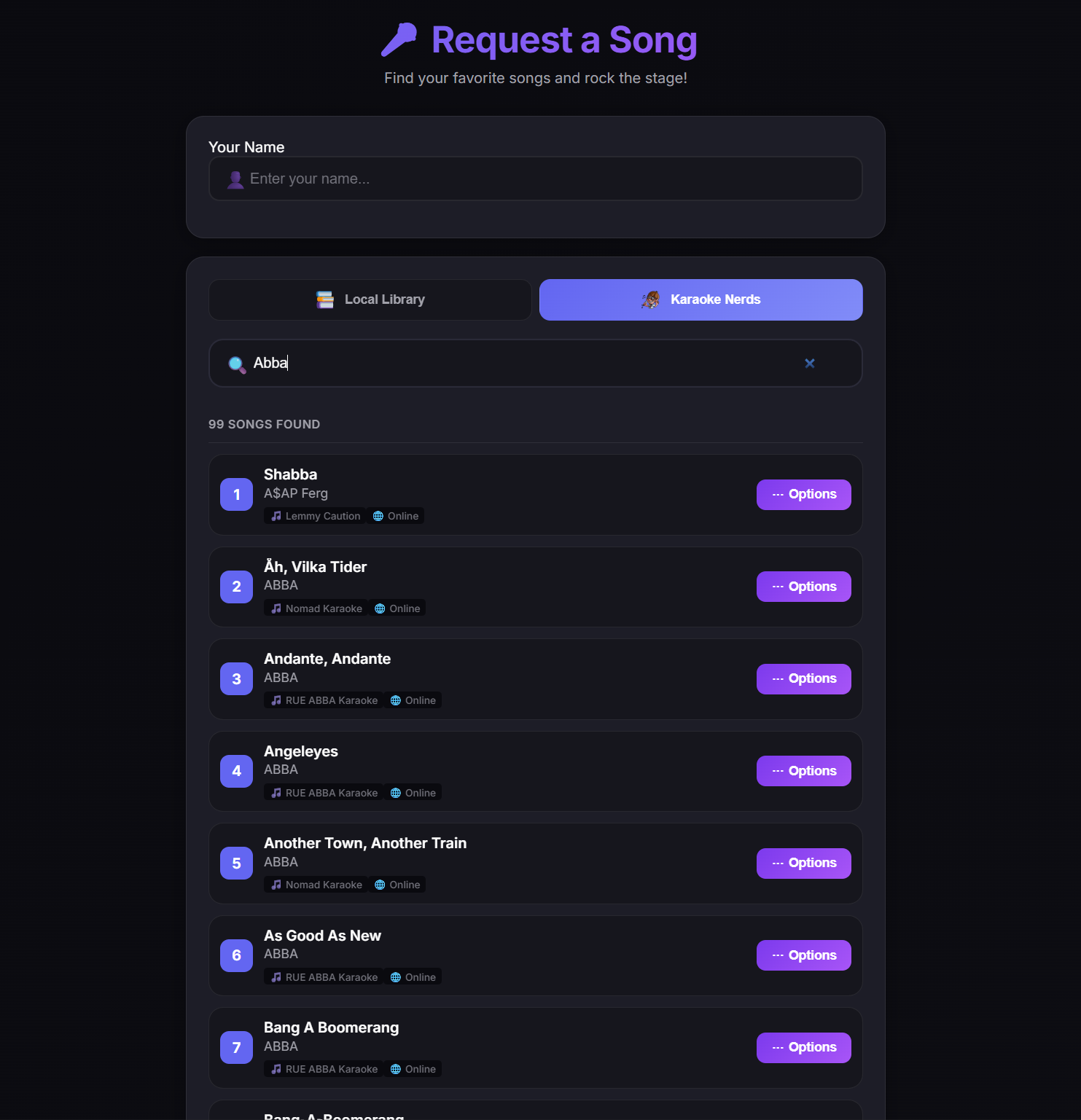
**Functions:**
- Search online karaoke catalog
- Preview and add external songs
- Seamless integration with your queue
- No need to download files
---
### Host Panel
**URL:** `http://your-server:5173/host`
The control center for managing the karaoke session.
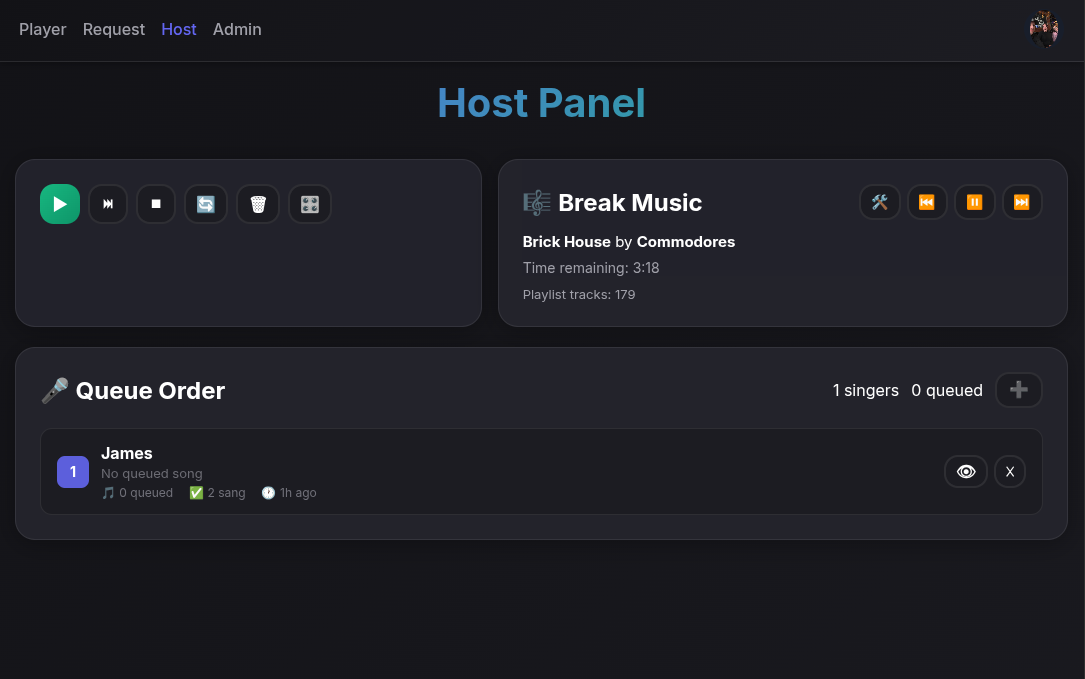
**Functions:**
- View real-time queue updates
- Play, skip, and stop songs
- Manage queue order (reorder, remove songs)
- Enable auto-play mode
- Manually add songs to the queue
#### Install the Host app
Open `/host` using your server's trusted **HTTPS** address and select **Install Host app**. Android uses Chrome's install menu; Windows and Linux support installation through Chrome or Edge. On iPhone/iPad, open `/host` in Safari and select **Share > Add to Home Screen** (enable **Open as Web App** if offered).
The app launches directly into Host in a standalone window. Use the same public origin configured for social/OIDC callbacks. Sign in again if the installed app has separate browser storage. Plain HTTP LAN addresses are not installable; localhost is supported for local testing.
Select **Dismiss** to hide the installation prompt on this browser, including after reloading. You can still install later using the browser's install menu or Safari's **Add to Home Screen**.
The Host app requires a live server connection. It does not cache logins, queue data, media, or offline control actions. An offline launch shows a reconnect page. Installation is available from production builds, not the Vite development server.
#### Manage break music
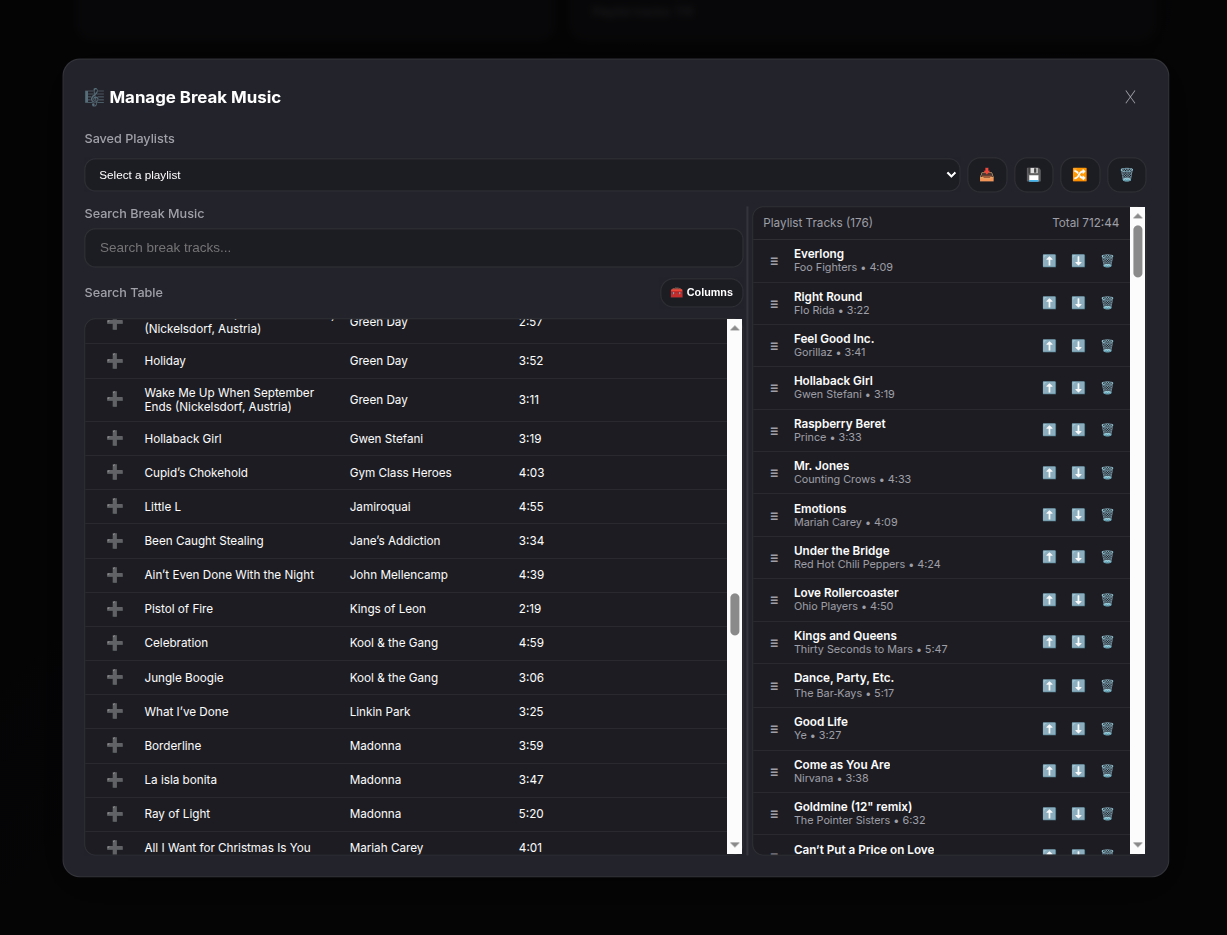
The manager opens the running playlist; editing it updates playback immediately. Select **New playlist** to build a separate draft without clearing or interrupting the running playlist. Enter a **Playlist name** and select **Save** to store it, then select it under **Saved Playlists** and use **Load** when ready to switch playback. A draft remains available when you close and reopen the manager in the same Host page; save it before reloading the page.
The running playlist keeps the currently playing song at the top. When it finishes or is skipped, it moves to the bottom and the next song takes its place. This rotation does not change saved playlists or independent drafts.
Search matches titles, artists, genres, and full indexed file paths, so entering a folder such as `/music/80s/` limits the library to that location. Enable the **Path** column to see matches. **Add All** adds the filtered results. Saved playlists are stored in the database; if the optional M3U file cannot be written to the configured playlist folder, the manager displays a warning while retaining the saved playlist.
Existing installations need migration `025_break_music_path_search.sql` for the folder-path index; it is included in the normal migration runner (`npm run migrate` from `src/server`).
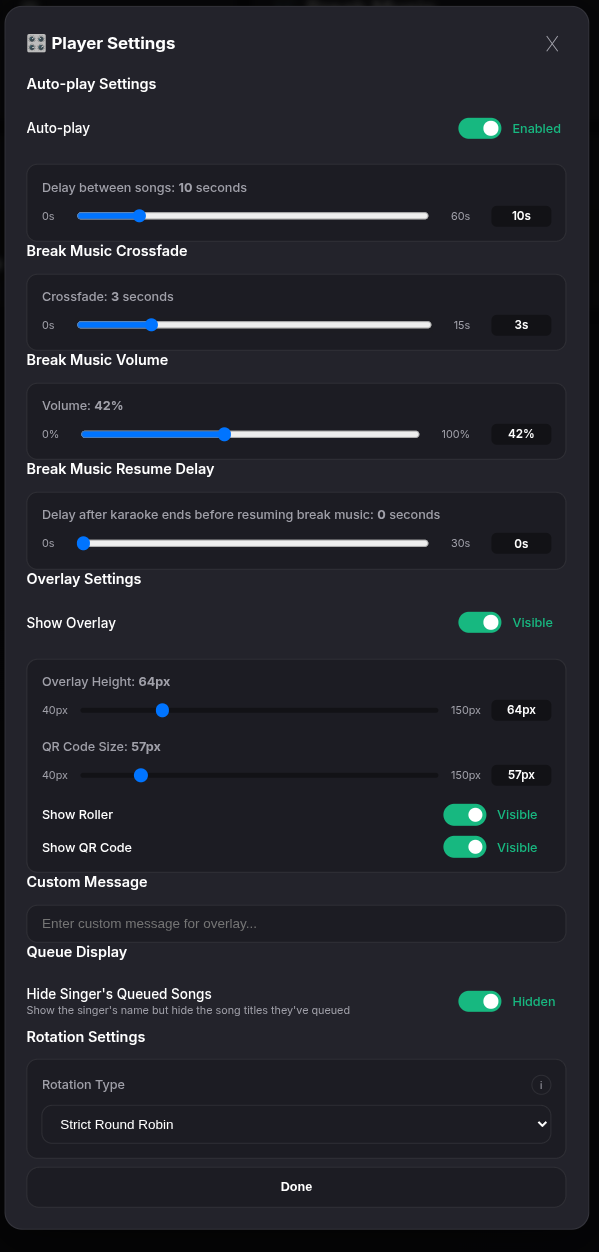
#### Configure playback settings
---
### Player Page
**URL:** `http://your-server:5173/player`
Full-screen karaoke player optimized for display on TVs or projectors.
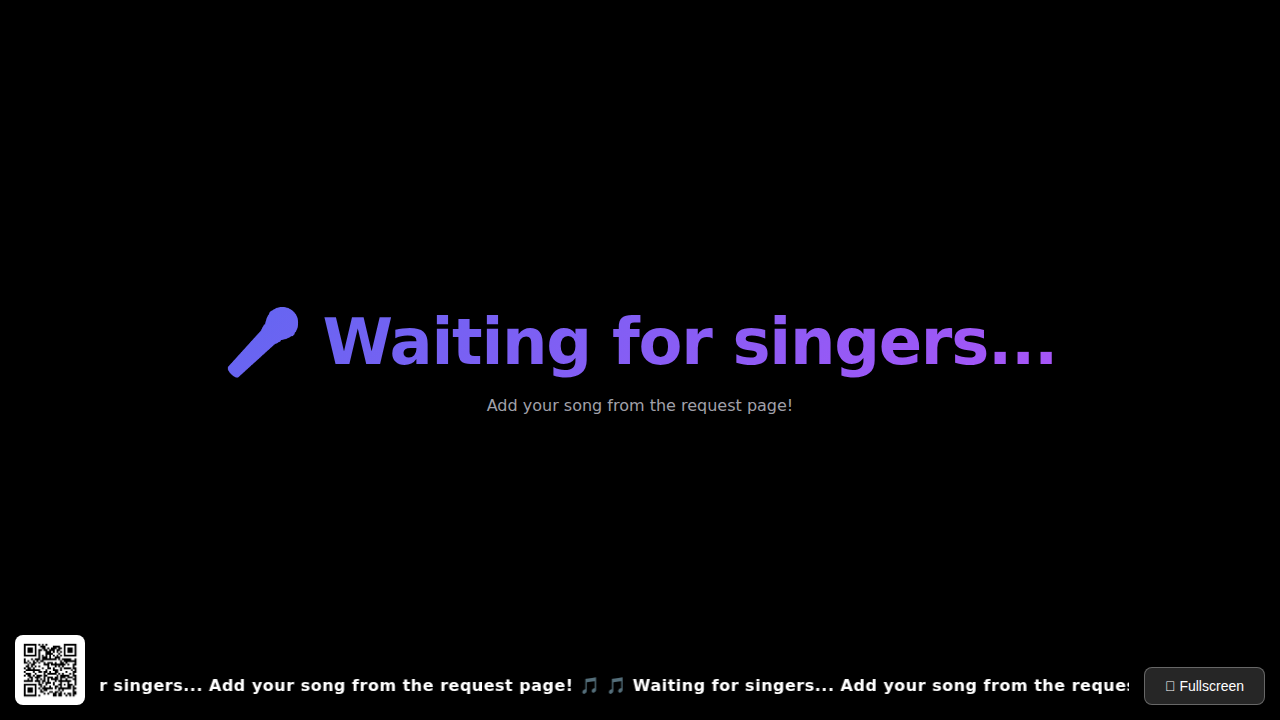
**Functions:**
- Full-screen video playback
- Display current song information
- Show scrolling text when idle
- QR code display for song requests
- Automatic queue progression
---
### Admin Dashboard
**URL:** `http://your-server:5173/admin`
Management interface for system configuration and media libraries.
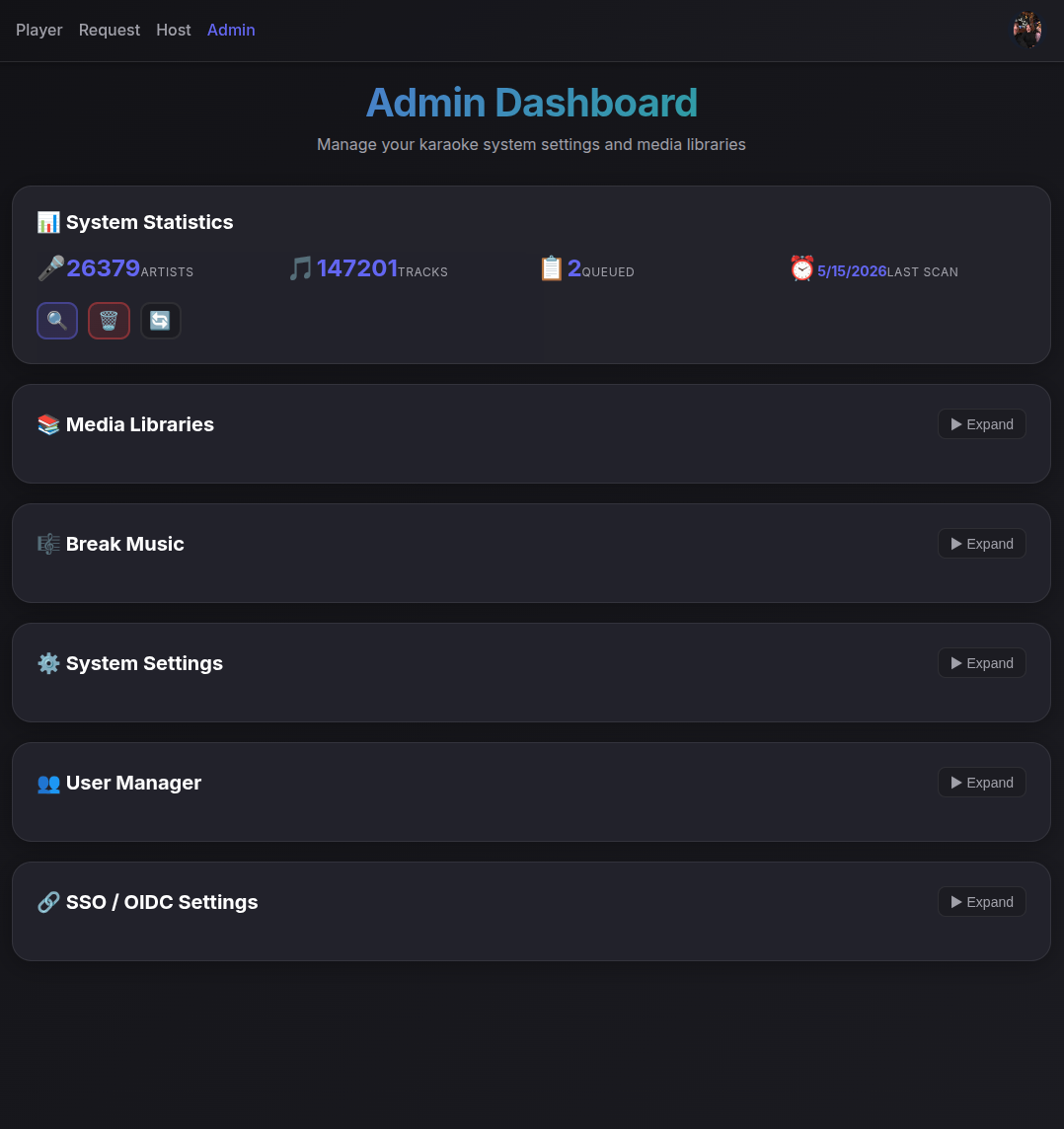
**Functions:**
- View system statistics (artists, tracks, queue)
- Add and manage media libraries
- Add and manage break music
- Scan directories for karaoke files & break music
- User manager
- OIDC/SSO settings
- Optional Google/Facebook singer login: [provider setup guide](SOCIAL_LOGIN.md)
- Host-approved singer merging links social/OIDC/password accounts to existing singer queues and history
- Public privacy policy (`/privacy`), terms of service (`/terms`), and data-deletion instructions (`/privacy#data-deletion`)
---
## Quick Start with Docker
### Prerequisites
- A Linux machine or WSL that can run Docker
- Karaoke media files (MP4, CDG+MP3, or ZIP files) - optional
### Installation Steps
1. **Install Docker and the Docker Compose plugin.**
Follow the official Docker installation guide for your platform:
- [Docker Engine](https://docs.docker.com/engine/install/)
- [Docker Compose plugin](https://docs.docker.com/compose/install/)
Confirm both are available:
```bash
docker --version
docker compose version
```
2. **Create a `karaokedock` folder** for your deployment files:
```bash
mkdir -p ~/karaokedock
cd ~/karaokedock
```
3. **Download or copy KaraokeDock's `docker-compose.yml` and `.env.example` into the `karaokedock` folder.**
Download them directly:
```bash
curl -o docker-compose.yml https://raw.githubusercontent.com/haggardj2/KaraokeDock/refs/heads/main/docker-compose.yml
curl -o .env.example https://raw.githubusercontent.com/haggardj2/KaraokeDock/refs/heads/main/.env.example
```
Or copy them from a local checkout:
```bash
cp /path/to/KaraokeDock/docker-compose.yml .
cp /path/to/KaraokeDock/.env.example .
```
4. **Create `.env` from the new environment file:**
```bash
cp .env.example .env
```
5. **Edit `.env`** with your host paths and network settings:
```bash
nano .env
```
At minimum, review and update these values from `.env.example`:
```env
POSTGRES_PASSWORD=karaoke
DB_PATH=/home/user/karaokedock/db
APP_PORT=5173
MEDIA_ROOT=/media
KARAOKE_PATH=/mnt/karaoke/Karaoke Tracks
DOWNLOADS_PATH=/mnt/karaoke/downloads
BREAKMUSIC_PATH=/mnt/karaoke/Break Music
WEB_APP_URL=http://localhost:5173
ORIGIN=http://localhost:5173,http://127.0.0.1:5173
DB_PORT=5432
TRUST_PROXY=1
```
KaraokeDock serves the web app and API from the same container on port `5173`. To change the exposed host ports, update `APP_PORT` and `DB_PORT`.
6. **Create the host directories you configured** if they do not already exist:
```bash
mkdir -p /home/user/karaokedock/db
mkdir -p /mnt/karaoke/downloads
```
7. **Start the stack with `docker-compose.yml`:**
```bash
docker compose -f docker-compose.yml up -d
```
8. **Check container status:**
```bash
docker compose -f docker-compose.yml ps
```
You should see two running containers:
- `karaokedock` (KaraokeDock app)
- `karaokedock-db` (PostgreSQL Database)
9. **Access the application:**
- Web Interface: `http://your-server:5173`
- Admin Panel: `http://your-server:5173/admin`
- Host Panel: `http://your-server:5173/host`
- Player: `http://your-server:5173/player`
---
### Managing the Application
**View logs:**
```bash
# All services
docker compose logs -f
# Specific service
docker compose logs -f karaokedock
docker compose logs -f karaokedock-db
```
**Stop the application:**
```bash
docker compose down
```
**Update to latest version:**
```bash
docker compose pull
docker compose up -d
```
**Restart services:**
```bash
docker compose restart
```
**Build locally (development):**
```bash
docker build -f dev/Dockerfile -t haggardj2/karaokedock:latest .
docker compose -f docker-compose.yml up -d
```
---
## Configuration
### Environment Variables
All configuration is managed through the `.env` file. Key variables:
| Variable | Description | Example |
|----------|-------------|---------|
| `APP_PORT` | Host port published for the KaraokeDock app container | `5173` or `6173` |
| `DB_PORT` | Host port published for PostgreSQL | `5432` or `6543` |
| `KARAOKE_PATH` | Host path for the karaoke library mount | `/mnt/karaoke/Karaoke Tracks` |
| `DOWNLOADS_PATH` | Host path for downloaded media | `/mnt/karaoke/downloads` |
| `BREAKMUSIC_PATH` | Host path for break music | `/mnt/karaoke/Break Music` |
| `MEDIA_ROOT` | Shared media root inside the container | `/media` |
| `WEB_APP_URL` | Public URL for QR codes | `http://your-server-ip:5173` or `https://karaoke.example.com` |
| `ORIGIN` | Allowed browser origins (comma-separated) | `http://your-server-ip:5173` or `https://karaoke.example.com` |
| `POSTGRES_PASSWORD` | Database password for the bundled PostgreSQL container | `karaoke` (change in production) |
| `DATABASE_URL` | Full PostgreSQL connection string for the app; overrides split DB variables when set | `postgres://karaoke:karaoke@db:5432/karaoke` |
**Important Notes:**
- Replace `your-server-ip` with your server's IP address for network access
- Ensure `ORIGIN` includes every URL where the app will be opened
- `KARAOKE_PATH`, `DOWNLOADS_PATH`, and `BREAKMUSIC_PATH` map to `/media/karaoke`, `/media/downloads`, and `/media/breakmusic`
- Change `APP_PORT` / `DB_PORT` to remap host ports
- Change default passwords before deploying to production
If your container platform exposes environment variables more cleanly than full connection strings, the app can instead derive its database connection from `DB_HOST`, `DB_PORT`, `DB_NAME`, `DB_USER`, and `DB_PASSWORD`. In that mode, `DB_PORT` is the database service port inside the app container, usually `5432`. If you are running PostgreSQL as a separate container, `DB_HOST` must be a hostname the app container can actually resolve on a shared network. For Unraid custom networks, the container must join that network with `--network=` in Extra Parameters; setting the XML `` field to the custom name is not enough. The Docker Compose setup in this repo still uses `DATABASE_URL`, so existing installs do not need to change.
### Network Configuration
To access from other devices on your network:
1. Set `WEB_APP_URL` to your server's IP: `http://your-server-ip:5173`
2. Update `ORIGIN` to include your server's IP
3. Ensure firewall allows port 5173
To setup reverse proxy for SSL termination:
1. Set `WEB_APP_URL` to your FQDN: `https://karaoke.example.com`
2. Update `ORIGIN` to include that public URL
3. Set `TRUST_PROXY=1` when running behind the proxy
4. Point the proxy to the app container on port `5173`
---
## First-Time Setup
After starting the containers for the first time:
1. **Navigate to the Admin page:**
```
http://your-server:5173/admin
```
2. **Get the bootstrap admin password:**
- Username: `admin`
- Password: check the app container logs from the first boot:
```bash
docker compose logs karaokedock
```
3. **⚠️ Change the bootstrap password immediately** after logging in
4. **Add a media library:**
- Click "Add Library"
- Name: Give it a descriptive name (e.g., "My Karaoke Collection")
- Path: Enter `/media/karaoke` (this is the container path, not your host path)
- Click "Add Library"
5. **Scan your files:**
- Click "Scan All Libraries"
- Wait for the scan to complete
- Refresh stats to see your track count
6. **Access the Host panel:**
- Go to `http://your-server:5173/host`
- Login with your password
7. **Open a player window**
- Open a browser tab to `http://your-server-ip:5173/player`
- If serving from an Android TV, you can use a [kiosk browser app](https://play.google.com/store/apps/details?id=de.ozerov.fully&hl=en_US)
8. **Done!** Guests can now request songs via the Requests page
---
## Troubleshooting
### Common Issues
**QR code shows localhost instead of server IP:**
- Solution: Set `WEB_APP_URL` in `.env` to your server's IP address
**Cannot connect to API from other devices:**
- Solution: Set `WEB_APP_URL` and `ORIGIN` to your server's IP or public URL
- Check firewall allows port 5173
**CORS errors in browser console:**
- Solution: Add your access URL to `ORIGIN` in `.env`
**No songs appearing after scan:**
- Check `KARAOKE_PATH` points to the correct host directory
- Verify files are in supported formats
- Check app logs: `docker compose logs karaokedock`
**Database connection errors:**
- Wait 10-15 seconds for database to initialize on first start
- Restart the stack: `docker compose restart karaokedock karaokedock-db`
**Permission denied errors:**
- Ensure media files are readable by Docker
- On Linux with SELinux, the `:Z` flag in volumes may help
**Forgot Login**
```bash
# Run password reset helper:
docker exec -it KaraokeDock npm run reset-credentials
# Defaults to username "admin" and generates a secure password if --password is omitted.
docker exec -it KaraokeDock npm run reset-credentials -- --password supersecret
# Or set a specific username/password:
docker exec -it KaraokeDock npm run reset-credentials -- --username admin --password supersecret
```
**Reenable Password Login**
```bash
# Run the re-enable-login helper
docker exec -it KaraokeDock npm run re-enable_login
```
---
### Docker Compose Architecture
The application runs two Docker containers:
```
---------------------- ------------------
| karaokedock | | karaokedock-db |
| (Web + API App) |---> | (PostgreSQL) |
| Port: 5173 | | Port: 5432 |
---------------------- ------------------
```
**Container Details:**
- **karaokedock**: Combined React frontend + Node.js/Express backend
- Image: `haggardj2/karaokedock:latest`
- Exposed port: 5173
- Mounts:
- `KARAOKE_PATH` → `/media/karaoke`
- `DOWNLOADS_PATH` → `/media/downloads`
- `BREAKMUSIC_PATH` → `/media/breakmusic`
- **karaokedock-db**: PostgreSQL 18 database
- Image: `postgres:18`
- Exposed port: 5432
---
## Architecture
### Technology Stack
**Frontend:**
- React 19 with TypeScript
- Vite for development and building
- React Router for navigation
- WebSocket for real-time updates
**Backend:**
- Node.js with Express
- TypeScript for type safety
- PostgreSQL for data persistence
- WebSocket for live queue sync
- Recompiled FFmpeg with rubberband for pitch adjustment
- FFmpeg for CDG to MP4 transcoding
**Infrastructure:**
- Docker for containerization
- Docker Compose for orchestration
- Pre-built images hosted on Docker Hub
### Supported File Formats
- **MP4 videos**: Direct playback
- **CDG+MP3 pairs**: Transcoded to MP4 on-the-fly
- **ZIP archives**: Automatically extracted and processed
- **Break Music**: mp3,flac,opus,wav
- **External URLs**: From Karaoke Nerds and similar services
### Data Flow
1. Media files scanned and indexed into PostgreSQL
2. Guests request songs via Requests page
3. Queue updates broadcast via WebSocket
4. Host controls playback from Host panel
5. Player page displays current song
6. CDG files transcoded to MP4 in real-time if needed
---
## Development
### Local Development (without Docker)
**Server:**
```bash
cd src/server
npm install
cp ../../.env.example .env
# Edit .env with local settings
npm run migrate
npm run dev
```
**Web:**
```bash
cd src/web
npm install
npm run dev
```
**Database:**
```bash
# Start PostgreSQL in Docker
docker run -d \
--name karaokedock-db \
-e POSTGRES_DB=karaoke \
-e POSTGRES_USER=karaoke \
-e POSTGRES_PASSWORD=karaoke \
-p 5432:5432 \
postgres:18-alpine
```
### Building Docker Images
To build the KaraokeDock image locally:
```bash
docker build -f dev/Dockerfile -t haggardj2/karaokedock:latest .
```
## Viewing Logs
```bash
# Specific container
docker compose logs -f karaokedock
docker compose logs -f karaokedock-db
```
## Security Considerations
- **Change default passwords** immediately after first login
- **Change database password** in production environments
- Use **HTTPS** with a reverse proxy (nginx, Traefik) for production
- Keep Docker images updated: `docker compose pull`
- Restrict network access to admin and host pages if needed
## License
See [LICENSE](LICENSE) file for details.
## Contributing
Contributions are welcome! Please feel free to submit issues or pull requests.
## Support
For issues and questions:
- Open an issue on GitHub
- Check existing documentation in the repository
- Review Docker logs for error messages
---
**Docker Images:**
- KaraokeDock app: `haggardj2/karaokedock:latest`
- Database base image: `postgres:18-alpine`