Enables real-time type checking, code completion, and symbol analysis similar to modern languages.
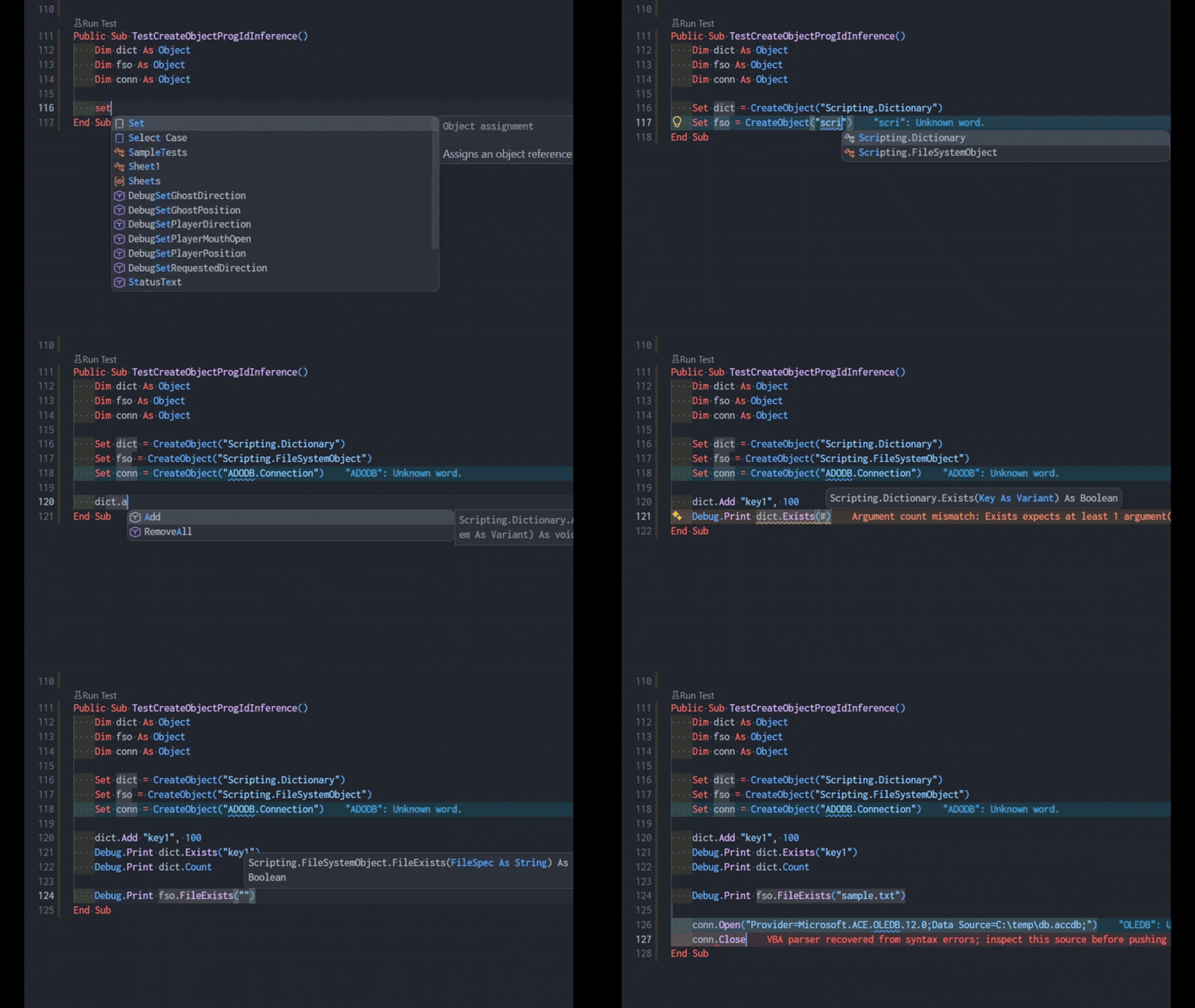Static type inference for objects created via late binding `CreateObject`.
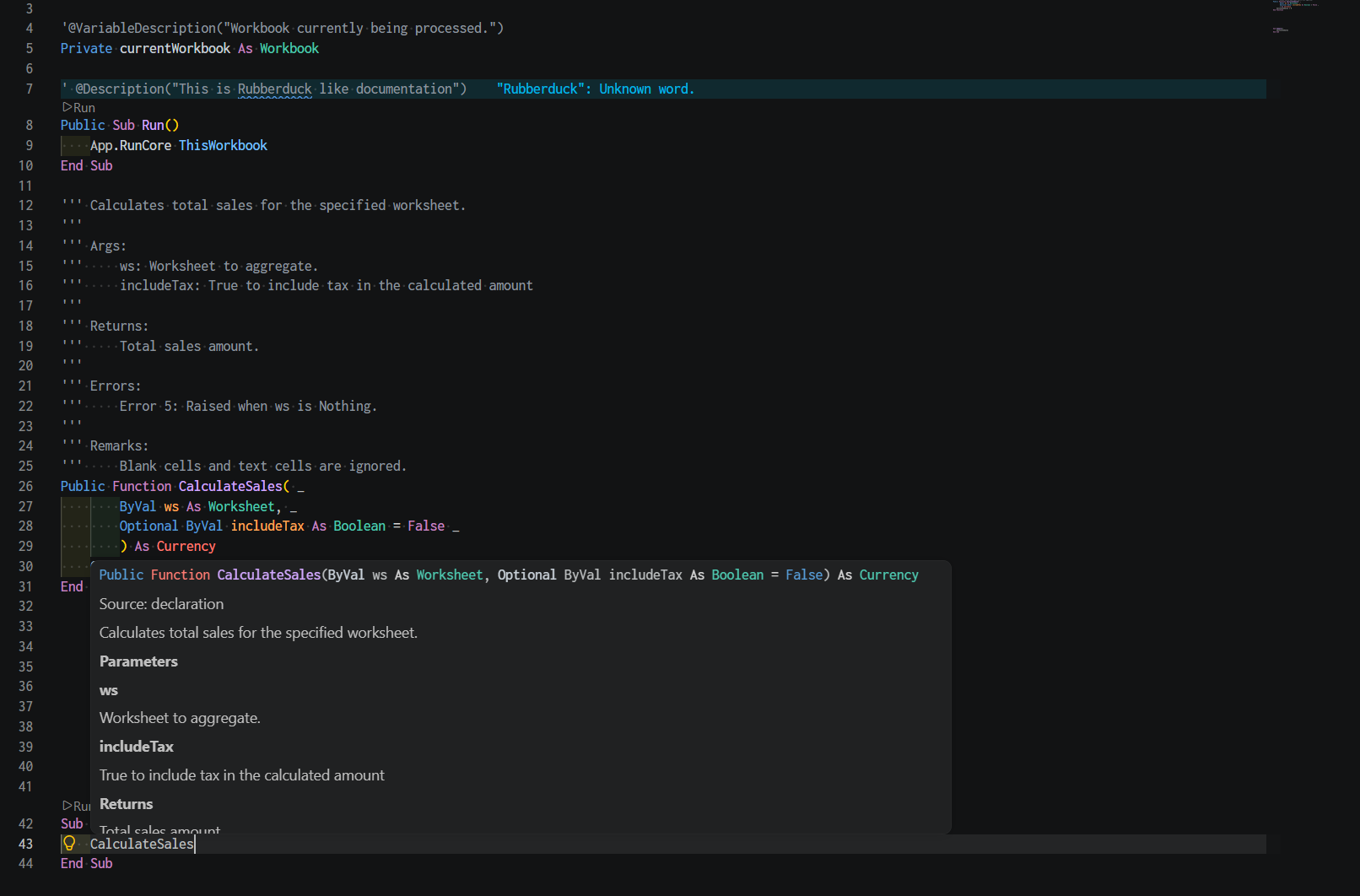Generate and hover over documentation strings
## Target Use Cases This extension is designed for Excel VBA development scenarios such as: - Managing Excel VBA macros with Git version control - Editing VBA code in VSCode rather than the VBE environment - Safely maintaining existing Excel macro assets - Implementing lint and formatting tools for VBA as well - Delegating Excel VBA development to AI agents - Performing synchronized operations between Excel workbooks and source code through a GUI interface - Integrating Excel VBA with WSL or CLI-based development workflows ## Quick Start Guide ### Project Setup - To create a new xlflow project, click `New Project` from the extension sidebar, enter a file name, and press Enter. 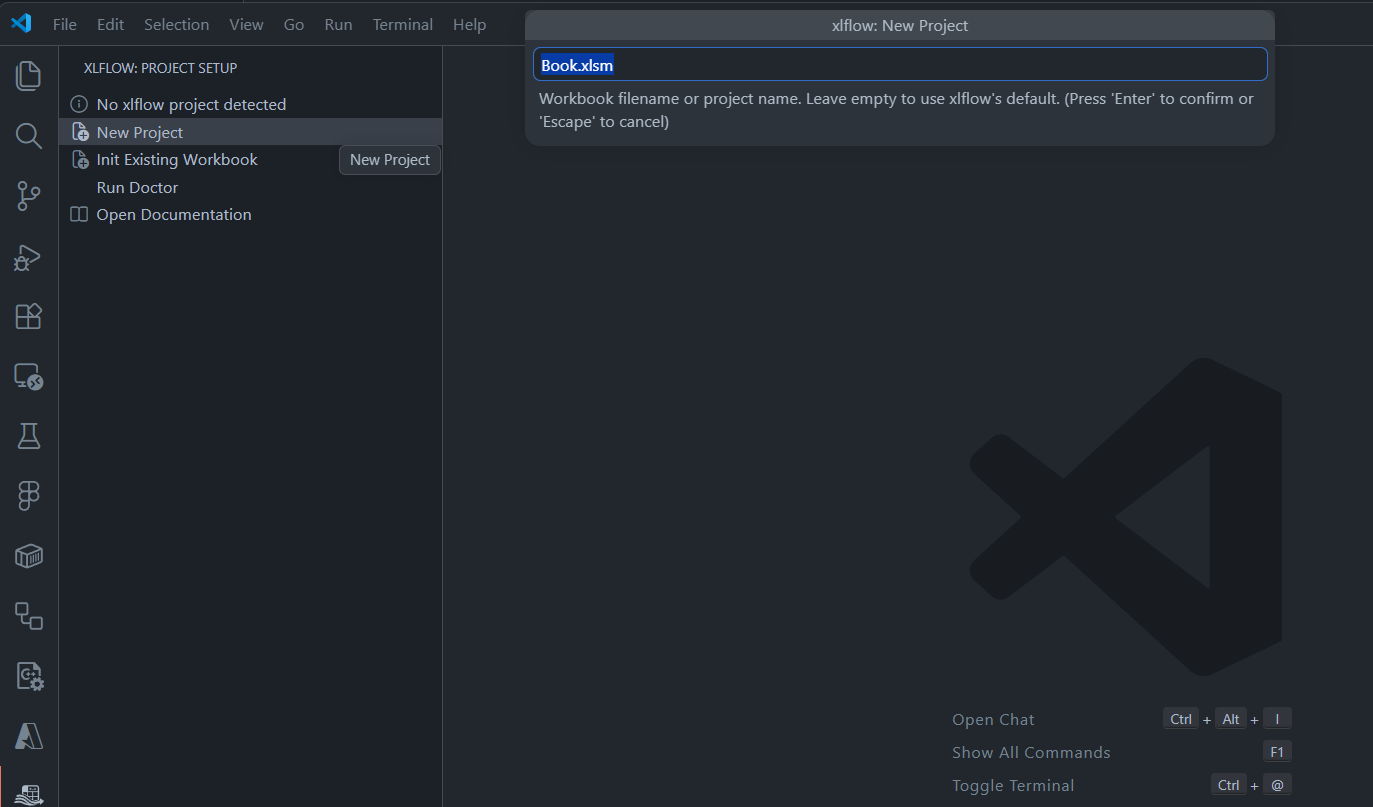 - To convert an existing `.xlsm`, `.xlam`, or `.xlsb` macro workbook into an xlflow project, click `Init Existing Workbook` from the extension sidebar and select the macro book. 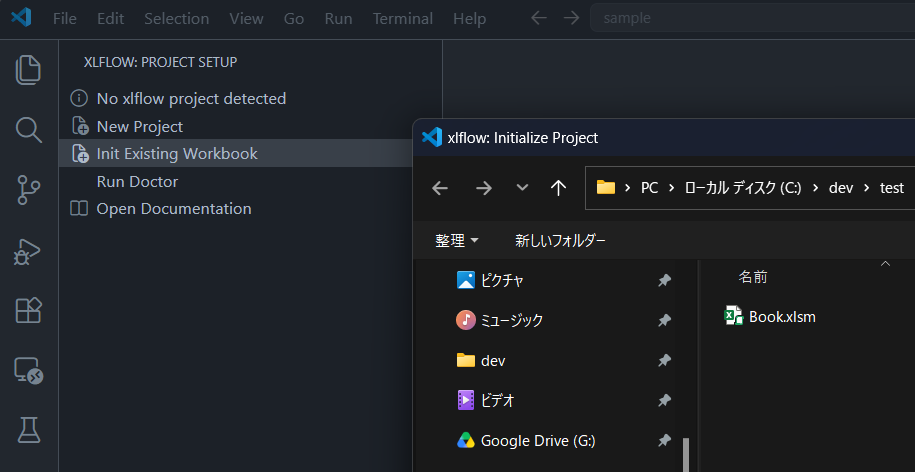 ### Workflow Operations - For importing source code from workbooks, execute the `Pull Workbook` button. 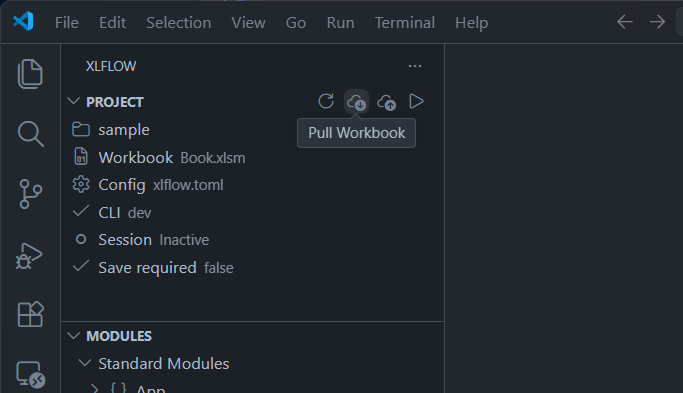 - For applying source code changes to workbooks, run the `Push Sources` button. 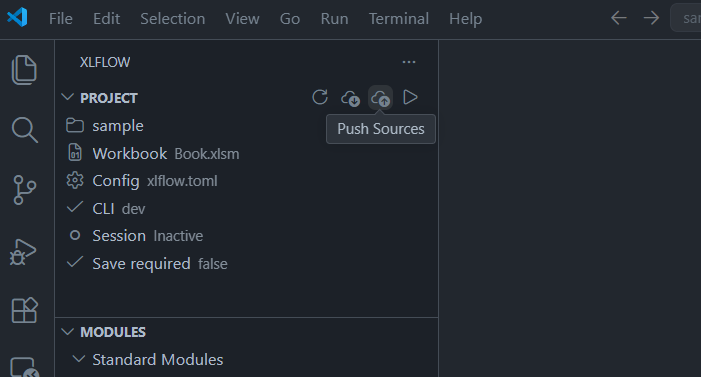 ## Configuration Settings To specify the executable path when `xlflow` isn't in the system PATH: ```json { "xlflow.path": "C:\\path\\to\\xlflow.exe" } ``` Common configuration options include: - `xlflow.lsp.enabled`: Launches `xlflow lsp --stdio` for VBA files. - `xlflow.lsp.logFile`: Specifies the log file to pass to the language server for xlflow projects. Non-xlflow workspaces use the output channel unless this setting is explicitly configured. The default value is `.xlflow/lsp.log`. - `xlflow.lsp.trace.server`: Sets the verbosity level for the trace output channel of the language server. - `xlflow.codeLens.enabled`: Displays xlflow CodeLens actions above executable VBA procedures in xlflow projects. Non-xlflow workspaces keep CodeLens run actions hidden. - `xlflow.codeLens.runProcedure`: Shows a "Run" action above executable VBA procedures. - `xlflow.codeLens.runTests`: Displays a "Run Test" action above VBA test procedures. - `xlflow.codeLens.userFormEvents`: Shows a "Run" action above event handlers in UserForms. - `xlflow.run.saveBeforeRun`: Saves modified VBA documents before executing procedures via CodeLens. - `xlflow.completion.triggerSuggestInStatements`: Triggers VS Code suggestion functionality in contexts where VBA statements are likely to be written. - `xlflow.completion.progIdsInStrings`: Triggers VS Code suggestion functionality within strings containing `CreateObject("...")` and `GetObject("...")` syntax. - `xlflow.testing.autoDiscover`: Automatically discovers VBA tests when the xlflow workspace is opened. The VBA language server also understands xlflow documentation comments written with consecutive `'''` lines. Hover, Signature Help, Completion details, and diagnostics use those comments, along with Rubberduck-compatible `@Description` annotations when present. Type `'''` immediately before a procedure declaration, open the Quick Fix action, and accept `Generate documentation comment for ...` to insert a snippet with parameter and, where applicable, return placeholders. Type `@` inside an apostrophe comment to complete Rubberduck `@Description`, `@ModuleDescription`, `@VariableDescription`, and xlflow `@ExpectedError(...)`, `@Skip(...)`, and `@Todo(...)` snippets. ## About the Command The command palette includes the following features: | Command | Description | | ------------------------------------- | ----------------------------------------------------------------------------------------- | | `xlflow: Restart Language Server` | Reloads the VBA Language Server when completion, diagnostics, or jumps become misaligned. | | `xlflow: Check Environment` | Verifies availability of xlflow, Excel integration, and the current workspace. | | `xlflow: Open Install Guide` | Opens the xlflow installation guide. | | `xlflow: Configure Path` | Opens the VS Code setting for the xlflow executable path. | | `xlflow: Retry CLI Detection` | Rechecks xlflow CLI availability and refreshes extension views. | | `xlflow: New Project` | Creates a template for a new xlflow project. | | `xlflow: Initialize Project` | Adds xlflow configuration to an existing workbook project. | | `xlflow: Install Agent Skill` | Installs the AI agent skill for xlflow. | | `xlflow: Install Helper Modules` | Adds auxiliary VBA modules for functional features and samples in xlflow. | | `xlflow: New Module` | Creates a new VBA module of specified type. | | `xlflow: New Standard Module` | Creates a new standard module. | | `xlflow: New Class Module` | Creates a new class module. | | `xlflow: New UserForm` | Creates a complete set of new UserForms. | | `xlflow: Pull Workbook` | Imports VBA assets from the current workbook into the workspace. | | `xlflow: Push Sources` | Applies source changes from the workspace back to the book. | | `xlflow: Run Macro` | Executes the configured entry macro. | | `xlflow: Run Procedure` | Executes a selected VBA procedure. | | `xlflow: Run Test Procedure` | Directly executes a selected VBA test procedure. | | `xlflow: Run Tests` | Executes the complete set of VBA tests in the project. | | `xlflow: Lint Workspace` | Performs linting checks on the workspace's source code. | | `xlflow: Format Document` | Formats the currently active VBA document. | | `xlflow: Format Project` | Formats all corresponding source files in the project collectively. | | `xlflow: Save Workbook` | Saves the connected Excel workbook. | | `xlflow: Start Session` | Launches a reusable Excel session for faster repeated execution. | | `xlflow: Session Status` | Displays the current status of xlflow sessions. | | `xlflow: Restart Session` | Resets the managed Excel session. | | `xlflow: Stop Session` | Terminates the current xlflow session. | | `xlflow: Open Output` | Opens the VS Code output channel for xlflow. | | `xlflow: Refresh Project` | Reloads the project tree and related states. | | `xlflow: Refresh Modules` | Updates the list of modules in the sidebar. | | `xlflow: Refresh UserForms` | Updates the list of UserForms in the sidebar. | | `xlflow: Refresh Tests` | Updates detected tests in the test explorer. | | `xlflow: Run All Tests` | Executes all detected VBA tests from the sidebar or test view. | | `xlflow: Run Doctor` | Runs `xlflow doctor` for detailed environment diagnostics. | | `xlflow: Toggle Session` | Enables/disables session mode in the current workspace. | | `xlflow: Open Documentation` | Opens the documentation for xlflow. | | `xlflow: Rename Module` | Renames a VBA module and the corresponding source file name. | | `xlflow: Delete Module` | Removes a module from the workspace. | | `xlflow: Reveal Source File` | Opens the location for the selected module source code. | | `xlflow: Copy Module Name` | Copies the selected module name to the clipboard. | | `xlflow: Copy Relative Path` | Copies the relative path of the selected source file within the project. | | `xlflow: Copy Procedure Name` | Copies the selected procedure name. | | `xlflow: Copy Qualified Name` | Copies fully qualified procedure names including module names. | | `xlflow: Rename UserForm` | Renames a UserForm and renames related artifacts. | | `xlflow: Delete UserForm` | Removes a UserForm from the workspace. | | `xlflow: Reveal UserForm Source` | Opens the location for the selected UserForm source code. | | `xlflow: Copy UserForm Name` | Copies the selected UserForm name. | | `xlflow: Copy UserForm Relative Path` | Copies the relative path of the selected UserForm source within the project. | ## Integration with AI Agents xlflow is a tool specifically designed to enable AI agents to develop Excel VBA macros, featuring CLI-based operation and AI-friendly structured output. From your terminal: ```bash xlflow skill install ``` or through the VSCode command palette using: ```bash xlflow: Install Agent Skill ``` you can install the **Agent Skill** for AI agents, which helps coding assistants like Codex / Claude Code / GitHub Copilot / Cursor better understand how to interact with `xlflow`. This enables autonomous macro implementation, testing, and modification processes for VBA scripts in Excel. As a result, it becomes easier to incorporate test-driven development and automated correction workflows into Excel VBA development. 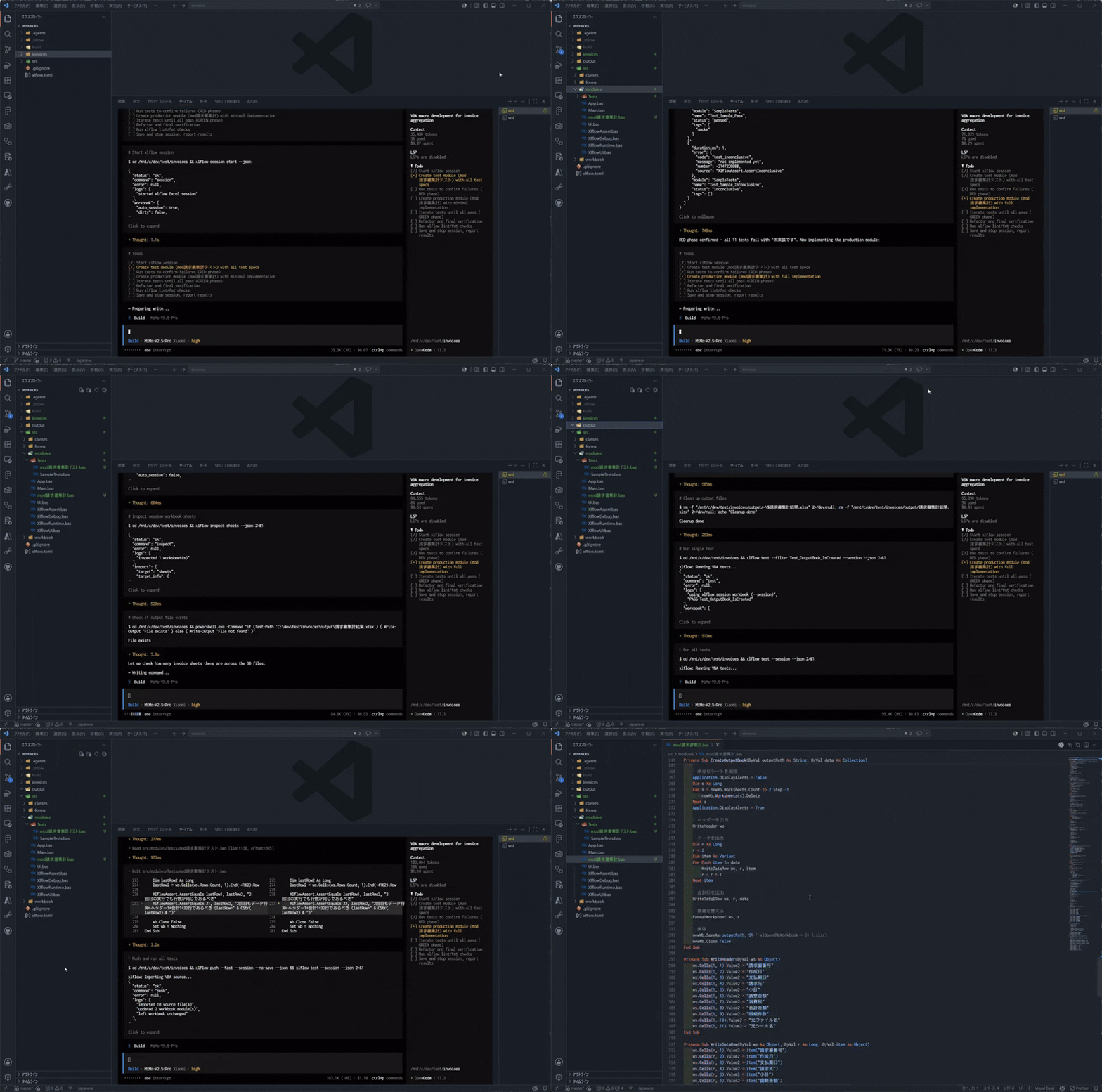 ## WSL Integration Notes xlflow supports workflows that connect Excel on Windows with development environments running in WSL (Windows Subsystem for Linux). You can edit VBA code from editors or AI agents running on WSL, then import, apply, and execute changes directly on Excel on Windows. When using WSL integration, please note the following requirements: - You must install xlflow on both the Windows and WSL sides - Your target project files must be located in a shared directory accessible from both Windows and WSL, such as `/mnt/c/...` - Access to Microsoft Excel on Windows is required for working with Excel workbooks For detailed instructions, refer to the [official xlflow documentation](https://harumiweb.github.io/xlflow/installation#wsl-development-frontend). ## Troubleshooting ### "Cannot Find xlflow Command" Error Please verify that the `xlflow` CLI is installed. In the terminal, execute: ```bash xlflow version ``` Either add `xlflow` to your system PATH or specify the absolute path to the executable in VSCode settings under `xlflow.path`. ### Project Not Being Recognized Check whether an `xlflow.toml` file exists either at the root of your workspace or within the target folder: ```txt my-project/ xlflow.toml ``` If the `xlflow.toml` file is missing, run project initialization through the command palette or via the dedicated sidebar interface: ```bash xlflow: Initialize Project ``` ### Failure in Excel Workbook Operations Excel workbook operations require Microsoft Excel installed on Windows. Please verify the following: - Whether Microsoft Excel is installed - Whether the target workbook can be opened - Whether access to VBA projects is allowed - Whether the workbook is not protected - Whether another Excel process has locked the workbook ### Operation Issues from WSL When using WSL integration, the project must be located in a directory accessible from both Windows and WSL environments. Recommended deployment structure: ```txt /mnt/c/dev/my-xlflow-project ``` Additionally, ensure that both Windows and WSL instances can execute xlflow successfully. ## Known Limitations - This extension does not install or bundle `xlflow` itself. - Macro selection functionality currently does not support interactive operations. Running `xlflow: Run Macro` will execute the configured default macro. Standalone `Sub` procedures without arguments can be invoked via CodeLens. - Both `xlflow: New Project` and `xlflow: Initialize Project` only display basic CLI workflows and do not provide a picker for selecting options like `--with-skill`, `--with-module`, `--agent`, or `--json`. - This extension itself does not implement VBA code analysis, diagnostics, formatting, suggestion displays, or symbol analysis. These functionalities are delegated to the `xlflow` CLI and `xlflow-lsp` components. ## Documentation For detailed usage instructions, please refer to the following documentation: [xlflow Documentation](https://harumiweb.github.io/xlflow/) [GitHub Repository](https://github.com/harumiWeb/xlflow) ## Feedback and Issue Reporting Please report bugs, feature requests, and questions via GitHub Issues. [Issues](https://github.com/harumiWeb/xlflow/issues) When reporting issues, please include the following information whenever possible: - Operating system version - VSCode version - xlflow version - Version of this extension - Command executed - Error message - Reproduction steps ## Development Notes Please use Node.js 22 or later. The extension's test runner utilizes `@vscode/test-electron` 3.x. From this directory: ```bash pnpm install pnpm compile ``` To launch the extension in VS Code's development mode, open the repository root and run `Run xlflow VS Code Extension` from the [Run and Debug] view. The launch configuration first compiles the extension and builds the Go LSP into `.vscode/xlflow-debug/xlflow.exe` from the same checkout. It passes that executable through the debug-only `XLFLOW_VSCODE_DEBUG_PATH` environment variable, so F5 does not use or modify the installed `xlflow` binary or the user's `xlflow.path` setting. The generated executable is ignored by Git. ## License MIT License