# Using the map
The map is a board of cards connected by lines. Each card is a part of your app: a big area like "Main server", a group of files, a single file, or an endpoint (a request the server can receive). Lines show what uses what.
## Getting around
| To… | Do this |
|---|---|
| go inside a card | double-click it, or select it and press **Enter** |
| go back up | **Backspace**, the back arrow, or the breadcrumbs at the top |
| pan | drag the background |
| zoom | scroll, or **+** / **−** |
| fit everything on screen | **F**, or the frame button bottom-left |
| find anything | **/** or **Ctrl/⌘ K**, then type a name, file or URL |
| see details | click a card; the panel on the right fills in |
| show or hide the panel | **P**, or the panel button top-right |
| close a menu, stop a flow, clear a selection | **Esc** |
The details on cards simplify as you zoom out: descriptions drop away and titles get bigger, so the map stays readable from far away.
### On a phone or tablet
- **Drag** with one finger to pan, and **pinch** with two to zoom.
- **Tap a card** to see its details in a sheet at the bottom. **Open** in the sheet goes inside the card. Tapping empty space, going in or up, or **Esc** puts the sheet away.
- The top bar wraps onto two rows and its buttons show only their icons. On a phone the zoom buttons sit in the top row, and the description under the title folds to one line, with **More** to read the rest.
Nothing changes with a mouse in a window 1000 px wide or wider. Phone and tablet support was built by [@menachem-kurkus](https://github.com/menachem-kurkus).
## Cards
- **Title and description:** a plain-English name, and one line on what it does.
- **Footer:** how much is inside (modules, files or endpoints) on the left. On the right, a green tag when it's part of recent work.
- **Endpoint cards** show the method and address (`POST /api/orders`) above their name.
- **A small amber dot** after a title means there's a note pinned to that file.
- **Pill-shaped cards at the edges** of a view are things outside it. The brackets above each column say which side is which:
- **Used by:** outside parts that use or call into this one.
- **Inside ‹name›:** what this part is made of.
- **Uses:** outside parts it relies on, like a database or Stripe.
Double-click an outside card to jump there.
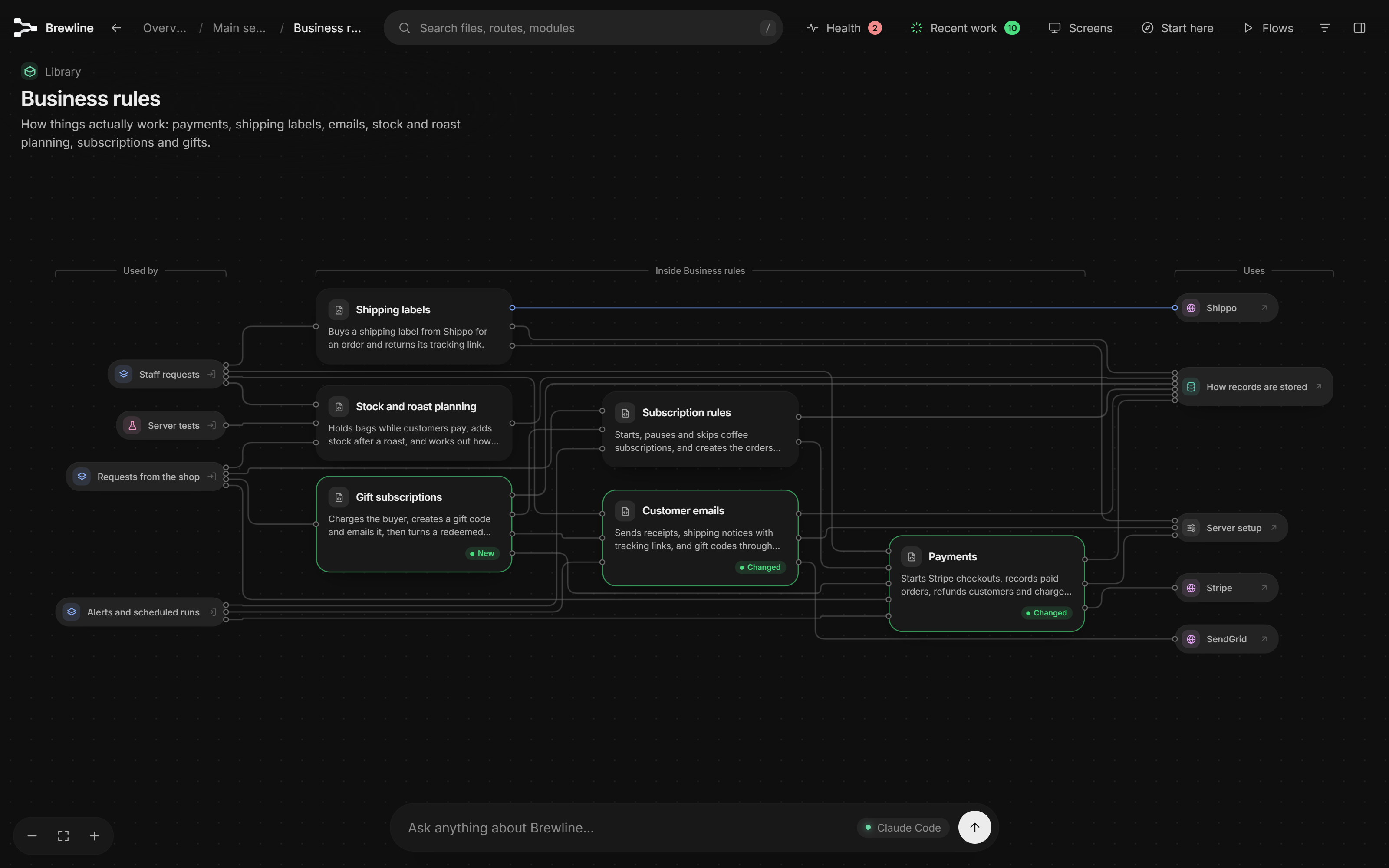 Hover over a card for a moment to see what kind of thing it is, where it lives, and how big it is. Hover over a line to see what it carries, for example which endpoints a screen calls.
## The side panel
Click anything to see it in the panel: its full description, what it's part of, what's inside it, what it's **used by** and what it **depends on**, its endpoints, and buttons to open it or ask about it. With nothing selected, the panel describes the current view, or the whole app at the top level.
Drag the panel's left edge to resize it.
## Header buttons
### Health
A count of important issues, and a plain-language list of problems the scan found:
- passwords and keys written into the code, or into a committed `.env` file;
- secret keys in settings the browser gets, like an OpenAI key in a `VITE_` or `NEXT_PUBLIC_` variable;
- Supabase tables with row-level security switched off, and database rules that let anyone change a table;
- Firebase rules that let anyone read or change your data or files, including "test mode" rules and when they run out;
- Stripe webhooks that act on payments without checking Stripe's signature, so anyone could fake one;
- servers that let any website call them, flagged as worth fixing when login cookies go along too;
- endpoints that let anyone change or read data without signing in;
- files nothing uses;
- files over about 1,000 lines, which AI struggles to edit safely.
Each issue has **Show on map**, which highlights the affected files and endpoints with notes, and **Fix with Claude** (or **Fix with Codex**, for a map made in Codex), which copies a ready-made prompt naming the exact files and lines and the safe fix. It's a quick automatic check, not a security audit. On a blueprint this button is **Review** instead (see [Blueprints](#blueprints)).
Health leaves password hashes and encrypted values alone (bcrypt, argon2, dotenvx, sops, Ansible Vault and similar), and goes by the value, so a backup with one value left unencrypted is still flagged. It can only recognise encryption that marks itself, and it can't read a `.env` file that git ignores. It also doesn't judge sign-in on endpoints in a route table (`"GET /api/orders": listOrders`) or on Django endpoints, because the check isn't where it can read it for each route, so no report there doesn't mean those endpoints are protected.
It also leaves alone what's public on purpose, as long as it only reads: feeds and files for crawlers and AI tools (`rss.xml`, `llms.txt` and similar), addresses your project lists in its `llms.txt` or allows in its `robots.txt`, responses marked `Cache-Control: public`, and Next.js `GET` routes that read no database, session or server secret, even through what they import. Endpoints that change data are always checked. Payload CMS's own API routes count as checked, because Payload applies its access rules, so check those rules yourself. A token passed to a browser tracker's script is left alone too, since every visitor already has it.
If an issue is wrong, press **Not a problem** and add a reason if you like. It moves to the bottom of the list and out of the count, and stays that way when the map is rebuilt. Editing elsewhere in the file won't bring it back, but it does show again if the same check finds something new in that file or the issue changes severity. **Show again** undoes it. Exported copies keep the issue set apart but leave your reason out.
You can also tick the box to tell the Floorplan developer. That opens a GitHub issue for you to read, edit and send yourself, with the check's name and title, the kinds of files involved and your note. A title can name a file or an endpoint, and the preview shows you exactly what will go. It never includes your code or any values, and nothing is sent unless you send it.
### Recent work
Appears when Claude or Codex has just changed things. It lays the changed cards out on one board, with what you asked for, a summary of what was done, and a note on every card. Elsewhere on the map, changed cards have a green ring and a **Changed** or **New** tag, and the parts that contain them show **N changed**, so you can follow the green down from the top level.
### Screens
Every page of your app that Floorplan detected. Pick one to see everything behind it: its components, the requests it makes, the server code that answers them, the data they touch, and outside services.
### Export
Saves a copy of the map to send to anyone, such as a teammate, a client, or someone without Claude or Codex. It's one HTML file that opens in any browser with nothing to install. The copy has the whole map, search, screens, the tour and flows, but no Ask bar, no **Fix with Claude** or **Build this** requests, no editor links, and nothing about your computer, like its folder path. An **Exported** label beside the title shows the date, and a small **Made with Floorplan** link at the bottom leads here.
You choose what goes in:
- **Flows and the tour**, and **notes pinned to files**, on by default;
- **Recent work**, off by default;
- **Health check** (or the **design review** on a blueprint), off by default. Health lists the endpoints anyone can use and where secrets sit in the code (never their values), so only include it for people you trust.
Every copy shows how the app fits together (each part, file and endpoint, with names and descriptions), but not your source code. Export needs the map's server; on a map opened straight from its file, the button shows the command to run instead. You can also ask Claude or Codex to "export the floorplan".
### Start here
Replays the one-minute tour that runs the first time you open a map.
### Flows
Guided walkthroughs of the app's main jobs, like "Checkout" or "Sign up". A flow moves across the board step by step, with a narration at each stop. Use **←** / **→** or the flow bar's buttons to step through, and **Esc** to stop.
**Request a new flow** lets you describe one in plain words ("how does a refund get back to the customer's card?"), and Claude or Codex traces it through the code. Flows you request are saved with the map.
### Filters
- **Show connections:** turn kinds of lines on or off (Uses, Web requests, Background jobs and so on).
- **Show technical detail:** switch to developer terms (Imports, HTTP, Queues), and show each file's exports.
- **Highlight recent work:** turn the green highlights off for a clean map.
## Asking questions
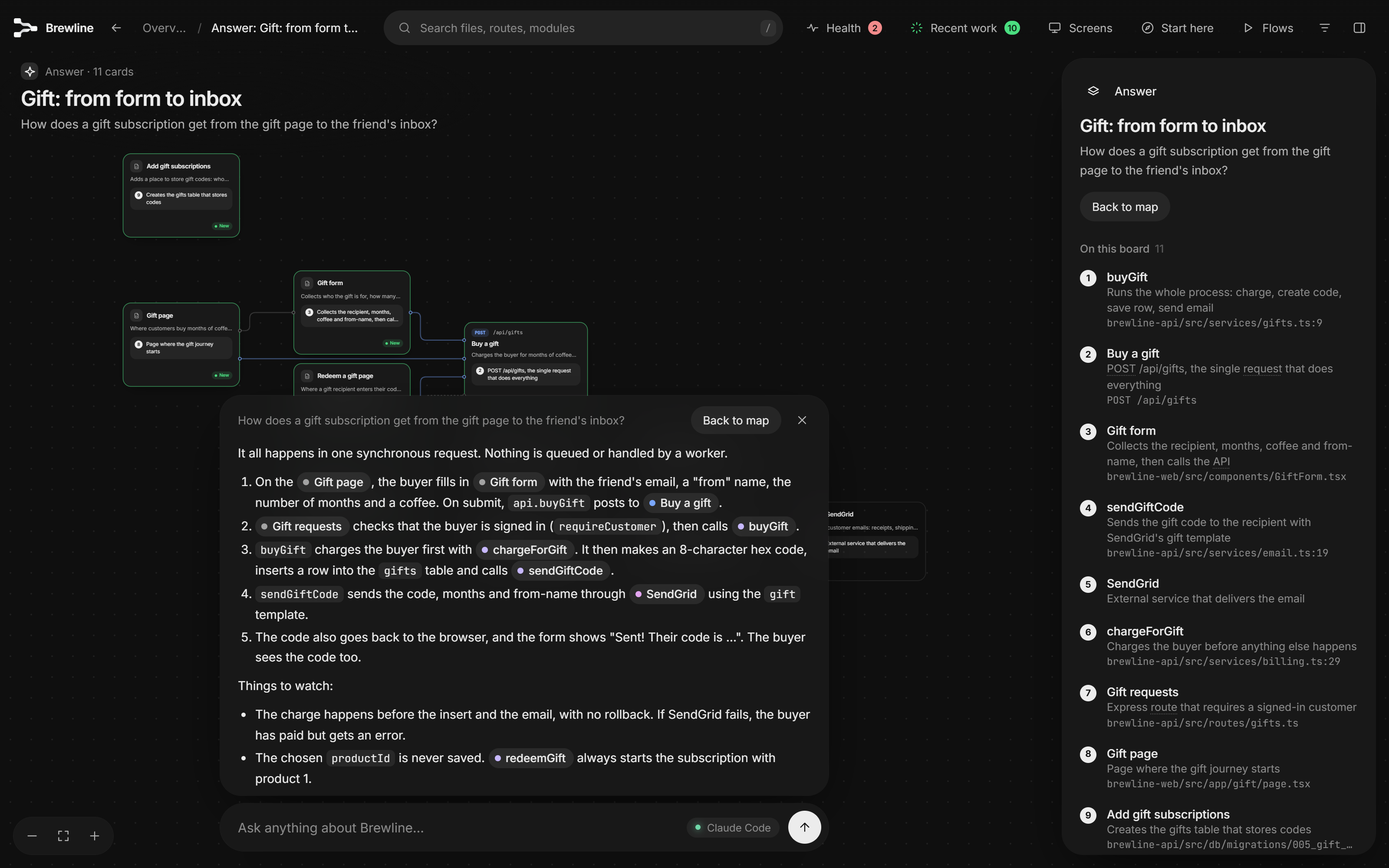 Type into the Ask bar at the bottom and press **Enter**. Claude or Codex answers in a few sentences and shows an **answer board**: just the cards involved, how they connect, a short note on each, and a numbered walkthrough when the answer is a sequence. Follow-up suggestions appear under the answer. **Back to map** returns to where you were.
- **Right-click → Ask about this** on any card or line adds it to your question as context.
- The label in the bar shows what's answering. **Claude Code** means the Claude Code CLI and **Codex** means Codex, both running on your computer and able to read your source code. **Claude** means the map was opened in the Claude app, which answers from the map alone.
- If neither is available, the bar explains what's needed. See [Troubleshooting](troubleshooting.md).
## Blueprints
Everything above describes a map of existing code, which is what most maps are. A blueprint is the other kind: a map planned from a PRD or a spec before the code exists (see [Getting started](getting-started.md#plan-something-you-havent-built-yet)). It works the same way, with a few differences:
- **Dashed cards and a Blueprint label** beside the board's title show it's a plan. With nothing selected, the panel says which document it was planned from, the stack and the assumptions made.
- **Review** replaces Health. It's a design review of the plan: endpoints anyone could use to change data, endpoints with no decision on who may use them, questions the PRD leaves open, and pieces nothing connects to. Each item has **Show on map** and **Resolve on the map**, which switches the Ask bar to Change and fills in a request to settle it. For an open question, type your answer after "My answer:" and press **Enter**. (When the map isn't served, the button is **Resolve with Claude** or **Resolve with Codex**, a request to paste instead.)
- **Who may use it:** an endpoint's panel says whether anyone, signed-in people (and which ones), your own team, or another service may use it.
- **Build it:** every part and file has **Build this with Claude** (or Codex), which shows a request to build just that piece the way the plan describes (its files, endpoints, what it relies on and any open questions), ready to copy into Claude Code or Codex.
- **Ask and Change:** the Ask bar has a switch. **Ask** answers questions from the plan and the PRD. **Change** takes requests like "also plan out refunds" or "drop the admin page". It takes a few minutes; then the map redraws, the new and changed cards are highlighted as recent work, and a summary offers **Show N changes**, **Undo** and suggested next changes.
## Right-click menus
| On | You get |
|---|---|
| a card | Open · Show on the map · Ask about this · Show details · Copy name · Copy path (or endpoint) · Open in editor |
| a line | Ask about this connection · Show details |
| the background | Ask about this view · Up one level · Back to overview · Fit to screen · Search |
**Open in editor** opens the file in VS Code (or another editor that handles `vscode://` links) at the right line.