
 ### To Picnic or Jumbo
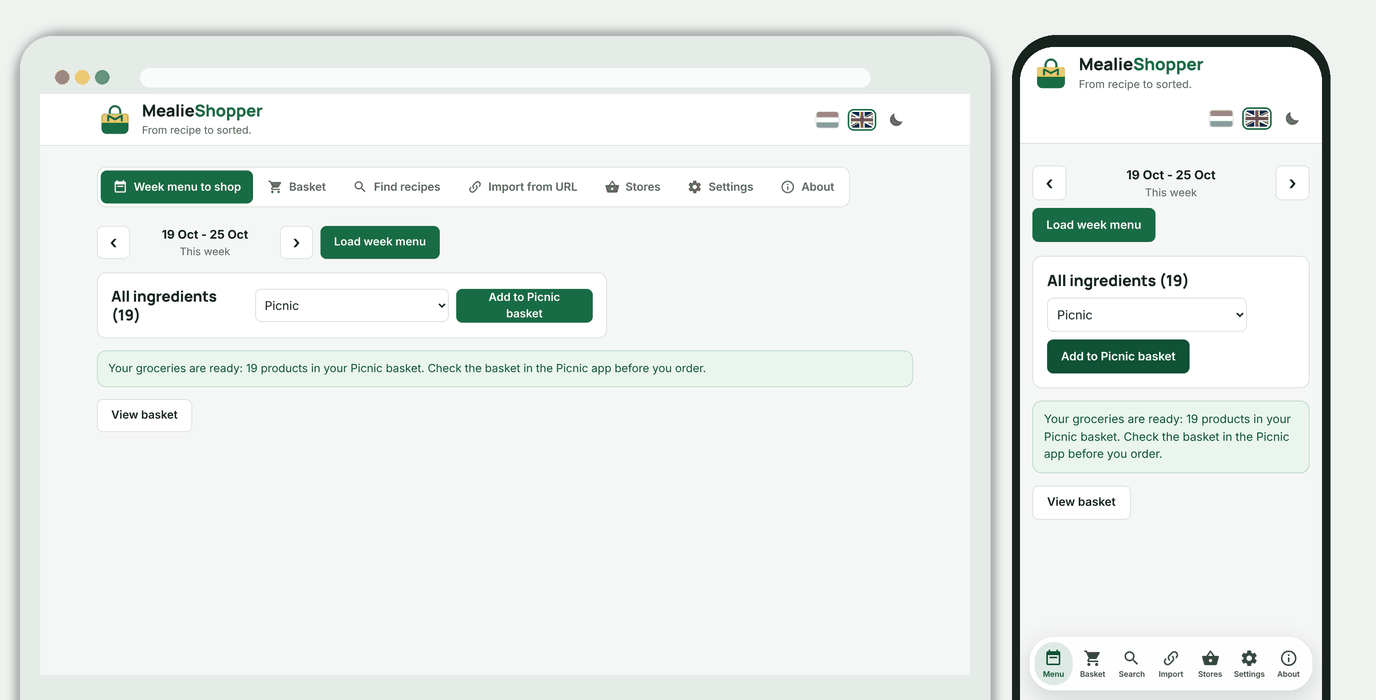
If Picnic or Jumbo is linked, you choose next to the button which supermarket the week menu goes to. The products go straight into the basket at that store; **View basket** takes you to the Basket tab. An order is never placed.
### To Picnic or Jumbo
If Picnic or Jumbo is linked, you choose next to the button which supermarket the week menu goes to. The products go straight into the basket at that store; **View basket** takes you to the Basket tab. An order is never placed.
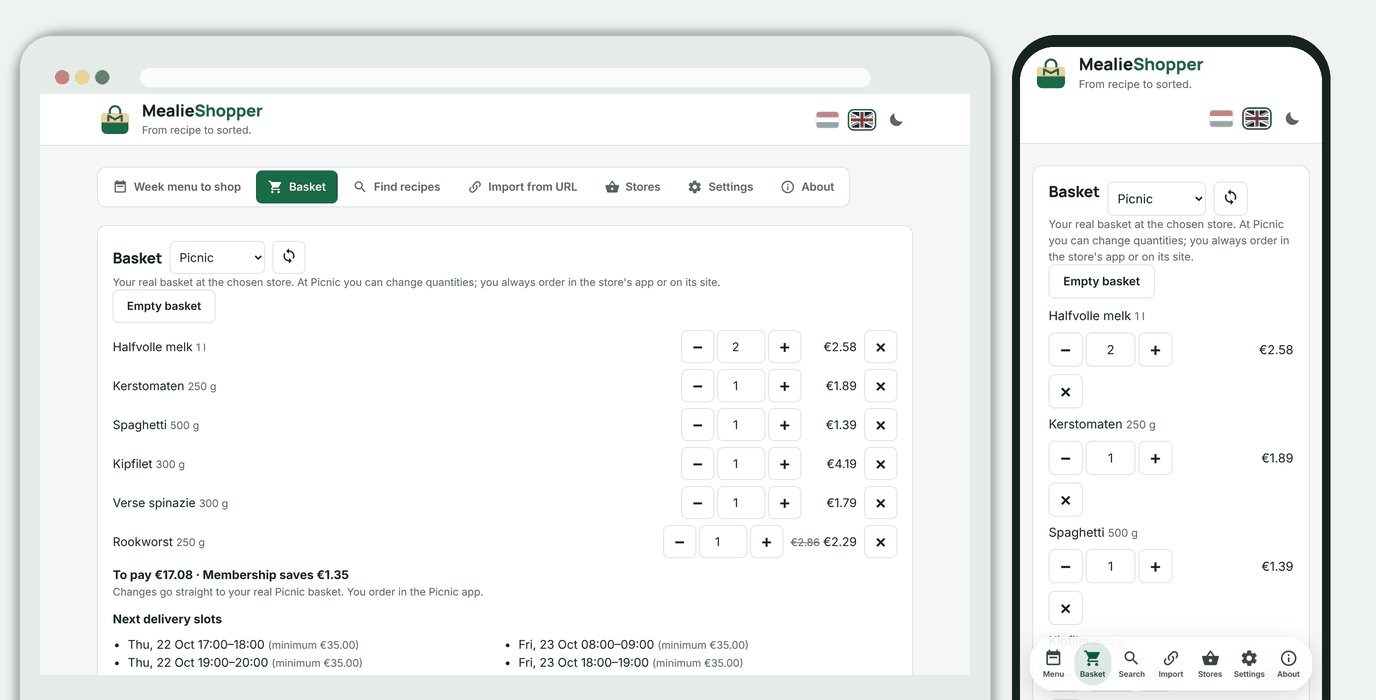
 ### Basket
One tab for your basket at every linked store, chosen in the list at the top. At Albert Heijn that is the shopping list the week menu writes to.
### Basket
One tab for your basket at every linked store, chosen in the list at the top. At Albert Heijn that is the shopping list the week menu writes to.
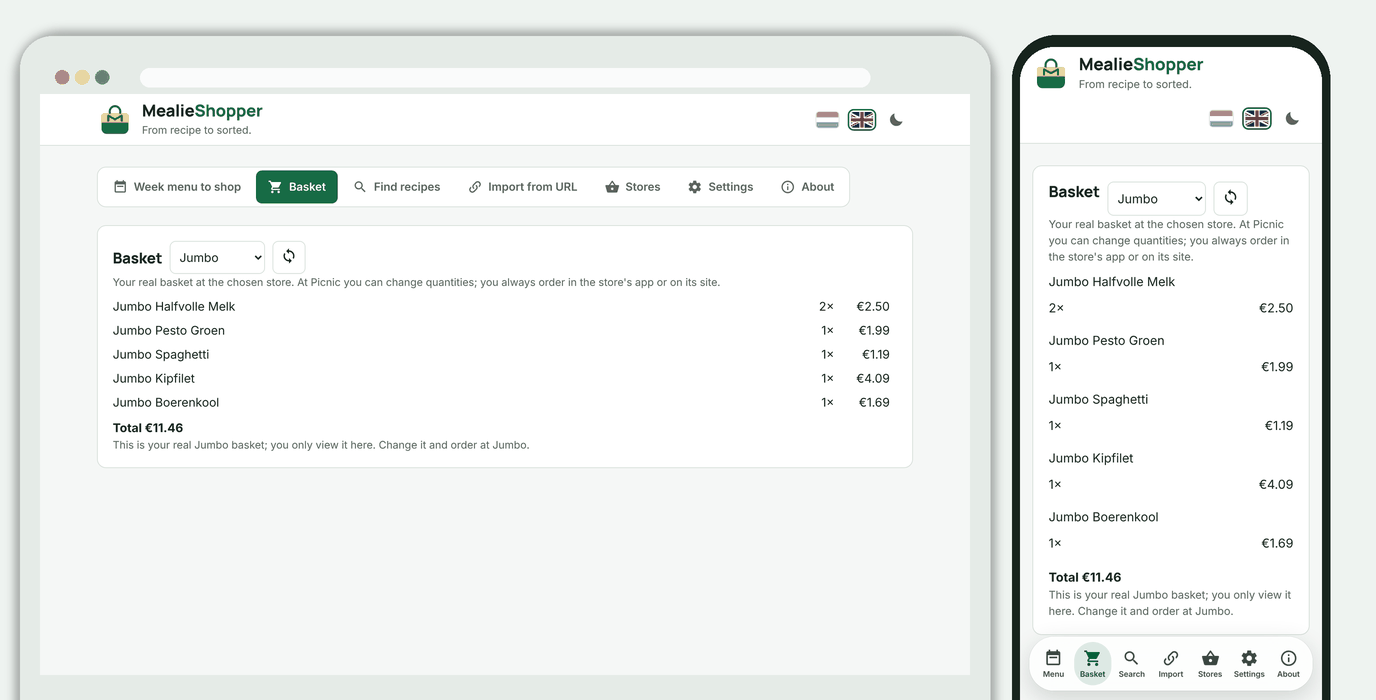
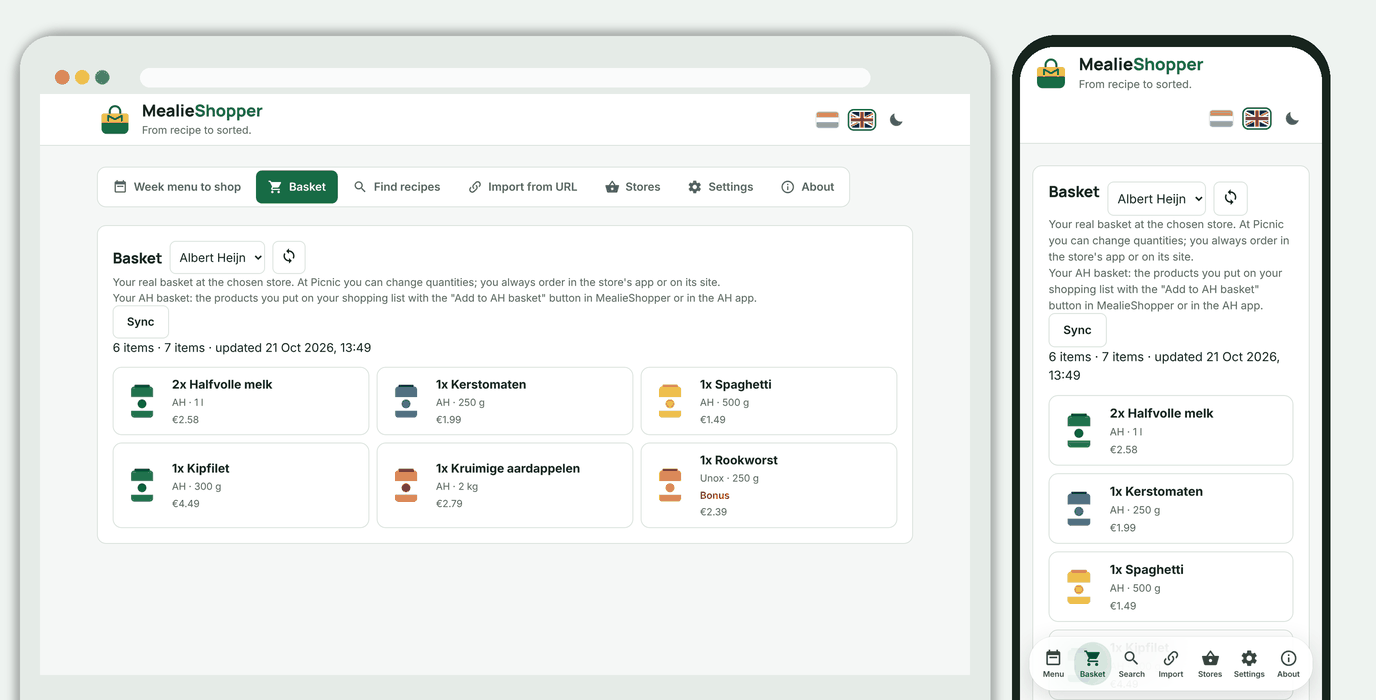 At Picnic you change quantities, remove products or empty the basket, and below it you see what you pay, what your membership saves and the next available delivery slots. Jumbo shows the basket read-only.
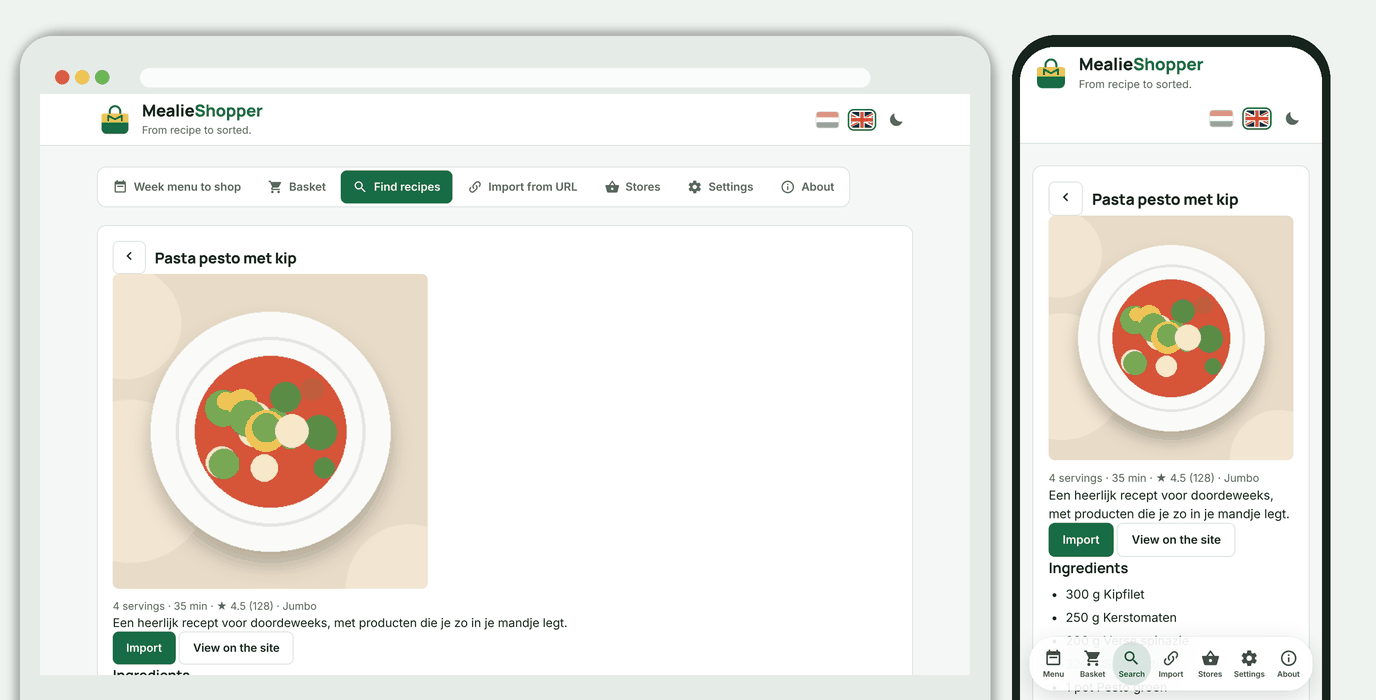
 ### Find recipes
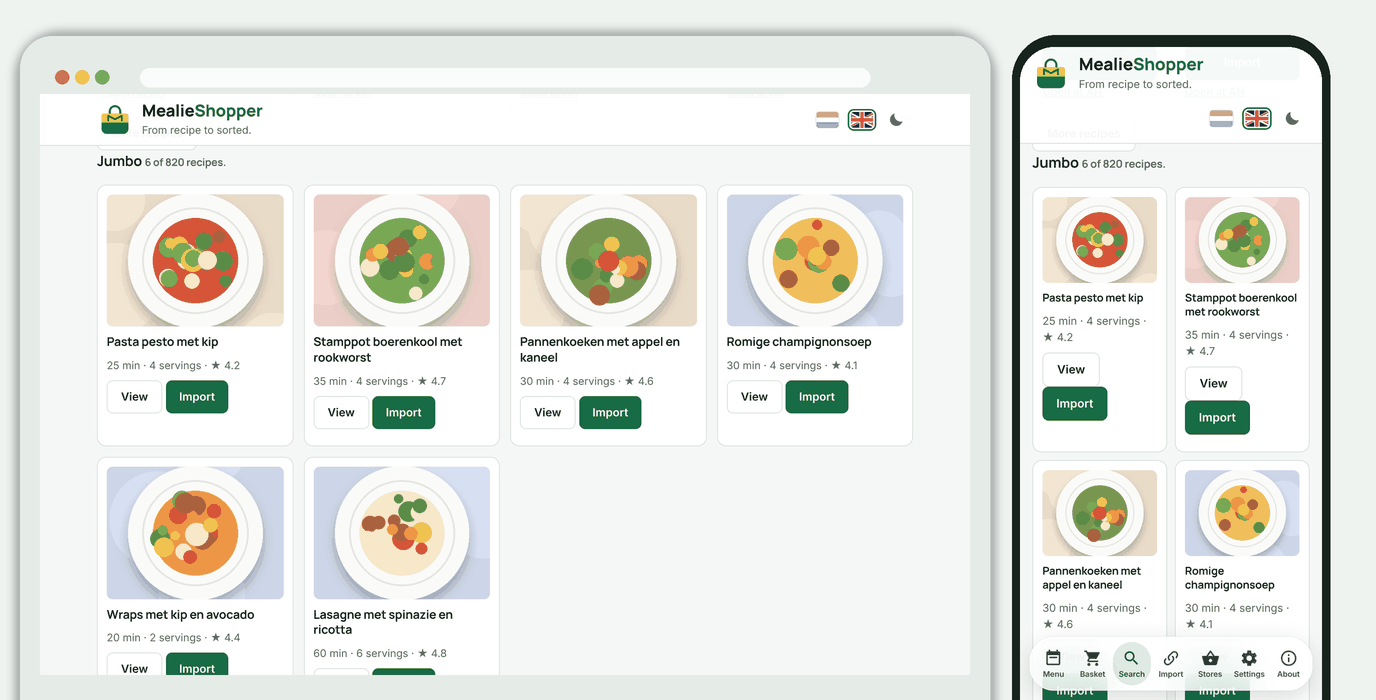
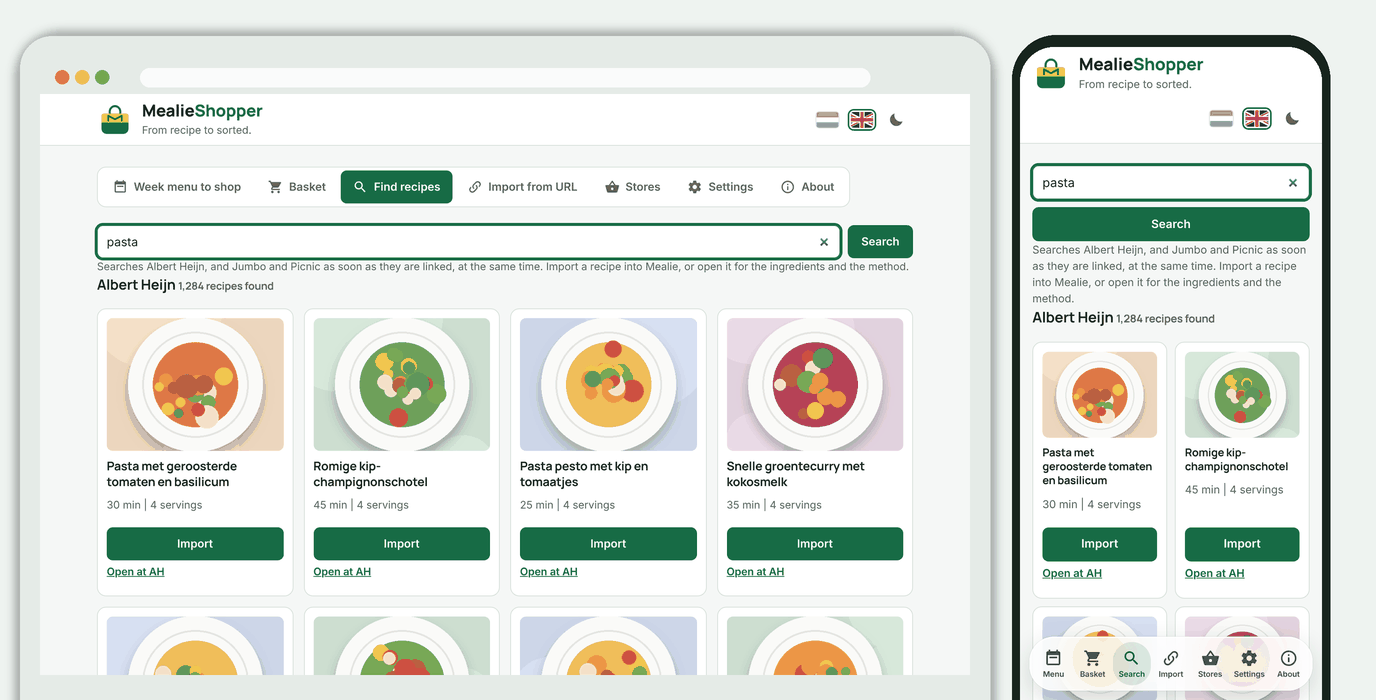 If Jumbo and Picnic are linked, you search all three at once; the results are grouped per store. At Jumbo and Picnic, **View** opens the recipe in the same place, with the ingredients and the method.
 ### Choosing a store
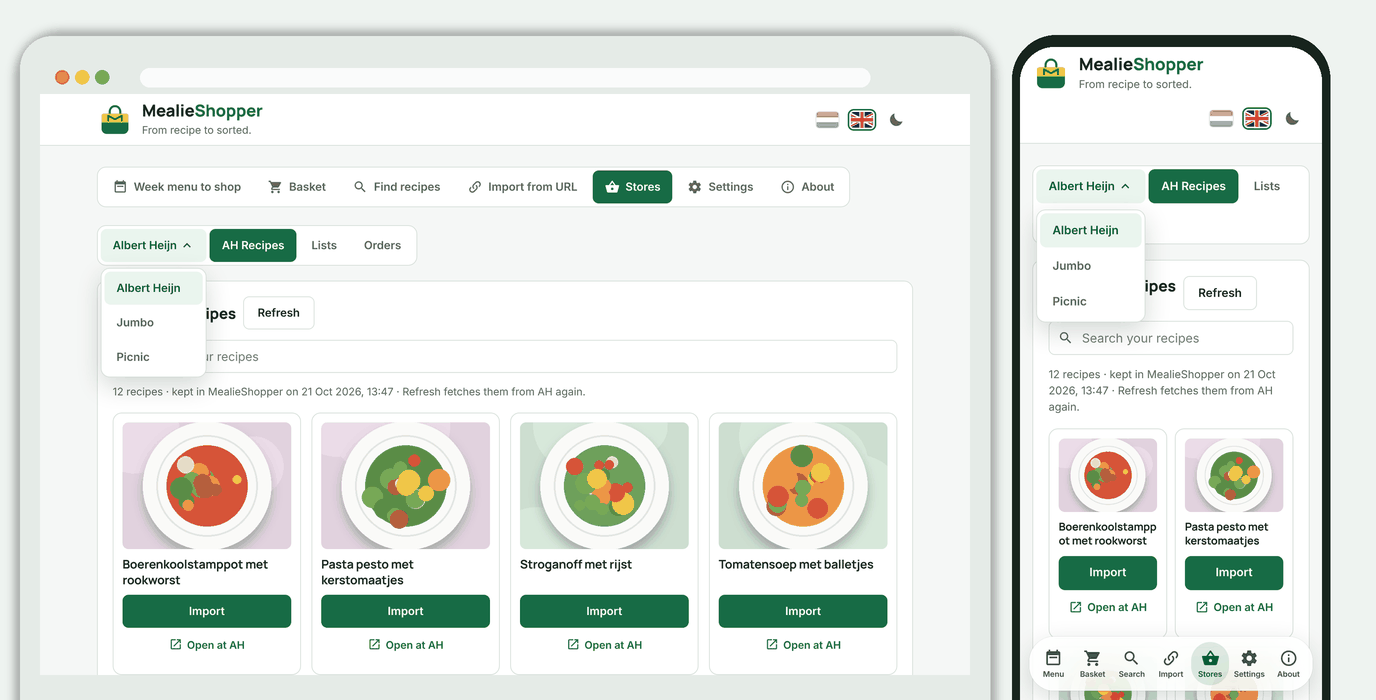
Under **Stores** the store menu is the first button in the tab bar. It shows the chosen store and opens with the linked stores: Albert Heijn, Jumbo and Picnic. With one linked store the menu is hidden.
### Choosing a store
Under **Stores** the store menu is the first button in the tab bar. It shows the chosen store and opens with the linked stores: Albert Heijn, Jumbo and Picnic. With one linked store the menu is hidden.
 ### Stores: your saved AH recipes
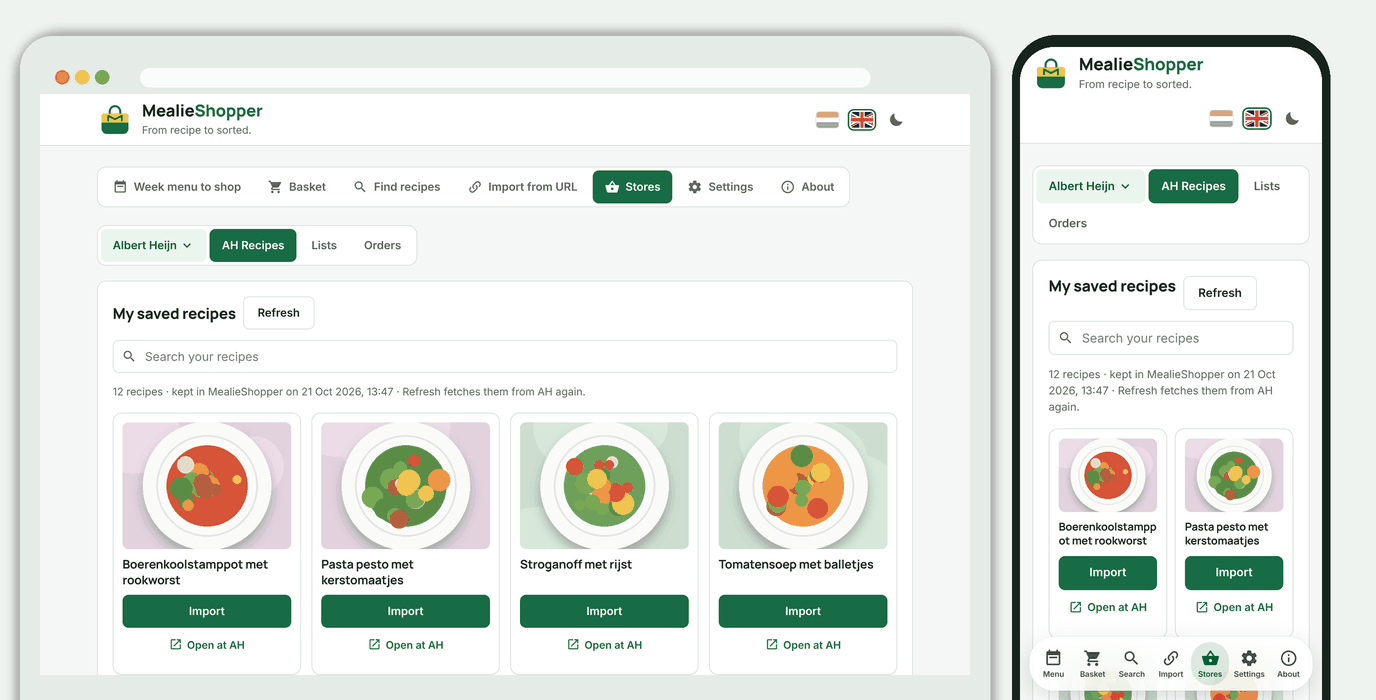
Your saved Allerhande recipes live in MealieShopper, at least two side by side on a phone. Search your recipes at the top.
### Stores: your saved AH recipes
Your saved Allerhande recipes live in MealieShopper, at least two side by side on a phone. Search your recipes at the top.
 ### Stores: your lists
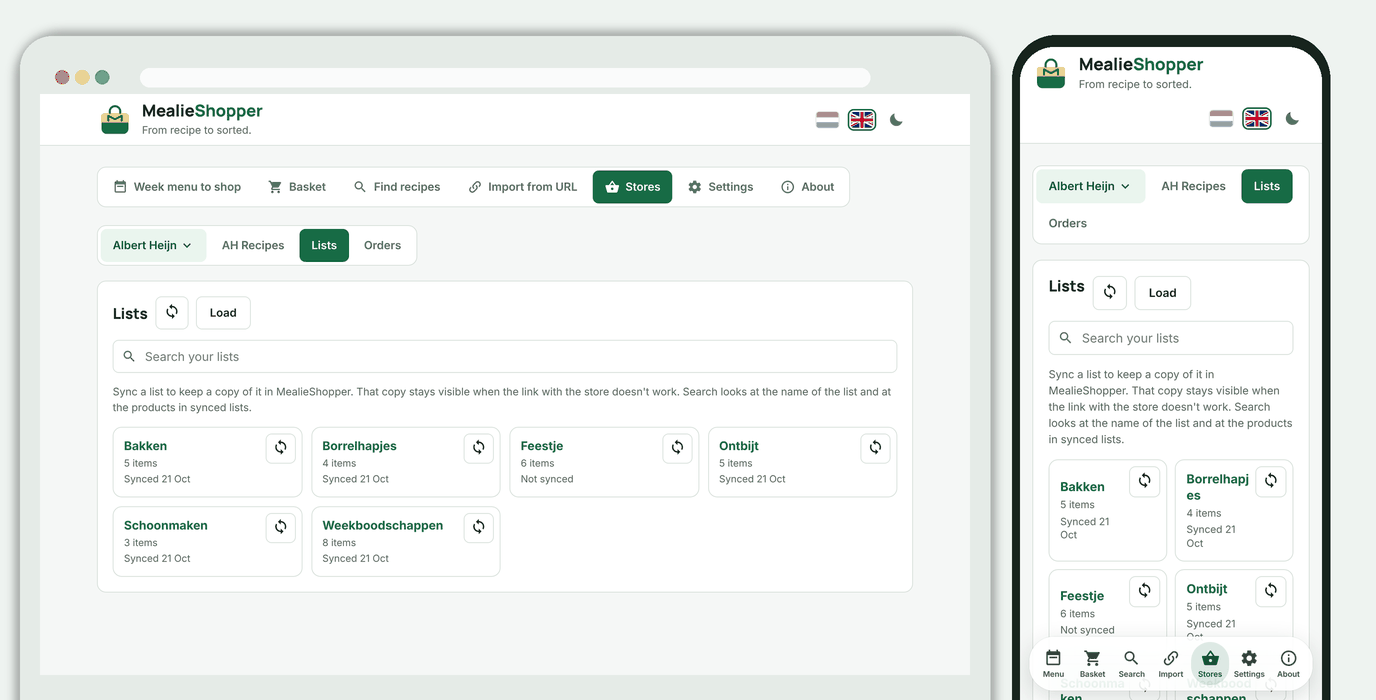
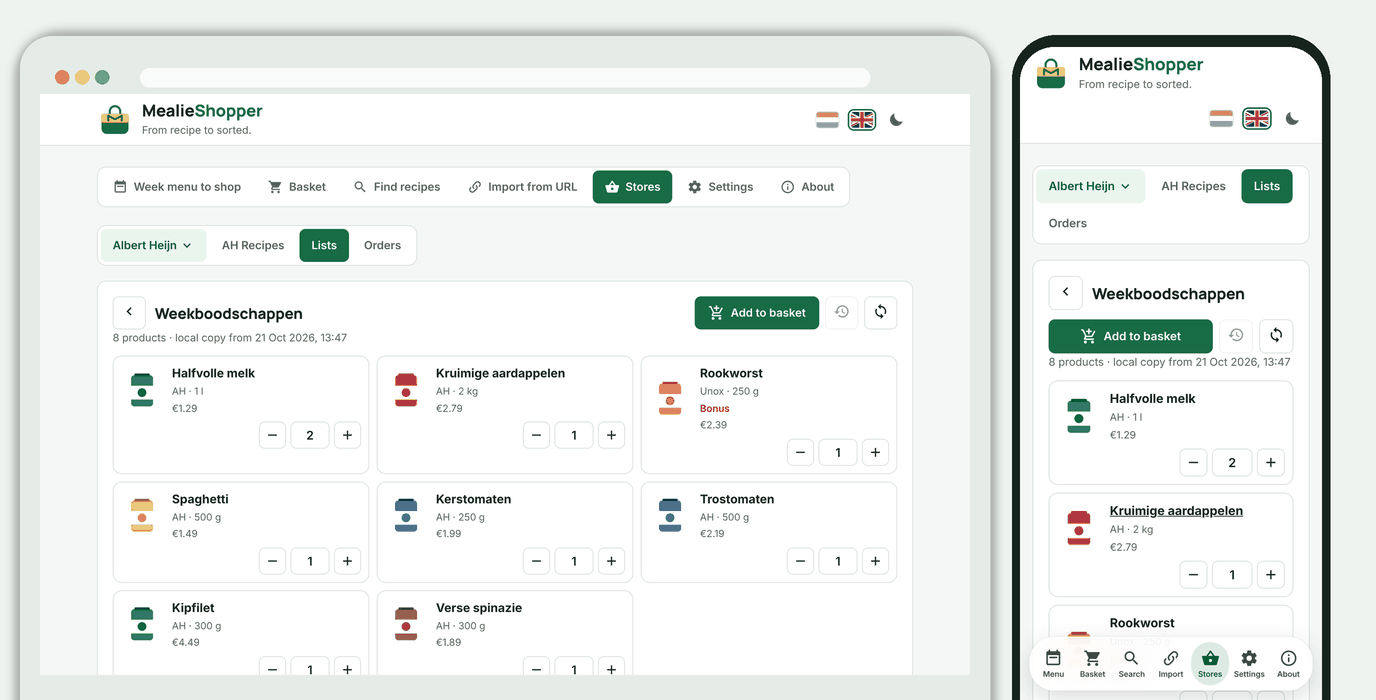
Your favourite lists as cards. Sync them to MealieShopper, search by name or by product, and open a list in the same place. In an opened list you put the whole list in your basket with one press on **Add to basket**, and you change the quantity per product.
### Stores: your lists
Your favourite lists as cards. Sync them to MealieShopper, search by name or by product, and open a list in the same place. In an opened list you put the whole list in your basket with one press on **Add to basket**, and you change the quantity per product.
 ### Stores: AH orders and receipts
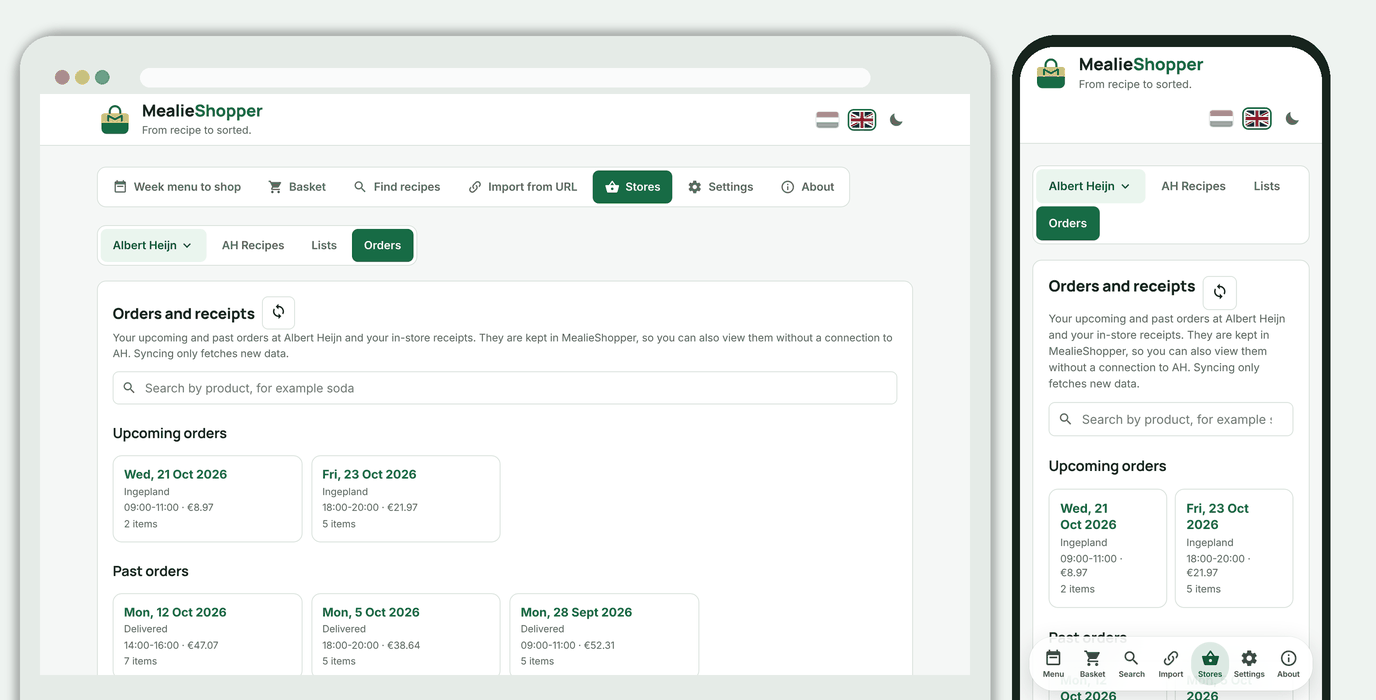
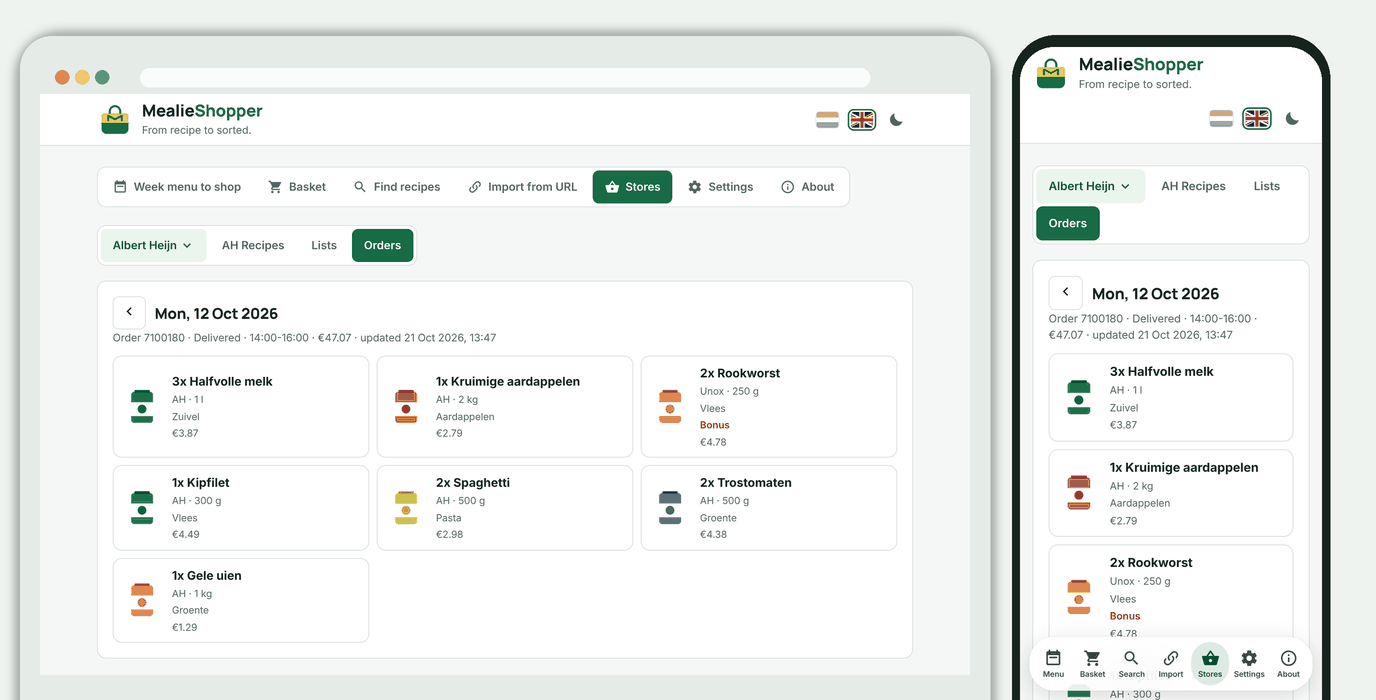
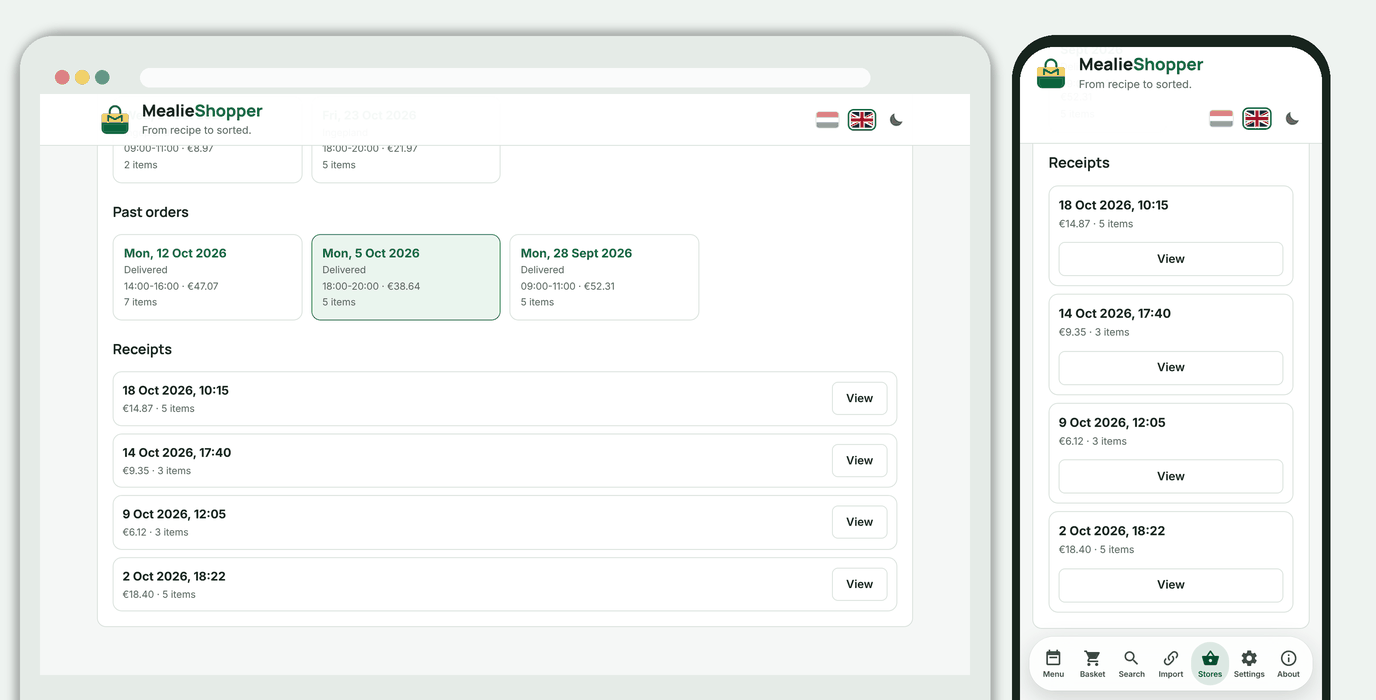
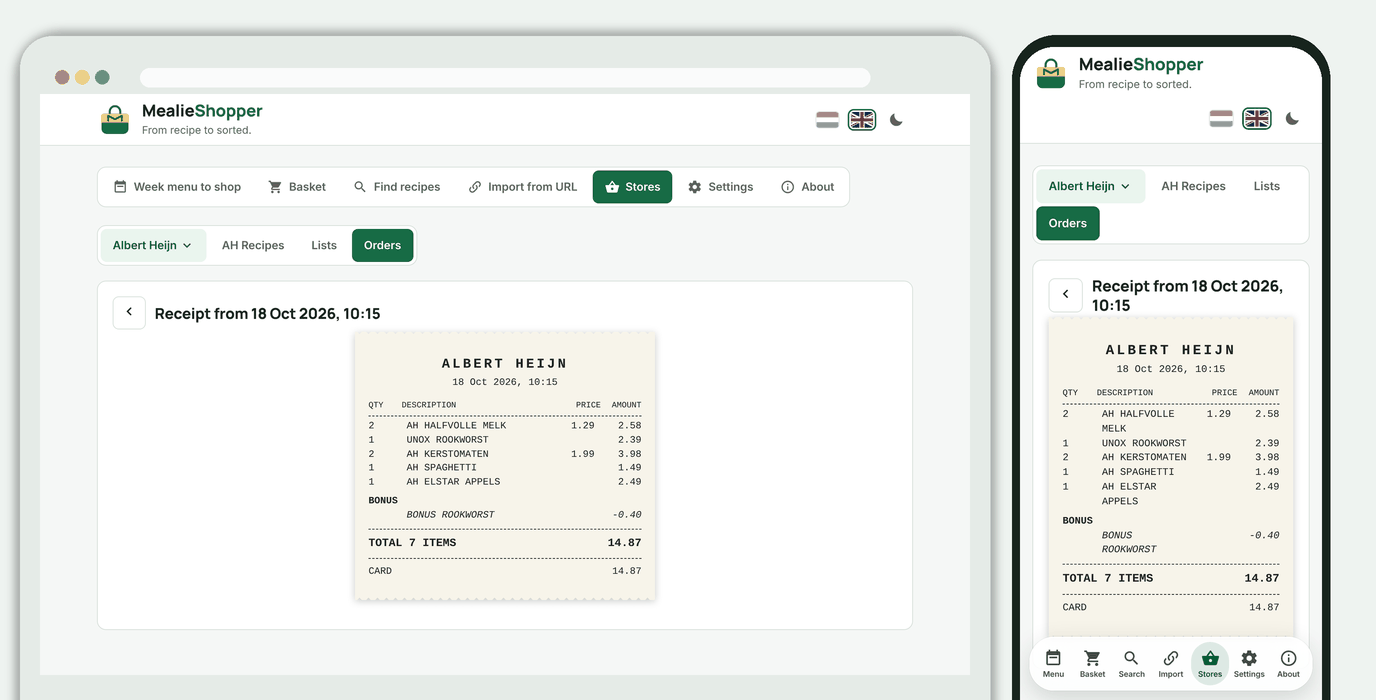
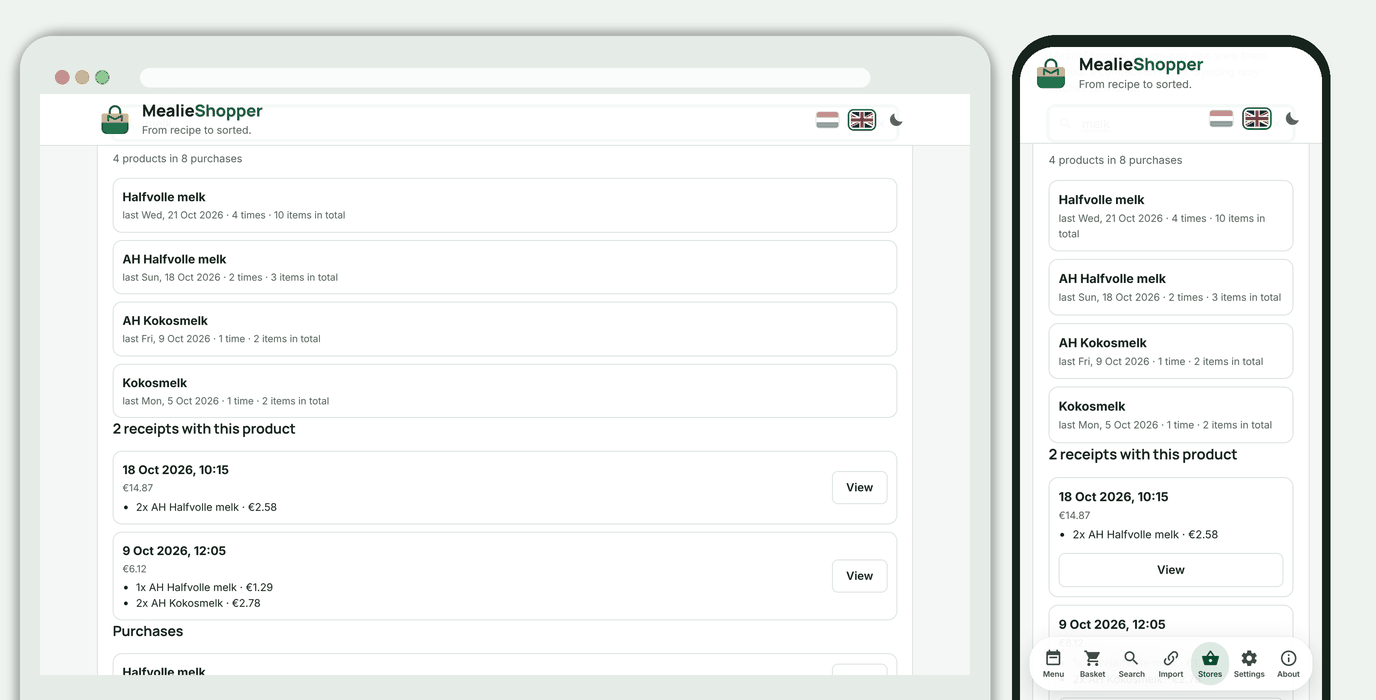
Your **receipts** from the shop, shown the way they look on paper: quantity, description, price and amount, the bonus lines, the total and how you paid. Everything is kept in a local copy; the search field searches all your purchases and shows when and how often you bought something, and **which receipts** a product is on (search for "soda", for example); open such a receipt and the matching lines are highlighted. Above them are your **upcoming orders** (still open, with their delivery time) and your **past orders** (delivered, kept for good); open an order for its products. Your AH basket is under the Basket tab.
### Stores: AH orders and receipts
Your **receipts** from the shop, shown the way they look on paper: quantity, description, price and amount, the bonus lines, the total and how you paid. Everything is kept in a local copy; the search field searches all your purchases and shows when and how often you bought something, and **which receipts** a product is on (search for "soda", for example); open such a receipt and the matching lines are highlighted. Above them are your **upcoming orders** (still open, with their delivery time) and your **past orders** (delivered, kept for good); open an order for its products. Your AH basket is under the Basket tab.
 ### Stores: Picnic
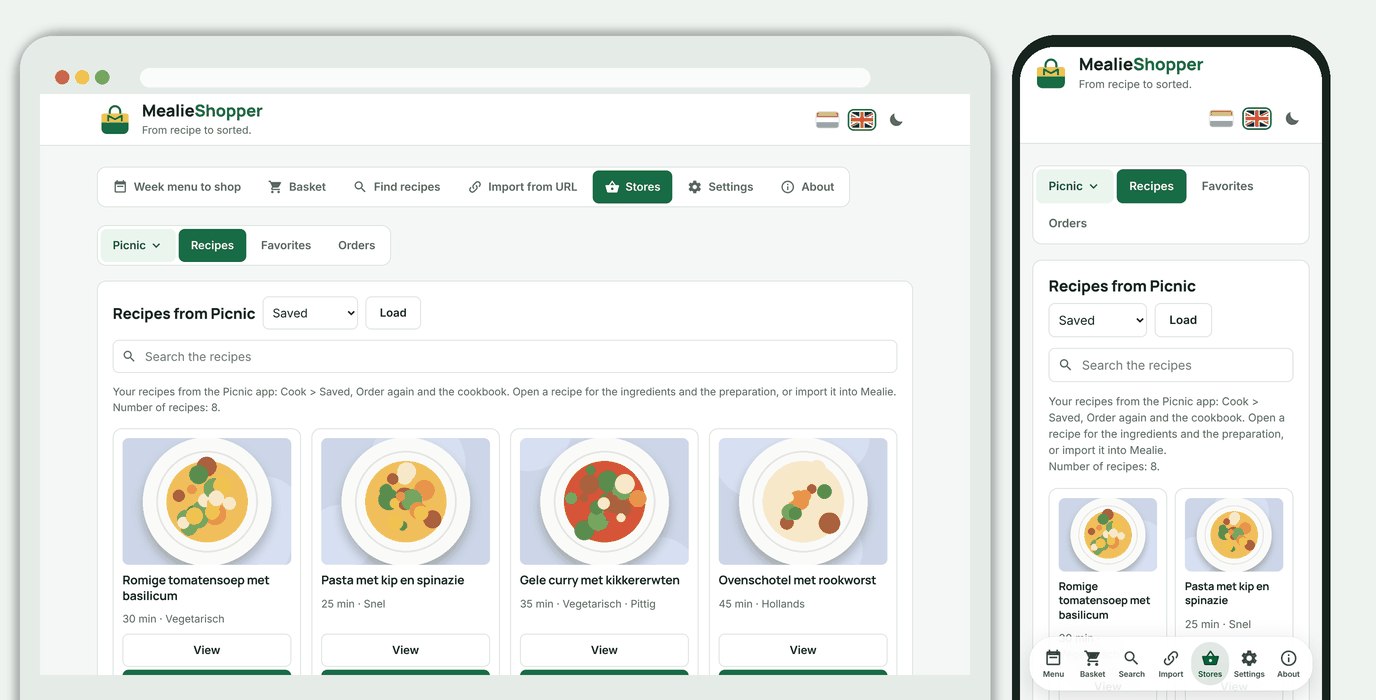
Choose **Picnic** in the store menu; three tabs appear. **Recipes** shows your recipes from the Picnic app (*Saved*, *Order again* and the *Cookbook*) as cards; open a recipe for the ingredients and the method, or import it into Mealie.
### Stores: Picnic
Choose **Picnic** in the store menu; three tabs appear. **Recipes** shows your recipes from the Picnic app (*Saved*, *Order again* and the *Cookbook*) as cards; open a recipe for the ingredients and the method, or import it into Mealie.
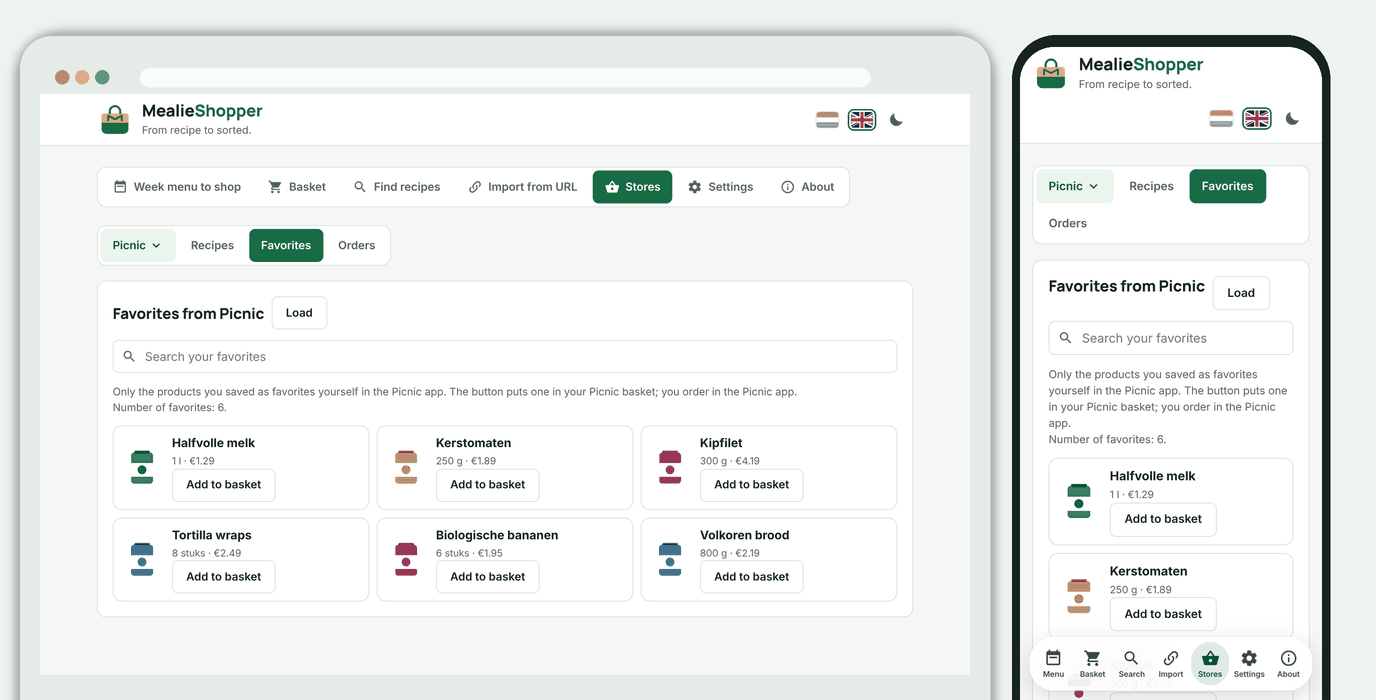
 **Favorites** shows the products you marked as favourite in the Picnic app, with a button to put one in your Picnic basket.
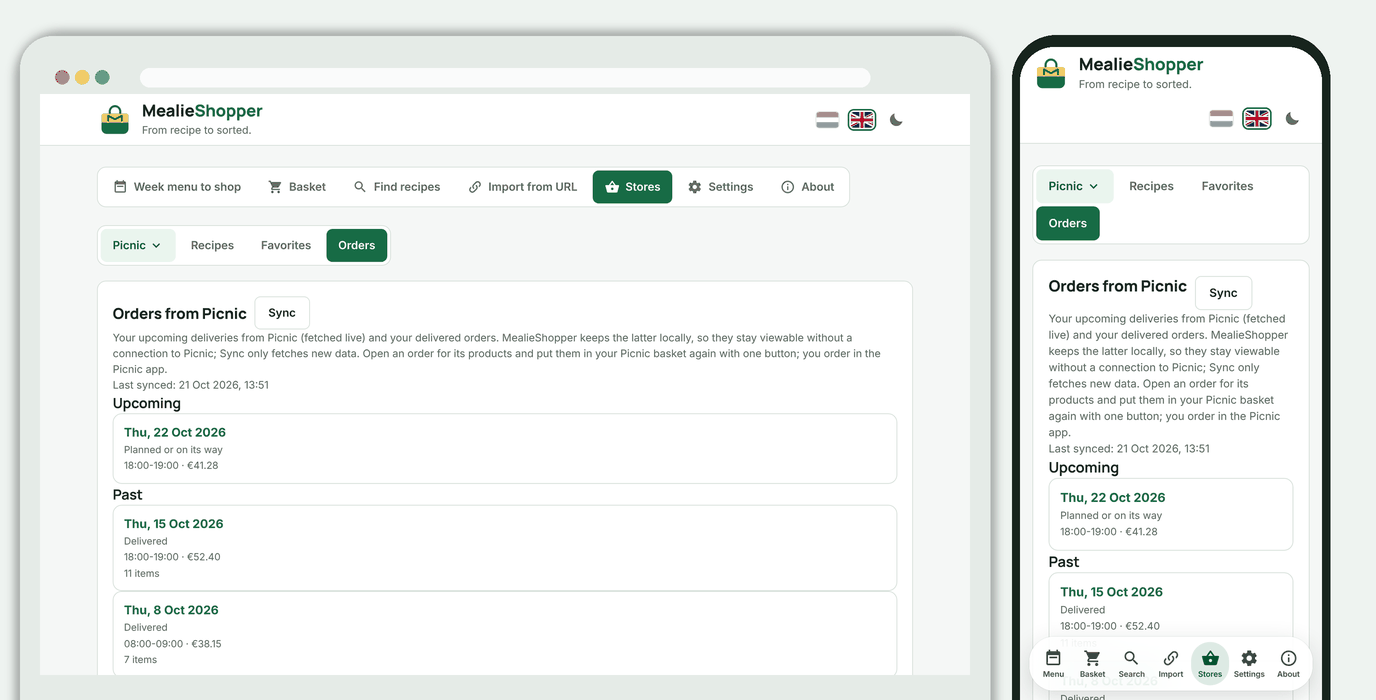
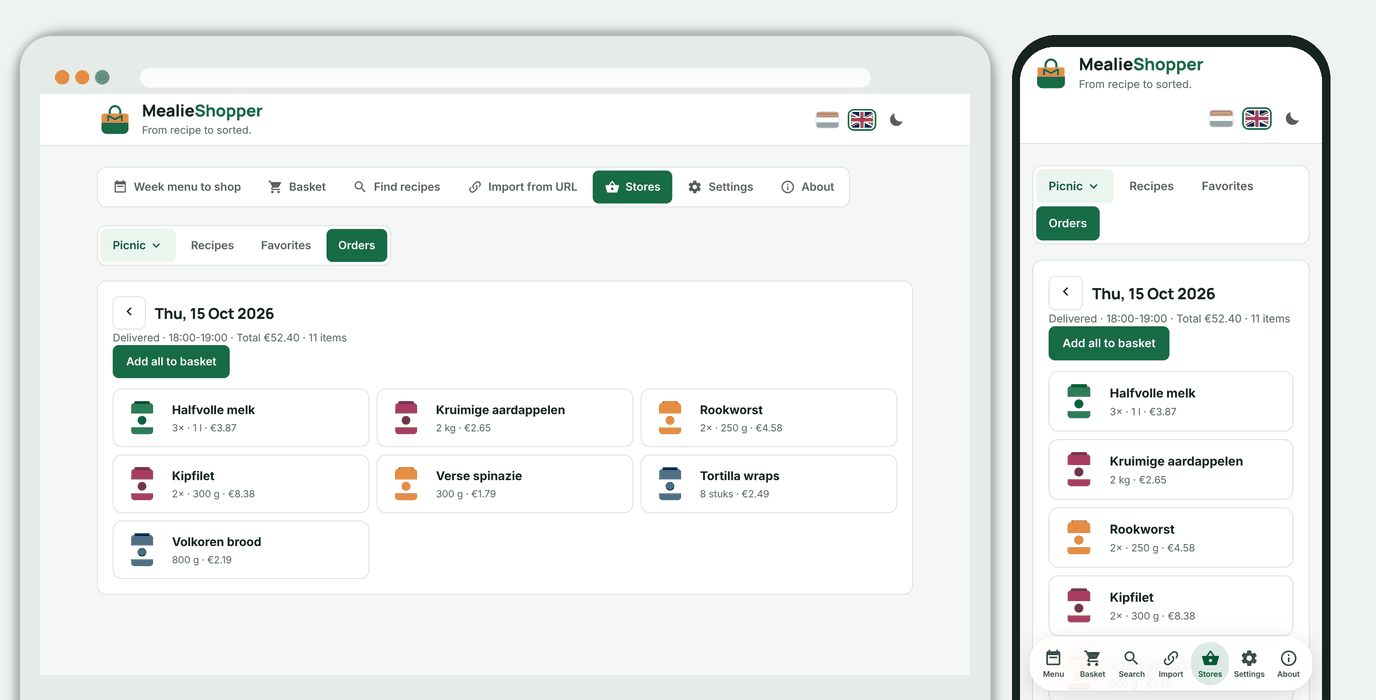
 **Orders** shows your upcoming deliveries (fetched live) and your delivered orders, which you keep locally with *Sync*. Open an order for its products and put them in your Picnic basket again with one button.
 ### Stores: Jumbo
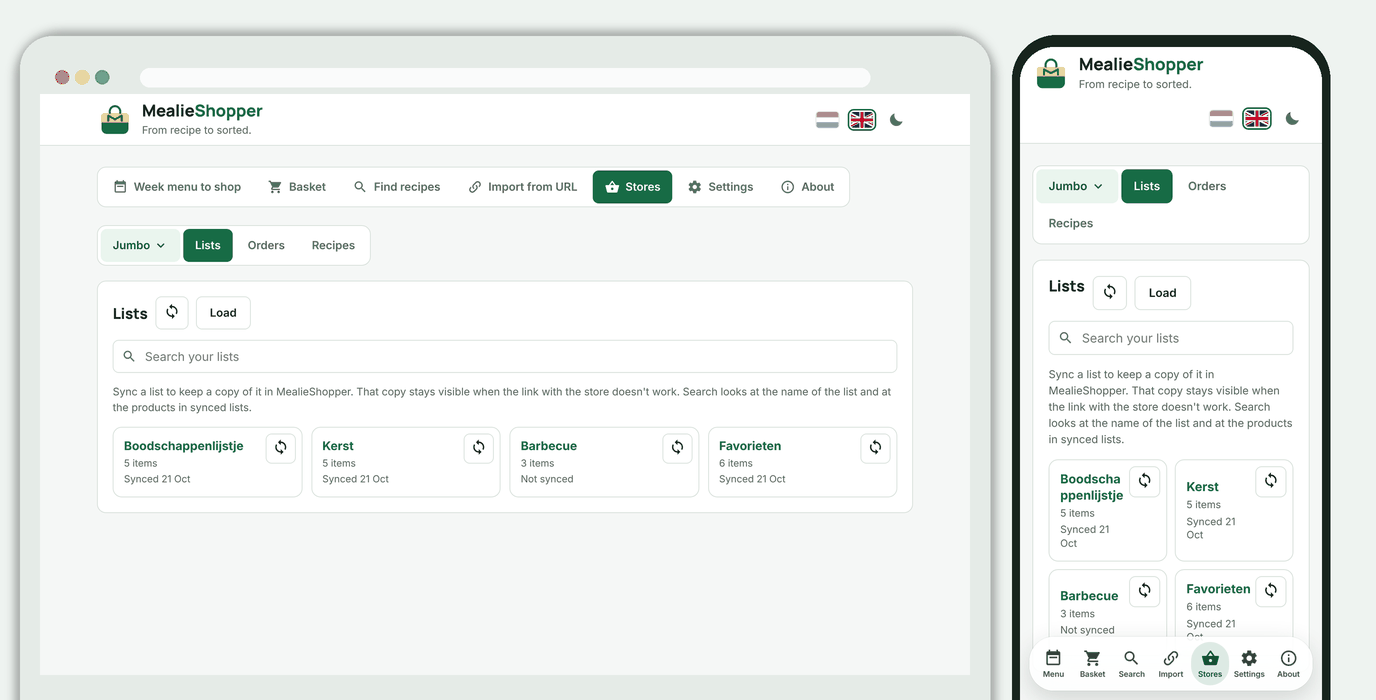
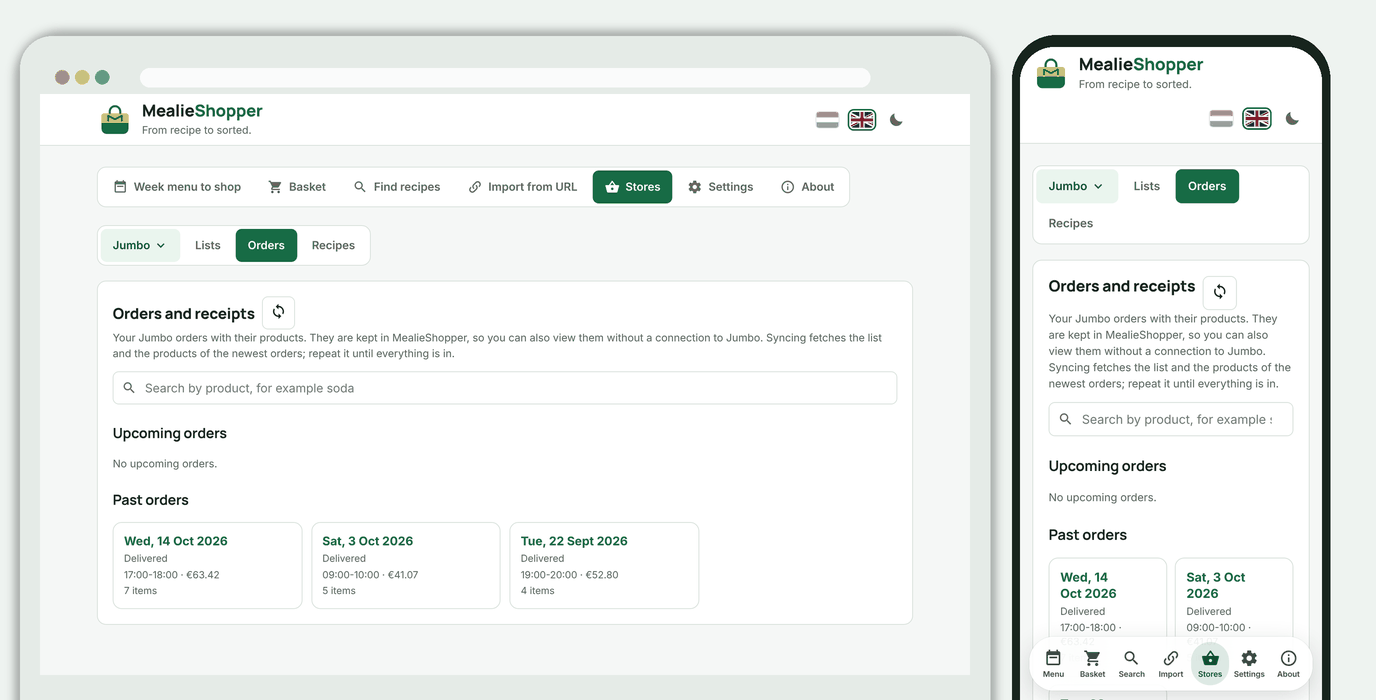
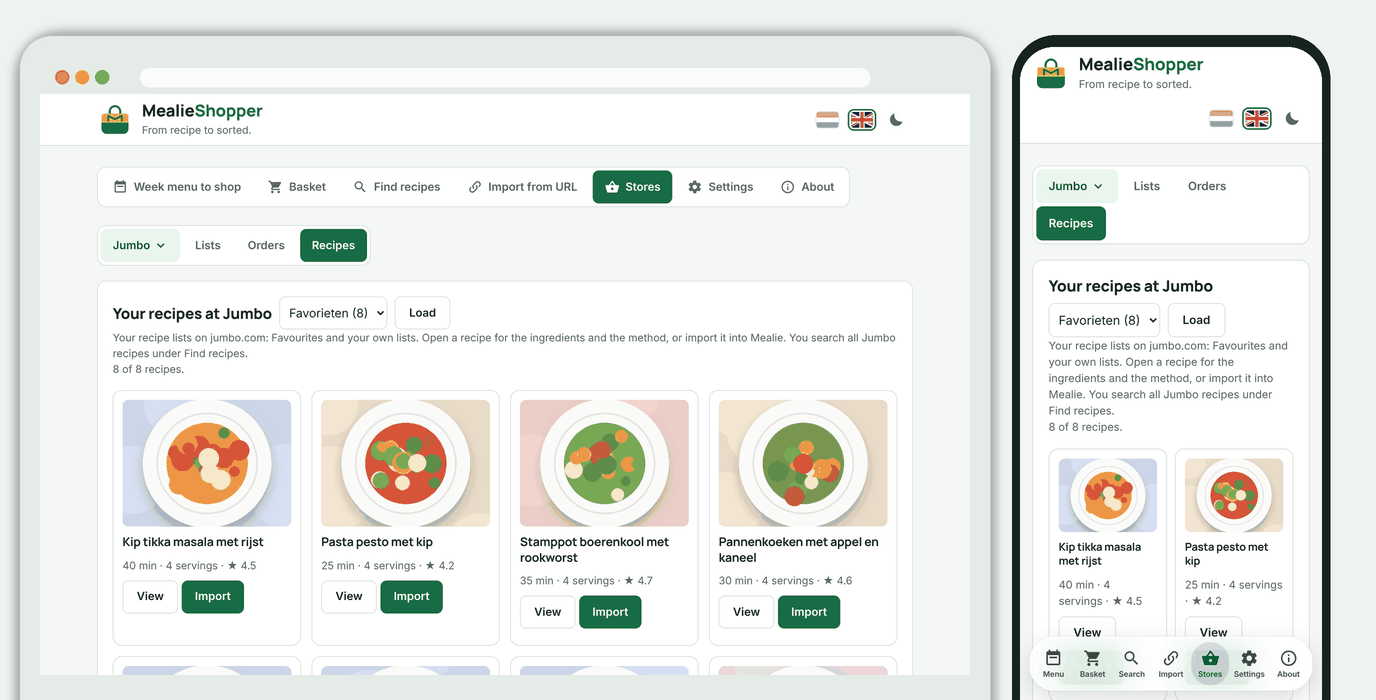
Choose **Jumbo** in the store menu. You see your **lists** (your own lists, Favourites and the shopping list), your **orders** and your **recipe lists**.
### Stores: Jumbo
Choose **Jumbo** in the store menu. You see your **lists** (your own lists, Favourites and the shopping list), your **orders** and your **recipe lists**.
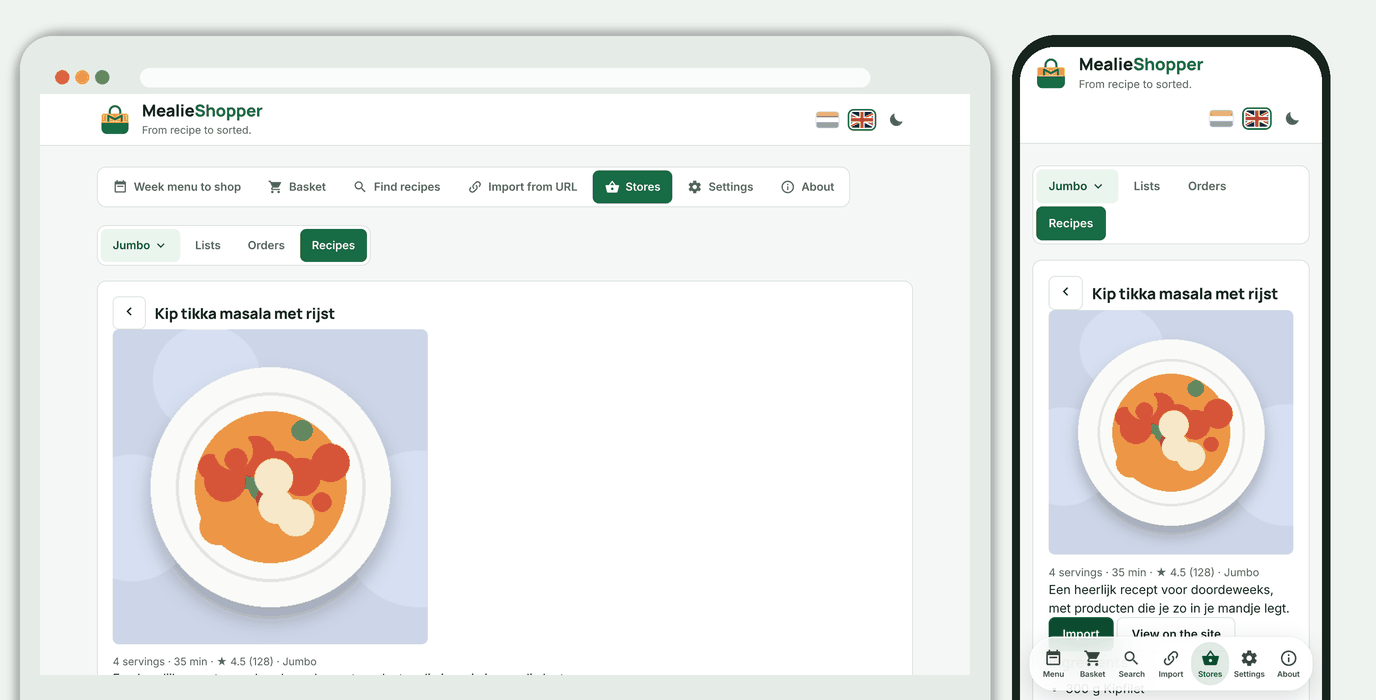
 Under **Recipes** you choose Favourites or one of your own lists; `View` shows the ingredients, the method and the nutrition values, and `Import` puts the recipe in Mealie.
 ### Dark theme
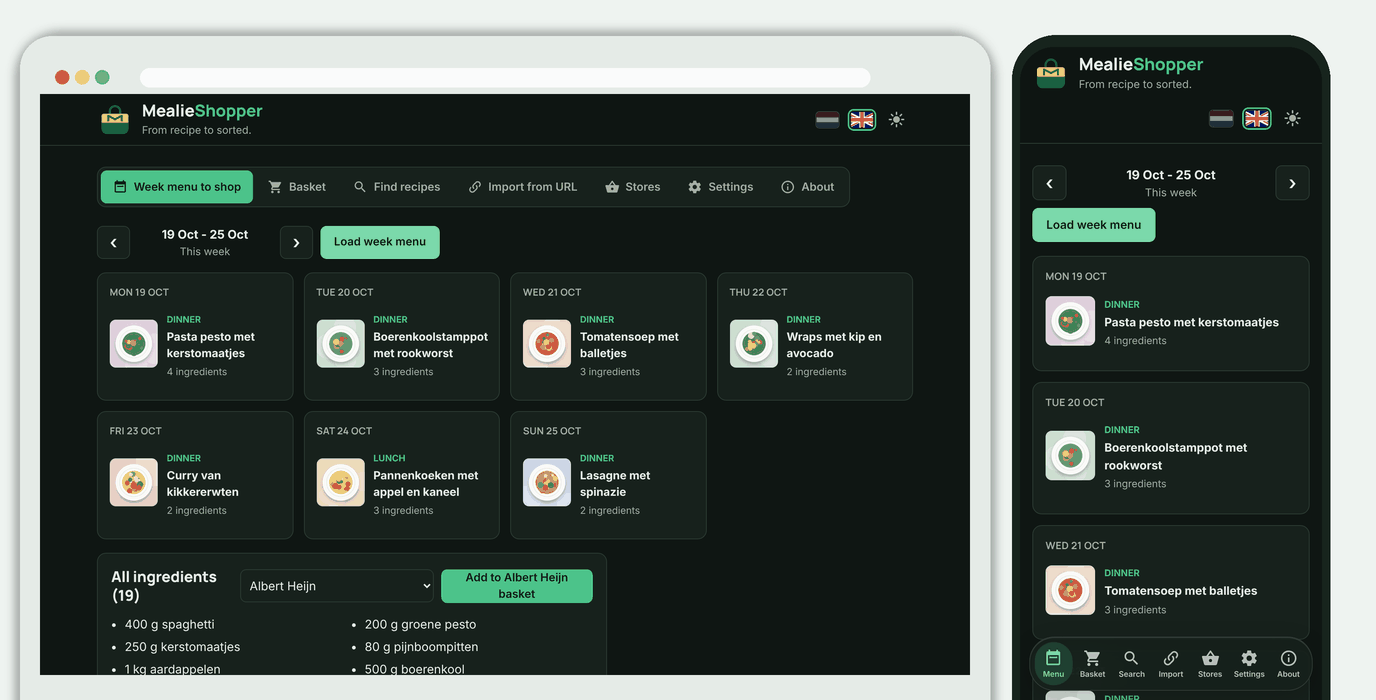
The moon or sun button next to the flags switches between light and dark; without a choice the app follows your device.
### Dark theme
The moon or sun button next to the flags switches between light and dark; without a choice the app follows your device.
 ## Quick start
You need a computer or NAS with Docker. You don't have to configure anything: on the first start MealieShopper guides you through security and the links itself.
### Docker Compose (for example Unraid)
1. Create a folder for your data, for example `/mnt/user/appdata/mealieshopper`.
2. Use the included [`docker-compose.yml`](docker-compose.yml). It publishes the app on port `5959` and keeps your data in `/mnt/user/appdata/mealieshopper`.
3. Want to set something? Copy [`.env.unraid.example`](.env.unraid.example) to `.env.unraid` and change what you need. The file is optional (Docker Compose 2.24 or newer).
4. Start:
```bash
docker compose up -d
```
5. Open `http://:5959` and follow the setup guide.
The image is at `ghcr.io/helmerznl/mealieshopper:latest` and is built for `linux/amd64` and `linux/arm64`, so it also runs on an ARM NAS (such as some Synology models) and on a Raspberry Pi.
### Docker
```bash
docker run -d --name mealieshopper -p 8000:8000 \
-v /mnt/user/appdata/mealieshopper:/data \
ghcr.io/helmerznl/mealieshopper:latest
```
Then open `http://localhost:8000`. To build it yourself: `docker build -t mealieshopper .`.
### Run locally
```bash
python -m venv .venv
.venv/bin/pip install -r requirements.txt # Windows: .\.venv\Scripts\pip
.venv/bin/python run.py # Windows: .\.venv\Scripts\python
```
The app listens on `http://localhost:8000`. See [`.env.local.example`](.env.local.example) for the options.
## First start
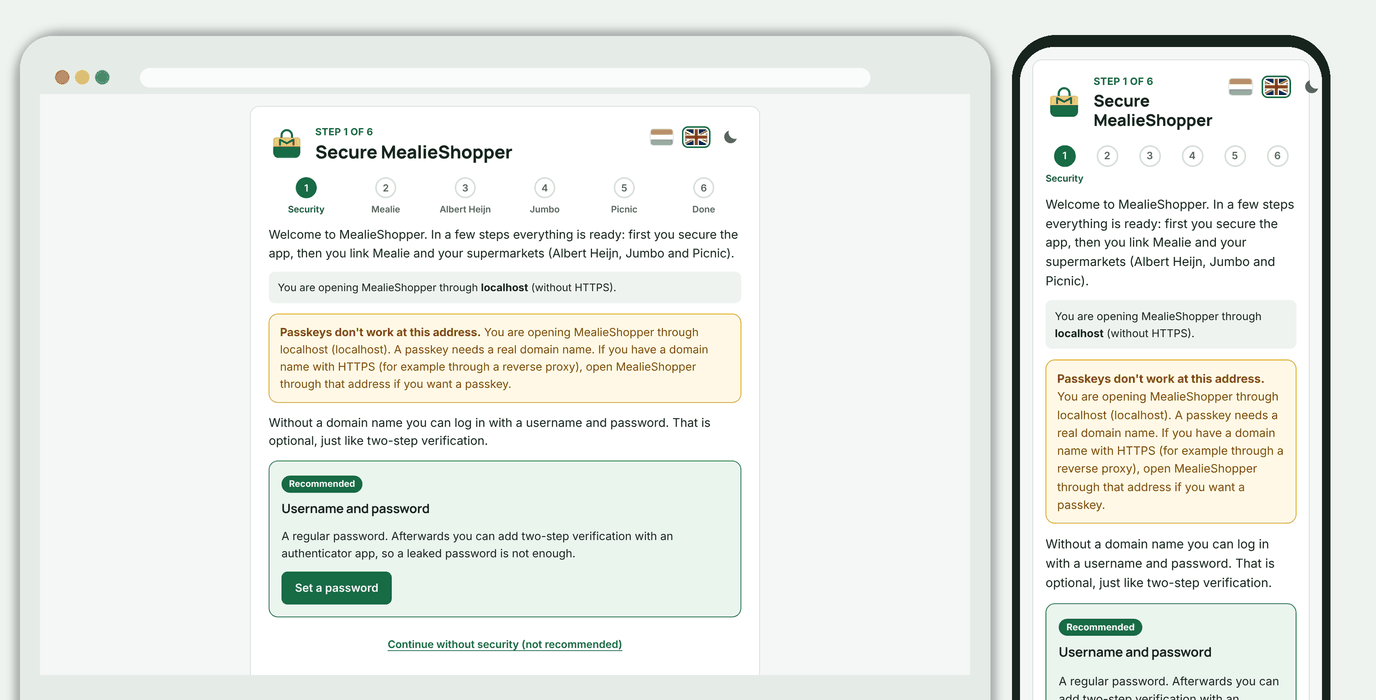
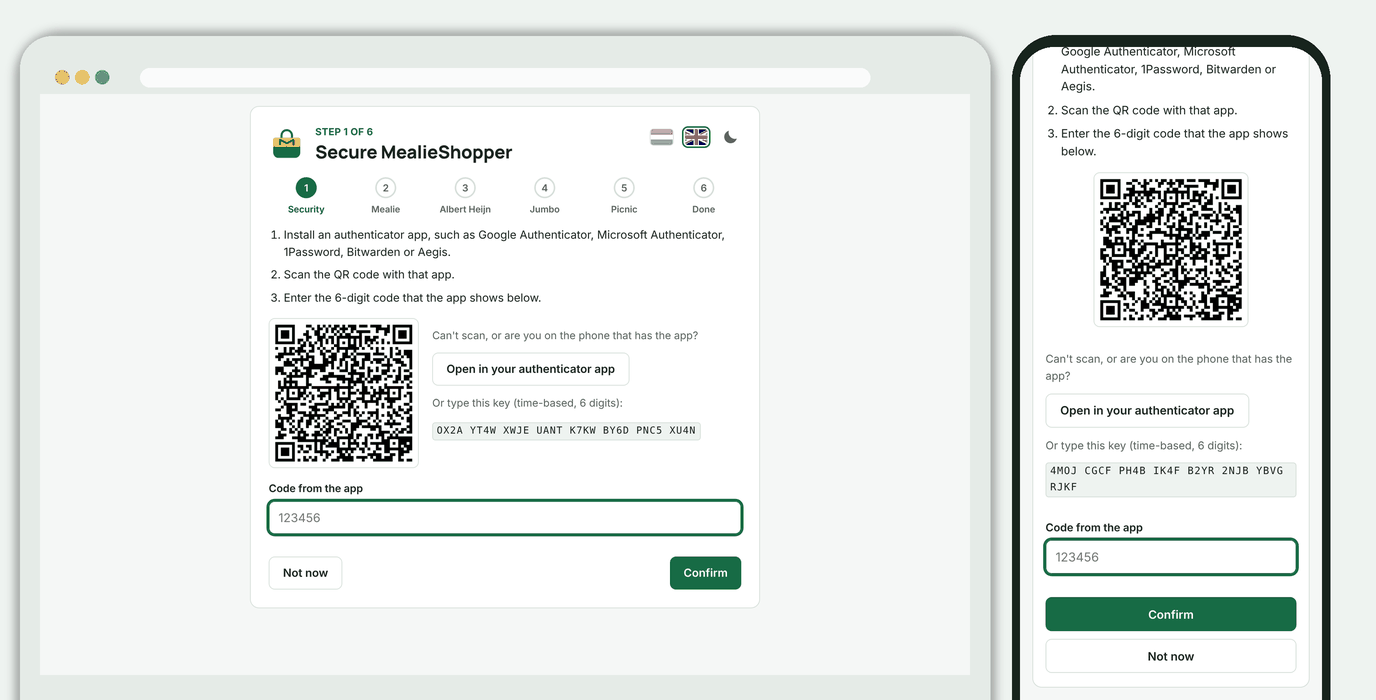
On a new installation MealieShopper opens a six-step setup guide. At the top you see which step you are on; *Back* takes you a step back, and what you skip you do later under **Settings** (in the avatar menu). An existing installation (with a passkey or password) does not see it.
**1. Security.** The app looks at how you open it.
| You open MealieShopper through | What you can choose |
|---|---|
| a domain name with HTTPS | a **passkey** (recommended), or a username and password |
| an IP address, `localhost`, a `.local` name or without HTTPS | a username and password, or deliberately **no security** (with a warning); passkeys don't work there |
After the password you can turn on **two-step verification** with an authenticator app. That is optional, just like the password itself. You get 8 recovery codes that you see only once.
## Quick start
You need a computer or NAS with Docker. You don't have to configure anything: on the first start MealieShopper guides you through security and the links itself.
### Docker Compose (for example Unraid)
1. Create a folder for your data, for example `/mnt/user/appdata/mealieshopper`.
2. Use the included [`docker-compose.yml`](docker-compose.yml). It publishes the app on port `5959` and keeps your data in `/mnt/user/appdata/mealieshopper`.
3. Want to set something? Copy [`.env.unraid.example`](.env.unraid.example) to `.env.unraid` and change what you need. The file is optional (Docker Compose 2.24 or newer).
4. Start:
```bash
docker compose up -d
```
5. Open `http://:5959` and follow the setup guide.
The image is at `ghcr.io/helmerznl/mealieshopper:latest` and is built for `linux/amd64` and `linux/arm64`, so it also runs on an ARM NAS (such as some Synology models) and on a Raspberry Pi.
### Docker
```bash
docker run -d --name mealieshopper -p 8000:8000 \
-v /mnt/user/appdata/mealieshopper:/data \
ghcr.io/helmerznl/mealieshopper:latest
```
Then open `http://localhost:8000`. To build it yourself: `docker build -t mealieshopper .`.
### Run locally
```bash
python -m venv .venv
.venv/bin/pip install -r requirements.txt # Windows: .\.venv\Scripts\pip
.venv/bin/python run.py # Windows: .\.venv\Scripts\python
```
The app listens on `http://localhost:8000`. See [`.env.local.example`](.env.local.example) for the options.
## First start
On a new installation MealieShopper opens a six-step setup guide. At the top you see which step you are on; *Back* takes you a step back, and what you skip you do later under **Settings** (in the avatar menu). An existing installation (with a passkey or password) does not see it.
**1. Security.** The app looks at how you open it.
| You open MealieShopper through | What you can choose |
|---|---|
| a domain name with HTTPS | a **passkey** (recommended), or a username and password |
| an IP address, `localhost`, a `.local` name or without HTTPS | a username and password, or deliberately **no security** (with a warning); passkeys don't work there |
After the password you can turn on **two-step verification** with an authenticator app. That is optional, just like the password itself. You get 8 recovery codes that you see only once.
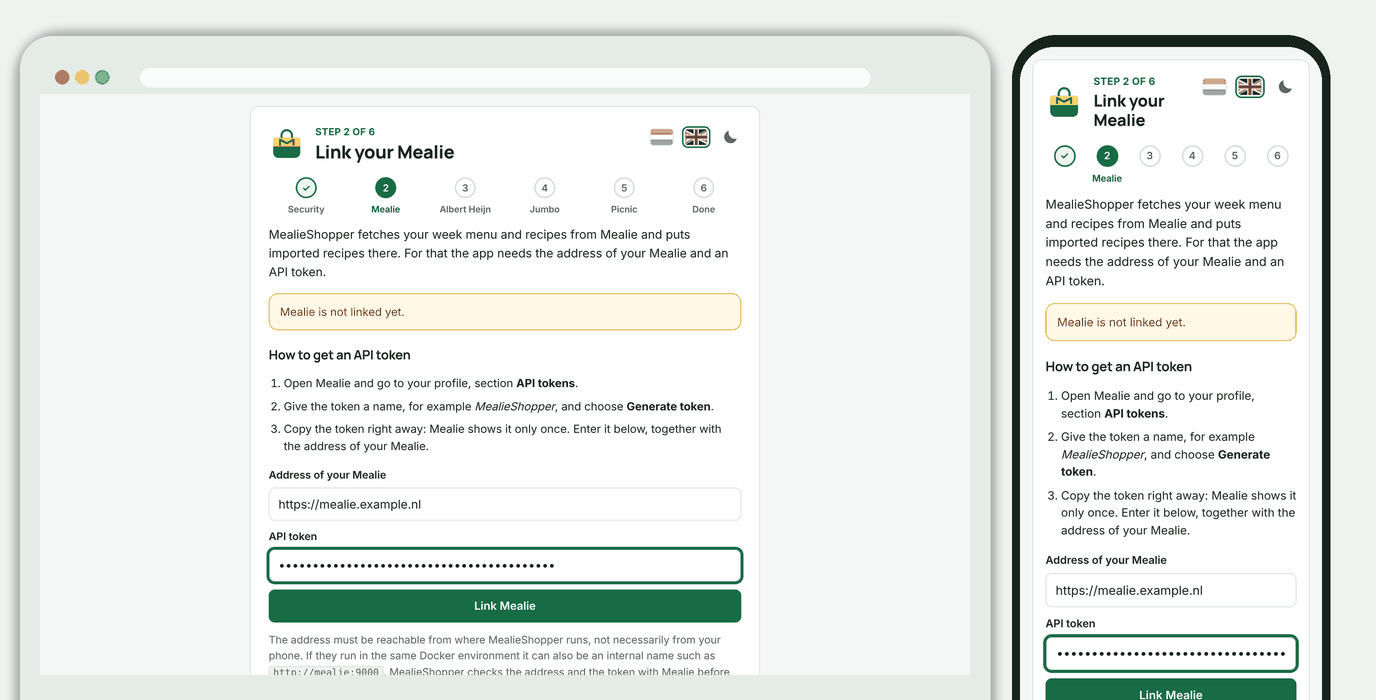
 **2. Link Mealie.** Enter the address of your Mealie and an API token; MealieShopper checks them with Mealie before anything is saved.
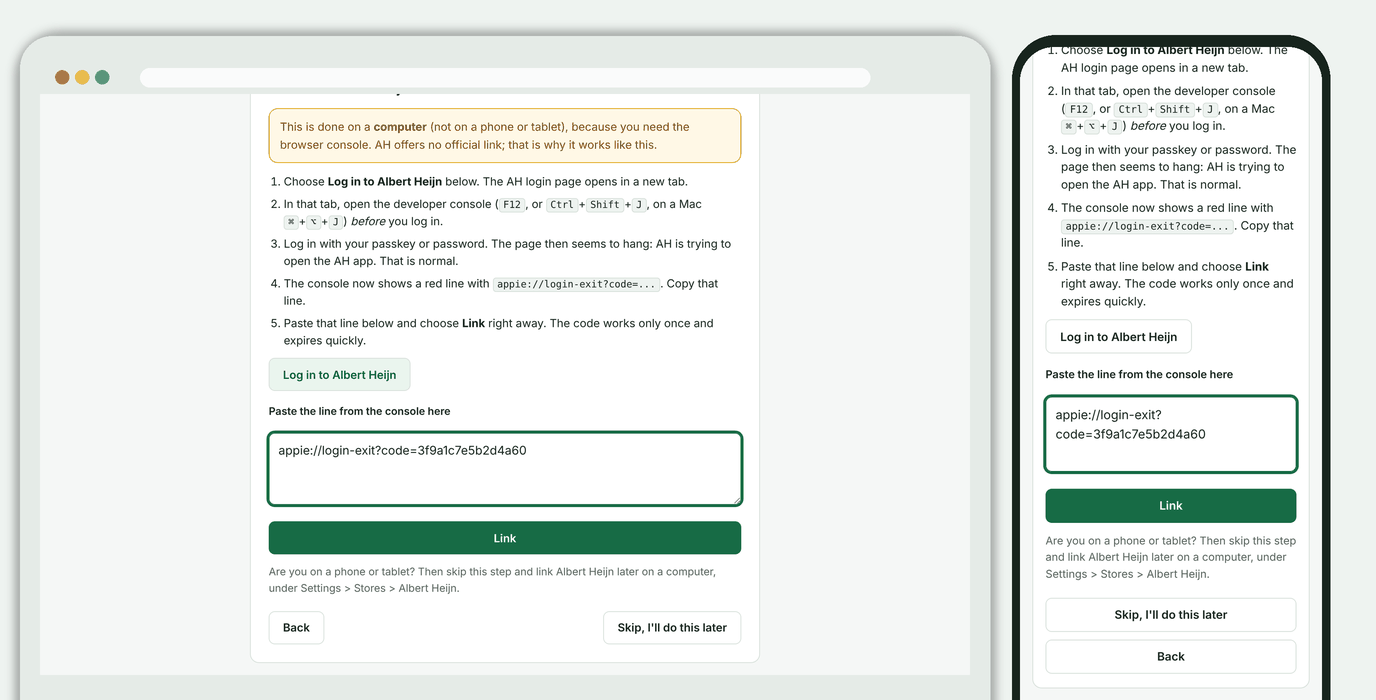
 **3. Link Albert Heijn.** Instructions for logging in through the browser console, with the login button and the paste field right in the step. This only works on a computer; you can skip the step and do it later.
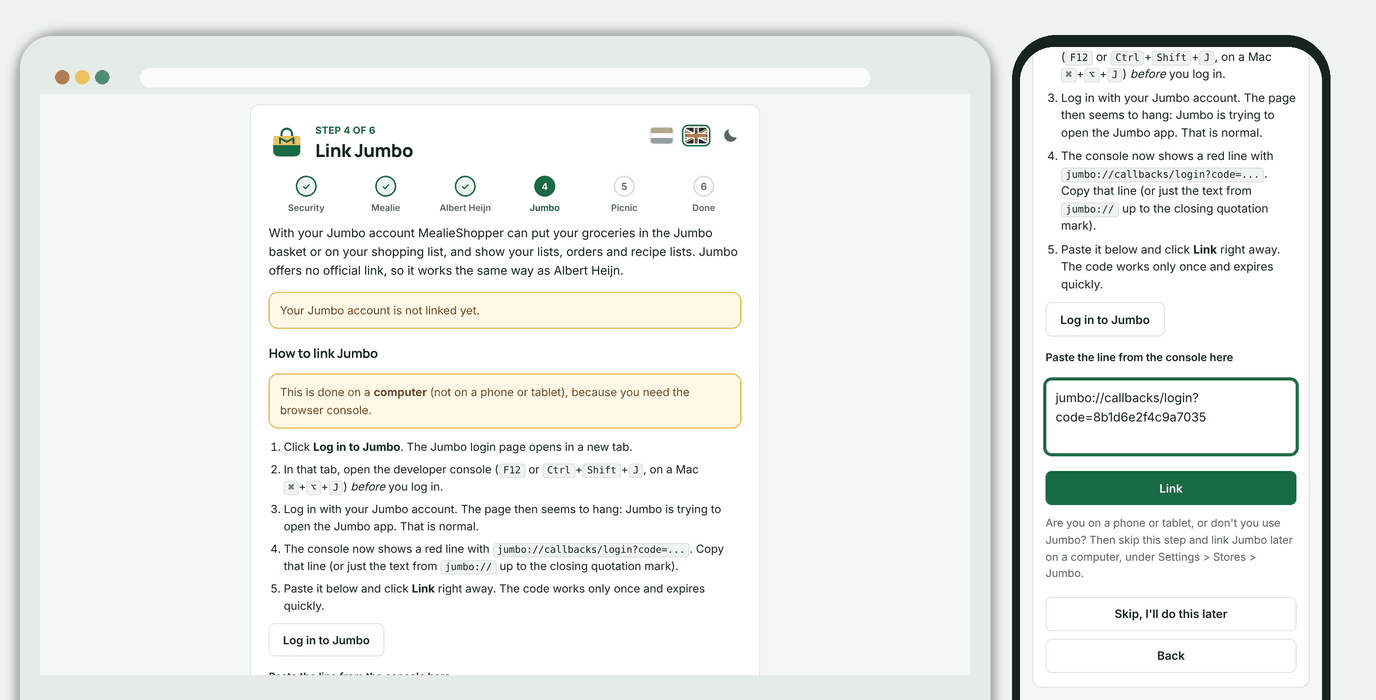
 **4. Link Jumbo.** Works just like Albert Heijn: instructions for logging in through the browser console, with the login button and the paste field right in the step. This only works on a computer; if you don't use Jumbo, skip the step.
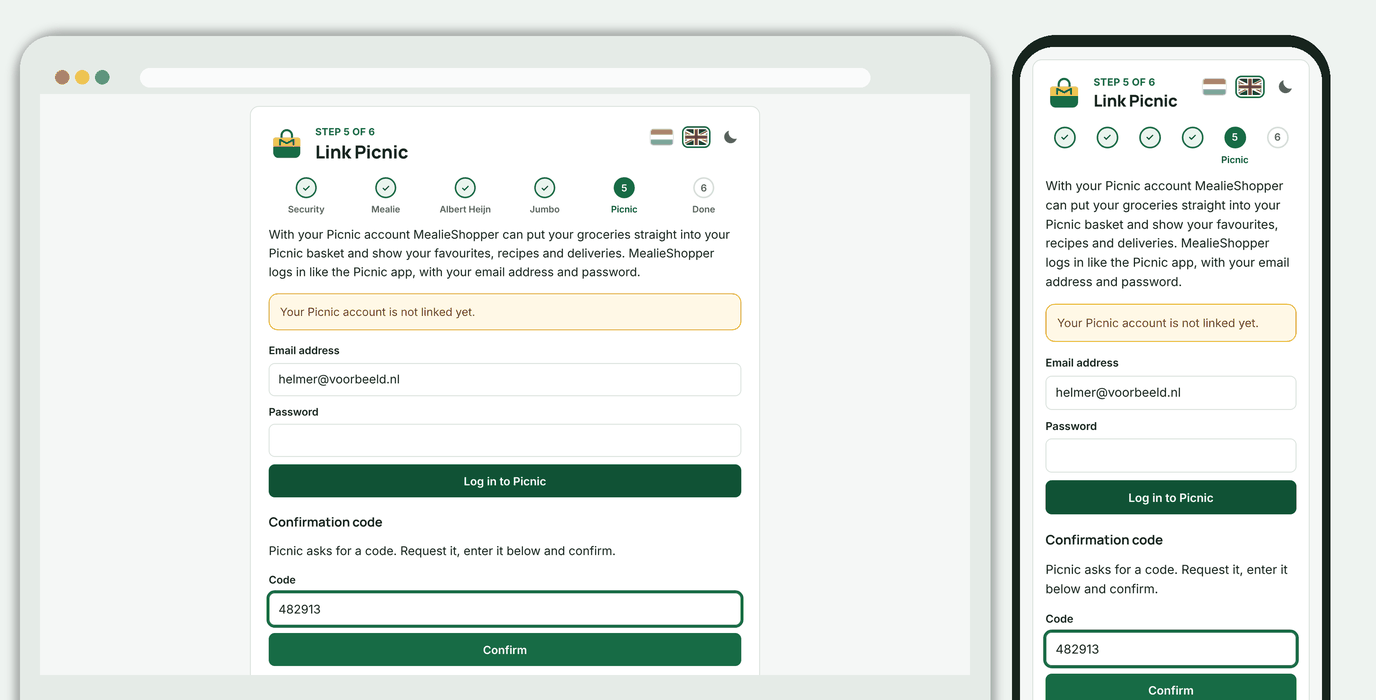
 **5. Link Picnic.** Enter your Picnic email address and password. If Picnic asks for a code, a field for it appears in the same step; the code arrives by text message (or by email, with the button below it). Your password is not stored. You can skip this step too.
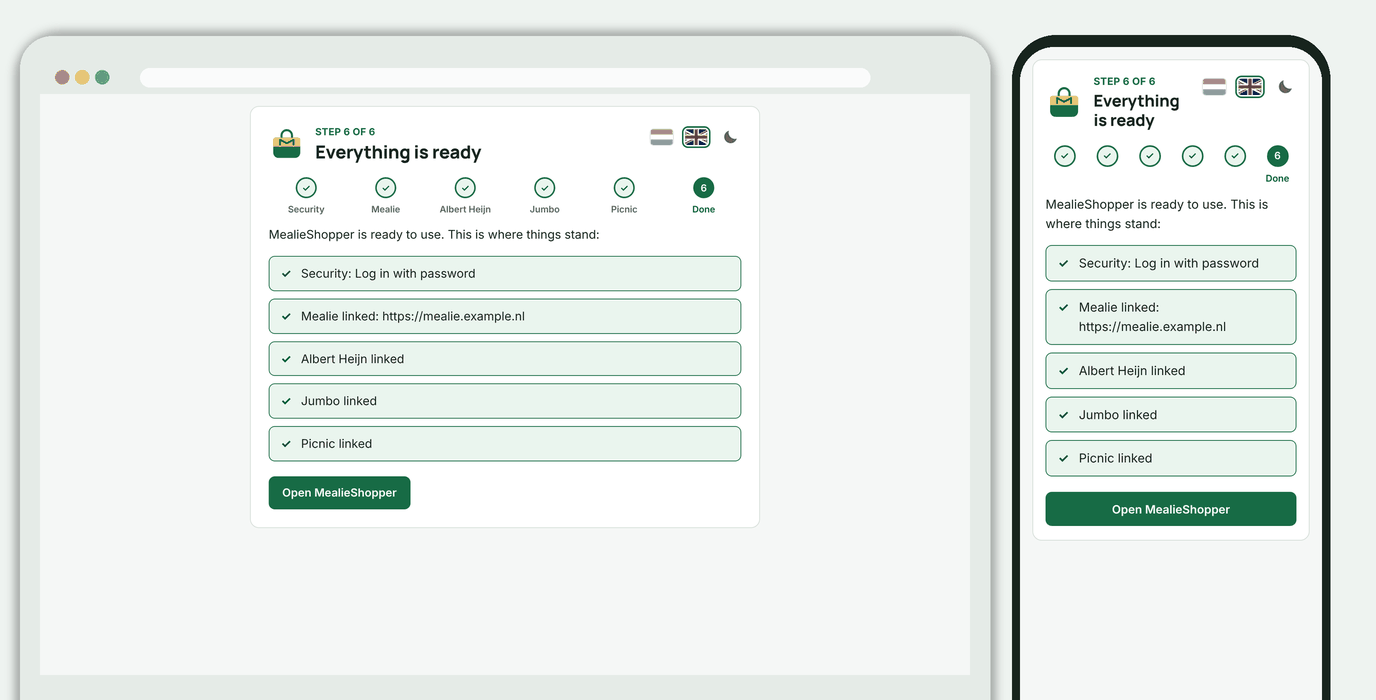
 **6. Done.** An overview of what is set up. If a link is missing, a button takes you back to that step.
 ## Usage
The **Recipes** tab has two subtabs: **Week menu** (your Mealie week menu to your basket) and **Find recipes**.
### Week menu to your basket
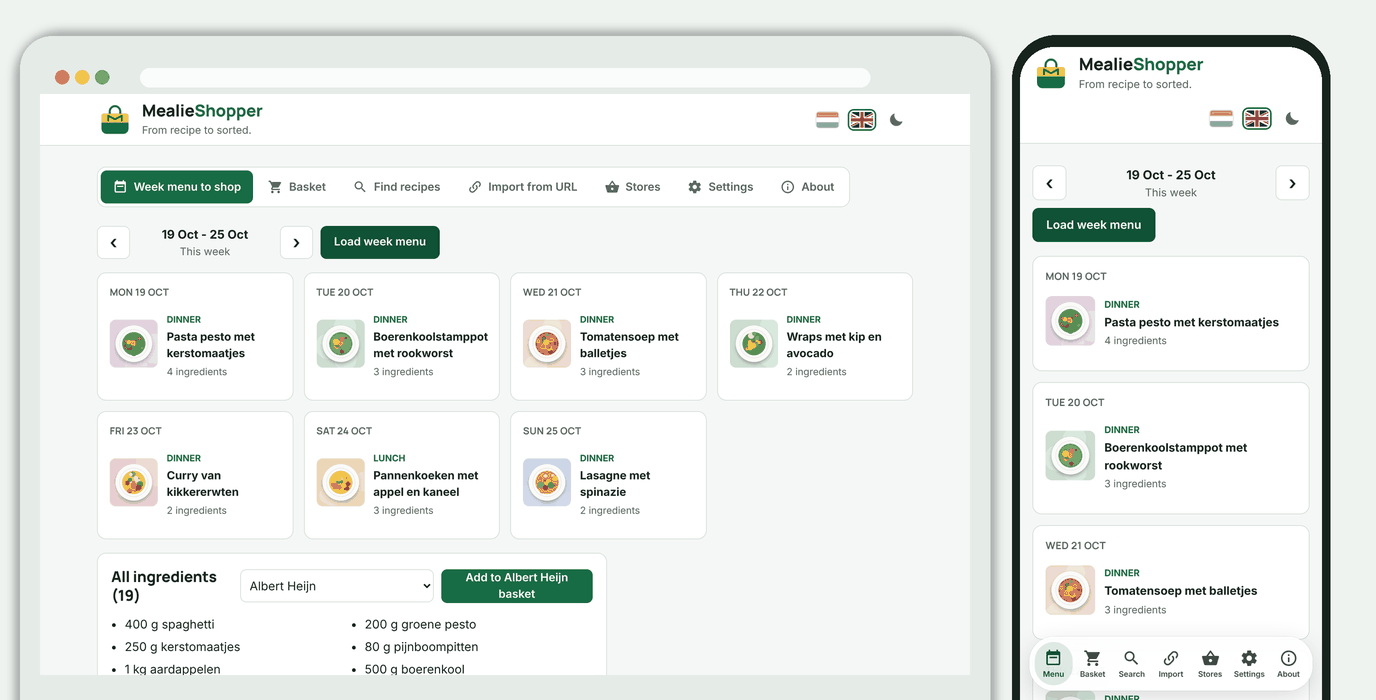
The week menu loads by itself when you open the page, with the pictures, and the two weeks after it are fetched in the background. Each week is remembered for a while, so paging through weeks is instant; the sync button next to the week fetches it again from Mealie. If Picnic or Jumbo is linked next to Albert Heijn, you choose the store in the drop-down menu below the shopping list, next to the button. The button carries the name of the chosen store, for example `Add to Albert Heijn basket`. It looks up the best five products per ingredient and works out how many packs you need, using the pack size the store gives with the product: 6 eggs with "10 pieces" is one box, 500 g with "250 g" is two, and "2 tbsp" of oil is one bottle. The number is always 1 to 99.
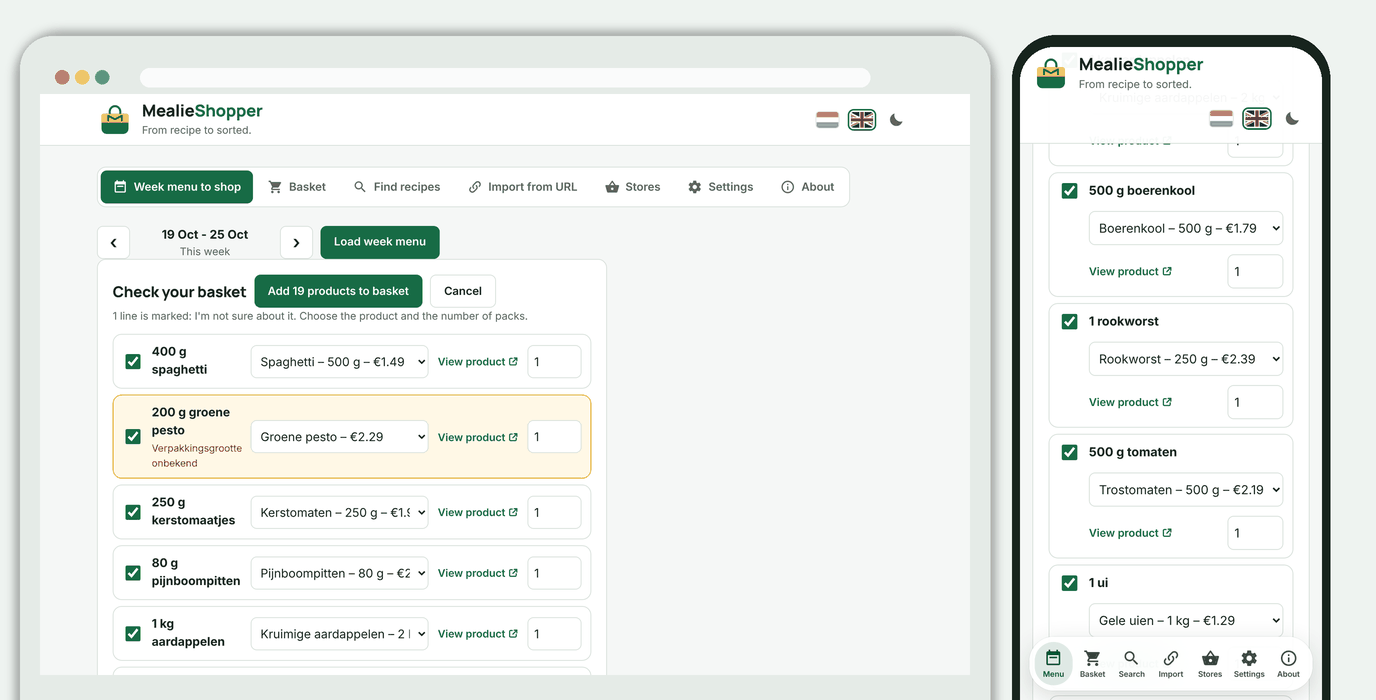
You always see a check list first; the basket is never filled without your confirmation. There you choose the product and the number of packs per line, tick what should go in and confirm. Lines the app is unsure about (unknown pack size, weight against pieces, or more than 10 packs) are marked. Next to every product is a link to the product in the web shop (Picnic has none), so you can check that it is right.
MealieShopper fetches the pictures from Mealie itself with your API token and keeps them in the database. That way it also works when your Mealie can't be reached directly from your phone, and next time nothing is asked of Mealie.
### Basket
The **Basket** tab shows the basket of the store you choose at the top (Albert Heijn, Picnic and Jumbo, as far as linked). At Albert Heijn that is the shopping list the week menu writes to, from a local copy that you refresh with **Sync**. At Picnic you change quantities (with `−` and `+` or by typing), remove a product or empty the basket after a confirmation; that goes straight to your real basket. Below it are the amount you pay, what your membership saves and the next available delivery slots (you choose one in the Picnic app). Jumbo shows the basket read-only. After filling from the week menu, **View basket** takes you there.
### Searching and importing recipes
`Find recipes` searches **Albert Heijn** (up to the first 2,000 hits) and, as soon as they are linked, **Jumbo** (all recipes of jumbo.com) and **Picnic** (your saved recipes and the cookbook, by name; Picnic has no search of its own) at the same time. The results are grouped per store, with `More recipes` for the next page; a store that does not answer leaves the others in place. Choose `Import` to put a recipe in Mealie, or for Jumbo and Picnic `View` for the ingredients and the method. Or paste an Allerhande link, a link to a Jumbo recipe or another recipe site under `Import from URL`. Importing fetches the recipe data through the AH API and hands it to Mealie as a schema.org recipe, because AH blocks its web pages for servers.
### Offers
The **Offers** tab has the same layout as Stores: a drop-down menu for the store (once more than one is linked) and the sub-tabs **Offers** and **Recipes**. The first shows a store's offers, with the old and new price and the label (for example *2 for 3*). That works for **Albert Heijn** (Bonus; no AH link needed), **Picnic** and **Jumbo** (both once linked). Picnic has no offers tab: MealieShopper reads the home page (Discover): the products with a discount text next to them ("1+1 free", "20% off", "2 for €5") and the action pages behind the cards under *Deals of the week*, where every product is an offer. The label is the text of the tile, or else the title of the card. Picnic gives no old price, so it is missing. The explorer (`POST /api/picnic/explore`) shows at the top of its report what those pages give. Jumbo has no route that gives everything at once: MealieShopper searches the common terms (chicken, cheese, coffee and so on) and keeps the products with an action, so these are the offers for those terms and not necessarily all of them. The offers are cached: a store you already saw shows at once again, and the browser only asks whether anything changed (`ETag`, a `304` if not). While the offers of another store load, a spinning icon with *Loading the offers of …* shows (it stands still if your system asks for reduced motion). Above the offers are the categories with their count ("5x Vegetables & Fruit", "10x Meat"); a click shows the offers of that category. Three rows show first; `More` shows three more each time. MealieShopper makes the division itself from the product name, because the stores do not give the same categories; a product that fits nowhere is under *Other*. There is no button to refresh here any more: the offers come from the local copy, which is refreshed every day and which the administrator can sync right away (see below); if fetching fails, the previous copy stays. Every sync also writes the offers to a history in the database, kept forever: per product when it was on offer, with price, old price, label and validity. A continuous period counts as one time; a price change during the same offer does not. `GET /api/offers/history` (with `store`, `q` for part of the name and `limit`) shows how often something was on offer and the details. Under **Settings, Link** there is an **Offers** block with `Sync offers`: it refreshes the offers of all stores at once (administrator only) and shows per store how many there are and when they were fetched. A background task also does this every day by itself, by default around 5 am (the container's time). If the app is off at that time, it follows at the next start. Use `MEALIESHOPPER_OFFERS_SYNC_HOUR` to pick the hour and `MEALIESHOPPER_OFFERS_SCHEDULE=false` to turn the task off. The AH explorer (`POST /api/ah/explore`) also reports whether the bonus page answers; without an answer MealieShopper searches for products with the bonus flag. Each offer shows what it involves: from how many items, what an item then costs and until when it applies, as far as the store says (AH gives an end date; Picnic and Jumbo do not). For that MealieShopper reads the offer text (*2nd half price*, *1+1 free*, *2 for 5*, *25% off*, *2nd = 50% off*, *now €1.99*). What it cannot read with certainty, it does not calculate. An offer whose end date has passed disappears from the list and the suggestions between two syncs.
The **Recipes** sub-tab shows the recipe suggestions: recipes with ingredients on offer, the best first, with the estimated saving. `Read recipes` reads the ingredients of your recipes: Mealie (up to 300), Jumbo favourites and Picnic recipes (up to 60 per source) and your saved AH recipes (up to 60 new ones at a time; fetch them first under **Stores**). The comparison happens inside MealieShopper, on words without plurals, units and basics like salt and water; nothing is sent to an AI service, unless you enter an API key yourself and press *Search recipes with AI* (see below). An ingredient only belongs to an offer that is that product itself: the ingredient's name must be the product in the title, not something that comes with it. So *Mince with onion*, *Tuna in olive oil* and *Spinach with cream* do not count for onion, olive oil or fresh spinach, and a prepared variant such as *mushroom sauce*, *herb mix* or *orange juice* only counts if the ingredient asks for that itself. A flavour word like *herbs* does not look for a product. If the name is a kind (*sauce*, *soup*, *cheese*, *bread*, *sausage*), the other words must be in it too: *curry sauce* does not fit *Sweet chilli sauce*. A raw product such as bell pepper or chicken fillet does not fit a prepared product (crisps, focaccia, a wrap), and what is not food (shampoo, cat food) is left out. English ingredients (many Mealie imports, for example *2 tbsp mayo* or *chicken thighs*) are first translated into Dutch from a fixed list of a few hundred common ingredients; nothing is sent to a translation service. If a product has more than one name at the stores, they are all tried (*chicken thighs* becomes *kippendijen*, *kipdijfilet* and *kippendij*). A Dutch line stays as it is, and the card shows the line as it is in the recipe. A word that is not in the list stays as it is. A tablespoon of a dried spice (*2 tbsp paprika*, *1 el turmeric*) is a seasoning and does not look for a product. A line with a teaspoon or a pinch (*1 tsp salt*, *2 tl turmeric*), a spice powder (*onion powder*) and a heading such as *Spice mixture (below)* do not count as an ingredient, and the same ingredient twice in a recipe counts once. If more than one offer fits, the one with the fewest words around it wins. Better one link too few than a wrong one. The store choice at the top decides which offers the recipes are compared with, and that is stated above the recipes (*Recipes with as many ingredients as possible from the offers at Jumbo*). The recipes themselves come from all your sources (Mealie, Jumbo, Picnic and AH), because a recipe can be cooked with any store; the card says where it comes from (*Recipe from Albert Heijn*). Basics (salt, pepper, water, oil, butter, flour, sugar, vinegar, stock and herbs) do not count in *x of y ingredients on offer*. The recipes with the largest share of their ingredients on offer come first; with an equal share, the recipe with the most ingredients first and then the largest saving. Under the links each recipe says what is not on offer (*Not on offer: …*). If the same recipe is in more than one source (for example an AH recipe you also have in Mealie), it is one card: the recipe with the best coverage stays (with equal coverage your own recipe from Mealie) and *also in Albert Heijn* names the other source. If the ingredient has a colour, cuisine or fat content (*red bell pepper*, *Provençal stir-fry vegetables*, *semi-skimmed milk*) and the offer names a different one (*Pepper yellow*, *Chinese stir-fry vegetables*, *Whole milk*), it is a different product. If a match is wrong, report it with the small flag next to the product (or with *Not a match* in the dialog below): the match disappears, also from other recipes with the same ingredient in that store, and the next fitting product takes its place. *Undo* is right under the message; reports are kept (`POST` and `DELETE /api/offers/rejections`). Click a linked product to view it in a dialog: picture, name, brand and size, the offer, the price (with the old price), the conditions and which ingredient from which recipe it is linked to, so you see at once whether the link is right. The *View at Albert Heijn* (or Jumbo) button opens the store's page in a separate window. Picnic has no web shop; there the dialog says there is no product page. *View* on a Mealie recipe opens the recipe in Mealie at the address Mealie itself uses (`/g/
## Usage
The **Recipes** tab has two subtabs: **Week menu** (your Mealie week menu to your basket) and **Find recipes**.
### Week menu to your basket
The week menu loads by itself when you open the page, with the pictures, and the two weeks after it are fetched in the background. Each week is remembered for a while, so paging through weeks is instant; the sync button next to the week fetches it again from Mealie. If Picnic or Jumbo is linked next to Albert Heijn, you choose the store in the drop-down menu below the shopping list, next to the button. The button carries the name of the chosen store, for example `Add to Albert Heijn basket`. It looks up the best five products per ingredient and works out how many packs you need, using the pack size the store gives with the product: 6 eggs with "10 pieces" is one box, 500 g with "250 g" is two, and "2 tbsp" of oil is one bottle. The number is always 1 to 99.
You always see a check list first; the basket is never filled without your confirmation. There you choose the product and the number of packs per line, tick what should go in and confirm. Lines the app is unsure about (unknown pack size, weight against pieces, or more than 10 packs) are marked. Next to every product is a link to the product in the web shop (Picnic has none), so you can check that it is right.
MealieShopper fetches the pictures from Mealie itself with your API token and keeps them in the database. That way it also works when your Mealie can't be reached directly from your phone, and next time nothing is asked of Mealie.
### Basket
The **Basket** tab shows the basket of the store you choose at the top (Albert Heijn, Picnic and Jumbo, as far as linked). At Albert Heijn that is the shopping list the week menu writes to, from a local copy that you refresh with **Sync**. At Picnic you change quantities (with `−` and `+` or by typing), remove a product or empty the basket after a confirmation; that goes straight to your real basket. Below it are the amount you pay, what your membership saves and the next available delivery slots (you choose one in the Picnic app). Jumbo shows the basket read-only. After filling from the week menu, **View basket** takes you there.
### Searching and importing recipes
`Find recipes` searches **Albert Heijn** (up to the first 2,000 hits) and, as soon as they are linked, **Jumbo** (all recipes of jumbo.com) and **Picnic** (your saved recipes and the cookbook, by name; Picnic has no search of its own) at the same time. The results are grouped per store, with `More recipes` for the next page; a store that does not answer leaves the others in place. Choose `Import` to put a recipe in Mealie, or for Jumbo and Picnic `View` for the ingredients and the method. Or paste an Allerhande link, a link to a Jumbo recipe or another recipe site under `Import from URL`. Importing fetches the recipe data through the AH API and hands it to Mealie as a schema.org recipe, because AH blocks its web pages for servers.
### Offers
The **Offers** tab has the same layout as Stores: a drop-down menu for the store (once more than one is linked) and the sub-tabs **Offers** and **Recipes**. The first shows a store's offers, with the old and new price and the label (for example *2 for 3*). That works for **Albert Heijn** (Bonus; no AH link needed), **Picnic** and **Jumbo** (both once linked). Picnic has no offers tab: MealieShopper reads the home page (Discover): the products with a discount text next to them ("1+1 free", "20% off", "2 for €5") and the action pages behind the cards under *Deals of the week*, where every product is an offer. The label is the text of the tile, or else the title of the card. Picnic gives no old price, so it is missing. The explorer (`POST /api/picnic/explore`) shows at the top of its report what those pages give. Jumbo has no route that gives everything at once: MealieShopper searches the common terms (chicken, cheese, coffee and so on) and keeps the products with an action, so these are the offers for those terms and not necessarily all of them. The offers are cached: a store you already saw shows at once again, and the browser only asks whether anything changed (`ETag`, a `304` if not). While the offers of another store load, a spinning icon with *Loading the offers of …* shows (it stands still if your system asks for reduced motion). Above the offers are the categories with their count ("5x Vegetables & Fruit", "10x Meat"); a click shows the offers of that category. Three rows show first; `More` shows three more each time. MealieShopper makes the division itself from the product name, because the stores do not give the same categories; a product that fits nowhere is under *Other*. There is no button to refresh here any more: the offers come from the local copy, which is refreshed every day and which the administrator can sync right away (see below); if fetching fails, the previous copy stays. Every sync also writes the offers to a history in the database, kept forever: per product when it was on offer, with price, old price, label and validity. A continuous period counts as one time; a price change during the same offer does not. `GET /api/offers/history` (with `store`, `q` for part of the name and `limit`) shows how often something was on offer and the details. Under **Settings, Link** there is an **Offers** block with `Sync offers`: it refreshes the offers of all stores at once (administrator only) and shows per store how many there are and when they were fetched. A background task also does this every day by itself, by default around 5 am (the container's time). If the app is off at that time, it follows at the next start. Use `MEALIESHOPPER_OFFERS_SYNC_HOUR` to pick the hour and `MEALIESHOPPER_OFFERS_SCHEDULE=false` to turn the task off. The AH explorer (`POST /api/ah/explore`) also reports whether the bonus page answers; without an answer MealieShopper searches for products with the bonus flag. Each offer shows what it involves: from how many items, what an item then costs and until when it applies, as far as the store says (AH gives an end date; Picnic and Jumbo do not). For that MealieShopper reads the offer text (*2nd half price*, *1+1 free*, *2 for 5*, *25% off*, *2nd = 50% off*, *now €1.99*). What it cannot read with certainty, it does not calculate. An offer whose end date has passed disappears from the list and the suggestions between two syncs.
The **Recipes** sub-tab shows the recipe suggestions: recipes with ingredients on offer, the best first, with the estimated saving. `Read recipes` reads the ingredients of your recipes: Mealie (up to 300), Jumbo favourites and Picnic recipes (up to 60 per source) and your saved AH recipes (up to 60 new ones at a time; fetch them first under **Stores**). The comparison happens inside MealieShopper, on words without plurals, units and basics like salt and water; nothing is sent to an AI service, unless you enter an API key yourself and press *Search recipes with AI* (see below). An ingredient only belongs to an offer that is that product itself: the ingredient's name must be the product in the title, not something that comes with it. So *Mince with onion*, *Tuna in olive oil* and *Spinach with cream* do not count for onion, olive oil or fresh spinach, and a prepared variant such as *mushroom sauce*, *herb mix* or *orange juice* only counts if the ingredient asks for that itself. A flavour word like *herbs* does not look for a product. If the name is a kind (*sauce*, *soup*, *cheese*, *bread*, *sausage*), the other words must be in it too: *curry sauce* does not fit *Sweet chilli sauce*. A raw product such as bell pepper or chicken fillet does not fit a prepared product (crisps, focaccia, a wrap), and what is not food (shampoo, cat food) is left out. English ingredients (many Mealie imports, for example *2 tbsp mayo* or *chicken thighs*) are first translated into Dutch from a fixed list of a few hundred common ingredients; nothing is sent to a translation service. If a product has more than one name at the stores, they are all tried (*chicken thighs* becomes *kippendijen*, *kipdijfilet* and *kippendij*). A Dutch line stays as it is, and the card shows the line as it is in the recipe. A word that is not in the list stays as it is. A tablespoon of a dried spice (*2 tbsp paprika*, *1 el turmeric*) is a seasoning and does not look for a product. A line with a teaspoon or a pinch (*1 tsp salt*, *2 tl turmeric*), a spice powder (*onion powder*) and a heading such as *Spice mixture (below)* do not count as an ingredient, and the same ingredient twice in a recipe counts once. If more than one offer fits, the one with the fewest words around it wins. Better one link too few than a wrong one. The store choice at the top decides which offers the recipes are compared with, and that is stated above the recipes (*Recipes with as many ingredients as possible from the offers at Jumbo*). The recipes themselves come from all your sources (Mealie, Jumbo, Picnic and AH), because a recipe can be cooked with any store; the card says where it comes from (*Recipe from Albert Heijn*). Basics (salt, pepper, water, oil, butter, flour, sugar, vinegar, stock and herbs) do not count in *x of y ingredients on offer*. The recipes with the largest share of their ingredients on offer come first; with an equal share, the recipe with the most ingredients first and then the largest saving. Under the links each recipe says what is not on offer (*Not on offer: …*). If the same recipe is in more than one source (for example an AH recipe you also have in Mealie), it is one card: the recipe with the best coverage stays (with equal coverage your own recipe from Mealie) and *also in Albert Heijn* names the other source. If the ingredient has a colour, cuisine or fat content (*red bell pepper*, *Provençal stir-fry vegetables*, *semi-skimmed milk*) and the offer names a different one (*Pepper yellow*, *Chinese stir-fry vegetables*, *Whole milk*), it is a different product. If a match is wrong, report it with the small flag next to the product (or with *Not a match* in the dialog below): the match disappears, also from other recipes with the same ingredient in that store, and the next fitting product takes its place. *Undo* is right under the message; reports are kept (`POST` and `DELETE /api/offers/rejections`). Click a linked product to view it in a dialog: picture, name, brand and size, the offer, the price (with the old price), the conditions and which ingredient from which recipe it is linked to, so you see at once whether the link is right. The *View at Albert Heijn* (or Jumbo) button opens the store's page in a separate window. Picnic has no web shop; there the dialog says there is no product page. *View* on a Mealie recipe opens the recipe in Mealie at the address Mealie itself uses (`/g/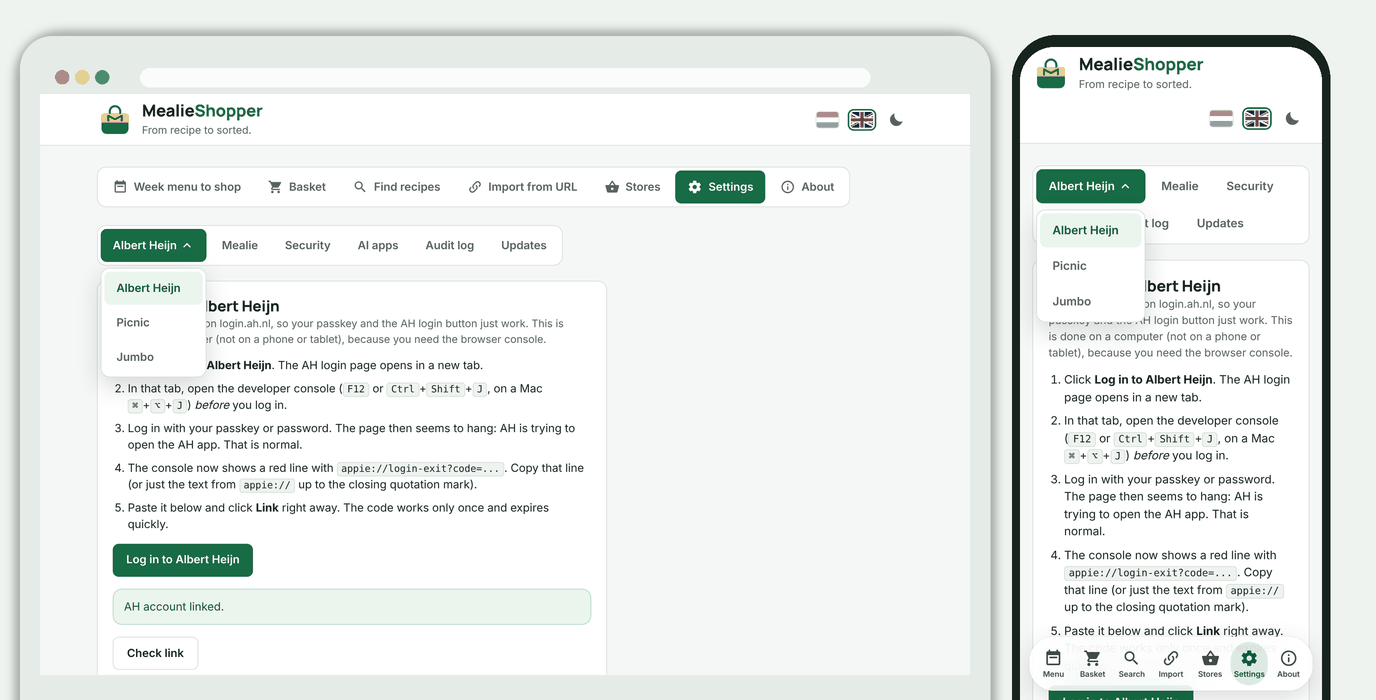
 ### Mealie
1. Open Mealie and go to your profile, section **API tokens**.
2. Give the token a name, for example *MealieShopper*, and choose **Generate token**.
3. Copy the token right away: Mealie shows it only once.
4. Enter the address of your Mealie and the token in MealieShopper and choose **Link**.
The address must be reachable from where MealieShopper runs, not necessarily from your phone. If they run in the same Docker environment it can be an internal name such as `http://mealie:9000`. The token is stored encrypted and never shown again. A link you make in the app takes precedence over `MEALIE_URL` and `MEALIE_API_TOKEN` from the environment.
### Albert Heijn
AH has no official link. MealieShopper logs in like the AH app, in your own browser (on a computer):
1. Choose `Log in to Albert Heijn`; a new tab opens.
2. In that tab, open the developer console (`F12`) **before** you log in.
3. Log in with your passkey or password. The page then seems to hang, but the console shows a red line with `appie://login-exit?code=...`.
4. Paste that line in MealieShopper and choose `Link`. The code works only once and expires quickly; a message about an expired or used code means: log in again.
With `Check link` you see whether the stored token still works. Under **Explore AH routes** (administrator only) you call the unofficial AH routes for the basket (the shopping list), the order basket, orders and receipts and see which ones work and which fields they contain. The report contains no names, addresses, prices or ids and is safe to share; that is how we see how AH keeps orders and keep fetching them correct. The Picnic and Jumbo explorers also show what an offer looks like (offer text and period, without prices or products); with that we investigate how the offers of all stores can reach recipes reliably. For a product on offer, the check list of the week menu now also shows the offer (for example "2nd half price") and until when it applies, as far as the store says so. AH may replace the token on every refresh; MealieShopper always keeps the newest. So run one instance and keep the data folder on persistent storage.
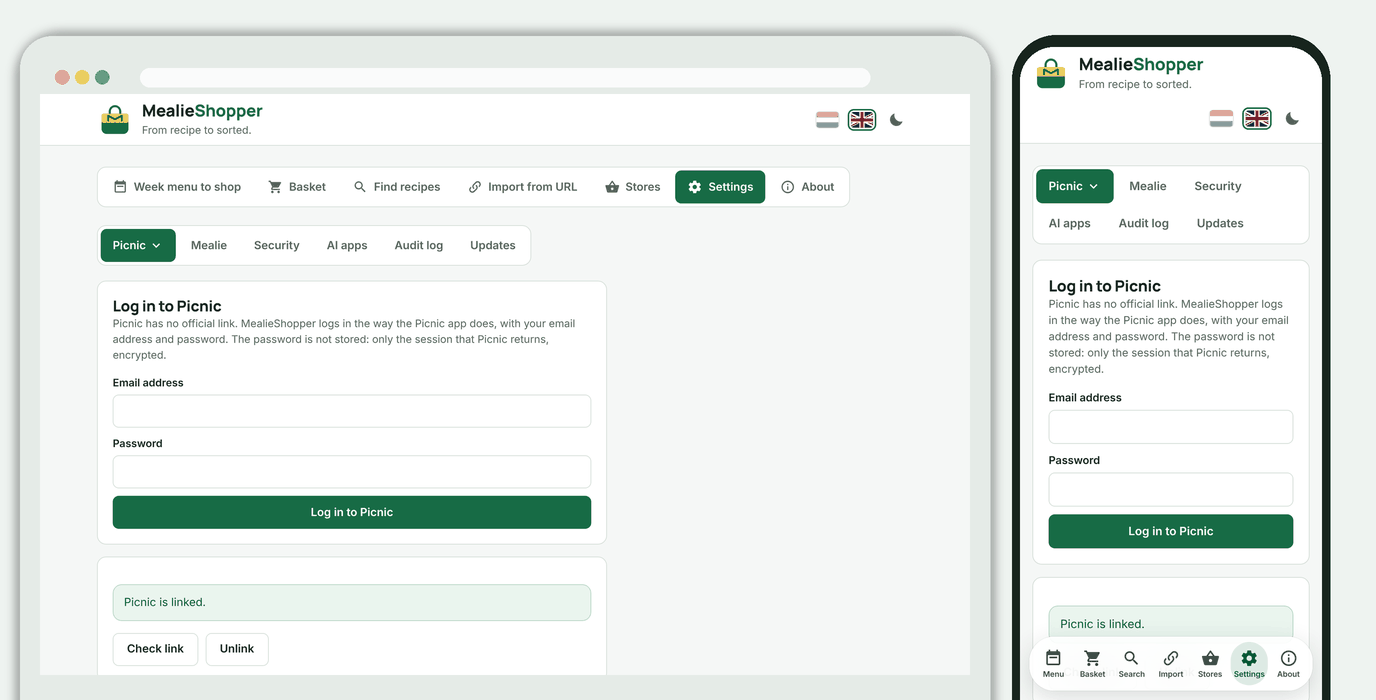
### Picnic
Picnic has no official link. MealieShopper logs in like the Picnic app, with your email address and password (administrator only, under **Settings > Link > Picnic**):
1. Enter your email address and password and choose `Log in to Picnic`.
2. Picnic usually asks for a code. It arrives by SMS (or by email, with the button below). Enter it and choose `Confirm`.
3. Once it says Picnic is linked, Picnic appears in the store choice of the planner.
Your password is not stored, only the session that Picnic returns, encrypted. Picnic may renew that session on every request; MealieShopper always keeps the newest. If it has expired, you link again. Unlike AH, the products go straight into your real Picnic basket; an order is never placed. Picnic only delivers to certain areas. With `Check link` you see whether the session still works. Under **Explore Picnic routes** you see which unofficial routes work and which fields they contain (no personal data, safe to share). Under the **Basket** tab you choose Picnic and change quantities, remove products or empty the basket (after a confirmation); that goes straight to your real basket. Below it are the next available delivery slots; you pick one yourself in the Picnic app. Under **Stores** choose **Picnic** in the list; there are three tabs. **Recipes** shows your recipes from the Picnic app: **Saved** (Cook > Saved), **Order again** and the **Cookbook**, as cards like the AH recipes. Open a recipe for the ingredients and the preparation, or choose `Import` to put it in Mealie. **Favorites** shows the products from the Favorites tab of the Picnic app, with a button to put one in your Picnic basket. MealieShopper finds that tab itself in the app's tab bar. That tab also shows suggested products at Picnic; MealieShopper only takes the products under the *Favorites* heading and keeps those that Picnic marks as a favorite in the product page (the heart button), so your own favorites. That takes one request per product, a few at a time, and the answers are remembered for 30 minutes (the *Load* button forgets them). If Picnic doesn't say, MealieShopper shows none and says why. Your AI assistant can look at Picnic products, your favorites, your basket, your deliveries, the delivery slots and your recipes (with name, id and cooking time), but can't fill the basket. **Orders** (under the same choice) shows your upcoming deliveries (fetched live) and your delivered orders. With *Sync* MealieShopper keeps the latter locally, with their products (at most 25 orders at a time, newest first), so you can view them without a connection to Picnic and your AI assistant can query them; your delivery address is not stored. Open one for its products and put them in your Picnic basket again with one button. Lists and receipts are not available for Picnic.
### Jumbo
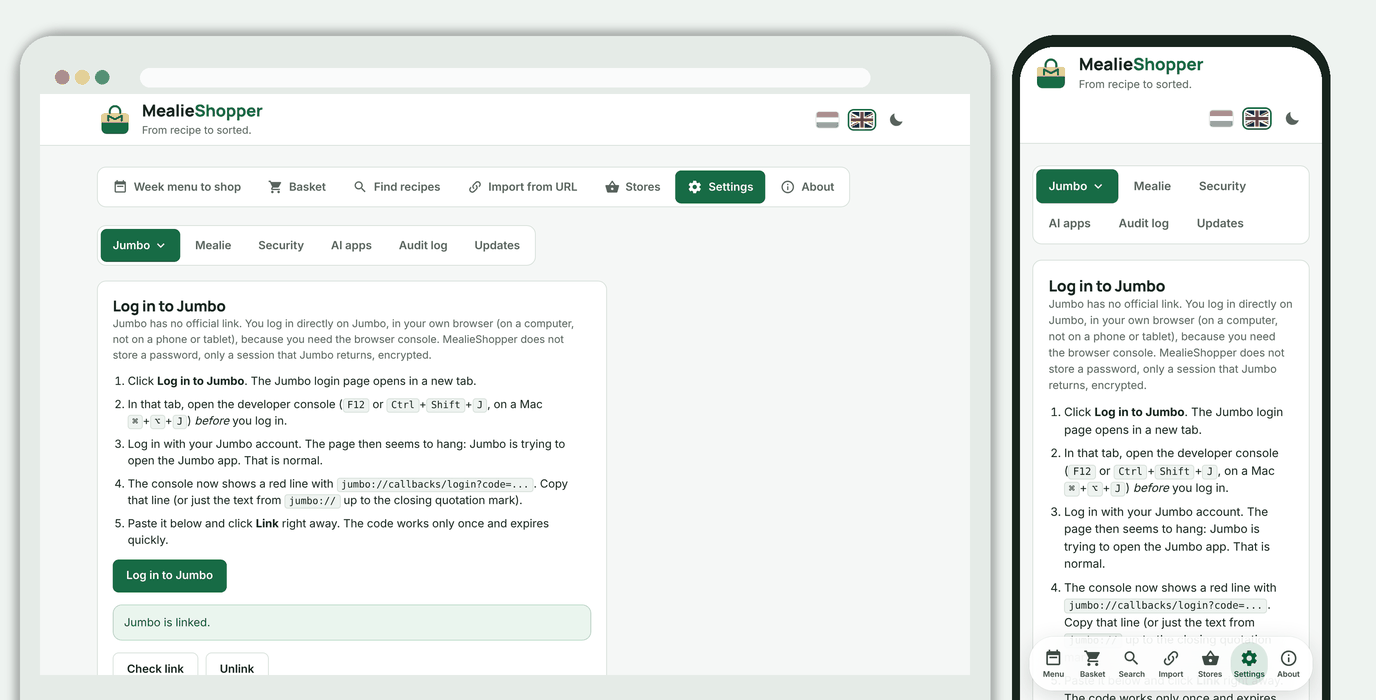
Jumbo has no official link. MealieShopper logs in like the Jumbo app, in your own browser (on a computer, administrator only, under **Settings > Link > Jumbo**). It works just like Albert Heijn:
1. Choose `Log in to Jumbo`; a new tab opens.
2. In that tab, open the developer console (`F12`) **before** you log in.
3. Log in with your Jumbo account. The page then seems to hang, but the console shows a red line with `jumbo://callbacks/login?code=...`.
4. Paste that line in MealieShopper and choose `Link`. The code works only once and expires quickly; a message about an expired or used code means: log in again.
Your browser solves Jumbo's bot check; MealieShopper no longer uses a headless browser. Your password is not stored, only the refresh token that Jumbo returns, encrypted; Jumbo may replace it on every refresh and MealieShopper always keeps the newest. So run one instance and keep the data folder on persistent storage. Once Jumbo is linked, it appears in the list in the planner. Like Picnic, the products go straight into your real basket and an order is never placed. Under **Stores > Lists**, after choosing *Jumbo*, you find all your Jumbo lists: **My lists** (your own lists and Favourites) and the **shopping list** (the loose lines you put on your list in the Jumbo app). They work like the AH lists: sync, search, change a quantity and put everything in your Jumbo basket with `Add to basket`. My lists hold products with pack size, price and the quantity Jumbo keeps; that quantity is the starting point and your change stays through the next sync. The shopping list consists of text and sometimes a product; Jumbo has no quantities on it, so those are local (default 1). MealieShopper skips ticked-off lines, and with `Add to basket` it first looks up text-only lines in Jumbo's range. In the planner the ingredients always go in the Jumbo basket (not on the shopping list). MealieShopper fetches your own lists and Favourites with the same stored requests as jumbo.com; if Jumbo changes those with a new version of the site, **Explore Jumbo routes** reports `PersistedQueryNotFound` and the code needs a new hash (see `PERSISTED_QUERIES` in `mealieshopper/jumbo.py`: copy the `sha256Hash` of `GetCustomerProductLists` and `GetProductList` from the Network tab of your browser). Under **Stores > Orders** (choice *Jumbo*) you find your completed Jumbo orders: date, delivery time, total and the products (name, brand, quantity, amount, offer), with a search field over everything you bought. MealieShopper fetches the list with the stored request `OnlineOrdersAndStoreReceipts` of jumbo.com (newest first, 10 at a time); the products of an order are fetched per sync for the 25 newest orders that still miss them, so with many orders you repeat the sync until nothing is missing. A completed order stays saved. MealieShopper does not keep your delivery address, customer number or reservation number. Products Jumbo no longer knows are shown with brand and article number. MealieShopper does not show store receipts or running orders for Jumbo yet; if Jumbo has store receipts for you, the sync reports how many. For the products of an order MealieShopper does not yet know the website's stored request and therefore tries ordinary requests; if Jumbo refuses those, the list stays and the sync reports why. You search Jumbo recipes under **Find recipes**, together with Albert Heijn and Picnic (see *Searching and importing recipes*). `View` shows the ingredients (with the recipe's amounts), the method, the tip and the nutrition values; `Import` puts the recipe in Mealie as a schema.org recipe with the link to jumbo.com as its source, so Mealie does not have to fetch the Jumbo page (jumbo.com blocks servers). If you paste a recipe link from jumbo.com (`jumbo.com/recepten/...`) at `Import from URL` and Jumbo is linked, that also goes through the Jumbo API. Your **recipe lists** at Jumbo are under **Stores > Recipes** (choice *Jumbo*): pick *Favourites* or one of your own lists (such as *Kerst*) in the list, 24 at a time with `More recipes`, with the same `View` and `Import` buttons. Your AI assistant can look at Jumbo products, your basket, your lists, your orders, your recipe lists and the recipes, but can't fill anything.
**Jumbo may refuse a server.** Jumbo sometimes blocks server and datacenter addresses; that is why an earlier Jumbo link was removed in v1.2.0. Under **Explore Jumbo routes** (administrator only) MealieShopper first checks whether Jumbo lets your server in and then calls the unofficial routes (filling the basket only with an empty list). The report contains no names, prices or ids and is safe to share. If the explorer says Jumbo refuses your server, the link does not work from that location.
## Security
### Mealie
1. Open Mealie and go to your profile, section **API tokens**.
2. Give the token a name, for example *MealieShopper*, and choose **Generate token**.
3. Copy the token right away: Mealie shows it only once.
4. Enter the address of your Mealie and the token in MealieShopper and choose **Link**.
The address must be reachable from where MealieShopper runs, not necessarily from your phone. If they run in the same Docker environment it can be an internal name such as `http://mealie:9000`. The token is stored encrypted and never shown again. A link you make in the app takes precedence over `MEALIE_URL` and `MEALIE_API_TOKEN` from the environment.
### Albert Heijn
AH has no official link. MealieShopper logs in like the AH app, in your own browser (on a computer):
1. Choose `Log in to Albert Heijn`; a new tab opens.
2. In that tab, open the developer console (`F12`) **before** you log in.
3. Log in with your passkey or password. The page then seems to hang, but the console shows a red line with `appie://login-exit?code=...`.
4. Paste that line in MealieShopper and choose `Link`. The code works only once and expires quickly; a message about an expired or used code means: log in again.
With `Check link` you see whether the stored token still works. Under **Explore AH routes** (administrator only) you call the unofficial AH routes for the basket (the shopping list), the order basket, orders and receipts and see which ones work and which fields they contain. The report contains no names, addresses, prices or ids and is safe to share; that is how we see how AH keeps orders and keep fetching them correct. The Picnic and Jumbo explorers also show what an offer looks like (offer text and period, without prices or products); with that we investigate how the offers of all stores can reach recipes reliably. For a product on offer, the check list of the week menu now also shows the offer (for example "2nd half price") and until when it applies, as far as the store says so. AH may replace the token on every refresh; MealieShopper always keeps the newest. So run one instance and keep the data folder on persistent storage.
### Picnic
Picnic has no official link. MealieShopper logs in like the Picnic app, with your email address and password (administrator only, under **Settings > Link > Picnic**):
1. Enter your email address and password and choose `Log in to Picnic`.
2. Picnic usually asks for a code. It arrives by SMS (or by email, with the button below). Enter it and choose `Confirm`.
3. Once it says Picnic is linked, Picnic appears in the store choice of the planner.
Your password is not stored, only the session that Picnic returns, encrypted. Picnic may renew that session on every request; MealieShopper always keeps the newest. If it has expired, you link again. Unlike AH, the products go straight into your real Picnic basket; an order is never placed. Picnic only delivers to certain areas. With `Check link` you see whether the session still works. Under **Explore Picnic routes** you see which unofficial routes work and which fields they contain (no personal data, safe to share). Under the **Basket** tab you choose Picnic and change quantities, remove products or empty the basket (after a confirmation); that goes straight to your real basket. Below it are the next available delivery slots; you pick one yourself in the Picnic app. Under **Stores** choose **Picnic** in the list; there are three tabs. **Recipes** shows your recipes from the Picnic app: **Saved** (Cook > Saved), **Order again** and the **Cookbook**, as cards like the AH recipes. Open a recipe for the ingredients and the preparation, or choose `Import` to put it in Mealie. **Favorites** shows the products from the Favorites tab of the Picnic app, with a button to put one in your Picnic basket. MealieShopper finds that tab itself in the app's tab bar. That tab also shows suggested products at Picnic; MealieShopper only takes the products under the *Favorites* heading and keeps those that Picnic marks as a favorite in the product page (the heart button), so your own favorites. That takes one request per product, a few at a time, and the answers are remembered for 30 minutes (the *Load* button forgets them). If Picnic doesn't say, MealieShopper shows none and says why. Your AI assistant can look at Picnic products, your favorites, your basket, your deliveries, the delivery slots and your recipes (with name, id and cooking time), but can't fill the basket. **Orders** (under the same choice) shows your upcoming deliveries (fetched live) and your delivered orders. With *Sync* MealieShopper keeps the latter locally, with their products (at most 25 orders at a time, newest first), so you can view them without a connection to Picnic and your AI assistant can query them; your delivery address is not stored. Open one for its products and put them in your Picnic basket again with one button. Lists and receipts are not available for Picnic.
### Jumbo
Jumbo has no official link. MealieShopper logs in like the Jumbo app, in your own browser (on a computer, administrator only, under **Settings > Link > Jumbo**). It works just like Albert Heijn:
1. Choose `Log in to Jumbo`; a new tab opens.
2. In that tab, open the developer console (`F12`) **before** you log in.
3. Log in with your Jumbo account. The page then seems to hang, but the console shows a red line with `jumbo://callbacks/login?code=...`.
4. Paste that line in MealieShopper and choose `Link`. The code works only once and expires quickly; a message about an expired or used code means: log in again.
Your browser solves Jumbo's bot check; MealieShopper no longer uses a headless browser. Your password is not stored, only the refresh token that Jumbo returns, encrypted; Jumbo may replace it on every refresh and MealieShopper always keeps the newest. So run one instance and keep the data folder on persistent storage. Once Jumbo is linked, it appears in the list in the planner. Like Picnic, the products go straight into your real basket and an order is never placed. Under **Stores > Lists**, after choosing *Jumbo*, you find all your Jumbo lists: **My lists** (your own lists and Favourites) and the **shopping list** (the loose lines you put on your list in the Jumbo app). They work like the AH lists: sync, search, change a quantity and put everything in your Jumbo basket with `Add to basket`. My lists hold products with pack size, price and the quantity Jumbo keeps; that quantity is the starting point and your change stays through the next sync. The shopping list consists of text and sometimes a product; Jumbo has no quantities on it, so those are local (default 1). MealieShopper skips ticked-off lines, and with `Add to basket` it first looks up text-only lines in Jumbo's range. In the planner the ingredients always go in the Jumbo basket (not on the shopping list). MealieShopper fetches your own lists and Favourites with the same stored requests as jumbo.com; if Jumbo changes those with a new version of the site, **Explore Jumbo routes** reports `PersistedQueryNotFound` and the code needs a new hash (see `PERSISTED_QUERIES` in `mealieshopper/jumbo.py`: copy the `sha256Hash` of `GetCustomerProductLists` and `GetProductList` from the Network tab of your browser). Under **Stores > Orders** (choice *Jumbo*) you find your completed Jumbo orders: date, delivery time, total and the products (name, brand, quantity, amount, offer), with a search field over everything you bought. MealieShopper fetches the list with the stored request `OnlineOrdersAndStoreReceipts` of jumbo.com (newest first, 10 at a time); the products of an order are fetched per sync for the 25 newest orders that still miss them, so with many orders you repeat the sync until nothing is missing. A completed order stays saved. MealieShopper does not keep your delivery address, customer number or reservation number. Products Jumbo no longer knows are shown with brand and article number. MealieShopper does not show store receipts or running orders for Jumbo yet; if Jumbo has store receipts for you, the sync reports how many. For the products of an order MealieShopper does not yet know the website's stored request and therefore tries ordinary requests; if Jumbo refuses those, the list stays and the sync reports why. You search Jumbo recipes under **Find recipes**, together with Albert Heijn and Picnic (see *Searching and importing recipes*). `View` shows the ingredients (with the recipe's amounts), the method, the tip and the nutrition values; `Import` puts the recipe in Mealie as a schema.org recipe with the link to jumbo.com as its source, so Mealie does not have to fetch the Jumbo page (jumbo.com blocks servers). If you paste a recipe link from jumbo.com (`jumbo.com/recepten/...`) at `Import from URL` and Jumbo is linked, that also goes through the Jumbo API. Your **recipe lists** at Jumbo are under **Stores > Recipes** (choice *Jumbo*): pick *Favourites* or one of your own lists (such as *Kerst*) in the list, 24 at a time with `More recipes`, with the same `View` and `Import` buttons. Your AI assistant can look at Jumbo products, your basket, your lists, your orders, your recipe lists and the recipes, but can't fill anything.
**Jumbo may refuse a server.** Jumbo sometimes blocks server and datacenter addresses; that is why an earlier Jumbo link was removed in v1.2.0. Under **Explore Jumbo routes** (administrator only) MealieShopper first checks whether Jumbo lets your server in and then calls the unofficial routes (filling the basket only with an empty list). The report contains no names, prices or ids and is safe to share. If the explorer says Jumbo refuses your server, the link does not work from that location.
## Security
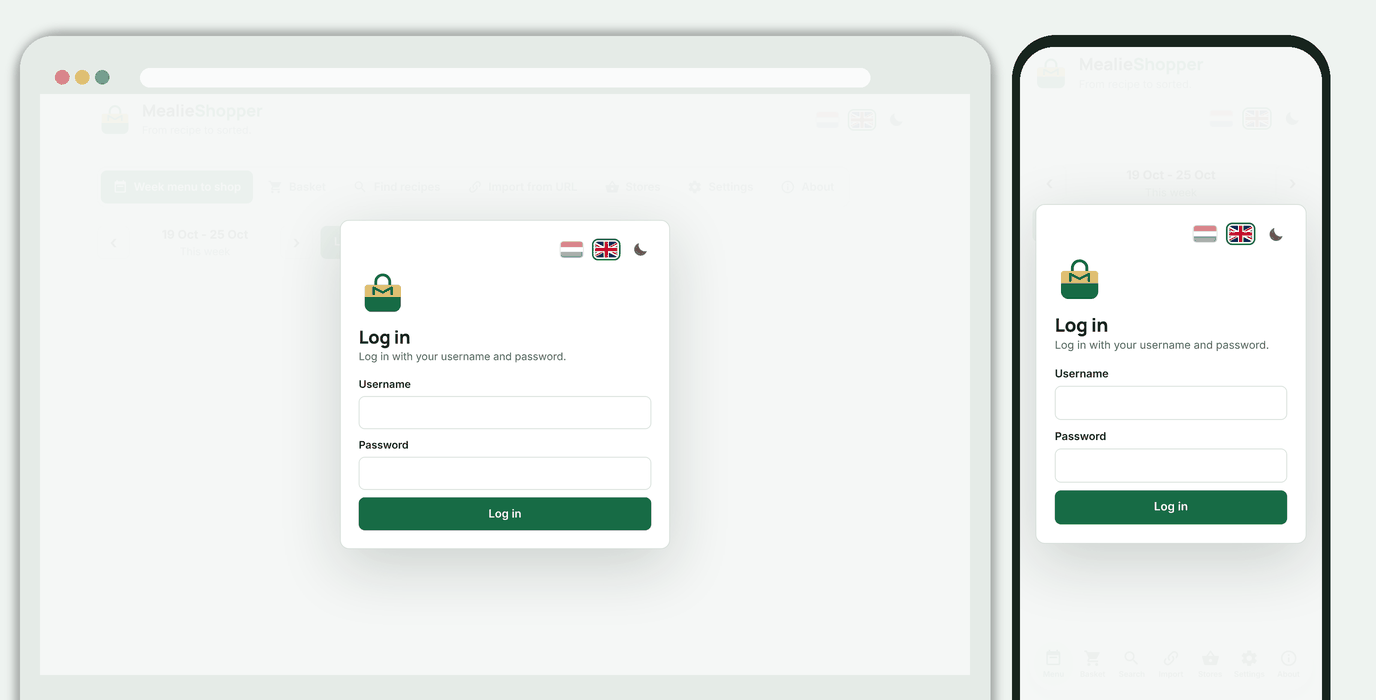 - **Passkey** (domain name with HTTPS): log in with your fingerprint, face or screen lock. Add extra passkeys under Profile, Security; the last passkey can only be removed if there is a password.
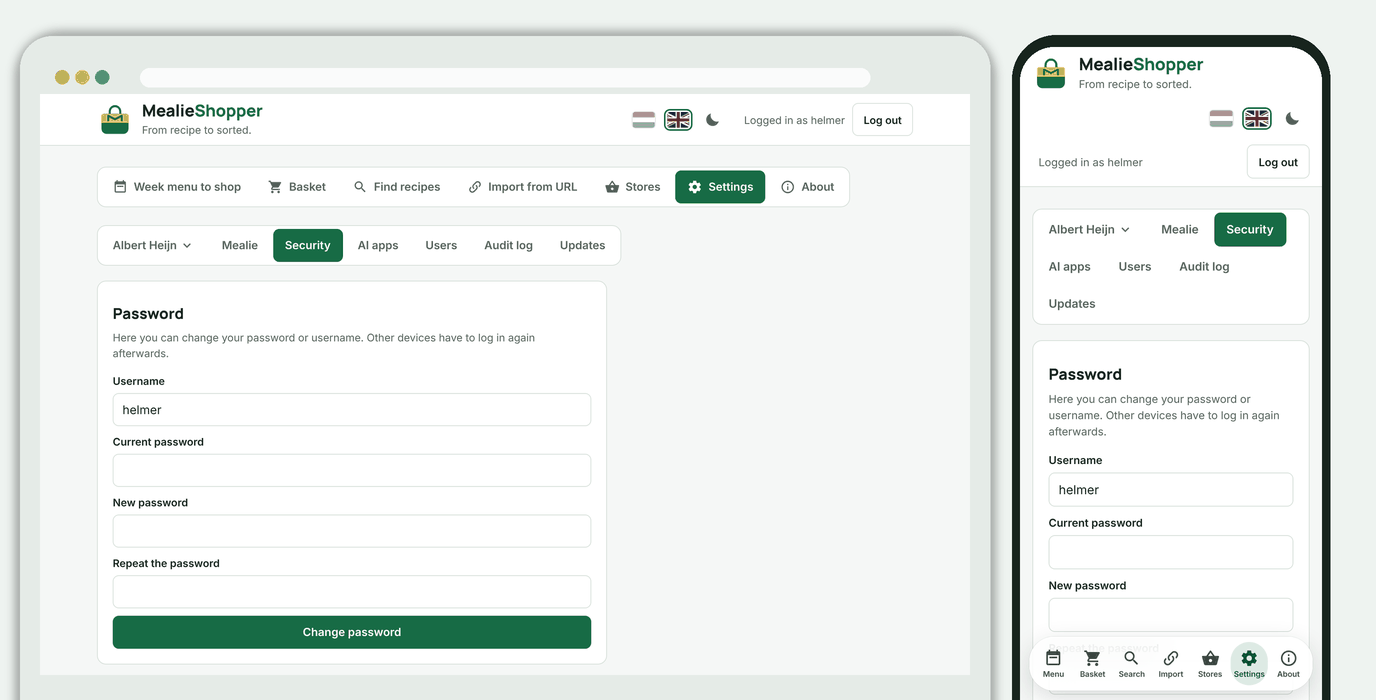
- **Password**: at least 10 characters, hashed with scrypt and never stored or logged. After 5 failed attempts per IP address (or 25 in total) logging in is blocked for 15 minutes.
- **Two-step verification** (TOTP, when logging in with a password): the secret is stored encrypted in the database, a code works once, and you get 8 recovery codes (16 characters, only the SHA-256 is in the database). With a passkey you need neither a password nor two-step verification; those blocks are then folded away.
- **Sessions**: an HttpOnly cookie. A new password or disabled two-step verification logs other devices out.
- **Passkey** (domain name with HTTPS): log in with your fingerprint, face or screen lock. Add extra passkeys under Profile, Security; the last passkey can only be removed if there is a password.
- **Password**: at least 10 characters, hashed with scrypt and never stored or logged. After 5 failed attempts per IP address (or 25 in total) logging in is blocked for 15 minutes.
- **Two-step verification** (TOTP, when logging in with a password): the secret is stored encrypted in the database, a code works once, and you get 8 recovery codes (16 characters, only the SHA-256 is in the database). With a passkey you need neither a password nor two-step verification; those blocks are then folded away.
- **Sessions**: an HttpOnly cookie. A new password or disabled two-step verification logs other devices out.
 **The secret.** Without `MEALIESHOPPER_AUTH_SECRET` the app creates a random secret on the first start and keeps it in the data folder (`secret.key`, readable only by the owner). Two separate keys follow from it: one for sessions and one for encrypting your stored links and the two-step secret. If you set `MEALIESHOPPER_AUTH_SECRET` yourself, the key is not on disk next to the database; use a long, fixed, random value (`openssl rand -hex 32`) and don't change it afterwards.
**Good to know**
- As long as no login method is set up, whoever opens the address first can claim the installation. Do the first start on a network you trust, or right after the container is running.
- The IP address used for the block after failed attempts comes from `X-Forwarded-For` of your reverse proxy (one hop). So don't put MealieShopper directly on the internet, but behind a proxy that sets that header itself.
- Passkeys need a domain name and HTTPS. Then set `RP_ID` (the host name only) and `RP_ORIGINS` (the full address), see [`.env.unraid.example`](.env.unraid.example).
## Users and invitations
The first user, the one who goes through the setup wizard, is the **administrator**. They link Mealie and the supermarkets and manage the users. Everyone you invite is a **user**: they can use the week menu, the recipes and the lists, put products in the basket of a store and import recipes, but cannot link or manage anything. The links and the baskets are the administrator's, so Mealie and the supermarkets are shared.
**The secret.** Without `MEALIESHOPPER_AUTH_SECRET` the app creates a random secret on the first start and keeps it in the data folder (`secret.key`, readable only by the owner). Two separate keys follow from it: one for sessions and one for encrypting your stored links and the two-step secret. If you set `MEALIESHOPPER_AUTH_SECRET` yourself, the key is not on disk next to the database; use a long, fixed, random value (`openssl rand -hex 32`) and don't change it afterwards.
**Good to know**
- As long as no login method is set up, whoever opens the address first can claim the installation. Do the first start on a network you trust, or right after the container is running.
- The IP address used for the block after failed attempts comes from `X-Forwarded-For` of your reverse proxy (one hop). So don't put MealieShopper directly on the internet, but behind a proxy that sets that header itself.
- Passkeys need a domain name and HTTPS. Then set `RP_ID` (the host name only) and `RP_ORIGINS` (the full address), see [`.env.unraid.example`](.env.unraid.example).
## Users and invitations
The first user, the one who goes through the setup wizard, is the **administrator**. They link Mealie and the supermarkets and manage the users. Everyone you invite is a **user**: they can use the week menu, the recipes and the lists, put products in the basket of a store and import recipes, but cannot link or manage anything. The links and the baskets are the administrator's, so Mealie and the supermarkets are shared.
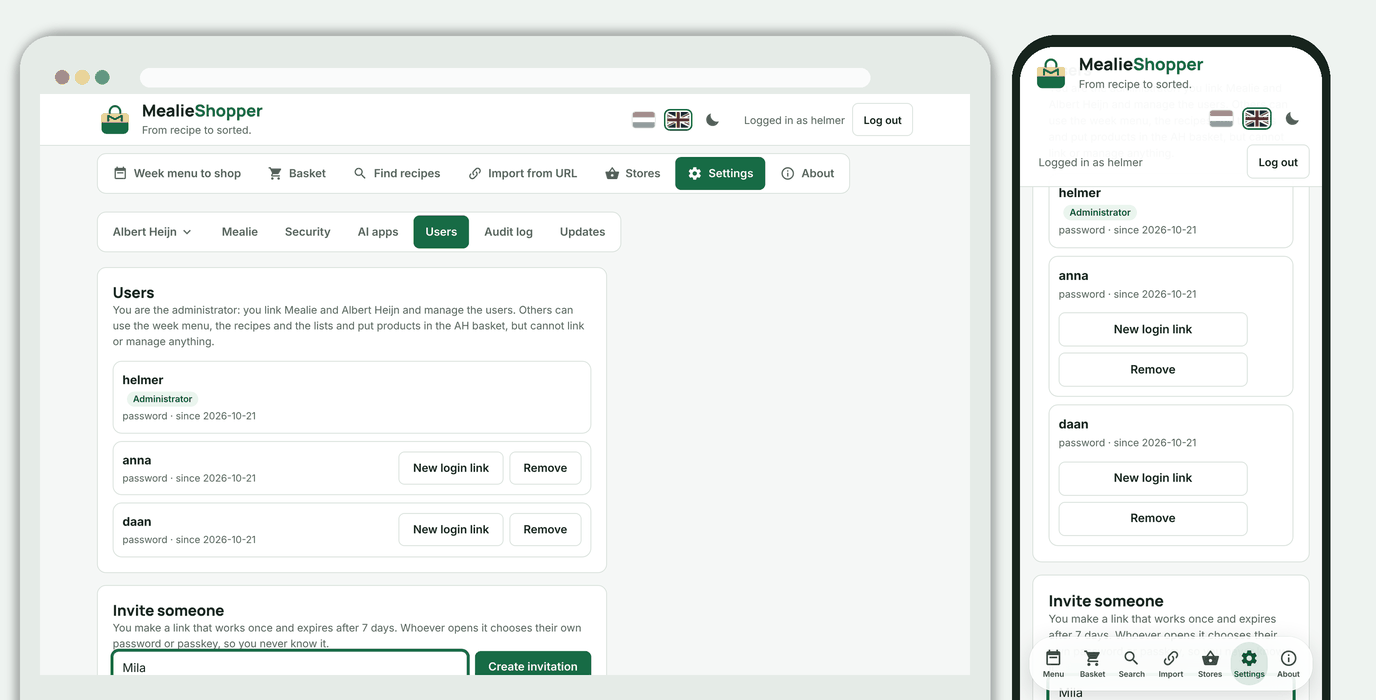 1. As administrator go to **Settings, Users** and choose **Create invitation** (with or without a name).
2. Copy the link and send it on. You only see it once; the link works once and expires after 7 days.
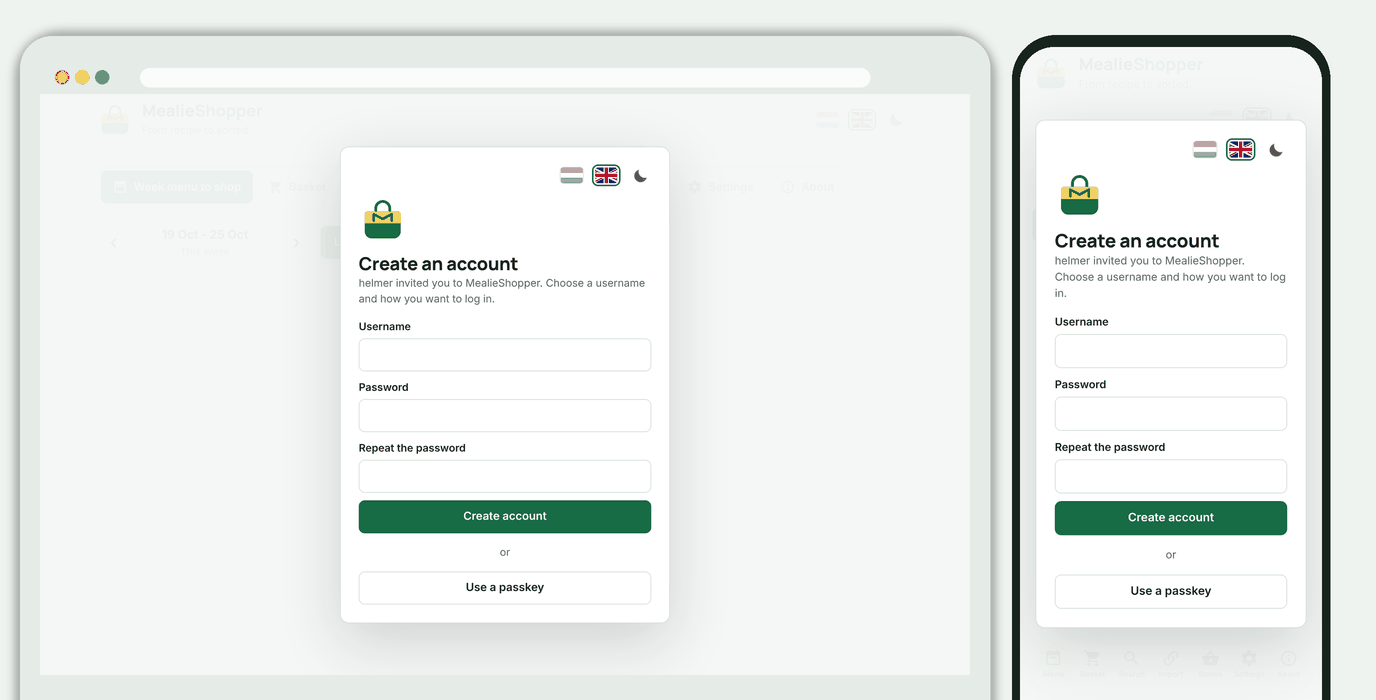
3. Whoever opens the link chooses a username and a password or a passkey. So you never know their password.
1. As administrator go to **Settings, Users** and choose **Create invitation** (with or without a name).
2. Copy the link and send it on. You only see it once; the link works once and expires after 7 days.
3. Whoever opens the link chooses a username and a password or a passkey. So you never know their password.
 - **Lost their login?** Choose **New login link** for that user. The old login keeps working until the new one is set up, and stops working after that.
- **Remove** deletes the account and all its login details. The administrator cannot be removed.
- Every user has their own login details, two-step verification and passkeys under Profile, Security. A new password only logs that user out.
- Quantities in a list, and the lists themselves, are shared: they belong to the account at the store.
## AI assistants (MCP)
MealieShopper has an [MCP](https://modelcontextprotocol.io) server at `/mcp`. With it you can ask Claude, ChatGPT or GitHub Copilot things like *"what are we eating this week and what's in my Weekly groceries list?"* or *"import this recipe into Mealie"*.
- **Lost their login?** Choose **New login link** for that user. The old login keeps working until the new one is set up, and stops working after that.
- **Remove** deletes the account and all its login details. The administrator cannot be removed.
- Every user has their own login details, two-step verification and passkeys under Profile, Security. A new password only logs that user out.
- Quantities in a list, and the lists themselves, are shared: they belong to the account at the store.
## AI assistants (MCP)
MealieShopper has an [MCP](https://modelcontextprotocol.io) server at `/mcp`. With it you can ask Claude, ChatGPT or GitHub Copilot things like *"what are we eating this week and what's in my Weekly groceries list?"* or *"import this recipe into Mealie"*.
 **What the assistant can do** (only in your name and with your rights):
| Tool | Does |
|---|---|
| `get_week_menu` | The week menu from Mealie, with the ingredients. |
| `search_allerhande_recipes` | Search recipes at Allerhande. |
| `list_saved_ah_recipes` | Your saved AH recipes, optionally filtered. |
| `list_ah_lists`, `get_ah_list`, `search_ah_list_items` | Your AH lists, the products in them (with your quantities) and where a product is. |
| `search_ah_products` | Search products in the AH range, with price and bonus. |
| `get_ah_basket` | The AH basket (the products on your shopping list), from the local copy. |
| `list_ah_orders`, `get_ah_order` | Your orders and the products of one order, from the local copy. |
| `list_ah_receipts`, `get_ah_receipt` | Your receipts from the shop and the lines of one receipt. |
| `search_ah_purchases` | Where and when you bought a product, in all kept orders and receipts. |
| `search_picnic_products`, `get_picnic_basket` | Search Picnic products and your Picnic basket, fetched live. |
| `list_picnic_deliveries`, `get_picnic_delivery`, `list_picnic_delivery_slots` | Your Picnic deliveries (including the current ones), the products of one delivery and the next delivery slots. |
| `list_picnic_orders`, `get_picnic_order` | Your delivered Picnic orders and their products, from the local copy. |
| `list_picnic_favorites`, `list_picnic_recipes` | Your favourite Picnic products and your Picnic recipes (saved, cookbook or order again). |
| `search_jumbo_products`, `get_jumbo_basket` | Search Jumbo products and your Jumbo basket, fetched live. |
| `list_jumbo_lists`, `get_jumbo_list` | Your Jumbo lists (shopping list, own lists, Favourites) and the products in them. |
| `list_jumbo_orders`, `get_jumbo_order` | Your Jumbo orders and their products, from the local copy. |
| `search_jumbo_recipes`, `get_jumbo_recipe`, `list_jumbo_recipe_lists`, `get_jumbo_recipe_list` | Search and view Jumbo recipes, and your recipe lists (Favourites and own lists). |
| `review_offer_matches`, `report_offer_mismatch`, `list_offer_mismatches` | Review the matches between recipe ingredients and products on offer: the assistant gets the unique pairs (ingredient + product, with the number of recipes) of one store, reports the wrong ones (`report_offer_mismatch`, with a reason; `undo` removes the report) and can list the reported matches. A report hides the match, also in other recipes with the same ingredient. The only write tool here; nothing is deleted. |
| `import_recipe_to_mealie` | Import a recipe into Mealie. This creates something new and overwrites nothing. |
There is deliberately **no** tool that fills a basket at a store or deletes anything.
**Setting up**
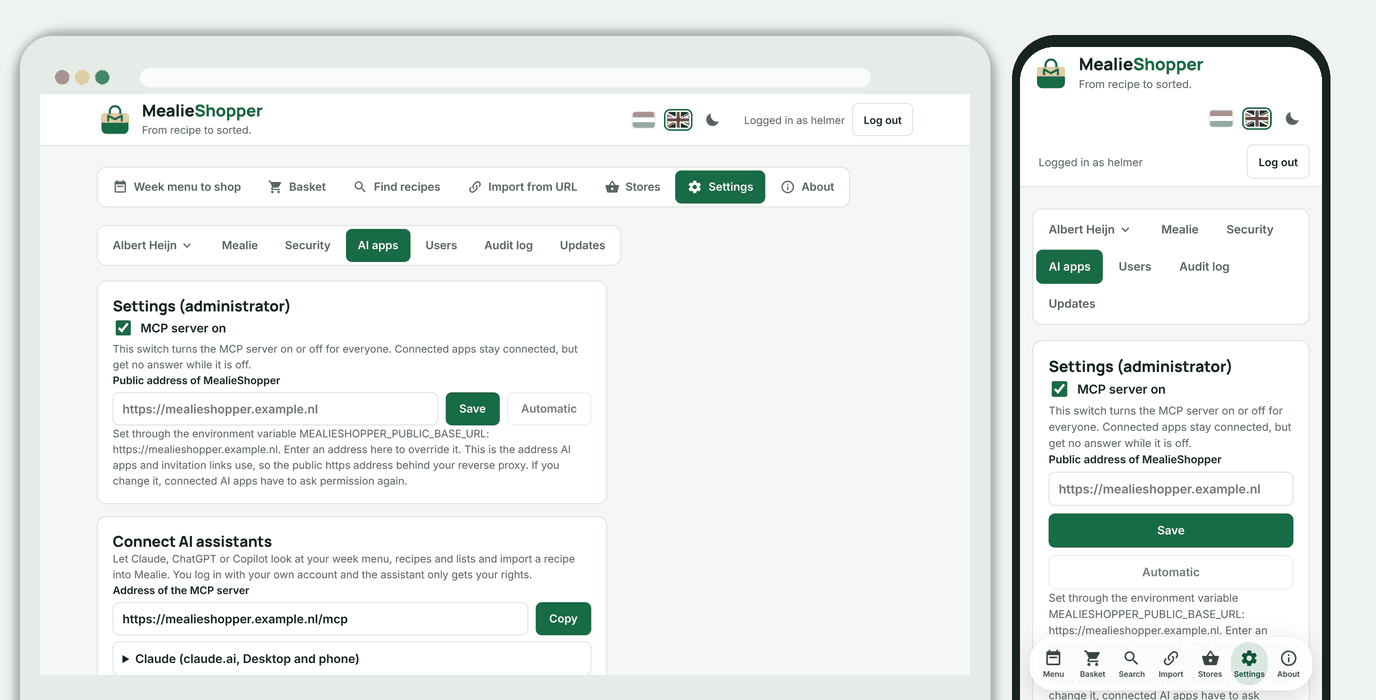
1. As administrator open **Profile, AI apps**. At the top are the settings: the **MCP server on** switch and the **public address**. The app detects that address itself from how you open it; if MealieShopper is behind a reverse proxy, check that it is the public https address and otherwise enter it here. ChatGPT and claude.ai reach the server from outside, so the address must be reachable from the internet, with HTTPS. Forward `/mcp`, `/oauth/*` and `/.well-known/oauth-*` in your reverse proxy (an ordinary proxy does that for the whole site already).
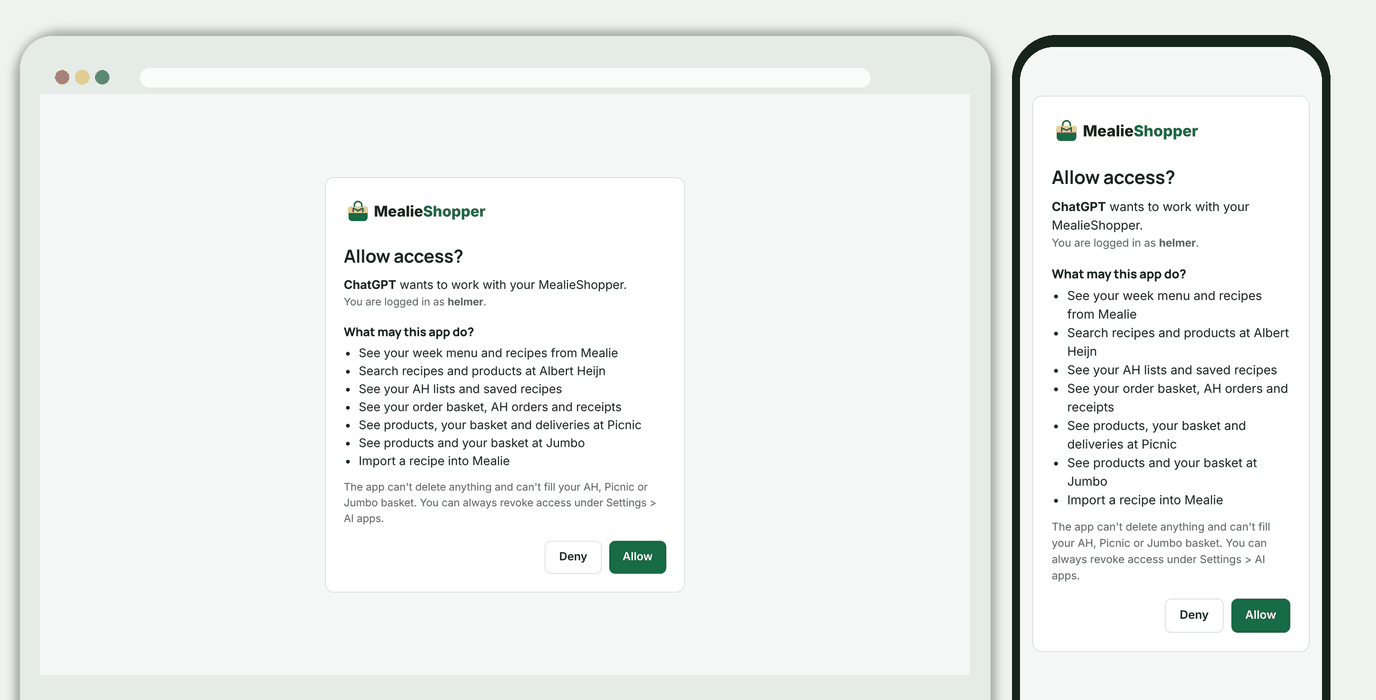
2. As a user open **Profile, AI apps** (the settings are not shown to you), copy the address and follow the instructions for your assistant. You get the consent screen; after **Allow** the assistant is connected.
- **Claude** (claude.ai, Desktop, phone): Settings, Connectors, *Add custom connector*.
- **Claude Code:** `claude mcp add --transport http mealieshopper https://your-address/mcp`, then `/mcp` to log in.
- **ChatGPT:** developer mode on, a new connector with the address and OAuth. Availability depends on your plan.
- **GitHub Copilot (VS Code):** `{"servers": {"mealieshopper": {"type": "http", "url": "https://your-address/mcp"}}}` in `.vscode/mcp.json`.
**What the assistant can do** (only in your name and with your rights):
| Tool | Does |
|---|---|
| `get_week_menu` | The week menu from Mealie, with the ingredients. |
| `search_allerhande_recipes` | Search recipes at Allerhande. |
| `list_saved_ah_recipes` | Your saved AH recipes, optionally filtered. |
| `list_ah_lists`, `get_ah_list`, `search_ah_list_items` | Your AH lists, the products in them (with your quantities) and where a product is. |
| `search_ah_products` | Search products in the AH range, with price and bonus. |
| `get_ah_basket` | The AH basket (the products on your shopping list), from the local copy. |
| `list_ah_orders`, `get_ah_order` | Your orders and the products of one order, from the local copy. |
| `list_ah_receipts`, `get_ah_receipt` | Your receipts from the shop and the lines of one receipt. |
| `search_ah_purchases` | Where and when you bought a product, in all kept orders and receipts. |
| `search_picnic_products`, `get_picnic_basket` | Search Picnic products and your Picnic basket, fetched live. |
| `list_picnic_deliveries`, `get_picnic_delivery`, `list_picnic_delivery_slots` | Your Picnic deliveries (including the current ones), the products of one delivery and the next delivery slots. |
| `list_picnic_orders`, `get_picnic_order` | Your delivered Picnic orders and their products, from the local copy. |
| `list_picnic_favorites`, `list_picnic_recipes` | Your favourite Picnic products and your Picnic recipes (saved, cookbook or order again). |
| `search_jumbo_products`, `get_jumbo_basket` | Search Jumbo products and your Jumbo basket, fetched live. |
| `list_jumbo_lists`, `get_jumbo_list` | Your Jumbo lists (shopping list, own lists, Favourites) and the products in them. |
| `list_jumbo_orders`, `get_jumbo_order` | Your Jumbo orders and their products, from the local copy. |
| `search_jumbo_recipes`, `get_jumbo_recipe`, `list_jumbo_recipe_lists`, `get_jumbo_recipe_list` | Search and view Jumbo recipes, and your recipe lists (Favourites and own lists). |
| `review_offer_matches`, `report_offer_mismatch`, `list_offer_mismatches` | Review the matches between recipe ingredients and products on offer: the assistant gets the unique pairs (ingredient + product, with the number of recipes) of one store, reports the wrong ones (`report_offer_mismatch`, with a reason; `undo` removes the report) and can list the reported matches. A report hides the match, also in other recipes with the same ingredient. The only write tool here; nothing is deleted. |
| `import_recipe_to_mealie` | Import a recipe into Mealie. This creates something new and overwrites nothing. |
There is deliberately **no** tool that fills a basket at a store or deletes anything.
**Setting up**
1. As administrator open **Profile, AI apps**. At the top are the settings: the **MCP server on** switch and the **public address**. The app detects that address itself from how you open it; if MealieShopper is behind a reverse proxy, check that it is the public https address and otherwise enter it here. ChatGPT and claude.ai reach the server from outside, so the address must be reachable from the internet, with HTTPS. Forward `/mcp`, `/oauth/*` and `/.well-known/oauth-*` in your reverse proxy (an ordinary proxy does that for the whole site already).
2. As a user open **Profile, AI apps** (the settings are not shown to you), copy the address and follow the instructions for your assistant. You get the consent screen; after **Allow** the assistant is connected.
- **Claude** (claude.ai, Desktop, phone): Settings, Connectors, *Add custom connector*.
- **Claude Code:** `claude mcp add --transport http mealieshopper https://your-address/mcp`, then `/mcp` to log in.
- **ChatGPT:** developer mode on, a new connector with the address and OAuth. Availability depends on your plan.
- **GitHub Copilot (VS Code):** `{"servers": {"mealieshopper": {"type": "http", "url": "https://your-address/mcp"}}}` in `.vscode/mcp.json`.
 **Security**
- OAuth 2.1 with PKCE (S256); apps register themselves (dynamic client registration), public clients only, and only https, loopback or app redirects.
- Every token belongs to **the user who gave consent** and gives only that user's rights. Access tokens last an hour, refresh tokens 30 days and are replaced at every use; a refresh token that is used twice revokes the whole chain. Tokens are stored hashed only.
- A new password, turned-off two-step verification, a new login link or removing the user invalidates that user's tokens. Under **Profile, AI apps** you revoke an app's access yourself.
- The server only runs when login is on. The administrator turns it on or off with the switch; only the administrator can see and change the settings. Under **What the assistant can do** the administrator can also switch each tool off individually, for all users. A switched-off tool is hidden from assistants and refused; they see the change on their next connection.
- What the assistant reads (recipe names, product names) comes from Mealie and the supermarkets; treat it as data, not instructions. That is why the assistant can't delete or buy anything.
## Configuration
Everything is optional. Set the values in your environment or in `.env.unraid` ([`.env.unraid.example`](.env.unraid.example) and [`.env.local.example`](.env.local.example) show everything).
| Variable | Purpose |
|---|---|
| `MEALIESHOPPER_DATA_DIR` | Folder for the database and `secret.key`. `/data` in the Docker image, `./data` by default locally. |
| `MEALIESHOPPER_AUTH_SECRET` (or `JWT_SECRET`) | Your own secret for sessions and encryption. Without it the app creates `secret.key`. |
| `MEALIESHOPPER_PUBLIC_BASE_URL` | The public address (for the preview image, invitation links and the AI connection). Optional: the app detects it itself, and an address the administrator enters under Profile, AI apps takes precedence. |
| `RP_ID`, `RP_ORIGINS` (or `RP_ORIGIN`), `RP_NAME` | Only for passkeys, with a domain name and HTTPS. |
| `MEALIESHOPPER_MCP` | Initial value of the MCP server for AI assistants (on by default, when login is on). The switch under Profile, AI apps takes precedence. |
| `MEALIESHOPPER_OFFERS_SCHEDULE` | Set to `false` to turn off the daily task that fetches the offers of all stores. The button under Settings, Link keeps working. On by default. |
| `MEALIESHOPPER_OFFERS_SYNC_HOUR` | The hour of the day (0 to 23, the container's time) at which that task fetches the offers. Default 5. |
| `MEALIESHOPPER_OFFERS_RECIPES` | With `true` the app shows the **Recipes** subtab under Offers (recipe suggestions from the offers). Off by default: the matches between ingredients and products are not good enough yet. The MCP tools for AI assistants work with this off too. |
| `ANTHROPIC_API_KEY`, `OPENAI_API_KEY` | Optional: an API key from Claude (Anthropic) and/or ChatGPT (OpenAI) to have the matches between ingredients and offers reviewed (see *AI: searching recipes for the offers*). A key entered in the app takes precedence. Without a key nothing happens with AI. |
| `MEALIESHOPPER_UPDATE_CHECK` | Set to `false` to turn the update check off (Settings, Updates). By default the app checks GitHub for a newer release and tells the administrator; no information about you or the installation is sent. |
| `MEALIESHOPPER_AUDIT_LOG` | Set to `false` to turn the audit log off (Settings, Audit log). On by default. |
| `MEALIESHOPPER_AUDIT_BODIES` | Set to `false` and the audit log stores only who, what, when and the outcome, not the requests and answers themselves. On by default. |
| `MEALIESHOPPER_AUDIT_BODY_CHARS` | How many characters of each request and answer the audit log stores (default 4000; longer texts are cut). |
| `MEALIESHOPPER_AUDIT_RETENTION_DAYS` | After how many days the audit log deletes entries (default 30; `0` never deletes on its own). |
| `PASSKEY_AUTH_ENABLED` | With `false` login is turned off completely (emergency only). |
| `MEALIE_URL`, `MEALIE_API_TOKEN` | Mealie through the environment; a link made in the app takes precedence. |
| `AH_REFRESH_TOKEN` | Starting value for the AH link; you normally link in the app. |
| `PICNIC_COUNTRY_CODE` | Country of your Picnic account: `NL` (default), `DE` or `FR`. You make the link itself in the app. |
| `PORT` | Port for `python run.py` (default 8000). |
| `MEALIESHOPPER_TAG` | Which build is running: `latest` (stable, the default) or `beta`. Set it in `.env` next to `docker-compose.yml`: the compose file uses it to pull the right image (`:latest` or `:beta`) and passes the same value to the app, which shows a **beta** badge next to the wordmark (and under About) on a beta build. See *Updating*. |
| `MEALIESHOPPER_VERSION`, `MEALIESHOPPER_COMMIT` | Override the version number and commit shown under About. |
**Audit log.** Under **Settings, Audit log** the administrator sees what MealieShopper exchanges with Albert Heijn, Picnic and Jumbo: every request with time, outcome, duration, the request and the answer. Requests from AI assistants (MCP) are in there too, with the tool, its input and the result; for such a request you see which store requests followed from it, and the other way round. You can filter by store, show only errors and search. **Export** (JSON or CSV, with the chosen filters, at most the newest 5000 entries) downloads the log, and **Copy list** or **Copy** on a single entry puts the data on the clipboard. Passwords, tokens, codes, cookies and email addresses are replaced by `[verborgen]` before storing; headers are not stored. Answers from the stores can contain personal data, such as your orders: only the administrator sees the log and entries older than 30 days are deleted. **Clear log** deletes everything, and that action itself stays in the log as an entry. The settings are in the table above.
**Security**
- OAuth 2.1 with PKCE (S256); apps register themselves (dynamic client registration), public clients only, and only https, loopback or app redirects.
- Every token belongs to **the user who gave consent** and gives only that user's rights. Access tokens last an hour, refresh tokens 30 days and are replaced at every use; a refresh token that is used twice revokes the whole chain. Tokens are stored hashed only.
- A new password, turned-off two-step verification, a new login link or removing the user invalidates that user's tokens. Under **Profile, AI apps** you revoke an app's access yourself.
- The server only runs when login is on. The administrator turns it on or off with the switch; only the administrator can see and change the settings. Under **What the assistant can do** the administrator can also switch each tool off individually, for all users. A switched-off tool is hidden from assistants and refused; they see the change on their next connection.
- What the assistant reads (recipe names, product names) comes from Mealie and the supermarkets; treat it as data, not instructions. That is why the assistant can't delete or buy anything.
## Configuration
Everything is optional. Set the values in your environment or in `.env.unraid` ([`.env.unraid.example`](.env.unraid.example) and [`.env.local.example`](.env.local.example) show everything).
| Variable | Purpose |
|---|---|
| `MEALIESHOPPER_DATA_DIR` | Folder for the database and `secret.key`. `/data` in the Docker image, `./data` by default locally. |
| `MEALIESHOPPER_AUTH_SECRET` (or `JWT_SECRET`) | Your own secret for sessions and encryption. Without it the app creates `secret.key`. |
| `MEALIESHOPPER_PUBLIC_BASE_URL` | The public address (for the preview image, invitation links and the AI connection). Optional: the app detects it itself, and an address the administrator enters under Profile, AI apps takes precedence. |
| `RP_ID`, `RP_ORIGINS` (or `RP_ORIGIN`), `RP_NAME` | Only for passkeys, with a domain name and HTTPS. |
| `MEALIESHOPPER_MCP` | Initial value of the MCP server for AI assistants (on by default, when login is on). The switch under Profile, AI apps takes precedence. |
| `MEALIESHOPPER_OFFERS_SCHEDULE` | Set to `false` to turn off the daily task that fetches the offers of all stores. The button under Settings, Link keeps working. On by default. |
| `MEALIESHOPPER_OFFERS_SYNC_HOUR` | The hour of the day (0 to 23, the container's time) at which that task fetches the offers. Default 5. |
| `MEALIESHOPPER_OFFERS_RECIPES` | With `true` the app shows the **Recipes** subtab under Offers (recipe suggestions from the offers). Off by default: the matches between ingredients and products are not good enough yet. The MCP tools for AI assistants work with this off too. |
| `ANTHROPIC_API_KEY`, `OPENAI_API_KEY` | Optional: an API key from Claude (Anthropic) and/or ChatGPT (OpenAI) to have the matches between ingredients and offers reviewed (see *AI: searching recipes for the offers*). A key entered in the app takes precedence. Without a key nothing happens with AI. |
| `MEALIESHOPPER_UPDATE_CHECK` | Set to `false` to turn the update check off (Settings, Updates). By default the app checks GitHub for a newer release and tells the administrator; no information about you or the installation is sent. |
| `MEALIESHOPPER_AUDIT_LOG` | Set to `false` to turn the audit log off (Settings, Audit log). On by default. |
| `MEALIESHOPPER_AUDIT_BODIES` | Set to `false` and the audit log stores only who, what, when and the outcome, not the requests and answers themselves. On by default. |
| `MEALIESHOPPER_AUDIT_BODY_CHARS` | How many characters of each request and answer the audit log stores (default 4000; longer texts are cut). |
| `MEALIESHOPPER_AUDIT_RETENTION_DAYS` | After how many days the audit log deletes entries (default 30; `0` never deletes on its own). |
| `PASSKEY_AUTH_ENABLED` | With `false` login is turned off completely (emergency only). |
| `MEALIE_URL`, `MEALIE_API_TOKEN` | Mealie through the environment; a link made in the app takes precedence. |
| `AH_REFRESH_TOKEN` | Starting value for the AH link; you normally link in the app. |
| `PICNIC_COUNTRY_CODE` | Country of your Picnic account: `NL` (default), `DE` or `FR`. You make the link itself in the app. |
| `PORT` | Port for `python run.py` (default 8000). |
| `MEALIESHOPPER_TAG` | Which build is running: `latest` (stable, the default) or `beta`. Set it in `.env` next to `docker-compose.yml`: the compose file uses it to pull the right image (`:latest` or `:beta`) and passes the same value to the app, which shows a **beta** badge next to the wordmark (and under About) on a beta build. See *Updating*. |
| `MEALIESHOPPER_VERSION`, `MEALIESHOPPER_COMMIT` | Override the version number and commit shown under About. |
**Audit log.** Under **Settings, Audit log** the administrator sees what MealieShopper exchanges with Albert Heijn, Picnic and Jumbo: every request with time, outcome, duration, the request and the answer. Requests from AI assistants (MCP) are in there too, with the tool, its input and the result; for such a request you see which store requests followed from it, and the other way round. You can filter by store, show only errors and search. **Export** (JSON or CSV, with the chosen filters, at most the newest 5000 entries) downloads the log, and **Copy list** or **Copy** on a single entry puts the data on the clipboard. Passwords, tokens, codes, cookies and email addresses are replaced by `[verborgen]` before storing; headers are not stored. Answers from the stores can contain personal data, such as your orders: only the administrator sees the log and entries older than 30 days are deleted. **Clear log** deletes everything, and that action itself stays in the log as an entry. The settings are in the table above.
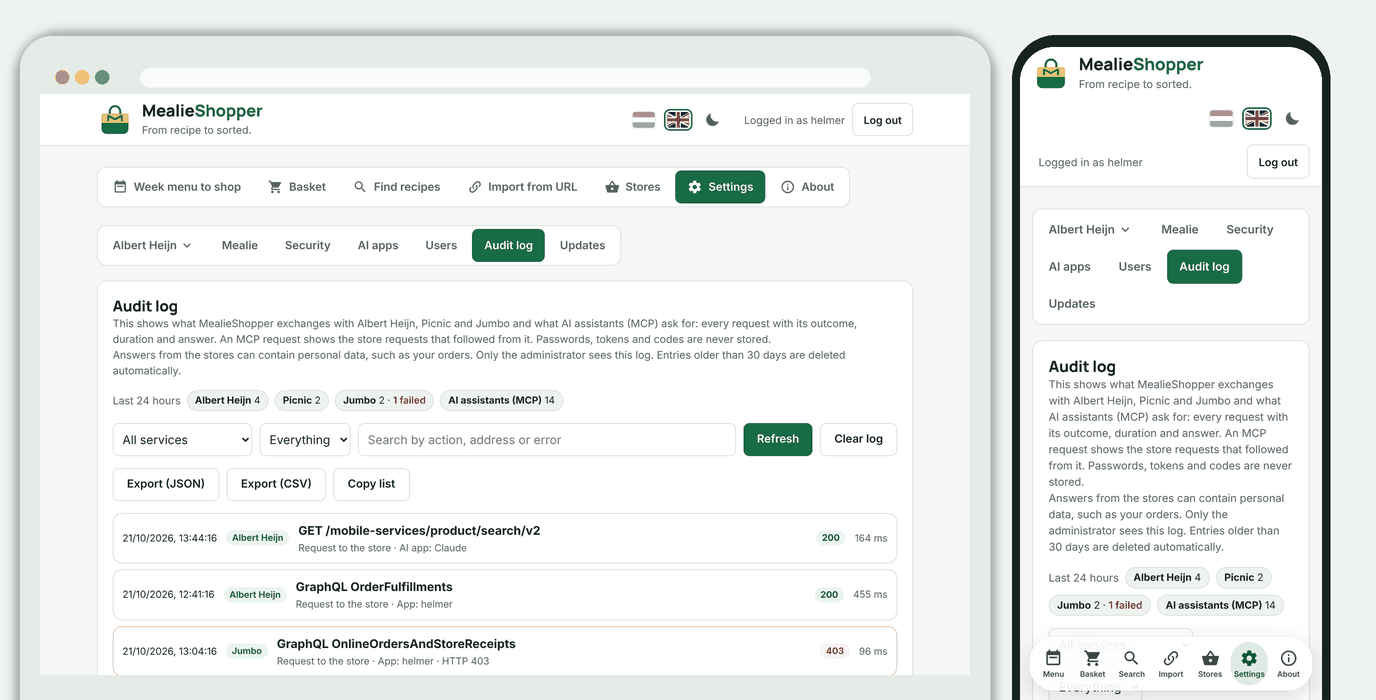
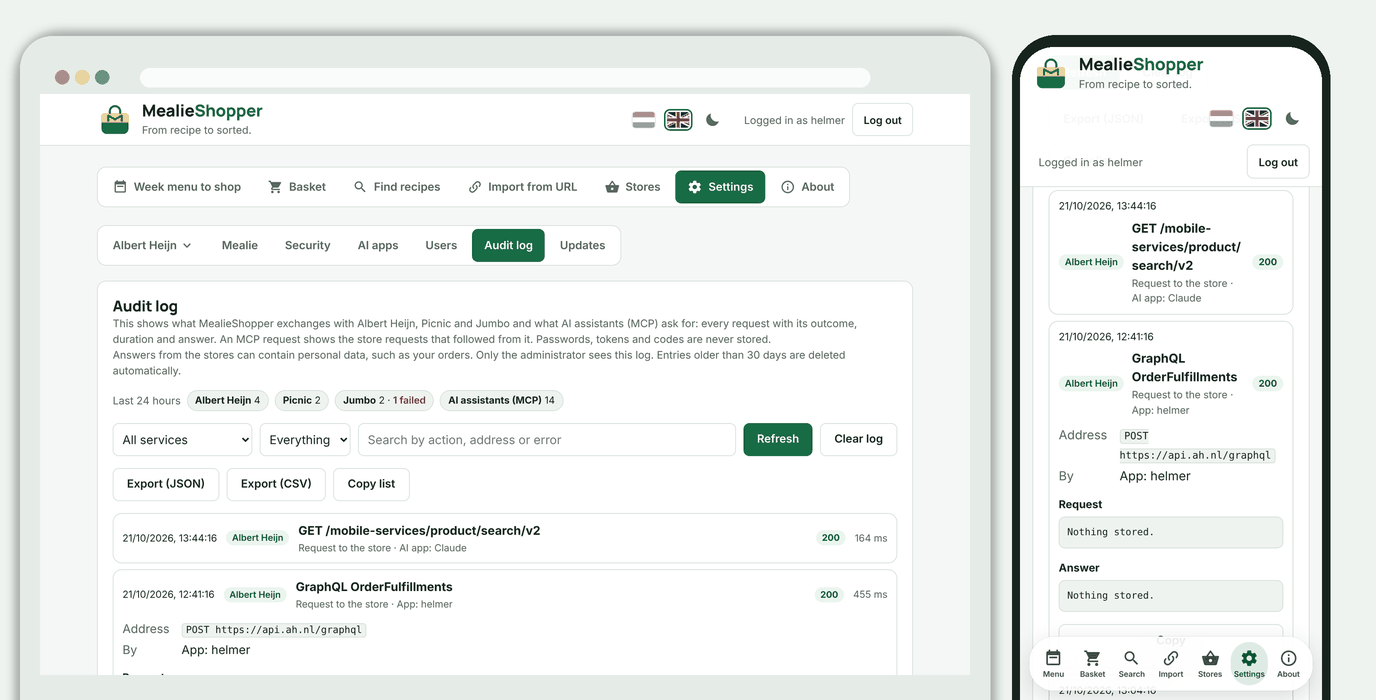 ## Data and backups
Everything is in the data folder: `auth.sqlite3` (settings, passkeys, password, copies of your lists, recipes, orders and receipts at the supermarkets, pictures from Mealie) and `secret.key`. **Include the whole folder in your backups.** Without `secret.key` (or your own `MEALIESHOPPER_AUTH_SECRET`) the stored links and sessions can't be read: you link Mealie and the supermarkets again, and the app shows that as "not linked".
**Factory reset.** Under **Settings, System, Clean-up** you reset MealieShopper to a fresh installation. That deletes the whole database and `secret.key`: all users, passwords, passkeys and two-step verification (yours too), the links to Mealie, the supermarkets and AI assistants, the saved lists, orders and offers, and the audit log. Your recipes in Mealie and your supermarket accounts are left alone, as is anything you set in environment variables. Because it can't be undone, the app first warns about the consequences and asks for the word `RESET` and for you to prove again that it is you: with your password (and the code from your authenticator app or a recovery code, if you use two-step verification) or with your passkey. After the erase the app restarts itself and you land in the setup assistant again. The restart works in the container (under gunicorn) when compose has a restart policy that starts it again after a normal stop, such as `unless-stopped` or `always` in the example; if you run the app another way, it tells you to restart it yourself. Back up the data folder first if you are not sure you want to lose everything.
## Updating
```bash
docker compose pull && docker compose up -d
```
With a new version you don't have to do anything; the database is extended automatically when needed. Under About you can see which version and commit is running.
**Stable or beta.** You choose which build to install with `MEALIESHOPPER_TAG` in a `.env` file next to `docker-compose.yml` (copy [`.env.example`](.env.example)): `latest` is the stable version and the default, `beta` is the development version. Then run `docker compose pull && docker compose up -d`. The same value goes to the app, which shows a **beta** badge next to the wordmark on `beta`. Use a separate data folder for beta. If you put the value in `.env.unraid`, Compose does not see it for the image tag; use `docker compose --env-file .env.unraid up -d` instead.
## Data and backups
Everything is in the data folder: `auth.sqlite3` (settings, passkeys, password, copies of your lists, recipes, orders and receipts at the supermarkets, pictures from Mealie) and `secret.key`. **Include the whole folder in your backups.** Without `secret.key` (or your own `MEALIESHOPPER_AUTH_SECRET`) the stored links and sessions can't be read: you link Mealie and the supermarkets again, and the app shows that as "not linked".
**Factory reset.** Under **Settings, System, Clean-up** you reset MealieShopper to a fresh installation. That deletes the whole database and `secret.key`: all users, passwords, passkeys and two-step verification (yours too), the links to Mealie, the supermarkets and AI assistants, the saved lists, orders and offers, and the audit log. Your recipes in Mealie and your supermarket accounts are left alone, as is anything you set in environment variables. Because it can't be undone, the app first warns about the consequences and asks for the word `RESET` and for you to prove again that it is you: with your password (and the code from your authenticator app or a recovery code, if you use two-step verification) or with your passkey. After the erase the app restarts itself and you land in the setup assistant again. The restart works in the container (under gunicorn) when compose has a restart policy that starts it again after a normal stop, such as `unless-stopped` or `always` in the example; if you run the app another way, it tells you to restart it yourself. Back up the data folder first if you are not sure you want to lose everything.
## Updating
```bash
docker compose pull && docker compose up -d
```
With a new version you don't have to do anything; the database is extended automatically when needed. Under About you can see which version and commit is running.
**Stable or beta.** You choose which build to install with `MEALIESHOPPER_TAG` in a `.env` file next to `docker-compose.yml` (copy [`.env.example`](.env.example)): `latest` is the stable version and the default, `beta` is the development version. Then run `docker compose pull && docker compose up -d`. The same value goes to the app, which shows a **beta** badge next to the wordmark on `beta`. Use a separate data folder for beta. If you put the value in `.env.unraid`, Compose does not see it for the image tag; use `docker compose --env-file .env.unraid up -d` instead.
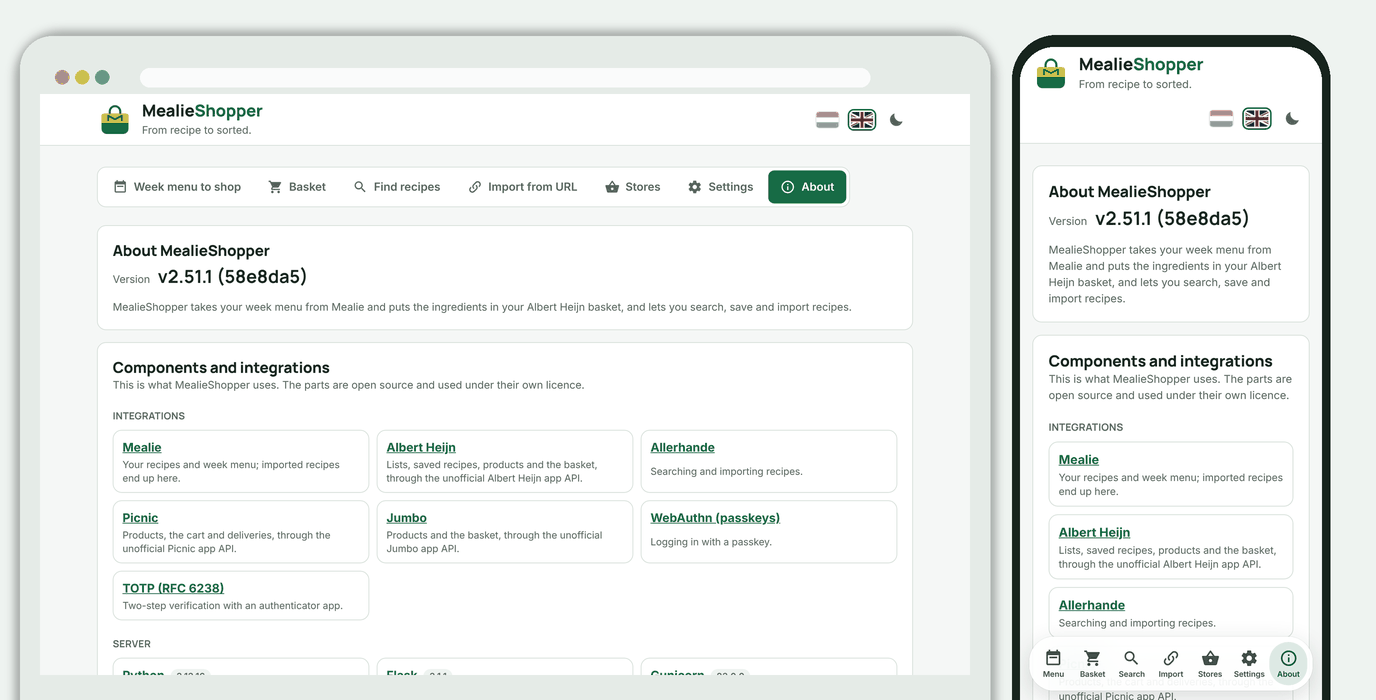 **Update check.** Under **Settings, System** the app checks GitHub for a release newer than the version that is running. If there is one, the administrator gets a notice at the top of the screen and a dot on **Settings**, with a link to the release notes. The app asks GitHub at most every six hours (or right away with **Check now**) and sends no information about you or the installation. Turn it off with `MEALIESHOPPER_UPDATE_CHECK=false`.
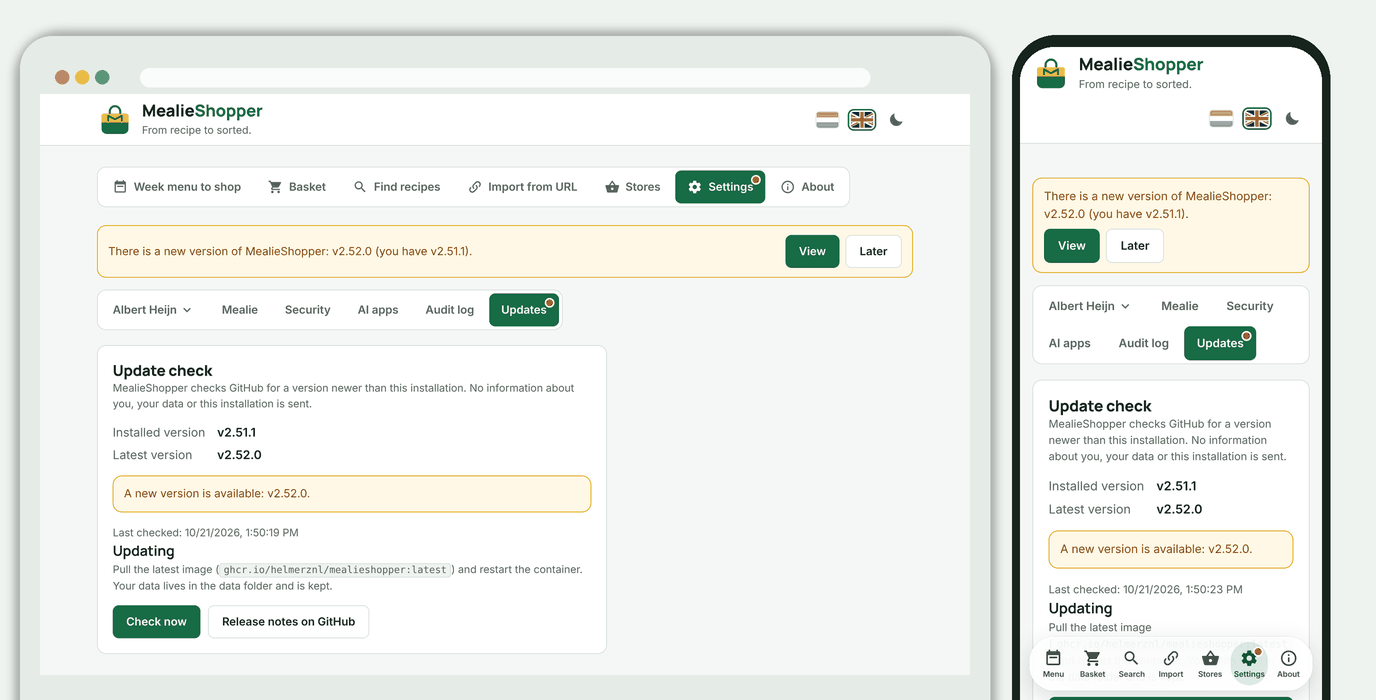 ## Troubleshooting
**An `Internal Server Error` right away, or the auth database can't be reached.** Check that the appdata folder exists and is writable, and that your compose has the mount `"/mnt/user/appdata/mealieshopper:/data"`. On Unraid:
```bash
mkdir -p /mnt/user/appdata/mealieshopper
chown -R nobody:users /mnt/user/appdata/mealieshopper
chmod -R ug+rwX /mnt/user/appdata/mealieshopper
```
**The passkey doesn't work.** A passkey needs a domain name and HTTPS (on `localhost` it works too). Open MealieShopper through that address and check `RP_ID` and `RP_ORIGINS`; the setup guide explains why it can't work on an IP address.
**Jumbo: "Jumbo refuses the request (403)".** Jumbo blocks this address or server. Try again later; if it keeps happening, Jumbo does not work from this location. See **Explore Jumbo routes**.
**Picnic: "link expired or refused".** Picnic's session is no longer valid. Go to Settings > Link > Picnic and log in again.
**AH: "code expired or used".** The code from the console works only once and expires quickly. Log in again and paste the new line right away.
**"Not linked" although you had linked before.** Then `secret.key` (or your own secret) has changed or is missing; see *Data and backups*. Link again.
**I can't get in any more.** If you lost your password and recovery codes, you can reset the login (your links stay). Optionally stop the container and run:
```bash
docker exec -it mealieshopper python -c "import sqlite3; c = sqlite3.connect('/data/auth.sqlite3'); [c.execute(q) for q in ('DELETE FROM password_credentials', 'DELETE FROM mfa_totp', 'DELETE FROM mfa_recovery_codes', 'DELETE FROM passkey_credentials', 'DELETE FROM invites', \"DELETE FROM users WHERE id <> 'owner'\", 'UPDATE users SET session_epoch = session_epoch + 1', 'DELETE FROM login_attempts', \"DELETE FROM app_settings WHERE key IN ('AUTH_MODE', 'ONBOARDING_DONE', 'ONBOARDING_ACTIVE')\")]; c.commit()"
```
Then open the app: the setup guide appears again and you set up security anew. This also removes the other users (your account as administrator stays); invite them again afterwards.
## Development
```bash
python -m unittest discover -s tests # all tests
```
- **Structure:** `mealieshopper/` (Flask app: `app.py`, `auth.py`, `auth_password.py`, `users.py`, `onboarding.py`, `mealie.py`, `ah.py`, `picnic.py`, `jumbo.py`, `audit.py`, `updates.py`, `mcp.py`, `mcp_http.py`, `oauth.py`, `ah_orders.py`, `offers.py`, `offers_schedule.py`, `offer_categories.py`, `about.py`, `i18n.py`), `static/` and `templates/` (the interface, no build step), `tests/`.
- **Texts and languages:** the interface texts are in `static/i18n/nl.js` and `en.js`, one text per line. In the HTML the Dutch text is in the page, with `data-i18n="key"`; in the scripts use `t("key", { name })`, `th(...)` (with markup, values escaped) and `tn("key", count)` (plurals). Adding a language means a file `static/i18n/
## Troubleshooting
**An `Internal Server Error` right away, or the auth database can't be reached.** Check that the appdata folder exists and is writable, and that your compose has the mount `"/mnt/user/appdata/mealieshopper:/data"`. On Unraid:
```bash
mkdir -p /mnt/user/appdata/mealieshopper
chown -R nobody:users /mnt/user/appdata/mealieshopper
chmod -R ug+rwX /mnt/user/appdata/mealieshopper
```
**The passkey doesn't work.** A passkey needs a domain name and HTTPS (on `localhost` it works too). Open MealieShopper through that address and check `RP_ID` and `RP_ORIGINS`; the setup guide explains why it can't work on an IP address.
**Jumbo: "Jumbo refuses the request (403)".** Jumbo blocks this address or server. Try again later; if it keeps happening, Jumbo does not work from this location. See **Explore Jumbo routes**.
**Picnic: "link expired or refused".** Picnic's session is no longer valid. Go to Settings > Link > Picnic and log in again.
**AH: "code expired or used".** The code from the console works only once and expires quickly. Log in again and paste the new line right away.
**"Not linked" although you had linked before.** Then `secret.key` (or your own secret) has changed or is missing; see *Data and backups*. Link again.
**I can't get in any more.** If you lost your password and recovery codes, you can reset the login (your links stay). Optionally stop the container and run:
```bash
docker exec -it mealieshopper python -c "import sqlite3; c = sqlite3.connect('/data/auth.sqlite3'); [c.execute(q) for q in ('DELETE FROM password_credentials', 'DELETE FROM mfa_totp', 'DELETE FROM mfa_recovery_codes', 'DELETE FROM passkey_credentials', 'DELETE FROM invites', \"DELETE FROM users WHERE id <> 'owner'\", 'UPDATE users SET session_epoch = session_epoch + 1', 'DELETE FROM login_attempts', \"DELETE FROM app_settings WHERE key IN ('AUTH_MODE', 'ONBOARDING_DONE', 'ONBOARDING_ACTIVE')\")]; c.commit()"
```
Then open the app: the setup guide appears again and you set up security anew. This also removes the other users (your account as administrator stays); invite them again afterwards.
## Development
```bash
python -m unittest discover -s tests # all tests
```
- **Structure:** `mealieshopper/` (Flask app: `app.py`, `auth.py`, `auth_password.py`, `users.py`, `onboarding.py`, `mealie.py`, `ah.py`, `picnic.py`, `jumbo.py`, `audit.py`, `updates.py`, `mcp.py`, `mcp_http.py`, `oauth.py`, `ah_orders.py`, `offers.py`, `offers_schedule.py`, `offer_categories.py`, `about.py`, `i18n.py`), `static/` and `templates/` (the interface, no build step), `tests/`.
- **Texts and languages:** the interface texts are in `static/i18n/nl.js` and `en.js`, one text per line. In the HTML the Dutch text is in the page, with `data-i18n="key"`; in the scripts use `t("key", { name })`, `th(...)` (with markup, values escaped) and `tn("key", count)` (plurals). Adding a language means a file `static/i18n/