
HomeButler
Only the changes worth mentioning.
A single Go binary that remembers what your server looked like last time,
and tells you — or an agent — what moved.
Website ·
Docs ·
Releases







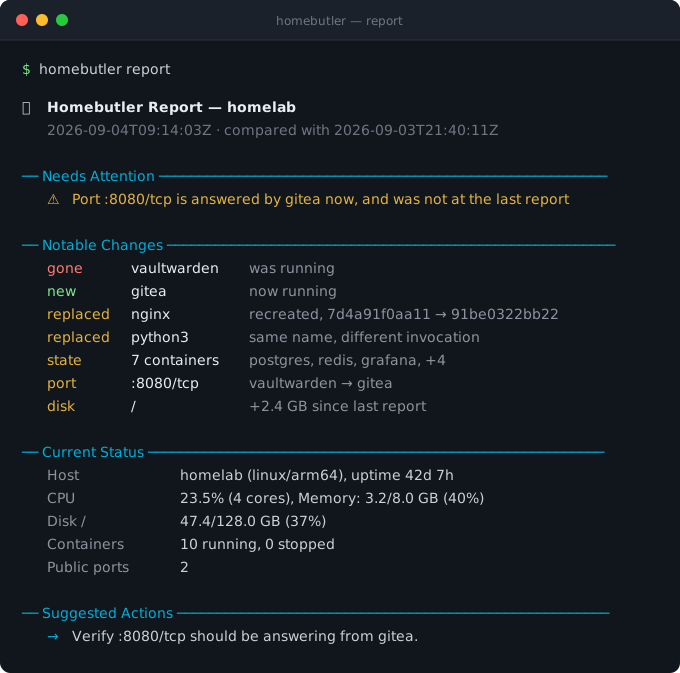
That is the whole idea. Most homelab tools show you a graph of right now, and leave
"does this matter?" to you. HomeButler remembers what your server looked like last
time, decides what is worth saying, and says it — six containers before and six after
is not "no change" when one of them is a different container.
## Reading a report
```bash
homebutler report
homebutler report --keep 7 # retain only the latest 7 snapshots
homebutler report --no-save # preview without writing a snapshot
```
`report` gives you a concise butler-style summary of your homelab: current health, warnings, notable changes since the previous snapshot, and suggested next commands. On the first run, HomeButler creates a baseline under `~/.homebutler/reports/snapshots/`; later runs compare against the latest snapshot. Old snapshots are pruned automatically (`--keep 30` by default) so reports do not grow forever.
Section rules, labels, and severities are colour-coded in a terminal. Colour is
dropped automatically when output is piped, redirected, or run from cron.
### Reading a change
Every change line, like those in the card at the top, is three columns: **what kind of change**, **what it happened to**, and
**what exactly happened**. The kind is one of eight words, and it is the same word in
`--json`, so an agent branches on it without reading prose:
| Kind | Means | You would see it after |
| --- | --- | --- |
| `gone` | it was there last time and is not now | `docker rm`, a service stopping, a port closing |
| `new` | it was not there last time and is now | starting anything |
| `replaced` | same name, different thing underneath | `docker compose up -d` — the container is recreated, so the name and the count are unchanged |
| `image` | same container, different image | pulling a new tag |
| `state` | same container, running where it was stopped, or the reverse | a crash, or bringing something back up |
| `port` | same port, a different process answering on it | one service taking over another's port |
| `disk` | a mount moved by more than half a gigabyte | anything that writes |
| `skipped` | the comparison could not be made | Docker was down when either snapshot was taken |
`replaced` is the one the rest of this exists for. A container recreated under the
same name leaves every count identical, which is why a report that compares counts —
as this one did before 0.26.0 — answers "no significant changes" while the thing you
were running has been swapped out underneath you.
`skipped` is the second: homebutler says it could not compare rather than reporting
nothing changed. An all-clear it cannot stand behind is worse than no answer.
The header names the snapshot being compared against, so "what changed" is never
ambiguous about the window it covers.
📖 **[What earns a line, and what is deliberately suppressed →](docs/report.md)**
## See it run
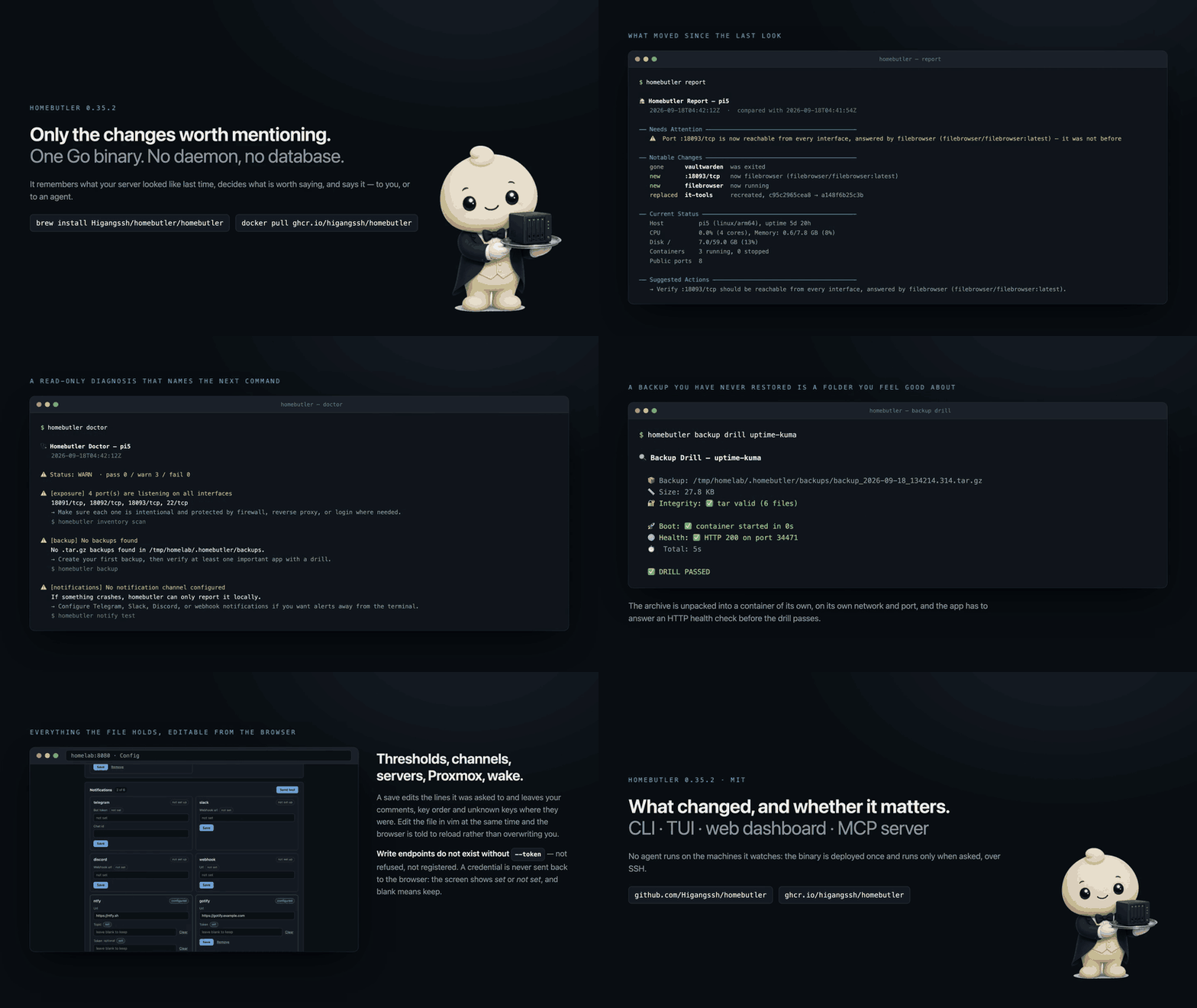
The whole thing in half a minute · watch it full size
## Why homebutler?
HomeButler helps you answer the boring but painful questions every homelab eventually creates:
- What is running on my server right now?
- Which container owns this port?
- Why did this service restart at 3 AM?
- Is my backup actually restorable?
- Can I install this self-hosted app without hand-writing another compose file?
- Can I let an AI assistant inspect my server without handing it a full SSH shell?
No daemon required, no database. Run it from a terminal, cron, a web dashboard you start when you want one, or an AI agent.
The design goal is simple: give humans and agents a narrow, structured interface to the server. HomeButler returns readable summaries and JSON instead of asking you to trust a black-box shell session.
Self-hosting is not hard because one `docker compose up` is hard. It is hard because the maintenance never ends: ports collide, containers restart silently, backups look fine until restore day, and every server becomes a slightly different snowflake.
HomeButler is a small operations toolkit for that messy middle.
### Alongside what you already run
Keep Uptime Kuma for *is it up*, Beszel or Netdata for *the graph*, Dozzle for *the logs*.
HomeButler answers the question none of them ask: **what is different from last time, and does it matter?**
- **No agent on the machines it watches.** The binary is put there once with `homebutler deploy` and runs only when asked, over SSH — no daemon, no open port, nothing listening between runs.
- **The judgement is a written rule, not a model.** What earns a line is in [docs/report.md](docs/report.md), and the same input gives the same report — no AI required, no account, no paid tier.
- **It checks that a backup comes back.** A backup you have never restored is a folder. `backup drill` boots the archive as a second copy of the app, on a network and port of its own, and requires it to answer an HTTP health check before calling the archive good — then removes everything it made. A failed drill exits non-zero, so `backup drill --all` belongs in the same cron entry as `backup`. [docs/backup.md](docs/backup.md#drill-proving-the-backup-comes-back) has what it does and what it does not prove.
```
🔐 Integrity: ✅ tar valid (8 files)
🚀 Boot: ✅ container started in 0s
🌐 Health: ✅ HTTP 200 on port 60405
✅ DRILL PASSED
```
## Quick Start
```bash
# One-line install (auto-detects OS/arch)
curl -fsSL https://raw.githubusercontent.com/Higangssh/homebutler/main/install.sh | sh
# Or via Homebrew
brew install Higangssh/homebutler/homebutler
# Or as a container — the hub that reaches your machines over SSH
docker run -d -p 8080:8080 -v ~/.config/homebutler:/config -v ~/.ssh:/root/.ssh:ro \
ghcr.io/higangssh/homebutler serve --host 0.0.0.0 --token "$(openssl rand -hex 16)"
# Interactive setup — add your servers in seconds
homebutler init
```
Or as a container, reaching your machines over SSH — [docs/docker.md](docs/docker.md):
`docker run -v ~/.config/homebutler:/config -v ~/.ssh:/root/.ssh:ro ghcr.io/higangssh/homebutler`
Use it right away:
```bash
homebutler status # CPU, memory, disk, uptime
homebutler docker list # running containers
homebutler inventory scan # containers + ports + topology
homebutler report # butler-style health report + change summary
homebutler install uptime-kuma # deploy a self-hosted app
homebutler backup drill uptime-kuma # verify a backup actually restores
homebutler watch tui # terminal dashboard
homebutler serve # web dashboard at http://localhost:8080
```
Machine-readable output is available everywhere:
```bash
homebutler status --json
homebutler inventory scan --json
homebutler report --json
```
## What else it does
- **Install apps** — deploy Uptime Kuma, Jellyfin, Pi-hole, Gitea, Portainer, and more with one command
- **Map your server** — see containers, exposed ports, system ports, and service topology
- **Run a doctor check** — diagnose resource pressure, stopped containers, public ports, backup hygiene, notifications, report baseline readiness, and configured Proxmox endpoint reachability
- **Catch crashes** — save logs before/after Docker, systemd, or PM2 restarts and detect flapping loops
- **Verify backups** — boot backups in isolated containers before you trust them
- **See a Proxmox cluster** — nodes, QEMU and LXC guests, storage, task status, and honest dashboard freshness, with power actions that name their target explicitly
- **Use it anywhere** — CLI, JSON, web dashboard, or MCP for AI agents without giving them SSH
## 🩺 Doctor Check
```bash
homebutler doctor
homebutler doctor --strict # non-zero exit if warnings/failures are found
homebutler doctor --json # automation / MCP friendly
```
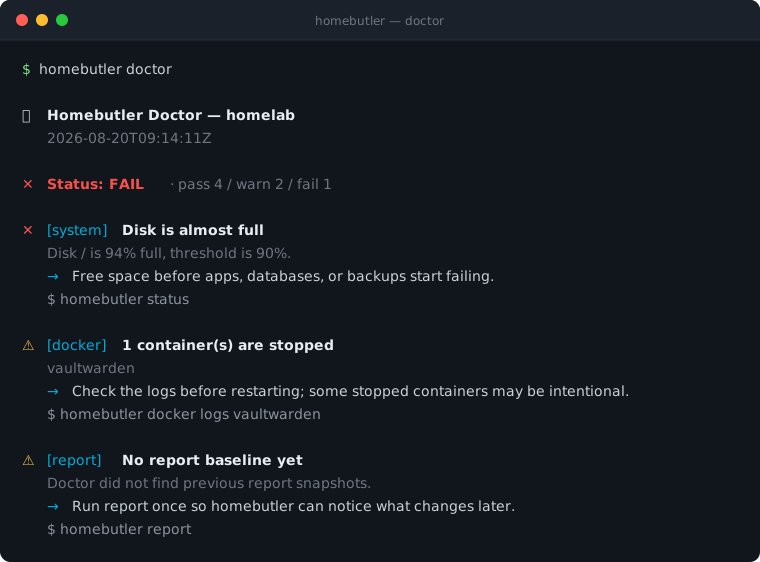
`doctor` is a read-only preflight for the problems homelab users usually discover too late: high disk or memory usage, stopped containers, public bind ports, stale or missing backups, missing notifications, whether `report` has a baseline for change detection, and whether each configured Proxmox endpoint is reachable with the token it has. Every finding names the next command to run, so `--strict` makes it usable from cron or CI — including a Proxmox host that is unreachable or rebooting.
Every finding carries a `category`, and `--json` carries the same word, so a
caller filters on it without reading the title:
| Category | What it is about |
| --- | --- |
| `system` | CPU, memory, disk |
| `docker` | containers that are stopped or unhealthy |
| `exposure` | ports listening on every interface |
| `backup` | backups missing, stale, never drilled, or growing without a retention limit |
| `report` | whether there is a baseline to compare against |
| `watch` | targets listed with nothing polling them |
| `notifications` | channels configured, or never tested |
| `proxmox` | an endpoint that cannot be reached with the token it has |
| `config` | the config file itself — permissions, keys homebutler does not know |
| `incomplete` | a collector did not answer, so this diagnosis is partial |
| `overall` | nothing specific: the all-clear |
`incomplete` is the one worth handling. It means the answer you are reading is
missing a section, which is different from that section being fine.
### 🗂 Config Validation
```bash
homebutler config validate
homebutler config validate --strict # exit non-zero on warnings too
homebutler config validate --json
```
`config validate` reads your config without starting anything and tells you
which file was used, which of the four resolution rules picked it, and what
homebutler actually made of each section. It exists because the two ways config
goes wrong are both silent: a key homebutler does not recognise is dropped
without a word, and a `--config` path that does not exist falls back to
built-in defaults rather than failing.
```text
Sections
✓ servers 2 servers (homelab, nas)
· notify not set
✓ alerts cpu 95% · memory 85% · disk 90%
Findings
⚠️ Line 5: field notifiy not found in the homebutler config
→ Did you mean "notify"? Unrecognised keys are ignored silently.
```
## Watch and alerts
### 🔄 Process Restart Watch
Your container crashed at 3 AM — but **why?** `homebutler watch` catches it the moment it happens, saves the dying logs, figures out the cause, and tells you if it's happening over and over.
**Supported backends:** Docker (real-time event stream) · systemd (polling) · PM2 (polling)
#### Step 1: Add targets to watch
```bash
homebutler watch add nginx # Interactive: choose Docker / systemd / PM2
homebutler watch add --kind docker nginx # or specify directly
homebutler watch add --kind systemd nginx.service
homebutler watch add --kind pm2 my-api
homebutler watch list # See what you're watching
```
#### Step 2: Start monitoring
```bash
homebutler watch start # Foreground, Ctrl+C to stop
homebutler watch start --interval 10s # Custom poll interval (default 30s)
```
```bash
homebutler watch install # register it with systemd or launchd
homebutler watch installed # is it registered?
homebutler watch uninstall
```
`watch install` hands the loop to whatever supervises the host — a systemd user
unit on Linux, a launchd agent on macOS — so monitoring survives logout and
reboot. Both are user-level and neither is a preference: on Linux the watch list
lives in your home directory, so a root unit would find an empty list; on macOS
Docker Desktop only runs inside a logged-in session, so a LaunchDaemon would
poll a daemon that is not there. On Linux a user unit stops at logout unless
lingering is on; `watch install` checks, and if it is off tells you to run
`loginctl enable-linger $USER` (with sudo only if your system refuses it).
`watch start` is the monitoring process. It watches the containers and services
on the watch list for restarts, checks CPU, memory and disk against your
thresholds, and runs any remediation rules you have configured — one process,
one set of notification providers. `alerts --watch` still exists and does the
threshold half on its own.
Every endpoint under `proxmox:` in your config is polled too: unreachable or
ACL-filtered endpoints and any guest listed under that endpoint's `guests:`
report one incident when the problem starts and one recovery incident when it
clears. A guest not listed there is observational only — `watch start` never
alerts on it, deliberately stopped or not. See
[Proxmox setup →](docs/proxmox.md#watch-integration) for the `guests:` field.
When a crash is detected, you'll see:
```
[03:14:22] INCIDENT: nginx (incident nginx-20260410-031422.581-7a2124)
Crash: OOM — process killed by SIGKILL (oom, confidence: high)
⚠ FLAPPING: acute (3 restarts in short window)
```
#### Step 3: Investigate
```bash
homebutler watch history # List all incidents
homebutler watch show # Full details
```
`watch show` output includes:
- **Pre-death logs** — what the process printed right before it died
- **Post-restart logs** — what happened after the restart
- **Crash analysis** — category (oom / panic / segfault / timeout / dependency / error), reason, confidence level, matched log patterns
- **Flapping status** — if the process is stuck in a crash loop
#### Crash Analysis
Every incident is automatically analyzed using exit codes and log patterns:
| Signal | Exit Code | Meaning |
|--------|-----------|---------|
| SIGKILL | 137 | OOM Killer or forced kill |
| SIGSEGV | 139 | Segmentation fault (memory corruption) |
| SIGTERM | 143 | Graceful shutdown request |
| — | 1 | Application error |
| — | 0 | Clean exit (may be intentional restart) |
Log patterns like `panic:`, `Out of memory`, `Connection refused`, `FATAL`, and `timeout` are matched automatically to help identify the root cause.
#### Flapping Detection
Detects when a process is stuck in a restart loop (e.g., crash → restart → crash again):
- **Acute** — 3+ restarts within 10 minutes (something is broken right now)
- **Chronic** — 5+ restarts within 24 hours (slow recurring issue)
Flapping incidents are tagged `[FLAPPING]` in history and highlighted in `watch show`.
#### Notifications (optional, off by default)
Notifications are disabled by default, which is useful for air-gapped or closed networks where everything runs locally.
A minimal example in `~/.config/homebutler/config.yaml`:
```yaml
notify:
telegram:
bot_token: "your-bot-token"
chat_id: "your-chat-id"
watch:
enabled: true
notify_on: flapping
cooldown: 5m
flapping:
short_window: 10m
short_threshold: 3
long_window: 24h
long_threshold: 5
retention:
max_incidents: 200
alerts:
cpu: 90
memory: 85
disk: 90
rules:
- name: cpu-spike
metric: cpu
threshold: 90
action: notify
- name: elsa-monitor-down
metric: container
kind: systemd # docker (default) | systemd | pm2
watch: [lh-elsa-monitor.service]
action: restart
```
### Restarting things that are not containers
`action: restart` restarts Docker containers unless the rule says otherwise.
`kind: systemd` or `kind: pm2` points it at a service or a PM2 app instead.
The kind is written on the rule rather than looked up from the watch list, so
restarting a host service is something you asked for in the config. It also
means every rule written before `kind` existed keeps meaning exactly what it
meant.
Two things worth knowing before using it:
**`systemctl restart` needs root or a polkit rule.** Running homebutler
unprivileged, a systemd restart will be refused, reported as failed, and
warned about when `alerts --watch` starts rather than when the rule first
fires.
**A target that is flapping is not restarted.** Restarting something already
in a restart loop feeds the loop, and most systemd units carry
`Restart=always`, so homebutler restarting them fights systemd's own backoff.
The thresholds are the `watch.flapping` ones above, and the skip is reported
rather than counted as either success or failure. This applies to Docker
targets too.
Legacy `~/.homebutler/watch/config.json` is still read as a fallback for watch-specific settings, and legacy `alerts.yaml` notify/webhook provider settings are still accepted for older setups.
- `watch.enabled: true` — allow watch notifications
- `watch.notify_on: flapping` — notify only when repeated restart loops are detected
- `watch.notify_on: incident` — notify on every incident
- `watch.notify_on: all` — notify on both incidents and flapping
- `watch.notify_on: off` — disable watch notifications without removing provider config
- `watch.cooldown: 5m` — suppress duplicate notifications for the same event fingerprint during the cooldown window
- `watch.flapping` — optional advanced tuning for restart-loop detection
- `watch.retention.max_incidents: 200` — how many incidents to keep on disk, newest first. The directory grows fastest exactly when a service is restarting in a loop. Set `-1` to keep everything.
Each incident keeps up to 100 captured log lines per side, and at most 64 KB of them. Line counts alone do not bound a file: one stack trace or JSON document on a single line is arbitrarily long, and a container being OOM-killed is exactly the one likely to write one. A log that does not fit keeps its end — the last thing a process said is what explains why it stopped — and says how much was dropped.
These settings can also be written under a `watch.notify:` block, which is the
canonical form:
```yaml
watch:
notify:
enabled: true
notify_on: flapping
cooldown: 5m
flapping:
short_window: 10m
```
Both spellings are read, so either layout works. If a file contains both, the
`notify:` block wins and `homebutler config validate` says so.
#### Manage targets
```bash
homebutler watch remove nginx # Stop watching
homebutler watch check # One-shot check (no continuous monitoring)
```
### Alert Thresholds (Advanced)
`alerts` still exists for CPU, memory, and disk threshold checks, but it is an advanced flow and not the recommended first step for new users.
```bash
homebutler alerts --watch # default: 30s interval
homebutler alerts --watch --interval 10s # check every 10 seconds
homebutler alerts history # view alert history
homebutler notify test # test your notification channels
```
Default thresholds: CPU 90%, Memory 85%, Disk 90%. Start with `watch`, then add `alerts` only if you specifically want threshold-based checks.
## Backup & Restore
One-command Docker backup — volumes, compose files, and env variables.
```bash
homebutler backup # backup everything
homebutler backup --service jellyfin # specific service
homebutler backup --to /mnt/nas/backups/ # custom destination
homebutler backup list # list backups
homebutler restore ./backup.tar.gz # restore
```
> ⚠️ Database services should be paused before backup for data consistency.
📖 **[Full backup documentation →](docs/backup.md)** — how it works, archive structure, security notes.
### 🔍 Backup Drill
**"Having a backup" and "being able to restore" are different things.**
Backup Drill boots your backup in an isolated Docker environment and verifies the app actually responds — like a fire drill for your data. A failed drill exits non-zero.
```bash
homebutler backup drill uptime-kuma # verify one app
homebutler backup drill --all # verify all apps
homebutler backup drill --json # machine-readable output
homebutler backup drill --archive ./file # use a specific backup
```
Full walkthrough, including what a passing drill does *not* prove: [docs/backup.md](docs/backup.md#drill-proving-the-backup-comes-back).
**What happens:**
1. Finds the latest backup archive
2. Verifies archive integrity (`tar` validation)
3. Creates an isolated Docker network + random port
4. Boots the app from backup data
5. Runs an HTTP health check
6. Reports pass/fail and cleans up everything
```
🔍 Backup Drill — uptime-kuma
📦 Backup: ~/.homebutler/backups/backup_2026-04-04_1711.tar.gz
📏 Size: 18.6 MB
🔐 Integrity: ✅ tar valid (8 files)
🚀 Boot: ✅ container started in 0s
🌐 Health: ✅ HTTP 200 on port 58574
⏱️ Total: 2s
✅ DRILL PASSED
```
**Zero risk** — runs in a completely isolated environment. Your running services are never touched.
Supports health checks for: `nginx-proxy-manager`, `vaultwarden`, `uptime-kuma`, `pi-hole`, `gitea`, `jellyfin`, `plex`, `portainer`, `homepage`, `adguard-home`.
## App Install
```
$ homebutler install list
📦 Available apps (15):
uptime-kuma A self-hosted monitoring tool
vaultwarden Lightweight Bitwarden-compatible password manager
jellyfin Free software media system for streaming movies, TV, and music
pi-hole Network-wide ad blocking via DNS filtering
…
```
> **`homebutler install uptime-kuma`** — Deploy self-hosted apps in seconds. Pre-checks Docker, ports, and duplicates. Generates `docker-compose.yml` automatically. [See all available apps →](#available-apps)
Deploy self-hosted apps with a single command. Each app runs via **docker compose** with automatic pre-checks, health verification, and clean lifecycle management.
```bash
# List available apps
homebutler install list
# Install (default port)
homebutler install uptime-kuma
# Install with custom port
homebutler install uptime-kuma --port 8080
# Install jellyfin with media directory
homebutler install jellyfin --media /mnt/movies
# Check status
homebutler install status uptime-kuma
# Stop (data preserved)
homebutler install uninstall uptime-kuma
# Stop + delete everything
homebutler install purge uptime-kuma
```
### How it works
```
~/.homebutler/apps/
└── uptime-kuma/
├── docker-compose.yml ← auto-generated, editable
└── data/ ← persistent data (bind mount)
```
- **Pre-checks** — Verifies docker is installed/running, port is available, no duplicate containers
- **Compose-based** — Each app gets its own `docker-compose.yml` you can inspect and customize
- **Data safety** — `uninstall` stops containers but keeps your data; `purge` removes everything, including the Docker volumes the app used, and names them. One exception for now: filebrowser's accounts and settings do not survive an `uninstall` and reinstall (see the table)
- **Cross-platform** — Auto-detects docker socket (default, colima, podman)
### Available apps
| App | Default Port | Description | Notes |
|-----|-------------|-------------|-------|
| `uptime-kuma` | 3001 | Self-hosted monitoring tool | |
| `plex` | 32400 | Plex Media Server | `--media /path` to mount media dir |
| `vaultwarden` | 8080 | Bitwarden-compatible password manager | |
| `filebrowser` | 8081 | Web-based file manager | ⚠️ `uninstall` keeps the files under `/srv` but not its accounts and settings: reinstalling starts a new database ([#327](https://github.com/Higangssh/homebutler/issues/327)) |
| `it-tools` | 8082 | Developer utilities (JSON, Base64, Hash, etc.) | |
| `gitea` | 3002 | Lightweight self-hosted Git service | |
| `jellyfin` | 8096 | Media system (movies, TV, music) | `--media /path` to mount media dir |
| `homepage` | 3010 | Modern homelab dashboard | |
| `stirling-pdf` | 8083 | All-in-one PDF tool (merge, split, convert, OCR) | |
| `speedtest-tracker` | 8084 | Internet speed test with historical graphs | |
| `mealie` | 9925 | Recipe manager and meal planner | |
| `pi-hole` | 8088 | DNS ad blocking | ⚠️ Uses port 53 (DNS), NET_ADMIN capability |
| `adguard-home` | 3000 | DNS ad blocker and privacy | ⚠️ Uses port 53 (DNS) |
| `portainer` | 9443 | Docker management GUI | ⚠️ Mounts Docker socket (HTTPS) |
| `nginx-proxy-manager` | 81 | Reverse proxy with SSL and web UI | ⚠️ Uses ports 80/443 |
### App-specific options
```bash
# Jellyfin: mount your media library
homebutler install jellyfin --media /mnt/movies
# Pi-hole / AdGuard: DNS ad blocking (port 53 required)
homebutler install pi-hole
# ⚠️ If port 53 is in use (Linux): sudo systemctl disable --now systemd-resolved
# Portainer: Docker GUI (mounts docker socket)
homebutler install portainer
# Access via HTTPS: https://localhost:9443
# Nginx Proxy Manager: reverse proxy
homebutler install nginx-proxy-manager
# Default login: admin@example.com / changeme (change immediately!)
# Any app: custom port
homebutler install --port 9999
```
### Safety checks
- **Port conflict detection** — Checks if the port is already in use before install
- **DNS mutual exclusion** — Warns if pi-hole and adguard-home are both installed
- **Docker socket warning** — Alerts when an app requires Docker socket access (portainer)
- **OS-specific guidance** — Linux gets systemd-resolved fix, macOS gets lsof command
- **Post-install tips** — DNS setup, HTTPS access, default credential warnings
> Want more apps? [Open an issue](https://github.com/Higangssh/homebutler/issues) or see [Contributing](CONTRIBUTING.md).
## Dashboards
### 🌐 Web Dashboard
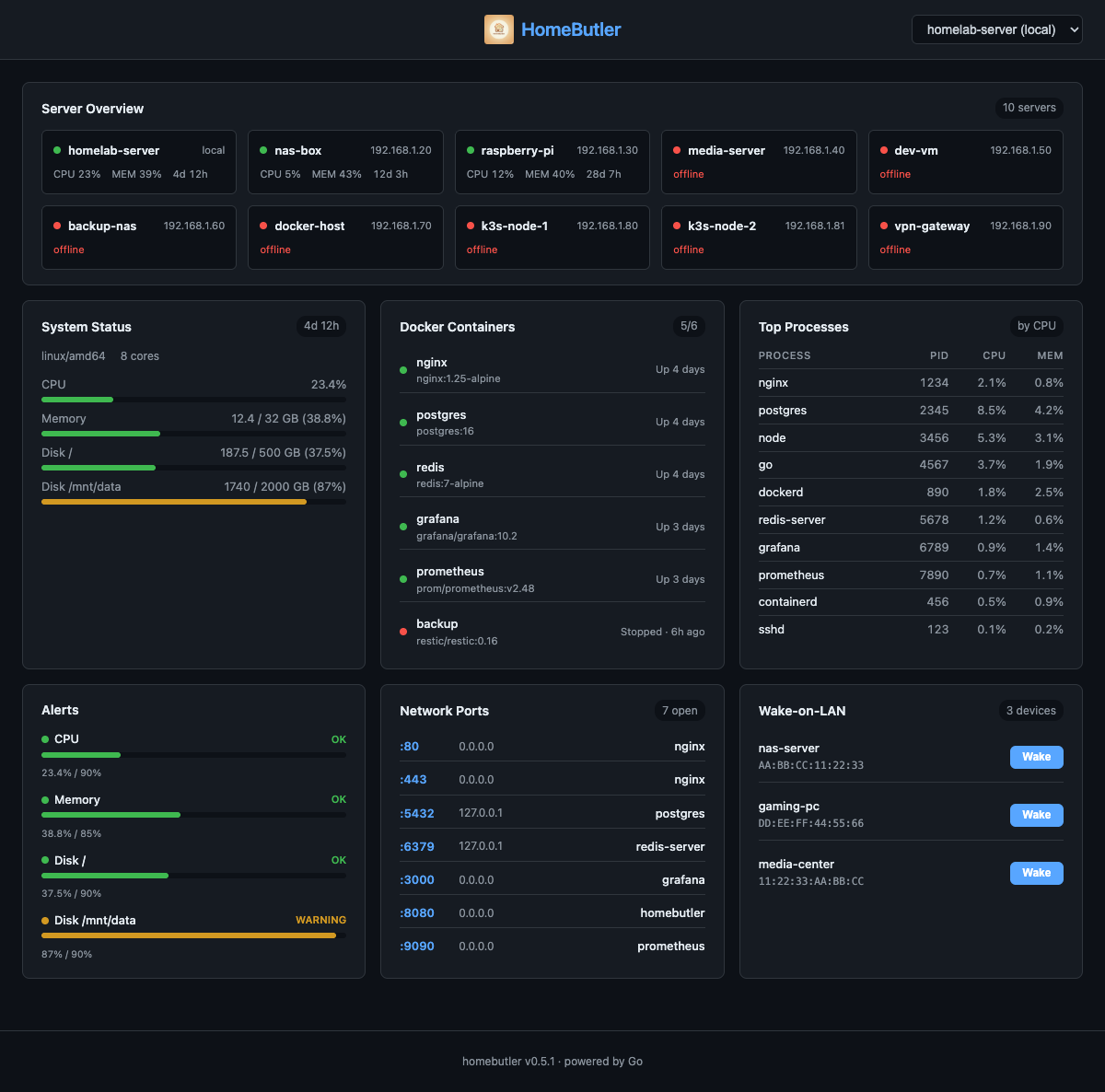
> **`homebutler serve`** — A web dashboard embedded in the single binary via `go:embed`. Servers, Docker containers, open ports, alerts and Wake-on-LAN from any browser. With `--token` it also edits the config: thresholds, notification channels, servers, Proxmox endpoints and wake devices.
### The Report tab, where you actually read it
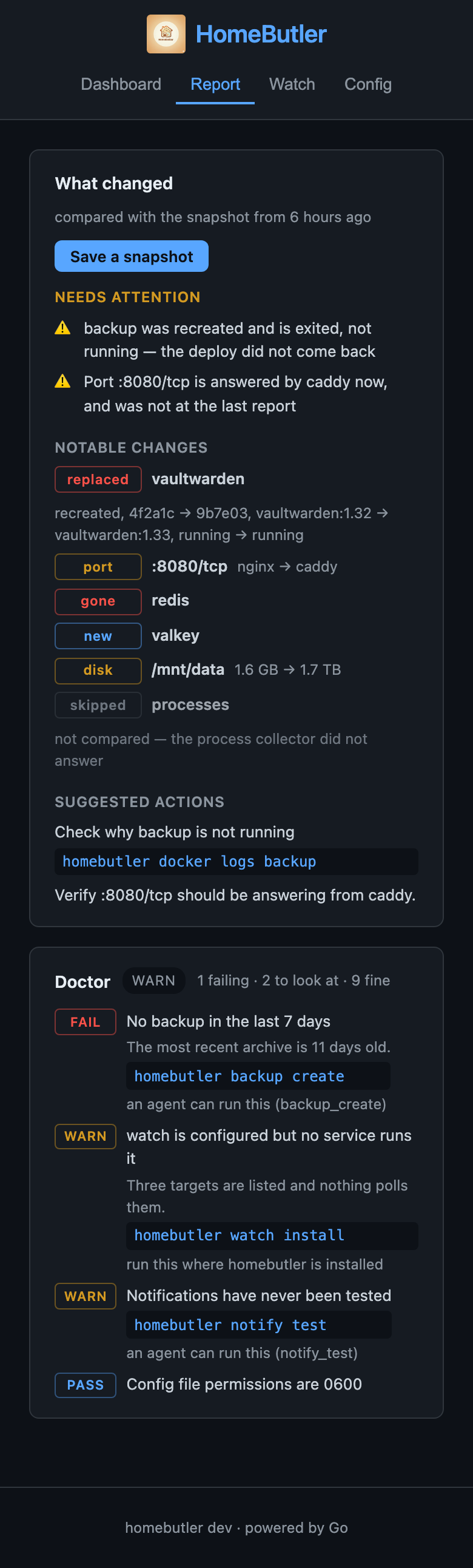
The screen somebody opens after a notification. What needs attention first, then
what moved with the kind word each change carries, then the snapshot being
compared against and how old it is. A comparison that could not be made says so
rather than reading as an all-clear.
Loading it saves nothing — a page that took a snapshot every time it was opened
would prune the baseline you wanted to compare against. Saving one is a button.
✨ Web Dashboard Highlights
- **Server Overview** — See all servers at a glance with color-coded status (green = online, red = offline)
- **System Metrics** — CPU, memory, disk usage with progress bars and color thresholds
- **Docker Containers** — Running/stopped status with friendly labels ("Running · 4d", "Stopped · 6h ago")
- **Top Processes** — Top processes sorted by CPU/memory with zombie detection
- **Resource Warnings** — Visual CPU, memory, and disk thresholds in the dashboard
- **Network Ports** — Open ports with process names and bind addresses
- **Wake-on-LAN** — One-click wake buttons for configured devices
- **Server Switching** — Dropdown to switch between local and remote servers
- **Zero dependencies** — No Node.js runtime needed. Frontend is compiled into the Go binary at build time
```bash
homebutler serve # Start on port 8080
homebutler serve --port 3000 # Custom port
homebutler serve --demo # Demo mode with realistic sample data
homebutler serve install # Let the host keep it running
```
### 🖥️ TUI Dashboard

> **`homebutler watch tui`** — A terminal-based dashboard powered by Bubble Tea. Monitors all configured servers with real-time updates, color-coded resource bars, and Docker container status. No browser needed.
## 🗺️ Inventory & Topology
```bash
homebutler inventory scan
homebutler inventory show --filter exposed
homebutler inventory export --format mermaid
homebutler --json inventory scan
```
`inventory scan` gives you a quick map of what is running on a server: system health, Docker containers, app ports, and system ports. Docker-published ports are connected back to the container that owns them, so local forwarding details like Colima/Lima stay understandable.
```text
🏠 Home Network
Server homelab (192.168.1.10)
Summary ✅ 1 running · ⚪ 1 stopped · 🌍 2 public ports · 🔒 4 local ports
📦 Containers (2)
├─ ⚪ vaultwarden · not started
│ └─ image vaultwarden/server:latest
└─ ✅ api-server · running
├─ image my-api:latest
└─ exposes :8080 → 8080/tcp
🌐 App Ports (1)
└─ 🌍 :8080/tcp · api-server
```
To answer "what is reachable from outside my machine/network?" without reading the whole tree, filter the scan to exposed ports only:
```bash
homebutler inventory scan --filter exposed
```
```text
🏠 Home Network
Server homelab
🌐 Exposed Ports
├─ :8080/tcp · api-server
└─ :8443/tcp · dashboard
```
Only ports listening on all interfaces (`0.0.0.0`, `::`, `*`) are shown. Anything bound to a specific address is hidden, including loopback and LAN addresses. Unsupported filter values return an error, as does combining `--filter` with `--json`; the default `inventory scan` output is unchanged.
Use Mermaid export when you want a diagram for GitHub, Obsidian, docs, or an AI assistant:
```mermaid
graph TD
home["🏠 Home Network"] --> homelab["🖥 homelab
192.168.1.10"]
homelab --> c1["📦 api-server
running"]
homelab --> p1["🌍 :8080/tcp
api-server"]
c1 -. exposes .-> p1
```
## 🧊 Proxmox VE
```bash
homebutler proxmox status
homebutler proxmox guests --status running
homebutler proxmox guest shutdown --node pve1 --type lxc --vmid 105 --confirm
homebutler proxmox task UPID:pve1:... --node pve1
```
A Proxmox endpoint is its own kind of target, configured under `proxmox:` with an
API token rather than SSH, so it does not join the `--server` or `--all` fan-out.
TLS verification stays on: trust comes from a pinned SHA-256 fingerprint, then a
CA file, and only then an explicit `insecure` fallback.
Reads are plain. Power actions are not: every one of them takes an explicit
endpoint, node, guest type and VMID, and refuses to run without `--confirm`,
which is checked before any credential is read. They also need their own
`action_token_id` (plus `action_token` or `action_token_file`) configured on
the endpoint — the read token alone will not start, reboot, or shut down a
guest; see [Proxmox setup →](docs/proxmox.md) for creating that second token.
`shutdown` asks the guest to shut down cleanly — it is not Proxmox's hard
`stop`, which cuts power and can leave a filesystem behind it. A successful
action reports the task it submitted, not that the guest finished; `proxmox
task` answers that separately.
`proxmox script` prints the install command for a Community Script pinned to one
commit, along with a warning that the script is not reviewed by homebutler and
runs as root. It never fetches or runs it — see [#62](https://github.com/Higangssh/homebutler/issues/62)
for why that line is where it is.
📖 **[Proxmox setup, tokens, and TLS →](docs/proxmox.md)**
## Installation
### Homebrew (Recommended)
```bash
brew install Higangssh/homebutler/homebutler
```
Automatically installs to PATH. Works on macOS and Linux.
### One-line Install
```bash
curl -fsSL https://raw.githubusercontent.com/Higangssh/homebutler/main/install.sh | sh
```
Auto-detects OS/architecture, downloads the latest release, and installs to PATH.
### npm (MCP server)
```bash
npm install -g homebutler
```
Downloads the Go binary automatically. This package publishes one command,
`homebutler-mcp`, and it starts the MCP server — `npx -y homebutler@latest`
launches that, not the CLI. For the command line, use one of the other
installs above.
### Go Install
```bash
go install github.com/Higangssh/homebutler@latest
```
### Build from Source
```bash
git clone https://github.com/Higangssh/homebutler.git
cd homebutler
make build-all
```
`make build-all` compiles the web dashboard into the binary and needs Node
installed. `make build` skips it — the CLI is complete either way, and
`homebutler serve` then says the dashboard is missing and names the two ways
to get it.
### Uninstall
```bash
rm $(which homebutler) # Remove binary
rm -rf ~/.config/homebutler # Remove config (optional)
```
## Usage
```
homebutler [flags]
Commands:
status System status (CPU, memory, disk, uptime)
doctor Diagnose health, exposure, backups, and readiness
config validate Check the config file and report what is ignored
docker list List running containers
install Install a self-hosted app (docker compose)
alerts Show current alert status
watch tui TUI dashboard (monitors all configured servers)
watch add/list/remove Manage watched containers
watch check/start One-shot or continuous restart detection
watch history/show Browse restart history
proxmox status Proxmox VE cluster, nodes, guests, and storage
serve Web dashboard (browser-based, go:embed)
Flags:
--json JSON output (default: human-readable)
--verbose, -v Show detailed error information
--server Run on a specific remote server
--all Run on all configured servers in parallel
--port Port for serve command (default: 8080)
--config Config file (auto-detected, see Configuration)
```
Run `homebutler --help` for all commands.
📋 All Commands & Flags
```
Commands:
init Interactive setup wizard
config validate Check the config file and report what is ignored
status System status (CPU, memory, disk, uptime)
doctor Diagnose health, exposure, backups, and readiness
watch tui TUI dashboard (monitors all configured servers)
watch add Add container to restart watch list
watch list Show watched containers
watch remove Remove container from watch list
watch check One-shot restart check
watch start Continuous monitoring: restarts, thresholds, rules
watch install Register watch with systemd or launchd
watch installed Report whether it is registered
watch uninstall Remove the service unit
watch history List restart history (alias: incidents)
watch show Show restart details with logs
serve Web dashboard (browser-based, go:embed)
docker list List running containers
docker restart Restart a container
docker stop Stop a container
docker logs Show container logs
docker top Show processes running inside a container
docker inspect Show image, state, ports, mounts, networks, health
report What changed since the last snapshot
inventory scan Map containers, ports, and topology
inventory show Same as scan (--filter exposed narrows it)
inventory export Export the map (--format mermaid)
proxmox status Proxmox VE cluster, nodes, guests, storage
proxmox guests List QEMU and LXC guests
proxmox node Node detail
proxmox guest ... start / shutdown / reboot (needs --confirm)
proxmox task Task status for an action already submitted
proxmox tasks Recent tasks on a node
proxmox script Community Script install commands (prints, never runs)
notify test Send a test notification through configured providers
wake Send Wake-on-LAN packet
ports List open ports with process info
ps Show top processes (alias: processes)
ps --sort mem Sort by memory instead of CPU
ps --limit 20 Show top 20 (default: 10, 0 = all)
network scan Discover devices on LAN
alerts Show current alert status
alerts --watch Thresholds only (watch start covers these too)
trust Register SSH host key (TOFU)
backup Backup Docker volumes, compose files, and env
backup list List existing backups
backup drill Verify backup restores correctly (isolated)
backup drill --all Verify all apps in backup
restore Restore from a backup archive
upgrade Upgrade local + all remote servers to latest
deploy Install homebutler on remote servers
install Install a self-hosted app (docker compose)
install list List available apps
install status Check installed app status
install uninstall Stop app (keep data)
install purge Stop app + delete all data
mcp Start MCP server (JSON-RPC over stdio)
version Print version
Flags:
--json JSON output (default: human-readable)
--verbose, -v Show detailed error information
--server Run on a specific remote server
--all Run on all configured servers in parallel
--port Port for serve command (default: 8080)
--demo Run serve with realistic demo data
--watch Continuous monitoring mode (alerts command)
--interval Watch interval, e.g. 30s, 1m (default: 30s)
--config Config file (auto-detected, see Configuration)
--local Upgrade only the local binary (skip remote servers)
--local Use local binary for deploy (air-gapped)
--service Target a specific Docker service (backup/restore)
--allow-bind Host path a restore may write a bind mount to (repeatable)
--endpoint Proxmox endpoint from config (optional if only one)
--confirm Required for a Proxmox guest power action
--to Custom backup destination directory
--archive Specific backup archive for drill
--all Verify all supported apps (backup drill)
```
🌐 Web Dashboard
`homebutler serve` starts an embedded web dashboard — no Node.js, no Docker, no extra dependencies.
```bash
homebutler serve # http://localhost:8080
homebutler serve --port 3000 # custom port
homebutler serve --demo # demo mode with sample data
homebutler serve install # hand it to launchd or systemd, so it survives logout
homebutler serve uninstall # and take it back
```
The installed unit records the address and never the token — that comes from
`web.token` in the config file, because `--token` is visible in `ps` to every
user on the machine.
📖 **[Web dashboard details →](docs/web-dashboard.md)**
## Configuration
```bash
homebutler init # interactive setup wizard
```
📖 **[What `report` compares →](docs/report.md)** — what earns a line, what is deliberately suppressed, and why.
📖 **[Configuration details →](docs/configuration.md)** — config file locations, watch/notify options, and advanced alert thresholds.
## Multi-server
Manage multiple servers from a single machine over SSH.
```bash
homebutler status --server rpi # query specific server
homebutler status --all # query all in parallel
homebutler deploy --server rpi # install on remote server
homebutler upgrade # upgrade all servers
```
📖 **[Multi-server setup →](docs/multi-server.md)** — SSH auth, config examples, deploy & upgrade.
## MCP Server
Built-in [MCP](https://modelcontextprotocol.io/) server — an agent gets the same report as typed JSON, kind, target and detail rather than a sentence to parse, and every tool is classed read, write or destructive.
> **Use natural language when you want automation.** MCP clients can call homebutler tools to check server status, list Docker containers, inspect ports, or run operational workflows.
```json
{
"mcpServers": {
"homebutler": {
"command": "npx",
"args": ["-y", "homebutler@latest"]
}
}
}
```
Works with Claude Desktop, ChatGPT, Cursor, Windsurf, and any MCP client.
To let an agent look without being able to change anything, add `"--max-risk", "read"` to `args`. Tools that change something are not offered and are refused if called by name, and `report` runs without saving a snapshot. Read mode stops changes, not reading: logs and container details are still visible. [What read mode covers →](docs/mcp-server.md#read-only-mode)
📖 **[MCP server setup →](docs/mcp-server.md)** — supported clients, available tools, agent skills.
## Architecture
> **The butler watches, decides what is worth saying, and says it — to you or to an agent.**
>
> Something changes → `report` names it and ranks it → a notification, the dashboard, or an MCP call
> carries the same answer.
```
┌─────────┐ ┌─────────┐ ┌─────────┐
│ CLI │ │ MCP │ │ Web │
│ stdout │ │ stdio │ │ :8080 │
└────┬────┘ └────┬────┘ └────┬────┘
└────────────┼────────────┘
▼
internal/*
system · docker · ports · network
wake · alerts · remote (SSH)
```
**Three interfaces, one core:**
| Interface | Transport | Use case |
|-----------|-----------|----------|
| **CLI** | Shell stdout/stderr | Terminal, scripts, AI agents via `exec` |
| **MCP** | JSON-RPC over stdio | Claude Desktop, ChatGPT, Cursor, any MCP client |
| **Web** | HTTP (`go:embed`) | Browser dashboard, on-demand with `homebutler serve` |
All three call the same `internal/` packages — no code duplication.
An agent reads the same report a person does, and gets the parts it has to branch on
rather than a screen it has to interpret:
```python
report = json.loads(subprocess.run(
["homebutler", "report", "--json"], capture_output=True, text=True).stdout)
for change in report["notable_changes"]:
if change["kind"] == "replaced": # the container came back as something else
redeploy(change["target"])
else:
log(change["text"]) # "port: :8080/tcp — nginx → caddy"
```
Every line carries `text` as well, so a caller that only wants to print it does not have
to put the sentence back together. A run that found nothing returns `"notable_changes": []`,
so the loop above does nothing on a quiet day.
Nothing above this is homebutler's business: an MCP client, a chat bot, a cron line or a
person at a terminal all reach the same answer.
**No ports opened by default.** CLI and MCP use stdin/stdout only. The web dashboard is opt-in (`homebutler serve`, binds `127.0.0.1`).
## Contributing
Contributions welcome! Please open an issue first to discuss what you'd like to change.
[CONTRIBUTING.md](CONTRIBUTING.md) covers what homebutler accepts and what a new
target has to prove.
## Security
Found a vulnerability? Report it privately through
[the Security tab](https://github.com/Higangssh/homebutler/security/advisories/new)
rather than a public issue. [SECURITY.md](SECURITY.md) covers what is in scope
and what to expect.
## License
[MIT](LICENSE)