# Home Assistant MCP Server Add-on AI assistant integration for Home Assistant via Model Context Protocol (MCP). ## About This add-on enables AI assistants (Claude, ChatGPT, etc.) to control your Home Assistant installation through the Model Context Protocol (MCP). It provides 87+ tools for device control, automation management, entity search, calendars, todo lists, dashboards, backup/restore, history/statistics, camera snapshots, and system queries. **Key Features:** - **Zero Configuration** - Automatically discovers Home Assistant connection - **Secure by Default** - Auto-generated secret paths with 128-bit entropy - **Fuzzy Search** - Find entities even with typos - **Deep Search** - Search within automation triggers, script sequences, and helper configs - **Backup & Restore** - Safe configuration management Full features and documentation: https://github.com/homeassistant-ai/ha-mcp --- ## Installation 1. **Click the button to add the repository** to your Home Assistant instance: [![Add Repository](https://my.home-assistant.io/badges/supervisor_add_addon_repository.svg)](https://my.home-assistant.io/redirect/supervisor_add_addon_repository/?repository_url=https%3A%2F%2Fgithub.com%2Fhomeassistant-ai%2Fha-mcp) Or manually add this repository URL in Supervisor → Add-on Store: ``` https://github.com/homeassistant-ai/ha-mcp ``` 2. **Navigate to the add-on** "Home Assistant MCP Server" from the add-on store 3. **Click Install, Wait and then Start** 4. **Check the add-on logs** for your unique MCP server URL: ``` 🔐 MCP Server URL: http://192.168.1.100:9583/private_zctpwlX7ZkIAr7oqdfLPxw ``` 5. **Configure your AI client** using one of the options below --- ## Client Configuration > **You already have the add-on — connect your client to it.** The steps below point a client at this add-on's HTTP endpoint (ha-mcp running *inside* Home Assistant). You do **not** also need `uvx ha-mcp`: that starts a *separate* local copy of the server on your own machine and does **not** talk to this add-on, so running both side by side gives you two independent instances. `uvx` is the alternative for people *not* running the add-on (e.g. no Home Assistant OS) — see the [Setup Wizard](https://homeassistant-ai.github.io/ha-mcp/setup/) for that path. ###
📱 Claude Desktop Claude Desktop talks to MCP servers over stdio, so it reaches the add-on through **fastmcp-remote**, run automatically via `uvx`. That only needs **uv** on the computer running Claude Desktop: ```bash # macOS / Linux curl -LsSf https://astral.sh/uv/install.sh | sh # Windows (PowerShell) winget install --id=astral-sh.uv -e ``` Then add to your Claude Desktop configuration file: **Location:** - macOS: `~/Library/Application Support/Claude/claude_desktop_config.json` - Windows (traditional installer): `%APPDATA%\Claude\claude_desktop_config.json` - Windows (Microsoft Store): path varies by package — see the [Windows setup guide](https://homeassistant-ai.github.io/ha-mcp/guide-windows) for a detection snippet **Configuration:** ```json { "mcpServers": { "home-assistant": { "command": "uvx", "args": ["fastmcp-remote", "http://192.168.1.100:9583/private_zctpwlX7ZkIAr7oqdfLPxw"] } } } ``` Replace the URL in `args` with the one from your add-on logs. No token goes here — the add-on handles authentication behind the secret path in the URL. **Restart Claude Desktop** after saving the configuration. **How it works:** `uvx` runs fastmcp-remote, which converts the add-on's HTTP endpoint to the stdio Claude Desktop expects. **Upgrading from mcp-proxy:** earlier versions of this guide used `mcp-proxy`. If your config still runs it and Claude Desktop shows "Server disconnected", replace it with the config above. mcp-proxy declares no upper bound on the MCP SDK, so it fails with `ImportError: cannot import name 'request_ctx'` once the SDK ships a major release ([#2073](https://github.com/homeassistant-ai/ha-mcp/issues/2073)). fastmcp-remote pins its SDK dependency to a bounded range and cannot break that way.
###
💻 Claude Code Use the `claude mcp add` command: ```bash claude mcp add-json home-assistant '{ "url": "http://192.168.1.100:9583/private_zctpwlX7ZkIAr7oqdfLPxw", "type": "http" }' ``` Replace the URL with the one from your add-on logs. **Restart Claude Code** after adding the configuration.
###
📘 Codex Codex connects to HTTP MCP servers directly — use the URL from your add-on logs: ```bash codex mcp add home-assistant --url http://192.168.1.100:9583/private_zctpwlX7ZkIAr7oqdfLPxw ``` **Heads-up:** as of early 2026, Codex's HTTP MCP support has a known initialization bug ([openai/codex#11284](https://github.com/openai/codex/issues/11284)) where the server connects but exposes **no tools**, even when the same endpoint works in other clients. If Codex shows no ha-mcp tools, run ha-mcp locally over stdio with `uvx` (see the [Setup Wizard](https://homeassistant-ai.github.io/ha-mcp/setup/)) instead.
###
🧩 Cursor / Windsurf / other HTTP-native clients These connect to HTTP MCP servers directly: add a new HTTP MCP server pointing at the **MCP Server URL** from the add-on logs — no proxy needed. See your client's own MCP configuration docs for the exact field name.
###
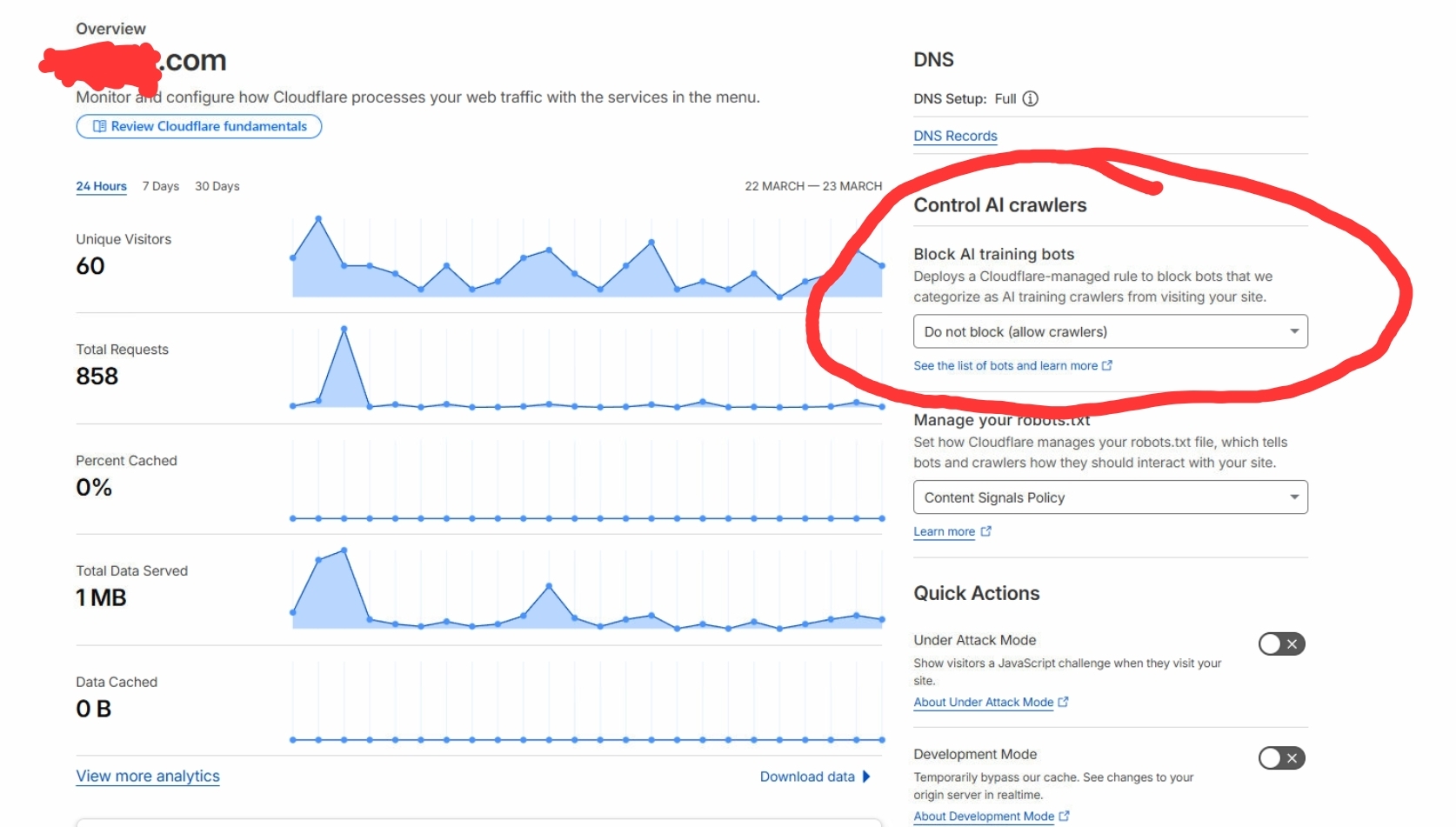
🌐 Web Clients (Claude.ai, ChatGPT, etc.) For secure remote access, you have two options: #### Option A: Webhook Proxy Add-on (Simplest — if you have Nabu Casa or an existing reverse proxy) The **Webhook Proxy** add-on routes MCP traffic through your existing Home Assistant reverse proxy — no separate tunnel needed. 1. Install the **MCP Server add-on** first (if not already installed — see the Installation section above) 2. Install the **"Webhook Proxy for HA MCP"** add-on from the add-on store 3. Start it and **restart Home Assistant** when prompted 4. Copy the URL from the webhook proxy add-on logs: ``` MCP Server URL (remote): https://xxxxx.ui.nabu.casa/api/webhook/mcp_xxxxxxxx ``` 5. Use that URL in your MCP client Works with Nabu Casa, Cloudflare, DuckDNS, nginx, or any other reverse proxy pointing at HA. #### Option B: Cloudflared Add-on (No existing reverse proxy needed) Use the **Cloudflared add-on** for a dedicated tunnel: ##### Install Cloudflared Add-on [![Add Cloudflared Repository](https://my.home-assistant.io/badges/supervisor_add_addon_repository.svg)](https://my.home-assistant.io/redirect/supervisor_add_addon_repository/?repository_url=https%3A%2F%2Fgithub.com%2Fbrenner-tobias%2Faddon-cloudflared) ##### Configure Cloudflared **Note:** The Cloudflared add-on requires a Cloudflare account and uses named tunnels. You'll need to authenticate via the browser flow when first setting up the tunnel. Add to Cloudflared add-on configuration: ```yaml additional_hosts: - hostname: ha-mcp # Named tunnel (requires Cloudflare account) service: http://localhost:9583 ``` Or with a custom domain (requires DNS setup in Cloudflare): ```yaml additional_hosts: - hostname: ha-mcp.yourdomain.com service: http://localhost:9583 ``` **If `localhost` doesn't reach the MCP add-on** (the Cloudflared add-on tunnels from inside its own container), point the tunnel at the MCP add-on's container hostname instead — find it on the MCP Server add-on's **Information** page (e.g. `b37de126-ha-mcp`): ```yaml additional_hosts: - hostname: ha-mcp.yourdomain.com service: http://-ha-mcp:9583 ``` ##### Authenticate and Get Your Public URL When you first start Cloudflared: 1. **Check the add-on logs** for an authentication URL like: ``` Please open the following URL and log in with your Cloudflare account: https://xyz.cloudflare.com/argotunnel?... ``` 2. **Open the URL in your browser**, log in with your Cloudflare account, and select a website to authorize the tunnel 3. **After authentication**, the logs will show your tunnel URL: - Named tunnel: `https://ha-mcp-.cfargotunnel.com` - Custom domain: `https://ha-mcp.yourdomain.com` (if DNS configured) ##### Use Your MCP Server Combine the Cloudflare tunnel URL with your secret path: ``` https://ha-mcp-.cfargotunnel.com/private_zctpwlX7ZkIAr7oqdfLPxw ``` **Benefits:** - No port forwarding required - Automatic HTTPS encryption - Optional Cloudflare Zero Trust authentication - Centrally managed with other Home Assistant services **Note on Quick Tunnels:** True Quick Tunnel mode (temporary `*.trycloudflare.com` URLs without account) requires running `cloudflared tunnel --url http://localhost:9583` directly via CLI or Docker, which is not supported by this add-on. The Home Assistant Cloudflared add-on uses named tunnels that require a Cloudflare account for authentication and management. ##### ⚠️ Disable "Block AI Training Bots" > **This is the most common connection issue for Cloudflare users.** If your LLM client can't connect but visiting the URL in your browser works, this setting is almost certainly the cause. Cloudflare's "Block AI training bots" feature blocks requests from AI/LLM clients by default. You must disable it: 1. Log in to [Cloudflare](https://dash.cloudflare.com) 2. In the left sidebar, click **Domains**, then click **Overview** 3. Click on the domain you use for connecting to Home Assistant 4. On the right side of the page, find **"Control AI Crawlers"** 5. Under **"Block AI training bots"**, open the dropdown 6. Select **"do not block (allow crawlers)"** ![Cloudflare AI Crawlers Setting](https://homeassistant-ai.github.io/ha-mcp/images/cloudflare-ai-crawlers-setting.jpg) **Also check geo / country blocking.** Most AI/LLM services connect from US-based cloud infrastructure, so if a Cloudflare WAF rule blocks US IP addresses (or only allows your own country), your client cannot connect even with AI-bot blocking disabled. Allow your AI provider's IP ranges — Claude.ai connects from Anthropic's network, `160.79.104.0/21` (see [Anthropic's IP ranges](https://platform.claude.com/docs/en/api/ip-addresses)). See [Cloudflared add-on documentation](https://github.com/brenner-tobias/addon-cloudflared/blob/main/cloudflared/DOCS.md) for advanced configuration.
--- ## Configuration Options The add-on has minimal configuration - most settings are automatic. > 🔄 **After changing any setting, refresh your client's tool list.** When a > setting changes the tools the server exposes (Tool Search, Read Only Mode, > enabled/disabled/pinned tools, etc.), your AI client keeps serving its > **cached** tool list until it re-fetches. Restarting the add-on or Home > Assistant does **not** refresh the client — you must reconnect or refresh > the MCP server in your AI client (e.g. re-add/refresh the connector in > ChatGPT, or close and reopen Claude Desktop). Symptom if you skip this: > newly enabled tools don't appear in the client at all, and tools the > server no longer exposes still show as available but return `Unknown > tool` when called. ChatGPT sometimes keeps serving the stale list even > after the connector is removed and re-added under the same name — if > tools are still missing after re-adding, delete the connector and create > a new one with a **different name**. ### backup_hint (Advanced) **Default:** `normal` Controls when the AI assistant suggests creating backups before operations: - `normal` (recommended): Before irreversible operations only - `strong`: Before first modification of each session - `weak`: Rarely suggests backups - `auto`: Intelligent detection (future enhancement) **Note:** This is an advanced option. Enable "Show unused optional configuration options" in the add-on configuration UI to see it. ### secret_path (Advanced) **Default:** Empty (auto-generated) Custom secret path override. **Leave empty for auto-generation** (recommended). - When empty, the add-on generates a secure 128-bit random path on first start - The path is persisted to `/data/secret_path.txt` and reused on restarts - Custom paths are useful for migration or specific security requirements **Note:** This is an advanced option. Enable "Show unused optional configuration options" in the add-on configuration UI to see it. ### verify_ssl (Advanced) **Default:** `true` Verify the Home Assistant server's TLS certificate. The add-on talks to HA via the Supervisor proxy (`http://supervisor/core`), so this option has no effect for the default install. Disable it only if you have reconfigured the add-on to point at an HTTPS endpoint whose certificate doesn't match the hostname being called — for example a local HTTPS endpoint at `https://homeassistant.local:8123`, or a public hostname fronted by a reverse proxy whose certificate is issued for a different name. When disabled, both the REST and WebSocket clients connect with hostname checking and certificate verification turned off, and a warning is logged once per client. **Note:** Disabling weakens transport security. Leave this on unless you know you need it. The OAuth flow inherits the server-wide setting — there's no per-user verify_ssl override. Requires add-on restart to take effect. ### enable_tool_search **Default:** `false` Replaces the full tool catalog (~87 tools) with search-based discovery (~4 proxy tools). When enabled, tools are found via `ha_search_tools` and executed through categorized proxies (read/write/delete). > ⚠️ **Do NOT enable this if your client has its own built-in tool search / deferred tools (claude.ai, Claude Desktop, Claude Code).** The two search layers conflict — running both at once does not work — and the client's built-in tool search is the better choice there anyway. Leave this off in those clients. Some Codex models and ChatGPT include deferred tools too — check your client/model directly to confirm its features so you don't leave this enabled unnecessarily. **When to enable:** - Setups that load the **full tool catalog up front** — whether that happens depends on the client and model combination. This covers models **without native deferred tool support** (OpenAI-compatible local models, Gemini, and **Claude Haiku**, which does not use Claude's built-in deferred tool loading), and clients that **inline all tool schemas regardless of model** (e.g. GitHub Copilot CLI, even when running Claude Sonnet or Opus). - Models with **limited context windows** (≤200K) or deployments where context cost is a concern - MCP clients that **cap total tools** (e.g. at 100) — reduces visible tool count to ~4 **When to leave disabled (default):** - **Clients with built-in tool search / deferred tools (claude.ai, Claude Desktop, Claude Code)** — the two layers conflict, and the client's built-in search is the better choice; use it instead. - Other clients with native deferred tool support — tools are loaded on demand, so the full catalog has no idle context cost. - When you need direct tool access without the search step. Requires add-on restart to take effect. ### tool_search_max_results **Default:** `5` (range 2-10) Maximum number of tools returned by `ha_search_tools` when `enable_tool_search` is on. Lower values (2-3) save context tokens but may miss relevant tools. Has no effect unless tool search is enabled. Requires add-on restart to take effect. ### enable_tool_security_policies **Default:** `false` Gates high-stakes tool calls (lock/alarm control, automation writes, etc.) behind explicit user approval. When a guarded tool is called, the agent is told to ask the user to open the Tool Security Policies tab in the web UI, and the call is held until the user clicks **Approve** there. Per-tool rules — with optional argument conditions — are configured from the same Tool Security Policies tab. **When to enable:** - Shared installations where you want a human in the loop for destructive or security-relevant operations - Locks, alarms, and other entities where an LLM mistake has real-world consequences - Whenever you want a per-call user-approval prompt before high-stakes operations run (locks, automations, etc.) **When to leave disabled (default):** - Single-user setups where you're comfortable with the LLM acting autonomously - You haven't configured any policy rules yet (with no rules, the toggle has no effect — but the runtime cost is small either way) Off by default. Requires add-on restart to take effect. **Example Configuration:** ```yaml enable_tool_security_policies: true ``` Per-tool rules (including argument conditions like `args.domain in ['lock', 'alarm_control_panel']`) are configured from the **Tool Security Policies** tab in the web UI, not from `config.yaml`. *Inspired by [PolicyLayer](https://policylayer.com/)'s policy DSL shape, originally proposed in [#966](https://github.com/homeassistant-ai/ha-mcp/issues/966) by [@L1AD](https://github.com/L1AD).* ### read_only_mode **Default:** `false` Toggles all write tools off, and removes ability for tools to make any write or destructive calls. Write-capable tools disappear from the AI's tool list, and any write operation that still reaches the server (for example through the tool-search proxies) is blocked with a structured `READ_ONLY_MODE` error the AI understands. Mixed read/write tools whose read functionality exists nowhere else stay available with their write operations blocked: - `ha_config_get_dashboard` — config/list/search reads only; screenshot renders are blocked because Puppet can persist frontend theme/dark preferences - `ha_manage_backup` — only listing and viewing per-edit backups - `ha_manage_addon` — only HTTP GET proxy reads of add-on APIs - `ha_manage_energy_prefs` — only `mode='get'` and `dry_run=true` previews - `ha_manage_pipeline` — only `action='list'` / `'get'` - `ha_manage_custom_tool` — only `list_saved=true` **When to enable:** - Using the AI for analysis, audits, and suggestions only - Demos or shared setups where the assistant must never change anything The same toggle appears at the top of the **Tools** tab in the web UI. Off by default. Requires add-on restart to take effect. **Example Configuration:** ```yaml read_only_mode: true ``` --- ## Tool Settings Web UI The add-on exposes a web-based settings page for managing which tools are available to AI assistants. Click **"Open Web UI"** on the add-on info page to access it. Features: - **Enable/disable individual tools** — toggle each tool on or off - **Pin tools** — keep tools always visible when `enable_tool_search` is on - **Per-group master toggle** — enable/disable all tools in a group (HACS, System, etc.) with one click - **Search** — filter tools by name or title - **Mandatory tools** — `ha_search`, `ha_get_overview`, `ha_get_state`, `ha_report_issue`, and `ha_manage_backup` are always enabled and cannot be disabled (listing one in `disabled_tools` is a silent no-op — it keeps running). `ha_get_skill_guide` is additionally locked enabled while strict best-practices mode (`enable_strict_mandatory_bps`) is on — strict mode publishes its acknowledgment key only through that tool; turn strict mode off first to disable it - **Tool Security Policies tab** — when `enable_tool_security_policies` is on, approve held tool calls and manage per-tool rules here - **Advanced settings** — an advanced panel with a beta master toggle (plus per-feature sub-toggles) for opting into beta tools such as raw YAML editing, filesystem tools, and code mode. See [Beta Features](https://github.com/homeassistant-ai/ha-mcp/blob/master/docs/beta.md) - **In-UI restart** — a "Restart Add-on" button appears after saving to apply changes with one click **Important:** Tool configuration changes require an add-on restart to take effect. The UI will prompt you to restart after saving. ### Non-add-on installations In Docker (`ha-mcp-web`) and standalone HTTP installations, the settings UI is mounted under your MCP secret path. Open `http://://settings` (the same URL prefix that protects your MCP endpoint). This keeps the auth posture consistent — anyone who can reach your MCP endpoint can also use the settings UI; anyone who can't, can't. ### Text-field fallback If you prefer not to use the web UI (or want to set these before first start), the `disabled_tools` and `pinned_tools` options accept comma-separated tool names as seed values. On first start, the add-on creates `/data/tool_config.json` from these values; after that, the web UI is the source of truth. Mandatory tools (listed above) cannot be disabled this way. --- ## Security ### Auto-Generated Secret Paths The add-on automatically generates a unique secret path on first startup using 128-bit cryptographic entropy. This ensures: - Each installation has a unique, unpredictable endpoint - The secret is persisted across restarts - No manual configuration needed ### Authentication The add-on uses Home Assistant Supervisor's built-in authentication. No tokens or credentials are needed - the add-on automatically authenticates with your Home Assistant instance. ### Network Exposure - **Local network only by default** - The add-on listens on port 9583 - **Remote access** - Use the [Webhook Proxy add-on](../homeassistant-addon-webhook-proxy/DOCS.md) (easiest with Nabu Casa) or the Cloudflared add-on for secure HTTPS tunnels - **Never expose** port 9583 directly to the internet without proper security measures ### Supervisor Permissions The add-on requests `hassio_role: manager` (declared in `config.yaml`). `manager` is required for the Supervisor REST endpoints used to fetch add-on and system-service logs (`/addons//logs`, `//logs`, `/core/logs`) — `default` returns 403 (see #1116). The role also supports explicit add-on management through `ha_manage_addon`. When dashboard screenshots are enabled, `ha_get_dashboard_screenshot` may update only the schema-verified Puppet add-on's `keep_browser_open` option and restart that same add-on; it accepts no caller-supplied slug for those operations. --- ## Troubleshooting ### Add-on won't start **Check the logs** for errors: - Configuration validation errors - Dependency installation failures - Port conflicts (9583 already in use) **Solution:** Review the error message and adjust configuration or free up the port. ### Can't connect to MCP server **Verify:** 1. Add-on is running (check status in Supervisor) 2. You copied the **complete URL** including the secret path from logs 3. Your MCP client configuration is correct 4. No firewall blocking port 9583 on your local network **Solution:** Restart the add-on and copy the URL from fresh logs. ### Lost the secret URL **Options:** 1. Check the add-on logs (scroll to startup messages) 2. Restart the add-on (logs will show the URL again) 3. Read directly from `/data/secret_path.txt` using the Terminal & SSH add-on 4. Generate a new secret by deleting `/data/secret_path.txt` and restarting ### Operations failing **Check add-on logs** for detailed error messages. Common issues: - Invalid entity IDs (use fuzzy search to find correct IDs) - Missing permissions (add-on should have full access) - Home Assistant API errors (check HA logs) **Solution:** Review the specific error in logs and adjust your commands accordingly. ### Performance issues If the add-on is slow or unresponsive: 1. Check Home Assistant system resources (CPU, memory) 2. Review add-on logs for warnings 3. Restart the add-on 4. Consider reducing concurrent AI assistant operations --- ## Available Tools The add-on provides 87+ MCP tools for controlling Home Assistant: > **Note:** This list is regenerated from the `master` branch on every push, but the add-on image you have installed only updates on stable releases (biweekly, Wednesdays 10:00 UTC). A tool listed below may not yet be present in your installed runtime. If so, calling it returns an "unknown tool" error until the next stable release. > Tools marked **(beta — dev channel only)** are gated behind feature flags and ship with the dev channel add-on only. See [docs/beta.md](https://github.com/homeassistant-ai/ha-mcp/blob/master/docs/beta.md) for setup and caveats. ### Add-ons - `ha_get_addon` — Get Home Assistant add-ons - list installed, available, or get details for one. - `ha_manage_addon` — Manage a Home Assistant add-on — update its configuration or call its internal API. ### Areas & Floors - `ha_list_floors_areas` — List floors sorted by level ascending, each with their assigned areas nested, plus areas without a floor. - `ha_remove_area_or_floor` — Remove a Home Assistant area or floor. - `ha_set_area_or_floor` — Create or update a Home Assistant area or floor. ### Assist - `ha_manage_pipeline` — Manage Home Assistant Assist pipelines. ### Automations - `ha_config_get_automation` — Retrieve Home Assistant automation configuration. - `ha_config_remove_automation` — Delete a Home Assistant automation. - `ha_config_set_automation` — Create or update a Home Assistant automation. ### Blueprints - `ha_get_blueprint` — Get blueprint information - list all blueprints or get details for a specific one. - `ha_import_blueprint` — Import a blueprint from a URL. ### Calendar - `ha_config_get_calendar_events` — Retrieve calendar events from a calendar entity. - `ha_config_remove_calendar_event` — Delete an event from a calendar. - `ha_config_set_calendar_event` — Create a new event in a calendar. ### Camera - `ha_get_camera_image` — Retrieve a snapshot image from a Home Assistant camera entity. ### Dashboard - `ha_get_dashboard_screenshot` **(beta — dev channel only)** — Get rendered images of a Home Assistant Lovelace dashboard view. ### Dashboards - `ha_config_delete_dashboard` — Delete a storage-mode dashboard completely. - `ha_config_delete_dashboard_resource` — Delete a dashboard resource. - `ha_config_get_dashboard` — Get dashboard info - list all dashboards, get config, or search for cards. - `ha_config_list_dashboard_resources` — List Lovelace dashboard resources (custom cards, themes, CSS/JS). - `ha_config_set_dashboard` — Create or update a Home Assistant dashboard. - `ha_config_set_dashboard_resource` — Create or update a dashboard resource (inline code or external URL). ### Developer - `ha_dev_manage_server` — Manage the running ha-mcp server itself (developer mode). - `ha_dev_manage_settings` — Manage ha-mcp server settings and the Tools/Policies/Backups surfaces (developer mode). ### Device Registry - `ha_get_device` — Get device information with pagination, including Zigbee (ZHA/Z2M) and Z-Wave JS devices. - `ha_remove_device` — Remove an orphaned device from the Home Assistant device registry. - `ha_set_device` — Update device properties such as name, area, disabled state, or labels. ### Energy - `ha_manage_energy_prefs` — Manage the Home Assistant Energy Dashboard preferences. ### Entity Registry - `ha_get_entity` — Get entity registry information for one or more entities. - `ha_get_entity_exposure` — Get entity exposure settings - list all or get settings for a specific entity. - `ha_remove_entity` — Remove one or more entities from the Home Assistant entity registry. - `ha_set_entity` — Update entity properties in the entity registry. ### Files - `ha_delete_file` **(beta — dev channel only)** — Delete a file from allowed directories in the Home Assistant config. - `ha_list_files` **(beta — dev channel only)** — List files in a directory within the Home Assistant config directory. - `ha_read_file` **(beta — dev channel only)** — Read a file from the Home Assistant config directory. - `ha_write_file` **(beta — dev channel only)** — Write a file to allowed directories in the Home Assistant config. ### Groups - `ha_config_list_groups` — List Home Assistant entity groups with their member entities. - `ha_config_remove_group` — Remove a service-based Home Assistant entity group via the group.remove service. - `ha_config_set_group` — Create or update a service-based Home Assistant entity group via the group.set service. ### HACS - `ha_get_hacs_info` — Get HACS (Home Assistant Community Store) data — search the store or fetch repository details. - `ha_manage_hacs` — Manage HACS (Home Assistant Community Store) — install/update or add custom repositories. ### Helper Entities - `ha_config_list_helpers` — List Home Assistant helpers of a specific type with their configurations. - `ha_config_set_helper` — Create or update Home Assistant helper entities and config subentries - `ha_remove_helpers_integrations` — Remove a Home Assistant helper or integration config entry. ### History & Statistics - `ha_get_automation_traces` — Retrieve execution traces for automations and scripts to debug issues. - `ha_get_history` — Retrieve historical data from Home Assistant's recorder. - `ha_get_logs` — Get Home Assistant logs from various sources. ### Integrations - `ha_get_integration` — Get integration (config entry) information with pagination. - `ha_get_system_health` — Get Home Assistant system health, including Zigbee (ZHA), Z-Wave JS, and per-integration diagnostics dumps. - `ha_set_integration` — Manage an integration (config entry): enable/disable, add, or update options. ### Labels & Categories - `ha_config_get_category` — Get category info - list all categories for a scope or get a specific one by ID. - `ha_config_get_label` — Get label info - list all labels or get a specific one by ID. - `ha_config_remove_category` — Delete a Home Assistant category. - `ha_config_remove_label` — Delete a Home Assistant label. - `ha_config_set_category` — Create or update a Home Assistant category. - `ha_config_set_label` — Create or update a Home Assistant label. ### Matter - `ha_manage_radio` — Manage Home Assistant radios — Z-Wave, Zigbee, Matter, and Thread. ### Scenes - `ha_config_get_scene` — Retrieve Home Assistant scene configuration. - `ha_config_remove_scene` — Delete a Home Assistant scene. - `ha_config_set_scene` — Create or update a Home Assistant scene. ### Scripts - `ha_config_get_script` — Retrieve Home Assistant script configuration. - `ha_config_remove_script` — Delete a Home Assistant script. - `ha_config_set_script` — Create or update a Home Assistant script. ### Search & Discovery - `ha_get_overview` — Get AI-friendly system overview with intelligent categorization. - `ha_get_state` — Get current status, state, and attributes of one or more entities (lights, switches, sensors, climate, covers, locks, fans, etc.). - `ha_search` — Search for entities (lights, sensors, switches, climate, etc.) by name, domain, or area — AND inside automation/script/scene/helper/dashboard configurations — in one call. ### Service & Device Control - `ha_bulk_control` — Control multiple devices with bulk operation support and WebSocket tracking. - `ha_call_event` — Execute a custom event on the Home Assistant event bus. - `ha_call_service` — Execute Home Assistant services to control entities and trigger automations. - `ha_get_operation_status` — Get the status of one or more device operations with real-time WebSocket verification. - `ha_list_services` — List available Home Assistant services with optional pagination and detail control. ### System - `ha_config_get_yaml` **(beta — dev channel only)** — Get the current YAML fragment under a key, from one config file or across a glob. - `ha_config_set_yaml` **(beta — dev channel only)** — Update raw YAML configuration in configuration.yaml, packages/*.yaml, or themes/*.yaml (LAST RESORT). - `ha_manage_backup` — Polymorphic backup tool. See the tool description for the routing matrix. - `ha_manage_custom_tool` **(beta — dev channel only)** — Create and run a custom tool in a sandbox, or manage saved custom tools. - `ha_manage_theme` — Manage Home Assistant frontend themes. - `ha_manage_updates` — Manage Home Assistant updates -- list, read details, batch install, skip, or un-skip. - `ha_reload_core` — Reload Home Assistant configuration without full restart. - `ha_restart` — Restart Home Assistant. ### Todo Lists - `ha_get_todo` — Get todo lists or items - list all todo lists or get items from a specific list. - `ha_remove_todo_item` — Remove an item from a Home Assistant todo list. - `ha_set_todo_item` — Create or update a todo item in Home Assistant. ### Utilities - `ha_eval_template` — Evaluate Jinja2 templates using Home Assistant's template engine. - `ha_report_issue` — Get diagnostic information and templates for filing issue reports or feedback. ### Zones - `ha_get_zone` — Get zone information - list all zones or get details for a specific one. - `ha_remove_zone` — Remove a Home Assistant zone. - `ha_set_zone` — Create or update a Home Assistant zone. For domain-specific Home Assistant documentation, use the `ha_get_skill_guide` tool (or read the `skill://` resources directly if your MCP client supports resources). See the [main repository](https://github.com/homeassistant-ai/ha-mcp) for detailed tool documentation and examples. --- ## Support **Issues and Bug Reports:** https://github.com/homeassistant-ai/ha-mcp/issues **Documentation:** https://github.com/homeassistant-ai/ha-mcp **Contributing:** https://github.com/homeassistant-ai/ha-mcp/blob/master/CONTRIBUTING.md --- ## License This add-on is licensed under the MIT License. See [LICENSE](https://github.com/homeassistant-ai/ha-mcp/blob/master/LICENSE) for full license text.