# 《这本书能让你连接互联网》 |[![cc](https://i.creativecommons.org/l/by-nc/4.0/80x15.png)](http://creativecommons.org/licenses/by-nc/4.0/)|[![fq-book](https://img.shields.io/badge/%F0%9F%93%96book-fq--book-red.svg?longCache=true&style=flat-square)](https://hoochanlon.github.io/fq-book)| |:-:|:-:| > [!important] > 《这本书》示例的多数网址,以及更多资料收录在 [hamuleite](https://github.com/hoochanlon/hamuleite) ,推荐相关网络切换及计算软件: [Ip-Switch](https://github.com/hoochanlon/Ip-Switch)、[network-calculator](https://github.com/hoochanlon/network-calculator)。 > > 不得不说,[Pawdroid/Free-servers](https://github.com/Pawdroid/Free-servers)、[YoulianBoshi/vpn](https://github.com/YoulianBoshi/vpn) 这些免费梯子真厉害,利用 cloudflare [LancelotRar/free-subs](https://github.com/LancelotRar/free-subs) 搭建节点也是可以参考的,[DiningFactory/panda-vpn-pro](https://github.com/DiningFactory/panda-vpn-pro) 低价付费机场也不失为一种选择。 > > [clash-verge-rev](https://github.com/clash-verge-rev/clash-verge-rev) 都实现VPN的功能了,以及千种配置 [mihomo_yamls](https://github.com/HenryChiao/mihomo_yamls) 太强了。 > > 随着AI时代的到来,[panxunying/ai-coding-welfare](https://github.com/panxunying/ai-coding-welfare) 知道一些 AI Coding 福利站导航也不赖,我更多的是用咸鱼... ## ***intro*** 《这本书能让你连接互联网》(以下简称《这本书》)着重于上网的方式与获取信息的技巧,并对相关流行且典型的软件做简要的上手配置,以及原理的相关说明。 * [导读](docs/README.md) * [目录](docs/_sidebar.md) * [后记](docs/postscript.md) ## ***update*** 这本书的更新要点: * 增加速成科学上网篇章 * 增加相关上网方式以及软件配置操作 * crx_header_invalid 解决方案的说明 * VPN连接上服务器却无法访问任何网页及其他网络的解决办法 * Windows 无法设置系统代理的问题 * 项目内置 probot 机器人,method 新增 战略家模式 *

其他更新 click me! * 增加对虚拟电话注册方案的说明 * 谷歌新账户注册方式 * 网页时光机以及查找相似站点 * 利用个人博客作为连接互联网的中转
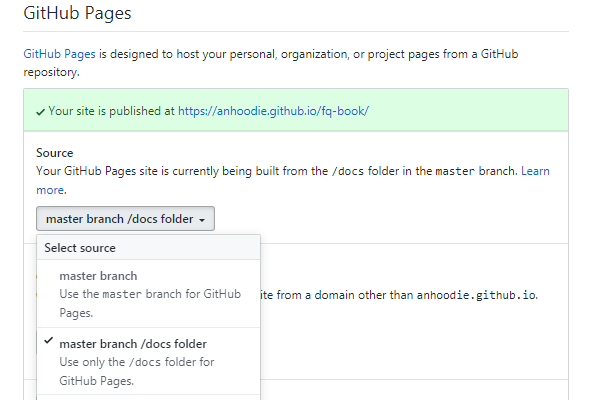
此外,还精简了不必要的重复内容,图片采用 postimages 支持,项目由30M降低到144KB大小,非常方便在线部署及下载,欢迎 fork 《这本书》! ### ***NET::ERR_CERT_AUTHORITY_INVALID*** 浏览器会额外提示:攻击者可能试图从 xxx.github.io 窃取你的信息,此服务器无法证明它是 xxx.github.io;你的计算机的操作系统不信任它的安全证书。这可能是由配置错误或者有攻击者截获你的连接而导致的。当继续访问时又会403。 解招!:更改为如下提供的百度、阿里、腾讯DNS,再用ipconfig/flushdns 刷新缓存。原因简述:ISP提供的DNS发送错误的根证书,换成能向访问网站提供正确证书的第三方DNS。 * 百度DNS:180.76.76.76 * 阿里DNS:223.5.5.5、223.6.6.6 * 腾讯DNS:119.29.29.29、182.254.116.116 ## ***usage*** ### 在线部署 1. fork 《这本书》 到你的 repo 2. 修改 docs/index.html 将`window.$docsify = {}` 的`repo` 修改成你的 repo 3. 在 settings 找到 GitHub Pages 并选择 `master brach/docs folder` 4. 访问 `https://你的GitHub用户名.github.io/fq-book` 即可看到效果
这里以 anhoodie 为示例 click me! ![](https://user-images.githubusercontent.com/35732922/59164863-80b72000-8b45-11e9-8807-849ba56056f4.png) ![](https://user-images.githubusercontent.com/35732922/59164963-e061fb00-8b46-11e9-9647-c827fa784e38.png)
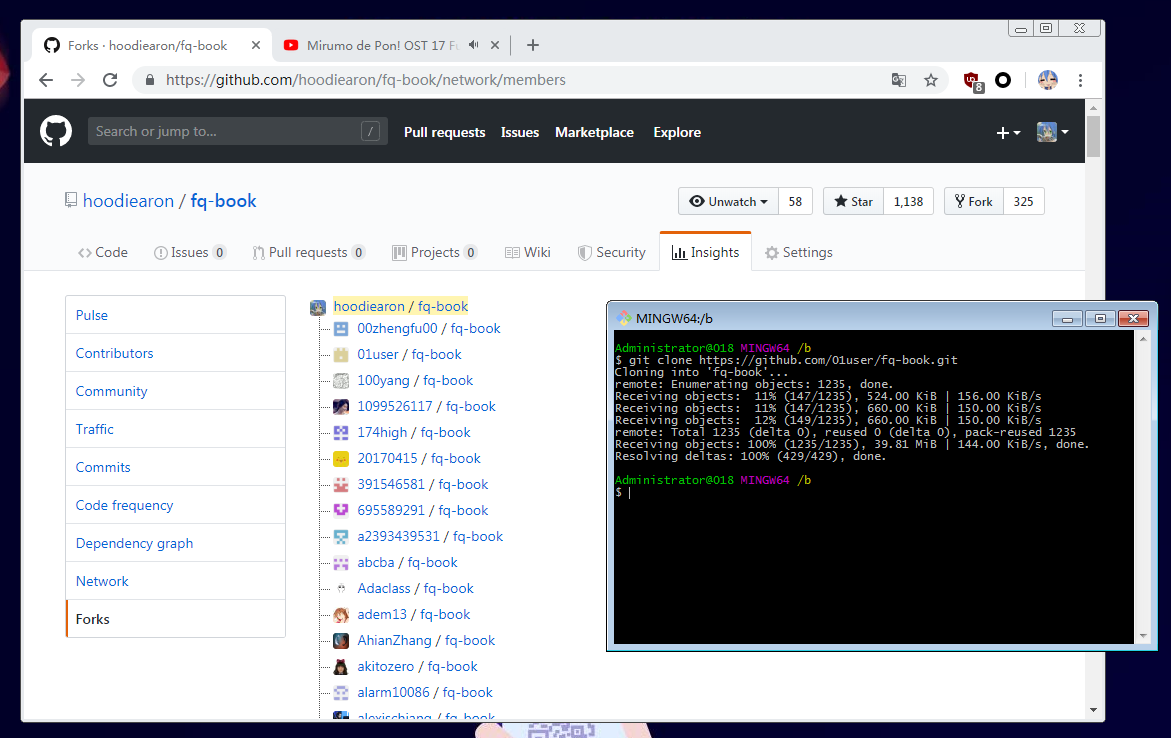
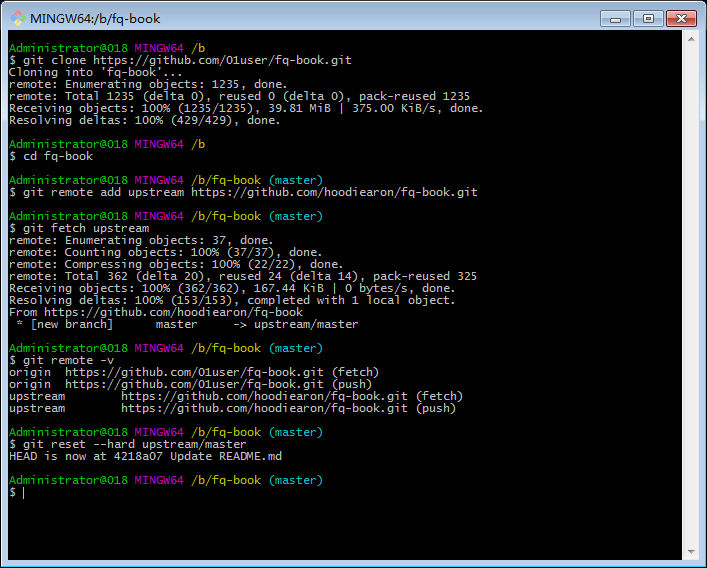
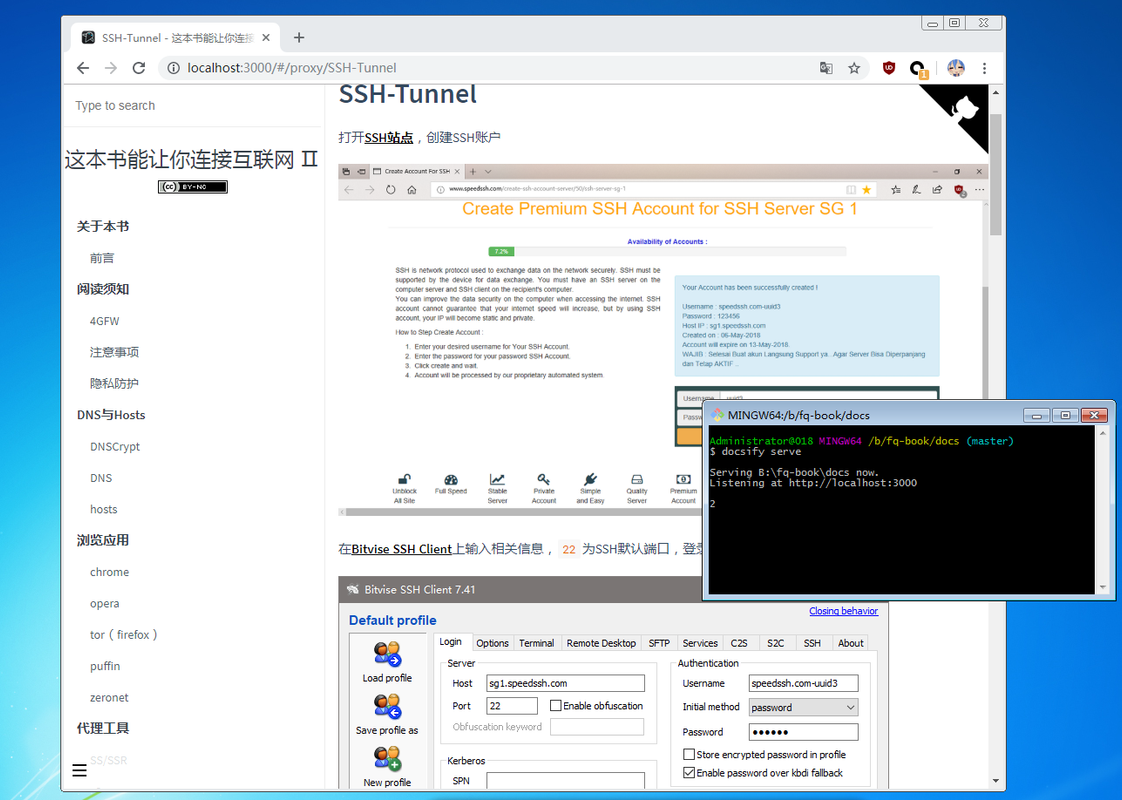
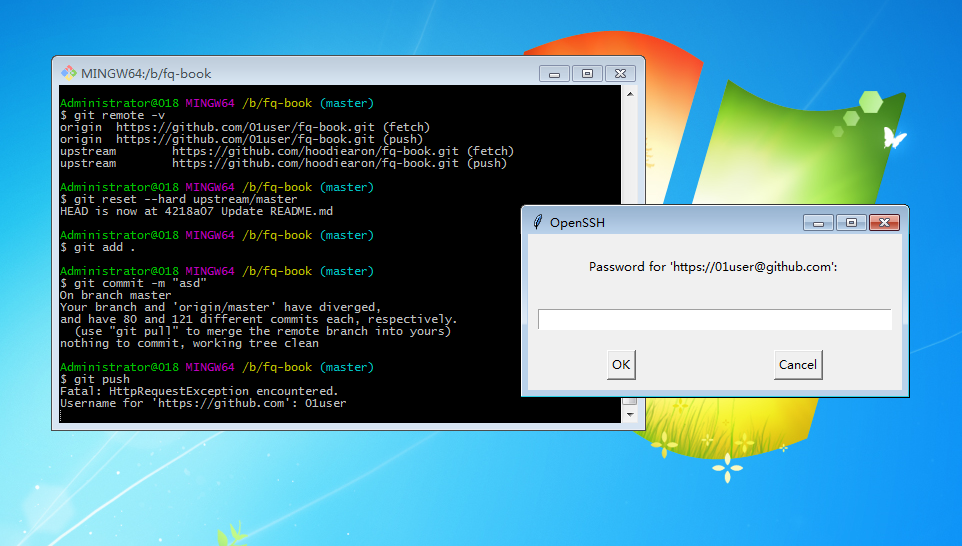
预览 ![Snipaste_2019-06-10_06-18-56](https://user-images.githubusercontent.com/35732922/59165031-d7255e00-8b47-11e9-8a5b-829b61afeb24.png) ### 本地部署 所需环境:[git](https://git-scm.com/)、[node](https://nodejs.org/zh-cn);安装很简单一直 `下一步` 直到完成安装即可。 * 右击选择`git bash`在命令行中输入 `npm i docsify-cli -g` * 点击`clone or download`下载`.zip` 并解压缩 * 进入到`fq-book-master/docs`目录 * 右击打开`git bash`输入`docsify init .` * 使用`docsify serve`完成本地部署 * 在浏览器中输入`localhost:3000`即可看到效果 :joy: 关于更多详细,请看[docsify官网文档](https://docsify.js.org/) 使用[Offline Explorer](https://www.52pojie.cn/thread-790037-1-1.html)可将《这本书》的整个网页内容下载到本地,进行离线观看 当然,也可选择将该书docsify类型转换为gitbook生成格式,并用其自带的命令制作《这本书》的PDF ### 获取更新 以01user为例,在本地部署时,旧版图链已经失效了,新版已经采用 postimage 支持;此时就需升级成 《这本书Ⅱ》,获取更新其实非常简单,在fork的基础上,执行以下指令 ``` git clone https://github.com/你的github用户名/fq-book.git cd fq-book git remote add upstream https://github.com/hoochanlon/fq-book.git # 若需必要的分支变更,还是使用合适: git fetch --all git fetch upstream # 对Git有所了解的话,建议还是使用:`git pull upstream master --allow-unrelated-histories` 以审查代码的形式更新 git reset --hard upstream/master ``` 提交到自己的repo ``` git add . git commit -m "test" # 此指令只方便newbie或不得已的强制;会些Git还是推荐:git push -u --force-with-lease origin master git push -u -f origin master ``` 输入账号&密码即可上传到自己repo完成Github账户仓库远程更新。**更多作业指令操作说明,请看[Git 官方文档](https://git-scm.com/book/zh/v2)**,在特殊情况,有可能需要涉及到代理、镜像、浅克隆设置
更新图示 click me! ![](https://i.postimg.cc/YSY78GPL/Snipaste-2019-06-12-15-59-16.png) ![](https://i.postimg.cc/pTrZRztp/Snipaste-2019-06-12-16-40-01.png) 部署测试 ![](https://i.postimg.cc/dV1tRjrW/Snipaste-2019-06-12-16-42-04.png) 提交到repo ![](https://i.postimg.cc/tRkjrVX8/Snipaste-2019-06-12-16-43-37.png)
### 代理设置 #### git代理 git客户端代理设置,以及取消代理 ``` git config --global http.proxy 'socks5://127.0.0.1:1080' && \ git config --global https.proxy 'socks5://127.0.0.1:1080' git config --global --unset https.proxy git config --global --unset http.proxy ``` git clone 默认会下载项目的完整历史版本,若只关心最新的代码,而不关心之前的历史,网速差的朋友可以使用浅复制功能: ``` git clone --depth=1 https://github.com/你的用户名/你的repo.git ``` #### Mac终端 Mac终端的代理设置(http&https)以及取消代理 ``` export ALL_PROXY=socks5://127.0.0.1:1080 unset ALL_PROXY" ``` 代理软件即便是开全局模式,终端也不会走代理的,需另设。此外,Mac终端设置了代理git是可以不用在设置了。这个可用 `curl cip.cc` 来判断软件是否走了代理通道 #### ssh ``` ## github ssh 配置 ### https://help.github.com/articles/using-ssh-over-the-https-port/ ## HTTP 代理 ProxyCommand socat - PROXY:127.0.0.1:%h:%p,proxyport=8848 ## socks5 代理 ProxyCommand nc -v -x 127.0.0.1:1080 %h %p ``` 更多代理设置见:[SunSeekerX's Notebook-代理设置大全](https://doc.yoouu.cn/basic/proxy.html),相关问题见:[v2ex-为什么全局代理后,CMD依然Ping不通Google?](https://www.v2ex.com/t/877527) (2024.1.12) ## ***essays*** 设置HOSTS、DNS的软件,推荐:[Ip Switch](https://github.com/hoochanlon/Ip-Switch)(导入GitHub hosts可参考[ineo6/hosts](https://github.com/ineo6/hosts))、[DNSCrypt](https://github.com/DNSCrypt/dnscrypt-proxy) ,我觉得不管代理、vpn怎么变(技术迭代,换来换去),反正这两个设置软件总是要的。VPN、proxy软件又出来个新玩意什么,[clashios](https://clashios.com/about-me/)提及到的软件也是可以参考的咯。 下载组件方面,一些喜欢折腾环境配置的人也自然总结了一些经验写着项目里,例如:[homebrew-install](https://github.com/ineo6/homebrew-install)、[Thanks-Mirror](https://github.com/eryajf/Thanks-Mirror)、[package-manager-proxy-settings](https://github.com/comwrg/package-manager-proxy-settings)。 [SteamTools](https://github.com/BeyondDimension/SteamTools)游戏加速器,满足steam基本的社区商店、社区消息浏览,还行吧,毕竟是免费的。[dogfight360](https://www.dogfight360.com/blog/475/#comment-25207)写的UsbEAm Hosts Editor在进入游戏anti-cheat(反外挂插件)加速上也还好。以及apex英雄(iOS/iPadOS版)虽然锁区,但挂个小火箭,其实也能玩。 ## ***mind you*** 本书允许演绎及共享但禁止商用,科学上网仅为研究需要,以下是免责声明: * 本书面向海外华人用户且仅供科研与学习,切勿用于其他用途 * 中国居民请自觉关闭本书并24小时内删掉与此相关的所有内容,否则出现一切后果本书作者概不负责 > [!note] > 接下来的 [人生进阶指南](https://github.com/byoungd/up) 或许很有趣...当然还有 [润(run)学](https://github.com/The-Run-Philosophy-Organization/run)。 ## Star History [![Star History Chart](https://api.star-history.com/chart?repos=hoochanlon/fq-book%2Choochanlon/hamuleite&type=timeline&legend=top-left)](https://www.star-history.com/?repos=hoochanlon%2Ffq-book%2Choochanlon%2Fhamuleite&type=timeline&logscale=&legend=top-left)