---
layout: page
title: Cropping issues
permalink: /guides/debugging/cropping-issues/
parent: Debugging
grand_parent: Guides
nav_order: 1
description: >-
Fix images that aren't cropping correctly. Learn why full HTML pages don't auto-crop and how to use HTML snippets instead.
---
# Debugging Cropping Issues
{: .no_toc }
{: .fs-9 }
Why your image isn't cropping to the size you expect
{: .fs-6 .fw-300 }
## Table of contents
{: .no_toc .text-delta }
1. TOC
{:toc}
---
## How Auto-Cropping Works
The HTML/CSS to Image API has a powerful **auto-cropping** feature that automatically sizes your image to match your HTML content. When you send an HTML snippet, the API crops the resulting image to the dimensions of the **outermost HTML element**.
However, this only works for **HTML snippets**—not full HTML pages.
{% include hint.md title="Key Concept" text="Auto-cropping works by detecting the outermost element in your HTML and cropping to its dimensions. If you send a full HTML page with <html> and <body> tags, the API renders the entire viewport instead." %}
---
## The Most Common Mistake
The most frequent cropping issue we see: **sending a full HTML page when you meant to send an HTML snippet**.
### What Happens with a Full HTML Page
When you include ``, ``, ``, or `` tags, the API treats your content as a **full webpage** and renders it inside the default viewport (1920x1080 pixels).
**Example of what NOT to do:**
```html
My Card
This should be 400x200
```
**Result:** Instead of a 400x200 image, you get a 1920x1080 image with your content in the corner:
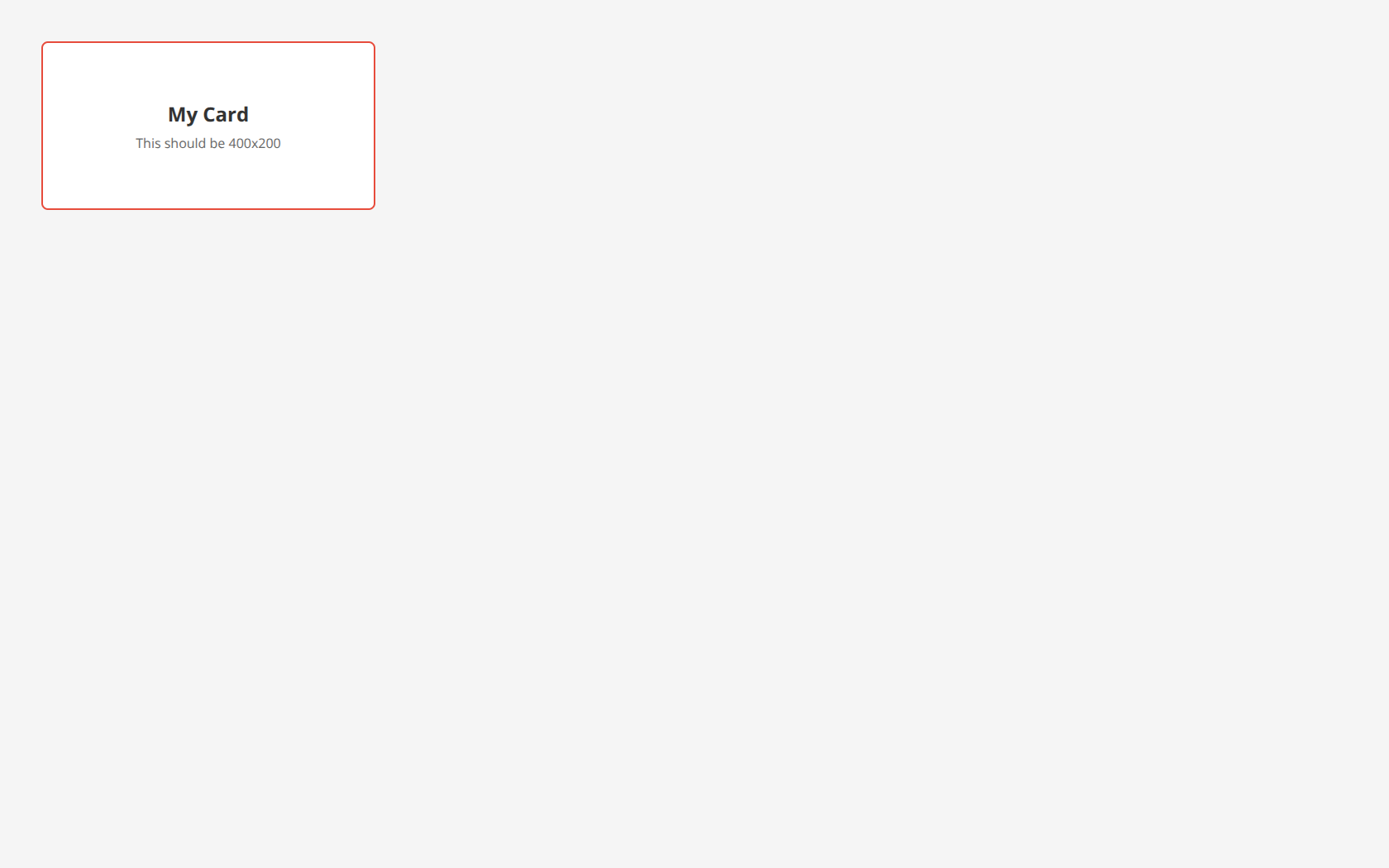 Notice how the image includes the entire viewport with a gray background, not just your 400x200 card.
---
## The Solution: Use HTML Snippets
Remove the ``, ``, ``, and `` tags. Send only the HTML elements you want in your image.
**The correct approach:**
```html
Notice how the image includes the entire viewport with a gray background, not just your 400x200 card.
---
## The Solution: Use HTML Snippets
Remove the ``, ``, ``, and `` tags. Send only the HTML elements you want in your image.
**The correct approach:**
```html
My Card
Correctly sized 400x200
```
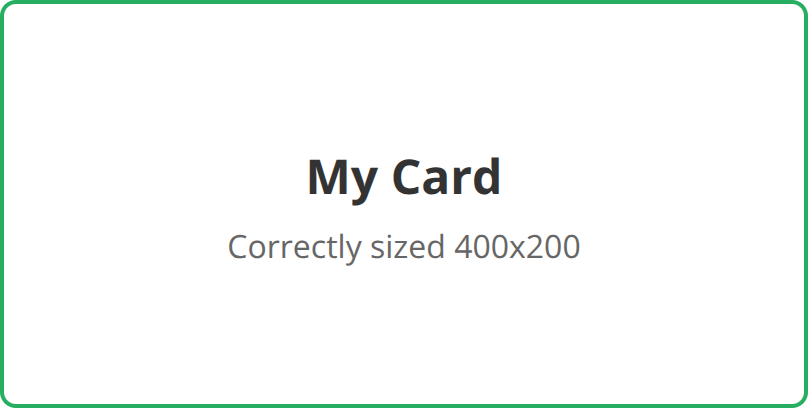
**Result:** The image is automatically cropped to exactly 400x200 (or 800x400 at 2x resolution):
 ---
## Setting Dimensions on the Outermost Element
For auto-cropping to work correctly, set explicit `width` and `height` on your **outermost** HTML element:
```html
---
## Setting Dimensions on the Outermost Element
For auto-cropping to work correctly, set explicit `width` and `height` on your **outermost** HTML element:
```html
```
The API will crop the image to match these dimensions (doubled for retina displays by default).
### Using CSS Classes
You can also use a `
Welcome
Your styled content here
```
---
## Adding Margins Around Your Image
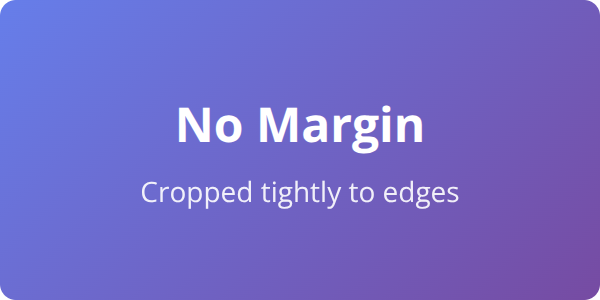
Need some breathing room around your content? Add `margin` to the outermost element. The auto-cropper respects margins and includes them in the final image.
### Without Margin
```html
No Margin
Cropped tightly to edges
```
 ### With Margin
```html
### With Margin
```html
With Margin
20px space around
```
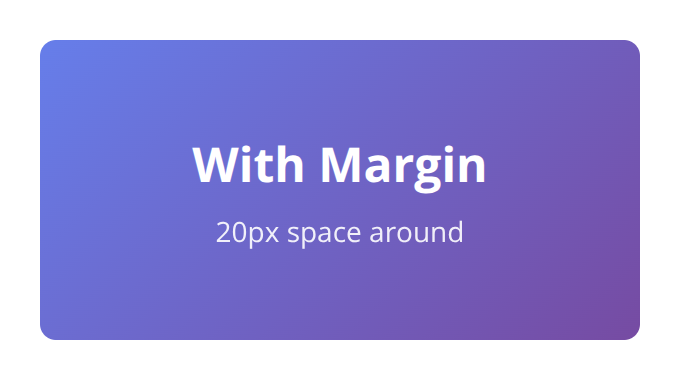 Notice the transparent space around the card when using `margin: 20px`. This is useful for adding padding around social cards, thumbnails, or any image that needs visual breathing room.
---
## When You Need Full HTML Pages
Sometimes you do need to send a full HTML page—for example, when including external libraries, complex CSS, or JavaScript. In these cases, use the [`viewport_width` and `viewport_height` parameters](/parameters/viewport/#viewport-width-and-height) to control the image size:
```json
{
"html": "...",
"viewport_width": 400,
"viewport_height": 200
}
```
Or use the `selector` parameter to crop to a specific element within the page:
```json
{
"html": "...
Notice the transparent space around the card when using `margin: 20px`. This is useful for adding padding around social cards, thumbnails, or any image that needs visual breathing room.
---
## When You Need Full HTML Pages
Sometimes you do need to send a full HTML page—for example, when including external libraries, complex CSS, or JavaScript. In these cases, use the [`viewport_width` and `viewport_height` parameters](/parameters/viewport/#viewport-width-and-height) to control the image size:
```json
{
"html": "...",
"viewport_width": 400,
"viewport_height": 200
}
```
Or use the `selector` parameter to crop to a specific element within the page:
```json
{
"html": "......
...",
"selector": "#card"
}
```
Learn more about the [selector parameter](/parameters/selector/).
---
## Quick Troubleshooting Checklist
If your image isn't cropping correctly, work through these steps:
1. **Remove full page tags** — Delete ``, ``, ``, and `` tags
2. **Set explicit dimensions** — Add `width` and `height` to your outermost element
3. **Check for wrapper elements** — Ensure no invisible wrapper is affecting dimensions
4. **Use viewport params for full pages** — If you must use a full page, set `viewport_width` and `viewport_height`
5. **Try the selector param** — Use `selector` to crop to a specific element
---
## Summary
| Scenario | Solution |
|:---------|:---------|
| Image is full viewport size (1920x1080) | Remove ``, `` tags—use HTML snippet |
| Image size doesn't match your CSS | Set `width` and `height` on outermost element |
| Need space around the image | Add `margin` to the outermost element |
| Must use full HTML page | Use `viewport_width`/`viewport_height` or `selector` param |
{% include code_footer.md version=2 %}