🌐 Website: officecli.ai | 💬 Community: Discord

PPT creation process using OfficeCLI on AionUi
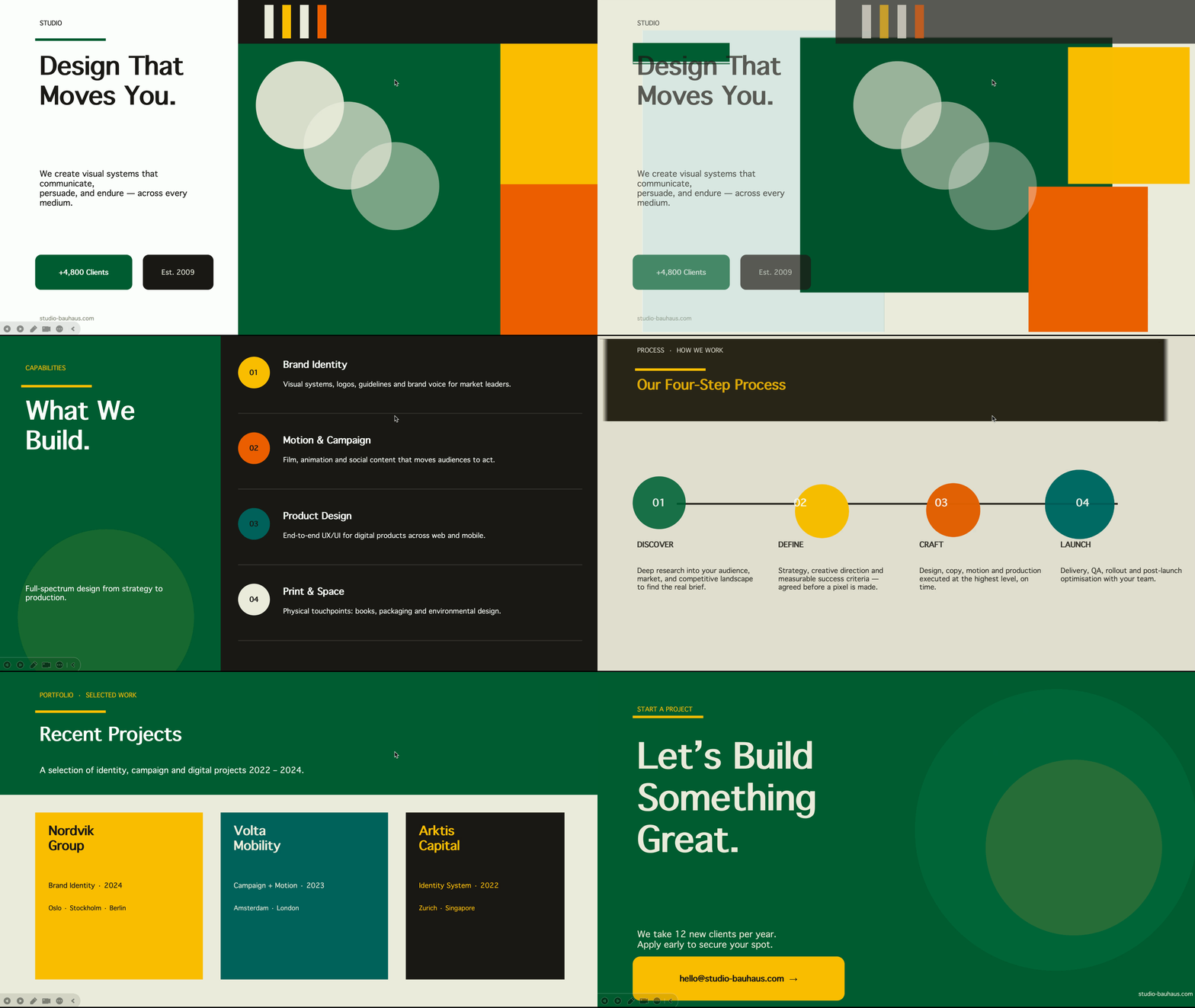
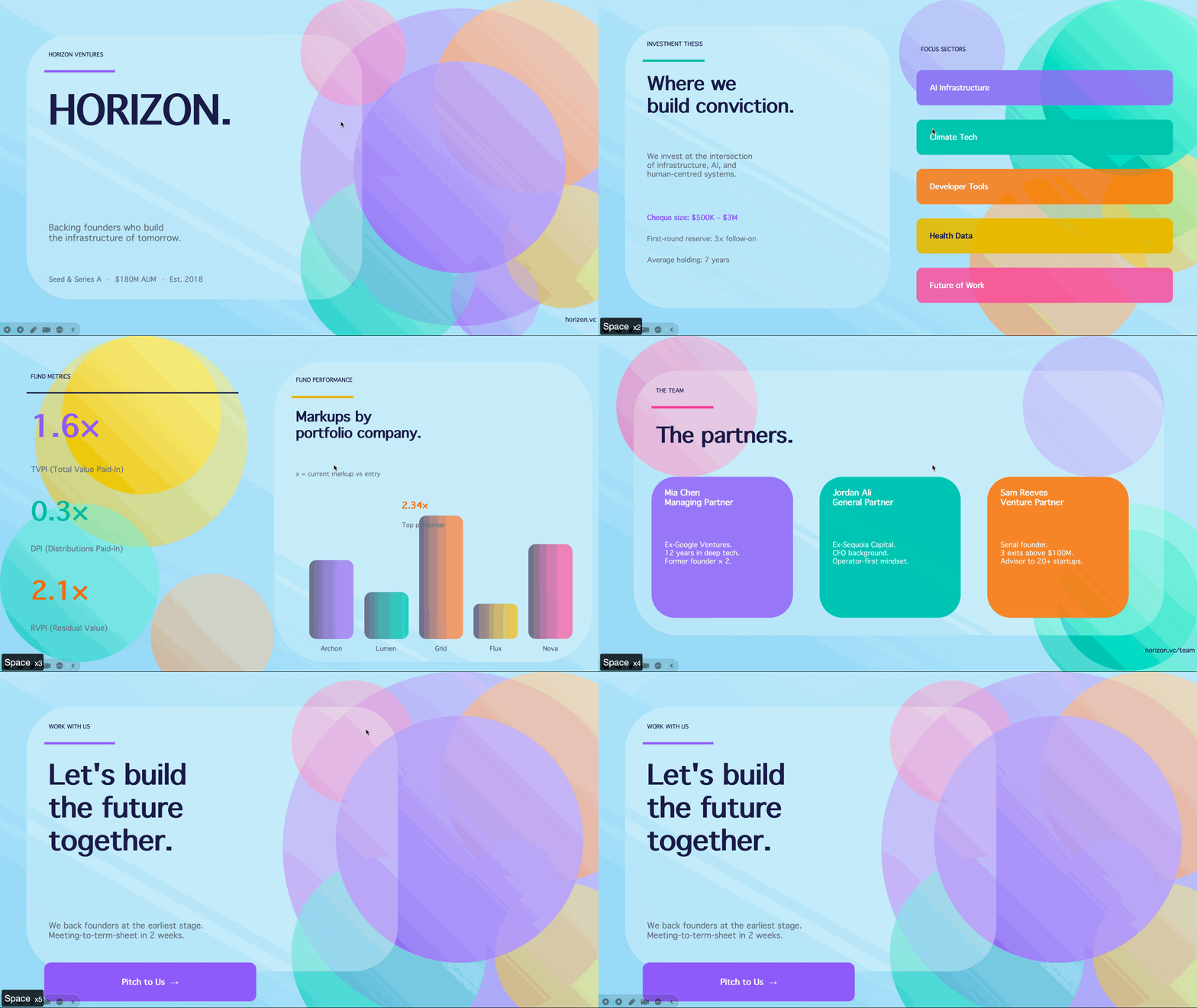
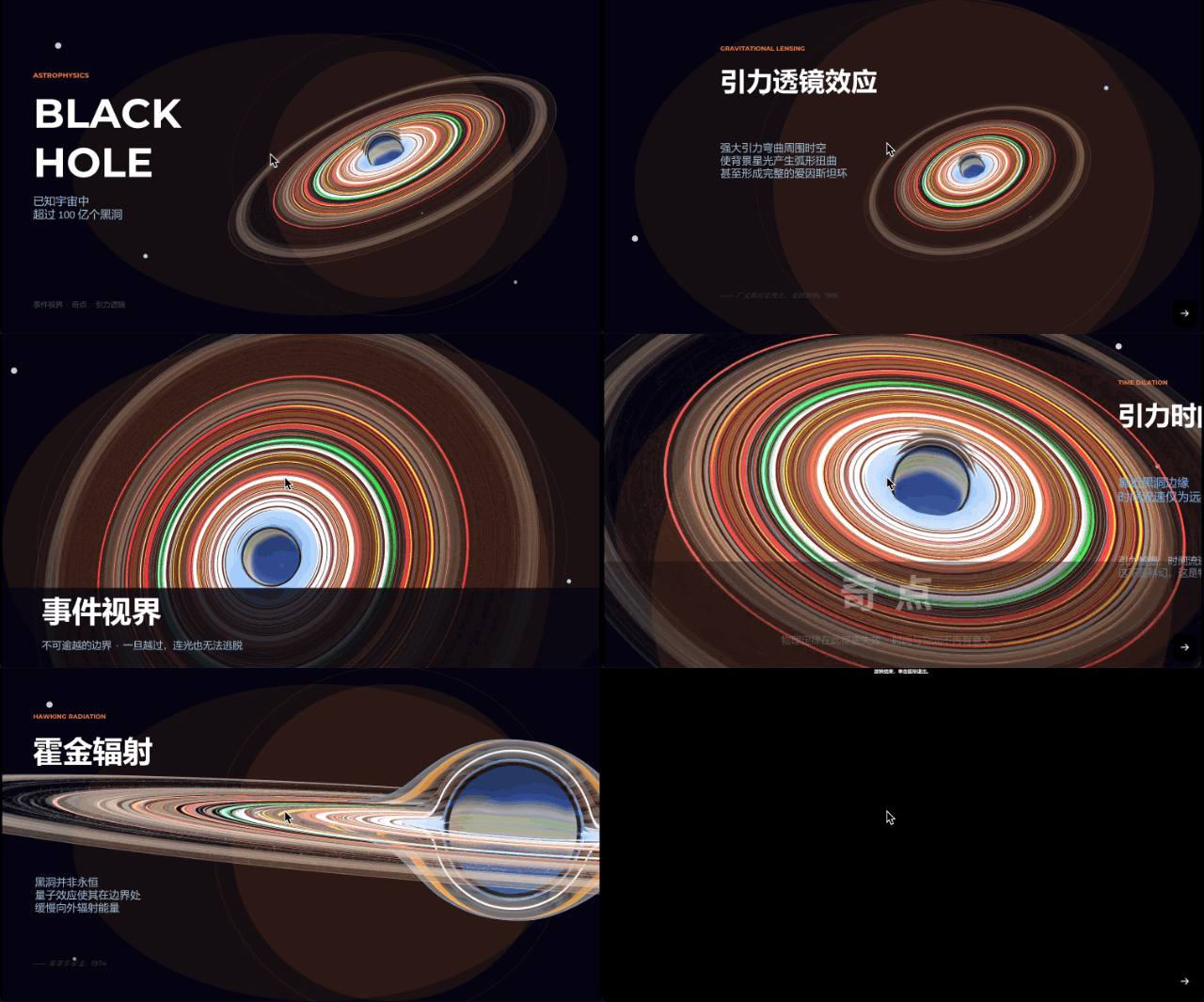
PowerPoint Presentations
 |
 |
 |
 |
 |
 |
—
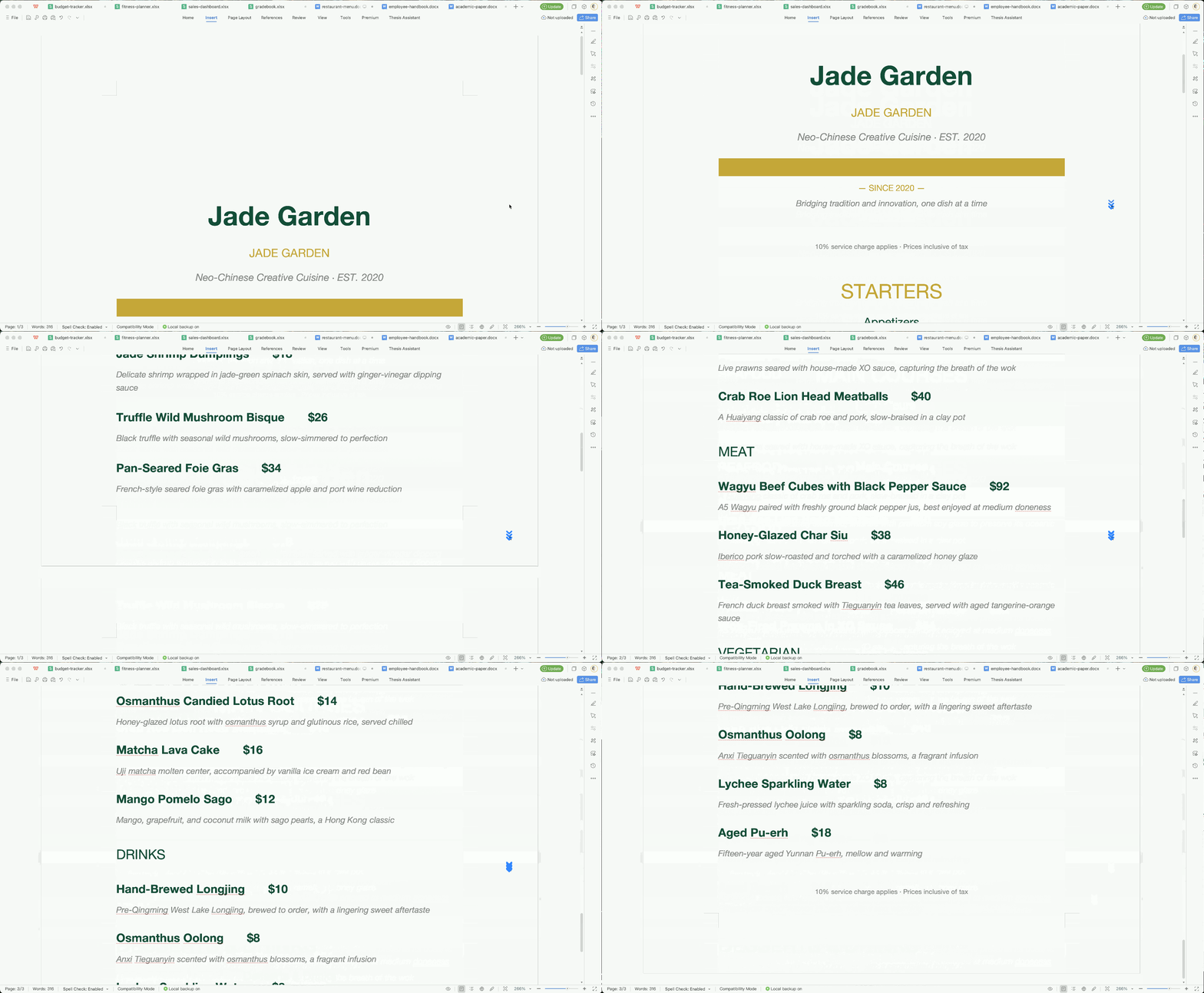
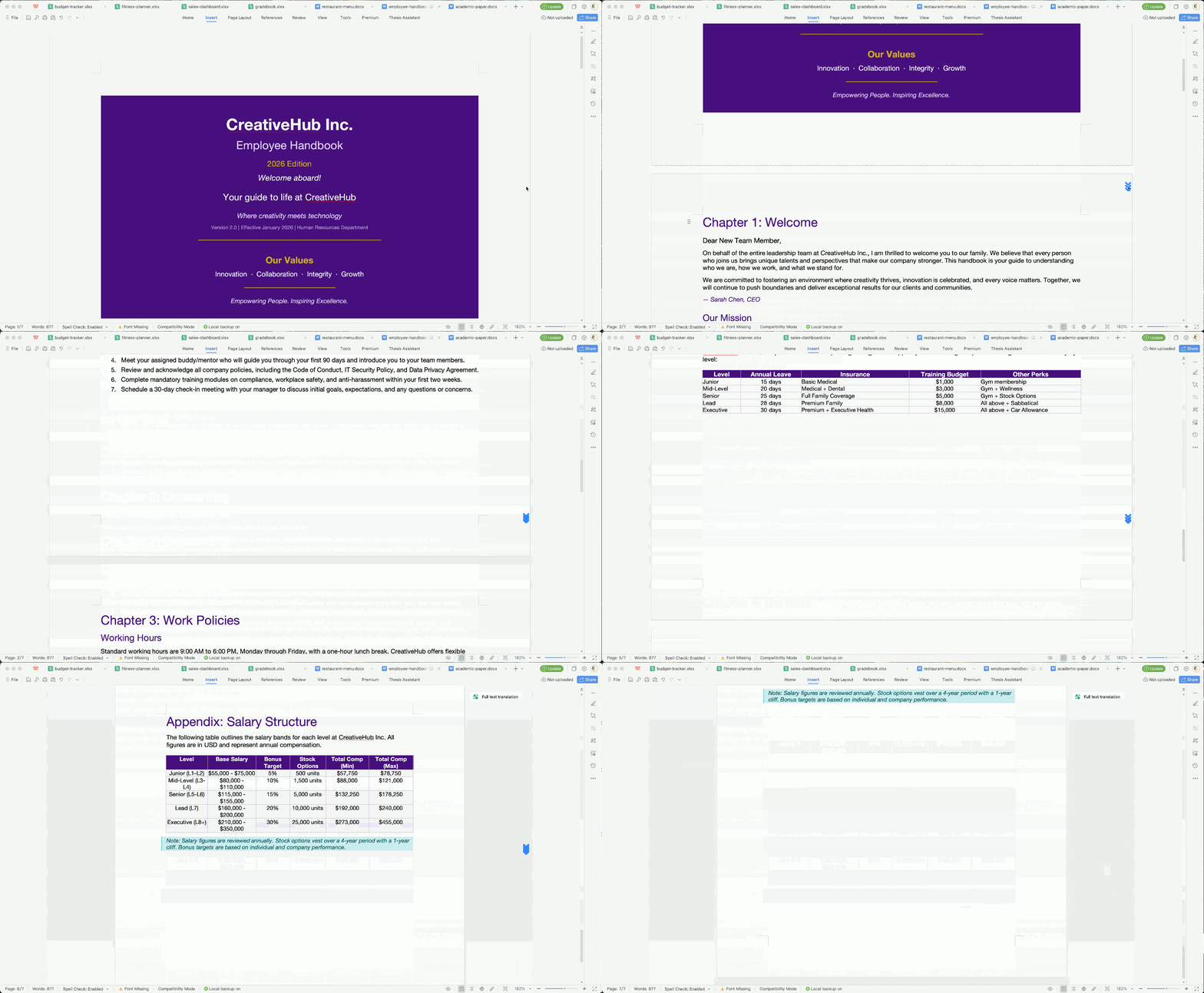
Word Documents
 |
 |
 |
—
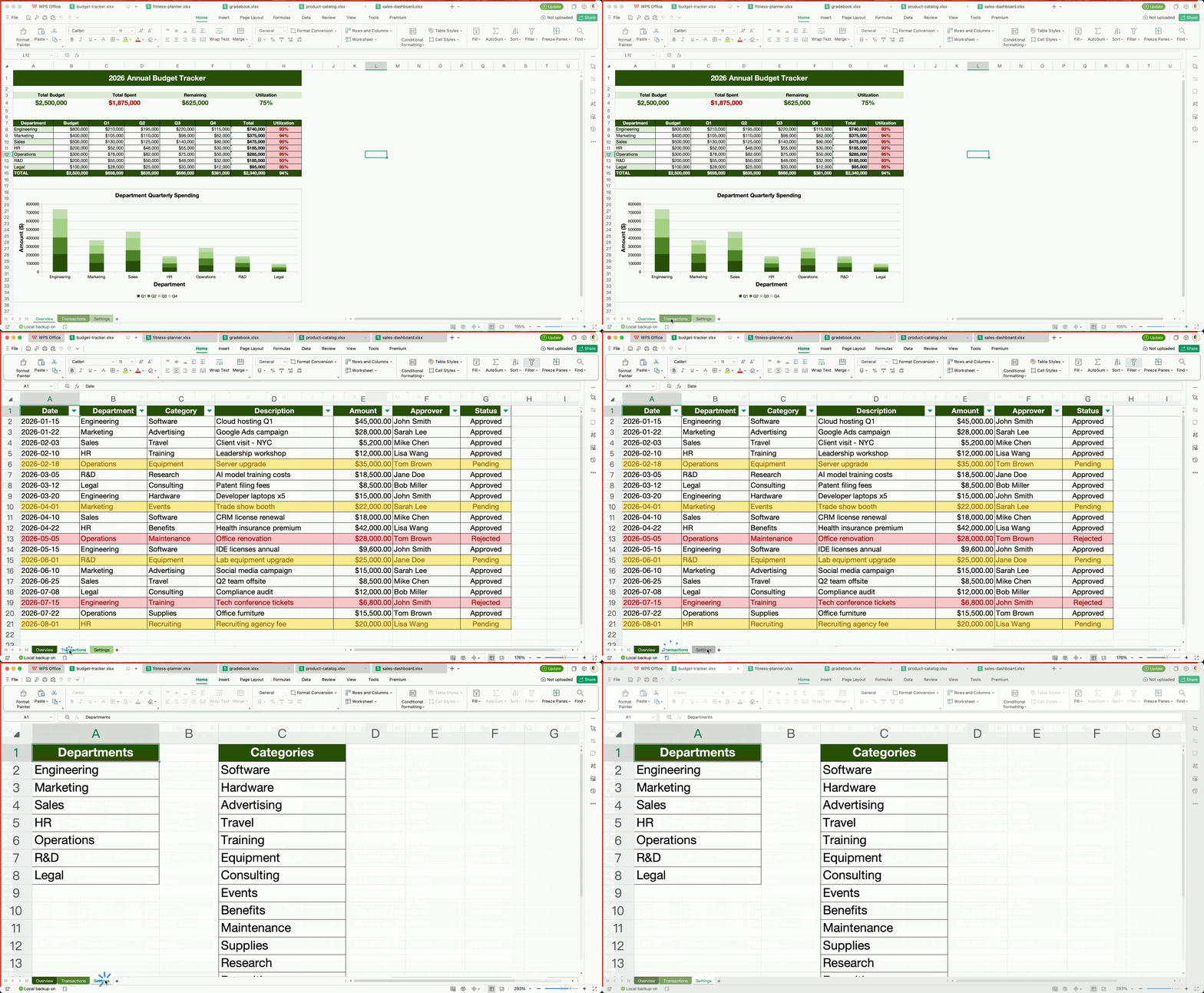
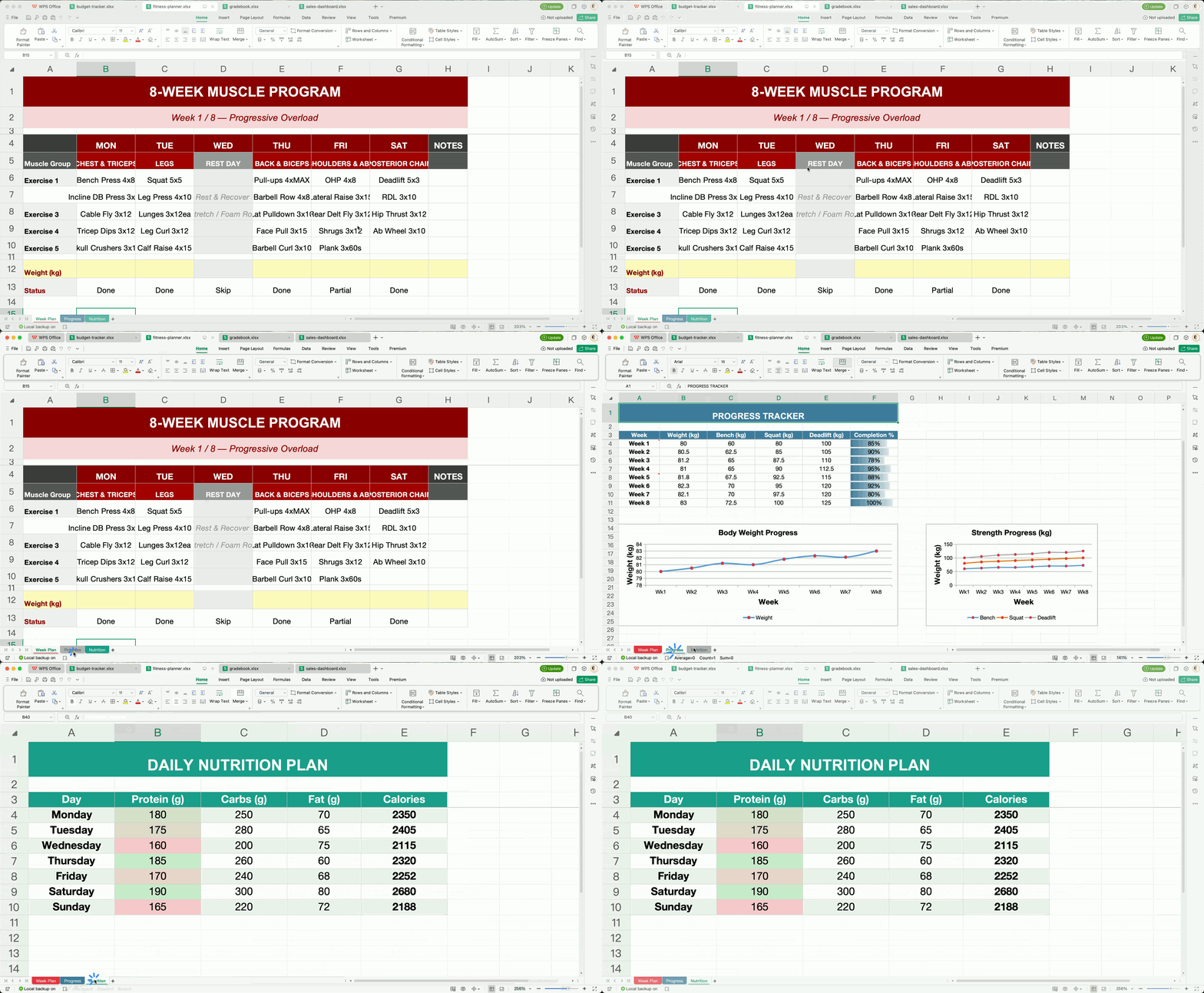
Excel Spreadsheets
 |
 |
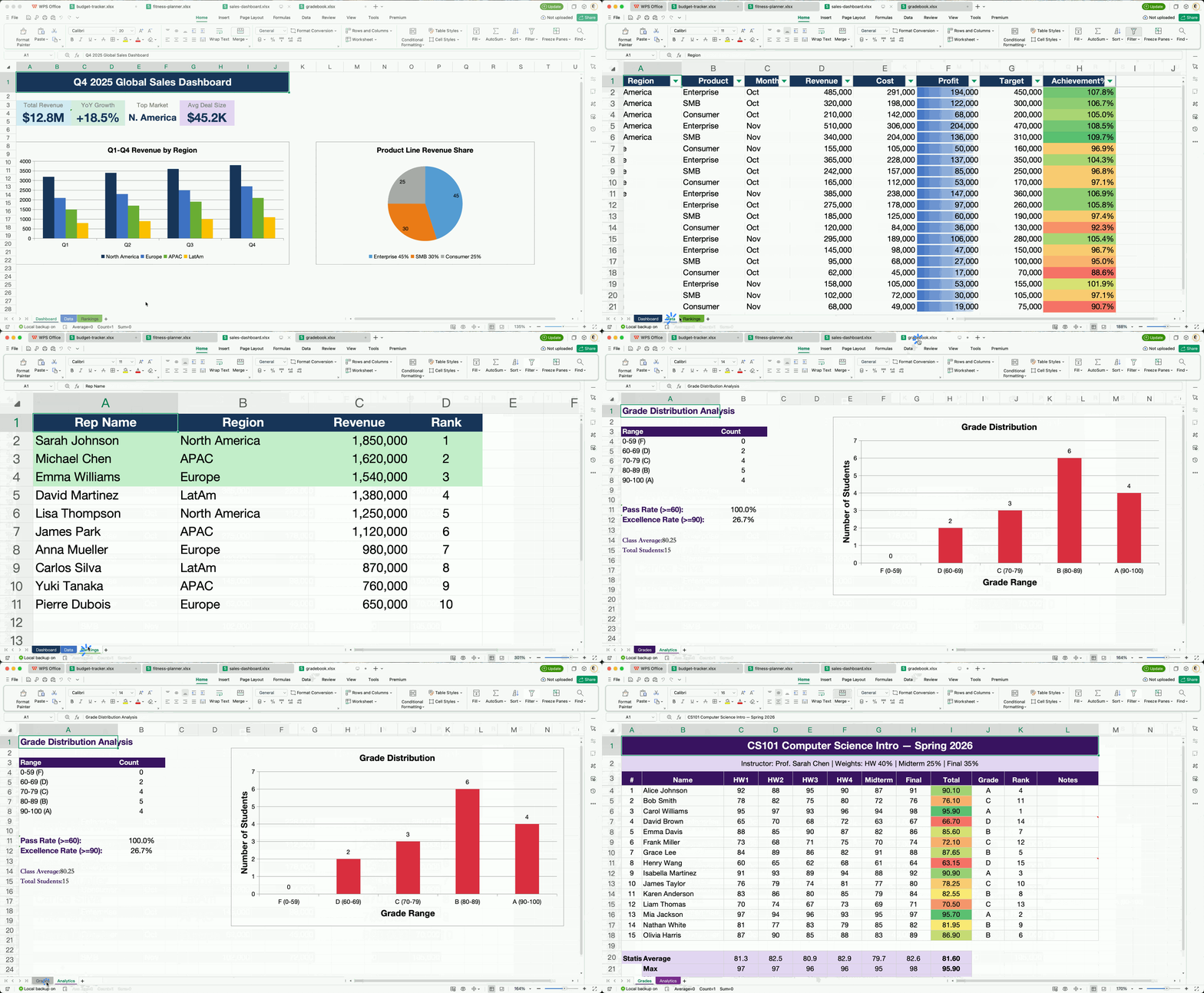 |
All documents above were created entirely by AI agents using OfficeCLI — no templates, no manual editing.
## For AI Agents — Get Started in One Line Paste this into your AI agent's chat — it will read the skill file and install everything automatically: ``` curl -fsSL https://officecli.ai/SKILL.md ``` That's it. The skill file teaches the agent how to install the binary and use all commands. ## For Humans **Option A — GUI:** Install [**AionUi**](https://github.com/iOfficeAI/AionUi) — a desktop app that lets you create and edit Office documents through natural language, powered by OfficeCLI under the hood. Just describe what you want, and AionUi handles the rest. **Option B — CLI:** Download the binary for your platform from [GitHub Releases](https://github.com/iOfficeAI/OfficeCLI/releases), then run: ```bash officecli install ``` This copies the binary to your PATH and installs the **officecli skill** into every AI coding agent it detects — Claude Code, Cursor, Windsurf, GitHub Copilot, and more. Your agent can immediately create, read, and edit Office documents on your behalf, no extra configuration needed. ## For Developers — See It Live in 30 Seconds ```bash # 1. Install (macOS / Linux) — or: brew install officecli / npm install -g @officecli/officecli curl -fsSL https://raw.githubusercontent.com/iOfficeAI/OfficeCLI/main/install.sh | bash # Windows (PowerShell): irm https://raw.githubusercontent.com/iOfficeAI/OfficeCLI/main/install.ps1 | iex # 2. Create a blank PowerPoint officecli create deck.pptx # 3. Start live preview — opens http://localhost:26315 in your browser officecli watch deck.pptx # 4. Open another terminal, add a slide — watch the browser update instantly officecli add deck.pptx / --type slide --prop title="Hello, World!" ``` That's it. Every `add`, `set`, or `remove` command you run will refresh the preview in real time. Keep experimenting — the browser is your live feedback loop. ## Quick Start ```bash # Create a presentation and add content officecli create deck.pptx officecli add deck.pptx / --type slide --prop title="Q4 Report" --prop background=1A1A2E officecli add deck.pptx '/slide[1]' --type shape \ --prop text="Revenue grew 25%" --prop x=2cm --prop y=5cm \ --prop font=Arial --prop size=24 --prop color=FFFFFF # View as outline officecli view deck.pptx outline # → Slide 1: Q4 Report # → Shape 1 [TextBox]: Revenue grew 25% # View as HTML — opens a rendered preview in your browser, no server needed officecli view deck.pptx html # Get structured JSON for any element officecli get deck.pptx '/slide[1]/shape[1]' --json # Save and close — flushes the resident session to disk officecli close deck.pptx ``` ```json { "tag": "shape", "path": "/slide[1]/shape[1]", "attributes": { "name": "TextBox 1", "text": "Revenue grew 25%", "x": "720000", "y": "1800000" } } ``` ## Why OfficeCLI? What used to take 50 lines of Python and 3 separate libraries: ```python from pptx import Presentation from pptx.util import Inches, Pt prs = Presentation() slide = prs.slides.add_slide(prs.slide_layouts[0]) title = slide.shapes.title title.text = "Q4 Report" # ... 45 more lines ... prs.save('deck.pptx') ``` Now takes one command: ```bash officecli add deck.pptx / --type slide --prop title="Q4 Report" ``` **What OfficeCLI can do:** - **Create** documents from scratch -- blank or with content - **Read** text, structure, styles, formulas -- in plain text or structured JSON - **Analyze** formatting issues, style inconsistencies, and structural problems - **Modify** any element -- text, fonts, colors, layout, formulas, charts, images - **Reorganize** content -- add, remove, move, copy elements across documents | Format | Read | Modify | Create | |--------|------|--------|--------| | Word (.docx) | ✅ | ✅ | ✅ | | Excel (.xlsx) | ✅ | ✅ | ✅ | | PowerPoint (.pptx) | ✅ | ✅ | ✅ | **Word** — full [i18n & RTL support](https://github.com/iOfficeAI/OfficeCLI/wiki/i18n) (per-script font slots, per-script BCP-47 lang tags `lang.latin/ea/cs`, complex-script bold/italic/size, `direction=rtl` cascading through paragraph/run/section/table/style/header/footer/docDefaults, `rtlGutter` + `pgBorders` shorthand, locale-aware page numbering for Hindi/Arabic/Thai/CJK; `create --locale ar-SA` auto-enables RTL), [paragraphs](https://github.com/iOfficeAI/OfficeCLI/wiki/word-paragraph) (framePr, tabs shorthand, char-based indents), [runs](https://github.com/iOfficeAI/OfficeCLI/wiki/word-run) (underline.color, position half-pts), [tables](https://github.com/iOfficeAI/OfficeCLI/wiki/word-table) (virtual column ops add/remove/move/copyfrom, hMerge), [styles](https://github.com/iOfficeAI/OfficeCLI/wiki/word-style), [textbox](https://github.com/iOfficeAI/OfficeCLI/wiki/word-textbox) / [shape](https://github.com/iOfficeAI/OfficeCLI/wiki/word-shape) (textbox: rotation, `textDirection` `eaVert`/`vert270`, gradient, shadow, opacity), [headers/footers](https://github.com/iOfficeAI/OfficeCLI/wiki/word-header-footer), [images](https://github.com/iOfficeAI/OfficeCLI/wiki/word-picture) (PNG/JPG/GIF/SVG), [equations](https://github.com/iOfficeAI/OfficeCLI/wiki/word-equation) (LaTeX input), [diagrams](https://github.com/iOfficeAI/OfficeCLI/wiki/diagram) (mermaid → native editable shapes, or any mermaid type as a full-fidelity PNG), [comments](https://github.com/iOfficeAI/OfficeCLI/wiki/word-comment), [footnotes](https://github.com/iOfficeAI/OfficeCLI/wiki/word-footnote), [watermarks](https://github.com/iOfficeAI/OfficeCLI/wiki/word-watermark), [bookmarks](https://github.com/iOfficeAI/OfficeCLI/wiki/word-bookmark), [TOC](https://github.com/iOfficeAI/OfficeCLI/wiki/word-toc), [charts](https://github.com/iOfficeAI/OfficeCLI/wiki/word-chart), [hyperlinks](https://github.com/iOfficeAI/OfficeCLI/wiki/word-hyperlink), [sections](https://github.com/iOfficeAI/OfficeCLI/wiki/word-section), [form fields](https://github.com/iOfficeAI/OfficeCLI/wiki/word-formfield), [content controls (SDT)](https://github.com/iOfficeAI/OfficeCLI/wiki/word-sdt), [fields](https://github.com/iOfficeAI/OfficeCLI/wiki/word-field) (22 zero-param types + MERGEFIELD / REF / PAGEREF / SEQ / STYLEREF / DOCPROPERTY / IF), [OLE objects](https://github.com/iOfficeAI/OfficeCLI/wiki/word-ole), [revisions / tracked changes](https://github.com/iOfficeAI/OfficeCLI/wiki/word-revision) (`revision.type=ins\|del\|format\|moveFrom\|moveTo` + `revision.action=accept\|reject`, per-target `/revision[@author=Alice]` selector, tracked Find&Replace), page background color, [document properties](https://github.com/iOfficeAI/OfficeCLI/wiki/word-document) **Excel** — [cells](https://github.com/iOfficeAI/OfficeCLI/wiki/excel-cell) (phonetic guide / furigana on add, Excel-UI `--shift left\|up` on remove / `shift=right\|down` on add), formulas (350+ built-in functions with auto-evaluation, spilling dynamic arrays with `_xlfn.` auto-prefix, financial / bond and statistical families, OFFSET/INDIRECT, defined-name formula bodies inlined at parse, formula-ref rewrite on row/col insert), [sheets](https://github.com/iOfficeAI/OfficeCLI/wiki/excel-sheet) (visible/hidden/veryHidden, print margins, printTitleRows/Cols, RTL `sheetView`, cascade-aware sheet rename, empty-cell bloat filter on open), boolean `and`/`or` selectors (`row[Salary>5000 and Region=EMEA]`), [tables](https://github.com/iOfficeAI/OfficeCLI/wiki/excel-table), [sort](https://github.com/iOfficeAI/OfficeCLI/wiki/excel-sort) (sheet / range, multi-key, sidecar-aware), [conditional formatting](https://github.com/iOfficeAI/OfficeCLI/wiki/excel-conditionalformatting), [charts](https://github.com/iOfficeAI/OfficeCLI/wiki/excel-chart) (including box-whisker, [pareto](https://github.com/iOfficeAI/OfficeCLI/wiki/excel-chart-add) with auto-sort + cumulative-%, log axis), [pivot tables](https://github.com/iOfficeAI/OfficeCLI/wiki/excel-pivottable) (multi-field, date grouping, showDataAs, sort, grandTotals, subtotals, compact/outline/tabular layout, repeat item labels, blank rows, calculated fields, persistent `labelFilter` / `topN` filters, cache CoW + cross-pivot sharing), [slicers](https://github.com/iOfficeAI/OfficeCLI/wiki/excel-slicer), [named ranges](https://github.com/iOfficeAI/OfficeCLI/wiki/excel-namedrange), [data validation](https://github.com/iOfficeAI/OfficeCLI/wiki/excel-validation), [images](https://github.com/iOfficeAI/OfficeCLI/wiki/excel-picture) (PNG/JPG/GIF/SVG with dual-representation fallback), [sparklines](https://github.com/iOfficeAI/OfficeCLI/wiki/excel-sparkline), [comments](https://github.com/iOfficeAI/OfficeCLI/wiki/excel-comment) (RTL), [autofilter](https://github.com/iOfficeAI/OfficeCLI/wiki/excel-autofilter), [shapes](https://github.com/iOfficeAI/OfficeCLI/wiki/excel-shape), [OLE objects](https://github.com/iOfficeAI/OfficeCLI/wiki/excel-ole), CSV/TSV import, `$Sheet:A1` cell addressing **PowerPoint** — [slides](https://github.com/iOfficeAI/OfficeCLI/wiki/ppt-slide) (header/footer/date/slidenum toggles, hidden), [shapes](https://github.com/iOfficeAI/OfficeCLI/wiki/ppt-shape) (pattern fill, blur effect, hyperlink tooltip + slide-jump links, **highlight color** on runs, `slideMaster`/`slideLayout` typed add/set/remove, arrow alias, effective.X + effective.X.src), [images](https://github.com/iOfficeAI/OfficeCLI/wiki/ppt-picture) (PNG/JPG/GIF/SVG, fill modes: stretch/contain/cover/tile, brightness/contrast/glow/shadow, rotation, link + tooltip), [tables](https://github.com/iOfficeAI/OfficeCLI/wiki/ppt-table) (built-in PowerPoint style catalogue, virtual `/col[C]` get + swap/copyFrom, row/col Move/CopyFrom, fill/background alias), [charts](https://github.com/iOfficeAI/OfficeCLI/wiki/ppt-chart) (pieOfPie, barOfPie, per-attr axisLine/gridline setters, series add/remove with theme palette, `anchor=x,y,w,h` shorthand), [animations](https://github.com/iOfficeAI/OfficeCLI/wiki/ppt-shape-set) (15 emphasis + 16 exit template-backed presets, multi-effect chains, motion-path presets, repeat/restart/autoReverse, chart animations + `chartBuild`), [transitions](https://github.com/iOfficeAI/OfficeCLI/wiki/ppt-morph-check) (morph + p14 + 12 p15 PowerPoint 2013+ presets), [3D models (.glb)](https://github.com/iOfficeAI/OfficeCLI/wiki/ppt-3dmodel) (combined `rotation=ax,ay,az`), [slide zoom](https://github.com/iOfficeAI/OfficeCLI/wiki/ppt-zoom), [equations](https://github.com/iOfficeAI/OfficeCLI/wiki/ppt-equation) (LaTeX input), [diagrams](https://github.com/iOfficeAI/OfficeCLI/wiki/diagram) (mermaid flowchart / sequence → native editable shapes, or any mermaid type as a full-fidelity PNG), [themes](https://github.com/iOfficeAI/OfficeCLI/wiki/ppt-theme), [connectors](https://github.com/iOfficeAI/OfficeCLI/wiki/ppt-connector) (`from`/`to` accept a full `/slide[N]/shape[@name=Foo]` path), [video/audio](https://github.com/iOfficeAI/OfficeCLI/wiki/ppt-video) (loop, autoStart), [groups](https://github.com/iOfficeAI/OfficeCLI/wiki/ppt-group) (link + tooltip; Get/Query/Add/Remove all descend into groups), [notes](https://github.com/iOfficeAI/OfficeCLI/wiki/ppt-notes) (RTL, lang), [comments](https://github.com/iOfficeAI/OfficeCLI/wiki/ppt-comment) (RTL, legacy + modern p188 threaded round-trip), SmartArt (round-trip via add-part + raw-set), [OLE objects](https://github.com/iOfficeAI/OfficeCLI/wiki/ppt-ole), [placeholders](https://github.com/iOfficeAI/OfficeCLI/wiki/ppt-placeholder) (add/set by phType) ## Use Cases **For Developers:** - Automate report generation from databases or APIs - Batch-process documents (bulk find/replace, style updates) - Build document pipelines in CI/CD environments (generate docs from test results) - Headless Office automation in Docker/containerized environments **For AI Agents:** - Generate presentations from user prompts (see examples above) - Extract structured data from documents to JSON - Validate and check document quality before delivery **For Teams:** - Clone document templates and populate with data - Automated document validation in CI/CD pipelines ## Installation Ships as a single self-contained binary. The .NET runtime is embedded -- nothing to install, no runtime to manage. **One-line install:** ```bash # macOS / Linux curl -fsSL https://raw.githubusercontent.com/iOfficeAI/OfficeCLI/main/install.sh | bash # Windows (PowerShell) irm https://raw.githubusercontent.com/iOfficeAI/OfficeCLI/main/install.ps1 | iex ``` **Or via a package manager:** ```bash # Homebrew (macOS / Linux) brew install officecli # npm (all platforms — fetches the native binary for your platform) npm install -g @officecli/officecli ``` **Or download manually** from [GitHub Releases](https://github.com/iOfficeAI/OfficeCLI/releases): | Platform | Binary | |----------|--------| | macOS Apple Silicon | `officecli-mac-arm64` | | macOS Intel | `officecli-mac-x64` | | Linux x64 | `officecli-linux-x64` | | Linux ARM64 | `officecli-linux-arm64` | | Windows x64 | `officecli-win-x64.exe` | | Windows ARM64 | `officecli-win-arm64.exe` | Verify installation: `officecli --version` **Or self-install from a downloaded binary (or run bare `officecli` to auto-install):** ```bash officecli install # explicit officecli # bare invocation also triggers install ``` Updates are checked automatically in the background. Disable with `officecli config autoUpdate false` or skip per-invocation with `OFFICECLI_SKIP_UPDATE=1`. Configuration lives under `~/.officecli/config.json`. ## Key Features ### Built-in Engines & Generation Primitives OfficeCLI is self-contained. The capabilities below ship inside the binary — **no Office required**. #### Rendering engine — high-fidelity, built-in OfficeCLI's keystone: a from-scratch, high-fidelity HTML rendering engine that lets an AI agent *see* the rendered document instead of guessing from the DOM. It covers shapes, charts (trendlines, error bars, waterfall, candlestick, sparklines), equations (OMML → MathJax-compatible), 3D `.glb` models via Three.js, morph transitions, slide zoom, and shape effects. Per-page PNG screenshots are produced by piping the rendered HTML through a headless browser. Three modes: - **`view html`** — standalone HTML file, assets inlined. Open in any browser. - **`view screenshot`** — per-page PNG, ready for multimodal agents to read. - **`watch`** — local HTTP server with auto-refreshing preview; every `add` / `set` / `remove` updates the browser instantly. Excel watch supports inline cell editing and drag-to-reposition charts. ```bash officecli view deck.pptx html -o /tmp/deck.html officecli view deck.pptx screenshot -o /tmp/deck.png # add --page 1-N for more slides officecli watch deck.pptx # http://localhost:26315 ``` > Without visualization, an agent generating slides is flying blind — it can read the DOM but can't tell if the title overflows or two shapes overlap. Because rendering is built into the binary, the *render → look → fix* loop works in CI, in Docker, on a server with no display — anywhere the binary runs. #### Formula & pivot engine 350+ built-in Excel functions evaluated automatically on write — write `=SUM(A1:A2)`, `get` the cell, the value is already there. No round-trip through Office to recalc. Covers spilling dynamic arrays (`FILTER` / `SORT` / `UNIQUE` / `SEQUENCE` / `LET` / `LAMBDA` / `MAP`), `VLOOKUP` / `XLOOKUP` / `INDEX` / `MATCH`, financial & bond math (`XIRR` / `PRICE` / `YIELD` / `DURATION` / `COUPNUM`), statistical distributions, tests & regression (`NORM.DIST` / `T.TEST` / `LINEST`), and date & text functions. Plus native OOXML pivot tables from a source range with one command — multi-field rows/cols/filters, 10 aggregations, `showDataAs` modes, date grouping, calculated fields, top-N, layouts. Pivot cache + definition are written to OOXML, so Excel opens the file with the aggregation already populated: ```bash officecli add sales.xlsx '/Sheet1' --type pivottable \ --prop source='Data!A1:E10000' --prop rows='Region,Category' \ --prop cols=Quarter --prop values='Revenue:sum,Units:avg' \ --prop showDataAs=percentOfTotal ``` #### Template merge — generate once, fill many `merge` replaces `{{key}}` placeholders in any `.docx` / `.xlsx` / `.pptx` with JSON data — across paragraphs, table cells, shapes, headers, footers, and chart titles. Agent designs the layout once (expensive); production code fills it N times (cheap, deterministic, zero token cost). Avoids the failure mode where an agent regenerates each report from scratch and produces N inconsistent layouts. ```bash officecli merge invoice-template.docx out-001.docx '{"client":"Acme","total":"$5,200"}' officecli merge q4-template.pptx q4-acme.pptx data.json ``` #### Round-trip dump — learn from existing docs `dump` serializes any `.docx`, `.pptx`, or `.xlsx` — whole document **or any subtree** (a single paragraph, table, slide, worksheet, the styles part, numbering, theme, or settings) — into a replayable batch JSON; `batch` replays it. Given a sample the user wants to imitate, an agent reads the structured spec instead of raw OOXML XML, mutates, and replays. Bridges "I have an existing template" and "generate me 100 variations." ```bash officecli dump existing.docx -o blueprint.json # whole document officecli dump existing.docx /body/tbl[1] -o table.json # any subtree officecli dump existing.xlsx /Sheet1 -o sheet.json # a single worksheet officecli batch new.docx --input blueprint.json ``` ### Resident Mode & Batch For multi-step workflows, resident mode keeps the document in memory. Batch mode applies multiple operations in a single pass. ```bash # Resident mode — near-zero latency via named pipes officecli open report.docx officecli set report.docx /body/p[1]/r[1] --prop bold=true officecli set report.docx /body/p[2]/r[1] --prop color=FF0000 officecli close report.docx # Batch mode — multi-command execution (continues on error by default; --stop-on-error to abort) echo '[{"command":"set","path":"/slide[1]/shape[1]","props":{"text":"Hello"}}, {"command":"set","path":"/slide[1]/shape[2]","props":{"fill":"FF0000"}}]' \ | officecli batch deck.pptx --json # Inline batch with --commands (no stdin needed) officecli batch deck.pptx --commands '[{"op":"set","path":"/slide[1]/shape[1]","props":{"text":"Hi"}}]' # Abort on the first failing command (default is continue-on-error) officecli batch deck.pptx --input updates.json --stop-on-error --json ``` > **Reading the file with another tool? Flush to disk first.** > officecli's own reads (`get`/`query`/`view`) always see your latest edits, so within officecli you never need to save. But a live resident defers the disk write, so **before a non‑officecli program reads the file** — python‑docx/openpyxl, Microsoft Word, a renderer, delivery/upload — flush it: > ```bash > officecli set report.docx /body/p[1] --prop bold=true > officecli save report.docx # flush, keep the resident warm (or `close` to flush + release) > python my_reader.py report.docx # now sees the edit > ``` > A live resident also auto‑flushes shortly after going idle (adaptive 2–10s, scaled to the document's measured save cost). For a pipeline where another program reads after every command, set `OFFICECLI_RESIDENT_FLUSH=each` — every mutation is on disk before the command returns, while the resident stays warm. Full flush model (`each`/`auto`/fixed/`off`, save / close, env tuning): [wiki → open / close](https://github.com/iOfficeAI/OfficeCLI/wiki/command-open#when-the-file-on-disk-is-refreshed). ### Three-Layer Architecture Start simple, go deep only when needed. | Layer | Purpose | Commands | |-------|---------|----------| | **L1: Read** | Semantic views of content | `view` (text, annotated, outline, stats, issues, html, svg, screenshot) | | **L2: DOM** | Structured element operations | `get`, `query`, `set`, `add`, `remove`, `move`, `swap` | | **L3: Raw XML** | Direct XPath access — universal fallback | `raw`, `raw-set`, `add-part`, `validate` | ```bash # L1 — high-level views officecli view report.docx annotated officecli view budget.xlsx text --cols A,B,C --max-lines 50 # L2 — element-level operations officecli query report.docx "run:contains(TODO)" officecli add budget.xlsx / --type sheet --prop name="Q2 Report" officecli move report.docx /body/p[5] --to /body --index 1 # L3 — raw XML when L2 isn't enough officecli raw deck.pptx '/slide[1]' officecli raw-set report.docx document \ --xpath "//w:p[1]" --action append \ --xml '