💬 커뮤니티: Discord

AionUi에서 OfficeCLI로 PPT 제작 과정
PowerPoint 프레젠테이션
 |
 |
 |
 |
 |
 |
—
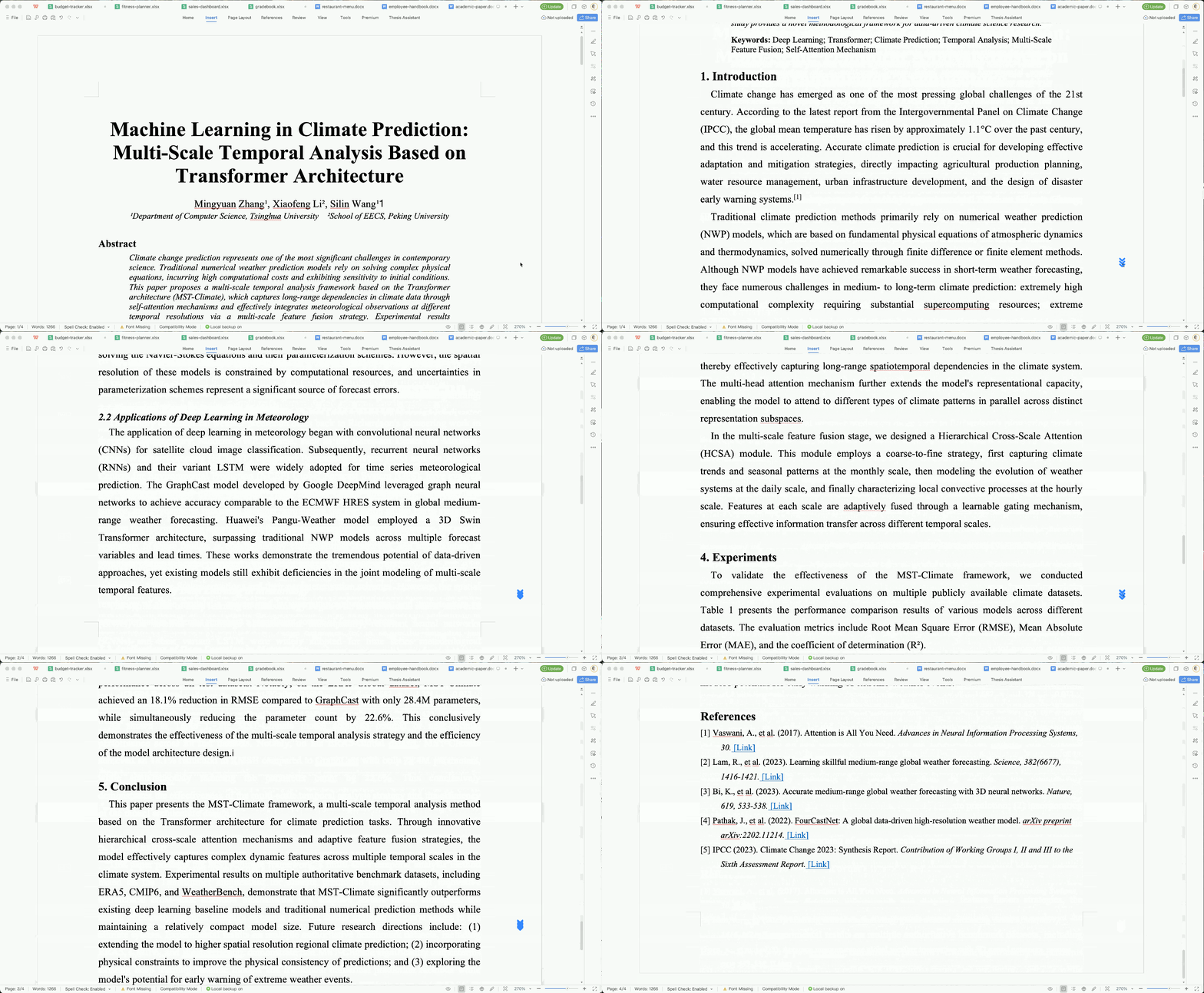
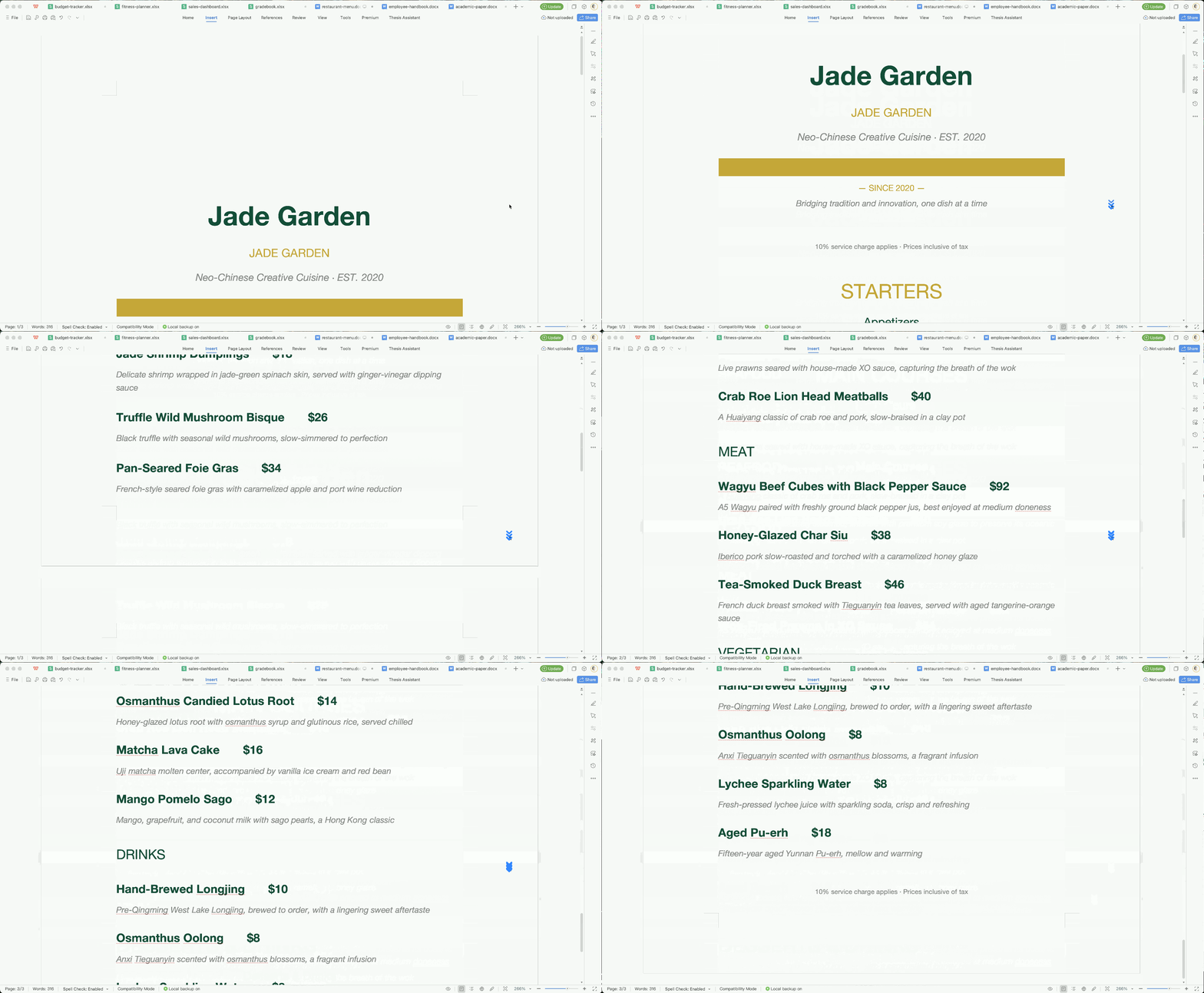
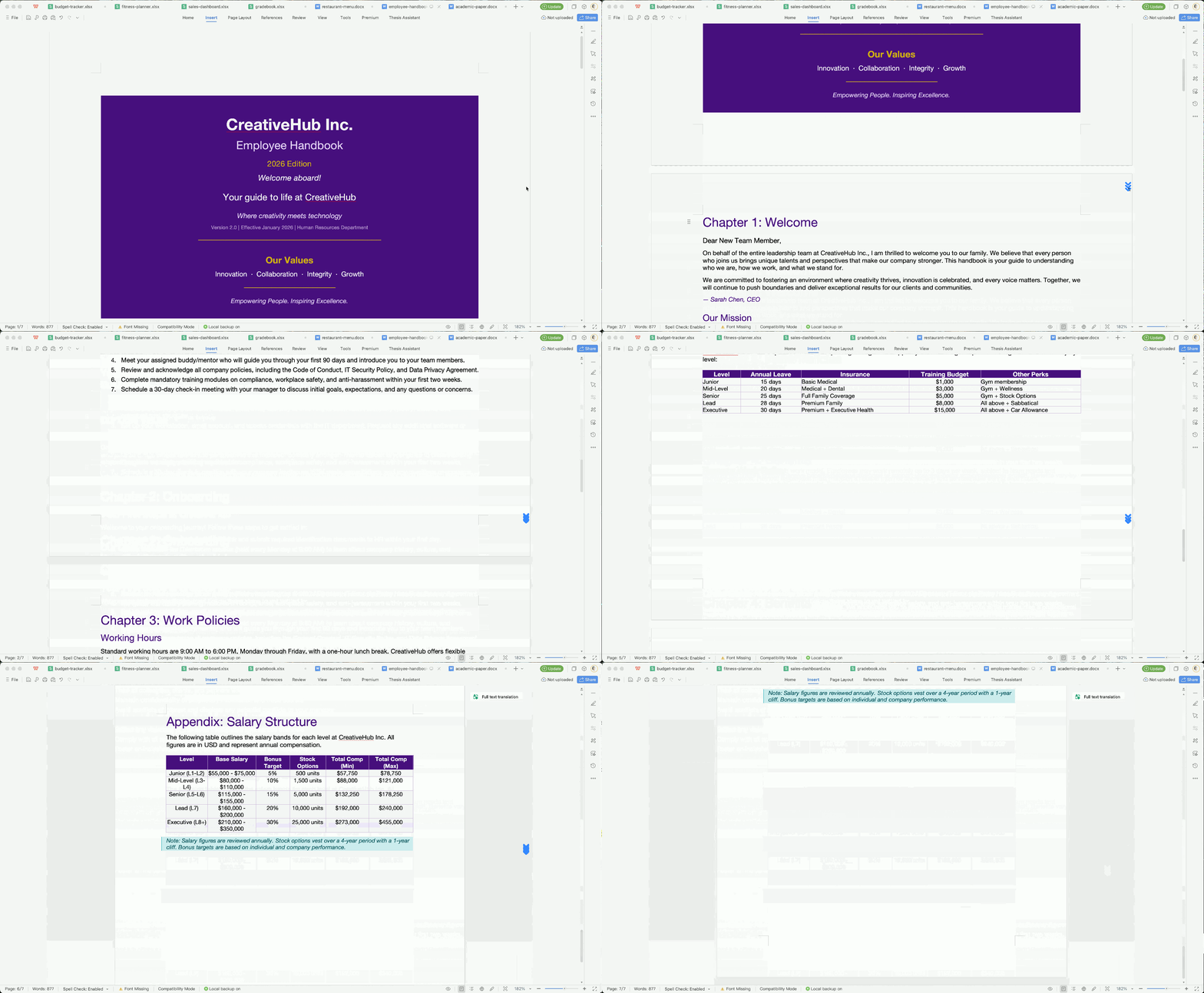
Word 문서
 |
 |
 |
—
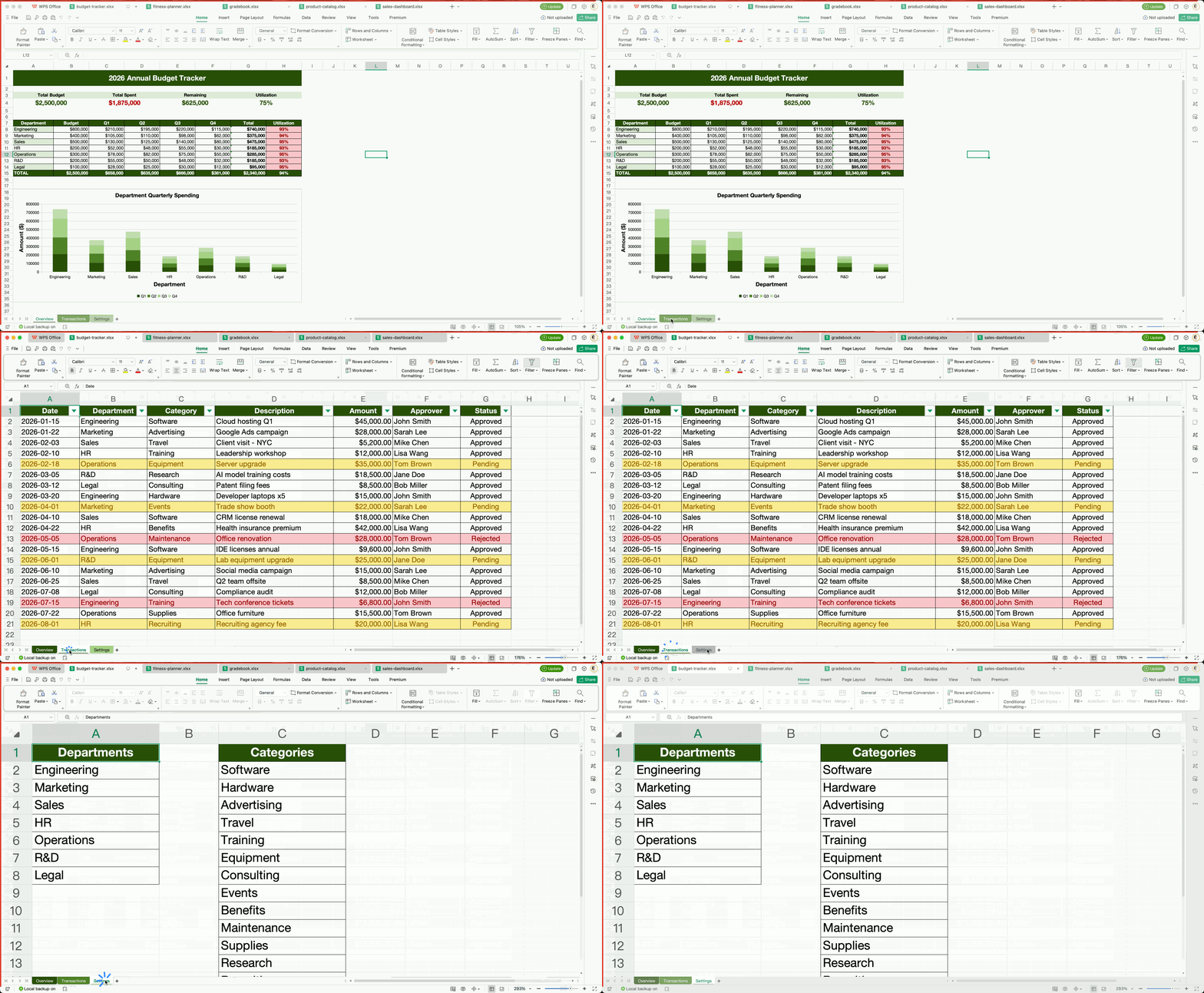
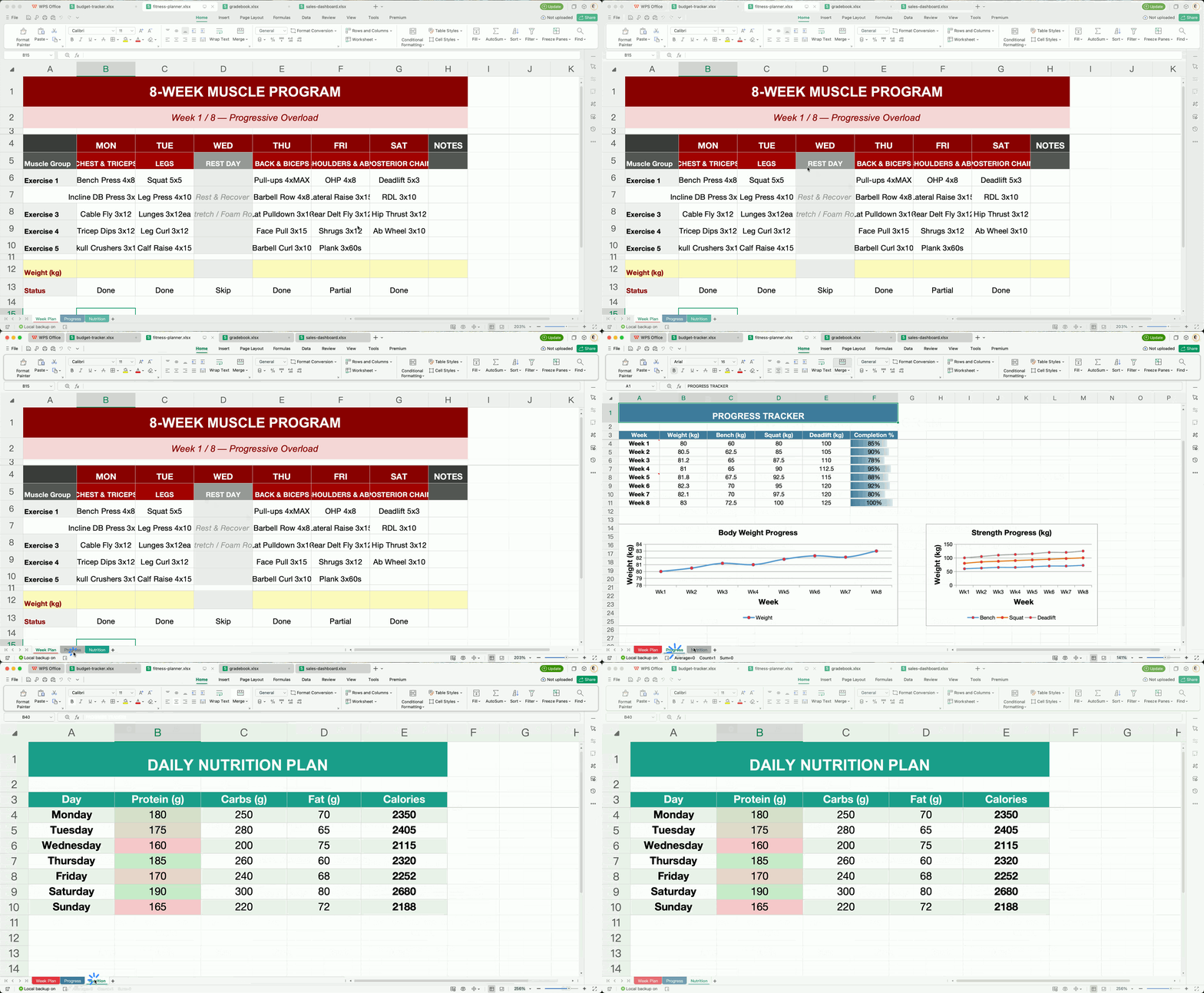
Excel 스프레드시트
 |
 |
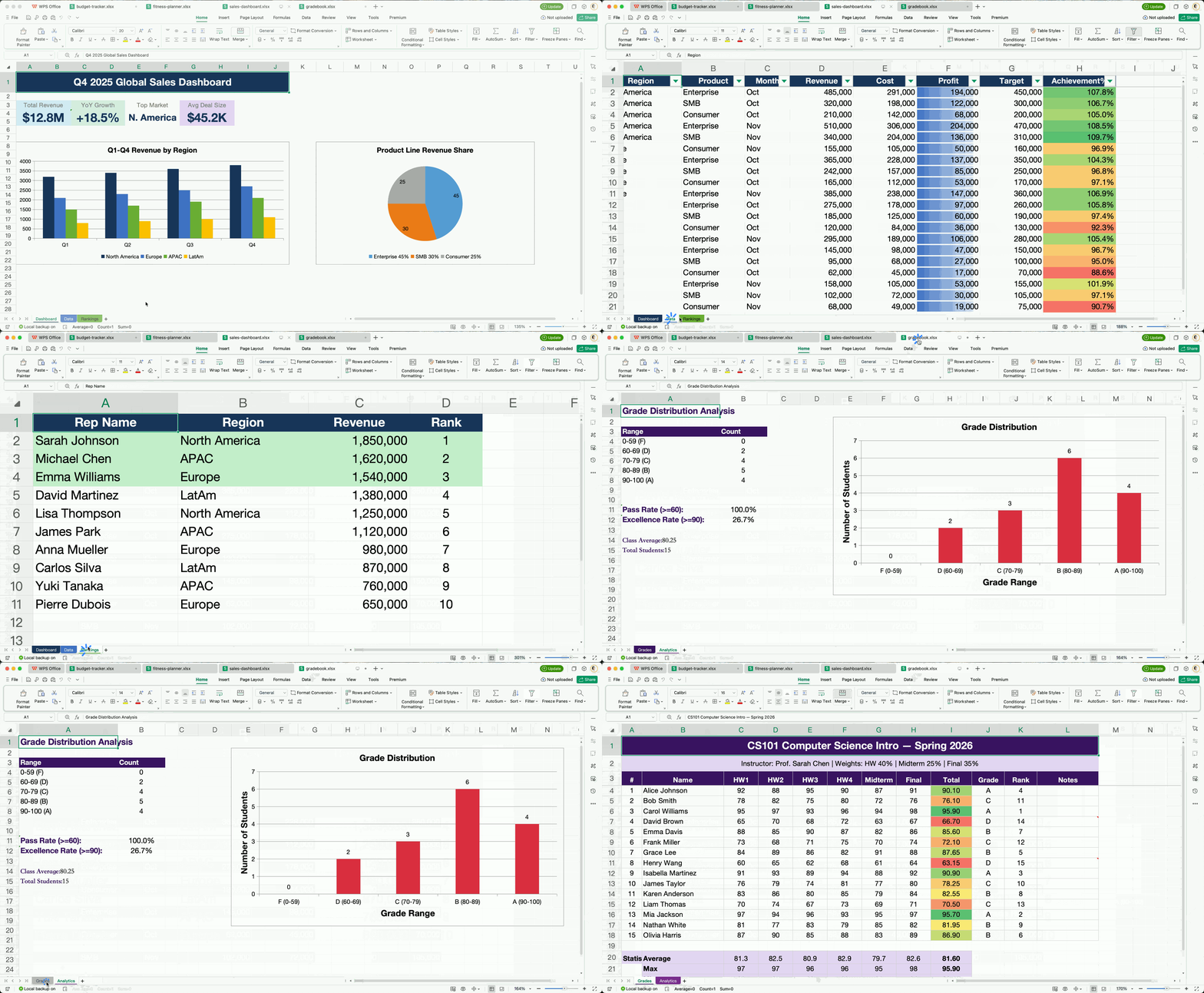 |
위의 모든 문서는 AI 에이전트가 OfficeCLI를 사용하여 완전 자동으로 생성 — 템플릿 없음, 수동 편집 없음.
## AI 에이전트용 — 한 줄로 시작 이 한 줄을 AI 에이전트 채팅에 붙여넣기만 하면 — 스킬 파일을 자동으로 읽고 설치를 완료합니다: ``` curl -fsSL https://officecli.ai/SKILL.md ``` 이게 전부입니다. 스킬 파일이 에이전트에게 바이너리 설치 방법과 모든 명령어 사용법을 알려줍니다. ## 일반 사용자용 **옵션 A — GUI:** [**AionUi**](https://github.com/iOfficeAI/AionUi)를 설치하세요 — 자연어로 Office 문서를 만들고 편집할 수 있는 데스크톱 앱입니다. 내부적으로 OfficeCLI가 구동됩니다. 원하는 것을 설명하기만 하면 AionUi가 모든 것을 처리합니다. **옵션 B — CLI:** [GitHub Releases](https://github.com/iOfficeAI/OfficeCLI/releases)에서 플랫폼에 맞는 바이너리를 다운로드한 후 실행: ```bash officecli install ``` 바이너리를 PATH에 복사하고, 감지된 모든 AI 코딩 에이전트(Claude Code, Cursor, Windsurf, GitHub Copilot 등)에 **officecli 스킬**을 자동 설치합니다. 에이전트는 즉시 Office 문서를 생성, 읽기, 편집할 수 있으며 추가 설정이 필요 없습니다. ## 개발자용 — 30초 만에 라이브로 확인 ```bash # 1. 설치 (macOS / Linux) curl -fsSL https://raw.githubusercontent.com/iOfficeAI/OfficeCLI/main/install.sh | bash # Windows (PowerShell): irm https://raw.githubusercontent.com/iOfficeAI/OfficeCLI/main/install.ps1 | iex # 2. 빈 PowerPoint 생성 officecli create deck.pptx # 3. 라이브 미리보기 시작 — 브라우저에서 http://localhost:26315 이 열립니다 officecli watch deck.pptx # 4. 다른 터미널을 열고 슬라이드 추가 — 브라우저가 즉시 업데이트됩니다 officecli add deck.pptx / --type slide --prop title="Hello, World!" ``` 이게 전부입니다. `add`, `set`, `remove` 명령을 실행할 때마다 미리보기가 실시간으로 갱신됩니다. 계속 실험해 보세요 — 브라우저가 바로 여러분의 라이브 피드백 루프입니다. ## 빠른 시작 ```bash # 프레젠테이션을 생성하고 콘텐츠 추가 officecli create deck.pptx officecli add deck.pptx / --type slide --prop title="Q4 Report" --prop background=1A1A2E officecli add deck.pptx '/slide[1]' --type shape \ --prop text="Revenue grew 25%" --prop x=2cm --prop y=5cm \ --prop font=Arial --prop size=24 --prop color=FFFFFF # 개요 보기 officecli view deck.pptx outline # → Slide 1: Q4 Report # → Shape 1 [TextBox]: Revenue grew 25% # HTML로 보기 — 서버 없이 브라우저에서 렌더링된 미리보기를 엽니다 officecli view deck.pptx html # 모든 요소의 구조화된 JSON 가져오기 officecli get deck.pptx '/slide[1]/shape[1]' --json ``` ```json { "tag": "shape", "path": "/slide[1]/shape[1]", "attributes": { "name": "TextBox 1", "text": "Revenue grew 25%", "x": "720000", "y": "1800000" } } ``` ## 왜 OfficeCLI인가? 이전에는 50줄의 Python과 3개의 라이브러리가 필요했습니다: ```python from pptx import Presentation from pptx.util import Inches, Pt prs = Presentation() slide = prs.slides.add_slide(prs.slide_layouts[0]) title = slide.shapes.title title.text = "Q4 Report" # ... 45줄 더 ... prs.save('deck.pptx') ``` 이제 명령어 하나면 됩니다: ```bash officecli add deck.pptx / --type slide --prop title="Q4 Report" ``` **OfficeCLI로 할 수 있는 것:** - **생성** 문서 -- 빈 문서 또는 콘텐츠 포함 - **읽기** 텍스트, 구조, 스타일, 수식 -- 일반 텍스트 또는 구조화된 JSON - **분석** 서식 문제, 스타일 불일치, 구조적 결함 - **수정** 모든 요소 -- 텍스트, 글꼴, 색상, 레이아웃, 수식, 차트, 이미지 - **재구성** 콘텐츠 -- 요소 추가, 삭제, 이동, 문서 간 복사 | 형식 | 읽기 | 수정 | 생성 | |------|------|------|------| | Word (.docx) | ✅ | ✅ | ✅ | | Excel (.xlsx) | ✅ | ✅ | ✅ | | PowerPoint (.pptx) | ✅ | ✅ | ✅ | **Word** — 완전한 [i18n 및 RTL 지원](https://github.com/iOfficeAI/OfficeCLI/wiki/i18n) (스크립트별 글꼴 슬롯, 스크립트별 BCP-47 언어 태그 `lang.latin/ea/cs`, 복합 스크립트 굵게/기울임/크기, 단락/런/섹션/표/스타일/머리글/바닥글/docDefaults에 캐스케이드되는 `direction=rtl`, `rtlGutter` + `pgBorders` 단축형, 힌디/아랍어/태국어/CJK 로캘 인식 페이지 번호), [단락](https://github.com/iOfficeAI/OfficeCLI/wiki/word-paragraph), [런](https://github.com/iOfficeAI/OfficeCLI/wiki/word-run), [표](https://github.com/iOfficeAI/OfficeCLI/wiki/word-table), [스타일](https://github.com/iOfficeAI/OfficeCLI/wiki/word-style), [머리글/바닥글](https://github.com/iOfficeAI/OfficeCLI/wiki/word-header-footer), [이미지](https://github.com/iOfficeAI/OfficeCLI/wiki/word-picture) (PNG/JPG/GIF/SVG), [수식](https://github.com/iOfficeAI/OfficeCLI/wiki/word-equation), [메모](https://github.com/iOfficeAI/OfficeCLI/wiki/word-comment), [각주](https://github.com/iOfficeAI/OfficeCLI/wiki/word-footnote), [워터마크](https://github.com/iOfficeAI/OfficeCLI/wiki/word-watermark), [북마크](https://github.com/iOfficeAI/OfficeCLI/wiki/word-bookmark), [목차](https://github.com/iOfficeAI/OfficeCLI/wiki/word-toc), [차트](https://github.com/iOfficeAI/OfficeCLI/wiki/word-chart), [하이퍼링크](https://github.com/iOfficeAI/OfficeCLI/wiki/word-hyperlink), [섹션](https://github.com/iOfficeAI/OfficeCLI/wiki/word-section), [양식 필드](https://github.com/iOfficeAI/OfficeCLI/wiki/word-formfield), [콘텐츠 컨트롤 (SDT)](https://github.com/iOfficeAI/OfficeCLI/wiki/word-sdt), [필드](https://github.com/iOfficeAI/OfficeCLI/wiki/word-field) (22개 무인수 + MERGEFIELD / REF / PAGEREF / SEQ / STYLEREF / DOCPROPERTY / IF), [OLE 객체](https://github.com/iOfficeAI/OfficeCLI/wiki/word-ole), [문서 속성](https://github.com/iOfficeAI/OfficeCLI/wiki/word-document) **Excel** — [셀](https://github.com/iOfficeAI/OfficeCLI/wiki/excel-cell) (추가 시 음성 가이드/후리가나), 수식(150개 이상의 내장 함수 자동 계산, 동적 배열 함수에 `_xlfn.` 자동 접두사), [시트](https://github.com/iOfficeAI/OfficeCLI/wiki/excel-sheet) (visible/hidden/veryHidden, 인쇄 여백, printTitleRows/Cols, RTL `sheetView`, 캐스케이드 인식 시트 이름 변경), [테이블](https://github.com/iOfficeAI/OfficeCLI/wiki/excel-table), [정렬](https://github.com/iOfficeAI/OfficeCLI/wiki/excel-sort) (시트/범위, 다중 키, 사이드카 인식), [조건부 서식](https://github.com/iOfficeAI/OfficeCLI/wiki/excel-conditionalformatting), [차트](https://github.com/iOfficeAI/OfficeCLI/wiki/excel-chart) (상자 수염, [파레토](https://github.com/iOfficeAI/OfficeCLI/wiki/excel-chart-add) 자동 정렬 + 누적%, 로그 축 포함), [피벗 테이블](https://github.com/iOfficeAI/OfficeCLI/wiki/excel-pivottable) (다중 필드, 날짜 그룹화, showDataAs, 정렬, 총합계, 부분합, 압축/개요/표 형식 레이아웃, 항목 레이블 반복, 빈 행, 계산 필드), [슬라이서](https://github.com/iOfficeAI/OfficeCLI/wiki/excel-slicer), [이름 범위](https://github.com/iOfficeAI/OfficeCLI/wiki/excel-namedrange), [데이터 유효성 검사](https://github.com/iOfficeAI/OfficeCLI/wiki/excel-validation), [이미지](https://github.com/iOfficeAI/OfficeCLI/wiki/excel-picture) (PNG/JPG/GIF/SVG, 이중 표현 폴백), [스파크라인](https://github.com/iOfficeAI/OfficeCLI/wiki/excel-sparkline), [메모](https://github.com/iOfficeAI/OfficeCLI/wiki/excel-comment) (RTL), [자동 필터](https://github.com/iOfficeAI/OfficeCLI/wiki/excel-autofilter), [도형](https://github.com/iOfficeAI/OfficeCLI/wiki/excel-shape), [OLE 객체](https://github.com/iOfficeAI/OfficeCLI/wiki/excel-ole), CSV/TSV 가져오기, `$Sheet:A1` 셀 주소 지정 **PowerPoint** — [슬라이드](https://github.com/iOfficeAI/OfficeCLI/wiki/ppt-slide) (머리글/바닥글/날짜/슬라이드 번호 토글, 숨김), [도형](https://github.com/iOfficeAI/OfficeCLI/wiki/ppt-shape) (패턴 채우기, 흐림 효과, 하이퍼링크 툴팁 + 슬라이드 점프 링크), [이미지](https://github.com/iOfficeAI/OfficeCLI/wiki/ppt-picture) (PNG/JPG/GIF/SVG, 채우기 모드: stretch/contain/cover/tile, 밝기/대비/광선/그림자), [표](https://github.com/iOfficeAI/OfficeCLI/wiki/ppt-table), [차트](https://github.com/iOfficeAI/OfficeCLI/wiki/ppt-chart), [애니메이션](https://github.com/iOfficeAI/OfficeCLI/wiki/ppt-slide), [모프 전환](https://github.com/iOfficeAI/OfficeCLI/wiki/ppt-morph-check), [3D 모델 (.glb)](https://github.com/iOfficeAI/OfficeCLI/wiki/ppt-3dmodel), [슬라이드 줌](https://github.com/iOfficeAI/OfficeCLI/wiki/ppt-zoom), [수식](https://github.com/iOfficeAI/OfficeCLI/wiki/ppt-equation), [테마](https://github.com/iOfficeAI/OfficeCLI/wiki/ppt-theme), [연결선](https://github.com/iOfficeAI/OfficeCLI/wiki/ppt-connector), [비디오/오디오](https://github.com/iOfficeAI/OfficeCLI/wiki/ppt-video), [그룹](https://github.com/iOfficeAI/OfficeCLI/wiki/ppt-group), [노트](https://github.com/iOfficeAI/OfficeCLI/wiki/ppt-notes) (RTL, lang), [메모](https://github.com/iOfficeAI/OfficeCLI/wiki/ppt-comment) (RTL), [OLE 객체](https://github.com/iOfficeAI/OfficeCLI/wiki/ppt-ole), [플레이스홀더](https://github.com/iOfficeAI/OfficeCLI/wiki/ppt-placeholder) (phType로 추가/설정) ## 사용 사례 **개발자용:** - 데이터베이스나 API에서 보고서 자동 생성 - 문서 일괄 처리(일괄 검색/교체, 스타일 업데이트) - CI/CD 환경에서 문서 파이프라인 구축(테스트 결과에서 문서 생성) - Docker/컨테이너 환경에서의 헤드리스 Office 자동화 **AI 에이전트용:** - 사용자 프롬프트에서 프레젠테이션 생성(위 예시 참조) - 문서에서 구조화된 데이터를 JSON으로 추출 - 납품 전 문서 품질 검증 **팀용:** - 문서 템플릿을 복제하고 데이터 입력 - CI/CD 파이프라인에서 자동 문서 검증 ## 설치 단일 자체 완결형 바이너리로 제공. .NET 런타임 내장 -- 설치할 것도, 관리할 런타임도 없습니다. **원라인 설치:** ```bash # macOS / Linux curl -fsSL https://raw.githubusercontent.com/iOfficeAI/OfficeCLI/main/install.sh | bash # Windows (PowerShell) irm https://raw.githubusercontent.com/iOfficeAI/OfficeCLI/main/install.ps1 | iex ``` **또는 수동 다운로드** [GitHub Releases](https://github.com/iOfficeAI/OfficeCLI/releases): | 플랫폼 | 바이너리 | |--------|---------| | macOS Apple Silicon | `officecli-mac-arm64` | | macOS Intel | `officecli-mac-x64` | | Linux x64 | `officecli-linux-x64` | | Linux ARM64 | `officecli-linux-arm64` | | Windows x64 | `officecli-win-x64.exe` | | Windows ARM64 | `officecli-win-arm64.exe` | 설치 확인: `officecli --version` **또는 다운로드한 바이너리에서 셀프 설치 (`officecli`를 직접 실행해도 설치가 트리거됩니다):** ```bash officecli install # 명시적 설치 officecli # 직접 실행으로도 설치 트리거 ``` 업데이트는 백그라운드에서 자동 확인됩니다. `officecli config autoUpdate false`로 비활성화하거나 `OFFICECLI_SKIP_UPDATE=1`로 단일 실행 시 건너뛸 수 있습니다. 설정은 `~/.officecli/config.json`에 있습니다. ## 주요 기능 ### 내장 엔진과 생성 프리미티브 OfficeCLI는 자체 포함입니다. 아래 기능은 모두 바이너리 내장 — **Office 불필요**. #### 렌더링 엔진 처음부터 구현한 에이전트 친화적 렌더링 엔진이 바이너리 자체에 포함되어, 도형, 차트 (추세선, 오차 막대, 워터폴, 캔들스틱, 스파크라인), 수식 (OMML → MathJax 호환), Three.js로 렌더링되는 3D `.glb` 모델, 모프 전환, 슬라이드 줌, 도형 효과를 커버합니다. 페이지별 PNG 스크린샷은 렌더링된 HTML을 헤드리스 브라우저로 캡처해 생성됩니다. 세 가지 모드: - **`view html`** — 독립형 HTML 파일, 에셋 인라인. 모든 브라우저에서 열 수 있습니다. - **`view screenshot`** — 페이지별 PNG, 멀티모달 에이전트용. - **`watch`** — 로컬 HTTP 서버 + 자동 새로고침 미리보기. `add` / `set` / `remove`마다 브라우저 즉시 업데이트. Excel watch는 인라인 셀 편집과 차트 드래그 재배치 지원. ```bash officecli view deck.pptx html -o /tmp/deck.html officecli view deck.pptx screenshot -o /tmp/deck.png # 여러 페이지는 --page 1-N officecli watch deck.pptx # http://localhost:26315 ``` > 시각화 없이는 슬라이드를 생성하는 에이전트는 눈먼 채로 비행하는 것과 같습니다 — DOM은 읽을 수 있지만 제목이 넘쳤는지, 두 도형이 겹쳤는지는 판단할 수 없습니다. 렌더링이 바이너리에 내장되어 있어 "렌더링 → 보기 → 수정" 루프는 CI, Docker, 디스플레이 없는 서버 — 바이너리가 실행되는 어디서나 작동합니다. #### 수식 & 피벗 엔진 150+ Excel 함수가 작성 시 자동 평가 — `=SUM(A1:A2)`를 작성하고, 셀을 `get` 하면, 값이 이미 거기. Office에서 재계산하는 라운드트립 불필요. 동적 배열 함수 (`FILTER` / `UNIQUE` / `SORT` / `SEQUENCE`, `_xlfn.` 자동 접두사), `VLOOKUP` / `INDEX` / `MATCH`, 날짜 & 텍스트 함수 등 140+ 함수 커버. 또한 소스 범위에서 단일 명령으로 네이티브 OOXML 피벗 테이블 — 멀티 필드 행/열/필터, 10가지 집계, `showDataAs` 모드, 날짜 그룹화, 계산 필드, Top-N, 레이아웃. 피벗 캐시 + 정의가 OOXML에 기록되어 Excel은 집계가 채워진 상태로 파일을 엽니다: ```bash officecli add sales.xlsx '/Sheet1' --type pivottable \ --prop source='Data!A1:E10000' --prop rows='Region,Category' \ --prop cols=Quarter --prop values='Revenue:sum,Units:avg' \ --prop showDataAs=percentOfTotal ``` #### 템플릿 병합 — 한 번 설계, N번 채우기 `merge`는 모든 `.docx` / `.xlsx` / `.pptx`의 `{{key}}` 자리표시자를 JSON 데이터로 교체 — 단락, 표 셀, 도형, 머리글/바닥글, 차트 제목 전체에서 작동. 에이전트가 한 번 레이아웃을 설계 (비싸다), 프로덕션 코드가 N번 채운다 (싸고, 결정론적, 토큰 비용 제로). 에이전트가 각 보고서를 처음부터 재생성하여 N개의 일관성 없는 레이아웃을 만드는 실패 모드를 피합니다. ```bash officecli merge invoice-template.docx out-001.docx '{"client":"Acme","total":"$5,200"}' officecli merge q4-template.pptx q4-acme.pptx data.json ``` #### Dump 라운드트립 — 기존 문서에서 학습 `dump`는 모든 `.docx`를 — 전체 문서 **또는 임의의 서브트리** (단일 단락, 표, styles, numbering, theme, settings) — 재생 가능한 batch JSON으로 직렬화하고, `batch`가 재생합니다. 사용자가 모방하고 싶은 샘플 문서가 주어지면, 에이전트는 원시 OOXML XML이 아닌 구조화된 사양을 읽고, 변경하여 재생합니다. "기존 템플릿이 있다"와 "100개 변형을 생성해 줘" 사이의 다리. ```bash officecli dump existing.docx -o blueprint.json # 전체 문서 officecli dump existing.docx /body/tbl[1] -o table.json # 임의의 서브트리 officecli batch new.docx --input blueprint.json ``` ### 레지던트 모드와 배치 다단계 워크플로우에서 레지던트 모드는 문서를 메모리에 유지합니다. 배치 모드는 한 번의 open/save 사이클에서 여러 작업을 실행합니다. ```bash # 레지던트 모드 — 명명된 파이프로 거의 제로 지연 officecli open report.docx officecli set report.docx /body/p[1]/r[1] --prop bold=true officecli set report.docx /body/p[2]/r[1] --prop color=FF0000 officecli close report.docx # 배치 모드 — 원자적 다중 명령 실행 (기본적으로 첫 오류에서 중지) echo '[{"command":"set","path":"/slide[1]/shape[1]","props":{"text":"Hello"}}, {"command":"set","path":"/slide[1]/shape[2]","props":{"fill":"FF0000"}}]' \ | officecli batch deck.pptx --json # 인라인 배치 — stdin 불필요 officecli batch deck.pptx --commands '[{"op":"set","path":"/slide[1]/shape[1]","props":{"text":"Hi"}}]' # --force로 오류를 건너뛰고 계속 실행 officecli batch deck.pptx --input updates.json --force --json ``` ### 3계층 아키텍처 간단하게 시작하고, 필요할 때만 깊이 들어가세요. | 레이어 | 용도 | 명령어 | |--------|------|--------| | **L1: 읽기** | 콘텐츠의 시맨틱 뷰 | `view` (text, annotated, outline, stats, issues, html, svg, screenshot) | | **L2: DOM** | 구조화된 요소 작업 | `get`, `query`, `set`, `add`, `remove`, `move`, `swap` | | **L3: 원시 XML** | XPath 직접 접근 — 범용 폴백 | `raw`, `raw-set`, `add-part`, `validate` | ```bash # L1 — 고수준 뷰 officecli view report.docx annotated officecli view budget.xlsx text --cols A,B,C --max-lines 50 # L2 — 요소 수준 작업 officecli query report.docx "run:contains(TODO)" officecli add budget.xlsx / --type sheet --prop name="Q2 Report" officecli move report.docx /body/p[5] --to /body --index 1 # L3 — L2로 부족할 때 원시 XML officecli raw deck.pptx '/slide[1]' officecli raw-set report.docx document \ --xpath "//w:p[1]" --action append \ --xml '