# NeonClipping
**Paste a link. Get captioned 9:16 clips in about two minutes. Free, local, open-source.**
NeonClipping turns long YouTube / Twitch / Kick videos (or your own MP4) into vertical, captioned clips with a title and hook for each. Everything runs on your machine: no account, no subscription, no upload.
[](https://github.com/iamajmeena/neonclipping) [](https://www.instagram.com/iamajmeena/)
🌐 **Website with one-click Windows setup:**
**Made by [Ajay K Meena](https://www.instagram.com/iamajmeena/)** (Director, DOP, colorist, DaVinci Resolve educator, Jaipur). If NeonClipping saves you time, please ⭐ star the repo and follow [@iamajmeena](https://www.instagram.com/iamajmeena/) on Instagram.
**Clip an 85-minute stream in 97 seconds, 100% locally, with zero API cost.** (measured, see [How it finds good moments](#how-it-finds-good-moments))
### NeonClipping compared with other clippers
| | **NeonClipping** | OpusClip (cloud) | Docker-based self-hosted clippers (SupoClip, OpenShorts, Reelsaw) |
|---|---|---|---|
| Where it runs | Your PC, nothing uploaded | Their servers | Your machine or server |
| Cost | Free, no account, no credits | Subscription / credits | Free (some need an LLM API key or Docker setup) |
| Install | One `.bat` on Windows, `install.sh` on Mac/Linux, no Docker | None (web) | Docker |
| YouTube + Twitch + Kick links | Yes | Yes | Mostly YouTube |
| Very long streams | Audio-first (79 MB for 85 min); 24 h video: pick the part, never downloads all | Upload limits apply | Often limited by length or disk |
| Gaming layouts (facecam + gameplay) | 11 layouts, automatic facecam finder | Limited | Varies |
| Live stream clipping | Yes, chat-spike based, phone remote | No | Rarely |
| Download quality | 1080p default, 4K option beside Get preview | n/a | Varies |
| Captions | 5 styles, 52 languages, Hinglish, on/off, quiet-part aware | Templates | Varies |
📘 **Guides (Hindi + English, PDF):** [docs/NeonClipping-Guide-EN-HI.pdf](docs/NeonClipping-Guide-EN-HI.pdf)
🤖 **Let an AI agent install it for you:** copy [docs/NEONCLIPPING-AGENT-SETUP-PROMPT.txt](docs/NEONCLIPPING-AGENT-SETUP-PROMPT.txt) into Claude Code, Codex CLI or Cursor.
## How it finds good moments
Two modes, one button.
**⚡ Fast mode (default, videos over 10 min)** copies the trick that makes the fastest clippers fast: never look at the whole video.
1. Download **audio only** (79 MB for an 85-minute video, about 10 s).
2. Take the transcript for free from YouTube's own captions (word-timed). No speech model needed. For other sources a local Whisper model is used as the fallback.
3. Score the whole audio track for *sudden loudness jumps* (vs a 2-minute local baseline), *raised voices* (2–4 kHz energy) and quiet-to-loud transitions.
4. Take the best moments, read each one's transcript with a local LLM (Ollama) and let it score the moment, write a title and a hook. Snap the start and end to sentence boundaries inside your Min/Max length.
5. Download **only the chosen sections** of the video (not the whole file), trim exactly by matching their sound to the audio track, and render 1080x1920 clips with burned-in captions.
**🔬 Deep mode** downloads the whole video, adds optical-flow motion (OpenCV Farneback: fast objects, impacts, camera whips) and cut density to the audio signals, shortlists 4× more candidates and gives the LLM 15 seconds of context before and after each one.
Measured on one machine (RTX 2060, 16 threads), Fast mode, 3 clips each:
| Source | Time |
|---|---|
| 85-minute YouTube stream (YouTube captions) | **97 s** |
| 3-hour Twitch VOD (no captions, local speech model) | **136 s** |
| 90-second YouTube trailer | 21 s |
| 90-second local MP4 | 14 s |
Your numbers depend on network and CPU.
## How it decides what is a good moment
Every candidate moment is scored from several signals, then the best ones are kept:
| Signal | What it looks for |
|---|---|
| Loudness jump | A sudden boom or shout compared with the last two minutes |
| Raised voice | Energy in the 2–4 kHz band (screaming, yelling) |
| What is said | "oh my god", "oh shit", "run", "police", "bhaago", "arre yaar" and similar (English, Hinglish, Hindi) |
| On-screen action | Fast motion (optical flow), explosion-like flashes, red/blue light flicker, scene cuts |
| AI score | A small local LLM reads the transcript: emotion, punchline, payoff |
**It learns from you.** Generated moments have five-star controls in results and My clips. Ratings stay on your computer (`data/feedback.jsonl`). After at least eight **different moments**, with a useful mix of stronger/weaker ratings and different measurements, the local ranking weights can adapt. Repeated clicks update that moment's latest rating; re-edited versions keep one training identity. The full rating history stays intact. This fits a small preference ranker, not the foundation model. Nothing is uploaded.
## Features
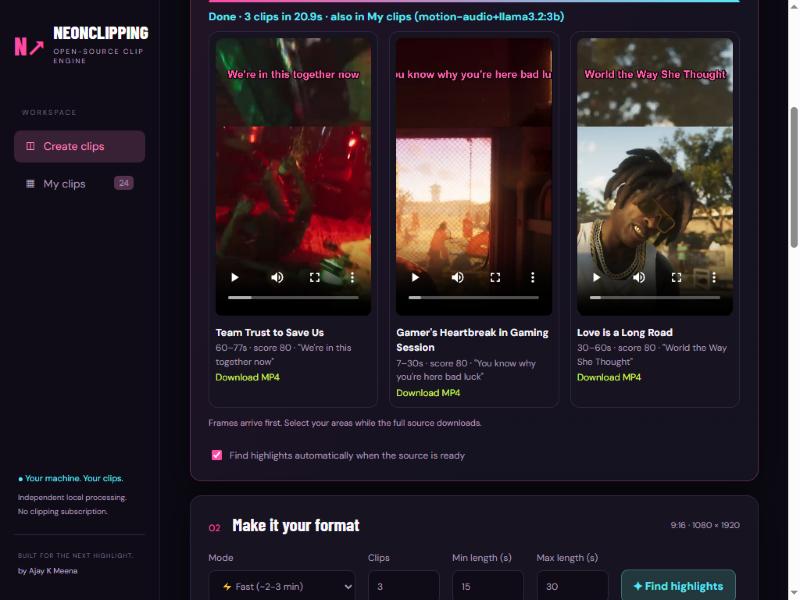
- One-click **Make clips**, live progress, clips appear one by one with preview and MP4 download.
- **Min / Max clip length** (e.g. 30–80 s). Clips end on a sentence.
- **Facecam position presets** (top-left, top-right, bottom-left, bottom-right, bottom-centre, none) for the usual streamer layouts, remembered between sessions. Or draw the face and gameplay boxes yourself in the editor.
- **11 native layouts:** camera above/below gameplay, blurred fill, full-screen crop, gameplay only, four corner overlays, circle facecam and side-by-side. Independent face/game selection and a face-size slider. Preview-only platform safe zones.
- Caption styles: GTA Neon, Impact, Clean, Hormozi and MrBeast. Word-timed, editable words, SRT export.
- **Opening headings:** eight seconds by default, adjustable from 2–60 seconds, with black backing for bright gameplay and facecam layouts. Use **Improve opening heading** to write a grounded curiosity question from the selected transcript. Existing clips can apply the new look without downloading or finding moments again.
- **Moment mix:** Balanced combines activity and transcript-led proposals; Action favours energy; Dialogue favours story, humour and insights. Final selection reduces overlapping and repetitive moments. Balanced/Dialogue prefer an already-installed Gemma 4 local judge; other local models remain a fallback. This changes curation rules and prompts, not foundation-model weights.
- **Custom captions:** installed font family, size, text/active/outline colours, words per caption and local saved profiles. Import SRT/ASS/WebVTT or paste subtitle text, adjust word timings, split/merge and shift captions. Within-cue word timings from imported files are estimated. Download WebVTT alongside SRT.
- **Transcript explorer:** explicitly generate or import a full-source transcript, search phrases across cues, browse pages, and click the first/last word to export that passage. Cached transcripts are reused by Make clips and invalidated when the source changes.
- **Trim a saved clip:** in *Edit saved clips*, change Start / End and press *Only this clip*; the clip is cut again from the saved video and the subtitles move with the cut (3 to 180 s, within the saved video).
- **52 caption languages** in the Language menu, see Honest limits for caveats.
- **Optional visual review:** an already-installed compatible Gemma4 image model describes three actual scene frames. Review them in the editor or enable visual review for automatic candidate refinement. It is off by default and can add CPU inference time. Sampled image descriptions can be uncertain and do not verify a complete game event. Saved evidence is reused during re-editing.
- **Hinglish captions**: Hindi speech is written in English letters ("kya haal hai bhai") by default. Pick Hinglish / हिंदी / English explicitly if you like. Fast uses available source captions; Best Hindi explicitly uses local large-v3 recognition and can be slower on small GPUs. Missing source captions require local recognition.
- **Make clips uses your own setup**: facecam preset or the boxes you draw in step 03.
- Optical-flow motion + audio highlight ranking, frame-accurate NVENC export (falls back to x264).
- Nothing leaves your computer. The server binds to `127.0.0.1` only.
## Change clips after generating them
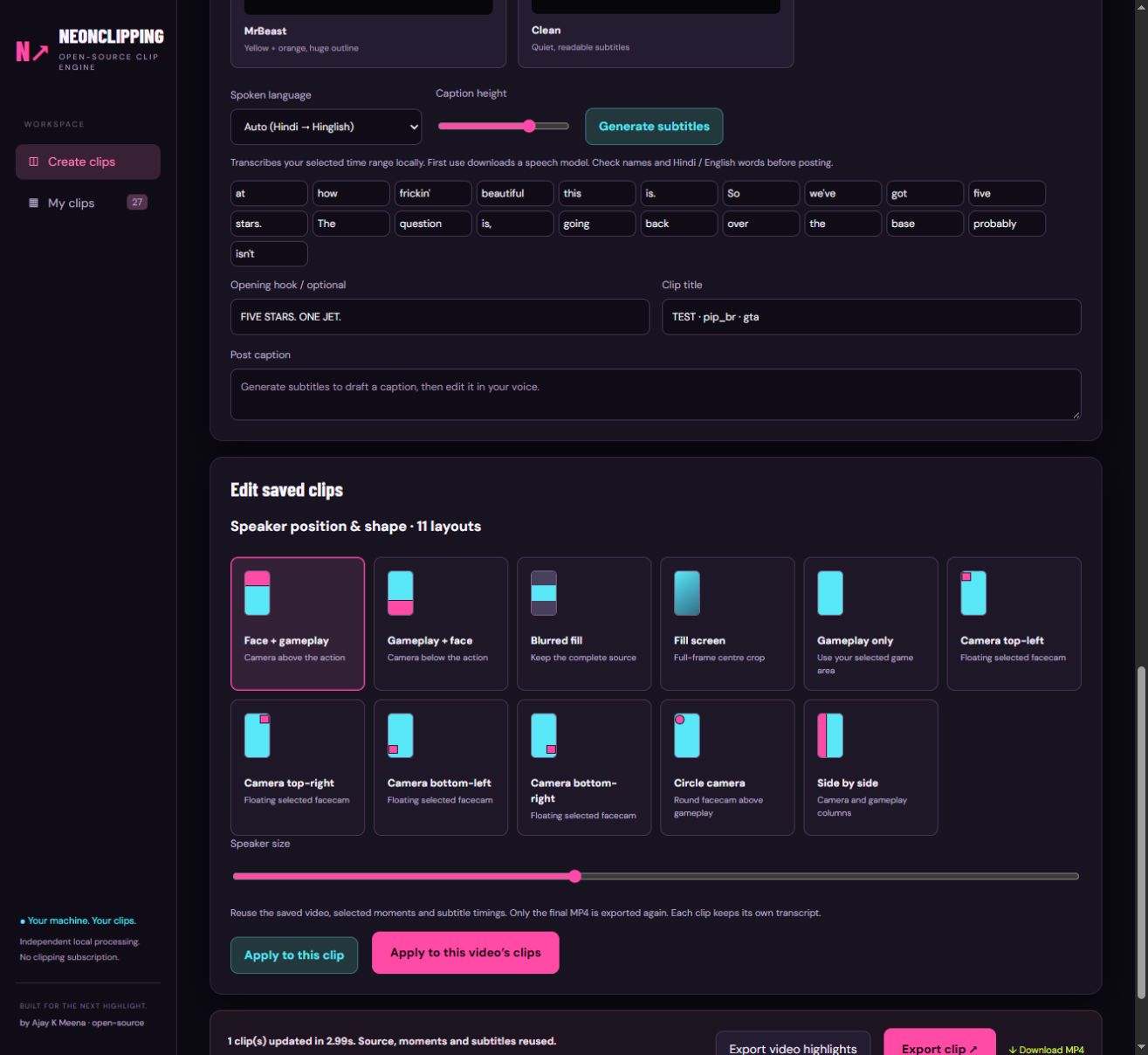
Open **My clips → Edit clip**. The saved editor includes all **11 speaker position/shape layouts**, a speaker-size slider, editable subtitle words, caption style and caption height.
- **Apply to this clip** updates the opened clip.
- **Apply to this video's clips** updates the currently saved clips associated with the same source URL. Each keeps its own timestamps, transcript, title and hook. New clips still being generated are not included in that snapshot.
- Source download, highlight discovery and speech recognition are **not repeated**. Burned-in captions and framing require encoding a new final MP4.
- Original source files must remain in `data/`. Previous MP4s are kept; the library displays the latest versions. Old exports missing saved word timings can recover captions from their SRT, with approximate per-word timing.
- This edits the selected moments; changing the clip's start/end or spoken language requires a separate trim/transcription workflow.
Validation on one 796.9-second source: all 11 layouts and five caption styles exported with audio and decoded successfully. A seven-clip layout/style update took 119.58 seconds while reusing each clip's exact source, range and word list. These are local checks, not guaranteed runtimes or a caption-quality benchmark.
Run the portable regression tests with `python -m unittest discover -s tests -v`.
## Install
**Easiest (Windows):** download [`NeonClipping-Setup.bat`](https://github.com/iamajmeena/neonclipping/releases/latest/download/NeonClipping-Setup.bat) from the [website](https://iamajmeena.github.io/neonclipping/) or the Releases page and double-click it. It checks your PC, installs Python and FFmpeg if missing, installs NeonClipping into `%LOCALAPPDATA%\NeonClipping`, creates a Desktop shortcut and opens the app. Mac/Linux: `install.sh` (new, not yet tested on a real Mac). Or follow the steps below.
Requirements: Python 3.10 to 3.13 (the newest Python often has no wheels for the speech/vision packages yet; the Mac/Linux installer picks a supported one for you), FFmpeg on PATH. Optional but recommended: [Ollama](https://ollama.com) with `ollama pull llama3.2:3b` for AI titles, hooks and scores (without it clips are picked by the audio/motion score), and an NVIDIA GPU for NVENC and faster-whisper.
```bash
git clone https://github.com/iamajmeena/neonclipping
cd neonclipping
# Windows
./run.ps1
# Linux / macOS
./run.sh
```
Open , paste a link, press **⚡ Make clips**.
Optional GPU speech model support (only used when a video has no YouTube captions):
```bash
.venv/bin/pip install nvidia-cublas-cu12 "nvidia-cudnn-cu12==9.*"
```
Set `NEONCLIPPING_CPU=1` to force CPU. Set `NEONCLIPPING_PORT=9000` to use another port.
**Mac / Linux / no NVIDIA GPU:** the video encoder is chosen by what works on your computer: NVIDIA NVENC, then Apple VideoToolbox, then the CPU encoder (x264). Force one with `NEONCLIPPING_ENCODER=nvenc|videotoolbox|x264`. The speech model skips the GPU attempt when no CUDA GPU exists and runs on the CPU. `install.sh` and the unit tests run automatically on macOS, Ubuntu and Windows machines for every change (see the *Actions* tab); the maintainer has not yet tried the Mac installer on his own Mac, so tell us if it misbehaves (Report a problem).
**Settings (environment variables):** `NEONCLIPPING_LIVE_AUTO_HOURS` (default 3) and `NEONCLIPPING_MIN_FREE_GB` (default 8) control the unattended creator-watch live sessions; a manual Live clipping session has no time cap and no disk guard.
## How it is built
| File | Job |
|---|---|
| `app.py` | FastAPI server, `/make` pipeline, export, library |
| `smart.py` | Moment scoring: transcript + local LLM, sentence snapping |
| `highlights.py` | Audio-jump / shout / optical-flow / cut ranking, parallel decode |
| `captions_yt.py` | YouTube word-timed captions (json3) parser |
| `captions.py` | Local Whisper (GPU first, CPU fallback), ASS/SRT styles |
| `translit.py` | Devanagari → Hinglish (word by word, keeps timings) |
| `standalone.py`, `previews.py` | Link import, early preview frames |
## Live clipping (while the stream is on)
Paste a Twitch channel link or a YouTube Live link into the **Live clipping** panel and press Start. NeonClipping records the stream (Streamlink), reads chat anonymously, counts messages in 10 s buckets and cuts a clip around every chat spike (chat velocity more than 2.5 sigma and 2.5x the 5-minute baseline). The clip starts about 24 s *before* the spike, because chat reacts after the moment. It then gets captions, a hook and title, your layout and facecam boxes, and a viral score like any other clip. **Clip the last 30 s now** cuts on demand, **Stop** ends the session. It only works while the stream is live; for finished videos use Make clips.
There is also a command-line version in `live/live_clip.py`.
## Creators (clip a streamer automatically)
Add a Twitch name or a Twitch / YouTube channel link in the **Creators** panel. NeonClipping checks every minute; when that creator goes live it records the stream and clips the chat spikes, using the layout, facecam boxes and caption style you had selected when you added them (“Use my current layout” updates it). Clips appear under the creator and in My clips.
- One stream at a time (recording and rendering are heavy); other creators wait their turn.
- NeonClipping must stay open. Unattended recordings stop after 3 hours (a new one starts if the creator is still live), stop when less than 8 GB of disk is free, and the big recording file is deleted after the last clip is cut.
- Pressing **Stop** pauses that creator for 30 minutes; switching Auto off and on resumes at once.
- Tested on Twitch (recording, chat spikes, clip, feed). YouTube channels are detected through yt-dlp; an auto-clipped YouTube stream was not run end to end.
## Tests
`tests/` holds an end-to-end suite that runs against the live server: page and API validation, every layout and caption style rendered and measured, editing one / all clips of a video, Make clips on real YouTube / Twitch / local sources in every mode and language, live clipping on a real stream, the creator list, star ratings, the installer and the website. Unit tests cover the chat-spike rule, caption grouping and re-editing. The last full run is in [`tests/REPORT.md`](tests/REPORT.md): 187 checks, all passing, plus the 12 problems the run found and fixed.
```
python -m unittest tests.test_captions tests.test_live tests.test_reedit
python tests/e2e.py static export edit creators feedback # server must be running
python tests/e2e_make.py # real downloads + transcription (about 25 min)
python tests/e2e_live.py # needs a Twitch channel that is live
python tests/e2e_site.py # website, links, release assets
python tests/make_report.py # rebuild tests/REPORT.md
```
## Live clipping controls and the phone remote
Inspired by a mobile live-clipper shown in a creator's reel (that app is unreleased, so nothing of it could be studied; only what the video shows was used).
- **Chat hype meter** while a stream is live: 0-100%, from the comments of the last ~30 s against the stream's own usual speed (peak = 4x usual; the first seconds use an absolute scale), with the label *quiet / building momentum / hot / peak viral hype*.
- **Clip length presets** 10 s / 20 s / 30 s / Auto: the clip starts a few seconds before the chat peak; "Clip now" cuts the same length from the live recording.
- **Hook text** for live clips from the AI, the **stream title** (emoji removed) or your own text; **captions switch** (off = faster clips).
- Live clips now also get the style options (template, logo, credit, outro, music, caption animation).
- **Phone remote:** start NeonClipping with the *NeonClipping (phone access)* shortcut (`Start-NeonClipping-Phone.bat`, or set `NEONCLIPPING_LAN=1`). Under Live clipping it shows a Wi-Fi address and a 6-digit PIN. On a phone on the same Wi-Fi open that address (`/m`), enter the PIN, paste a YouTube Live or Twitch link, pick a length, watch the hype meter, press **Clip now**, and play / save / share the clips. On Android Chrome use "Add to Home screen" to get an app icon. The PC does all the work; the phone is only a remote.
- **Safety:** phone access is off unless you start it that way (the server then listens on 127.0.0.1 only). Everything that is not the PC needs the PIN (after 5 wrong tries an address is locked for 10 minutes; "New PIN" logs every phone out). Even with the PIN a phone can only use the live, library, make, clips, feedback and creators routes: uploads, file tools, the queue and the PIN itself stay PC-only. Windows will ask once whether to allow NeonClipping on private networks: choose Allow for home Wi-Fi only.
- Not included: a native Android app (the phone page is a web page that works like one), live clipping that runs on the phone itself.
## Captions: YouTube's own, always
For YouTube links every clip uses YouTube's own word-timed captions, in every language. Hindi comes as Devanagari and is turned into Hinglish (nukta letters included: kapde, padega, thoda); repeated-word loops are trimmed. It is faster than a local speech model and, on game audio, clearly more accurate: on a 2-hour Hindi stream a Make run took 197 s with correct lines like "poori mod di yaar, kya bhai? arre pulis". The local "Accurate (turbo)" model was removed because its captions were worse. The only local model left on purpose is **Best Hindi (large-v3, slow)**. Videos without YouTube captions (local files, Twitch VODs) still need a local model as the only option; expect rougher captions there, or import an .srt.
## Style & extras
- **Templates:** wrap the clip in an *X post* (light or dark), a *TikTok hook* box or a *Breaking news* broadcast frame. Type the name, handle and hook; the card, avatar letter, check mark and ticker are drawn for you.
- **Background card:** padded, rounded-corner video card on a blurred copy, a colour, a gradient or your own image (dimmed, blurred).
- **Logo / watermark** (4 corners, size, opacity), **credit line** (or "Clip: channel name" automatically), **outro ribbon** that slides in for the last seconds.
- **Music bed:** one track under the voice that rises to a peak volume in the last seconds (volume, peak and riser length are yours).
- **Six caption animations:** highlight (word by word), pop-in, pop-in line, one by one, build up, full line.
- **Import captions:** drop an `.srt` or `.ass` file; the words are timed to the clip and can be edited.
- All of it works in Make clips, single exports and "Edit saved clips" (including "apply to all clips of this video").
## Find my facecam
The **Find my facecam** chip (or "find it automatically when I press Make clips") looks at 14 frames of the video, finds rectangles whose border stays in the same place, and keeps the one that holds a face (small local YuNet face model, MIT licence, `models/`). It rejects the game's minimap and HUD panels, finds webcams in a corner or floating on a side, and answers "no facecam" when it is not sure. Measured on 30 real saved streams: found the webcam on every stream that has one; clean "not found" on trailers and talking-head videos. Not perfect: some boxes cover only the face inside a framed webcam.
## Long streams with a free chatbot
**AI parts** (below step 01): paste a YouTube link, NeonClipping splits the video's captions into ~25-minute parts and gives a copy-ready prompt per part. Paste each into any free chatbot, paste all answers back (JSON or lines like `12:30-13:10 title`), tick the moments and press Make clips: only those sections are downloaded and rendered. A chatbot given a 9-hour transcript in one go only reads the start; small parts fix that. Nothing is sent anywhere by NeonClipping; the chatbot step is manual.
## Report a problem (English + Hindi)
The **Report a problem · समस्या बताएँ** button (bottom-right) explains, in English and Hindi, three ways to tell the maintainer what broke. You choose how much to share and **nothing is sent unless you press a button**:
| Option | What happens | Who sees it |
|---|---|---|
| **1 · GitHub issue (safest)** | Opens a pre-filled issue; you read it and press Submit yourself | Public on GitHub |
| **2 · Download diagnostics** | Saves a text file; you send it yourself (GitHub, Instagram DM, WhatsApp) | Only who you send it to |
| **3 · Send directly (optional)** | After you tick a box next to the exact text shown, posts it to the maintainer's collector | The maintainer only |
What the text contains: tool versions (app, Python, Windows, ffmpeg, yt-dlp), the recent error messages with a short label such as `youtube-bot-check`, and your note if you wrote one. Video links (only the site name stays), user names in paths, e-mails, IP addresses and token-like values are removed before anything is shown, logged or shared. No videos, transcripts, cookies or browser data are ever read. Failed jobs are also written to `data/errors.log` on your own computer (redacted, trimmed automatically); that file never leaves the computer unless you share it.
Option 3 stays off ("not set up") until a collector URL is configured; see [`tools/report-worker`](tools/report-worker/README.md). Code: [`report.py`](report.py), [`report.js`](report.js). Issue form: `.github/ISSUE_TEMPLATE/problem.yml`.
## Source quality (1080p default, 4K optional)
Under **Resolution** there is a **Source quality** menu: how sharp the video is that gets downloaded from YouTube. It used to be fixed at 720p, which made 1080p/4K exports upscaled and soft. Now:
| Choice | What you get | Measured (20 s section of a 4K video) |
|---|---|---|
| **1080p (default)** | H.264 1920x1080 | 10 MB |
| 4K | AV1/VP9 3840x2160, much larger, slower to decode | 70 MB |
| 1440p | in between | |
| 720p | fastest, smallest | 6 MB |
If a video only exists at 720p on YouTube (some new uploads and low-quality sources), you get 720p whatever you choose. **Resolution** (export size) is a separate setting: for a sharp 4K export pick Source quality 4K and Resolution 2160. Imports are cached per link and re-downloaded if you later ask for a higher quality.
## "Sign in to confirm you're not a bot" (YouTube bot check)
Some connections get this from YouTube: shared or mobile-data internet, VPNs, office/hostel Wi-Fi, or an old downloader. NeonClipping handles it for you in this order, with no setup:
1. **Keeps yt-dlp fresh.** Once a day at start-up it upgrades `yt-dlp[default]` (offline-safe). Turn off with `NEONCLIPPING_NO_AUTOUPDATE=1`.
2. **Retries in other YouTube modes** (TV, Safari, iOS, mobile web clients) instead of failing on the first block.
3. **Shows one short message** with the fixes below instead of a long English error.
If YouTube still blocks you, pick one:
| Fix | How |
|---|---|
| **Upload the MP4** | Use **Upload video** next to the link box. Always works. |
| **Use your browser login** | Sign in to YouTube in Chrome (or Edge / Firefox / Brave), then start NeonClipping with `NEONCLIPPING_COOKIES_BROWSER=chrome`. PowerShell: `$env:NEONCLIPPING_COOKIES_BROWSER='chrome'; ./run.ps1`. Close the browser first if Windows says the cookie file is locked. |
| **Use a cookies file** | Export `cookies.txt` from your browser and save it as `data/youtube_cookies.txt` (or point `NEONCLIPPING_COOKIES_FILE` at it). It stays on your computer. |
| **Change network** | Home Wi-Fi instead of mobile data; turn the VPN off. |
Cookies are only read when you set one of the options above; NeonClipping never reads your browser by itself. Use a throw-away Google account if you do not want your main one attached to automated downloads. Python 3.10 is deprecated by yt-dlp: use Python 3.11+ so updates keep arriving. Everything YouTube-related goes through [`ytdl.py`](ytdl.py).
## Honest limits
- Highlight picking is a heuristic plus a small local LLM. It finds loud, energetic, quotable moments, not guaranteed "viral" ones. Review before posting.
- The action cues (motion, flash, light flicker) are simple heuristics on a tiny low-resolution copy; they rank moments, they do not recognise "a police chase". Star ratings are how it gets better at your taste.
- The LLM sees text only. It cannot see the screen.
- Without YouTube captions (Twitch VODs, uploaded files) a speech model must transcribe each candidate, which is slow on CPU.
- Auto-caption accuracy follows the source: YouTube's auto captions are imperfect, especially Hinglish.
- Deep mode was verified on a short video only; on multi-hour videos it downloads the whole file first and is slow by design.
- **Live clipping:** one live session at a time, and the computer must stay awake and online while it records. Unattended creator-watch sessions stop after 3 hours or when less than 8 GB of disk is free (both configurable above); a manual session does not.
- **No auto-posting or scheduling.** NeonClipping exports the MP4 and SRT to your computer and stops there on purpose: posting to Instagram/YouTube/TikTok needs your accounts and approved API access, which would break "no account, nothing leaves your computer". Upload with the platform's own app or a scheduler you trust.
- **Caption languages:** Hinglish, Hindi, English and 50 more (Whisper). Accuracy is best for widely spoken languages. Captions are drawn with fonts installed on your computer, so scripts without a font may show empty boxes, and right-to-left languages (Arabic, Persian, Hebrew, Urdu) have basic support only. When YouTube provides captions in the spoken language they are used instead of the speech model.
- Facecam presets are starting points, not detection: if you pick Bottom-right but the cam is bottom-left, the top half of the clip will show the wrong area. Pick the right corner or draw your own boxes.
## Support
NeonClipping is free. If it saves you time you can ⭐ star the repo, follow [@iamajmeena](https://www.instagram.com/iamajmeena/), or optionally donate via Razorpay (UPI / cards): . The app also has a ♥ Donate button. Nothing is ever locked behind a donation.
## Credits and inspiration
Design ideas studied from open-source clippers: [PeakCut](https://github.com/haziqahmedqasmi/PeakCut) (audio-first download, captions as transcript, section download), [ClipCutter](https://github.com/curtyo18/ClipCutter), [content-ai](https://github.com/buddah0/content-ai), and the Growlance live-clipper script. Also studied: PeakCut's facecam-by-static-border idea and creator list (reimplemented here with our own code, plus a face check), the public feature list of the YIZERGE desktop editor (templates, background card, music riser, caption animations; only its public web page was read), and a creator's walkthrough of splitting a 9-hour stream into small transcript parts for a free chatbot. Built on FFmpeg, yt-dlp, FastAPI, faster-whisper, OpenCV (YuNet face detector, MIT), Ollama.
## License
MIT. See [LICENSE](LICENSE).
## What changed on 2026-11-21
- **Download quality next to Get preview.** 1080p is the default; choose 4K, 1440p or 720p right beside the button. The 1080p setting no longer falls back to YouTube's ready-made 720p mp4, and the progress line shows video/audio stream, MB, speed and time left.
- **Very long videos (over 2 hours) are never downloaded whole.** A 24-hour stream is about 46 GB at 1080p. You pick the part (up to 2 hours, h:mm:ss) and only that part is downloaded.
- **Opening heading on/off** (*Show opening heading on the clip*, on by default). Off means no heading text, no backing box and no local-model call.
- **Fixes for reported install problems:** PyAV 19 (`metadata_errors`) shim and `av<19` pin, portable FFmpeg fallback and an on-screen warning when FFmpeg is missing, Windows installer uses Python 3.10 to 3.13 and installs the Visual C++ runtime when `ctranslate2.dll` cannot load, a live "working…" line while long audio is scanned.
- **Report a problem** is now also in the sidebar and header.
- On NVIDIA PCs the source is also decoded on the GPU (NVDEC), with automatic fallback to the CPU. Task Manager shows this under *Video Encode / Video Decode*, not under *3D*.
## Updating
NeonClipping now updates itself. When a new version is on GitHub, a green banner appears at the top of the page; press **Update now**, or leave it and it updates automatically after a short countdown when nothing is running. Your clips, settings and downloaded models are kept, one backup of the replaced files stays in `.update-backup/`, and the app restarts by itself.
If you installed an older version, run `NeonClipping-Setup.bat` once more to get this feature. After that no re-install is needed. A git checkout is never touched by the updater (use `git pull`).
## Look and feel of the opening heading
Pick **Heading look** in step 04: *Impact* (default: big bold text, one accent word, pop-in, pink underline), *Neon glow*, *Banner bar* or the classic rounded box. Every finished clip also has a **Cover image** (a sharp frame with the title) and the clips ZIP includes it. See [CHANGELOG.md](CHANGELOG.md) for everything that changed.
## Cloud AI (optional)
A slow PC without a GPU can use a cloud model instead of Ollama for scoring moments and writing titles and hooks. Open **Cloud AI (optional)** on the page, pick a provider (Groq, OpenRouter, Gemini, OpenAI or LM Studio), paste your key, press **Test connection**, tick **Use Cloud AI** and Save. Only the *text* of candidate clips is sent to your provider; videos, audio and frames never leave your PC. The key is stored in `data/llm.json` on your computer and is never shown again. Speech-to-text still uses YouTube's captions or the local model. Environment variables `NEONCLIPPING_LLM_BASE_URL`, `NEONCLIPPING_LLM_MODEL` and `NEONCLIPPING_LLM_KEY` also work.