|
|
|
|
| - | - | - |
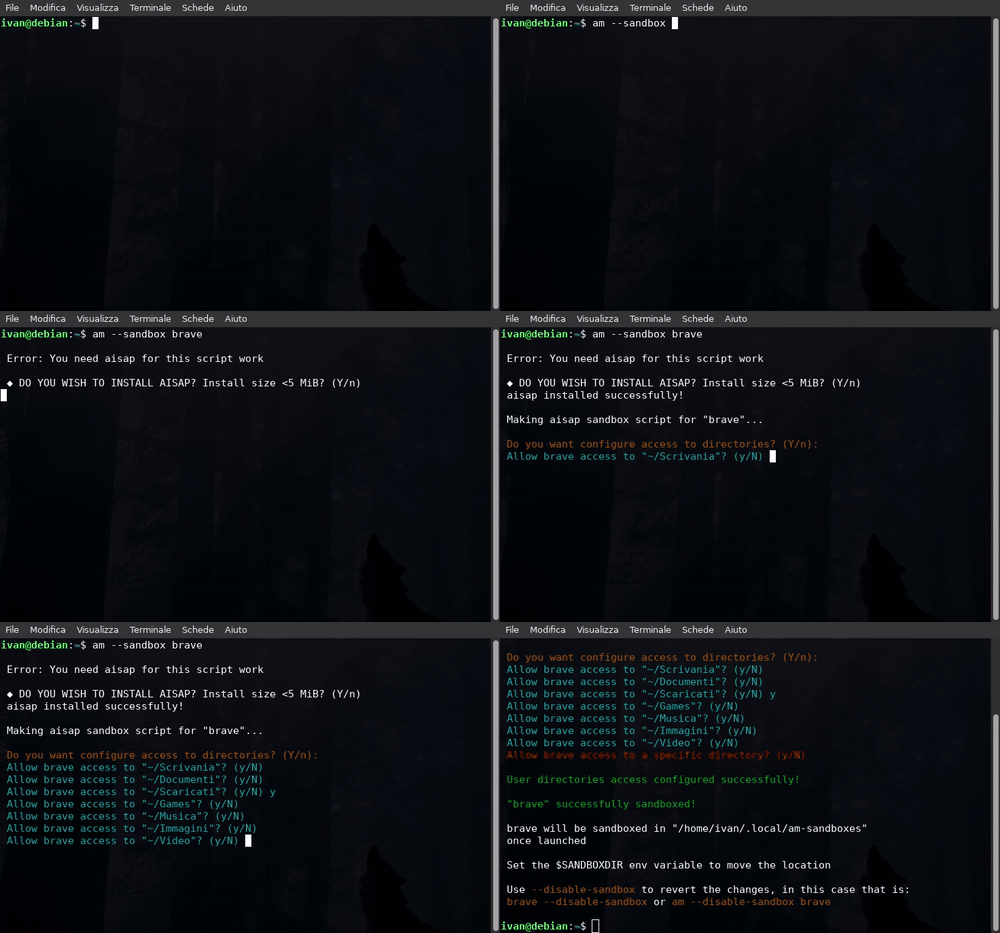
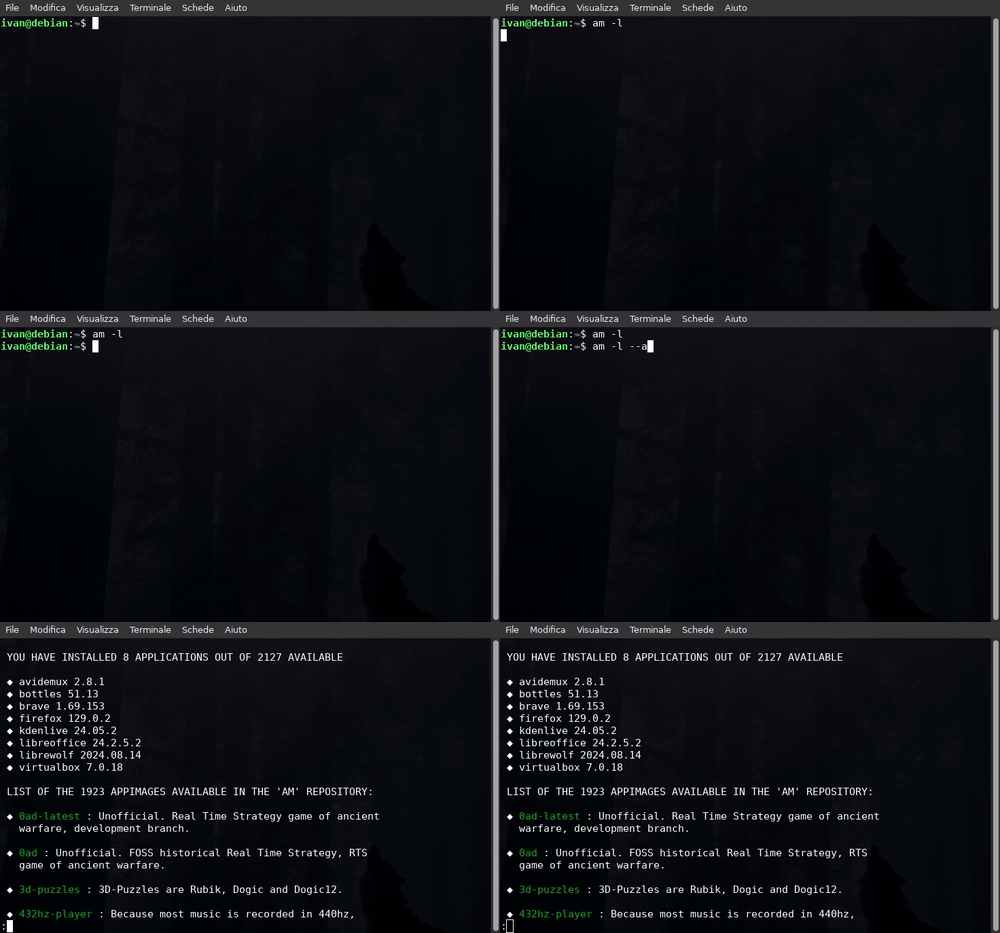
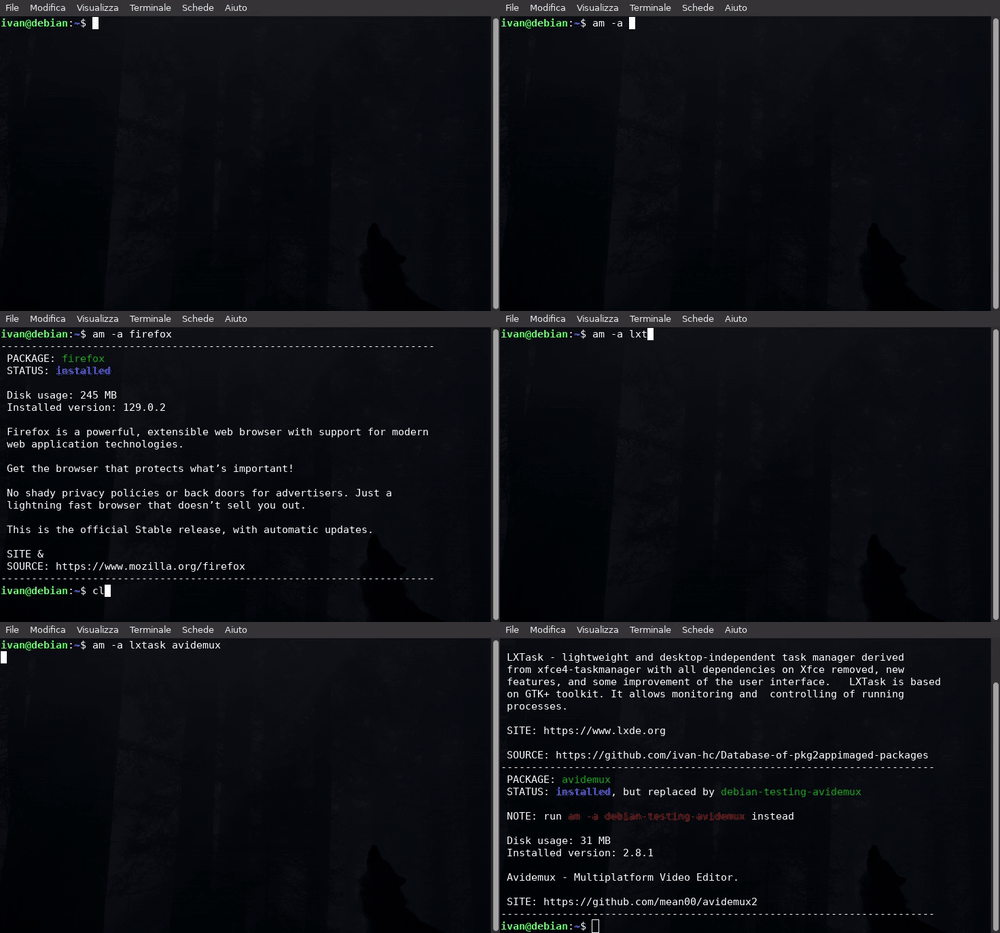
| *sandbox AppImages* | *list available apps* | *info about the apps* |
|
|
|
|
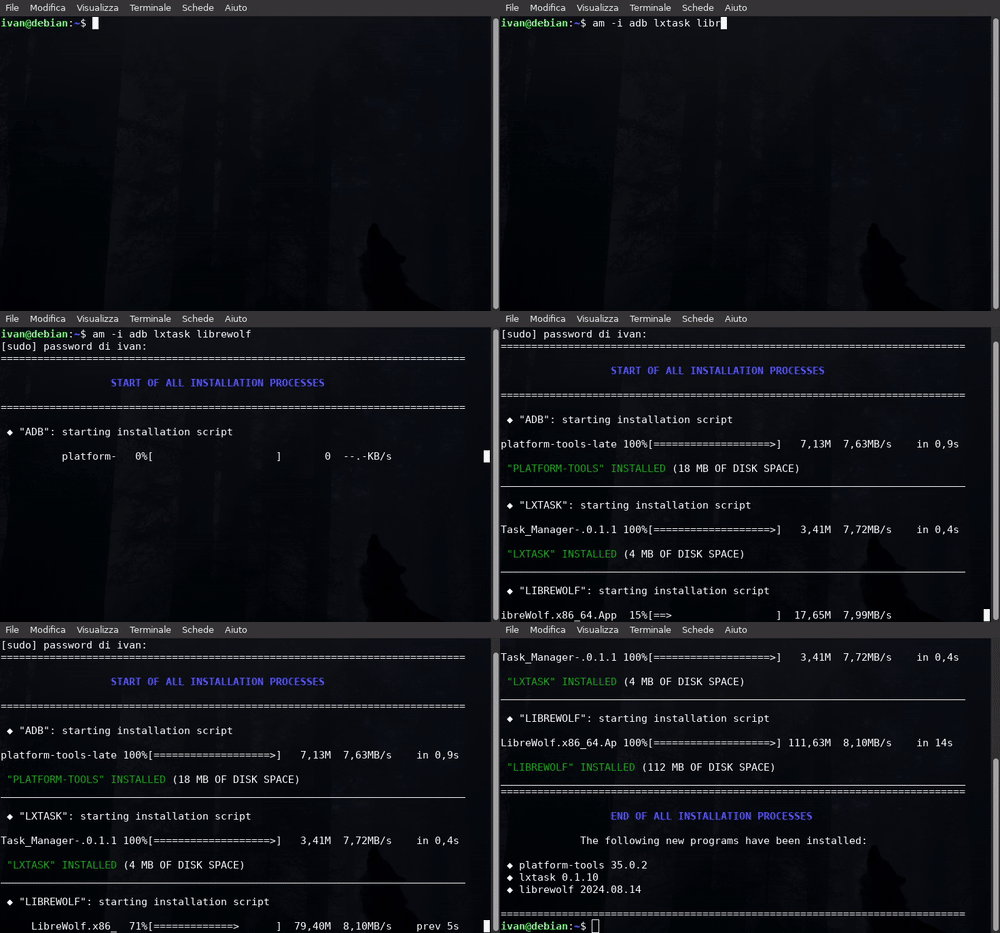
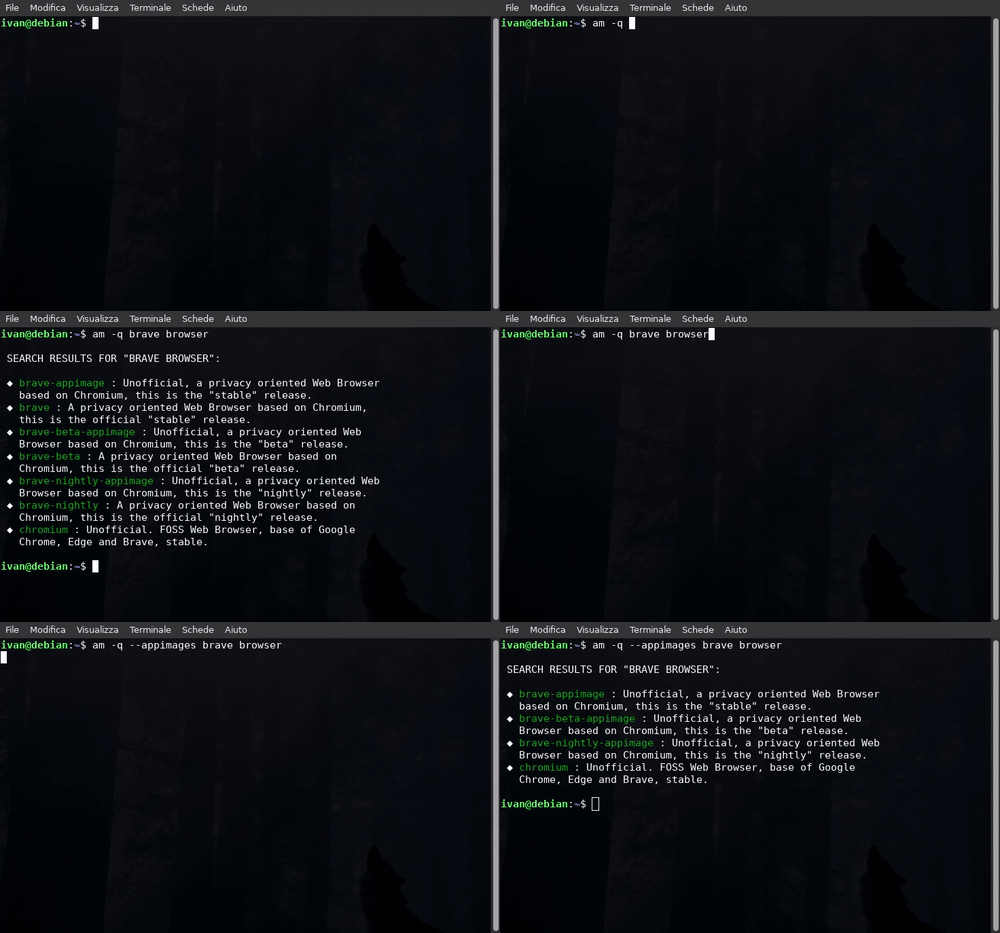
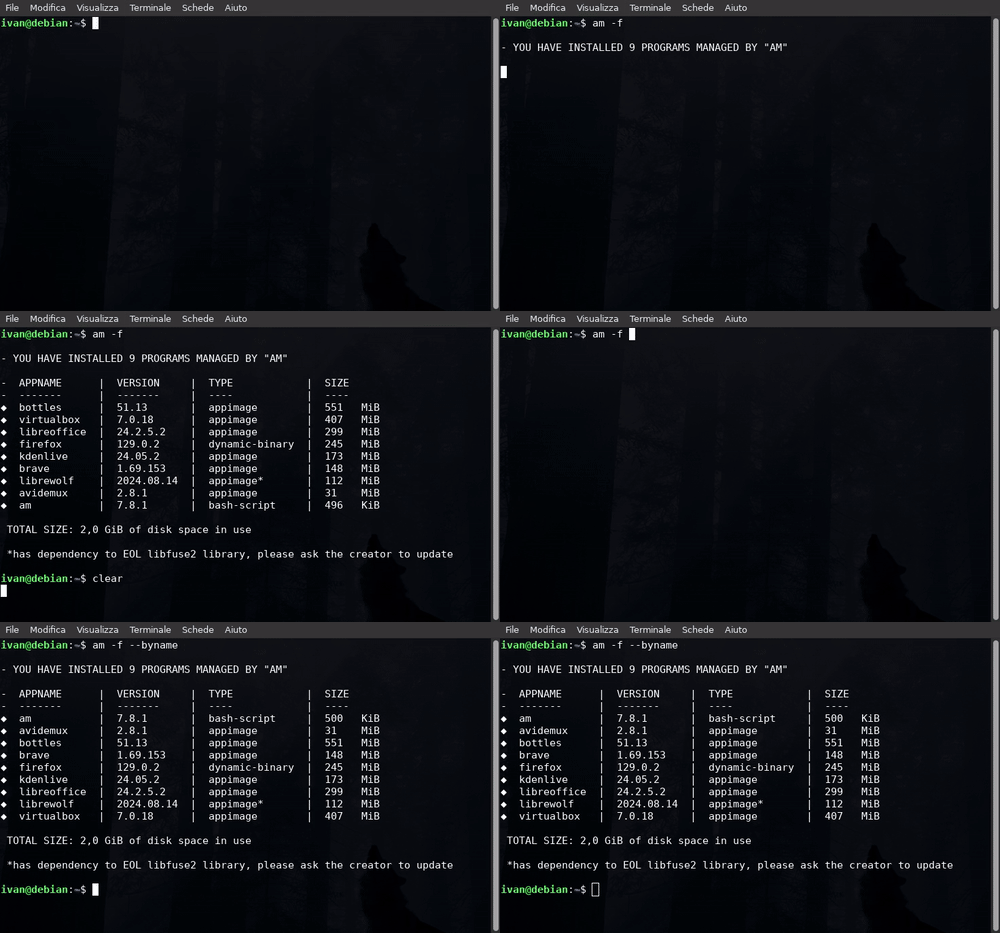
| *install applications* | *query lists using keywords* | *show the installed apps* |
|
|
|
|
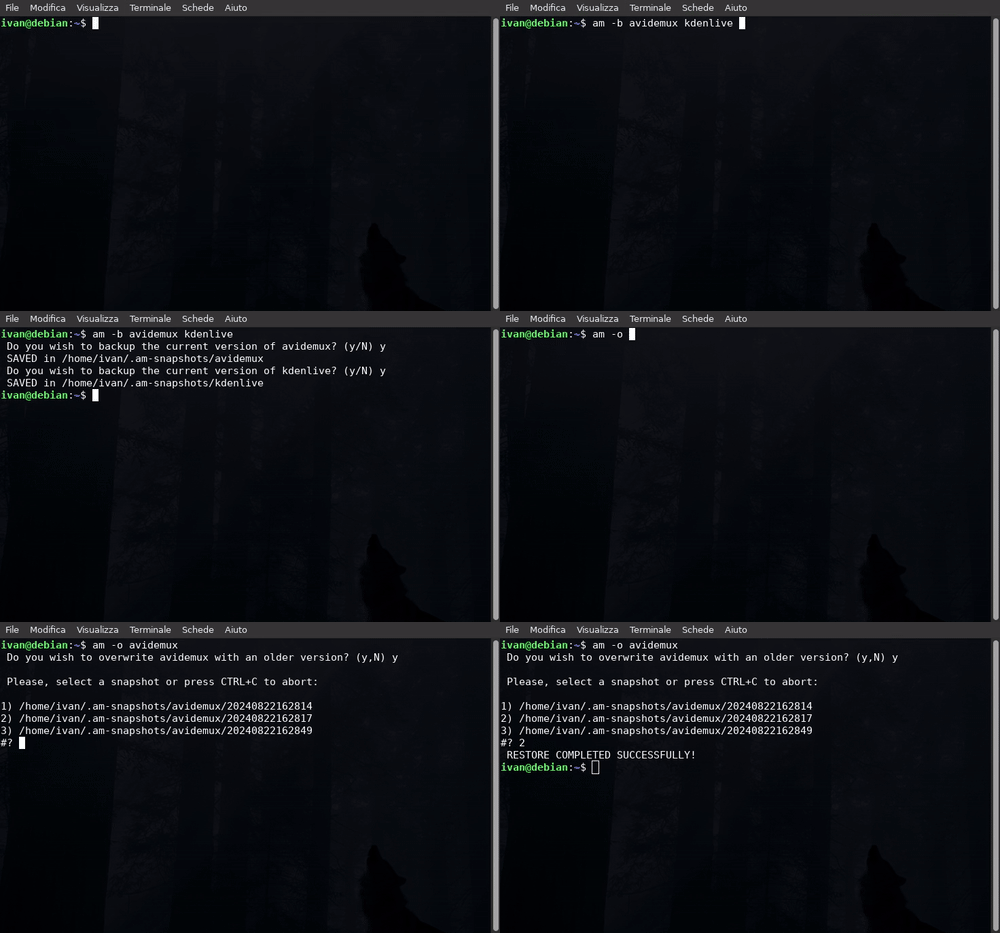
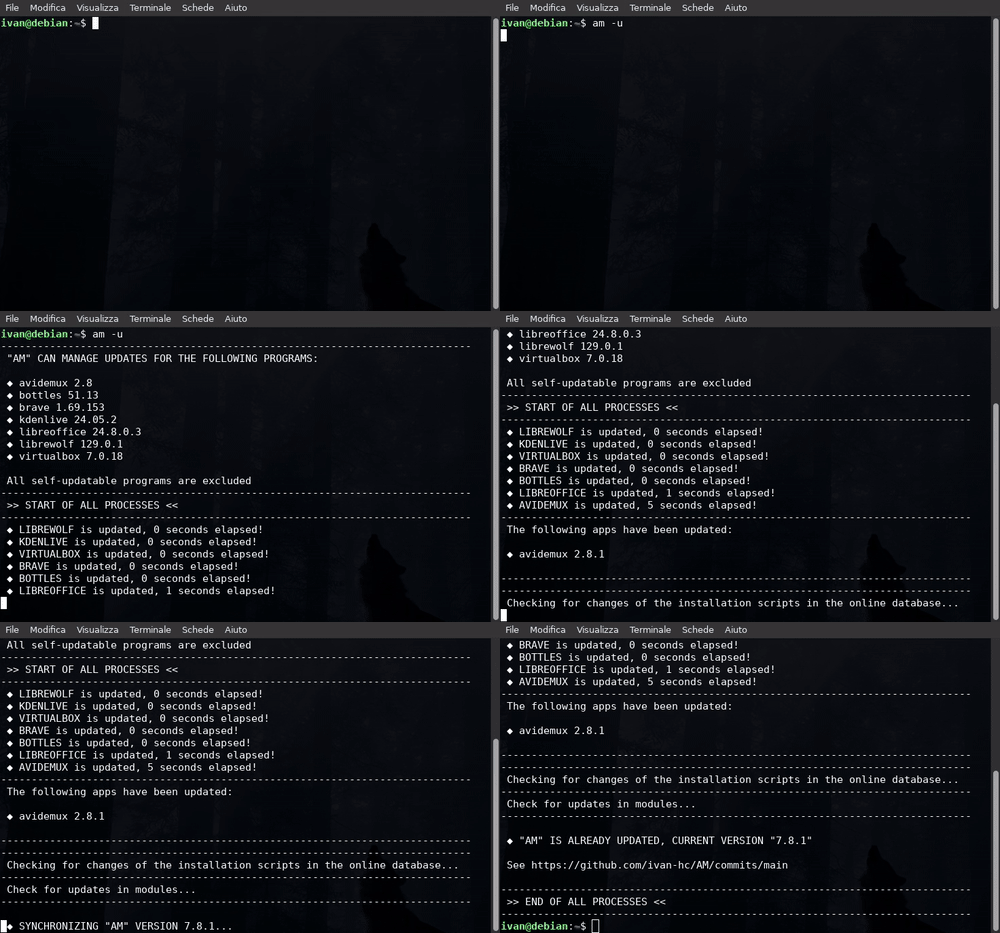
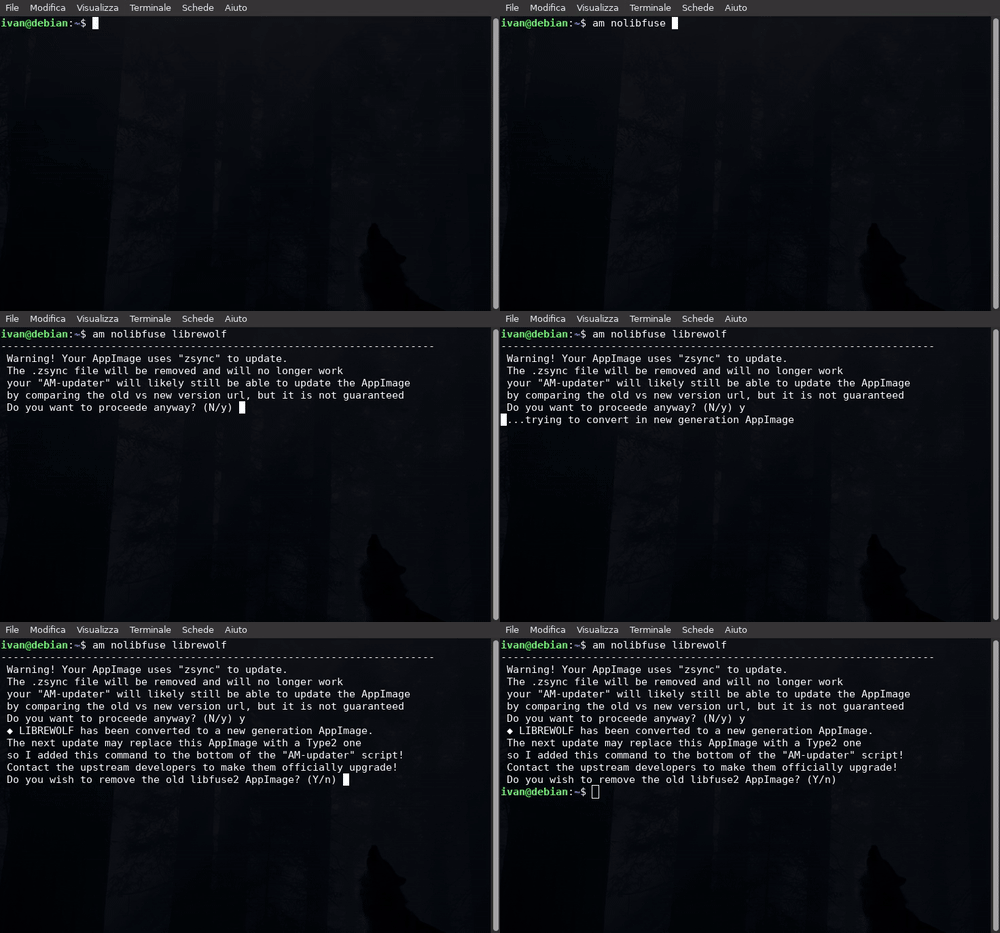
| *create and restore snapshots* | *update everything* | *get rid of libfuse2* |
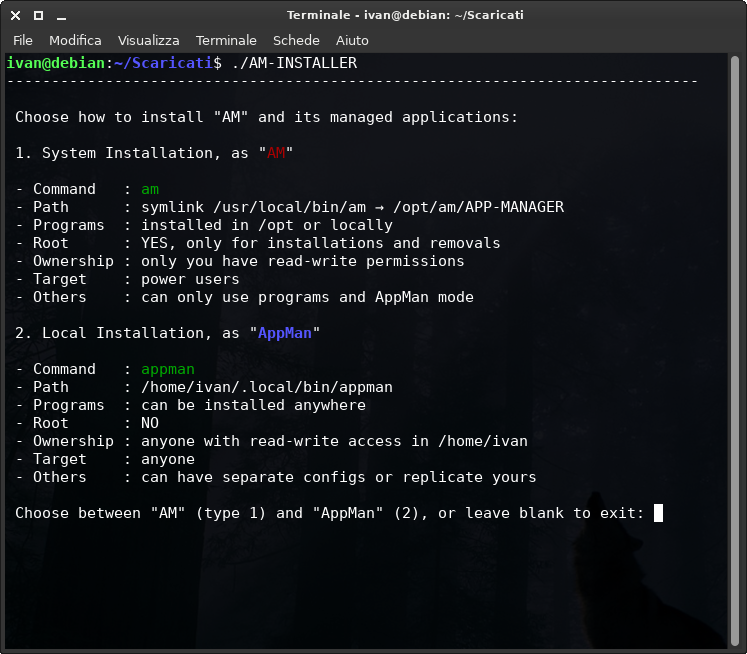 ------------------------------------------------------------------------
Type "1" to install "AM", "2" to install "[AppMan](#what-is-appman)". Any other key will abort the installation.
------------------------------------------------------------------------
| AM (system-wide installation) | AppMan (local installation)
| - | - |
|
------------------------------------------------------------------------
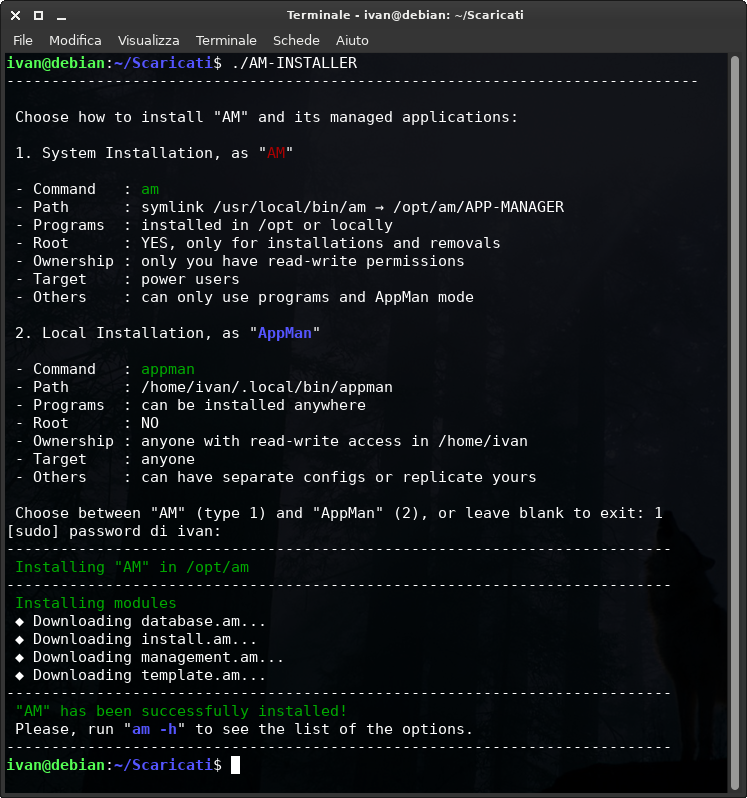
Type "1" to install "AM", "2" to install "[AppMan](#what-is-appman)". Any other key will abort the installation.
------------------------------------------------------------------------
| AM (system-wide installation) | AppMan (local installation)
| - | - |
|  |
| 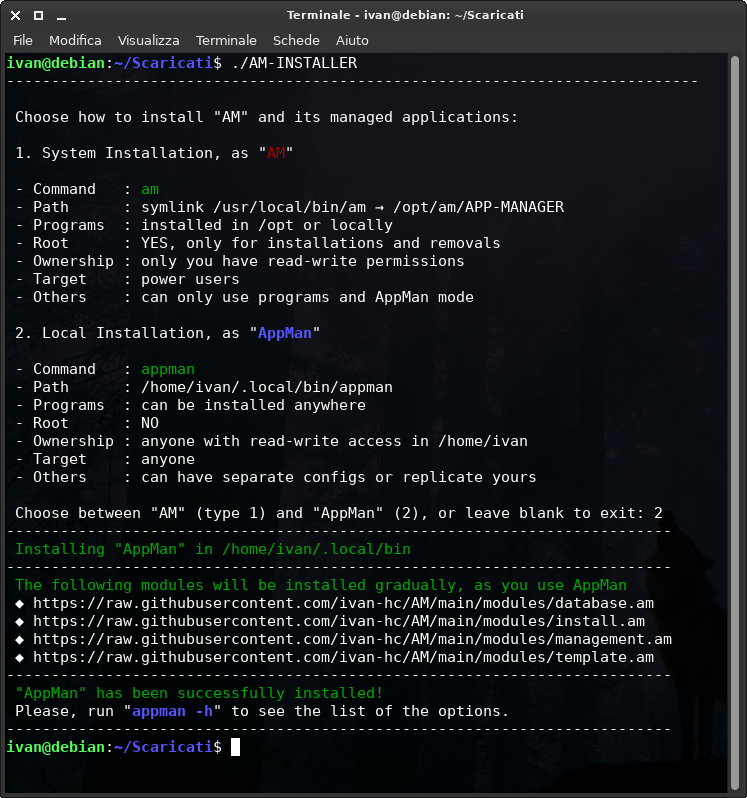 |
------------------------------------------------------------------------
**Installation is complete!**
Run `am -h` or jump to "**[Usage](#usage)**" to see all the available options.
------------------------------------------------------------------------
NOTE, the AM-INSTALLER supports non-interactive installation via flag `-i`, `install` or `--install`. For example
```
./AM-INSTALLER -i am
```
or
```
./AM-INSTALLER -i appman
```
This will help to install AM or AppMan in an automated way.
------------------------------------------------------------------------
## Using "GIT" (only system-wide installation)
Copy/paste the following commands
```
git clone https://github.com/ivan-hc/AM.git
cd AM
chmod a+x INSTALL
sudo ./INSTALL
```
------------------------------------------------------------------------
## Using a one-line command (only system-wide installation)
Copy/paste the following one line command command
Using `wget`
```
wget -q https://raw.githubusercontent.com/ivan-hc/AM/main/INSTALL && chmod a+x ./INSTALL && sudo ./INSTALL && rm ./INSTALL
```
or using `curl`
```
curl -s -Lo ./INSTALL https://raw.githubusercontent.com/ivan-hc/AM/main/INSTALL && chmod a+x ./INSTALL && sudo ./INSTALL && rm ./INSTALL
```
This is definitely the quickest method of all!
**NOTE, the reason why I gave priority to the "AM-INSTALLER" script in this guide is because "AM" can be used in different forms. In fact, not all users can afford to install "AM" with root privileges. That's why "[AppMan](#what-is-appman)" also exists.**
------------------------------------------------------------------------
### What is AppMan?
AppMan is a portable version of "AM", limited to installing and managing apps only locally and without root privileges.
The command name changes, from `am` to `appman`, but the script is the same.
"AM" on the contrary, provides a "fixed" installation, but can install and manage apps both locally and at the system level.
- "AM" is for privileged users who want to install and manage apps at multiple levels
- "AppMan" is the way to go for non-privileged users or those who don't have great needs
If you want to know more about "AppMan", visit https://github.com/ivan-hc/AppMan
#### How to install AppMan manually
|
------------------------------------------------------------------------
**Installation is complete!**
Run `am -h` or jump to "**[Usage](#usage)**" to see all the available options.
------------------------------------------------------------------------
NOTE, the AM-INSTALLER supports non-interactive installation via flag `-i`, `install` or `--install`. For example
```
./AM-INSTALLER -i am
```
or
```
./AM-INSTALLER -i appman
```
This will help to install AM or AppMan in an automated way.
------------------------------------------------------------------------
## Using "GIT" (only system-wide installation)
Copy/paste the following commands
```
git clone https://github.com/ivan-hc/AM.git
cd AM
chmod a+x INSTALL
sudo ./INSTALL
```
------------------------------------------------------------------------
## Using a one-line command (only system-wide installation)
Copy/paste the following one line command command
Using `wget`
```
wget -q https://raw.githubusercontent.com/ivan-hc/AM/main/INSTALL && chmod a+x ./INSTALL && sudo ./INSTALL && rm ./INSTALL
```
or using `curl`
```
curl -s -Lo ./INSTALL https://raw.githubusercontent.com/ivan-hc/AM/main/INSTALL && chmod a+x ./INSTALL && sudo ./INSTALL && rm ./INSTALL
```
This is definitely the quickest method of all!
**NOTE, the reason why I gave priority to the "AM-INSTALLER" script in this guide is because "AM" can be used in different forms. In fact, not all users can afford to install "AM" with root privileges. That's why "[AppMan](#what-is-appman)" also exists.**
------------------------------------------------------------------------
### What is AppMan?
AppMan is a portable version of "AM", limited to installing and managing apps only locally and without root privileges.
The command name changes, from `am` to `appman`, but the script is the same.
"AM" on the contrary, provides a "fixed" installation, but can install and manage apps both locally and at the system level.
- "AM" is for privileged users who want to install and manage apps at multiple levels
- "AppMan" is the way to go for non-privileged users or those who don't have great needs
If you want to know more about "AppMan", visit https://github.com/ivan-hc/AppMan
#### How to install AppMan manually
 |
| 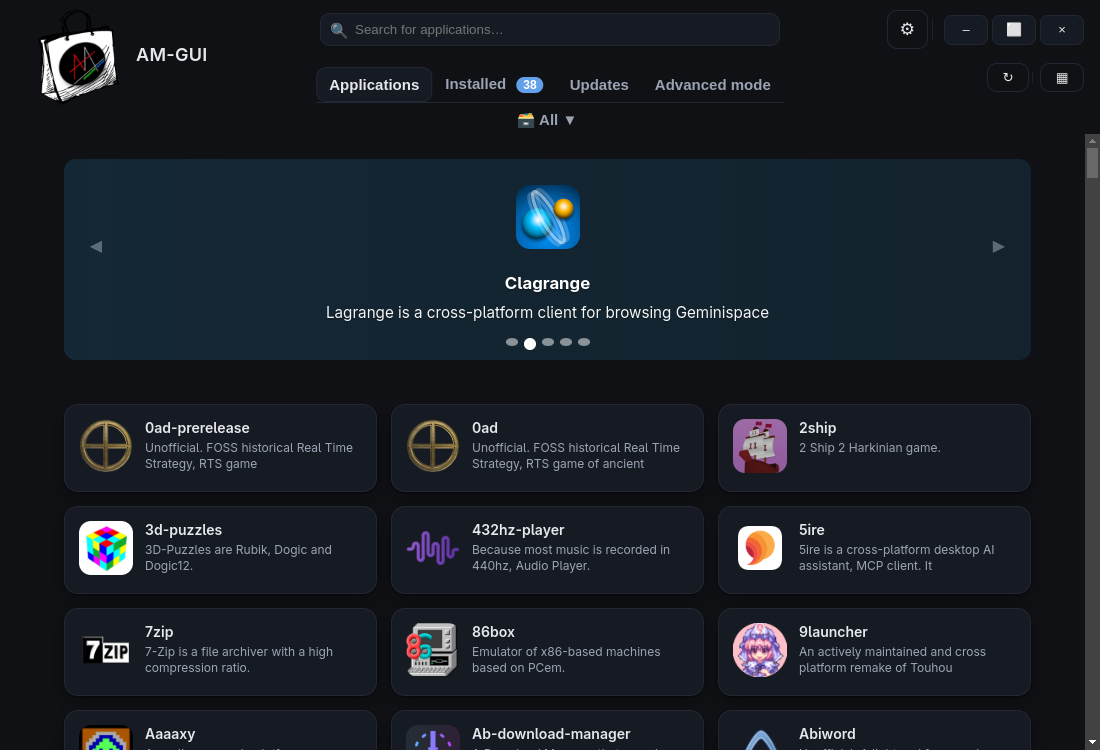 |
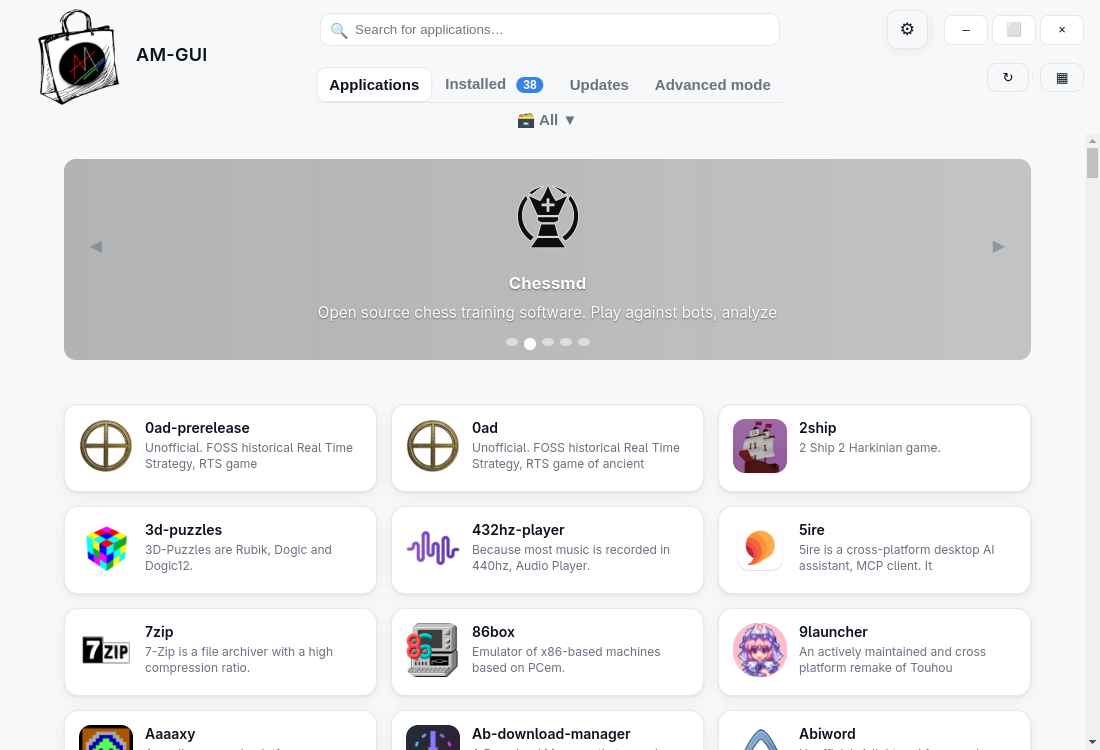
To install it, run the following command
```
am -i am-gui
```
⚠️ **NOTE: This project is under development and some features may not work or may be incomplete.**
------------------------------------------------------------------------
| [Back to "Main Index"](#main-index) |
| - |
------------------------------------------------------------------------
# Translate "AM" in your local language
Since version 9.8 it is possible to add and use alternative languages via the `translate` option, use:
```
am translate
```
or if using AppMan
```
appman translate
```
The command accepts reliable language codes (for example "it" for Italian, or "sr" for Serbian). In case the desired language is not in the database, it will default to English (code "en").
In the example, "AM" in Italian, Czech and Serbian
https://github.com/user-attachments/assets/a18f48b0-f389-4e94-a576-0031354d3cd5
### See "[translations/README.md](translations/README.md)" for more information!
------------------------------------------------------------------------
| [How to translate "AM"](translations/README.md) | [Back to "Main Index"](#main-index) |
| - | - |
------------------------------------------------------------------------
## How to update all programs, for real!
Most of the apps managed by "AM" have a script called `AM-updater`. It tells how updates are checked when running the `am -u` command.
In most cases, the "version comparison" is used between the installed one (file `version`) and an online source (official or not, depending on how hard or easy it is to find a download URL or just a number, using the terminal). In other cases, AppImages can rely on "`appimageupdatetool`" if they support "delta updates" (install it with the command `am -i appimageupdatetool`). However, there are some programs that update themselves (and among these the most famous is certainly Firefox, all official development builds).
### How to update all installed apps
Option `-u` or `update` updates all the installed apps and keeps "AM"/"AppMan" in sync with the latest version and all latest bug fixes.
1. To update only the programs, use `am -u --apps` / `appman -u --apps`
2. To update just one program, use `am -u $PROGRAM` / `appman -u $PROGRAM`
3. To update all the programs and "AM"/"AppMan" itself, just run the command`am -u` / `appman -u`
4. To update only "AM"/"AppMan" and the modules use the option `-s` instead, `am -s` / `appman -s`
The `-u` option can also be combined with the `--debug` flag to show the output of installed application updates.
### How to update everything using Topgrade
Keeping your system up to date usually involves invoking multiple package managers. This results in big, non-portable shell one-liners saved in your shell. To remedy this, Topgrade detects which tools you use and runs the appropriate commands to update them.
Install the "`topgrade`" package using the command
```
am -i topgrade
```
or
```
am -i --user topgrade
```
Visit [github.com/topgrade-rs/topgrade](https://github.com/topgrade-rs/topgrade) to learn more.
------------------------------------------------------------------------
| [Back to "Main Index"](#main-index) |
| - |
------------------------------------------------------------------------
# OPTIONS
|
To install it, run the following command
```
am -i am-gui
```
⚠️ **NOTE: This project is under development and some features may not work or may be incomplete.**
------------------------------------------------------------------------
| [Back to "Main Index"](#main-index) |
| - |
------------------------------------------------------------------------
# Translate "AM" in your local language
Since version 9.8 it is possible to add and use alternative languages via the `translate` option, use:
```
am translate
```
or if using AppMan
```
appman translate
```
The command accepts reliable language codes (for example "it" for Italian, or "sr" for Serbian). In case the desired language is not in the database, it will default to English (code "en").
In the example, "AM" in Italian, Czech and Serbian
https://github.com/user-attachments/assets/a18f48b0-f389-4e94-a576-0031354d3cd5
### See "[translations/README.md](translations/README.md)" for more information!
------------------------------------------------------------------------
| [How to translate "AM"](translations/README.md) | [Back to "Main Index"](#main-index) |
| - | - |
------------------------------------------------------------------------
## How to update all programs, for real!
Most of the apps managed by "AM" have a script called `AM-updater`. It tells how updates are checked when running the `am -u` command.
In most cases, the "version comparison" is used between the installed one (file `version`) and an online source (official or not, depending on how hard or easy it is to find a download URL or just a number, using the terminal). In other cases, AppImages can rely on "`appimageupdatetool`" if they support "delta updates" (install it with the command `am -i appimageupdatetool`). However, there are some programs that update themselves (and among these the most famous is certainly Firefox, all official development builds).
### How to update all installed apps
Option `-u` or `update` updates all the installed apps and keeps "AM"/"AppMan" in sync with the latest version and all latest bug fixes.
1. To update only the programs, use `am -u --apps` / `appman -u --apps`
2. To update just one program, use `am -u $PROGRAM` / `appman -u $PROGRAM`
3. To update all the programs and "AM"/"AppMan" itself, just run the command`am -u` / `appman -u`
4. To update only "AM"/"AppMan" and the modules use the option `-s` instead, `am -s` / `appman -s`
The `-u` option can also be combined with the `--debug` flag to show the output of installed application updates.
### How to update everything using Topgrade
Keeping your system up to date usually involves invoking multiple package managers. This results in big, non-portable shell one-liners saved in your shell. To remedy this, Topgrade detects which tools you use and runs the appropriate commands to update them.
Install the "`topgrade`" package using the command
```
am -i topgrade
```
or
```
am -i --user topgrade
```
Visit [github.com/topgrade-rs/topgrade](https://github.com/topgrade-rs/topgrade) to learn more.
------------------------------------------------------------------------
| [Back to "Main Index"](#main-index) |
| - |
------------------------------------------------------------------------
# OPTIONS