# ◲ desk
[](https://travis-ci.org/jamesob/desk) [](https://gitter.im/jamesob/desk?utm_source=badge&utm_medium=badge&utm_campaign=pr-badge&utm_content=badge)
Lightweight workspace manager for the shell.
Desk makes it easy to flip back and forth between different project contexts in
your favorite shell. Change directory, activate a virtualenv or rvm, load
in domain-specific aliases, environment variables, functions, arbitrary shell files,
all in a single command.
Instead of relying on `CTRL-R` to execute and recall ("that command's gotta
be here somewhere..."), desk helps shorten and document those actions with
shell aliases and functions, which are then namespaced under a particular
desk.
Because Deskfiles are just enriched shell scripts, the possibilities are
endless. For example, when doing work on AWS I have desk
securely load AWS API keys into environment variables via
[`pass`](https://www.passwordstore.org/) -- no effort on my part, and no
risk of accidentally persisting that sensitive information to a history file.
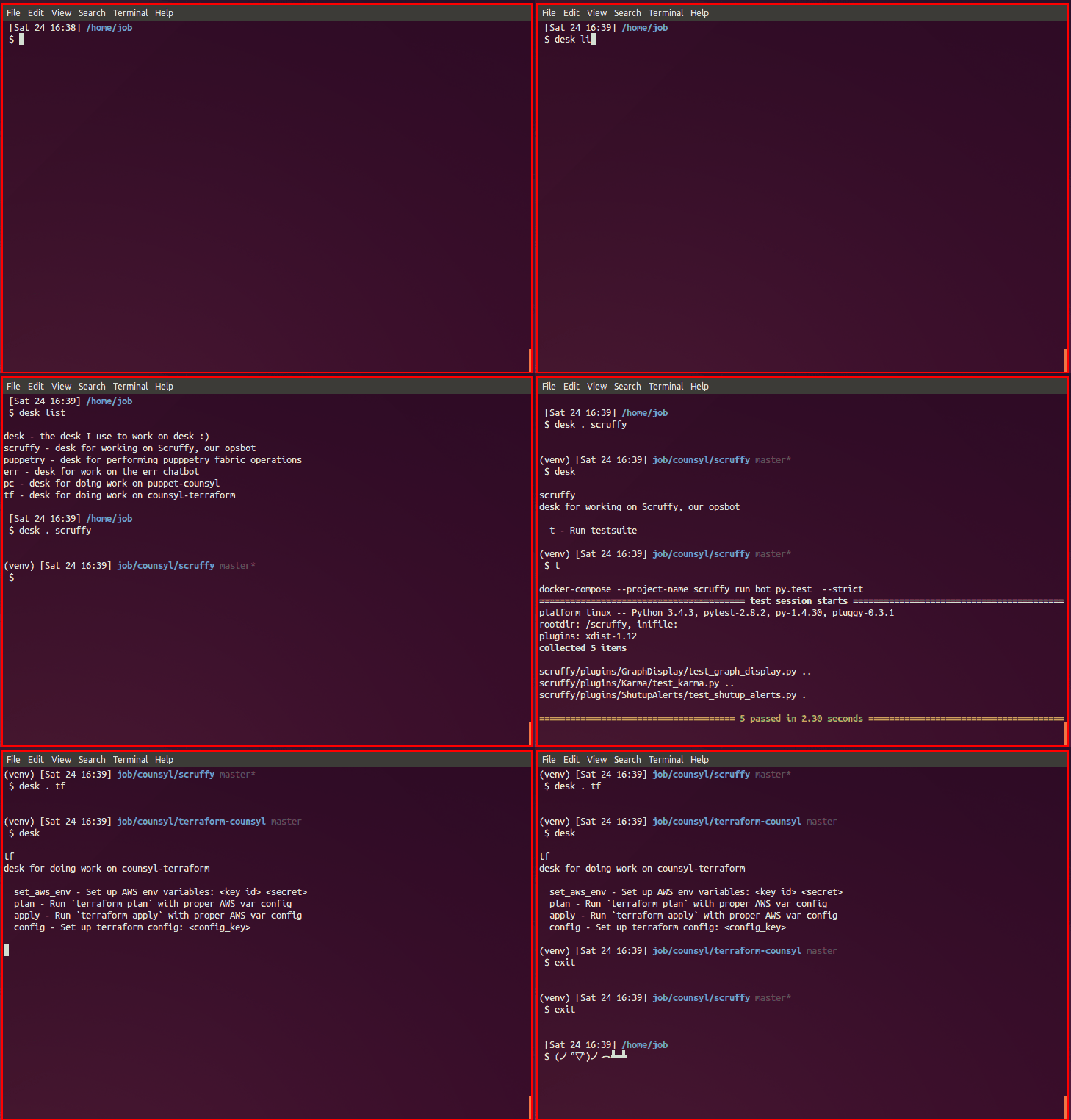 I have a hard time calling this a "workspace manager" with a straight
face -- it's basically just a shell script that sources another shell script in a new shell.
But I often find myself working in multiple different code trees simultaneously:
the quick context switches and namespaced commands that desk facilitates
have proven useful.
There are no dependencies other than `bash`. Desk is explicitly tested with `bash`,
`zsh`, and `fish`.
```sh
◲ desk 0.6.0
Usage:
desk
List the current desk and any associated aliases. If no desk
is being used, display available desks.
desk init
Initialize desk configuration.
desk (list|ls)
List all desks along with a description.
desk (.|go) [ [shell-args...]]
Activate a desk. Extra arguments are passed onto shell. If called with
no arguments, look for a Deskfile in the current directory. If not a
recognized desk, try as a path to directory containing a Deskfile.
desk run
Run a command within a desk's environment then exit. Think '$SHELL -c'.
desk edit [desk-name]
Edit (or create) a deskfile with the name specified, otherwise
edit the active deskfile.
desk help
Show this text.
desk version
Show version information.
Since desk spawns a shell, to deactivate and "pop" out a desk, you
simply need to exit or otherwise end the current shell process.
```
For example, given this deskfile (`~/.desk/desks/tf.sh`):
```sh
# tf.sh
#
# Description: desk for doing work on a terraform-based repository
#
cd ~/terraform-repo
# Set up AWS env variables:
set_aws_env() {
export AWS_ACCESS_KEY_ID="$1"
export AWS_SECRET_ACCESS_KEY="$2"
}
# Run `terraform plan` with proper AWS var config
plan() {
terraform plan -module-depth=-1 \
-var "access_key=${AWS_ACCESS_KEY_ID}" \
-var "secret_key=${AWS_SECRET_ACCESS_KEY}"
}
# Run `terraform apply` with proper AWS var config
alias apply='terraform apply'
```
we'd get
```sh
$ desk . tf
$ desk
tf
desk for doing work on a terraform repo
set_aws_env Set up AWS env variables:
plan Run `terraform plan` with proper AWS var config
apply Run `terraform apply` with proper AWS var config
```
Basically, desk just associates a shell script (`name.sh`) with a name. When
you call `desk . name`, desk drops you into a shell where `name.sh` has been
executed, and then desk extracts out certain comments in `name.sh` for useful
rendering.
### Installing
#### With homebrew
`brew install desk`
#### With curl
Assuming `~/bin` exists and is on the PATH... otherwise, substitute `/usr/local/bin`
and add `sudo` as needed.
0. `curl https://raw.githubusercontent.com/jamesob/desk/master/desk > ~/bin/desk`
0. `chmod +x ~/bin/desk`
#### With git
0. `git clone git@github.com:jamesob/desk.git && cd desk && sudo make install`
After that, run `desk init` and start adding deskfiles with either `desk edit [deskfile name]`
or by manually adding shell scripts into your deskfiles directory (by default `~/.desk/desks/`).
### Enabling shell extensions
**NB**: Shell extensions are automatically enabled if Desk is installed via Homebrew.
#### Using bash
0. Add `source /path/to/desk/repo/shell_plugins/bash/desk` to your `.bashrc`.
#### Using fish
```fish
mkdir -p ~/.config/fish/completions
cp /path/to/desk/repo/shell_plugins/fish/desk.fish ~/.config/fish/completions
```
#### Using zsh
0. Add `fpath=(/path/to/desk/repo/shell_plugins/zsh $fpath)` to your `.zshrc`.
Optionally, use one of the zsh plugin frameworks mentioned below.
#### Using [oh-my-zsh](http://ohmyz.sh/)
0. `make oh-my-zsh` from within this repo. This sets up a symlink.
or
0. `cd ~/.oh-my-zsh/custom/plugins`
0. `git clone git@github.com:jamesob/desk.git /tmp/desk && cp -r /tmp/desk/shell_plugins/zsh desk`
0. Add desk to your plugin list
#### Using [Antigen](https://github.com/zsh-users/antigen)
0. Add `antigen bundle jamesob/desk shell_plugins/zsh` to your `.zshrc`
0. Open a new terminal window. Antigen will clone the desk repo and add it to your path.
#### Using [zgen](https://github.com/tarjoilija/zgen)
0. Add `zgen load jamesob/desk shell_plugins/zsh` to your `.zshrc` with your other load commands
0. `rm ~/.zgen/init.zsh`
0. Start a new shell; zgen will generate a new `init.zsh` and automatically clone the desk repository for you and add it to your path.
### Deskfile rules
Deskfiles are just shell scripts, nothing more, that live in the desk config directory.
Desk does pay attention to certain kinds of comments, though.
- *description*: you can describe a deskfile by including `# Description: ...`
somewhere in the file.
- *alias and function docs*: if the line above an alias or function is a
comment, it will be used as documentation.
### Deskfiles
Deskfiles are just shell scripts at the root of a project directory that
adhere to the conventions above. These can be put into version control to
formalize and ease common development tasks like running tests or doing
local builds.
For example, if we have some directory or repository called `myproject`, if
we create `myproject/Deskfile`, we'll be able to do any of the following:
```sh
$ desk go /path/to/myproject/
$ desk go /path/to/myproject/Deskfile
myproject/ $ desk go .
myproject/ $ desk go
```
### Sharing deskfiles across computers
Of course, the desk config directory (by default `~/.desks`) can be a symlink
so that deskfiles can be stored in some centralized place, like Dropbox,
and so shared across many computers.
### Using a non-default config location
By default, desk configuration lives in `~/.desk` (`$DESK_DIR`) and deskfiles
live in `~/.desk/desks` (`$DESK_DESKS_DIR`). If you want to use some other
location, specify as much in `desk init` and then ensure you set `$DESK_DIR`
and/or `$DESK_DESKS_DIR` to match in your shell's rc file.
### Shortening invocation
Typing `desk .` frequently can get old; personally, I like to alias this with
```sh
alias d.='desk .'
```
in my shell rc file.
### Usage with OS X
Desk won't work when used strictly with `~/.bash_profile` on OS X's terminal, since
the content of `~/.bash_profile` is only executed on *login*, not shell creation, as
explained [here](http://www.joshstaiger.org/archives/2005/07/bash_profile_vs.html).
My recommendation is to use `~/.bashrc` as your general-purpose config file, then simply
have `~/.bash_profile` point to it:
```sh
# ~/.bash_profile
if [ -f ~/.bashrc ]; then
source ~/.bashrc
fi
```
### Related projects
- [godesk](https://github.com/hamin/godesk) by @hamin: a desk launcher with fuzzy filtering
### Tips accepted

BTC: `18ehgMUJBqKc2Eyi6WHiMwHFwA8kobYEhy`
Half of all tips will be donated to [an organization providing aid to Syrian refugees](http://www.moas.eu/).
#### Donations made on behalf of tippers
| date | amount | organization |
| ---- | ------ | ------------ |
| 2015-11-18 | $1.07 | http://moas.eu |
| 2016-11-14 | $21.00 | http://moas.eu |
I have a hard time calling this a "workspace manager" with a straight
face -- it's basically just a shell script that sources another shell script in a new shell.
But I often find myself working in multiple different code trees simultaneously:
the quick context switches and namespaced commands that desk facilitates
have proven useful.
There are no dependencies other than `bash`. Desk is explicitly tested with `bash`,
`zsh`, and `fish`.
```sh
◲ desk 0.6.0
Usage:
desk
List the current desk and any associated aliases. If no desk
is being used, display available desks.
desk init
Initialize desk configuration.
desk (list|ls)
List all desks along with a description.
desk (.|go) [ [shell-args...]]
Activate a desk. Extra arguments are passed onto shell. If called with
no arguments, look for a Deskfile in the current directory. If not a
recognized desk, try as a path to directory containing a Deskfile.
desk run
Run a command within a desk's environment then exit. Think '$SHELL -c'.
desk edit [desk-name]
Edit (or create) a deskfile with the name specified, otherwise
edit the active deskfile.
desk help
Show this text.
desk version
Show version information.
Since desk spawns a shell, to deactivate and "pop" out a desk, you
simply need to exit or otherwise end the current shell process.
```
For example, given this deskfile (`~/.desk/desks/tf.sh`):
```sh
# tf.sh
#
# Description: desk for doing work on a terraform-based repository
#
cd ~/terraform-repo
# Set up AWS env variables:
set_aws_env() {
export AWS_ACCESS_KEY_ID="$1"
export AWS_SECRET_ACCESS_KEY="$2"
}
# Run `terraform plan` with proper AWS var config
plan() {
terraform plan -module-depth=-1 \
-var "access_key=${AWS_ACCESS_KEY_ID}" \
-var "secret_key=${AWS_SECRET_ACCESS_KEY}"
}
# Run `terraform apply` with proper AWS var config
alias apply='terraform apply'
```
we'd get
```sh
$ desk . tf
$ desk
tf
desk for doing work on a terraform repo
set_aws_env Set up AWS env variables:
plan Run `terraform plan` with proper AWS var config
apply Run `terraform apply` with proper AWS var config
```
Basically, desk just associates a shell script (`name.sh`) with a name. When
you call `desk . name`, desk drops you into a shell where `name.sh` has been
executed, and then desk extracts out certain comments in `name.sh` for useful
rendering.
### Installing
#### With homebrew
`brew install desk`
#### With curl
Assuming `~/bin` exists and is on the PATH... otherwise, substitute `/usr/local/bin`
and add `sudo` as needed.
0. `curl https://raw.githubusercontent.com/jamesob/desk/master/desk > ~/bin/desk`
0. `chmod +x ~/bin/desk`
#### With git
0. `git clone git@github.com:jamesob/desk.git && cd desk && sudo make install`
After that, run `desk init` and start adding deskfiles with either `desk edit [deskfile name]`
or by manually adding shell scripts into your deskfiles directory (by default `~/.desk/desks/`).
### Enabling shell extensions
**NB**: Shell extensions are automatically enabled if Desk is installed via Homebrew.
#### Using bash
0. Add `source /path/to/desk/repo/shell_plugins/bash/desk` to your `.bashrc`.
#### Using fish
```fish
mkdir -p ~/.config/fish/completions
cp /path/to/desk/repo/shell_plugins/fish/desk.fish ~/.config/fish/completions
```
#### Using zsh
0. Add `fpath=(/path/to/desk/repo/shell_plugins/zsh $fpath)` to your `.zshrc`.
Optionally, use one of the zsh plugin frameworks mentioned below.
#### Using [oh-my-zsh](http://ohmyz.sh/)
0. `make oh-my-zsh` from within this repo. This sets up a symlink.
or
0. `cd ~/.oh-my-zsh/custom/plugins`
0. `git clone git@github.com:jamesob/desk.git /tmp/desk && cp -r /tmp/desk/shell_plugins/zsh desk`
0. Add desk to your plugin list
#### Using [Antigen](https://github.com/zsh-users/antigen)
0. Add `antigen bundle jamesob/desk shell_plugins/zsh` to your `.zshrc`
0. Open a new terminal window. Antigen will clone the desk repo and add it to your path.
#### Using [zgen](https://github.com/tarjoilija/zgen)
0. Add `zgen load jamesob/desk shell_plugins/zsh` to your `.zshrc` with your other load commands
0. `rm ~/.zgen/init.zsh`
0. Start a new shell; zgen will generate a new `init.zsh` and automatically clone the desk repository for you and add it to your path.
### Deskfile rules
Deskfiles are just shell scripts, nothing more, that live in the desk config directory.
Desk does pay attention to certain kinds of comments, though.
- *description*: you can describe a deskfile by including `# Description: ...`
somewhere in the file.
- *alias and function docs*: if the line above an alias or function is a
comment, it will be used as documentation.
### Deskfiles
Deskfiles are just shell scripts at the root of a project directory that
adhere to the conventions above. These can be put into version control to
formalize and ease common development tasks like running tests or doing
local builds.
For example, if we have some directory or repository called `myproject`, if
we create `myproject/Deskfile`, we'll be able to do any of the following:
```sh
$ desk go /path/to/myproject/
$ desk go /path/to/myproject/Deskfile
myproject/ $ desk go .
myproject/ $ desk go
```
### Sharing deskfiles across computers
Of course, the desk config directory (by default `~/.desks`) can be a symlink
so that deskfiles can be stored in some centralized place, like Dropbox,
and so shared across many computers.
### Using a non-default config location
By default, desk configuration lives in `~/.desk` (`$DESK_DIR`) and deskfiles
live in `~/.desk/desks` (`$DESK_DESKS_DIR`). If you want to use some other
location, specify as much in `desk init` and then ensure you set `$DESK_DIR`
and/or `$DESK_DESKS_DIR` to match in your shell's rc file.
### Shortening invocation
Typing `desk .` frequently can get old; personally, I like to alias this with
```sh
alias d.='desk .'
```
in my shell rc file.
### Usage with OS X
Desk won't work when used strictly with `~/.bash_profile` on OS X's terminal, since
the content of `~/.bash_profile` is only executed on *login*, not shell creation, as
explained [here](http://www.joshstaiger.org/archives/2005/07/bash_profile_vs.html).
My recommendation is to use `~/.bashrc` as your general-purpose config file, then simply
have `~/.bash_profile` point to it:
```sh
# ~/.bash_profile
if [ -f ~/.bashrc ]; then
source ~/.bashrc
fi
```
### Related projects
- [godesk](https://github.com/hamin/godesk) by @hamin: a desk launcher with fuzzy filtering
### Tips accepted

BTC: `18ehgMUJBqKc2Eyi6WHiMwHFwA8kobYEhy`
Half of all tips will be donated to [an organization providing aid to Syrian refugees](http://www.moas.eu/).
#### Donations made on behalf of tippers
| date | amount | organization |
| ---- | ------ | ------------ |
| 2015-11-18 | $1.07 | http://moas.eu |
| 2016-11-14 | $21.00 | http://moas.eu |