# PI WEB
[](https://github.com/jmfederico/pi-web/actions/workflows/ci.yml)
[](https://www.npmjs.com/package/@jmfederico/pi-web)
[](package.json)
[](LICENSE)
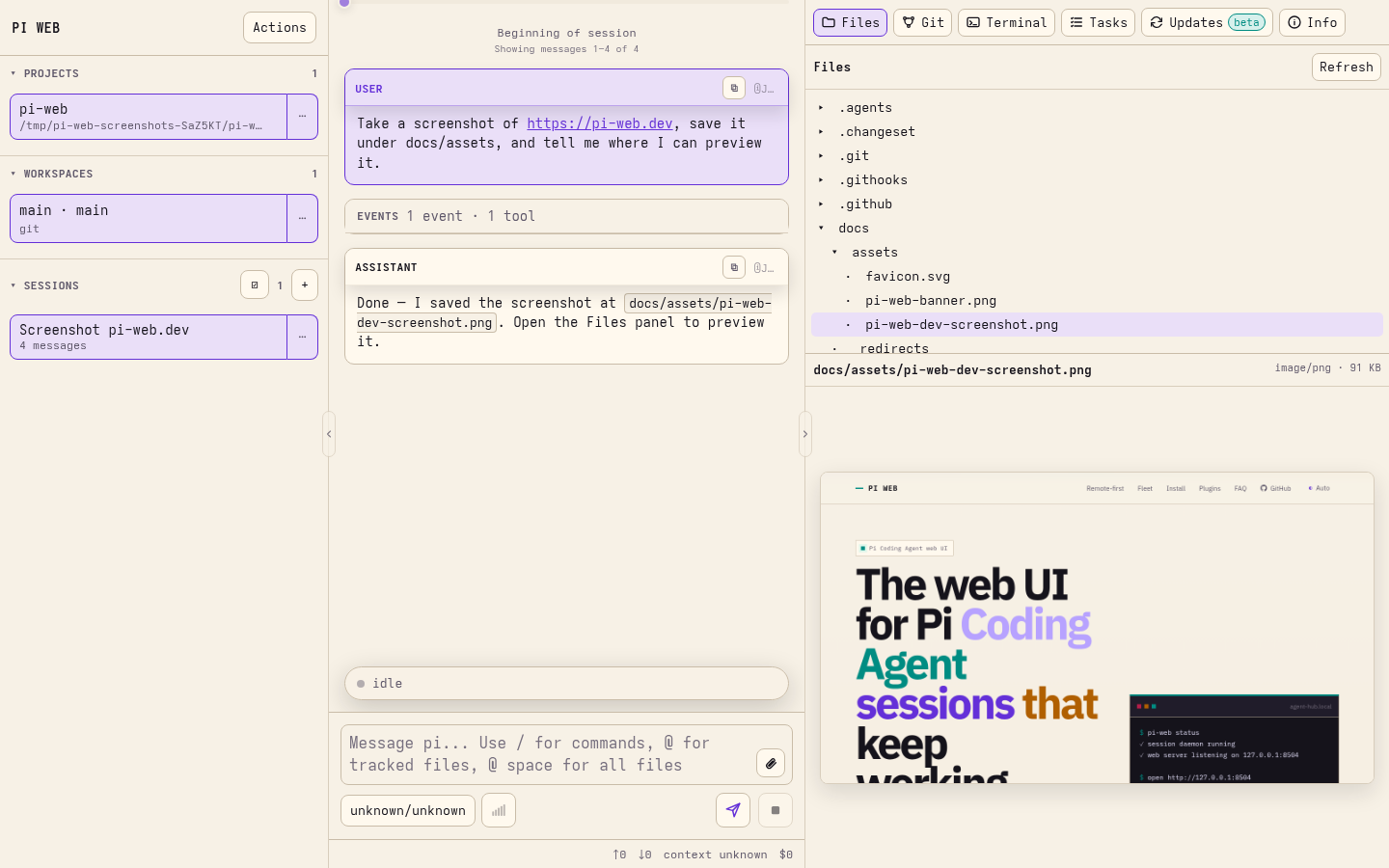
**PI WEB is a web UI for [Pi Coding Agent](https://github.com/earendil-works/pi/tree/main/packages/coding-agent) that keeps agent sessions running in real workspaces on your machine or server.**
Run agents where your code, tools, credentials, and build caches live. Supervise them from any browser.
Website and docs:
## Why PI WEB?
Agentic development works better when the work environment is persistent.
PI WEB lets you:
- keep Pi Coding Agent sessions alive after browser disconnects;
- run agents inside real repositories and git worktrees;
- supervise multiple sessions in parallel;
- switch between laptop, phone, tablet, and desktop;
- use a server, workstation, or remote dev box as your agent runtime;
- manage projects, workspaces, files, terminals, sessions, and remote machines from one web UI.
Your browser is the control surface. The work stays where it can keep running.
## Quick start
Requirements:
- Node.js 22.19.0 or newer
- npm
- Pi Coding Agent `>=0.82.1 <0.83`, configured for your user
- git and the development tools your agents need
Install and start PI WEB as per-user services:
```bash
npm install -g @jmfederico/pi-web --allow-scripts=node-pty
pi-web install
pi-web doctor
```
On npm 12, the scoped flag lets `node-pty` prepare its required native module without enabling install scripts for other dependencies.
Then open:
```text
http://127.0.0.1:8504
```
Useful commands:
```bash
pi-web status
pi-web logs
pi-web restart
pi-web doctor
pi-web version
pi-web uninstall
```
For more install options, including one-line install, Pi package install, WSL/manual usage, and remote access, see the [installation guide](https://pi-web.dev/install).
## Core model
PI WEB organizes work like this:
```text
Machine a local or remote PI WEB runtime endpoint
Project a folder on that machine
Workspace a git worktree, or the project folder for non-git projects
Session a Pi Coding Agent chat running inside a workspace
```
A typical flow:
1. Add a project.
2. Choose a workspace or git worktree.
3. Start a session.
4. Let the agent work.
5. Come back later from any browser.
## Remote-first development
PI WEB is designed for remote AI-driven development.
Instead of tying agent work to your laptop session, run PI WEB on a machine that stays available: a server, desktop, cloud VM, home lab machine, or remote dev box.
Use a private network, SSH tunnel, trusted reverse proxy, or federated PI WEB machine setup when accessing it remotely.
Read more: [Remote-first development](https://pi-web.dev/remote-first)
## Machines and fleets
PI WEB can register other PI WEB runtimes as remote machines. One browser-facing PI WEB instance can proxy projects, files, git state, sessions, terminals, activity, Pi package management, and selected-machine settings from trusted remote machines.
When a remote machine is selected, Settings tabs label their target. Pi packages, PI WEB plugin enablement, session daemon toggles, external file access, and upload defaults target the selected machine. Gateway/server settings such as host, port, allowed hosts, registered machines/tokens, and keyboard shortcuts stay local to the gateway/browser.
Read more: [Fleet and machines guide](https://pi-web.dev/machines)
## PI WEB plugins
PI WEB supports trusted browser-side plugins that can add actions, workspace panels, and workspace metadata. Use **Settings → PI WEB plugins** to enable or disable them on the selected machine.
Pi packages are a separate Pi package-manager concept. A Pi package may include a PI WEB browser plugin, but installing a package and enabling its browser plugin are different operations.
Read more: [PI WEB plugin guide and API](https://pi-web.dev/plugins)
## Configuration
Global config lives at:
```text
$PI_WEB_CONFIG
~/.config/pi-web/config.json
```
Project-local PI WEB config lives at:
```text
/.pi-web/config.json
```
Common configuration includes host/port, path access, uploads, PI WEB plugin enablement, shortcuts, and session daemon options. In Settings, machine-affecting config targets the selected machine; gateway host/port/allowed-hosts, remote machine registration, tokens, and keyboard shortcuts stay local.
Read more: [Configuration reference](https://pi-web.dev/config)
## Development
Clone the repository and run:
```bash
npm install
npm run dev
```
Open the Vite URL, usually:
```text
http://localhost:8505
```
For the split development setup:
```bash
npm run dev:sessiond
npm run dev:web
npm run dev:client
```
Validate changes with:
```bash
npm run verify
```
## Security model
PI WEB assumes trusted users, trusted repositories, and trusted server paths.
It is not a sandbox, permission system, or multi-tenant platform. Do not expose it directly to the public internet without a trusted network, firewall, VPN, SSH tunnel, or authenticated reverse proxy.
## Documentation
- [Website](https://pi-web.dev/)
- [Install](https://pi-web.dev/install)
- [Remote-first development](https://pi-web.dev/remote-first)
- [Machines / fleet](https://pi-web.dev/machines)
- [Configuration](https://pi-web.dev/config)
- [Plugins](https://pi-web.dev/plugins)
- [FAQ](https://pi-web.dev/faq)
## License
MIT © 2026 Federico Jaramillo Martinez. See [LICENSE](LICENSE).