







English | Dansk | Deutsch | Español | Français | Italiano | Nederlands | Português | Suomi | Svenska | Русский | Українська | 简体中文 | Contribute a translation
A terminal-based Signal messenger client with an IRC aesthetic. Wraps [signal-cli](https://github.com/AsamK/signal-cli) via JSON-RPC for the messaging backend. 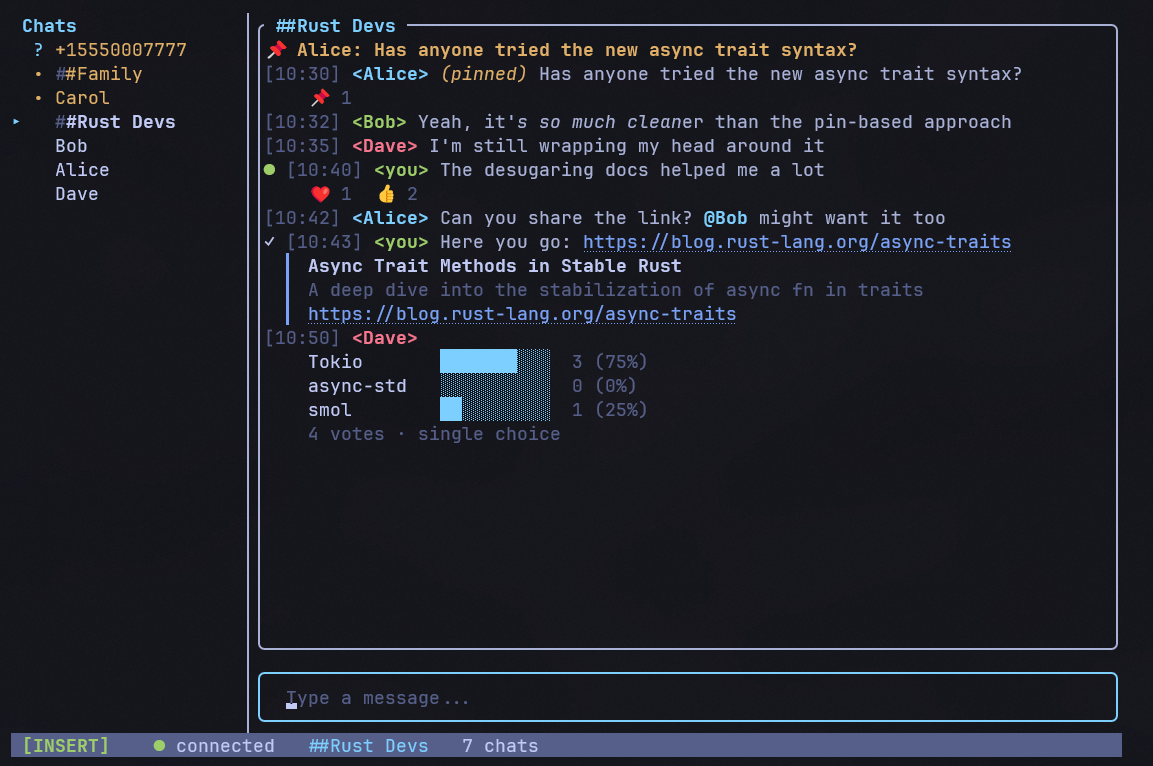 ## Install ### Homebrew (macOS) ```sh brew tap johnsideserf/siggy brew install siggy ``` ### Pre-built binaries Download the latest release for your platform from [Releases](https://github.com/johnsideserf/siggy/releases). **Linux / macOS** (one-liner): ```sh curl -fsSL https://raw.githubusercontent.com/johnsideserf/siggy/master/install.sh | bash ``` **Windows** (PowerShell): ```powershell irm https://raw.githubusercontent.com/johnsideserf/siggy/master/install.ps1 | iex ``` Both scripts download the latest release binary and check for signal-cli. ### From crates.io Requires Rust 1.70+. ```sh cargo install siggy ``` ### Build from source Or clone and build locally: ```sh git clone https://github.com/johnsideserf/siggy.git cd siggy cargo build --release # Binary is at target/release/siggy ``` ## Prerequisites - [signal-cli](https://github.com/AsamK/signal-cli) installed and accessible on PATH (or configured via `signal_cli_path`) - A Signal account linked as a secondary device (the setup wizard handles this) ## Usage ```sh siggy # Launch (uses config file) siggy -a +15551234567 # Specify account siggy -c /path/to/config.toml # Custom config path siggy --setup # Re-run first-time setup wizard siggy --demo # Launch with dummy data (no signal-cli needed) siggy --incognito # No local message storage (in-memory only) ``` On first launch, the setup wizard guides you through locating signal-cli, entering your phone number, and linking your device via QR code. ## Configuration Config is loaded from: - **Linux/macOS:** `~/.config/siggy/config.toml` - **Windows:** `%APPDATA%\siggy\config.toml` ```toml account = "+15551234567" signal_cli_path = "signal-cli" download_dir = "/home/user/signal-downloads" notify_direct = true notify_group = true desktop_notifications = false inline_images = true mouse_enabled = true send_read_receipts = true theme = "Omarchy" ``` All fields are optional. `signal_cli_path` defaults to `"signal-cli"` (found via PATH), and `download_dir` defaults to `~/signal-downloads/`. On Windows, use the full path to `signal-cli.bat` if it isn't in your PATH. ### Inline images inside tmux Outside tmux, siggy auto-detects Kitty / iTerm2 / WezTerm / Ghostty and renders attachments as native pixel images. Inside tmux, two things have to be set up because tmux hides the outer terminal from siggy: 1. Tell tmux to forward unknown escape sequences. Requires tmux 3.3+: ``` set -g allow-passthrough on ``` Older tmux uses `set -g allow-passthrough all`. 2. Tell siggy which protocol the outer terminal speaks (auto-detection sees only tmux): ```sh SIGGY_IMAGE_PROTOCOL=kitty siggy # or iterm2 / sixel / halfblock ``` If `SIGGY_IMAGE_PROTOCOL` is unset, the existing auto-detection runs (correct outside tmux, falls back to halfblock inside it). Sixel passes through tmux 3.4+ natively and does not need the env var. For larger Sixel previews, keep `image_mode = "native"` and raise the terminal-cell limits in `config.toml`: ```toml image_max_width = 80 image_max_height = 45 sixel_max_colors = 256 sixel_diffusion = 0.875 ``` ## Theming Open the theme picker with `/theme` (alias `/t`) or from `/settings` > Theme. Drop a custom `*.toml` theme file into your themes directory (`~/.config/siggy/themes/` on Linux/macOS, `%APPDATA%\siggy\themes\` on Windows) and it appears in the picker; see [`themes/custom-theme-template.toml`](themes/custom-theme-template.toml) for a fully-commented starting point. ### Omarchy On [Omarchy](https://omarchy.org), siggy follows your desktop theme out of the box -- a fresh install picks up whatever theme you are running, and switching themes with `omarchy theme set` retints siggy within about 10 seconds without a restart. Pick any other theme from `/theme` to pin it instead. This is why a fresh `config.toml` carries `theme = "Omarchy"`: it does not name a fixed color scheme, it means "follow the desktop theme." On a machine without Omarchy installed, the same setting just falls back to siggy's built-in Default theme, so the value is harmless (if not very interesting) there too. For instant retinting rather than within-10-seconds, optionally install the theme-set hook: ```sh printf '#!/bin/bash\npkill -USR1 siggy\n' > ~/.config/omarchy/hooks/theme-set.d/siggy chmod +x ~/.config/omarchy/hooks/theme-set.d/siggy ``` This is entirely optional -- siggy never writes into `~/.config/omarchy/` itself, and the 10-second background poll keeps things in sync without it. Theme authors can override siggy's derived colors by shipping a `siggy.toml` (in siggy's own theme format) alongside `colors.toml` in the theme directory. ## Features - **Messaging** -- Send and receive 1:1 and group messages - **Attachments** -- Image previews rendered inline as halfblock art; non-image attachments shown as `[attachment: filename]` - **Clickable links** -- URLs and file paths are OSC 8 hyperlinks (clickable in terminals like Windows Terminal, iTerm2, etc.) - **Typing indicators** -- Shows who is typing with contact name resolution - **Message sync** -- Messages sent from your phone appear in the TUI - **Persistence** -- SQLite message storage with WAL mode; conversations and read markers survive restarts - **Unread tracking** -- Unread counts in sidebar with "new messages" separator in chat - **Notifications** -- Terminal bell on new messages (configurable per direct/group, per-chat mute) and OS-level desktop notifications - **Contact resolution** -- Names from your Signal address book; groups auto-populated on startup - **Message reactions** -- React with `r` in Normal mode; emoji picker with badge display (`👍 2 ❤️ 1`) - **Reply / quote** -- Press `q` on a focused message to reply with quoted context - **Edit messages** -- Press `e` to edit your own sent messages - **Delete messages** -- Press `d` to delete locally or remotely (for your own messages) - **Delete conversations** -- Use `/delete` to remove the current conversation locally (declines pending message requests) - **Message search** -- `/search