# B-MoCA
## B-MoCA: Benchmarking Mobile Device Control Agents across Diverse Configurations
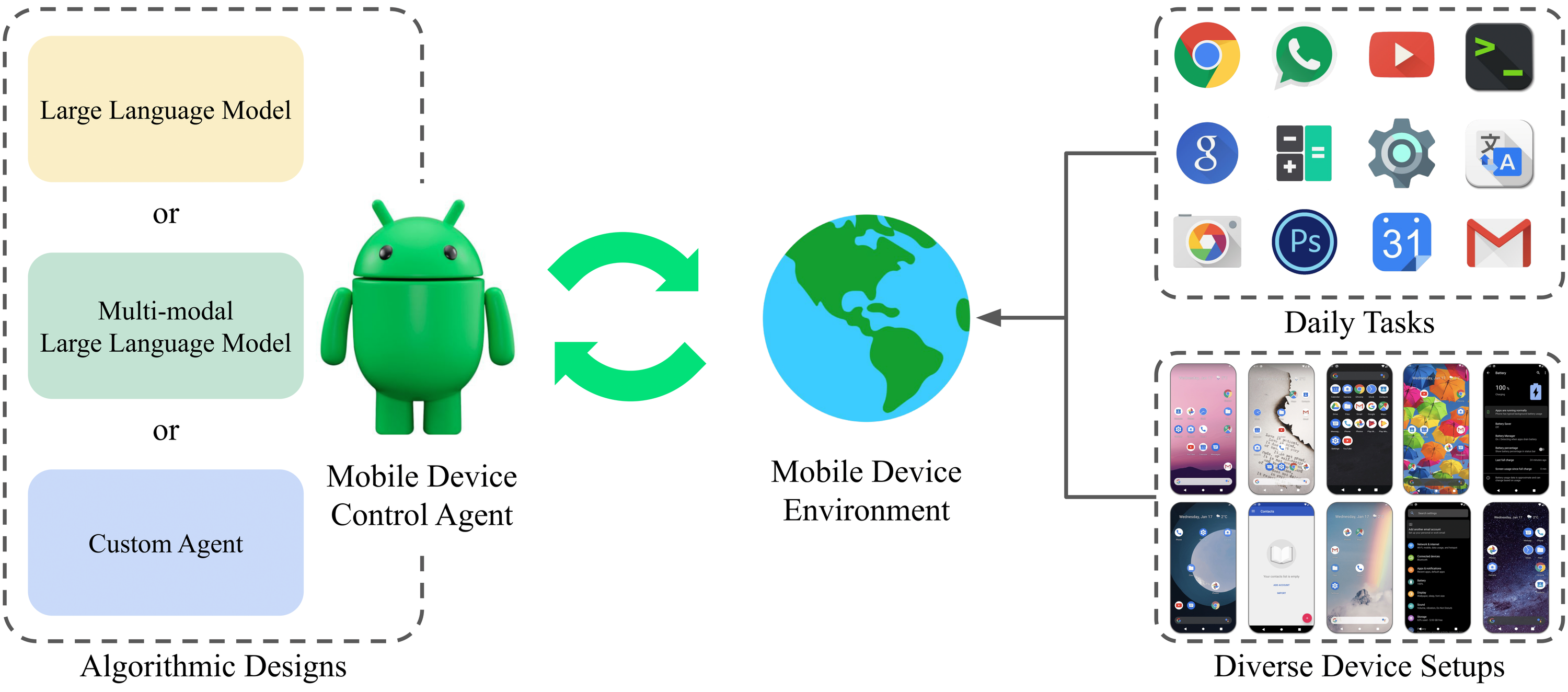
B-MoCA can serve as a testbed for mobile device control agents across diverse configurations
## Setting
Setting B-MoCA requires installing several tools.
These tools include Python libraries, Android Studio (with Android Debug Bridge), and Appium.
Each B-MoCA environment corresponds to an image of an Android virtual device.
The following guidelines describe installing B-MoCA environments for reproducing our experiments.
To create custom environments, we note that the users can easily modify files in ```asset/environments/config``` and ```asset/environments/resource```.
**Note**
This guideline is confirmed for the x86-64 architecture.
### Python environments
```
conda create -n bmoca python=3.10
echo "export BMOCA_HOME=/path/to/current/directory" >> ~/.bashrc
source ~/.bashrc
conda activate bmoca
```
```
mkdir lib
cd lib
# install android_env
git clone https://github.com/gimme1dollar/android_env # forked version of android_env
cd android_env
pip install -e .
cd ..
# install auto_ui
git clone https://github.com/gimme1dollar/auto_ui
cd auto_ui
pip install -r requirements.txt
# download Auto-UI-Base.zip from https://huggingface.co/cooelf/Auto-UI/tree/main/ and unzip the file into "asset/agent/Auto-UI-Base"
cd ..
cd $BMOCA_HOME
# others
pip install -r requirements.txt
```
```
pip install -e . # install bmoca
```
### Android emulators (Android Studio)
```
# Install Open SDK
sudo apt update
sudo apt-get install adb
sudo add-apt-repository ppa:linuxuprising/java
sudo apt-get install openjdk-17-jdk
sudo update-alternatives --config java
# set to /usr/lib/jvm/java-17-openjdk-amd64/bin/java
java -version
# Install SDK manager
# you can find this file at https://developer.android.com/studio/index.html#downloads
sudo wget --no-check-certificate https://dl.google.com/android/repository/commandlinetools-linux-10406996_latest.zip
export ANDROID_SDK_ROOT=$HOME/.local/share/android/sdk
mkdir -p $ANDROID_SDK_ROOT/cmdline-tools
sudo apt install unzip -y
unzip commandlinetools-linux-10406996_latest.zip -d $ANDROID_SDK_ROOT/cmdline-tools
mv $ANDROID_SDK_ROOT/cmdline-tools/cmdline-tools $ANDROID_SDK_ROOT/cmdline-tools/latest
echo "export PATH=$PATH:$ANDROID_SDK_ROOT/cmdline-tools/latest/bin:$ANDROID_SDK_ROOT/cmdline-tools/tools/bin" >> ~/.bashrc
source ~/.bashrc
# Check sdkmanager version
sdkmanager --version
echo "DOWNLOAD ANDROID SDK DONE!"
# Configure sdkmanager
sdkmanager --licenses
sdkmanager --update --verbose
# Install Android Image version 29
sdkmanager "emulator"
sdkmanager "platform-tools"
sdkmanager "platforms;android-29"
sdkmanager "system-images;android-29;google_apis;x86_64"
# Check emulator version
echo "export PATH=$PATH:~/.local/share/android/sdk/emulator" >> ~/.bashrc
source ~/.bashrc
emulator -version
```
B-MoCA is based on the Android operating system.
Installing Android Studio is required to run each device environment in B-MoCA, as our APIs interact with Android emulators.
### Appium
```
# Install NVM
wget -O install_nvm.sh https://raw.githubusercontent.com/nvm-sh/nvm/v0.35.2/install.sh
bash install_nvm.sh
rm -rf install_nvm.sh
nvm install v18.12.1
# Version check
node -v # v18.12.1
npm -v # 8.19.2
# Install appium
npm install -g appium # ver. 2.5.4 recommended
npm install wd
npm install -g appium-doctor
appium driver install uiautomator2
# Set environment variable and check appium driver
echo "export JAVA_HOME=/usr/lib/jvm/java-17-openjdk-amd64" >> ~/.bashrc
source ~/.bashrc
appium driver list --installed # uiautomator2
appium -v # 2.x.x
```
The task success detector uses a combination of tools, including Appium.
Installing Appium is required to evaluate several tasks effectively, ensuring automated interactions and UI element verifications.
### APK download
B-MoCA extends tasks with third-party apps, requiring the installation of those apps.
The third-party applications can be installed either via the app store in the emulator (manually) or using Android Debug Bridge (ADB) commands with downloaded APKs.
We provide an automated process for installing the third-party apps (refer to ```apk_install in asset/environments/set_up.py```) with downloaded APKs.
Downloading and installing additional APK files for the third-party applications are required, to reproduce environments in our experiments.
For dowmloading the APK files we use, we refer to APKMirror (link), a popular third-party app store.
Please download the APK files with the specific versions described in ```asset/environments/resource/apk_versions.txt```.
Then, place the downloaded APK files in a new directory named ```asset/environments/resource/apks``` before installing B-MoCA environments.
Make sure that the name of APK files does not include any parentheses (i.e., '(' or ')') for error-free installation.
**Note**
Several tasks we create require a login process (e.g., Instagram, Google Calendar, etc.).
We also provide an automated process for logging in (refer to login_app in asset/environments/set_up.py).
For logging in, fill in ```asset/environments/config/account_info.json``` with account information.
When logging in, using the personal account might cause a leak of privacy information.
Hence, we recommend creating dummy accounts and have commented out the login process in ```asset/environments/set_up.py```.
We note that this logging-in process is not mandatory for reproducing our environments and experiments.
### B-MoCA environments
Each randomized environment in B-MoCA is defined as a snapshot of an AVD.
The script ```install.sh``` installs AVDs and saves snapshots by manipulating the icon size/location, wallpaper, and theme.
```
mkdir logs
bash install.sh
```
**Note**
This installation for the set of environments takes approximately an hour
After the installation, the screenshot of each environment is stored in ```logs/environment```.
Each name of emulator (i.e., virtual device) is "{device_name}\_{train/test}\_{id}".
Each name of environment (i.e., snapshot) is "(mode)_env\_{snapshot_id}" (mode: either train or test)
During the experiments, our API (i.e., ```b_moca/environment/environment.py```) loads one of the snapshots randomly for training or evaluation.
Users can also configure own environments by modifying files in ```asset/environments```
For the Tablet device (env 109), you may check the sanity of transitions (regarding the action parsing), by using ```asset/environments/env_109.ipynb```
## Experiments
### LLM Agent
#### Demo Collection (optional)
```
python demonstration/human_demo_text_action.py
```
#### Evaluation
```
python experiments/agent/closed_source/gemini1.5/evaluate.py --num_few_shot 0 # zero-shot
```
```
python experiments/agent/closed_source/gpt4o/evaluate.py --num_few_shot 0 # zero-shot
```
### MLLM Agent
#### Demo Collection (optional)
```
python demonstration/human_demo_text_action.py
```
#### Evaluation
```
python experiments/agent/closed_source/gemini1.5/evaluate.py --multi_modal --num_few_shot 0 #zero-shot
```
```
python experiments/agent/closed_source/gpt4o/evaluate.py --multi_modal --num_few_shot 0 # zero-shot
```
### Custom Agent (Llama-3)
#### Demo Collection
```
python demonstration/human_demo_text_action.py
```
#### Training
```
python experiments/agent/custom/llama3/train.py
```
#### Evaluation
```
python experiments/agent/custom/llama3/evaluate.py --lora_path="path_to_checkpoint"
```
### Custom Agent (VLM Encoder)
**Note**
Make sure to download Auto-UI-Base.zip from https://huggingface.co/cooelf/Auto-UI/tree/main/ and unzip the file into "asset/agent/Auto-UI-Base" before using custom agents.
The custom agents utilize the pretrained Auto-UI model as text encoders.
#### Demo Collection
```
python demonstration/human_demo_dual_gesture.py
```
#### Training
```
python experiments/agent/custom/vlm_encoder/train.py
```
#### Evaluation
```
python experiments/agent/custom/vlm_encoder/evaluate.py --model_path="path_to_checkpoint"
```
## Reference
Some codes are referred from the related work below:
- AndroidEnv (link)
- AppAgent (link)