# CGLayout
# [DEPRECATED] Replaced with new implementation - [LayoutUI](https://github.com/k-o-d-e-n/LayoutUI)
[](http://cocoapods.org/pods/CGLayout)
[](http://cocoapods.org/pods/CGLayout)
[](http://cocoapods.org/pods/CGLayout)
Powerful autolayout framework, that can manage UIView(NSView), CALayer and not rendered views. Has cross-hierarchy coordinate space. Implementation performed on rect-based constraints.
Fast, asynchronous, declarative, cacheable, extensible. Supported iOS, macOS, tvOS, Linux.
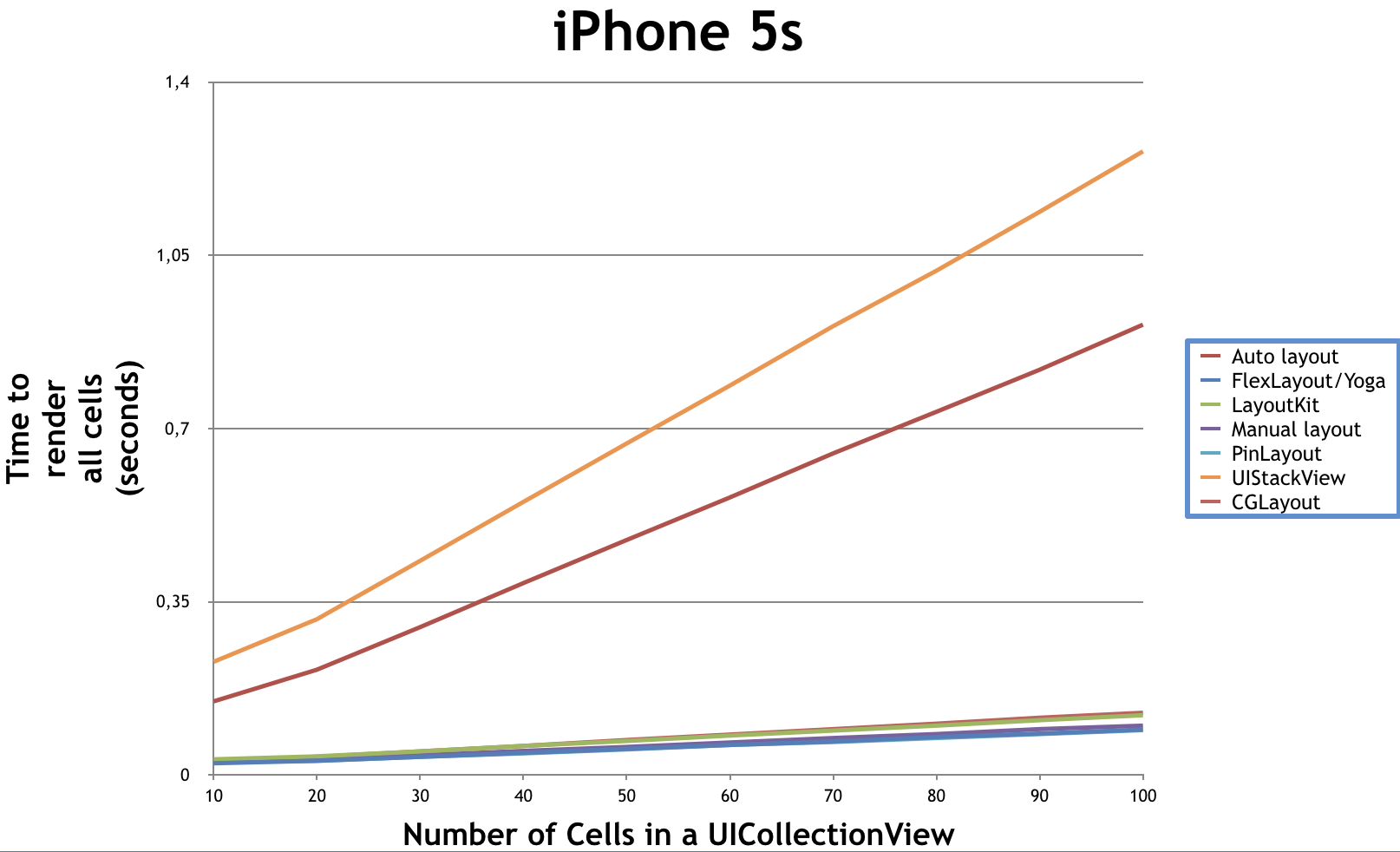
Performed by [LayoutBenchmarkFramework](https://github.com/lucdion/LayoutFrameworkBenchmark)
## Quick tutorial
Layout with `CGLayout` built using layout-blocks. To combine blocks into single unit use `LayoutScheme` entity (or other entities that has suffix `Scheme`).
```swift
let subviewsScheme = LayoutScheme(blocks: [
// ... layout blocks
])
```
To define block for "view" element use `LayoutBlock` entity, or just use convenience getter methods `func layoutBlock(with:constraints:)`.
```swift
titleLabel.layoutBlock(
with: Layout(x: .center(), y: .top(5), width: .scaled(1), height: .fixed(120)),
constraints: [
logoImageView.layoutConstraint(for: [.bottom(.limit(on: .inner))])
]
)
/// or using anchors
titleLabel.layoutBlock(
with: Layout(x: .center(), y: .top(5), width: .scaled(1), height: .fixed(120)),
constraints: { anchors in
anchors.top.equal(to: logoImageView.layoutAnchors.bottom)
}
)
```
For understanding how need to built layout block, let's see layout process in `LayoutBlock`.
For example we have this configuration:
```swift
LayoutBlock(
with: layoutElement,
layout: Layout(x: .left(10), y: .top(10), width: .boxed(10), height: .boxed(10)),
constraints: [
element1.layoutConstraint(for: [
.bottom(.limit(on: .outer)), .right(.limit(on: .inner))
]),
element2.layoutConstraint(for: [
.right(.limit(on: .outer)), .bottom(.limit(on: .inner))
])
]
)
```
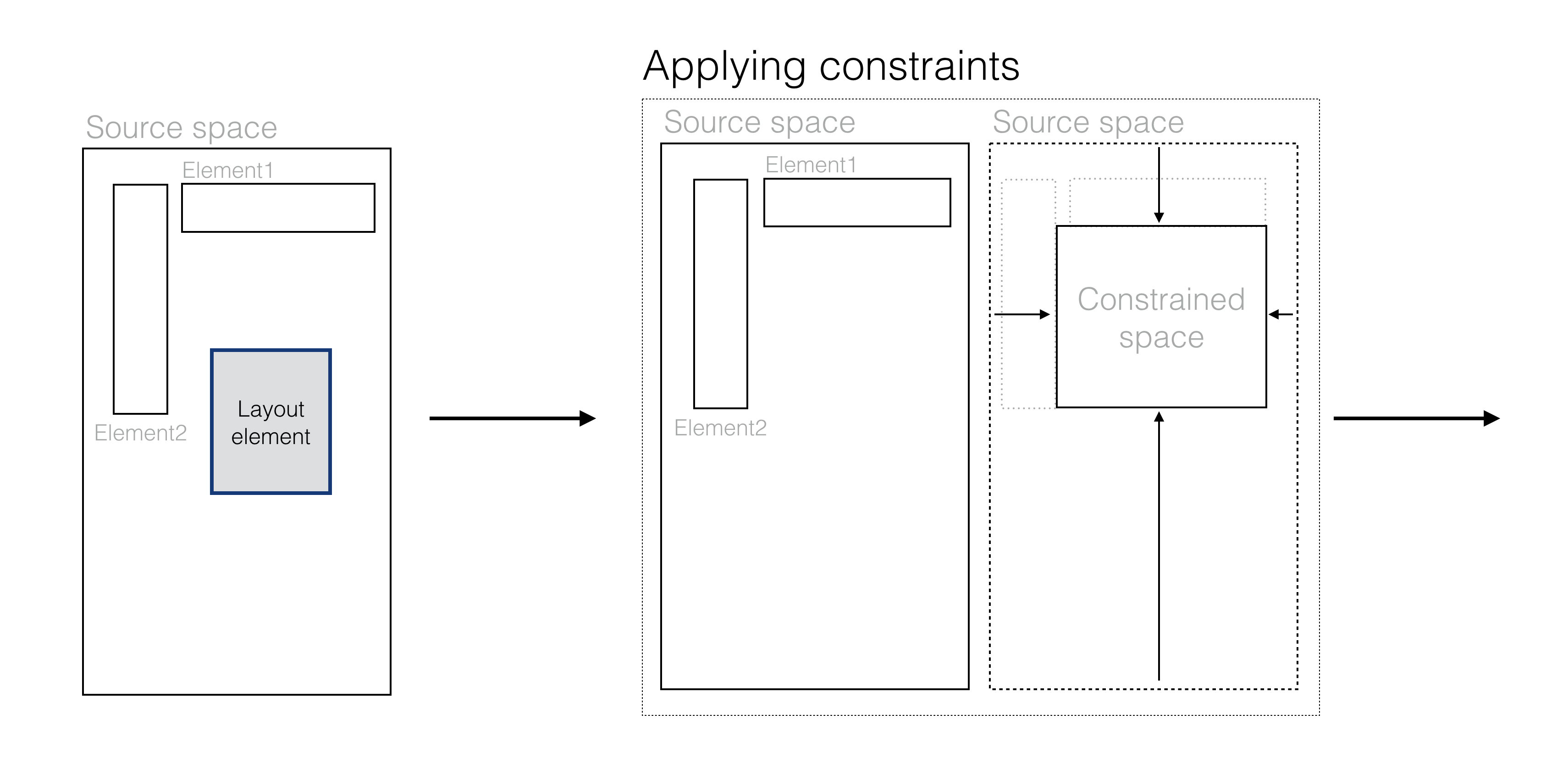
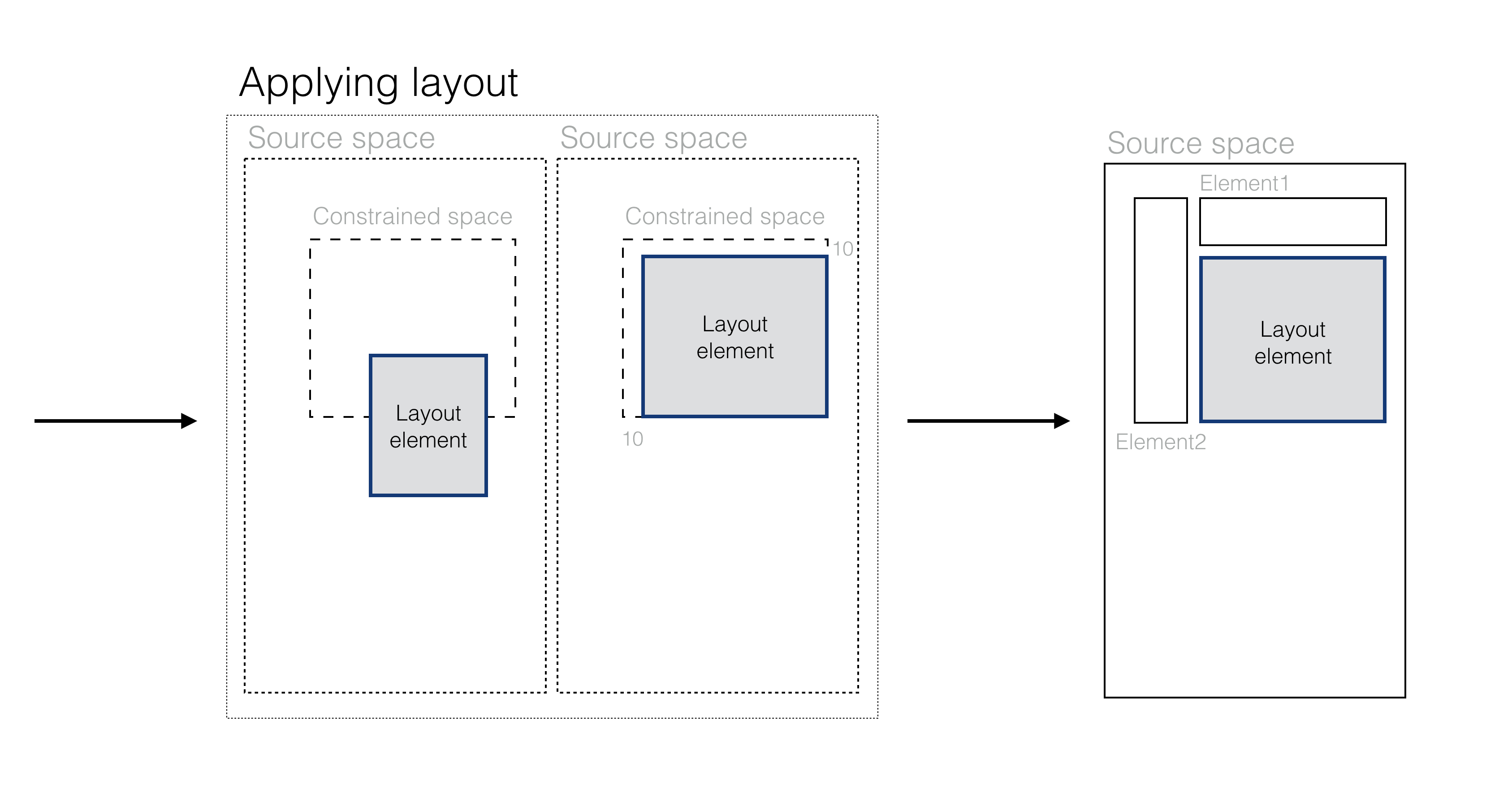
You have to carefully approach the creation of blocks, because anchors and based on them constraints not have priority and is applying sequentially.
Constraints should operate actual frames, therefore next layout block must have constraints with "views", that will not change frame.
Layout anchors are limiters, that is oriented on frame properties (such as sides, size, position).
Any side-based anchors have three base implementations: alignment, limitation(cropping), pulling. Each this implementation have dependency on working space: inner and outer.
Size-based anchors are represented by two implementations: size, insets.
All layout anchors you can find in `enum LayoutAnchor`.
To create associated layout constraints use `protocol LayoutConstraintProtocol`.
Framework provides such default implementations:
- `LayoutConstraint`: simple associated constraint that uses `var frame` of passed element to constrain source rect. Use him to build dependency on external workspace.
- `AdjustLayoutConstraint`: associated constraint to adjust size of source space. Only elements conform to `protocol AdjustableLayoutElement` can use it.
- `ContentLayoutConstraint`: associated constraint that uses internal bounds to constrain, defined in 'layoutBounds' property of `protocol LayoutElement`. Use it if you need to create dependency on internal workspace. For example, element inside `UIScrollView`.
- `AnonymConstraint`: constraint to restrict source space independently from external environment.
- `MutableLayoutConstraint`: Layout constraint that creates possibility to change active state.
You can find all this constraints through convenience functions in related elements. Use him to build layout blocks.
In common case, adjust constraints should be apply after any other constraints (but not always).
```swift
weatherLabel.layoutBlock(
with: Layout(x: .left(10), y: .top(), width: .scaled(1), height: .scaled(1)),
constraints: [
weatherImageView.layoutConstraint(for: [.top(.limit(.inner)), .right(.limit(.outer)), .height()]),
weatherLabel.adjustLayoutConstraint(for: [.width()])
]
)
```
```swift
AnonymConstraint(anchors: [
Inset(UIEdgeInsets(top: 0, left: 10, bottom: 0, right: 15))
])
```
For implementing custom layout entities and save strong typed code, use `static func build(_ base: Conformed) -> Self` method.
Each layout-block has methods for layout, take snapshot and applying snapshot.
Consequently you may use layout-blocks for direct layout, background layout and cached layout:
```swift
// layout directly
layoutScheme.layout()
// layout in background
let bounds = view.bounds
DispatchQueue.global(qos: .background).async {
let snapshot = self.layoutScheme.snapshot(for: bounds)
DispatchQueue.main.sync {
self.layoutScheme.apply(snapshot: snapshot)
}
}
// cached layout
if UIDevice.current.orientation.isPortrait, let snapshot = portraitSnapshot {
layoutScheme.apply(snapshot: snapshot)
} else if UIDevice.current.orientation.isLandscape, let snapshot = landscapeSnapshot {
layoutScheme.apply(snapshot: snapshot)
} else {
layoutScheme.layout()
}
```
Typical implementation `sizeThatFits(_:)` method
```swift
func sizeThatFits(_ size: CGSize) -> CGSize {
let sourceRect = CGRect(origin: .zero, size: size)
let snapshot = scheme.snapshot(for: sourceRect)
return snapshot.frame
}
```
### LayoutGuide
Framework provides `LayoutGuide` as analogue `UILayoutGuide`. It has possible to generate views and add them to hierarchy.
`LayoutGuide` can used as invisible limiter and also as layout container.
Default layout containers:
- `StackLayoutGuide` - simple implementation of stack.
- `ScrollLayoutGuide` - has similar interface with `UIScrollView`. By use him we can enable scrolling absolutely everywhere.
- `LayoutPlaceholder` - single element container that can load view lazily. Has default implementations for `CALayer` - `LayerPlaceholder` and `UIView` - `ViewPlaceholder`.
- `UIViewPlaceholder` - single element container based on `UILayoutGuide`.
`UILayouGuide` also adopts `LayoutElement` protocol. Therefore you can safely build constraints based on `UIView.safeAreaLayoutGuide` and others.
### RTL
To enable Righ-to-Left mode use global configuration:
```swift
CGLConfiguration.default.isRTLMode = true
```
For more details, see documentation and example project.
## Code documentation
See [here](https://k-o-d-e-n.github.io/CGLayout/)
## Example
### macOS, iOS, tvOS
To run the example project, clone the repo, and run `pod install` from the Example directory first.
### Linux
To run the example project, clone the repo, and run `swift run` from the `linux_example` directory first.
## Requirements
Swift 5
## Installation
CGLayout is available through [CocoaPods](http://cocoapods.org). To install
it, simply add the following line to your Podfile:
```ruby
pod "CGLayout"
```
## Contributing
I will be happy your feedback, advices and pull requests. For more information read [here](https://github.com/k-o-d-e-n/CGLayout/blob/master/CONTRIBUTING.md)
## Author
Denis Koryttsev
Email: koden.u8800@gmail.com
Twitter: https://twitter.com/K_o_D_e_N
## License
CGLayout is available under the MIT license. See the LICENSE file for more info.