# CodeContinue - AI Code Completion for Sublime Text
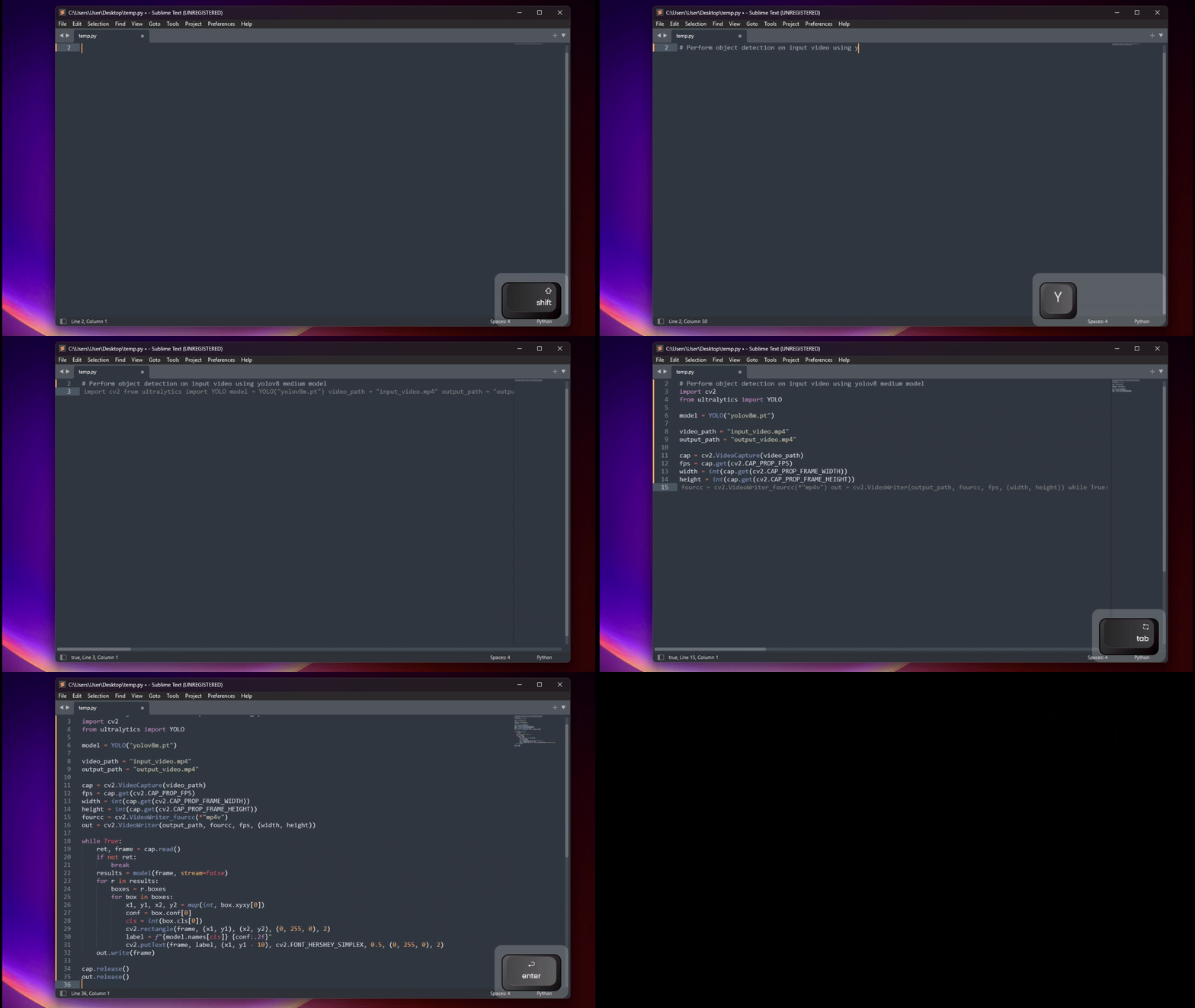
An LLM-powered Sublime Text plugin that provides intelligent inline code completion suggestions using OpenAI-compatible APIs. Check out [CodeContinue blog post here](https://www.orbital.net.in/blog/codecontinue-llm-powered-sublime-text-autocomplete).
## Features
- Fast inline code completion powered by your choice of LLM
- Simple keyboard shortcuts: Just `Enter` to suggest, `Tab` to accept (⚠️ Note: Keybindings are not enabled by default)
- Context-aware suggestions based on surrounding code
- Configurable for multiple languages (Python, C++, JavaScript, etc.)
- Works with any OpenAI-compatible API endpoint
## Installation
### Option 1: Install via Package Control (coming soon)
We provide cross-platform installers for Windows, macOS, and Linux.
1. Install package control
- Open command pallete via `Ctrl + Shift + P` or `Cmd + Shift + P` on Mac
- Type "Install Package Control"
- Select the context menue
2. Install the Package
- Open command pallete and search for codeContinue
- Press Enter to install
3. Configure codeContinue
- After installing codeContinue, a setup wizard appears automatically
- Enter API end point and model name. Check [Configuration](https://github.com/kXborg/codeContinue/tree/main?tab=readme-ov-file#configuration) for details.
### Option 2: Manual Install (For Developers)
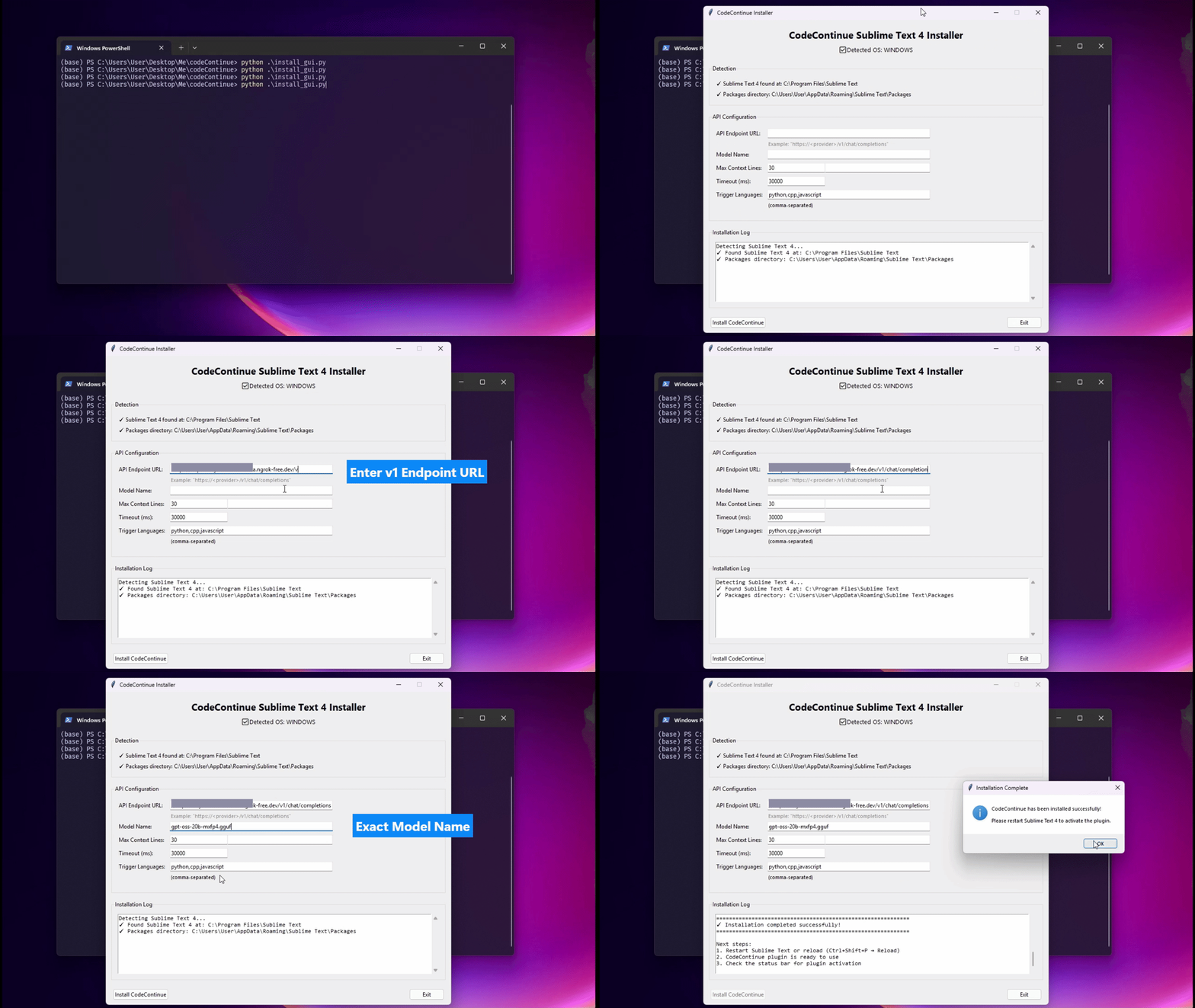
If you prefer manual setup, clone the repo and just use either of the CLI based method or GUI method.
1. **Python CLI Installer**
```bash
python install.py
```
Interactive command-line installer. Detects Sublime Text automatically, walks you through configuration.
2. **GUI Installer**
```bash
python install_gui.py
```
Graphical installer with Tkinter. Pre-loads existing settings, configurable interface.
## Configuration
Click to expand configuration options
Settings are saved automatically. Reconfigure Anytime with `Ctrl+Shift+P`. Following are configuration options.
- **endpoint**: Your OpenAI-compatible API endpoint (v1 format) - **Required**
- OpenAI: `https://api.openai.com/v1/chat/completions`
- Local server: `http://localhost:8000/v1/chat/completions`
- Other providers: Use their v1-compatible endpoint
- **model**: The model to use for completions - **Required**
- Tested models so far are as follows:
- `gpt-oss-20b`
- `Qwen/Qwen2.5-Coder-1.5B-Instruct`
- **api_key**: Authentication key (optional)
- Only needed if your endpoint requires it
- For OpenAI: `sk-...`
- Leave blank if not needed
- **max_context_lines**: Number of lines of context to send (default: 30)
- Increase for more context, decrease for faster responses
- **timeout_ms**: Request timeout in milliseconds (default: 20000)
- Increase if using slower endpoints
- **trigger_language**: Array of language scopes to enable the plugin
- Examples: `python`, `cpp`, `javascript`, `typescript`, `java`, `go`, `rust`, etc.
- **debug**: Enable debug logging to console (default: `false`)
- Set to `true` to see detailed logs in `View → Show Console`
- Plugin is silent by default
### API Authentication
For endpoints requiring authentication (like OpenAI):
1. **Using the Configure command:**
- Press `Ctrl+Shift+P` → "CodeContinue: Configure"
- When prompted for API Key, enter your key (e.g., `sk-...` for OpenAI)
- Settings are saved automatically
2. **Or edit settings directly:**
- Open `Preferences > Package Settings > CodeContinue > Settings`
- Add your API key:
```json
{
"api_key": "sk-your-api-key-here"
}
```
## Requirements
- Sublime Text 4
- Internet connection (for API access)
- Access to an OpenAI-compatible API endpoint
## Troubleshooting
Click to expand troubleshooting tips
### Setup wizard not appearing
- Restart Sublime Text: File -> Exit, then reopen
- Check Sublime Text console (View -> Show Console) for errors
- Manually run: `Preferences > Package Settings > CodeContinue > Settings`
- Or use `Ctrl+Shift+P` → "CodeContinue: Configure"
### Suggestions not appearing
- Check that your language is in the `trigger_language` list
- Verify your API endpoint is accessible and correct
- Enable debug logging: set `"debug": true` in settings, then check `View → Show Console`
- Try `Ctrl+Shift+P` -> "CodeContinue: Configure" to verify settings
- Make sure you have an active API key if required
### Timeout errors
- Increase `timeout_ms` in settings (default: 20000ms)
- Try a faster model or local endpoint
- Check your internet connection
- Verify your API key is valid
### Authentication/Connection errors
- Verify your API key is correct
- Make sure endpoint URL is exactly right (copy-paste to avoid typos)
- Check if the endpoint is currently running/available
- Use `Ctrl+Shift+P` -> "CodeContinue: Configure" to update credentials
### Keybindings not working
- Make sure you've set up keybindings (they're not enabled by default)
- Go to `Preferences > Package Settings > CodeContinue > Key Bindings`
- Check for conflicts with other packages
- Try alternative key combinations
## Advanced Configuration
Click to expand advanced configuration examples
CodeContinue works with any OpenAI-compatible v1 API. Examples:
**OpenAI:**
```
endpoint: https://api.openai.com/v1/chat/completions
model: gpt-3.5-turbo or gpt-4
api_key: sk-...
```
**Local LLM (LLaMA, Mistral, etc.):**
```
endpoint: http://localhost:8000/v1/chat/completions
model: (whatever model you're running)
api_key: (usually not needed)
```
**Hugging Face Inference API:**
```
endpoint: https://api-inference.huggingface.co/v1/chat/completions
model: HuggingFaceH4/zephyr-7b-beta
api_key: hf_...
```
**Other providers:**
Any endpoint supporting OpenAI's v1 chat completion format will work.
## License
See [LICENSE](LICENSE) file for details.