iLab CONJURE
Multi-model AI image generation workbench · GPT Image / Gemini · Gallery, templates, history, and concurrent tasks.








English · 中文 · Downloads / Releases
## Overview
> [!IMPORTANT]
> **Project upgrade:** This project was formerly named `iLab GPT CONJURE`
> and was originally built around `GPT-Image-2`. Starting with `v0.7.0`, Gemini
> support and a unified foundation for additional model families expand the product
> beyond its original scope. The project and product display name are unified as
> `iLab CONJURE`. The GitHub repository is renamed from `ilab-gpt-conjure` to `ilab-conjure`.
> This is a continuation of the same project. The former name remains
> in historical releases and in compatibility-period package filenames, app
> executable names, and user data directories. Upgrading does not create a new data
> directory or discard existing tasks and images.
iLab CONJURE is a local-first, multi-model AI image generation workbench with a
WebUI and companion CLI. Its unified model catalog supports GPT Image and Gemini
through native provider protocols or OpenAI-compatible gateways. The
Codex workflow exposes explicit Codex Image and Codex Responses provider
choices. Shared gallery references,
multi-type quick chips,
prompt templates, concurrent tasks, a paged history library, and local queue
management are built in.
The recommended public integration path is OpenAI-compatible API mode, using
the Images API or Responses API shape provided by your configured provider.
Download standard app packages and portable transition packages from
[Downloads / Releases](RELEASES.md).
## Features
- GPT Image and Gemini image workflows in one model catalog, including
text-to-image, supported reference-image generation, and image editing.
- Codex Image, Codex Responses, and OpenAI-compatible API access, with the API
path recommended for public or shared use.
- Concurrent task execution, local queue state, paged history library,
thumbnails, and result archive.
- Performance-focused generation page with compact realtime task snapshots,
incremental media rendering, deferred hidden drawers, and a CSS-driven
responsive workspace for smoother refresh and window resizing.
- One-click output parameter lock with a read-only summary, preventing
accidental setting changes while generating or browsing historical tasks.
- Independent `/history` page with SQLite-backed pagination, search, filters,
grid/list views, and lazy detail loading.
- Favorite historical tasks, assign multiple tags, filter by favorites, tags,
or untagged tasks, and organize up to 300 selected tasks at once.
- Export one or multiple historical tasks into one ZIP as images only or
images with per-image prompts; optimized prompts fall back to the original
task prompt when unavailable.
- Shared generator/history top navigation, rabbit logo, return entry, and
system/light/dark theme preference.
- Optional web search for Codex Responses and API Responses image generation,
plus prompt and task ID search across recent and historical tasks.
- Shared gallery references, recent reference images, color chips, prompt
snippet chips, and reusable prompt templates.
- Layered input-image editor with inserted input images, multi-image
composition, default ratio-locked transform, Shift free transform, local
erasing, and real layer thumbnails.
- System Settings language dropdown for Simplified Chinese, Traditional
Chinese, Japanese, Korean, English, Vietnamese, Spanish, Portuguese, French,
German, Russian, Italian, and Hindi, with first-launch browser detection and a
browser-local language preference.
- Centered System Settings with API Settings, Network, Language, and Storage &
Notifications tabs; Codex Image and Codex Responses are chosen in the
generation-page provider menu.
- Explicit system, direct, or custom HTTP(S) network routing, persisted in the
app data directory and applied to later generation attempts without restart.
- API provider cards for fast selection, read-only details by default, explicit
editing, provider copy, delete confirmation, multi-provider sorting, and an
optional emoji identity mark for each custom provider.
- Standard macOS DMG and Windows App ZIP packages with a rabbit tray/menu-bar
launcher, Open WebUI / Settings / History Library actions, system-language
menu labels, native About window, and confirmed legacy portable data copy on
first launch.
- Standard macOS apps that bundle the updater support user-confirmed one-click
replacement: the helper verifies the signed manifest and DMG SHA256, exits the
running app, replaces it with rollback protection, and relaunches while keeping
Application Support data outside the bundle. Older macOS apps need one manual
bootstrap install; Windows standard ZIP updates remain manual.
- Portable transition packages keep local `data/` next to the app and support
user-confirmed automatic replacement through the signed `latest.json`
manifest, Ed25519 signature verification, SHA256 checks, `.backup/`, and
launcher restart.
- Advanced local OAuth mode for personal Codex workflows, with clear risk
warnings and no account-usage probing.
- API provider profiles with configurable base URL, API key, image model, API
mode, and concurrency.
- CLI support for generation, image references, image edits, masks, and dry runs.
## Authentication modes
### Recommended: OpenAI-compatible API
Use this mode for stable integrations, shared workstations, team deployments, or
anything that may become a public service. Configure the provider in the WebUI
with a base URL, API key, model name, and API mode.
### Advanced local mode: Codex / ChatGPT OAuth
This project can optionally reuse a local Codex / ChatGPT OAuth session to call
internal ChatGPT backend endpoints. The generation-page provider menu exposes
Codex Image for generation and editing and Codex Responses for the compatibility
channel. This mode is provided for local personal workflows only.
It is not an officially recommended OpenAI API integration path. The endpoint
may change without notice, may stop working, and may be subject to account,
product, or usage restrictions. For stable integrations, production usage,
shared deployments, or public services, use OpenAI-compatible API mode instead.
Never commit OAuth files, API keys, local inputs, generated outputs, task
metadata, SQLite databases, or debug logs.
## Requirements
- Python 3.11 or newer.
- WebUI dependencies are exactly pinned with package hashes in `requirements-webui.txt`.
- Optional frontend tooling from `package.json` when editing TypeScript or CSS.
## Install
```bash
git clone https://github.com/kadevin/ilab-conjure.git
cd ilab-conjure
python3 -m venv .venv
.venv/bin/python -m pip install --require-hashes -r requirements-webui.txt
```
Close the old app before upgrading. Packaged builds already contain the matching
dependencies and normally show no dependency prompt. A source or legacy
portable install that reuses an older `.venv` may print `Installing WebUI
dependencies...` once. If that step fails, keep the existing data and retry
after checking network access or replace the full application package. Do not
delete `data/`, `output/`, `source-data/`, gallery, or settings files: dependency
installation never needs to reset them.
## Start the WebUI
macOS:
```bash
open "Start WebUI.command"
```
Windows:
```text
Start WebUI.bat
```
Manual:
```bash
.venv/bin/python -m codex_image.webui.server codex_image.webui.app:app --host 127.0.0.1 --port 8787 --no-access-log
```
Then open:
```text
http://127.0.0.1:8787/
```
## App packages
Download the current packages from [Downloads / Releases](RELEASES.md), or open
[GitHub Release v0.8.1](https://github.com/kadevin/ilab-conjure/releases/tag/v0.8.1)
directly.
New users should choose the standard packages:
1. macOS: download `iLab-GPT-CONJURE-macos-arm64-0.8.1.dmg`
for Apple Silicon or `iLab-GPT-CONJURE-macos-x64-0.8.1.dmg`
for Intel, then drag `iLab GPT CONJURE.app` to Applications.
2. Windows: download `iLab-GPT-CONJURE-windows-x64_0.8.1.zip`,
extract it into a normal user directory, and run `iLab GPT CONJURE.exe`.
Standard packages store user data in `~/Library/Application Support/iLab GPT
CONJURE` on macOS and `%APPDATA%\iLab GPT CONJURE` on Windows. On first launch,
the app can detect adjacent legacy portable data and asks before copying it. The
old `data/` folder is not moved or deleted, and existing standard data is never
overwritten automatically.
Standard macOS apps that include the updater can install later releases from the
menu-bar Check for Updates dialog. After confirmation, an external helper
downloads and SHA256-verifies the signed-manifest DMG, quits the current app,
replaces it with rollback protection, and relaunches. This is not a silent
background install. v0.6.1 and earlier standard apps must manually install the
first updater-enabled DMG once. Windows standard ZIP updates remain manual.
v0.5.4 and earlier portable users should manually download a full standard package or a full portable package for the first 0.5.5 upgrade. The old updater only guarantees WebUI/dependency updates and may not install the new rabbit launcher, standard `.app` / `.exe` entry, or migration assistant.
Portable packages remain available for old users, debugging, and users who want
a ComfyUI-style unzip-and-run experience:
1. Download the portable zip for your platform from the release page.
2. Extract it into a normal user directory.
3. Run `Start iLab GPT CONJURE.exe` on Windows, or double-click
`Start iLab GPT CONJURE.app` on macOS. The legacy
`Start WebUI Portable.bat` / `Start WebUI Portable.command` scripts remain
available for terminal-based troubleshooting.
4. Open `http://127.0.0.1:8787/` if the browser does not open automatically.
The portable package contains bundled CPython, installed WebUI dependencies,
prebuilt static WebUI assets, frontend package metadata/build config for source
rebuilds, the app source, license files, and a local `data/` directory for
settings, gallery files, inputs, outputs, task databases, and logs.
Portable startup launchers do not run `npm install` or rebuild frontend assets.
Node.js is only needed if you intentionally edit TypeScript or CSS and rebuild
the static WebUI assets from source.
Portable startup launchers do not contact GitHub automatically. To update an
extracted portable package, choose Check for Updates from the tray/menu-bar menu
and confirm Install Update, or quit the launcher and run
`Update WebUI Portable.bat` on Windows / `Update WebUI Portable.command` on
macOS manually.
The updater reads the published signed `latest.json` manifest, verifies its
Ed25519 signature with the launcher public key, downloads the latest matching
GitHub Release asset, prints the selected asset and manifest SHA256 before
making changes, verifies the downloaded zip against that SHA256, preserves
`data/`, only replaces package-managed files inside the portable folder, and
saves replaced files under `.backup/`.
Choose `macos_portable_arm64` for Apple Silicon Macs and
`macos_portable_x64` for Intel Macs.
The standard macOS DMG and macOS portable zips are unsigned and not notarized.
If macOS blocks the app after download, right-click or Control-click the
app, choose Open, then confirm Open again in the macOS security prompt. For
portable zips, you can also remove quarantine from the extracted folder:
```bash
xattr -dr com.apple.quarantine /path/to/ilab-gpt-conjure_macos_portable_arm64
# or:
xattr -dr com.apple.quarantine /path/to/ilab-gpt-conjure_macos_portable_x64
```
Do not commit portable package contents back to Git. API keys, OAuth files,
local inputs, generated outputs, SQLite databases, and logs must stay local.
Release packaging is intentionally separate from CI: the `Portable Release`
workflow runs only after the `CI` workflow has completed successfully on a push
to `main`, then builds standard packages, portable packages, and SHA256 files as
workflow artifacts. If the commit is tagged with a `v*` tag, the release job
also builds signed `latest.json` using the
`ILAB_CONJURE_UPDATE_SIGNING_PRIVATE_KEY_B64` secret and uploads all packages,
SHA256 files, and the update manifest to that GitHub Release. For a tagged
commit that already passed CI, the same workflow can also be run manually with
`ref` and `release_tag`.
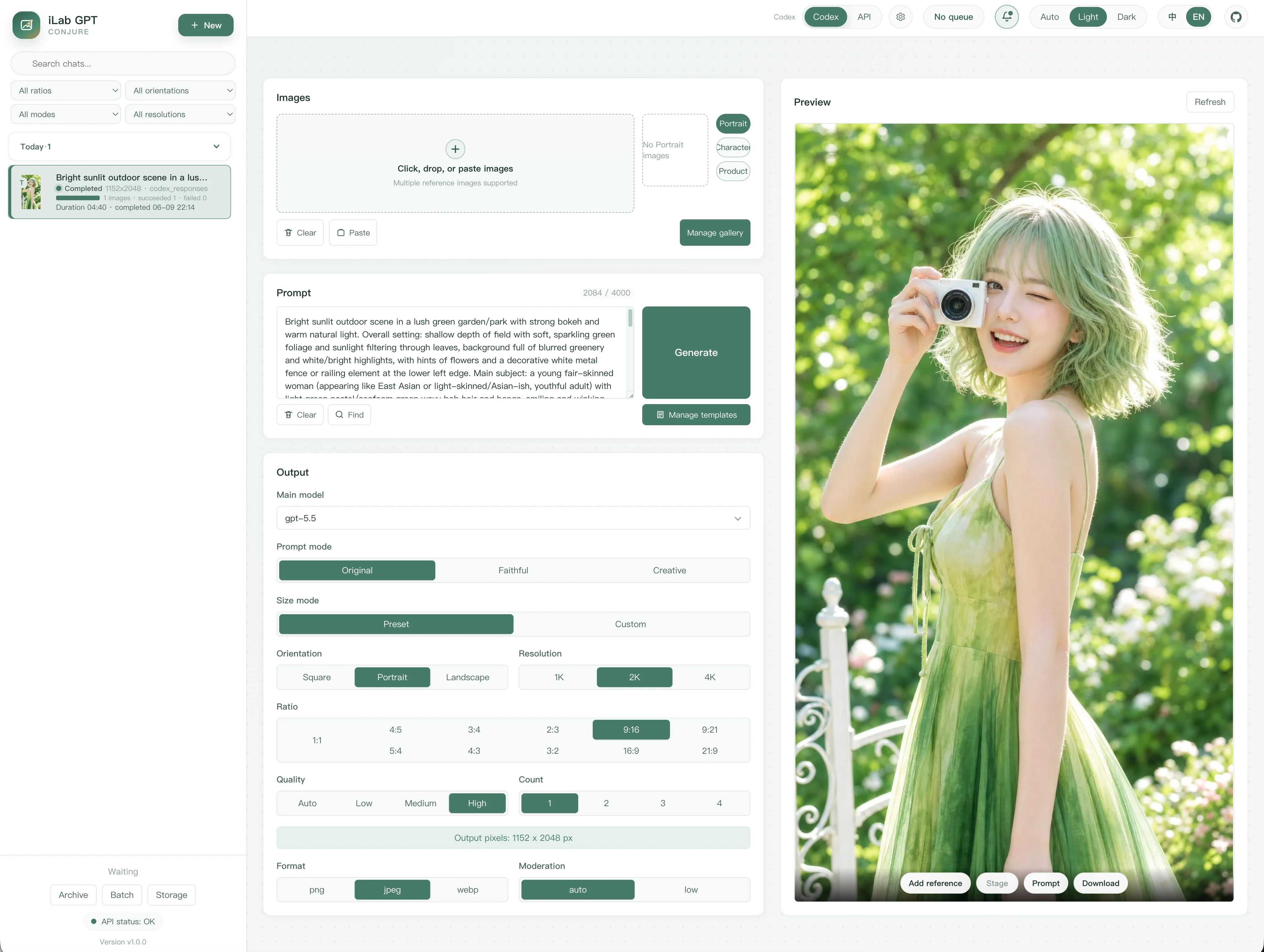
## WebUI usage
1. Choose an authentication source from the top bar. `Codex` uses the default
Image channel when local OAuth is available, and `API` is the recommended
OpenAI-compatible mode for stable or shared use.
2. Open System Settings to manage API provider cards, network routing,
interface language, storage paths, and notification preferences.
3. Add reference images by upload, drag-and-drop, paste, recent uploads, or the
public gallery.
4. Write the prompt directly, insert gallery/color/snippet chips when useful,
and choose the prompt mode: original, fidelity, or creative.
5. Set image count, size, orientation, quality, output format, and compression.
Selected aspect ratios are also appended to the model prompt as an explicit
instruction, for example `将宽高比设为 16:9`, so Responses-channel or API
proxies that ignore size parameters can still receive the intended ratio.
6. Start generation, track running and queued tasks in the left task list, then
review, select, retry, download, or archive results from the preview area.
## Public gallery
The public gallery is a local reusable reference library for people, characters,
products, brand assets, style references, and any image you want to reuse.
- Save uploaded images, recent uploads, or generated results into the gallery.
- Manage images in the right-side gallery drawer with categories, names, prompt
roles, reference notes, replacement images, deletion, and drag sorting.
- Insert a gallery image into the current task from the gallery drawer or by
typing `@` in the prompt editor.
- Gallery files stay local. Do not commit `input/`, `inputs/`, `output/`, or
`outputs/`. If a gallery item is later deleted, older tasks may show a missing
reference.
## Prompt chips
The prompt editor supports three atomic chip types:
- `@` gallery chip: searches the public gallery, inserts the selected image into
reference inputs, and adds visible reference notes for the model.
- `#` color chip: inserts a hexadecimal color value such as `#FF6600`; useful
for product, poster, brand, material, or background color constraints.
- `~` snippet chip: inserts a saved prompt snippet by short tag. The editor keeps
the short tag visible, while the model prompt expands it to the full snippet
content.
Snippet chips can be created from selected prompt text and can later be viewed,
expanded into plain text, edited, or reused with `~`, `~`, or common tilde
variants.
## Prompt templates
Prompt templates are for longer reusable prompt structures, not short inline
phrases. They are stored locally in `output/webui-prompt-templates.json`.
Use `Manage Prompt Templates` in the prompt area to search, filter by category,
favorite, create, edit, copy, insert, replace, import, or export templates.
Templates can use small thumbnails from historical results as visual cues.
Inserting a template writes into the visible prompt editor. Replacing a template
overwrites the visible prompt text. Templates are not injected as hidden prompts.
## CLI
```bash
.venv/bin/python -m codex_image generate --prompt "A clean product photo of a ceramic mug" --out output/mug.png
```
Use `--help` for all CLI options.
## Development
```bash
.venv/bin/python -m unittest discover -s tests -v
npm run check:webui
```
When changing frontend TypeScript or CSS, run `npm install` first. This installs
the frontend build dependencies pinned by `package-lock.json`, including Konva
for the layered input-image editor. Commit the generated browser assets in
`codex_image/webui/static/`.
GitHub CI runs the Python test suite and WebUI frontend checks on pull requests
and pushes to `main`. Release packaging should run only after CI succeeds.
## License
This project is licensed under GNU AGPLv3. See `LICENSE`.
If you modify this software and make it available to users over a network, you
must also make the corresponding source code available under the same license.
This license applies to the software code. It does not grant rights to the
project name, logo, personal assets, API credentials, user prompts, input
images, output images, or model/API services used with the software.
## Contact And Custom Work
Feel free to connect on WeChat to discuss AI programming, AI image generation,
and local image generation workflows.
I also take selected custom development work:
- Local software tools: internal workbenches, batch automation, data dashboards,
and AI-assisted production workflows.
- Business websites: company sites, product showcases, landing pages, and
lightweight admin systems.
- Agent-powered websites: customer support, knowledge-base Q&A, content
generation, and workflow assistant web apps.
Scan the QR code and mention `iLab CONJURE` or `custom development` so I can
understand the context quickly.