
Beamer
One keyboard and one mouse or trackpad for Macs, Windows PCs and Linux machines on the same network, in either direction.




Made by Toby George Read Kalkman, Kalkman Code.
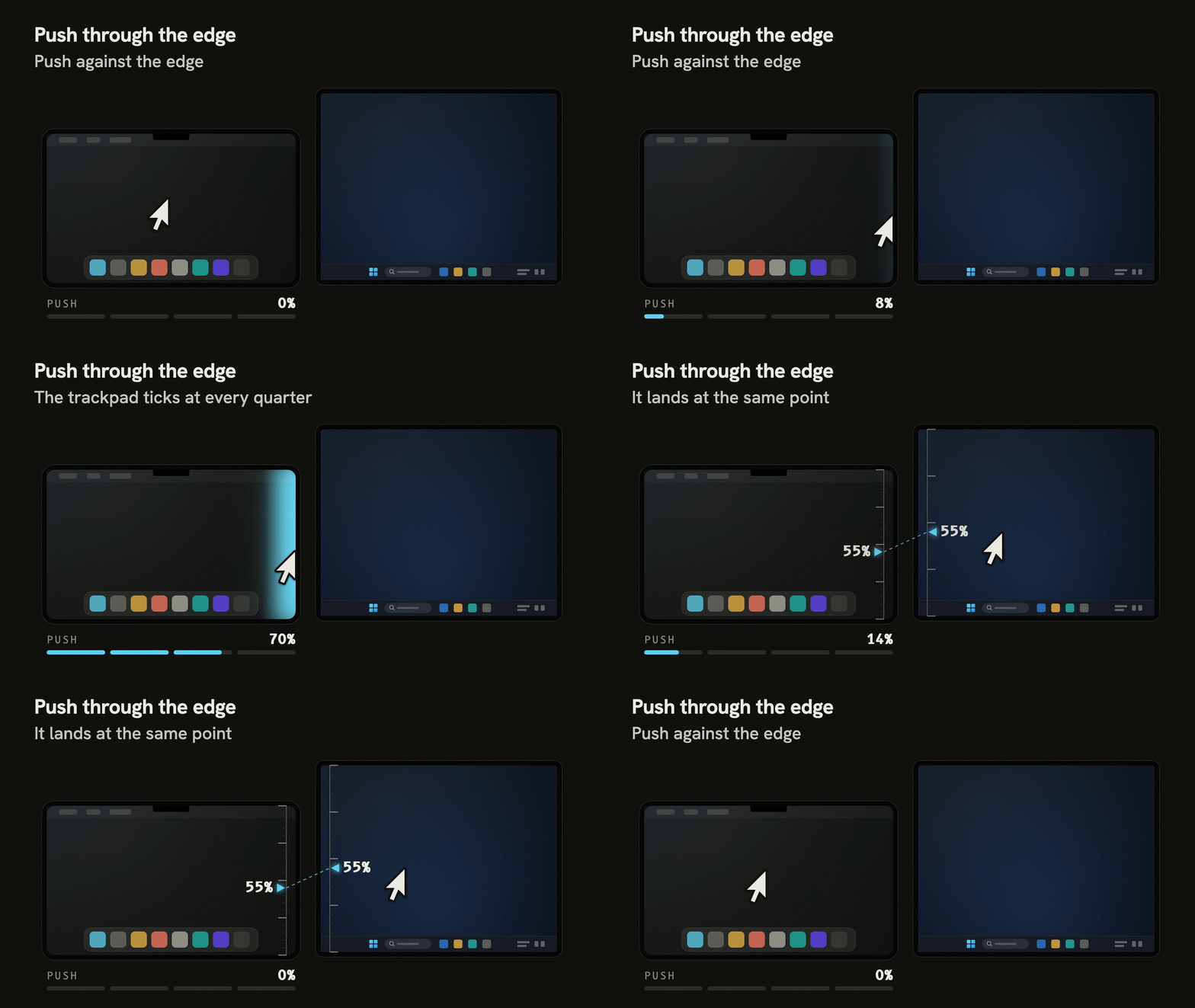
Push the pointer off the edge of the screen and it carries on onto the other machine, the way it
would onto a second monitor. Or double-tap a key. The clipboard comes with you, your shortcuts
still work, and what you type never leaves your network.
## Download
Free, with no account. Mac, Windows and experimental Linux downloads are on the [releases page](https://github.com/kalkman-code/beamer/releases/latest). Linux uses Flatpak; there is no AppImage.
| Platform | Get it | Notes |
|---|---|---|
| macOS 13 or later, Apple silicon or Intel | `Beamer-.dmg` | One universal app, signed and notarised by Apple |
| Windows 10 and 11 | `Beamer-Setup-.exe` | Not code-signed; see step 1 below |
| Linux, 64-bit x86 (experimental Flatpak) | [Install from the Kalkman Code repository](https://flatpak.kalkmancode.co.uk/beamer.flatpakref); `Beamer--x86_64.flatpak` is available as an offline alternative | Tested on Fedora 44 GNOME under Wayland; KDE Plasma 6 is a supported test target on this branch, awaiting hardware verification; X11 remains unverified |
### Install on Linux
Beamer for Linux is an experimental Flatpak for 64-bit x86. There is no AppImage. Fedora, Linux
Mint, Pop!_OS and other distributions with Flatpak can install it with one command:
```sh
flatpak install --user https://flatpak.kalkmancode.co.uk/beamer.flatpakref
```
Flatpak asks to add the Kalkman Code repository and fetches the KDE runtime from Flathub. The
runtime download is a few hundred megabytes the first time only.
On Ubuntu 24.04 or later and Debian 13 or later, install Flatpak first, then log out and back in
or restart, then run the install command:
```sh
sudo apt install flatpak
```
```sh
flatpak install --user https://flatpak.kalkmancode.co.uk/beamer.flatpakref
```
Older Ubuntu and Debian releases cannot send input out under Wayland because they lack the
InputCapture portal; use an X11 session there. On Wayland, allow both desktop prompts: the first
lets Beamer send input and the second lets it receive input. Start Beamer from the app menu; the
Flatpak cannot start at sign-in yet. Update with `flatpak update` or your software centre's update
tool, like any Flatpak.
If you installed an earlier downloaded bundle, remove it first; your settings are kept:
```sh
flatpak uninstall --user uk.co.kalkman.beamer
flatpak install --user https://flatpak.kalkmancode.co.uk/beamer.flatpakref
```
The downloadable `Beamer--x86_64.flatpak` bundle remains available from the [releases
page](https://github.com/kalkman-code/beamer/releases/latest) as an offline alternative. To build
for arm64, follow [the Linux instructions](docs/flatpak-build.md).
## Quick start
1. **Install on every machine.** On the Mac, drag Beamer to Applications, open it, and press the
two Grant buttons on the Permissions page (Accessibility, then Input Monitoring), then Relaunch
Beamer on the same page: macOS only passes keys to an app started after the grant, so until then
the pointer crosses but the keyboard does not. On Windows,
run the installer. It is signed with a Certum code-signing certificate, but Windows may still
say "Windows protected your PC" the first time: choose More info, then Run anyway. The installer
asks for administrator permission once, for Beamer's firewall rules; Beamer itself runs with
your normal rights. On Linux,
follow [Install on Linux](#install-on-linux) to install Beamer from the Kalkman Code repository.
2. **Pair them.** On one machine, choose Pair a machine to show a six-digit code. On the other,
choose that machine from the list and enter the code. It lasts a minute and works once. If it
does not appear in the list, enter the address shown with its code on the other machine.
3. **Cross.** Push the pointer through the edge you set, or use the shortcut. On Wayland, an edge
sends input out and the shortcut brings it back. The other machine's keyboard and pointer come
with it. Cross back through the edge or use the shortcut again.
That is all most people need. The edge, the keys and everything else can be changed in each
machine's settings.
## Screenshots
In your own appearance: light if your GitHub is light, dark if it is dark.
## What it does
- **Push through the edge.** Off the edge that faces the other machine, only along the parts of it
you pick, through a corner, or up through the MacBook's notch. The pointer arrives at the same
point along the border, on the right display however your monitors are stacked or staggered. The
edge lights up as you push, and the trackpad ticks as the push builds. If Windows or macOS briefly
cannot report the pointer position, Beamer skips that moment and keeps crossing (GitHub #9).
- **See where you land.** A switch by the key or a menu plays a short arrival around the pointer on
the machine that takes over, so you never hunt for it.
- **Or press a key.** Double-tap or hold a trigger key to switch without moving the pointer. Right
Option on the Mac and Right Ctrl on the PC to start with; on either machine it can be any key
that types nothing, recorded by pressing it.
- **Either way round.** The Mac drives the PC and the PC drives the Mac. Each machine has a switch
per direction, so you can turn one way off and keep the other. Macs can drive Macs, and Windows
PCs can drive Windows PCs, too.
- **Pair them clearly.** Pair a machine is at the top of Overview, and the six digits are centred.
- **Three machines.** Pair each machine with the others in the group. A chain needs a direct
pairing between every pair of machines in it.
- **The clipboard comes with you.** Text and images, both ways, at the moment you switch. Files
stay where they are.
- **Your shortcuts still work.** Between a Mac and Windows, Cmd becomes Ctrl and Option becomes
Alt, so Cmd+C copies there too. The PC gets the reverse. Between two Macs or two PCs, each key
arrives as the same physical key. On Windows, you can also choose a Mac keyboard layout, where
Alt acts as Command and the Windows key acts as Option.
- **Media keys follow you.** Play, pause, skip, mute and volume cross between supported machines.
Brightness and keyboard-backlight keys stay on the Mac.
- **Keys and buttons that stay put.** Each machine keeps a list of keys and mouse buttons that keep
working where they were pressed while its input is on the other one: a mouse's back button for
this machine's browser, a volume key for its speakers. Add one by pressing it. The back and
forward side buttons cross in both directions otherwise.
- **Mac gestures on Windows.** Three or four fingers up for Task View, down for the desktop, left
and right to change virtual desktop, all from the Mac's trackpad.
- **Make it yours.** Glow, Beam and Aperture, or effects in Membrane, Sparks, Instrument, Folio and
Selvedge, each with colour packs of its own. Set the effect's Size and Length, the MacBook notch
as an outline or an island with a meter, how hard you push before it crosses, and whether settings
windows follow the system's light or dark appearance. Beam fades softly inward from the edge.
- **Feels like your own.** Each machine sets how the other's pointer moves and scrolls on it, from
25% to 400%, and can reverse its scrolling, so a Mac trackpad and a PC mouse each feel right on
the other screen.
- **Out of the way when it should be.** On macOS and Windows, you can choose whether a full-screen
app on each machine holds its edges; it is off by default, and shortcuts still work. A drag that
reaches the edge stays a drag. Switch to a machine that is asleep and Beamer wakes it, where that
machine answers wake-on-LAN: a PC usually does, a MacBook on Wi-Fi usually does not.
- **Keep settings in step.** Same on all machines shares resistance, drag protection, Shortcut,
effect style, colour, length, size and landing animation with compatible paired machines. Zones,
jump keys, full-screen hold, whether effects animate, and window appearance stay local.
- **Match design.** Follow one paired machine's style, colour, length, size and landing animation.
Changing one of those here stops following. Animation enable and window appearance stay local.
- **A more responsive settings window.** Mac resizing and scrolling stay smooth, the Design grid
fills the window, and Windows and Linux settings layouts use their space more clearly.
- **Your network, nobody else's.** No server in the middle. Paired machines talk to each other
directly, encrypted, and you pair them once with a six-digit code. The only thing that ever goes
further is a once-a-day check of GitHub's public releases for a newer version, which you can
switch off on Overview. More in [SECURITY.md](SECURITY.md).
- **Free and open source.** No account, no subscription, GPL-3.0.
## Settings
Each machine has its own settings window and makes its own choices about how input leaves it.
Both sidebars end with the version and a link to kalkmancode.co.uk/beamer, and both menus have
About Beamer.
| Page | Mac | Windows |
|---|---|---|
| Overview | Paired machines, where input is, the links and their round trips, Send input and Pause crossing, a switch per direction, Same on all machines, start at login, the update check | Paired machines, where input is, the links and their round trips, Send input and Pause crossing, a switch per direction, Same on all machines, start at sign-in, the update check |
| Permissions | Accessibility and Input Monitoring, with Relaunch Beamer | None; the firewall check is on Connection |
| Crossing | A drawing of the arrangement, the ways in for each machine (edge, part of the edge, corner, notch), the full-screen hold, resistance, the shortcut and jump keys | A drawing of the arrangement, the ways in for each machine (edge, part of the edge, corner), the full-screen hold, resistance, the shortcut and jump keys |
| Keyboard | Key mapping, what stays on this Mac, each peer's pointer and scroll speed | Key mapping, including a Mac layout, what stays on this PC, each peer's pointer and scroll speed |
| Design | Crossing and switch styles, colours, Size and Length, landing animation, Match design, notch and trackpad controls, window appearance (System, Light or Dark) | Crossing and switch styles, colours, Size and Length, landing animation, Match design, window appearance (System, Light or Dark) |
| Connection | Hide addresses, a peer's address, port and pairing details | Whether Windows Firewall lets a peer in and what to do if not; hide addresses; this PC's address, port and pairing details |
Each machine sets its own zones and the machine beyond each one. These settings stay local even
when Same on all machines is on.
## Known limits
- **The Windows secure desktop cannot be driven.** UAC prompts, Ctrl+Alt+Del and the lock screen
refuse input from any app by design, and Ctrl+Alt+Del cannot be sent at all. Use the PC's own
keyboard there.
- **Files do not cross**, only text and images, up to 256KB of text and an 8MB image.
- **AltGr is out of reach from the Mac.**
- **Linux on Wayland has fewer controls.** Its limits are listed under [Linux](#linux).
- **Linux gestures are not supported.**
- **The Windows installer is unsigned.** SmartScreen may warn when you first run it; choose More
info, then Run anyway.
## In detail
Connection states
These examples use a Mac connected to a Windows PC. Beamer names the other machine in each status,
and reports the mirror status at the other end.
| Status | Meaning |
|---|---|
| `Connected to :` | The encrypted link is up and the protocol versions match. |
| ` is reachable, but Beamer is not listening on this port.` | The other machine answered but nothing accepted the TCP port. |
| ` could not be authenticated — check the shared token matches on both sides` | The two derived different keys. The tokens differ. |
| ` is unreachable from this Mac` | Nothing got as far as Beamer or the firewall. Check Wi-Fi client isolation, the other machine's network, and that the Mac can resolve its address. |
| ` did not answer the handshake — it is probably running an older Beamer; update it` | An older Beamer may not understand the current connection. |
| ` speaks Beamer protocol vN, this machine vM — update both apps` | The wire versions differ. The version travels in cleartext at the start of the connection, so a mismatch says so rather than hanging. |
| ` stopped responding` | No ping or acknowledgement for about two seconds. |
Both ends notice a dead link within a few seconds. The receiver enforces a read timeout and the
sender pings while idle; the machine holding input takes it back when the link is lost.
A dropped connection, a missing acknowledgement, a crashed capture worker or a full event queue
returns input to the machine at once. A watchdog catches a half-open connection and retries it.
Crossing
Push the pointer at the outer edge and it does not move: the push builds as pressure, the edge
lights up, the trackpad ticks at each quarter, and once you have pushed far enough the boundary
gives. The resistance is the point. An edge that switches the instant you touch it does so every
time you overshoot a close button. The default is 120 points; zero switches on contact.
| Way in | Where it triggers | Mac | Windows |
|---|---|---|---|
| Shortcut | Double-tap the trigger key, or hold it | Yes | Yes |
| Edge | The whole of one outer edge | Yes | Yes |
| Part of the edge | Only the thirds of that edge you pick (start, middle, end), measured on the display under the pointer | Yes | Yes |
| Corner | An 8pt box in one corner, needing a diagonal push | Yes | Yes |
| Notch | The top edge, only within the notch's width | Yes | No |
Any combination can be on, except Edge and Part of the edge, which exclude each other. On the Mac,
Shortcut and the right-hand edge are on to start with. On Linux under Wayland, the shortcut only
brings input back; the desktop only lets it go to another machine at an edge.
- The notch has no pixels to light, so a push there draws on the notch itself. Outline, the default,
runs a comet of light round a small tab under the notch that brightens and speeds up with the
push. Island springs a black island out of the notch with a four-segment meter; with Reduce
Motion on it stays one size and fades with the push.
- An edge counts wherever no display of the same machine lies beyond it, so an edge between two
displays behaves as the system intends, and the edge of a MacBook under a wider external display
still crosses.
- The pointer arrives where it left: 42% of the way down the Mac's right edge is 42% of the way
down the PC's left edge, on whichever monitor owns it.
- On macOS and Windows, crossing does not fire while a mouse button is held, so a drag that reaches
the edge stays a drag. On Wayland, the desktop can capture a drag at the edge.
- The full-screen hold is off by default. When enabled on macOS or Windows, a full-screen app on
that screen holds pointer crossings; it does not apply to Beamer's own window. Shortcuts and jump
keys still work. Wayland cannot detect a full-screen app.
- Only one machine's input is on another at a time. The receiving machine can send it home or pass
it on through one of its own configured zones.
- A machine's own switch, menu or shortcut sends input home. On Wayland, the shortcut only brings
input back.
- Switching to a sleeping PC sends wake-on-LAN when that PC supports it.
Each machine's menu lists its peers and the directions it can drive. Turning one direction off
leaves the other direction alone.
Keys, buttons and media keys
For a Mac-to-Windows pair, Mac modifiers map to Windows by meaning, so the shortcuts your fingers
know keep working. The Mac's Keyboard page can switch this to positional, where Cmd sends the
Windows key. Mac-to-Mac and Windows-to-Windows pairs keep each physical key in place.
| Mac key | Sends on Windows |
|---|---|
| Cmd | Ctrl |
| Ctrl | Windows key |
| Option | Alt |
So Cmd+C, Cmd+V, Cmd+Z and Cmd+T are copy, paste, undo and new tab, Ctrl+E opens Explorer and Ctrl
on its own opens Start. The PC's keys arrive on the Mac the reverse way. Chords with Ctrl, Alt or
Windows held are sent as real virtual-key presses, so they land on the right key for the active
Windows keyboard layout. The Mac reads its own layout too, so on a German or French Mac Cmd+Z is
still undo and Cmd+A still selects all, and a letter typed from the PC lands on the key that types
it. When the two machines are on layouts of different alphabets, say the PC on Russian and the Mac
on English, a letter types what the receiving machine's own layout has on that key, as its own
keyboard would, and shortcuts keep working. The `key_map` object in each app's config JSON can
still override single keys.
The trigger key is never forwarded on macOS and Windows. It is recorded by pressing it: Right
Option on the Mac and Right Ctrl on Windows to start with. Either can double-tap or hold.
The stays-here list is per machine, because a Mac keycode and a Windows virtual key are different
numbers for the same key. It takes keys, the right, middle, back and forward mouse buttons, and on
the Mac its media keys. A listed press stays on the machine it was pressed on while input is away;
its release goes wherever its press went, so nothing is ever left held down on the far side. The
trigger key cannot be added.
The Mac's F7–F12 media row and volume keys cross as play/pause, next, previous, mute and volume.
On the Mac they arrive as system events rather than key events and are captured separately
(`mac_app/media_keys.py`). Brightness and keyboard-backlight keys stay with macOS.
Ctrl+Alt+Del is the Secure Attention Sequence, trapped by the kernel before any app sees it.
`SendInput` cannot produce it, and `SendSAS()` needs a Windows service or a signed `uiAccess` app
installed under Program Files, which Beamer is not.
Gestures
Trackpad scrolling is smooth and horizontal scrolling works on Windows. While input is on Windows,
the Mac's system gestures do the equivalent thing there and nothing on the Mac:
| Mac gesture | On Windows |
|---|---|
| Three or four fingers up (Mission Control) | Task View |
| Three or four fingers down (App Exposé) | Show desktop |
| Three or four fingers left or right (Spaces) | Switch virtual desktop, the same way round |
| Thumb and three fingers spread (Show desktop) | Show desktop |
| Thumb and three fingers pinched (Launchpad) | Start |
A two-finger pinch and a two-finger swipe between pages are not passed to the other machine yet.
The Mac classifies a system gesture when it ends and sends one message. The PC replays it as a real
swipe through a synthetic Precision Touchpad, so Windows' own touchpad settings apply and Task View
animates as it would under fingers. Where Windows refuses that device, it presses the shortcut with
the same default meaning instead (Win+Tab, Win+D, Win+Ctrl+Left/Right, Win). Direction comes from
private macOS event fields, keyed by macOS major version in `mac_app/gestures.py`, because the
horizontal sign has flipped between releases.
Clipboard
The clipboard moves at the moment of a switch, ahead of the switch itself: switching to another
machine carries the current machine's clipboard, and switching back carries the other machine's. Where it
holds both an image and text, both cross and the pasting app picks. The caps keep the switch
prompt: 256KB of text and an 8MB image as PNG. Over a cap, that half is left alone rather than
truncated. The PC converts to and from the Windows clipboard's DIB format itself, using the Qt it
already ships. A switch sends the clipboard only when it has changed since it last crossed, so a
large image is not re-sent every time.
Latency
If both machines are on Wi-Fi, every event crosses the air twice, through the access point.
Ethernet on either machine removes a hop. Where Wi-Fi is unavoidable, 5GHz or 6GHz and turning off
power saving on the PC's adapter both help.
Beamer sends every event at once (TCP_NODELAY). Acknowledgements are coalesced over 15ms so a
100Hz stream of moves cannot double the packet count, with an idle heartbeat every 400ms. Settings
show the measured round trip while input is on another machine.
Security
Wire version 6 combines each paired token with a fresh X25519 exchange to derive directional keys
with HKDF-SHA256. Frames are sealed with ChaCha20-Poly1305. Pairing agrees a token with CPace, a
password-authenticated key exchange, from the six-digit code. What that does and does not protect against is in
[SECURITY.md](SECURITY.md).
Update check
Once a day, and at start, Beamer asks GitHub's public releases API for the latest release of this
repository and compares its version with its own. A new minor or major version is always offered;
a patch release (1.5.0 to 1.5.1) only when its release notes ask for it, so a run of small fixes
does not nag. Drafts and pre-releases never count and nothing is downloaded. When a newer one is out, the menu says Beamer X is available and Overview offers a
Download button that opens the release page. The request is an ordinary HTTPS request, so GitHub
sees the address it came from, as it would for a browser. Switch it off with Check for updates on
Overview.
Windows specifics
The installer puts Beamer in `%LOCALAPPDATA%\Beamer` for the current user with a Start menu
shortcut. Quit Beamer from the tray before installing a newer version over it; only one instance
runs at a time.
Beamer launches with normal user permissions and no administrator prompt. It controls normal
windows; administrator windows and Windows permission prompts need local input. Overview's
start-at-sign-in switch uses the same normal permissions. Upgrading lowers an existing elevated
startup task while preserving whether startup was enabled.
The installer requests administrator permission once for maintenance. It sets private-network
rules for TCP 24820 input and UDP/TCP 24821 pairing, and attempts recovery of a stuck GameInput
service. The app only checks firewall state: Connection explains when to rerun the installer or
mark a trusted network Private in Windows Settings. Custom input ports need a matching rule
configured by an administrator. If a SYSTEM or administrator window blocks input later, click a
normal window locally to continue.
**The lock screen.** No elevation lets an app type there: it is the Winlogon secure desktop, which
admits only SYSTEM. On a PC with the author's separate unlock credential provider installed (not
part of this repository), switching to a locked PC signals that provider, which unlocks it in about
four seconds; input sent meanwhile is dropped. Beamer only signals the provider and never holds a
password. Without it, the Mac reports `Windows is locked — unlock it at the PC`.
Linux
Linux support is experimental. There is no AppImage. Install the 64-bit x86 Flatpak from the Kalkman
Code repository using [Install on Linux](#install-on-linux), or build for arm64 with [the Flatpak
instructions](docs/flatpak-build.md). On one Fedora 44 GNOME desktop under Wayland, paired with a
Mac and a Windows PC, the window and tray, pairing, crossing both ways, typing and the clipboard
work; crossings show no edge animation on the Linux machine, and the selected option in settings is
not filled in. X11 runs with Beamer's keyboard, pointer, pairing and clipboard features, but has not
been tested on real hardware. Flatpak fetches the KDE runtime from Flathub if it is not already
present. This branch targets GNOME and KDE Plasma under Wayland and X11. KDE Wayland requires
Plasma 6.1.1 or later with the matching host portal; the full clipboard path targets Plasma 6.6 or
later. See the [KDE Plasma requirements and tester checklist](docs/kde-plasma-1.5.md); these branch
changes have not yet been built or published as a Flatpak.
On Wayland, the desktop limits what Beamer can do:
- “On Wayland the shortcut only brings input back: the desktop lets input go to another machine only
when the pointer pushes through an edge, and keys on the Stays on this PC list cannot stay here
while input is away.”
- “On Wayland Beamer cannot see a full-screen app, or a mouse button held before the pointer reaches
an edge, so the edges are never held for one and a drag can cross.”
- “On Wayland the desktop does not let Beamer draw at the edges of the screen, so crossings show no
effect on this machine. The other machines still show theirs.”
Older Ubuntu and Debian releases lack the InputCapture portal, so they cannot send input out under
Wayland; use an X11 session there. Linux does not offer gestures. KDE Plasma awaits hardware
testing. On KDE Wayland, partly exposed sides in staggered monitor layouts are unavailable;
use a completely exposed monitor edge. The Flatpak's start-at-sign-in toggle remains unavailable.
Building from source
On the Mac, double-click `mac_app/Install-Beamer-Mac.command`. It builds a self-contained app,
installs it at `/Applications/Beamer.app`, and leaves it closed so the permission prompts do not
appear unexpectedly.
On Windows, run `win_app\Install-Beamer.ps1` from the signed-in user's PowerShell. It builds and
installs `%LOCALAPPDATA%\Beamer\Beamer.exe`, adds a Start menu shortcut, then asks once for
administrator permission to add the two firewall rules.
Pairing is the easy path, not the only one: each Connection page still takes an address, port and
shared token typed by hand, and they must match on both machines.
Development checks
From `mac_app`:
```sh
.venv/bin/python3 -m unittest discover -s tests -t .. -v
./build_dmg.sh
```
From `win_app`:
```powershell
python -m unittest discover -s tests -v
.\build_win_app.ps1
```
A local Mac build is signed with the release's Developer ID identity when the login keychain can
reach it, so privacy grants carry between local builds and releases, and ad-hoc otherwise (over
SSH), under the hardened runtime either way. It is not notarised.
What both apps run the same way (`protocol.py`, `pairing.py`, `receiver.py`, `return_edge.py`, the
crossing effects and others) lives once in `core/`, which both apps import and both packagers
bundle; `core/tests` runs inside each app's suite. Linux uses the Windows app's Qt shell and its
Linux back ends, packaged as a Flatpak. `tokens.py` is still copied into `win_app`, and a
test fails if the two drift. `Beamer.svg` is the master of the mark, and `Beamer.ico`, `Beamer.png` and
`Beamer.icns` are rendered from it.
Release builds
The version lives once, in `VERSION` at the repository root; the Mac build number is the commit
count. Change `VERSION`, commit, then build each platform from that commit. Both commands refuse
uncommitted changes outside `docs/`, upload nothing except the Mac's notary submissions, and write
to `docs/beamer-releases//` in the folder that contains the repository.
On the Mac, from `mac_app`, in a desktop session (the keychain will not release a Developer ID
identity over SSH):
```sh
./build_dmg.sh --release
```
It signs every nested binary with Developer ID under the hardened runtime with a secure timestamp,
checks the bundle still runs, notarises and staples the app, then the DMG, and checks both with
`stapler validate` and `spctl`. Notarisation uses the App Store Connect API key named in
`~/.appstoreconnect/key_id`.
On Windows, from `win_app`:
```powershell
.\build_win_app.ps1 -Release
```
It runs the tests, builds `Beamer.exe` and compiles `Beamer-Setup.iss` with Inno Setup 6 into
`Beamer-Setup-.exe`. The installer adds firewall rules; its optional start-at-sign-in
task is off by default.
## Licence and support
GPL-3.0; see [LICENSE](LICENSE). Releases up to and including 1.2.0 were MIT.
Beamer is free and made by one person. Issues are welcome and read, but there is no guarantee of a
reply. Before a pull request, read [CONTRIBUTING.md](CONTRIBUTING.md). Report security problems privately, as [SECURITY.md](SECURITY.md) describes. Home page:
[kalkmancode.co.uk/beamer](https://kalkmancode.co.uk/beamer).
A bug report is far easier to act on with each machine's log attached. Open log folder in each
machine's menu opens it: `~/Library/Logs/Beamer/Beamer.log` on the Mac and
`%LOCALAPPDATA%\Beamer\Beamer.log` on Windows.
On Linux, find it at `~/.config/Beamer/Beamer.log`; Flatpak stores it at
`~/.var/app/uk.co.kalkman.beamer/config/Beamer/Beamer.log`.
They hold your machines' names and local network addresses, so look them over before posting.


