# MCPChatbot Example
This project demonstrates how to integrate the Model Context Protocol (MCP) with customized LLM (e.g. Qwen), creating a powerful chatbot that can interact with various tools through MCP servers. The implementation showcases the flexibility of MCP by enabling LLMs to use external tools seamlessly.
> [!TIP]
> For Chinese version, please refer to [README_ZH.md](README_ZH.md).
## Overview
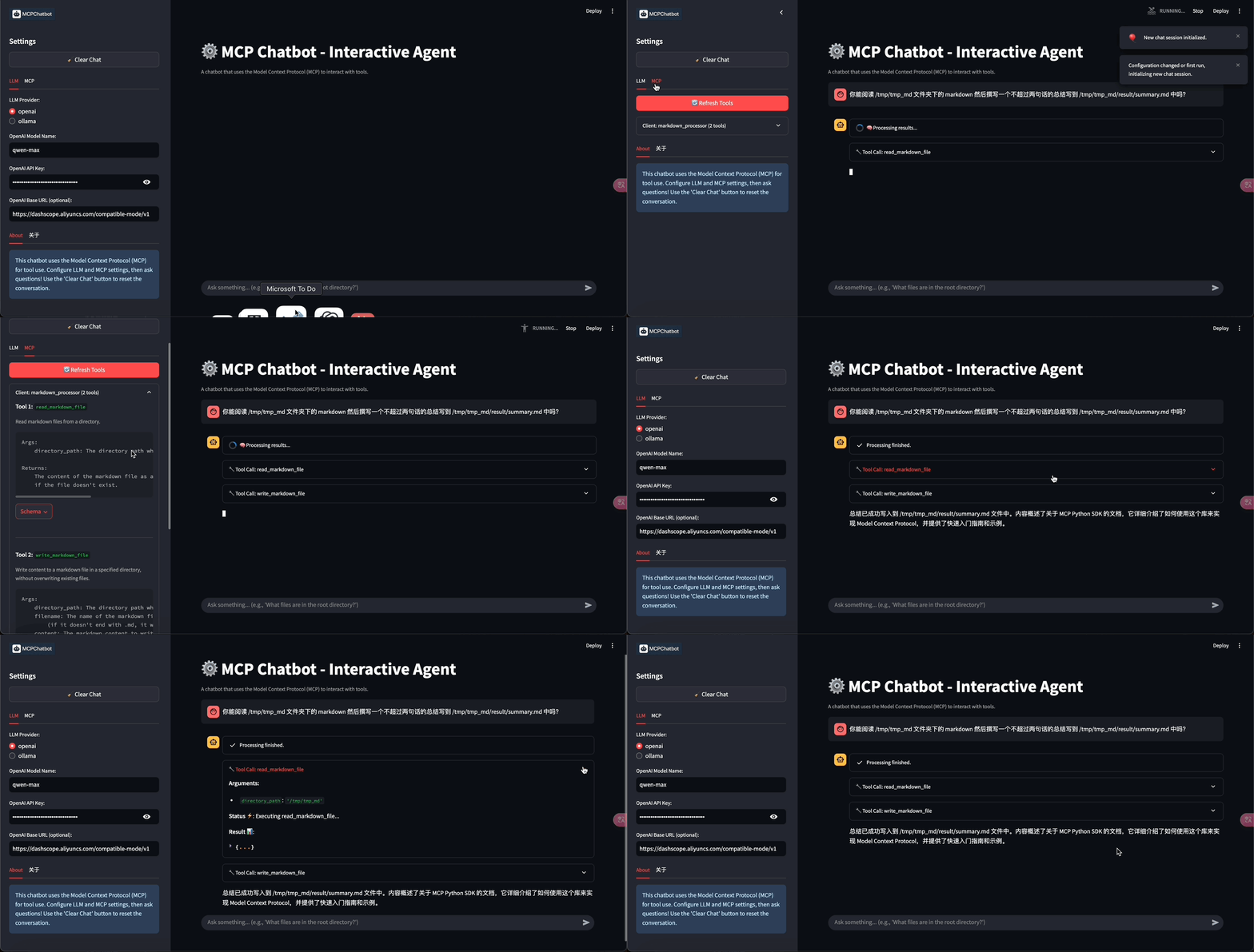
**Chatbot Streamlit Example**
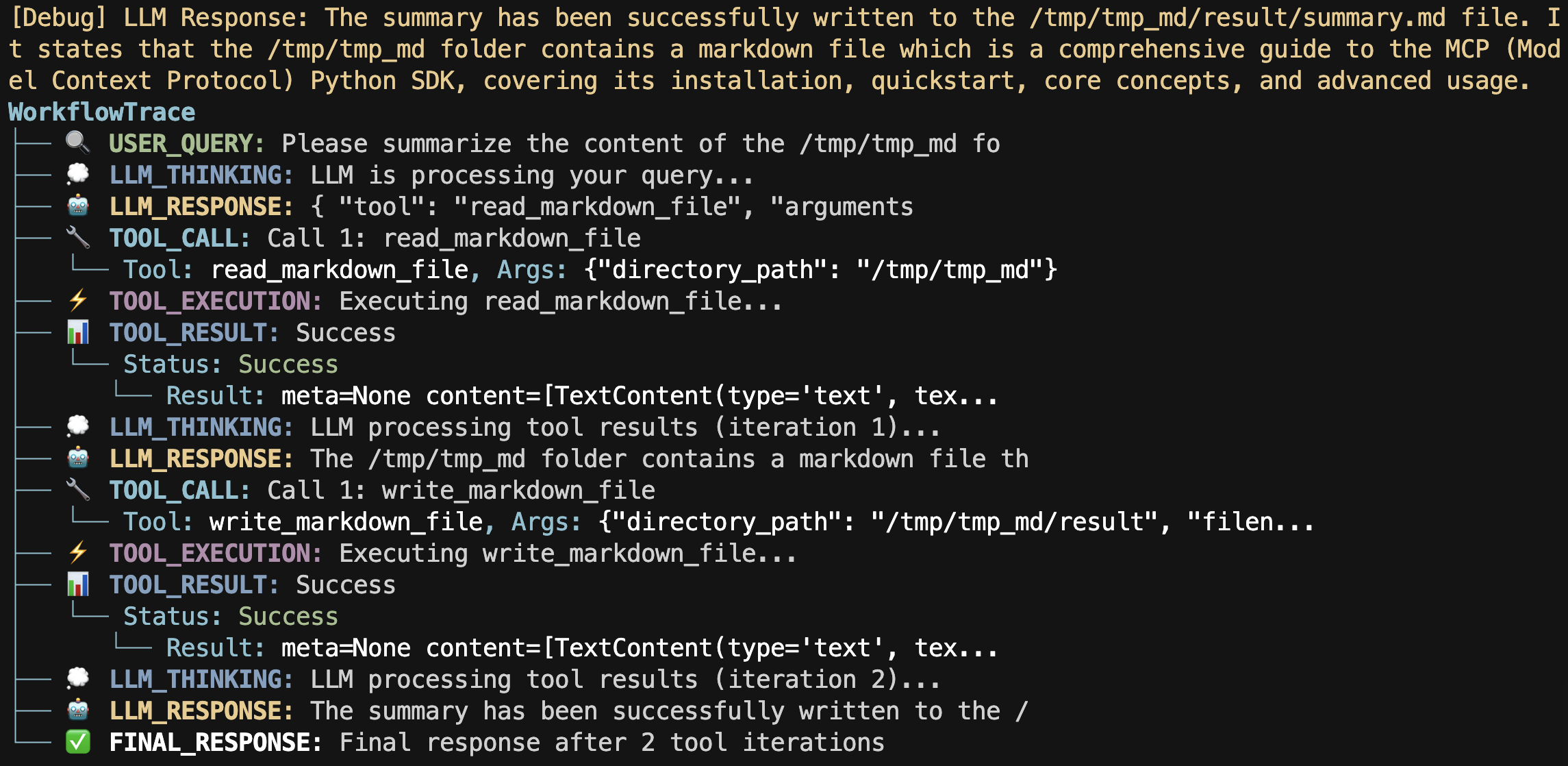
 **Workflow Tracer Example**
 - 🚩 Update (2025-04-11):
- Added chatbot streamlit example.
- 🚩 Update (2025-04-10):
- More complex LLM response parsing, supporting multiple MCP tool calls and multiple chat iterations.
- Added single prompt examples with both regular and streaming modes.
- Added interactive terminal chatbot examples.
This project includes:
- Simple/Complex CLI chatbot interface
- Integration with some builtin MCP Server like (Markdown processing tools)
- Support for customized LLM (e.g. Qwen) and Ollama
- Example scripts for single prompt processing in both regular and streaming modes
- Interactive terminal chatbot with regular and streaming response modes
## Requirements
- Python 3.10+
- Dependencies (automatically installed via requirements):
- python-dotenv
- mcp[cli]
- openai
- colorama
## Installation
1. **Clone the repository:**
```bash
git clone git@github.com:keli-wen/mcp_chatbot.git
cd mcp_chatbot
```
2. **Set up a virtual environment (recommended):**
```bash
cd folder
# Install uv if you don't have it already
pip install uv
# Create a virtual environment and install dependencies
uv venv .venv --python=3.10
# Activate the virtual environment
# For macOS/Linux
source .venv/bin/activate
# For Windows
.venv\Scripts\activate
# Deactivate the virtual environment
deactivate
```
3. **Install dependencies:**
```bash
pip install -r requirements.txt
# or use uv for faster installation
uv pip install -r requirements.txt
```
4. **Configure your environment:**
- Copy the `.env.example` file to `.env`:
```bash
cp .env.example .env
```
- Edit the `.env` file to add your Qwen API key (just for demo, you can use any LLM API key, remember to set the base_url and api_key in the .env file) and set the paths:
```
LLM_MODEL_NAME=your_llm_model_name_here
LLM_BASE_URL=your_llm_base_url_here
LLM_API_KEY=your_llm_api_key_here
OLLAMA_MODEL_NAME=your_ollama_model_name_here
OLLAMA_BASE_URL=your_ollama_base_url_here
MARKDOWN_FOLDER_PATH=/path/to/your/markdown/folder
RESULT_FOLDER_PATH=/path/to/your/result/folder
```
## Important Configuration Notes ⚠️
Before running the application, you need to modify the following:
1. **MCP Server Configuration**:
Edit `mcp_servers/servers_config.json` to match your local setup:
```json
{
"mcpServers": {
"markdown_processor": {
"command": "/path/to/your/uv",
"args": [
"--directory",
"/path/to/your/project/mcp_servers",
"run",
"markdown_processor.py"
]
}
}
}
```
Replace `/path/to/your/uv` with the actual path to your uv executable. **You can use `which uv` to get the path**.
Replace `/path/to/your/project/mcp_servers` with the absolute path to the mcp_servers directory in your project. (For **Windows** users, you can take a look at the example in the [Troubleshooting](#troubleshooting) section)
2. **Environment Variables**:
Make sure to set proper paths in your `.env` file:
```
MARKDOWN_FOLDER_PATH="/path/to/your/markdown/folder"
RESULT_FOLDER_PATH="/path/to/your/result/folder"
```
The application will validate these paths and throw an error if they contain placeholder values.
You can run the following command to check your configuration:
```bash
bash scripts/check.sh
```
## Usage
### Unit Test
You can run the following command to run the unit test:
```bash
bash scripts/unittest.sh
```
### Examples
#### Single Prompt Examples
The project includes two single prompt examples:
1. **Regular Mode**: Process a single prompt and display the complete response
```bash
python example/single_prompt/single_prompt.py
```
2. **Streaming Mode**: Process a single prompt with real-time streaming output
```bash
python example/single_prompt/single_prompt_stream.py
```
Both examples accept an optional `--llm` parameter to specify which LLM provider to use:
```bash
python example/single_prompt/single_prompt.py --llm=ollama
```
> [!NOTE]
> For more details, see the [Single Prompt Example README](example/single_prompt/README.md).
#### Terminal Chatbot Examples
The project includes two interactive terminal chatbot examples:
1. **Regular Mode**: Interactive terminal chat with complete responses
```bash
python example/chatbot_terminal/chatbot_terminal.py
```
2. **Streaming Mode**: Interactive terminal chat with streaming responses
```bash
python example/chatbot_terminal/chatbot_terminal_stream.py
```
Both examples accept an optional `--llm` parameter to specify which LLM provider to use:
```bash
python example/chatbot_terminal/chatbot_terminal.py --llm=ollama
```
> [!NOTE]
> For more details, see the [Terminal Chatbot Example README](example/chatbot_terminal/README.md).
#### Streamlit Web Chatbot Example
The project includes an interactive web-based chatbot example using Streamlit:
```bash
streamlit run example/chatbot_streamlit/app.py
```
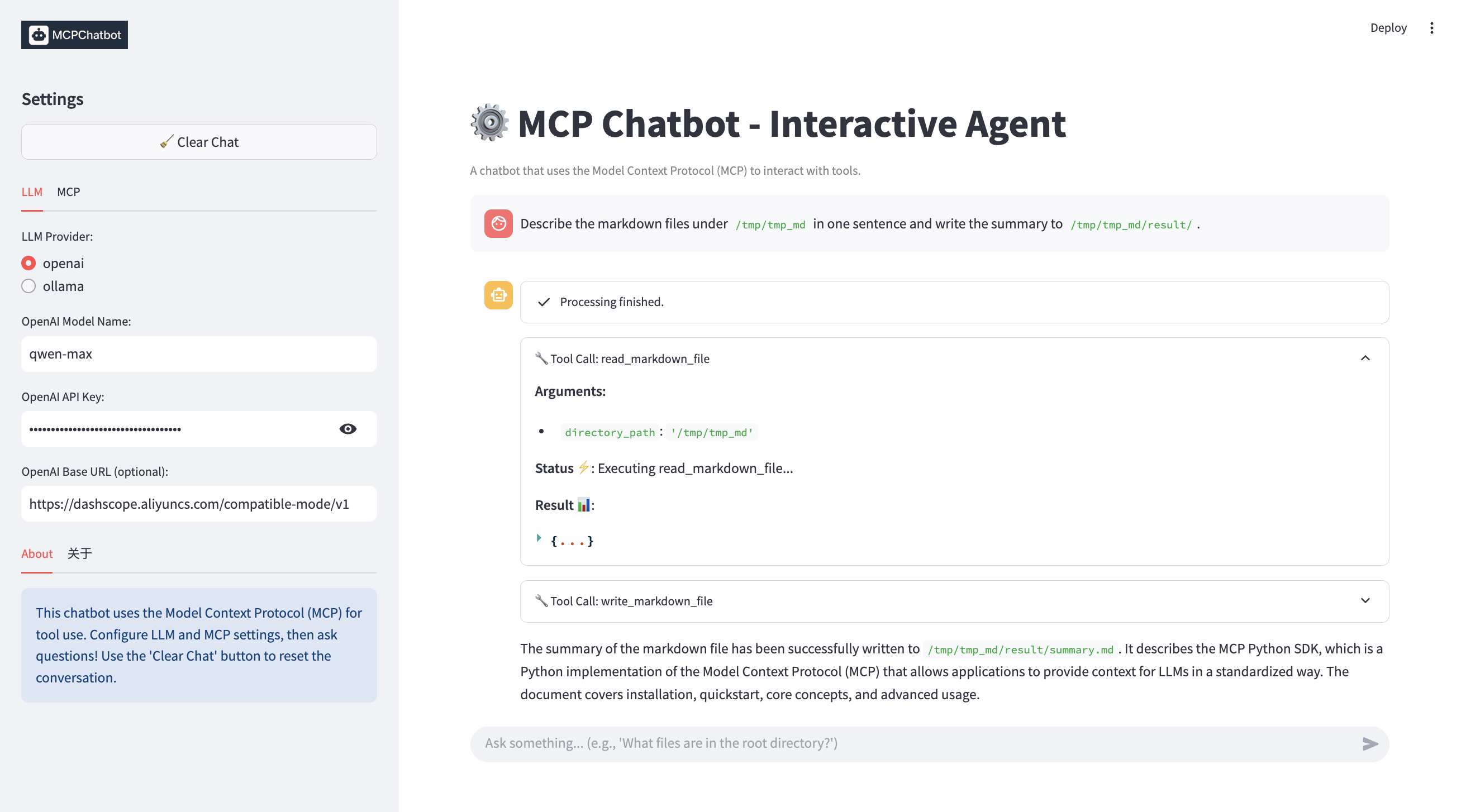
This example features:
- Interactive chat interface.
- Real-time streaming responses.
- Detailed MCP tool workflow visualization.
- Configurable LLM settings (OpenAI/Ollama) and MCP tool display via the sidebar.
> [!NOTE]
> For more details, see the [Streamlit Chatbot Example README](example/chatbot_streamlit/README.md).
## Project Structure
- `mcp_chatbot/`: Core library code
- `chat/`: Chat session management
- `config/`: Configuration handling
- `llm/`: LLM client implementation
- `mcp/`: MCP client and tool integration
- `utils/`: Utility functions (e.g. `WorkflowTrace` and `StreamPrinter`)
- `mcp_servers/`: Custom MCP servers implementation
- `markdown_processor.py`: Server for processing Markdown files
- `servers_config.json`: Configuration for MCP servers
- `data-example/`: Example Markdown files for testing
- `example/`: Example scripts for different use cases
- `single_prompt/`: Single prompt processing examples (regular and streaming)
- `chatbot_terminal/`: Interactive terminal chatbot examples (regular and streaming)
- `chatbot_streamlit/`: Interactive web chatbot example using Streamlit
## Extending the Project
You can extend this project by:
1. Adding new MCP servers in the `mcp_servers/` directory
2. Updating the `servers_config.json` to include your new servers
3. Implementing new functionalities in the existing servers
4. Creating new examples based on the provided templates
## Troubleshooting
For Windows users, you can take the following `servers_config.json` as an example:
```json
{
"mcpServers": {
"markdown_processor": {
"command": "C:\\Users\\13430\\.local\\bin\\uv.exe",
"args": [
"--directory",
"C:\\Users\\13430\\mcp_chatbot\\mcp_servers",
"run",
"markdown_processor.py"
]
}
}
}
```
- **Path Issues**: Ensure all paths in the configuration files are absolute paths appropriate for your system
- **MCP Server Errors**: Make sure the tools are properly installed and configured
- **API Key Errors**: Verify your API key is correctly set in the `.env` file
- 🚩 Update (2025-04-11):
- Added chatbot streamlit example.
- 🚩 Update (2025-04-10):
- More complex LLM response parsing, supporting multiple MCP tool calls and multiple chat iterations.
- Added single prompt examples with both regular and streaming modes.
- Added interactive terminal chatbot examples.
This project includes:
- Simple/Complex CLI chatbot interface
- Integration with some builtin MCP Server like (Markdown processing tools)
- Support for customized LLM (e.g. Qwen) and Ollama
- Example scripts for single prompt processing in both regular and streaming modes
- Interactive terminal chatbot with regular and streaming response modes
## Requirements
- Python 3.10+
- Dependencies (automatically installed via requirements):
- python-dotenv
- mcp[cli]
- openai
- colorama
## Installation
1. **Clone the repository:**
```bash
git clone git@github.com:keli-wen/mcp_chatbot.git
cd mcp_chatbot
```
2. **Set up a virtual environment (recommended):**
```bash
cd folder
# Install uv if you don't have it already
pip install uv
# Create a virtual environment and install dependencies
uv venv .venv --python=3.10
# Activate the virtual environment
# For macOS/Linux
source .venv/bin/activate
# For Windows
.venv\Scripts\activate
# Deactivate the virtual environment
deactivate
```
3. **Install dependencies:**
```bash
pip install -r requirements.txt
# or use uv for faster installation
uv pip install -r requirements.txt
```
4. **Configure your environment:**
- Copy the `.env.example` file to `.env`:
```bash
cp .env.example .env
```
- Edit the `.env` file to add your Qwen API key (just for demo, you can use any LLM API key, remember to set the base_url and api_key in the .env file) and set the paths:
```
LLM_MODEL_NAME=your_llm_model_name_here
LLM_BASE_URL=your_llm_base_url_here
LLM_API_KEY=your_llm_api_key_here
OLLAMA_MODEL_NAME=your_ollama_model_name_here
OLLAMA_BASE_URL=your_ollama_base_url_here
MARKDOWN_FOLDER_PATH=/path/to/your/markdown/folder
RESULT_FOLDER_PATH=/path/to/your/result/folder
```
## Important Configuration Notes ⚠️
Before running the application, you need to modify the following:
1. **MCP Server Configuration**:
Edit `mcp_servers/servers_config.json` to match your local setup:
```json
{
"mcpServers": {
"markdown_processor": {
"command": "/path/to/your/uv",
"args": [
"--directory",
"/path/to/your/project/mcp_servers",
"run",
"markdown_processor.py"
]
}
}
}
```
Replace `/path/to/your/uv` with the actual path to your uv executable. **You can use `which uv` to get the path**.
Replace `/path/to/your/project/mcp_servers` with the absolute path to the mcp_servers directory in your project. (For **Windows** users, you can take a look at the example in the [Troubleshooting](#troubleshooting) section)
2. **Environment Variables**:
Make sure to set proper paths in your `.env` file:
```
MARKDOWN_FOLDER_PATH="/path/to/your/markdown/folder"
RESULT_FOLDER_PATH="/path/to/your/result/folder"
```
The application will validate these paths and throw an error if they contain placeholder values.
You can run the following command to check your configuration:
```bash
bash scripts/check.sh
```
## Usage
### Unit Test
You can run the following command to run the unit test:
```bash
bash scripts/unittest.sh
```
### Examples
#### Single Prompt Examples
The project includes two single prompt examples:
1. **Regular Mode**: Process a single prompt and display the complete response
```bash
python example/single_prompt/single_prompt.py
```
2. **Streaming Mode**: Process a single prompt with real-time streaming output
```bash
python example/single_prompt/single_prompt_stream.py
```
Both examples accept an optional `--llm` parameter to specify which LLM provider to use:
```bash
python example/single_prompt/single_prompt.py --llm=ollama
```
> [!NOTE]
> For more details, see the [Single Prompt Example README](example/single_prompt/README.md).
#### Terminal Chatbot Examples
The project includes two interactive terminal chatbot examples:
1. **Regular Mode**: Interactive terminal chat with complete responses
```bash
python example/chatbot_terminal/chatbot_terminal.py
```
2. **Streaming Mode**: Interactive terminal chat with streaming responses
```bash
python example/chatbot_terminal/chatbot_terminal_stream.py
```
Both examples accept an optional `--llm` parameter to specify which LLM provider to use:
```bash
python example/chatbot_terminal/chatbot_terminal.py --llm=ollama
```
> [!NOTE]
> For more details, see the [Terminal Chatbot Example README](example/chatbot_terminal/README.md).
#### Streamlit Web Chatbot Example
The project includes an interactive web-based chatbot example using Streamlit:
```bash
streamlit run example/chatbot_streamlit/app.py
```
This example features:
- Interactive chat interface.
- Real-time streaming responses.
- Detailed MCP tool workflow visualization.
- Configurable LLM settings (OpenAI/Ollama) and MCP tool display via the sidebar.

> [!NOTE]
> For more details, see the [Streamlit Chatbot Example README](example/chatbot_streamlit/README.md).
## Project Structure
- `mcp_chatbot/`: Core library code
- `chat/`: Chat session management
- `config/`: Configuration handling
- `llm/`: LLM client implementation
- `mcp/`: MCP client and tool integration
- `utils/`: Utility functions (e.g. `WorkflowTrace` and `StreamPrinter`)
- `mcp_servers/`: Custom MCP servers implementation
- `markdown_processor.py`: Server for processing Markdown files
- `servers_config.json`: Configuration for MCP servers
- `data-example/`: Example Markdown files for testing
- `example/`: Example scripts for different use cases
- `single_prompt/`: Single prompt processing examples (regular and streaming)
- `chatbot_terminal/`: Interactive terminal chatbot examples (regular and streaming)
- `chatbot_streamlit/`: Interactive web chatbot example using Streamlit
## Extending the Project
You can extend this project by:
1. Adding new MCP servers in the `mcp_servers/` directory
2. Updating the `servers_config.json` to include your new servers
3. Implementing new functionalities in the existing servers
4. Creating new examples based on the provided templates
## Troubleshooting
For Windows users, you can take the following `servers_config.json` as an example:
```json
{
"mcpServers": {
"markdown_processor": {
"command": "C:\\Users\\13430\\.local\\bin\\uv.exe",
"args": [
"--directory",
"C:\\Users\\13430\\mcp_chatbot\\mcp_servers",
"run",
"markdown_processor.py"
]
}
}
}
```
- **Path Issues**: Ensure all paths in the configuration files are absolute paths appropriate for your system
- **MCP Server Errors**: Make sure the tools are properly installed and configured
- **API Key Errors**: Verify your API key is correctly set in the `.env` file