# Manufacturer SDK integration
This plugin supports 4 brands through their native SDKs: **Star, Epson, Brother, Zebra**.
All of them are **optional**: the plugin **compiles and installs without any manufacturer
SDK**, and each adapter activates **automatically** as soon as the matching binary is
present in your app. If it's absent, the adapter is skipped and the plugin falls back to
generic ESC/POS (TCP/Bluetooth/USB/BLE).
## TL;DR — which ones download themselves, and which don't?
| Brand | Android | iOS |
|---|---|---|
| **Star** | ✅ **auto** (Maven Central) | ✅ **auto** (Swift Package Manager) |
| **Brother** | ⛔ manual binary (`.aar`) | ✅ **auto** (CocoaPods) |
| **Epson** | ⛔ manual binary (`.jar` + `.so`) | ⛔ manual xcframework |
| **Zebra** | ⛔ manual binaries (`.jar` + dependency jars) | ⛔ manual xcframework |
> ### Why isn't everything auto-downloaded?
> Only SDKs published to a **standard package repository** (Maven Central for Android,
> CocoaPods/SPM for iOS) download automatically. Epson, Zebra, and Brother-Android are
> distributed **only through the manufacturer's portal**, and their **license forbids
> redistribution** (so they can't be put on Maven Central / CocoaPods, nor committed into
> the plugin's repo). This is a **legal** constraint imposed by the manufacturers, not a
> technical limitation of the plugin.
>
> ✅ **Compliant**: your app downloads the binary itself (accepting the license) and bundles
> it. The plugin ships all the code needed to drive it.
---
## Official download links
| Brand | Download page / SDK | Notes |
|---|---|---|
| **Star** | Android: [StarXpand-SDK-Android](https://github.com/star-micronics/StarXpand-SDK-Android) (Maven Central `com.starmicronics:stario10`) · iOS: [StarXpand-SDK-iOS](https://github.com/star-micronics/StarXpand-SDK-iOS) (SPM) | [StarXpand docs/manual](https://www.star-m.jp/products/s_print/sdk/starxpand/manual/en/index.html) |
| **Epson** | [Epson Developers – POS products](https://epson.com/developers-products) · [ePOS SDK (reference)](https://download4.epson.biz/sec_pubs/pos/reference_en/technology/epson_epos_sdk.html) | iOS Bluetooth MFi: see [MFi / ePOS SDK support](https://global.epson.com/products_and_drivers/tm/en/mfi.html) (account + license acceptance) |
| **Brother** | [Mobile SDK – download](https://support.brother.com/g/s/es/dev/en/mobilesdk/download/index.html) · US: [Brother Developer Program](https://developerprogram.brother-usa.com/sdk-download) | iOS: pod [BRLMPrinterKit](https://cocoapods.org/pods/BRLMPrinterKit) · [SDK manual](https://support.brother.com/g/s/es/htmldoc/mobilesdk/) |
| **Zebra** | [Link-OS Multiplatform SDK (dev portal)](https://developer.zebra.com/products/printers/link-os-multiplatform-sdk) · [Downloads & support](https://www.zebra.com/us/en/support-downloads/software/printer-software/link-os-multiplatform-sdk.html) | [Link-OS TechDocs](https://techdocs.zebra.com/link-os/) (a Zebra account is required) |
> The Epson / Brother / Zebra downloads require a free **developer account** and **acceptance
> of the manufacturer's license**. Star requires nothing (public Maven Central / SPM).
---
## Where to put the binaries (and never commit them)
The proprietary binaries are **git-ignored** (see `.gitignore`). To **test locally**, you can
drop them in:
```
android/libs/ # .aar / .jar / .so (Android)
ios/Frameworks/ # .xcframework (iOS)
sdk-binaries/ # free-form test folder, git-ignored
```
In production, place them in **your own app project** (see the per-brand sections below).
---
## ⭐ Star (no manual binary)
> The SDK comes from a public package repository (Maven Central on Android, SPM on iOS), so
> there's no binary to download by hand. Android is fully automatic; on iOS you just add the
> SPM package once.
### Android ✅ automatic — nothing to do
The Star dependency ships with the plugin and Gradle pulls it from Maven Central for you.
### iOS (one manual step: add the SPM package)
The Star iOS SDK is distributed via **Swift Package Manager** (there is no official pod).
Follow the official StarXpand steps, in your Xcode app project:
1. Select your **project** in the navigator, then **File ▸ Add Package Dependencies…**
(older Xcode labels it **Add Packages…**). This is the item near the top of the File menu —
*not* the **File ▸ Packages ▸** submenu (Reset/Resolve only).
2. Paste `https://github.com/star-micronics/StarXpand-SDK-iOS` into the **search field at the
top-right** of the window, and wait for it to resolve.
3. Select **`StarXpand-SDK-iOS`** and press **Add Package**, then add the **`StarIO10`**
product to your app target.
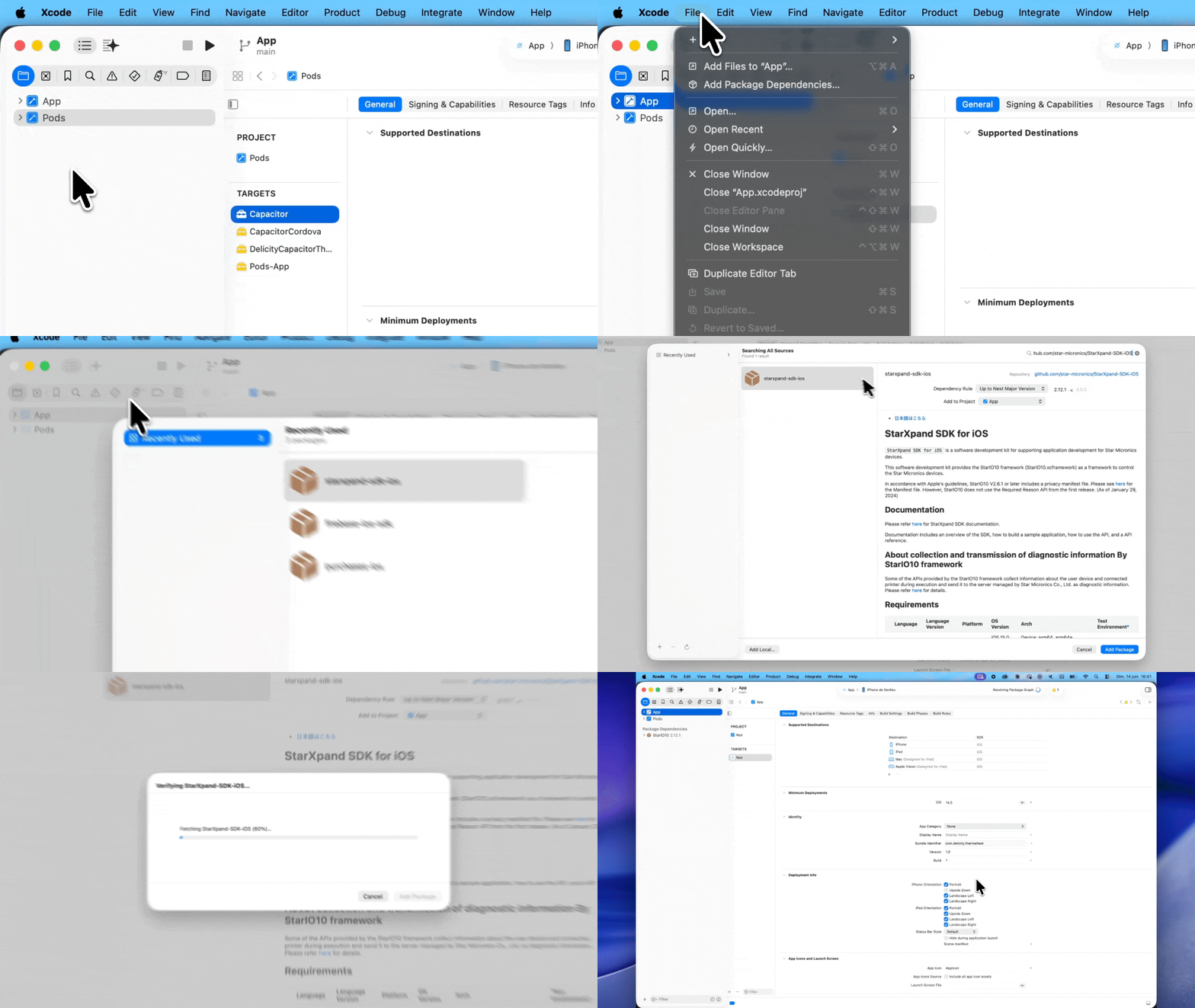
4. Run `npx cap sync ios` (or `pod install`) and rebuild. **That's it — no Podfile edit.**
> ℹ️ You don't need to touch the `Podfile`: just adding the SPM package to your app is
> enough for the plugin to pick Star up — Star support turns on by itself.
5. **For Bluetooth (MFi) Star printers**, add the Star **protocol string** to your app's
`Info.plist` — otherwise iOS never surfaces the paired Star printer and discovery finds
**nothing over Bluetooth** (even though `getActiveSdks()` already reports
`star: available=true`). This is the #1 cause of "SDK installed but no Star printer found":
```xml
UISupportedExternalAccessoryProtocols
jp.star-m.starpro
NSBluetoothAlwaysUsageDescription
Discover and print to Bluetooth printers.
```
`jp.star-m.starpro` covers both **Bluetooth (classic MFi)** and **USB** Star printers
(required by StarXpand). If you already declare the key for another brand (Epson/Zebra),
just **add** `jp.star-m.starpro` to the existing `` — don't replace the others.
Wi-Fi/LAN Star printers also need `NSLocalNetworkUsageDescription` + `NSBonjourServices`
(see the network-discovery note). Then **pair the printer in iOS Settings ▸ Bluetooth**
first, grant the Bluetooth prompt on first launch, and relaunch.
> ℹ️ Star is the **only** brand whose SDK auto-installs on iOS, so it's easy to forget the
> `Info.plist` step — the SDK compiles in and `getActiveSdks()` says `available=true`, yet
> Bluetooth discovery silently returns empty until this key is present.
> ✅ Verified on a Capacitor 7 app + iOS simulator: after adding the SPM package,
> `getActiveSdks()` reports `star: available=true` and Star discovery routes through the SDK.
---
## 🟦 Brother
### Android (manual binary)
1. Download the **Brother Print SDK v4.x.x** (Android) from the
[Brother Mobile SDK portal](https://support.brother.com/g/s/es/dev/en/mobilesdk/download/index.html)
(or the [Brother Developer Program US](https://developerprogram.brother-usa.com/sdk-download)) — license acceptance required.
2. **Unzip the download to get the `.aar`.** The portal gives you an outer archive that
contains another zip — you have to unzip **twice**:
```
BrotherPrintSDK_v4.x.x.zip ← outer archive you downloaded
└─ bpsdka4xxx.zip ← the Android SDK archive (unzip this one too)
└─ libs/
└─ BrotherPrintLibrary.aar ← the file you need
```
> ℹ️ Exact names vary by version (e.g. `bpsdka4120.zip` for v4.12.0). The `.aar` always
> lives in the **`libs/`** folder inside the inner `bpsdka4xxx.zip`.
3. In your Capacitor app, **create the `libs/` folder** if it doesn't exist yet
(`android/app/libs/`), then drop the `.aar` in it:
```
android/app/libs/BrotherPrintLibrary.aar
```
> ℹ️ The `android/app/libs/` folder isn't created by `npx cap add android` — you make it
> yourself, then place the `.aar` inside.
4. In your app's `android/app/build.gradle`, add the **dependency** line inside the
`dependencies { … }` block:
```gradle
dependencies {
// … existing Capacitor / AndroidX deps …
implementation(name: 'BrotherPrintLibrary', ext: 'aar')
}
```
> ⚠️ **The explicit line is required** — don't rely on the template's
> `implementation fileTree(include: ['*.jar'], dir: 'libs')`: it only matches `*.jar`, so
> the `.aar` is **silently ignored** without this line (build succeeds, but Brother classes
> never make it into the APK).
>
> ℹ️ The Capacitor app template already declares `flatDir { dirs … , 'libs' }` in its
> `repositories { … }` block, so you normally **don't** need to touch `repositories`. If
> yours doesn't have it, add `flatDir { dirs 'libs' }` there:
> ```gradle
> repositories { flatDir { dirs 'libs' } }
> ```
5. Done — Brother support turns on by itself once the `.aar` is present.
> ✅ **Verified** on a Capacitor 7 test app (JDK 21): with the `.aar` in `app/libs/` and the
> `implementation(name: …)` line, `./gradlew :app:assembleDebug` succeeds and the APK
> bundles the Brother classes (`com/brother/…`) plus the native lib `libcreatedata.so` for
> all ABIs.
### iOS (one manual step: add the pod)
Add the pod to your app's `Podfile` (it's published on CocoaPods, so no binary to download).
In a Capacitor app the Podfile lives at `ios/App/Podfile`; add the line **inside the
`target 'App'` block**, where the `# Add your Pods here` comment is:
```ruby
target 'App' do
capacitor_pods
# Add your Pods here
pod 'BRLMPrinterKit', '~> 4.12'
end
```
Then run `pod install` from `ios/App/` (or `npx cap sync ios`) — Brother support turns on by itself.
---
## 🟧 Epson (manual binary on both platforms)
### Android
1. Download the **ePOS SDK for Android** — [direct download (Epson Download Center)](https://download-center.epson.com/softwares/?device_id=TM-T83II-i&os=ARD)
(or browse from [Epson Developers](https://epson.com/developers-products) /
[ePOS SDK ref.](https://download4.epson.biz/sec_pubs/pos/reference_en/technology/epson_epos_sdk.html)) — license acceptance required.
2. Unzip the archive (e.g. `ePOS_SDK_Android_v2.37.0`). At its root you'll find:
```
ePOS_SDK_Android_v2.37.0/
├─ ePOS2.jar ← the SDK (required)
├─ ePOSEasySelect.jar ← optional printer-selection helper
├─ arm64-v8a/ ┐
├─ armeabi-v7a/ │ native libs (.so) — one folder per ABI
├─ x86/ │
└─ x86_64/ ┘
```
(the rest — `*_Sample_*.zip`, the `*_um_*` user-manual PDFs, `EULA.txt`, `OPOS_CCOs*.msi`,
etc. — is documentation/samples you don't need.)
3. Copy the binaries into your Capacitor app:
- `ePOS2.jar` → `android/app/libs/` (create the `libs/` folder if needed; add
`ePOSEasySelect.jar` too only if you use the easy-select helper).
- the **whole ABI folders** (`arm64-v8a`, `armeabi-v7a`, `x86`, `x86_64`) → into
`android/app/src/main/jniLibs/` (create it if needed), keeping the per-ABI folder
structure — they hold the native `.so` the JAR loads at runtime. Without them the SDK
compiles but throws `UnsatisfiedLinkError` at connect time.
4. `build.gradle` — usually **nothing to add**. The Capacitor app template already declares
`implementation fileTree(include: ['*.jar'], dir: 'libs')`, which **automatically** picks up
`ePOS2.jar` (and `ePOSEasySelect.jar`). Only if your `build.gradle` lacks that `fileTree`
line, add the jars explicitly:
```gradle
dependencies { implementation files('libs/ePOS2.jar') } // + 'libs/ePOSEasySelect.jar' if used
```
> ℹ️ Unlike Brother's `.aar` (which `fileTree(['*.jar'])` ignores, so it needs an explicit
> line), Epson ships **`.jar`** files — the template's `fileTree` already covers them.
5. **ProGuard/R8 rules (release builds only).** *Skip this for debug builds — it only matters
when you ship a release/minified build.* R8 is the Android tool that, in `release` builds,
**shrinks and renames** (obfuscates) unused/private code to make the APK smaller. It can't
tell that the Epson SDK is reached partly via reflection/JNI, so it may **strip or rename
classes the SDK still needs**, causing crashes like `ClassNotFoundException` /
`NoSuchMethodError` at runtime — even though the app compiled fine. The two rules below tell
R8 to leave the Epson SDK alone:
```
# Keep every class/method/field under com.epson.* exactly as-is (no removal, no renaming)
-keep class com.epson.** { *; }
# Don't fail the build over R8's warnings about optional refs inside the Epson SDK
-dontwarn com.epson.**
```
Add them to your app's `android/app/proguard-rules.pro` (the file the Capacitor template
already references via `proguardFiles … 'proguard-rules.pro'`). If you never enable
minification (`minifyEnabled false`, the Capacitor default), these rules are harmless but
unnecessary.
6. Done — Epson support turns on by itself once `ePOS2.jar` is present.
> ✅ **Verified** on a Capacitor 7 test app (JDK 21): with both jars in `app/libs/` and the
> four ABI folders in `app/src/main/jniLibs/`, `./gradlew :app:assembleDebug` succeeds and
> the APK bundles the Epson classes (`com/epson/…`) plus `libepos2.so` /
> `libeposeasyselect.so` for all ABIs.
### iOS
1. Download the **ePOS SDK for iOS** — [direct download (Epson Download Center)](https://download-center.epson.com/download/?module_id=e5fde6cb-2f38-4bb3-b920-e53ee5b3190f%3A2.37.0&device_id=TM-m10&os=IOS®ion=FR&language=fr)
(or browse from [Epson Developers](https://epson.com/developers-products); Bluetooth MFi: see [MFi / ePOS SDK support](https://global.epson.com/products_and_drivers/tm/en/mfi.html)).
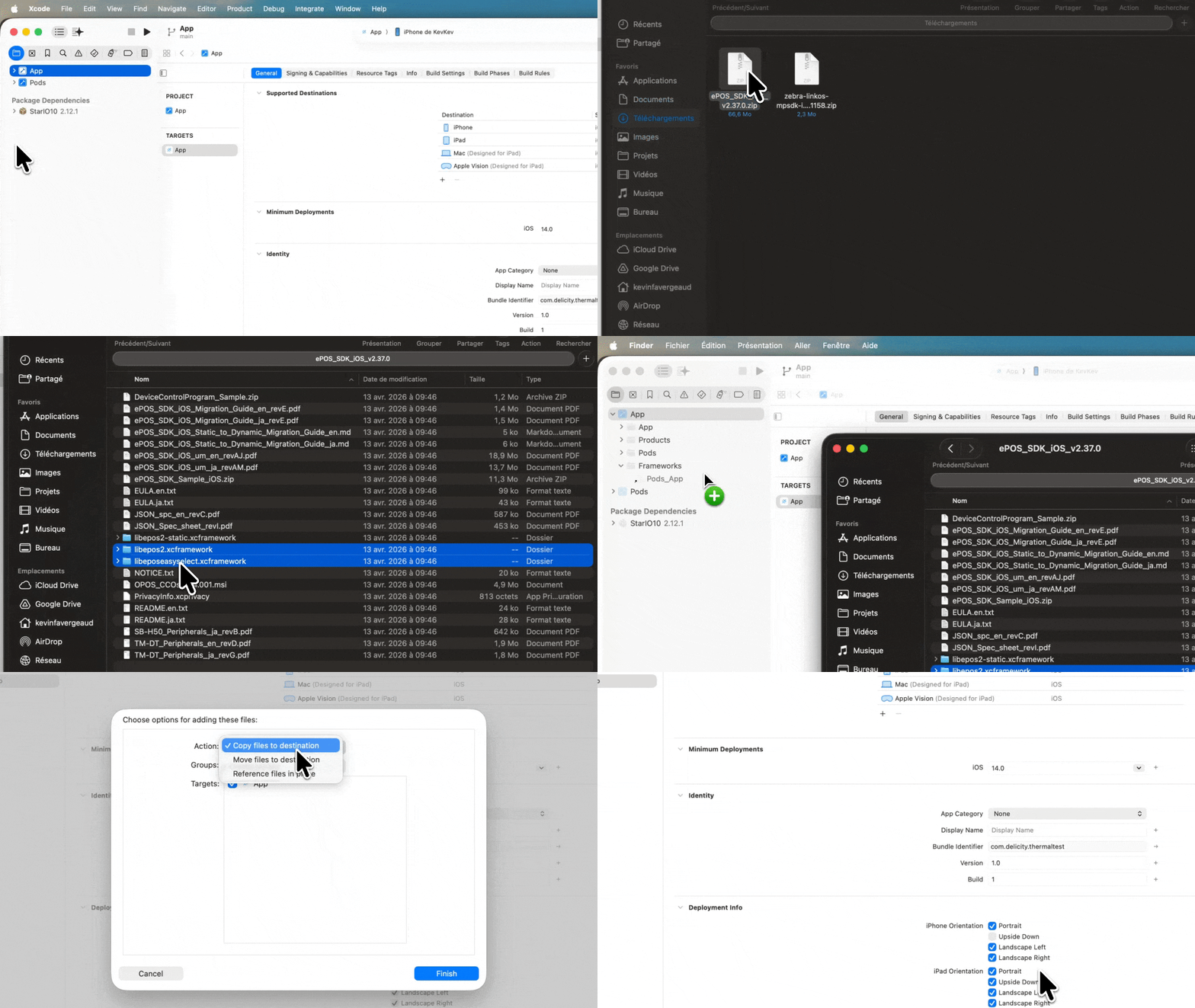
2. The SDK archive contains three frameworks — take the **dynamic** one,
**`libepos2.xcframework`** (optionally also `libeposeasyselect.xcframework`, the
printer-selection helper). In Xcode, **drag and drop** it onto the **`App` ▸ Frameworks**
group, and in the dialog **tick "Copy items if needed"** so the framework is copied into
the project (not just referenced from your Downloads folder). Leave it on **Embed & Sign**.
> ⚠️ Do **not** also add `libepos2-static.xcframework` — it's the *static* variant of
> `libepos2` (an alternative, not a complement). Since the Capacitor Podfile uses
> `use_frameworks!`, use the dynamic `libepos2.xcframework`; adding both causes duplicate
> symbols.
3. That's all on the app side: once `libepos2.xcframework` is on the `App` target, Epson
support turns on by itself.
> ⚠️ If your SDK version exposes a **different module name**, adjust it in
> `EpsonAdapter.swift` (the two lines `canImport(libepos2)` and `import libepos2`).
4. **Enable signing for the embedded framework(s)** — see
[Enable framework signing (iOS)](#enable-framework-signing-ios).
5. **For Bluetooth (MFi) Epson printers**, add to your app's `Info.plist` (otherwise iOS
won't surface the paired printer and discovery finds nothing):
```xml
UISupportedExternalAccessoryProtocols
com.epson.escpos
NSBluetoothAlwaysUsageDescription
Discover and print to Bluetooth printers.
```
Wi-Fi/network Epson printers also need `NSLocalNetworkUsageDescription` +
`NSBonjourServices` (see the network-discovery note). Grant the Bluetooth / Local Network
prompts on first launch, then relaunch — `discoverPrinters()` then returns the Epson over
Bluetooth/Wi-Fi and `connectPrinter` / `printImage` / `printText` work.
---
## 🟨 Zebra (Link-OS — ZPL/CPCL, never ESC/POS)
### Android (manual binary)
1. Download the **Link-OS Multiplatform SDK** (Android) from the
[Zebra dev portal](https://developer.zebra.com/products/printers/link-os-multiplatform-sdk)
([downloads & support](https://www.zebra.com/us/en/support-downloads/software/printer-software/link-os-multiplatform-sdk.html)) —
a free Zebra account + license acceptance required.
2. Unzip it and open the SDK's **`lib/`** folder
(`Link-OS_SDK/Android/v/lib/`). It contains `ZSDK_ANDROID_API.jar` **plus its
third-party dependency jars** — the SDK jar alone won't run, it needs all of them:
```
ZSDK_ANDROID_API.jar ← the Zebra SDK
jackson-core / jackson-databind / jackson-annotations ← JSON
commons-io / commons-lang3 / commons-net / commons-validator
core / prov / pkix ← BouncyCastle (crypto)
httpcore / httpmime ← Apache HttpComponents
opencsv, snmp6_1z
```
> ℹ️ Exact filenames/versions vary by SDK release. There are **no `.so` native libs** in the
> Android SDK (pure Java/JAR), so nothing goes into `jniLibs/`.
3. In your Capacitor app, **create the `libs/` folder** if needed (`android/app/libs/`) and
copy **every `.jar` from the SDK's `lib/` folder** into it (not just `ZSDK_ANDROID_API.jar`).
4. `build.gradle` — the Capacitor template's `implementation fileTree(include: ['*.jar'], dir: 'libs')`
already picks up all those jars, so there's **no `implementation` line to add**. But two of
the bundled Apache jars (`httpcore`, `httpmime`) each ship a `META-INF/DEPENDENCIES` file,
which collides at packaging (`2 files found with path 'META-INF/DEPENDENCIES'`). Add a
`packaging` block inside `android { … }` in `android/app/build.gradle` to drop those
duplicate metadata files:
```gradle
android {
// …
packaging {
resources {
excludes += ['META-INF/DEPENDENCIES', 'META-INF/NOTICE', 'META-INF/NOTICE.txt',
'META-INF/LICENSE', 'META-INF/LICENSE.txt', 'META-INF/INDEX.LIST']
}
}
}
```
5. Done — Zebra support turns on by itself once the jars are present.
> ✅ **Verified** on a Capacitor 7 test app (JDK 21) with Link-OS SDK v2.16.5518: with all
> `lib/` jars in `app/libs/` and the `packaging` block above, `./gradlew :app:assembleDebug`
> succeeds and the APK bundles the Zebra classes (`com/zebra/sdk/…`).
### iOS (manual xcframework)
1. Download the **Link-OS Multiplatform SDK** (iOS) from the
[Zebra portal](https://developer.zebra.com/products/printers/link-os-multiplatform-sdk)
([downloads & support](https://www.zebra.com/us/en/support-downloads/software/printer-software/link-os-multiplatform-sdk.html)).
2. In Xcode, **drag and drop** `ZSDK_API.xcframework` onto the **`App` ▸ Frameworks** group,
and **tick "Copy items if needed"** so it's copied into the project.
3. Run `npx cap sync ios` (or `pod install`) and rebuild. **That's it** — Zebra support turns
on by itself, no Podfile edit needed.
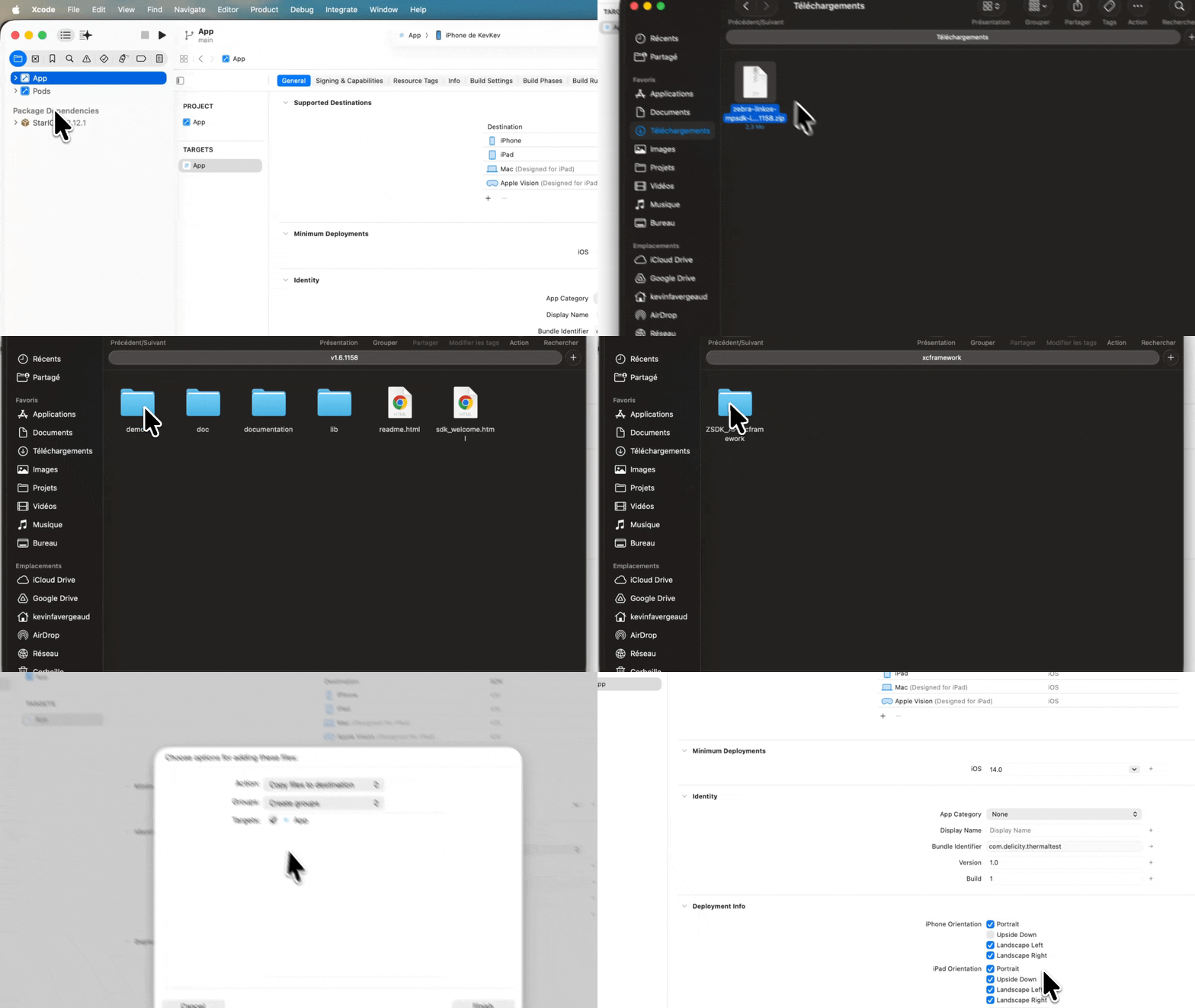
4. In the **`App`** target ▸ **General** ▸ **Frameworks, Libraries, and Embedded Content**,
leave `ZSDK_API.xcframework` on **Do Not Embed**. Unlike Epson, Zebra is a **static**
library — it's linked into your app, so there's **nothing to embed or sign separately**
(see [Framework embedding & signing (iOS)](#enable-framework-signing-ios)).
> Using Zebra over **Bluetooth** (MFi)? Add `com.zebra.rawport` under **Supported external
> accessory protocols** in your app's `Info.plist`. (Wi-Fi/network needs nothing extra.)
---
## Enable framework signing (iOS)
After adding a manufacturer `.xcframework` to the `App` target, make sure the framework is
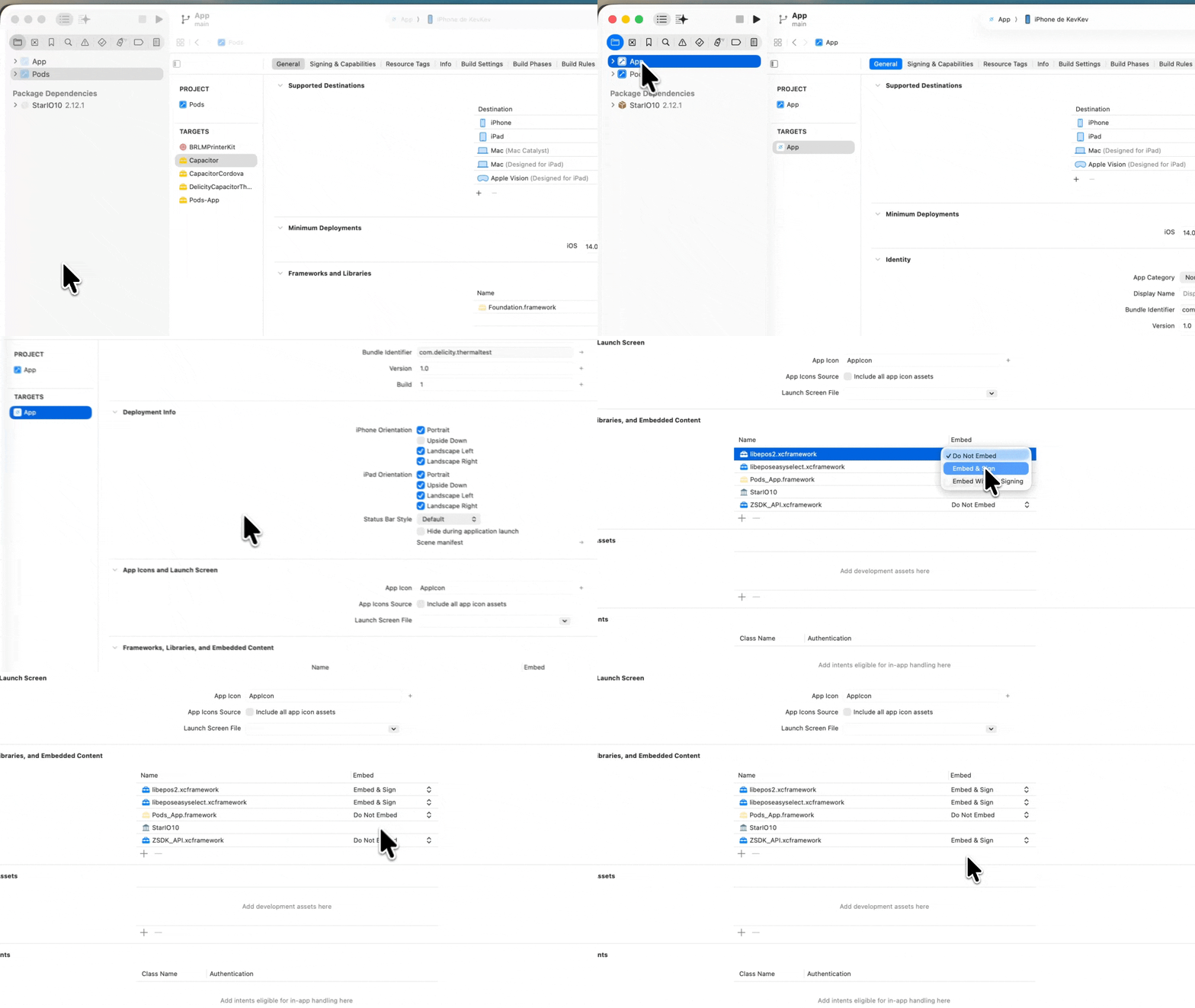
**signed** by your app. In Xcode, open the **`App`** target ▸ **General** ▸ **Frameworks,
Libraries, and Embedded Content**, and set the framework's dropdown to **Embed & Sign**
(not "Do Not Embed" / "Embed Without Signing"). Otherwise the build can fail code-signing or
the app may be rejected at install.