## Components - ribbon anchored commands
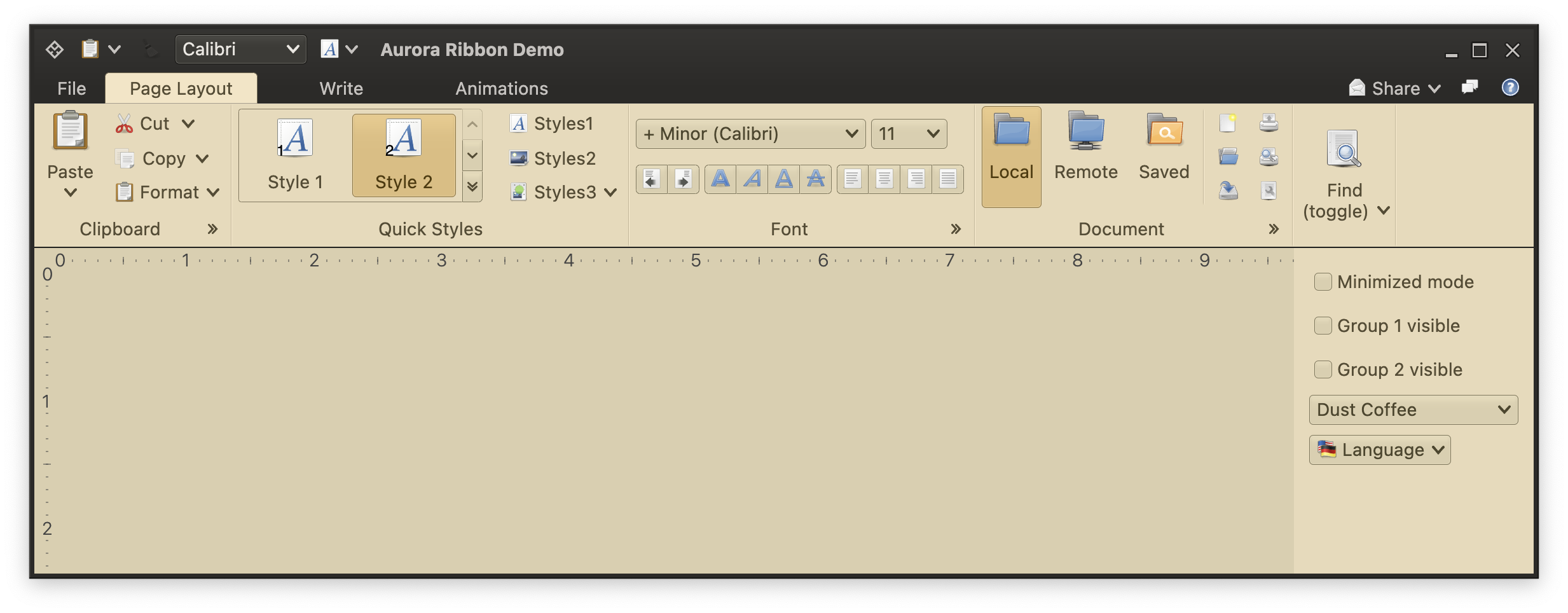 The top-right (under left-to-right orientation) corner of the ribbon is reserved for anchored commands. This area can be used to place a small number of commands that can be identified quickly by either their icon only, or by a very short text.
Use the `anchoredCommands` property of the `Ribbon` data class API to add anchored command content. For the screenshot above (that has Share, Chat and Help anchored commands) this is the code that adds such content:
```kotlin
val shareEntrySendMail = Command(
text = resourceBundle.getString("AppMenuSend.email.text"),
action = { println("Shared to email") }
)
val shareEntrySendHtml = Command(
text = resourceBundle.getString("AppMenuSend.html.text"),
action = { println("Shared to browser") }
)
val shareEntrySendDoc = Command(
text = resourceBundle.getString("AppMenuSend.word.text"),
action = { println("Shared to Word") }
)
val anchoredCommands = listOf(
CommandButtonProjection(
contentModel = Command(
text = resourceBundle.getString("Share.title"),
icon = internet_mail(),
secondaryContentModel = CommandMenuContentModel(
group = CommandGroup(
commands = listOf(shareEntrySendMail, shareEntrySendHtml, shareEntrySendDoc)
)
)
),
presentationModel = CommandButtonPresentationModel(
popupKeyTip = "GS"
)
),
CommandButtonProjection(
contentModel = Command(
text = "",
icon = internet_group_chat(),
action = { println("Chat button clicked!") },
isActionToggle = true
),
presentationModel = CommandButtonPresentationModel(
actionKeyTip = "GC"
)
),
CommandButtonProjection(
contentModel = Command(
text = "",
icon = help_browser(),
action = { println("Help button clicked!") },
actionRichTooltip = RichTooltip(
title = resourceBundle.getString("Help.tooltip.title"),
descriptionSections = listOf(resourceBundle.getString("Help.tooltip.actionParagraph"))
)
),
presentationModel = CommandButtonPresentationModel(
actionKeyTip = "GH"
)
)
)
val ribbon = Ribbon(
tasks = listOf(pageLayoutTask, writeTask, animationsTask),
contextualTaskGroups = contextualTaskGroups,
taskbarElements = taskbarElements,
taskbarKeyTipPolicy = DefaultRibbonTaskbarKeyTipPolicy(),
anchoredCommands = anchoredCommands,
applicationMenuCommandButtonProjection = applicationMenuCommandButtonProjection,
isMinimized = minimizedMode,
onShowContextualMenuListener = onShowContextualMenuListener
)
```
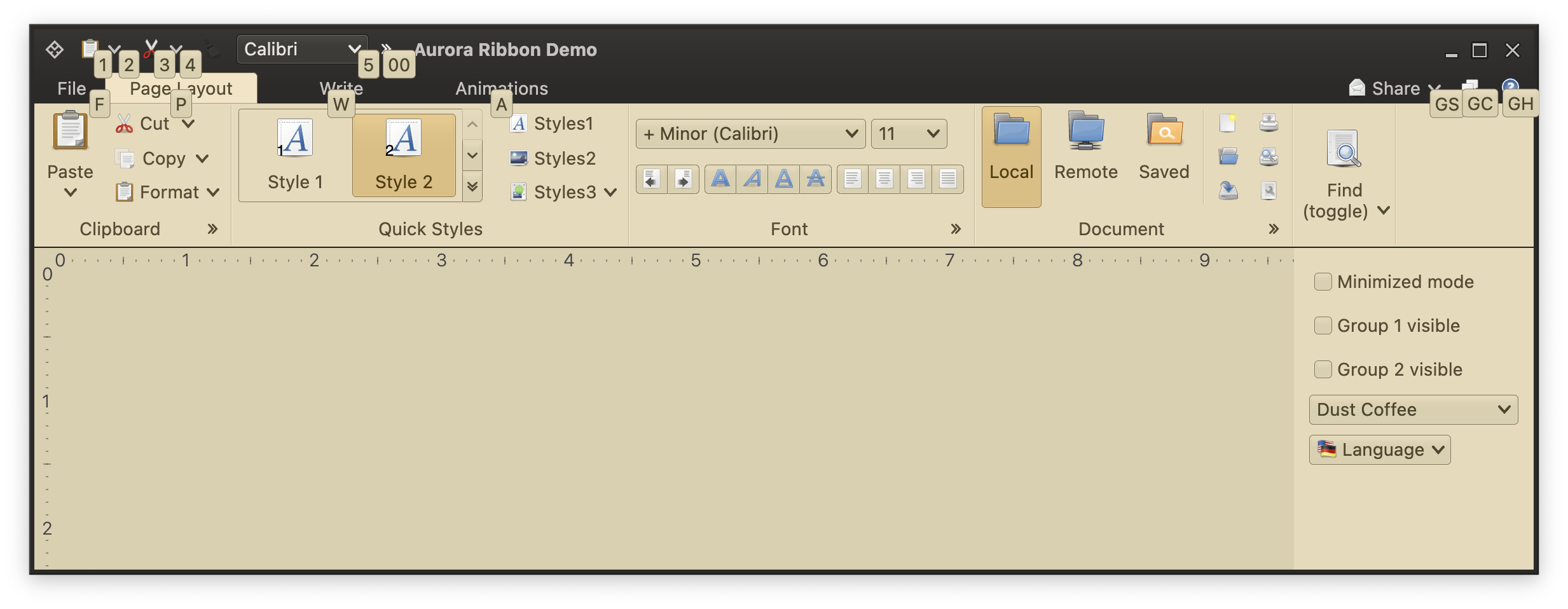
The associated keytips are shown at the root level:
The top-right (under left-to-right orientation) corner of the ribbon is reserved for anchored commands. This area can be used to place a small number of commands that can be identified quickly by either their icon only, or by a very short text.
Use the `anchoredCommands` property of the `Ribbon` data class API to add anchored command content. For the screenshot above (that has Share, Chat and Help anchored commands) this is the code that adds such content:
```kotlin
val shareEntrySendMail = Command(
text = resourceBundle.getString("AppMenuSend.email.text"),
action = { println("Shared to email") }
)
val shareEntrySendHtml = Command(
text = resourceBundle.getString("AppMenuSend.html.text"),
action = { println("Shared to browser") }
)
val shareEntrySendDoc = Command(
text = resourceBundle.getString("AppMenuSend.word.text"),
action = { println("Shared to Word") }
)
val anchoredCommands = listOf(
CommandButtonProjection(
contentModel = Command(
text = resourceBundle.getString("Share.title"),
icon = internet_mail(),
secondaryContentModel = CommandMenuContentModel(
group = CommandGroup(
commands = listOf(shareEntrySendMail, shareEntrySendHtml, shareEntrySendDoc)
)
)
),
presentationModel = CommandButtonPresentationModel(
popupKeyTip = "GS"
)
),
CommandButtonProjection(
contentModel = Command(
text = "",
icon = internet_group_chat(),
action = { println("Chat button clicked!") },
isActionToggle = true
),
presentationModel = CommandButtonPresentationModel(
actionKeyTip = "GC"
)
),
CommandButtonProjection(
contentModel = Command(
text = "",
icon = help_browser(),
action = { println("Help button clicked!") },
actionRichTooltip = RichTooltip(
title = resourceBundle.getString("Help.tooltip.title"),
descriptionSections = listOf(resourceBundle.getString("Help.tooltip.actionParagraph"))
)
),
presentationModel = CommandButtonPresentationModel(
actionKeyTip = "GH"
)
)
)
val ribbon = Ribbon(
tasks = listOf(pageLayoutTask, writeTask, animationsTask),
contextualTaskGroups = contextualTaskGroups,
taskbarElements = taskbarElements,
taskbarKeyTipPolicy = DefaultRibbonTaskbarKeyTipPolicy(),
anchoredCommands = anchoredCommands,
applicationMenuCommandButtonProjection = applicationMenuCommandButtonProjection,
isMinimized = minimizedMode,
onShowContextualMenuListener = onShowContextualMenuListener
)
```
The associated keytips are shown at the root level:
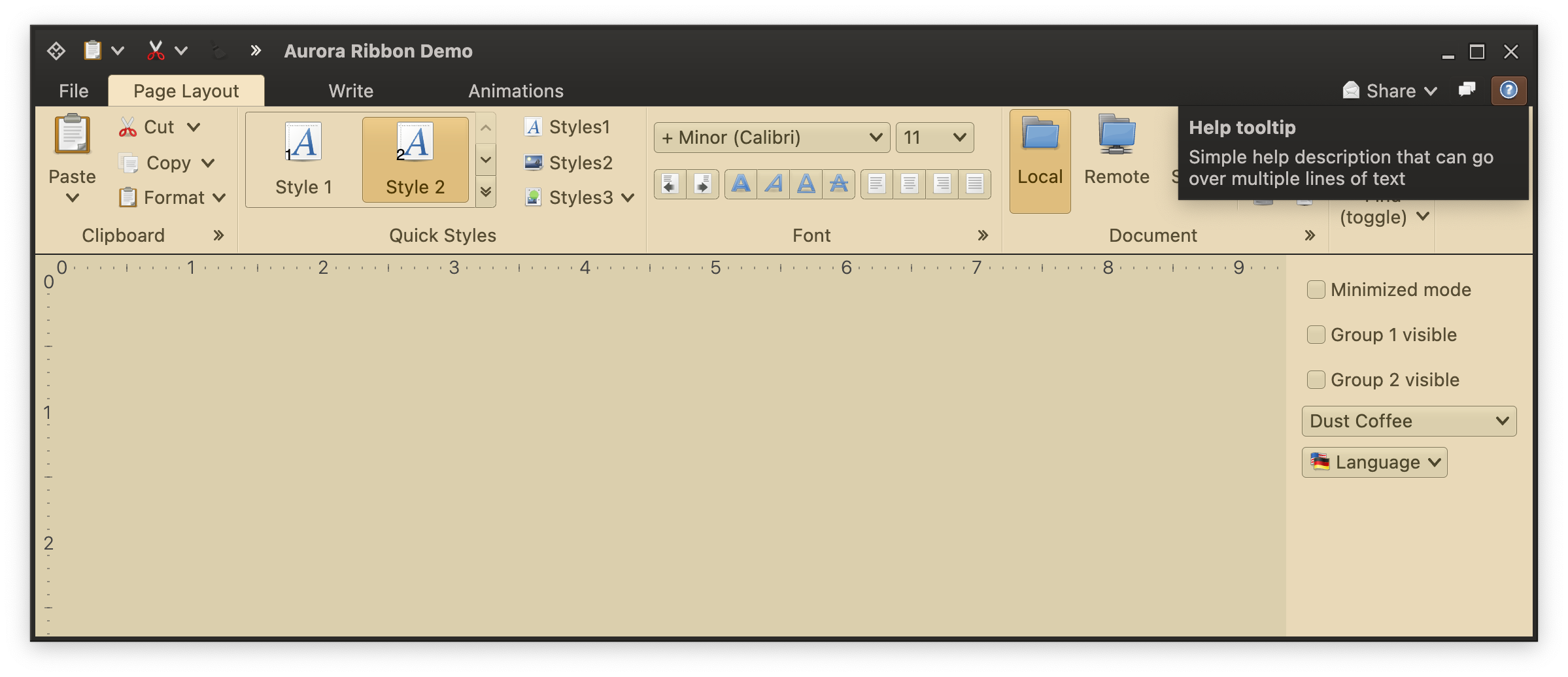
 Rich tooltips associated with the commands are shown right below the anchored command area:
 ### Next
Continue to [ribbon contextual task groups](RibbonContextualTaskGroups.md).
### Next
Continue to [ribbon contextual task groups](RibbonContextualTaskGroups.md).