## Components - ribbon band command projections
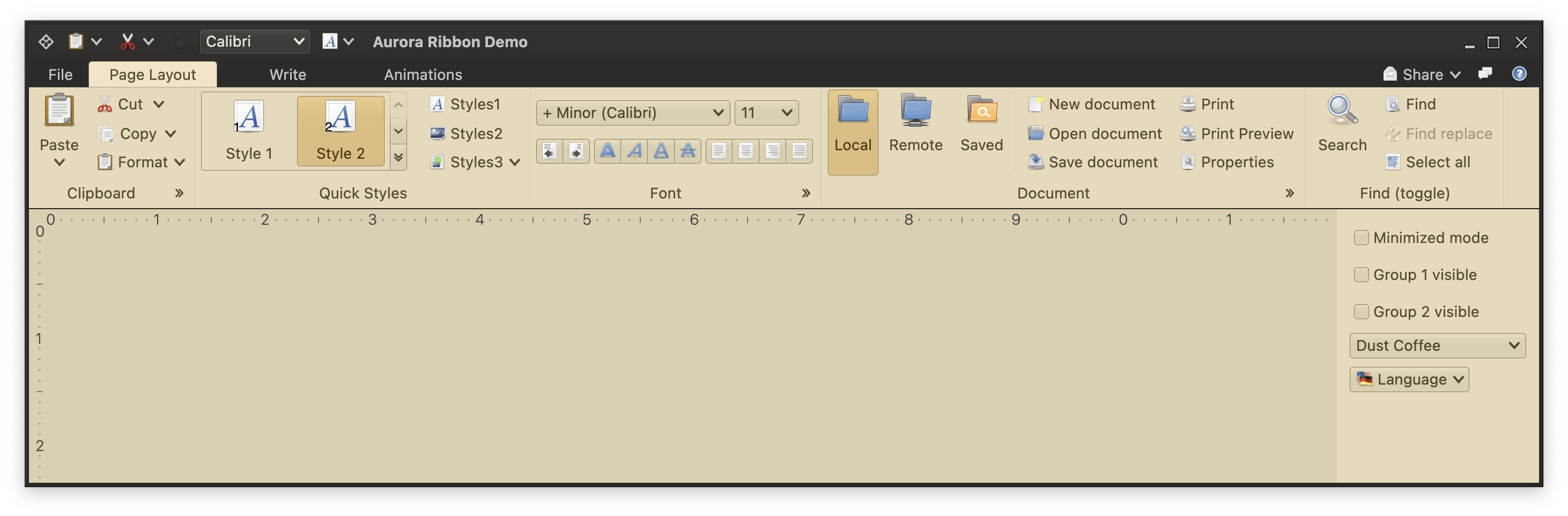 [Command projections](CommandProjections.md) are the first type of content that can be placed in a ribbon band. Let's take a look at the various moving pieces involved in configuring a couple of command projections in the leftmost "Clipboard" band in the screenshot above.
### Command
We first start by configuring our [command](Command.md):
```kotlin
val pasteCommand = Command(
text = resourceBundle.getString("Edit.paste.text"),
icon = edit_paste(),
action = { println("Pasted!") },
actionRichTooltip = RichTooltip(
title = resourceBundle.getString("Edit.paste.text"),
descriptionSections = listOf(resourceBundle.getString("Paste.tooltip.actionParagraph1"))
),
secondaryContentModel = getSimpleMenuModel(),
secondaryRichTooltip = RichTooltip(
title = resourceBundle.getString("Edit.paste.text"),
descriptionSections = listOf(resourceBundle.getString("Paste.tooltip.popupParagraph1"))
),
)
```
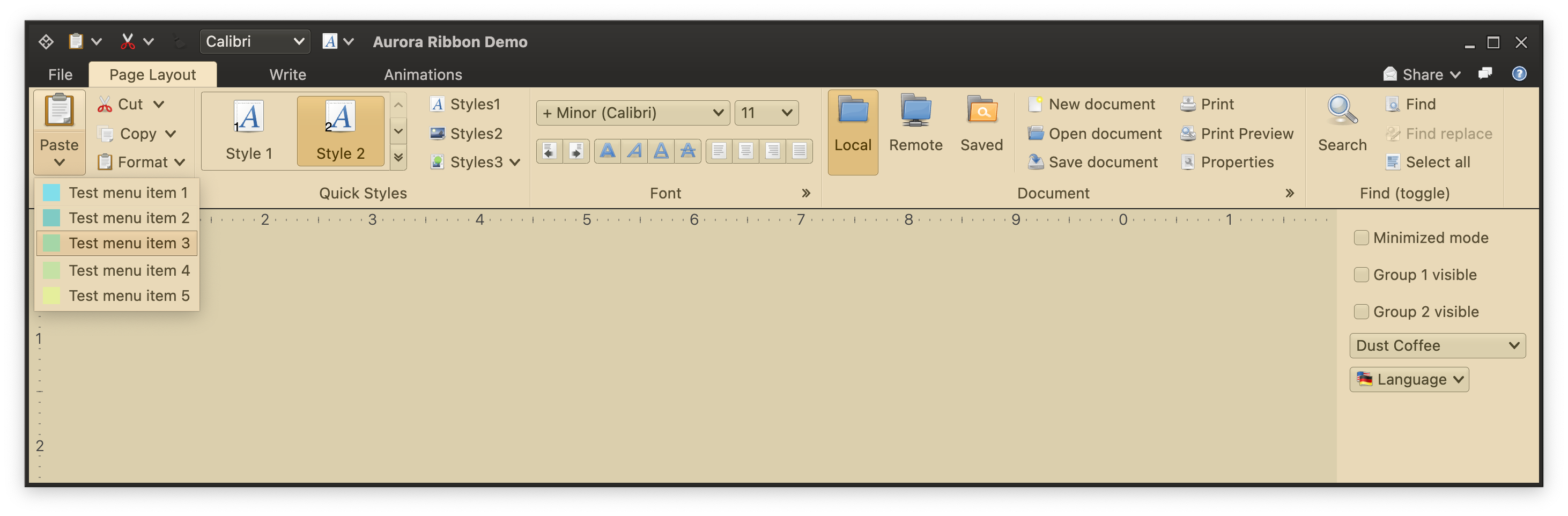
where the secondary content is five commands split into two command groups:
```kotlin
val mf = MessageFormat(resourceBundle.getString("TestMenuItem.text"))
val popupCommand1 = Command(
text = mf.format(arrayOf("1")),
icon = ColorSolidIcon(Color(red = 0x80, green = 0xDE, blue = 0xEA)),
action = { println("Test menu item 1 activated") },
)
val popupCommand2 = Command(
text = mf.format(arrayOf("2")),
icon = ColorSolidIcon(Color(red = 0x80, green = 0xCB, blue = 0xC4)),
action = { println("Test menu item 2 activated") }
)
val popupCommand3 = Command(
text = mf.format(arrayOf("3")),
icon = ColorSolidIcon(Color(red = 0xA5, green = 0xD6, blue = 0xA7)),
action = { println("Test menu item 3 activated") }
)
val popupCommand4 = Command(
text = mf.format(arrayOf("4")),
icon = ColorSolidIcon(Color(red = 0xC5, green = 0xE1, blue = 0xA5)),
action = { println("Test menu item 4 activated") }
)
val popupCommand5 = Command(
text = mf.format(arrayOf("5")),
icon = ColorSolidIcon(Color(red = 0xE6, green = 0xEE, blue = 0x9C)),
action = { println("Test menu item 5 activated") }
)
val popupMenuContentModel = CommandMenuContentModel(
groups = listOf(
CommandGroup(
title = null,
commands = listOf(this.popupCommand1, this.popupCommand2, this.popupCommand3)
),
CommandGroup(
title = null,
commands = listOf(this.popupCommand4, this.popupCommand5)
)
)
);
```
and this is how that secondary content looks like when it is shown as a [popup menu](CommandPopupMenu.md):
[Command projections](CommandProjections.md) are the first type of content that can be placed in a ribbon band. Let's take a look at the various moving pieces involved in configuring a couple of command projections in the leftmost "Clipboard" band in the screenshot above.
### Command
We first start by configuring our [command](Command.md):
```kotlin
val pasteCommand = Command(
text = resourceBundle.getString("Edit.paste.text"),
icon = edit_paste(),
action = { println("Pasted!") },
actionRichTooltip = RichTooltip(
title = resourceBundle.getString("Edit.paste.text"),
descriptionSections = listOf(resourceBundle.getString("Paste.tooltip.actionParagraph1"))
),
secondaryContentModel = getSimpleMenuModel(),
secondaryRichTooltip = RichTooltip(
title = resourceBundle.getString("Edit.paste.text"),
descriptionSections = listOf(resourceBundle.getString("Paste.tooltip.popupParagraph1"))
),
)
```
where the secondary content is five commands split into two command groups:
```kotlin
val mf = MessageFormat(resourceBundle.getString("TestMenuItem.text"))
val popupCommand1 = Command(
text = mf.format(arrayOf("1")),
icon = ColorSolidIcon(Color(red = 0x80, green = 0xDE, blue = 0xEA)),
action = { println("Test menu item 1 activated") },
)
val popupCommand2 = Command(
text = mf.format(arrayOf("2")),
icon = ColorSolidIcon(Color(red = 0x80, green = 0xCB, blue = 0xC4)),
action = { println("Test menu item 2 activated") }
)
val popupCommand3 = Command(
text = mf.format(arrayOf("3")),
icon = ColorSolidIcon(Color(red = 0xA5, green = 0xD6, blue = 0xA7)),
action = { println("Test menu item 3 activated") }
)
val popupCommand4 = Command(
text = mf.format(arrayOf("4")),
icon = ColorSolidIcon(Color(red = 0xC5, green = 0xE1, blue = 0xA5)),
action = { println("Test menu item 4 activated") }
)
val popupCommand5 = Command(
text = mf.format(arrayOf("5")),
icon = ColorSolidIcon(Color(red = 0xE6, green = 0xEE, blue = 0x9C)),
action = { println("Test menu item 5 activated") }
)
val popupMenuContentModel = CommandMenuContentModel(
groups = listOf(
CommandGroup(
title = null,
commands = listOf(this.popupCommand1, this.popupCommand2, this.popupCommand3)
),
CommandGroup(
title = null,
commands = listOf(this.popupCommand4, this.popupCommand5)
)
)
);
```
and this is how that secondary content looks like when it is shown as a [popup menu](CommandPopupMenu.md):
 ### Command projection
Now, we combine this command with a [command button presentation](CommandButtonPresentation.md) to create a [command projection](CommandProjections.md):
```kotlin
val pasteCommandProjection = CommandButtonProjection(
contentModel = pasteCommand,
presentationModel = CommandButtonPresentationModel(
actionKeyTip = "Y",
popupKeyTip = "V",
textClick = TextClick.Action
),
secondaryOverlays = mapOf(
popupCommand1 to BaseCommandButtonPresentationModel.Overlay(actionKeyTip = "1"),
popupCommand2 to BaseCommandButtonPresentationModel.Overlay(actionKeyTip = "2"),
popupCommand3 to BaseCommandButtonPresentationModel.Overlay(actionKeyTip = "3"),
popupCommand4 to BaseCommandButtonPresentationModel.Overlay(actionKeyTip = "4"),
popupCommand5 to BaseCommandButtonPresentationModel.Overlay(actionKeyTip = "5"),
)
)
```
Note that here we are not explicitly specifying the presentation state for this content. Ribbon is a highly dynamic container that reconfigures the presentation of its content on the fly as it is resized - based on the available horizontal space.
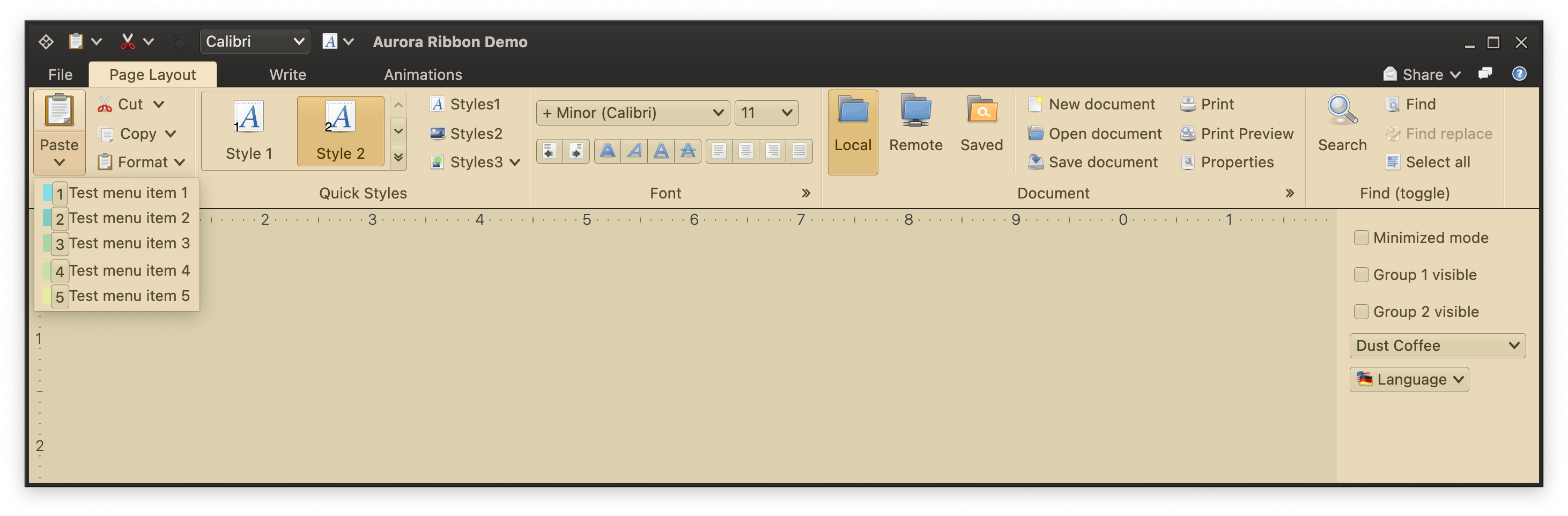
We're ready to add this command projection to the ribbon band. An important step is to configure the action key tips for the secondary / popup content. Since commands in this secondary content can be used elsewhere in the ribbon, the action key tips are configured not at the level of each such command itself, but rather at the level of the command projection that is using those commands in its `secondaryOverlays` in the code block above.
Now we can add our command projection:
```kotlin
RibbonBand(
title = resourceBundle.getString("Clipboard.textBandTitle"),
icon = edit_paste(),
...,
groups = listOf(
RibbonBandCommandGroup(
commandProjections = listOf(
pasteCommandProjection at PresentationPriority.Top,
...
)
)
)
```
Before we discuss the presentation priority parameter, let's take a look at how the action key tips for this secondary content look like when activated:
### Command projection
Now, we combine this command with a [command button presentation](CommandButtonPresentation.md) to create a [command projection](CommandProjections.md):
```kotlin
val pasteCommandProjection = CommandButtonProjection(
contentModel = pasteCommand,
presentationModel = CommandButtonPresentationModel(
actionKeyTip = "Y",
popupKeyTip = "V",
textClick = TextClick.Action
),
secondaryOverlays = mapOf(
popupCommand1 to BaseCommandButtonPresentationModel.Overlay(actionKeyTip = "1"),
popupCommand2 to BaseCommandButtonPresentationModel.Overlay(actionKeyTip = "2"),
popupCommand3 to BaseCommandButtonPresentationModel.Overlay(actionKeyTip = "3"),
popupCommand4 to BaseCommandButtonPresentationModel.Overlay(actionKeyTip = "4"),
popupCommand5 to BaseCommandButtonPresentationModel.Overlay(actionKeyTip = "5"),
)
)
```
Note that here we are not explicitly specifying the presentation state for this content. Ribbon is a highly dynamic container that reconfigures the presentation of its content on the fly as it is resized - based on the available horizontal space.
We're ready to add this command projection to the ribbon band. An important step is to configure the action key tips for the secondary / popup content. Since commands in this secondary content can be used elsewhere in the ribbon, the action key tips are configured not at the level of each such command itself, but rather at the level of the command projection that is using those commands in its `secondaryOverlays` in the code block above.
Now we can add our command projection:
```kotlin
RibbonBand(
title = resourceBundle.getString("Clipboard.textBandTitle"),
icon = edit_paste(),
...,
groups = listOf(
RibbonBandCommandGroup(
commandProjections = listOf(
pasteCommandProjection at PresentationPriority.Top,
...
)
)
)
```
Before we discuss the presentation priority parameter, let's take a look at how the action key tips for this secondary content look like when activated:
 ### Presentation priority
Now let's go back to the second part in each entry in the `commandProjections` parameter - the presentation priority. It is a hint to the ribbon's built-in layout logic that is used to decide how to layout content in each ribbon band of the currently selected task, and what the presentation state of each command projection should be.
In this particular case, `PresentationPriority.Top` results in the "Paste" command projection to be displayed in 'BIG' presentation state.
Now, why is the "Paste" command projection displayed as 'Big' spanning the full height of the band, while the other three command projections (Cut, Copy and Format) are displayed as `Medium`, each spanning one third of the band height? Here is how these projections are defined and added to the ribbon band:
```kotlin
groups = listOf(
RibbonBandCommandGroup(
commandProjections = listOf(
pasteCommandProjection at PresentationPriority.Top,
CommandButtonProjection(
contentModel = cutCommand,
presentationModel = CommandButtonPresentationModel(
popupKeyTip = "X",
textClick = TextClick.Action
)
) at PresentationPriority.Medium,
CommandButtonProjection(
contentModel = copyCommand,
presentationModel = CommandButtonPresentationModel(
popupKeyTip = "C",
textClick = TextClick.Popup
)
) at PresentationPriority.Medium,
CommandButtonProjection(
contentModel = formatCommand,
presentationModel = CommandButtonPresentationModel(
popupKeyTip = "FP",
popupMenuPresentationModel = CommandPopupMenuPresentationModel(
panelPresentationModel = CommandPopupMenuPanelPresentationModel(
layoutSpec = MenuPopupPanelLayoutSpec(columnCount = 5, visibleRowCount = 3),
showGroupLabels = false,
commandPresentationState = CommandButtonPresentationState.BigFitToIcon,
commandIconDimension = DpSize(24.dp, 24.dp),
)
)
),
secondaryOverlays = mapOf(
this.menuSaveSelection to BaseCommandButtonPresentationModel.Overlay(actionKeyTip = "KS"),
this.menuClearSelection to BaseCommandButtonPresentationModel.Overlay(actionKeyTip = "KC"),
this.applyStyles to BaseCommandButtonPresentationModel.Overlay(actionKeyTip = "KA")
)
) at PresentationPriority.Medium
)
)
```
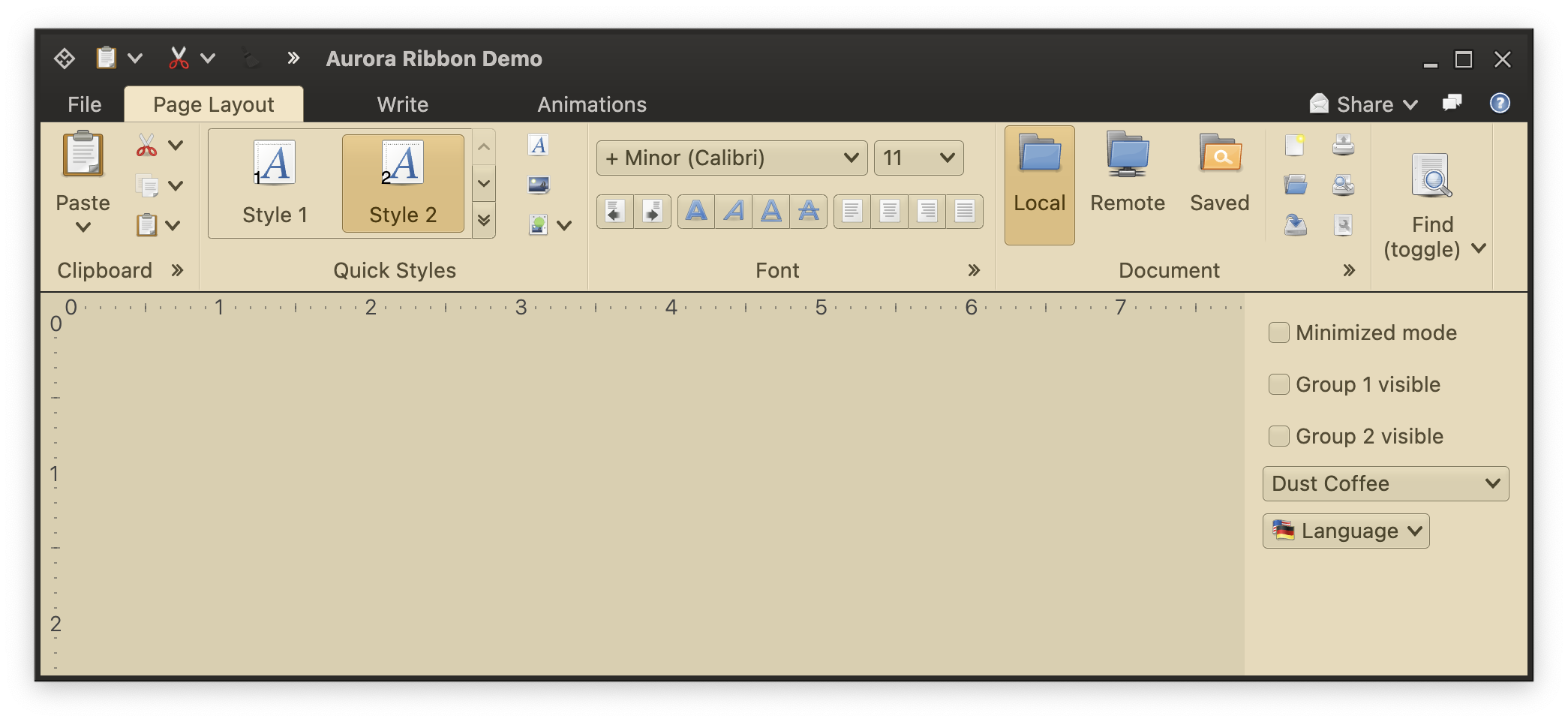
Each one of these is added with `PresentationPriority.Medium`. When there is enough horizontal space, each one is displayed at `Medium` presentation state. But if the ribbon is resized to be more narrow, those projections will be in the `Small` presentation state instead (displaying only their icon):
### Presentation priority
Now let's go back to the second part in each entry in the `commandProjections` parameter - the presentation priority. It is a hint to the ribbon's built-in layout logic that is used to decide how to layout content in each ribbon band of the currently selected task, and what the presentation state of each command projection should be.
In this particular case, `PresentationPriority.Top` results in the "Paste" command projection to be displayed in 'BIG' presentation state.
Now, why is the "Paste" command projection displayed as 'Big' spanning the full height of the band, while the other three command projections (Cut, Copy and Format) are displayed as `Medium`, each spanning one third of the band height? Here is how these projections are defined and added to the ribbon band:
```kotlin
groups = listOf(
RibbonBandCommandGroup(
commandProjections = listOf(
pasteCommandProjection at PresentationPriority.Top,
CommandButtonProjection(
contentModel = cutCommand,
presentationModel = CommandButtonPresentationModel(
popupKeyTip = "X",
textClick = TextClick.Action
)
) at PresentationPriority.Medium,
CommandButtonProjection(
contentModel = copyCommand,
presentationModel = CommandButtonPresentationModel(
popupKeyTip = "C",
textClick = TextClick.Popup
)
) at PresentationPriority.Medium,
CommandButtonProjection(
contentModel = formatCommand,
presentationModel = CommandButtonPresentationModel(
popupKeyTip = "FP",
popupMenuPresentationModel = CommandPopupMenuPresentationModel(
panelPresentationModel = CommandPopupMenuPanelPresentationModel(
layoutSpec = MenuPopupPanelLayoutSpec(columnCount = 5, visibleRowCount = 3),
showGroupLabels = false,
commandPresentationState = CommandButtonPresentationState.BigFitToIcon,
commandIconDimension = DpSize(24.dp, 24.dp),
)
)
),
secondaryOverlays = mapOf(
this.menuSaveSelection to BaseCommandButtonPresentationModel.Overlay(actionKeyTip = "KS"),
this.menuClearSelection to BaseCommandButtonPresentationModel.Overlay(actionKeyTip = "KC"),
this.applyStyles to BaseCommandButtonPresentationModel.Overlay(actionKeyTip = "KA")
)
) at PresentationPriority.Medium
)
)
```
Each one of these is added with `PresentationPriority.Medium`. When there is enough horizontal space, each one is displayed at `Medium` presentation state. But if the ribbon is resized to be more narrow, those projections will be in the `Small` presentation state instead (displaying only their icon):
 This is controlled at the level of the band in this particular demo:
```kotlin
resizePolicies = listOf(CoreRibbonResizePolicies.Mirror, CoreRibbonResizePolicies.Mid2Low),
```
The first `Mirror` policy means that the layout should respect the presentation priority of each command projection. The second `Mid2Low` policy means that under smaller available horizontal space, the layout can switch command projections at `Medium` presentation priority to be displayed at `Small` presentation state.
### Rich tooltips
Let's take another look at our "Paste" command:
```kotlin
val pasteCommand = Command(
text = resourceBundle.getString("Edit.paste.text"),
icon = edit_paste(),
action = { println("Pasted!") },
actionRichTooltip = RichTooltip(
title = resourceBundle.getString("Edit.paste.text"),
descriptionSections = listOf(resourceBundle.getString("Paste.tooltip.actionParagraph1"))
),
secondaryContentModel = getSimpleMenuModel(),
secondaryRichTooltip = RichTooltip(
title = resourceBundle.getString("Edit.paste.text"),
descriptionSections = listOf(resourceBundle.getString("Paste.tooltip.popupParagraph1"))
),
)
```
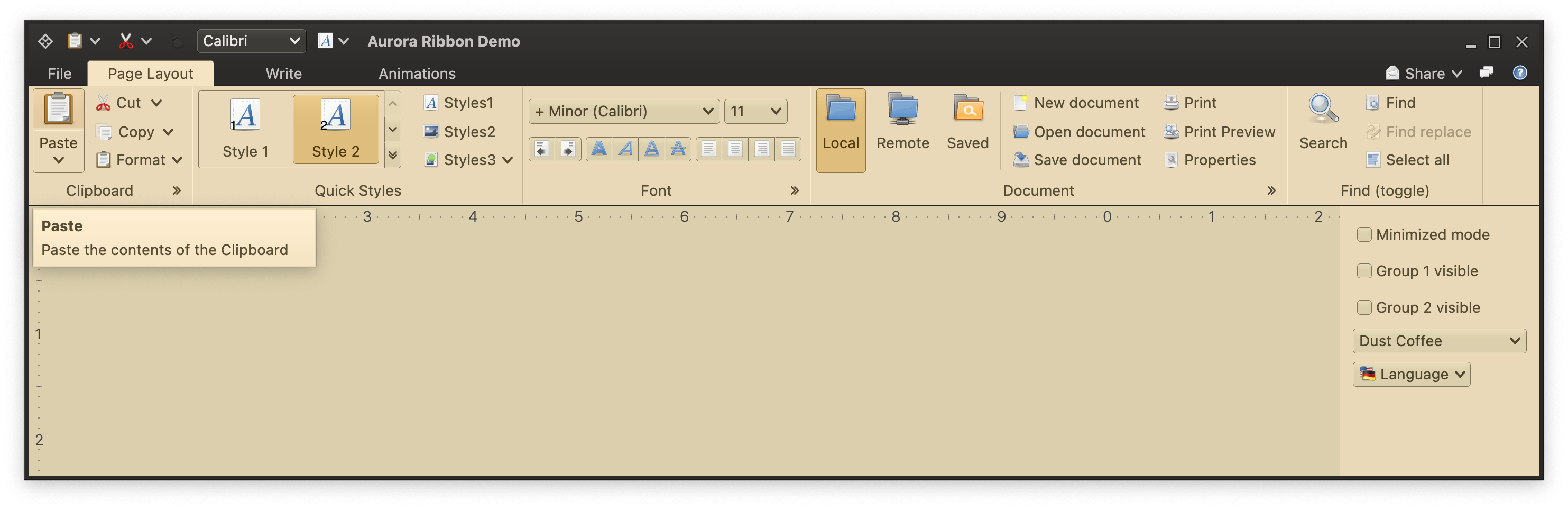
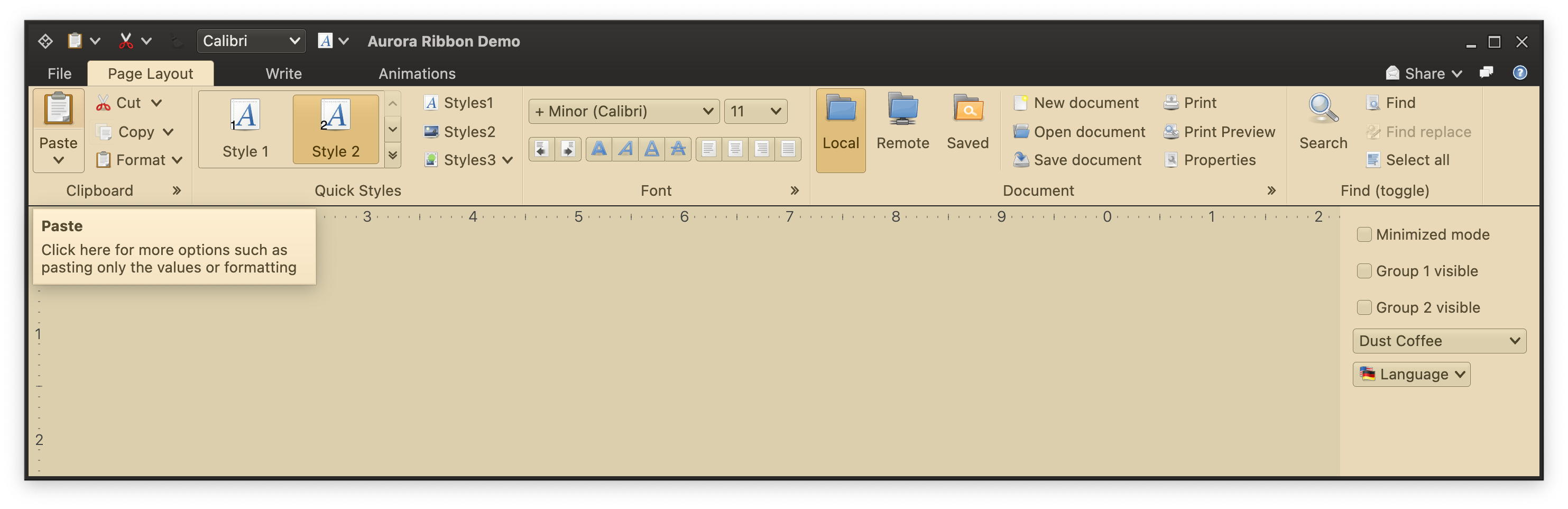
Rich tooltips associated with action and secondary content of the original command are displayed under the parent ribbon band:
This is controlled at the level of the band in this particular demo:
```kotlin
resizePolicies = listOf(CoreRibbonResizePolicies.Mirror, CoreRibbonResizePolicies.Mid2Low),
```
The first `Mirror` policy means that the layout should respect the presentation priority of each command projection. The second `Mid2Low` policy means that under smaller available horizontal space, the layout can switch command projections at `Medium` presentation priority to be displayed at `Small` presentation state.
### Rich tooltips
Let's take another look at our "Paste" command:
```kotlin
val pasteCommand = Command(
text = resourceBundle.getString("Edit.paste.text"),
icon = edit_paste(),
action = { println("Pasted!") },
actionRichTooltip = RichTooltip(
title = resourceBundle.getString("Edit.paste.text"),
descriptionSections = listOf(resourceBundle.getString("Paste.tooltip.actionParagraph1"))
),
secondaryContentModel = getSimpleMenuModel(),
secondaryRichTooltip = RichTooltip(
title = resourceBundle.getString("Edit.paste.text"),
descriptionSections = listOf(resourceBundle.getString("Paste.tooltip.popupParagraph1"))
),
)
```
Rich tooltips associated with action and secondary content of the original command are displayed under the parent ribbon band:
 ### Complex popups
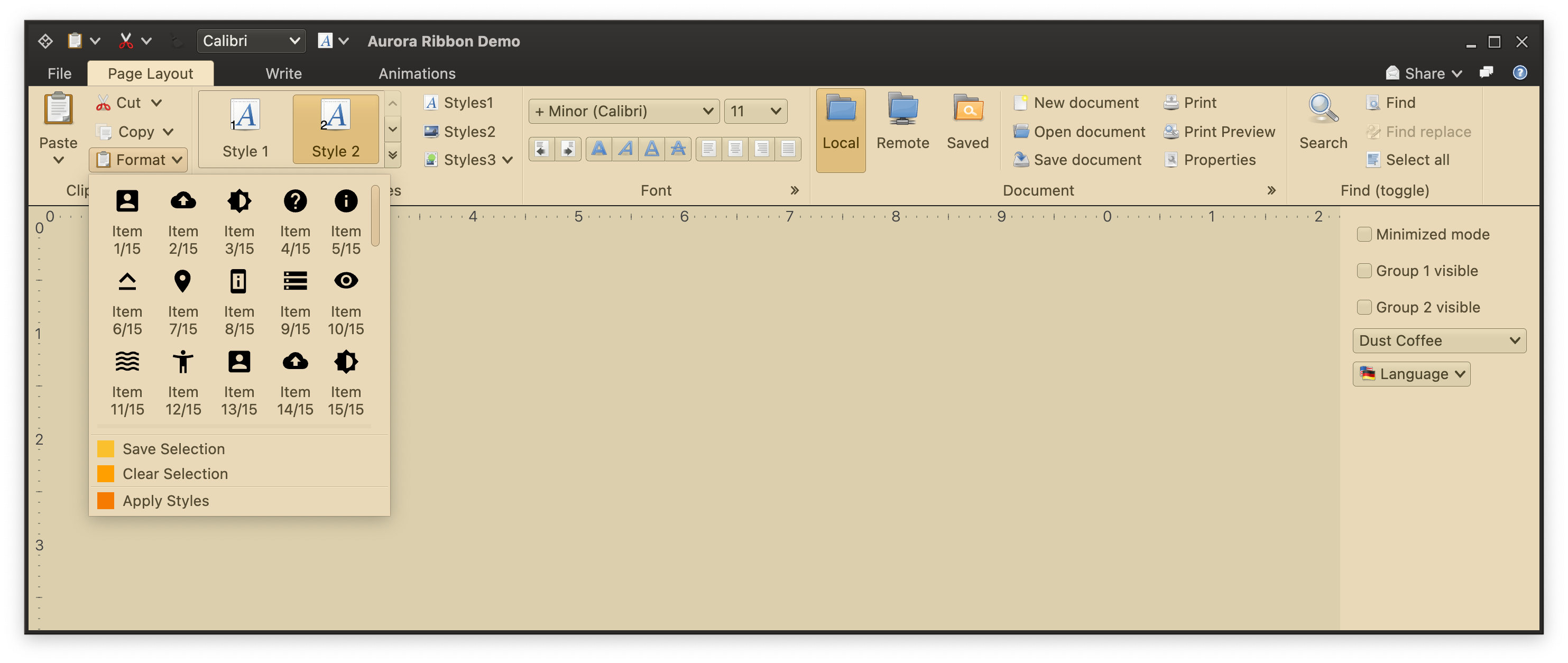
As discussed in the [popup menu documentation](CommandPopupMenu.md), applications can configure more complex secondary content for any given command:
### Complex popups
As discussed in the [popup menu documentation](CommandPopupMenu.md), applications can configure more complex secondary content for any given command:
 ### Next
Continue to the [ribbon band component projections](RibbonBandComponentProjections.md).
### Next
Continue to the [ribbon band component projections](RibbonBandComponentProjections.md).