## Layout - quick start
Working with the `FormLayout` is a six step process:
* Find the layout
* Find the Grid
* Create the layout: specify columns and rows
* Group columns and rows
* Create and configure a DSL scope
* Add content
### A Sample Layout
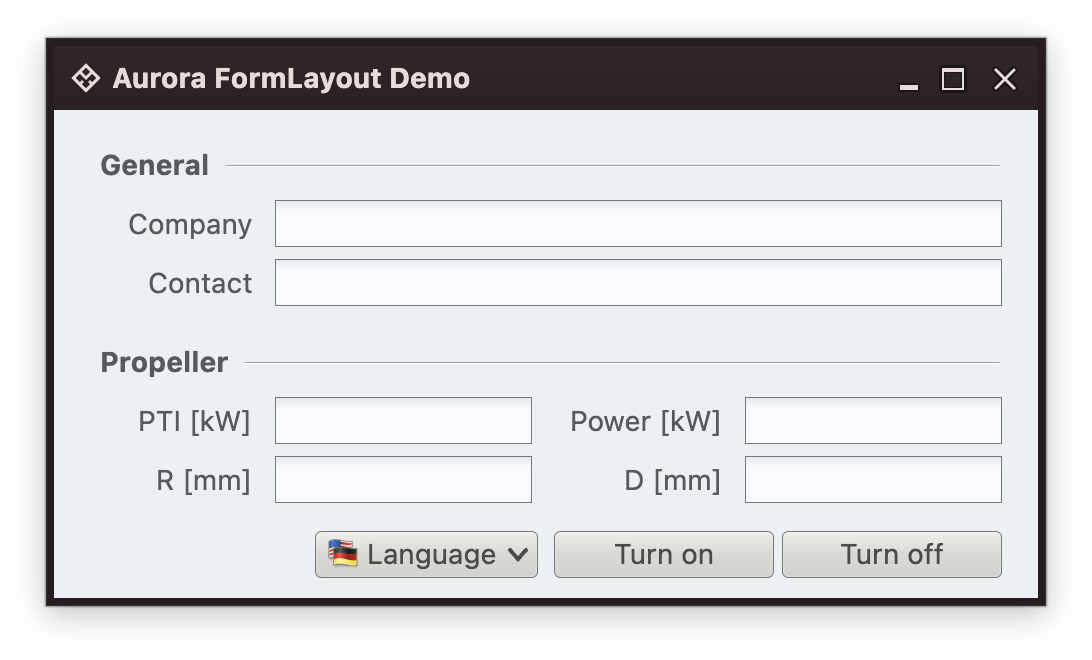
We want to implement an editor for six fields that are separated into two groups.
General: *company name* and *contact person*; propeller: *PTI*, *power*, *radius*, *diameter*.
### Step 1: Find the Layout
Before you construct and implement a design with the Forms, find the layout. Play around with different layouts and evaluate how they meet your requirements.
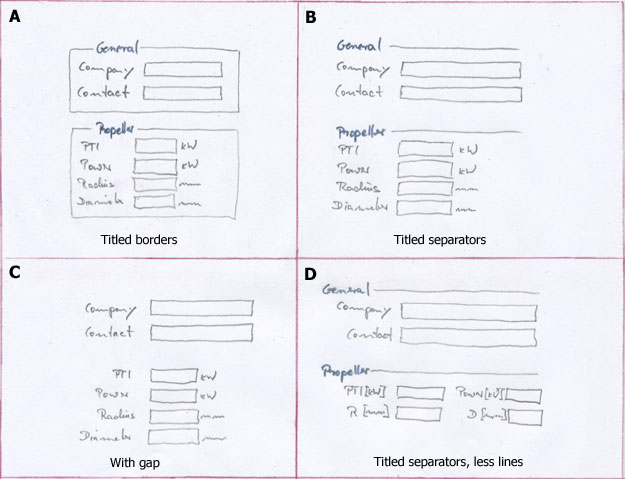 *Playing With Designs*
A) uses titled borders to indicate the sections. These prevent you from aligning components and often bring 1 to 3 unnecessary lines.
B) uses titled separators and is cleaner.
C) uses a gap to indicate the two sections. Gaps are perceived as separators. If section titles are obsolete, gaps are a good choice.
D) puts related text fields into the same rows.
###Step 2: Find the Grid
We've choosen to go with design draft D).
Since `FormLayout` is grid-based, we need to find the grid, i. e. the columns and rows.
We have columns for the leading labels, for the PTI and R fields, a second label column and a second field column.
*Playing With Designs*
A) uses titled borders to indicate the sections. These prevent you from aligning components and often bring 1 to 3 unnecessary lines.
B) uses titled separators and is cleaner.
C) uses a gap to indicate the two sections. Gaps are perceived as separators. If section titles are obsolete, gaps are a good choice.
D) puts related text fields into the same rows.
###Step 2: Find the Grid
We've choosen to go with design draft D).
Since `FormLayout` is grid-based, we need to find the grid, i. e. the columns and rows.
We have columns for the leading labels, for the PTI and R fields, a second label column and a second field column.
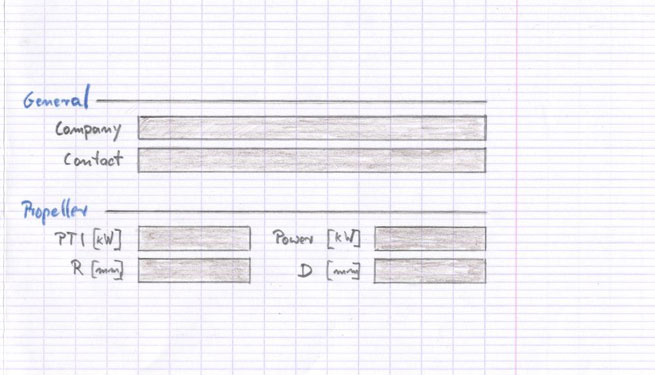 *Design Draft*
We add gap columns and gap rows between all component columns and rows. Then we mark all columns and rows and add notes for the size, and orientation.
In this tiny example, no column grows if the container grows, otherwise we would add growing information too.
*Design Draft*
We add gap columns and gap rows between all component columns and rows. Then we mark all columns and rows and add notes for the size, and orientation.
In this tiny example, no column grows if the container grows, otherwise we would add growing information too.
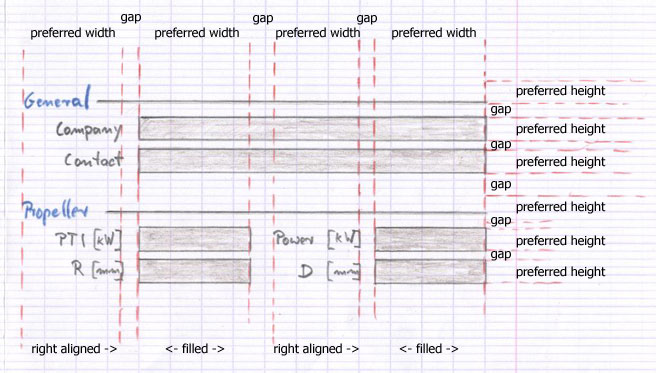 *Grid, Sizes & Orientations*
### Step 3: Create the Layout: Specify Columns and Rows
We transform the sizes and orientations into the Forms layout specification language. Next, we implement this layout with the Forms.
We create an instance of `FormLayout` and specify the columns and rows using strings. We abbreviate the row specs to save space.
*Grid, Sizes & Orientations*
### Step 3: Create the Layout: Specify Columns and Rows
We transform the sizes and orientations into the Forms layout specification language. Next, we implement this layout with the Forms.
We create an instance of `FormLayout` and specify the columns and rows using strings. We abbreviate the row specs to save space.
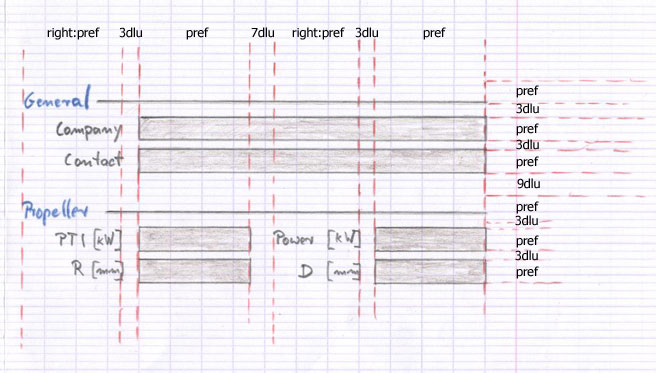 *Grid Specification*
```kotlin
FormLayout(
modifier = Modifier.fillMaxSize().padding(Paddings.Dialog),
encodedColumnSpecs = "end:pref, 3dlu, pref:grow, 7dlu, end:pref, 3dlu, pref:grow",
encodedRowSpecs = "p, 3dlu, p, 3dlu, p, 9dlu, p, 3dlu, p, 3dlu, p, 8dlu, p",
) {
...
}
```
### Step 4: Specify Column and Row Groups
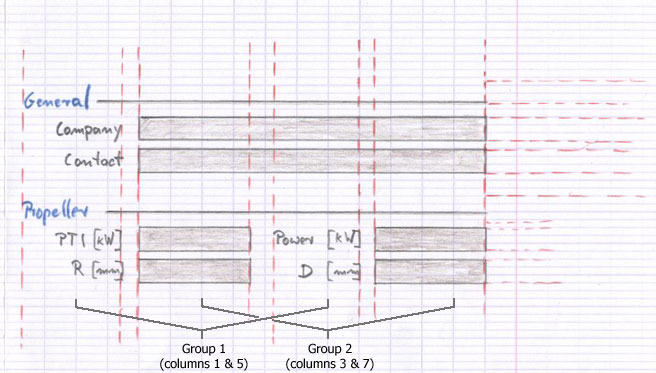
The label and field columns shall get the same width. In `FormLayout` this is done by grouping columns; the same can be done with rows.
To group columns, you specify an array of column indices. Since we have two groups, we have two arrays of such indices; these are in turn combined in an array.
*Grid Specification*
```kotlin
FormLayout(
modifier = Modifier.fillMaxSize().padding(Paddings.Dialog),
encodedColumnSpecs = "end:pref, 3dlu, pref:grow, 7dlu, end:pref, 3dlu, pref:grow",
encodedRowSpecs = "p, 3dlu, p, 3dlu, p, 9dlu, p, 3dlu, p, 3dlu, p, 8dlu, p",
) {
...
}
```
### Step 4: Specify Column and Row Groups
The label and field columns shall get the same width. In `FormLayout` this is done by grouping columns; the same can be done with rows.
To group columns, you specify an array of column indices. Since we have two groups, we have two arrays of such indices; these are in turn combined in an array.
 *Group Specification*
// Specify that columns 1 & 5 as well as 3 & 7 have equal widths.
```kotlin
FormLayout(
modifier = Modifier.fillMaxSize().padding(Paddings.Dialog),
encodedColumnSpecs = "end:pref, 3dlu, pref:grow, 7dlu, end:pref, 3dlu, pref:grow",
encodedRowSpecs = "p, 3dlu, p, 3dlu, p, 9dlu, p, 3dlu, p, 3dlu, p, 8dlu, p",
colGroupIndices = arrayOf(intArrayOf(1, 5), intArrayOf(3, 7))
) {
...
}
```
### Step 5: Create and Configure a scope-based layout
Instead of using `FormLayout` directly, you typically add content using a scope-based DSL driven wrapper that in turn adds them to the layout container. These wrappers helps you create frequently used components, keep track of the location for the next component and assist you in style guide compliance.
Some wrappers can be configured (for example the `DefaultForm`). The panel-oriented wrappers can set standardized paddings.
```kotlin
DefaultForm(
modifier = Modifier.fillMaxSize(),
padding = Paddings.Dialog,
encodedColumnSpecs = "end:pref, 3dlu, pref:grow, 7dlu, end:pref, 3dlu, pref:grow",
encodedRowSpecs = "p, 3dlu, p, 3dlu, p, 9dlu, p, 3dlu, p, 3dlu, p, 8dlu, p",
colGroupIndices = arrayOf(intArrayOf(1, 5), intArrayOf(3, 7))
) {
...
}
```
### Step 6: Add Components
Finally we add the content.
```kotlin
// Fill the grid with components; scope-based wrappers can create
// frequently used components, e.g. separators and labels.
Separator(
modifier = Modifier.xyw(col = 1, row = 1, colSpan = 7),
label = stringResource(Res.string.general)
)
LabelProjection(
contentModel = LabelContentModel(text = stringResource(Res.string.company)),
).project(Modifier.xy(1, 3))
var textCompany by rememberSaveable { mutableStateOf("") }
TextFieldStringProjection(
contentModel = TextFieldStringContentModel(
value = textCompany,
placeholder = "",
onValueChange = { textCompany = it },
),
presentationModel = TextFieldPresentationModel(singleLine = true, defaultMinSize = textFieldMinSize)
).project(Modifier.xyw(3, 3, 5))
...
```
*Group Specification*
// Specify that columns 1 & 5 as well as 3 & 7 have equal widths.
```kotlin
FormLayout(
modifier = Modifier.fillMaxSize().padding(Paddings.Dialog),
encodedColumnSpecs = "end:pref, 3dlu, pref:grow, 7dlu, end:pref, 3dlu, pref:grow",
encodedRowSpecs = "p, 3dlu, p, 3dlu, p, 9dlu, p, 3dlu, p, 3dlu, p, 8dlu, p",
colGroupIndices = arrayOf(intArrayOf(1, 5), intArrayOf(3, 7))
) {
...
}
```
### Step 5: Create and Configure a scope-based layout
Instead of using `FormLayout` directly, you typically add content using a scope-based DSL driven wrapper that in turn adds them to the layout container. These wrappers helps you create frequently used components, keep track of the location for the next component and assist you in style guide compliance.
Some wrappers can be configured (for example the `DefaultForm`). The panel-oriented wrappers can set standardized paddings.
```kotlin
DefaultForm(
modifier = Modifier.fillMaxSize(),
padding = Paddings.Dialog,
encodedColumnSpecs = "end:pref, 3dlu, pref:grow, 7dlu, end:pref, 3dlu, pref:grow",
encodedRowSpecs = "p, 3dlu, p, 3dlu, p, 9dlu, p, 3dlu, p, 3dlu, p, 8dlu, p",
colGroupIndices = arrayOf(intArrayOf(1, 5), intArrayOf(3, 7))
) {
...
}
```
### Step 6: Add Components
Finally we add the content.
```kotlin
// Fill the grid with components; scope-based wrappers can create
// frequently used components, e.g. separators and labels.
Separator(
modifier = Modifier.xyw(col = 1, row = 1, colSpan = 7),
label = stringResource(Res.string.general)
)
LabelProjection(
contentModel = LabelContentModel(text = stringResource(Res.string.company)),
).project(Modifier.xy(1, 3))
var textCompany by rememberSaveable { mutableStateOf("") }
TextFieldStringProjection(
contentModel = TextFieldStringContentModel(
value = textCompany,
placeholder = "",
onValueChange = { textCompany = it },
),
presentationModel = TextFieldPresentationModel(singleLine = true, defaultMinSize = textFieldMinSize)
).project(Modifier.xyw(3, 3, 5))
...
```
 *The Finished Panel*
### Next
Continue to [another sample](AnotherSample.md).
*The Finished Panel*
### Next
Continue to [another sample](AnotherSample.md).