




Features
•
Quick Start
•
Commands
•
OpenClaw
Configuration
•
Theme
•
File Format
•
Shell
•
Inspiration
•
License
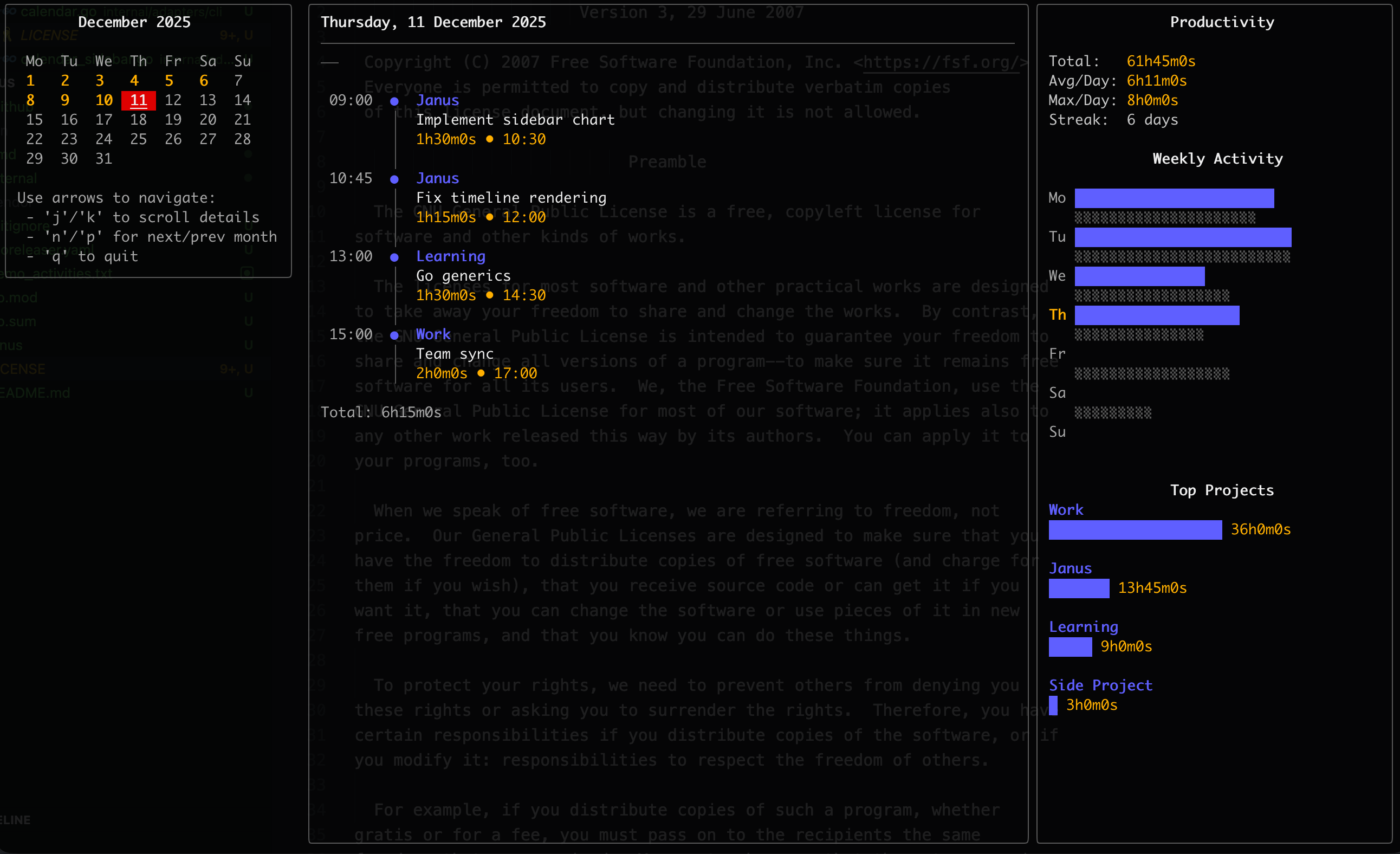 **Tock** is a powerful time tracking tool for the command line. It saves activity logs as plaintext files and provides an interactive terminal UI for viewing your time.
Features include:
- **Simple plaintext format** - Activities stored in human-readable files (default)
- **Multiple Backends** - Support for flat files, TodoTXT, TimeWarrior, and SQLite databases
- **Notes & Tags** - Attach detailed notes and tags to activities
- **Interactive TUI** - Beautiful terminal calendar view using Bubble Tea
- **Fast & Lightweight** - Single binary, no dependencies
- **Compatible** - Reads/writes Bartib file format, TodoTXT-compatible lines, and TimeWarrior data files
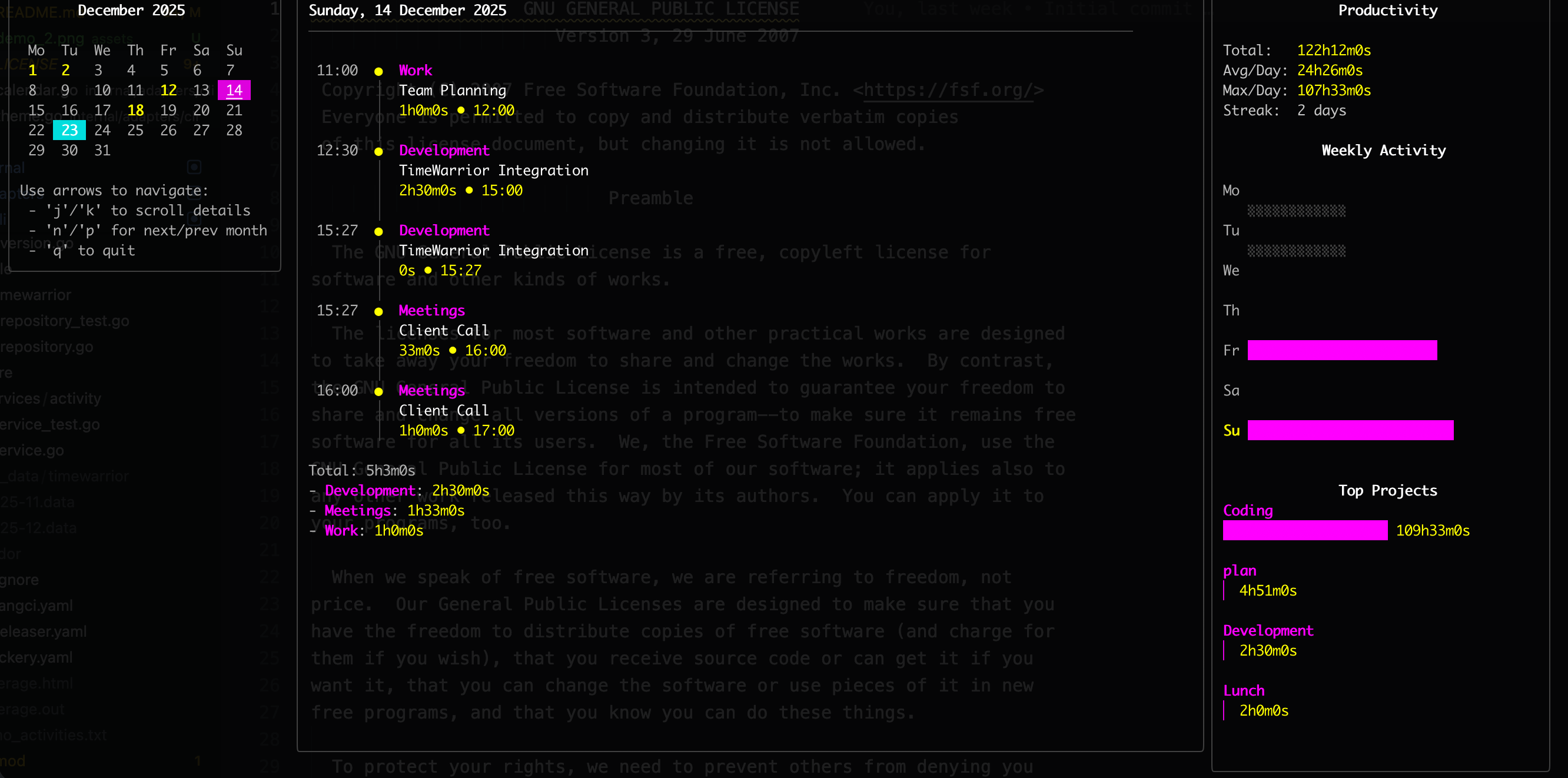
- **Customizable Themes** - Multiple color themes and custom color support
- **Report Export** - Export report data as text, CSV, or JSON
- **iCal Export** - Generate .ics files for calendar integration, or sync with system calendars (macOS only)
**Tock** is a powerful time tracking tool for the command line. It saves activity logs as plaintext files and provides an interactive terminal UI for viewing your time.
Features include:
- **Simple plaintext format** - Activities stored in human-readable files (default)
- **Multiple Backends** - Support for flat files, TodoTXT, TimeWarrior, and SQLite databases
- **Notes & Tags** - Attach detailed notes and tags to activities
- **Interactive TUI** - Beautiful terminal calendar view using Bubble Tea
- **Fast & Lightweight** - Single binary, no dependencies
- **Compatible** - Reads/writes Bartib file format, TodoTXT-compatible lines, and TimeWarrior data files
- **Customizable Themes** - Multiple color themes and custom color support
- **Report Export** - Export report data as text, CSV, or JSON
- **iCal Export** - Generate .ics files for calendar integration, or sync with system calendars (macOS only)
 ```bash
export TOCK_THEME_NAME="custom"
export TOCK_COLOR_PRIMARY="#FF00FF" # Fuchsia
export TOCK_COLOR_SECONDARY="#00FFFF" # Cyan
export TOCK_COLOR_TEXT="#FFFFFF" # White
export TOCK_COLOR_SUBTEXT="#B0B0B0" # Light Grey
export TOCK_COLOR_FAINT="#404040" # Dark Grey
export TOCK_COLOR_HIGHLIGHT="#FFFF00" # Yellow
export TOCK_COLOR_TAG="#00FF00" # GreenGrey
export TOCK_COLOR_FAINT="#404040" # Dark Grey
export TOCK_COLOR_HIGHLIGHT="#FFFF00" # Yellow
```
### Time Format
Configure how times are displayed and input via config file or environment variable:
```yaml
# In tock.yaml
time_format: "12" # Use 12-hour format with AM/PM
time_format: "24" # Use 24-hour format (default)
```
```bash
# Or via environment variable
export TOCK_TIME_FORMAT="12" # Use 12-hour format with AM/PM
export TOCK_TIME_FORMAT="24" # Use 24-hour format (default)
```
#### 12-Hour Format Examples
```bash
tock start -p Project -d Task -t "3:04 PM" # or "03:04 PM"
tock start -p Project -d Task -t "3PM" # Minutes optional
tock add -s "9:00 AM" -e "5:00 PM"
tock stop -t "4:45pm" # Case insensitive
# Times display as: "03:04 PM" instead of "15:04"
# Input accepts both "3:04 PM" and "03:04 PM" formats
```
#### 24-Hour Format (Default)
```bash
tock start -p Project -d Task -t 15:04
tock stop -t 17:30
# Times display as: "15:04"
```
Notes:
- Times display with zero-padded hours (e.g., "08:12 AM") for better alignment
- Input accepts both zero-padded ("03:04 PM") and non-padded ("3:04 PM") formats
- 24-hour input (e.g., "15:04") is still accepted in 12-hour mode as a fallback
## Commands
```bash
A simple timetracker for the command line
Usage:
tock [command]
Available Commands:
add Add a completed activity
analyze Analyze your productivity patterns
calendar Show interactive calendar view
completion Generate the autocompletion script for the specified shell
continue Continues a previous activity
current Lists all currently running activities
export Export report data to file
help Help about any command
ical Generate iCal (.ics) file for a specific task, all tasks in a day, or all tasks.
last List recent unique activities
list List activities (Calendar View)
note Append a note to an existing activity
tag Append tags to an existing activity
remove Remove an activity
report Generate time tracking report
start Start a new activity
stop Stop the current activity
tray Run the macOS menu bar icon (timer, start last, stop)
version Print the version info
watch Display a full-screen stopwatch for the current activity
Flags:
-b, --backend string Storage backend: 'file' (default), 'todotxt', 'timewarrior', or 'sqlite'
--config string Config file path (default is $HOME/.config/tock/tock.yaml)
-f, --file string Path to the activity log file (or data directory for timewarrior)
-h, --help help for tock
-v, --version version for tock
Use "tock [command] --help" for more information about a command.
```
[**→ Commands Reference**](docs/commands.md)
### Start tracking
Start a new activity. You can provide project and task as arguments, use flags, or use the interactive mode.
```bash
tock start # Interactive mode
tock start "Project Name" "Task description" # Positional arguments
tock start "Project" "Desc" "My note" "tag1, tag2" # Positional notes/tags
tock start -p "Project" -d "Task" -t 14:30 # Start at specific time
tock start --note "Meeting notes" --tag "meeting" # Start with note & tag flags
```
**Flags:**
- `-d, --description`: Activity description
- `-p, --project`: Project name
- `-t, --time`: Start time (format depends on TOCK_TIME_FORMAT: HH:MM or "h:mm AM/PM", optional, defaults to now)
- `--note`: Activity notes
- `--tag`: Activity tags (can be used multiple times)
### Stop tracking
Stop the currently running activity.
```bash
tock stop
tock stop -t 17:00 # Stop at specific time
tock stop --note "Done for today" # Stop and append a note
tock stop --tag "coding,feature" # Stop and add tags
```
**Flags:**
- `-t, --time`: End time (format depends on TOCK_TIME_FORMAT: HH:MM or "h:mm AM/PM", optional, defaults to now)
- `--note`: Activity notes
- `--tag`: Activity tags (can be used multiple times)
### Add past activity
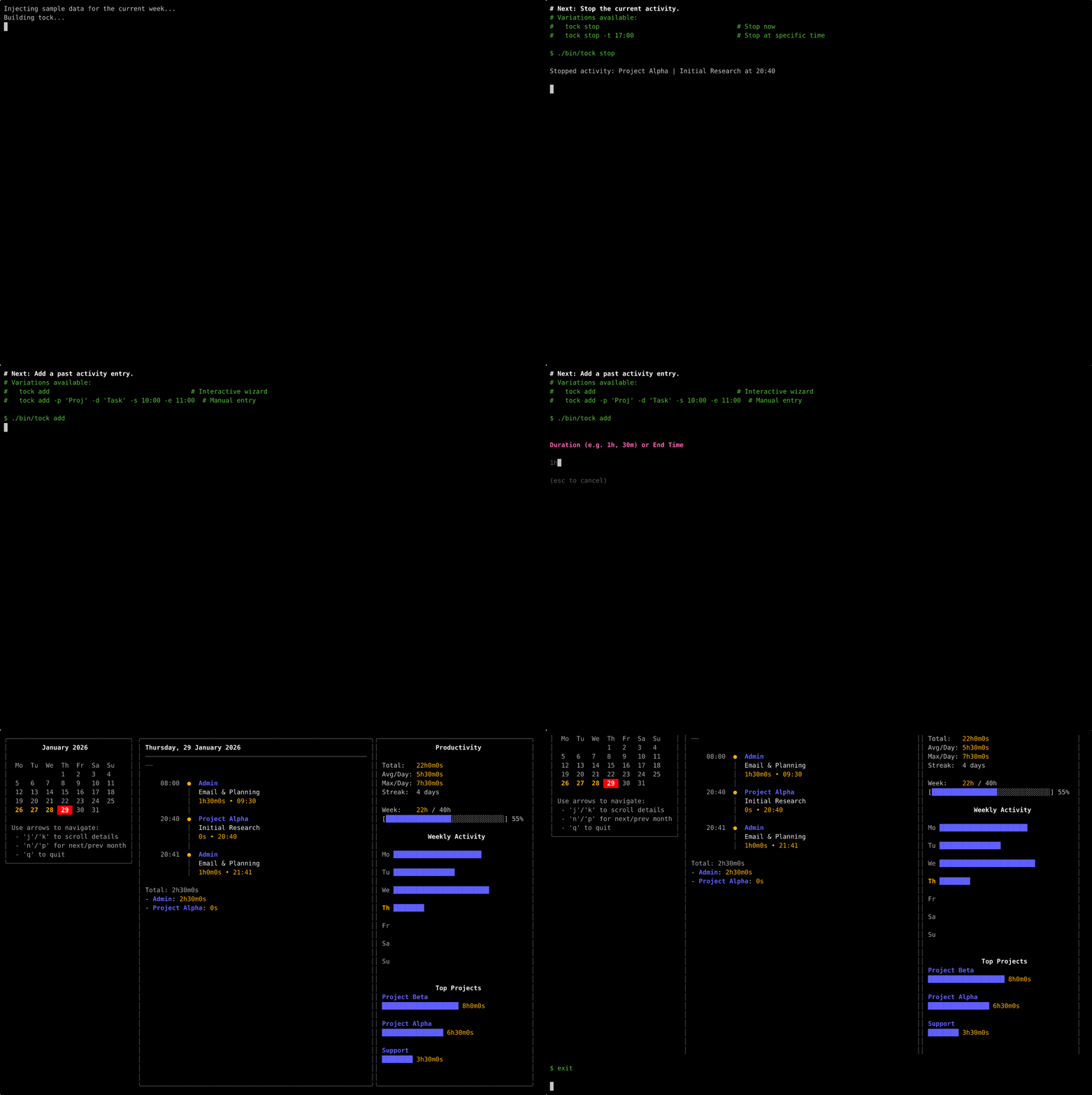
Add a completed activity manually. You can use flags or the interactive wizard.
```bash
tock add # Interactive wizard
tock add -p "Project" -d "Task" -s 10:00 -e 11:00
tock add -p "Project" -d "Task" --day 2026-04-21 -s 10:00 -e 11:00
tock add -p "Project" -d "Task" -s 14:00 --duration 1h30m
tock add -p "Project" -d "Task" -s "2026-04-21 10:00" -e "2026-04-21 11:00"
tock add -p "Project" -d "Task" -s 10:00 -e 11:00 --note "Fixed bug #123" --tag "bugfix"
```
**Flags:**
- `-d, --description`: Activity description
- `-p, --project`: Project name
- `--day`: Day for time-only `--start` / `--end` values (`YYYY-MM-DD`)
- `-s, --start`: Start time (format depends on TOCK_TIME_FORMAT: HH:MM/YYYY-MM-DD HH:MM or "h:mm AM/PM"/"YYYY-MM-DD h:mm AM/PM")
- `-e, --end`: End time (format depends on TOCK_TIME_FORMAT: HH:MM/YYYY-MM-DD HH:MM or "h:mm AM/PM"/"YYYY-MM-DD h:mm AM/PM")
- `--duration`: Duration (e.g. 1h, 30m). Used if end time is not specified.
- `--note`: Activity notes
- `--tag`: Activity tags (can be used multiple times)
### Remove activity
Remove a previously tracked activity.
```bash
tock remove # Remove the last activity (asks for confirmation)
tock remove -y # Remove the last activity without confirmation
tock remove 2025-12-10-01 # Remove a specific activity by ID
```
**Flags:**
- `-y, --yes`: Skip confirmation
### Add note later
Append a note to an already logged activity. If no key is provided, Tock updates the last activity.
```bash
tock note "Added retro summary"
tock note 2026-01-07-01 "Confirmed follow-up with design"
tock note 2026-01-07-01 "Confirmed follow-up with design" --json
```
**Flags:**
- `--json`: Output the updated activity as JSON
### Add tags later
Append tags to an already logged activity. If no key is provided, Tock updates the last activity. Existing tags are preserved, and duplicates are skipped.
```bash
tock tag review urgent
tock tag 2026-01-07-01 review urgent
tock tag 2026-01-07-01 review urgent --json
```
**Flags:**
- `--json`: Output the updated activity as JSON
### Continue activity
Continue a previously tracked activity. Useful for resuming work on a recent task.
```bash
tock continue # Continue the last activity
tock continue 1 # Continue the 2nd to last activity
tock continue -d "New" # Continue last activity but with new description
tock continue --note "Starting phase 2" --tag "phase-2" # Continue with notes/tags
```
**Flags:**
- `-d, --description`: Override description
- `-p, --project`: Override project
- `-t, --time`: Start time (format depends on TOCK_TIME_FORMAT: HH:MM or "h:mm AM/PM")
- `--note`: Activity notes
- `--tag`: Activity tags (can be used multiple times)
### Current activity
Show the currently running activity and its duration.
```bash
tock current
tock current --format "{{.Project}}: {{.Duration}}" # Custom format (1h30m)
tock current --format "{{.Project}}: {{.DurationHMS}}" # Custom format (01:30:00)
```
### Stopwatch (Watch Mode)
Display a full-screen stopwatch for the current activity.
```bash
tock watch
tock watch --stop # Stop the activity when quitting watch mode
```
**Flags:**
- `-s, --stop`: Stop the activity when exiting watch mode (default false)
**Controls:**
- `Space`: Pause/Resume
- `q` / `Ctrl+C`: Quit
### Recent activities
List recent unique activities. Useful to find the index for `tock continue`.
```bash
tock last
tock last -n 20 # Show last 20 activities
```
**Flags:**
- `-n, --number`: Number of activities to show (default 10)
### Calendar View (TUI)
Open the interactive terminal calendar to view and analyze your time.
```bash
tock calendar
```
**Controls:**
- `Arrow Keys` / `h,j,k,l`: Navigate days
- `n`: Next month
- `p`: Previous month
- `q` / `Esc`: Quit
### Text Report
Generate a simple text report for a specific day.
```bash
tock report --today
tock report --yesterday
tock report --date 2025-12-01
tock report -p "My Project" -d "Fixing bugs" # Filter by project and description
tock report --summary # Show project totals only
tock report --json # Output in JSON format
```
**Flags:**
- `--today`: Report for today
- `--yesterday`: Report for yesterday
- `--date`: Report for specific date (YYYY-MM-DD)
- `-p, --project`: Filter by project and aggregate by description
- `-d, --description`: Filter by description (case-insensitive substring)
- `-s, --summary`: Show only project summaries
- `--json`: Output report as JSON
### Report Export
Export report data as text, CSV, or JSON.
```bash
tock export --today # Export today's report as a text file
tock export --yesterday --format csv # Export yesterday's report as CSV
tock export --date 2026-01-29 --fmt json # Export a specific day as JSON
tock export --from 2026-04-01 --to 2026-04-15 # Export date range
tock export --from 2026-04-01 # Export from date to present
tock export --to 2026-04-15 # Export all activities up to date
tock export -p "Work" -d "meeting" -m csv # Export filtered activities as CSV
tock export --today --stdout # Print the export to stdout
tock export --today -o ./exports # Write the export file to a specific directory
```
**Flags:**
- `--today`: Export data for today
- `--yesterday`: Export data for yesterday
- `--date`: Export data for a specific date (YYYY-MM-DD)
- `--from`: Start date for export range (YYYY-MM-DD)
- `--to`: End date for export range (YYYY-MM-DD)
- `-p, --project`: Filter by project
- `-d, --description`: Filter by description
- `-m, --format`: Export format: `txt`, `csv`, or `json` (default `txt`)
- `--fmt`: Alias for `--format`
- `-o, --path`: Output directory
- `--stdout`: Print output to stdout instead of writing a file
### Calendar Integration (iCal)
Generate iCalendar (.ics) files for your tracked activities, compatible with Google Calendar, Apple Calendar, Outlook, etc.
**Single Activity Export:**
Use the unique key shown in `tock list` or `tock report` (format `YYYY-MM-DD-NN`).
```bash
tock ical 2026-01-07-01 # Print ICS to stdout
tock ical 2026-01-07-01 > meeting.ics # Save to file
tock ical 2026-01-07-01 --open # Open in default calendar app (macOS)
```
**Bulk Export (All activities):**
```bash
tock ical --path ./export # Export all activities to a single ICS file
tock ical --open # Export all and open in calendar app (macOS)
tock ical 2026-01-07 --path ./export # Save all tasks for a specific day to a single ICS file
```
**Flags:**
- `--path`: Output directory for .ics files (required for bulk export unless --open is used)
- `--open`: Automatically open generated file(s) in system calendar (macOS only)
### Productivity Analysis
```bash
export TOCK_THEME_NAME="custom"
export TOCK_COLOR_PRIMARY="#FF00FF" # Fuchsia
export TOCK_COLOR_SECONDARY="#00FFFF" # Cyan
export TOCK_COLOR_TEXT="#FFFFFF" # White
export TOCK_COLOR_SUBTEXT="#B0B0B0" # Light Grey
export TOCK_COLOR_FAINT="#404040" # Dark Grey
export TOCK_COLOR_HIGHLIGHT="#FFFF00" # Yellow
export TOCK_COLOR_TAG="#00FF00" # GreenGrey
export TOCK_COLOR_FAINT="#404040" # Dark Grey
export TOCK_COLOR_HIGHLIGHT="#FFFF00" # Yellow
```
### Time Format
Configure how times are displayed and input via config file or environment variable:
```yaml
# In tock.yaml
time_format: "12" # Use 12-hour format with AM/PM
time_format: "24" # Use 24-hour format (default)
```
```bash
# Or via environment variable
export TOCK_TIME_FORMAT="12" # Use 12-hour format with AM/PM
export TOCK_TIME_FORMAT="24" # Use 24-hour format (default)
```
#### 12-Hour Format Examples
```bash
tock start -p Project -d Task -t "3:04 PM" # or "03:04 PM"
tock start -p Project -d Task -t "3PM" # Minutes optional
tock add -s "9:00 AM" -e "5:00 PM"
tock stop -t "4:45pm" # Case insensitive
# Times display as: "03:04 PM" instead of "15:04"
# Input accepts both "3:04 PM" and "03:04 PM" formats
```
#### 24-Hour Format (Default)
```bash
tock start -p Project -d Task -t 15:04
tock stop -t 17:30
# Times display as: "15:04"
```
Notes:
- Times display with zero-padded hours (e.g., "08:12 AM") for better alignment
- Input accepts both zero-padded ("03:04 PM") and non-padded ("3:04 PM") formats
- 24-hour input (e.g., "15:04") is still accepted in 12-hour mode as a fallback
## Commands
```bash
A simple timetracker for the command line
Usage:
tock [command]
Available Commands:
add Add a completed activity
analyze Analyze your productivity patterns
calendar Show interactive calendar view
completion Generate the autocompletion script for the specified shell
continue Continues a previous activity
current Lists all currently running activities
export Export report data to file
help Help about any command
ical Generate iCal (.ics) file for a specific task, all tasks in a day, or all tasks.
last List recent unique activities
list List activities (Calendar View)
note Append a note to an existing activity
tag Append tags to an existing activity
remove Remove an activity
report Generate time tracking report
start Start a new activity
stop Stop the current activity
tray Run the macOS menu bar icon (timer, start last, stop)
version Print the version info
watch Display a full-screen stopwatch for the current activity
Flags:
-b, --backend string Storage backend: 'file' (default), 'todotxt', 'timewarrior', or 'sqlite'
--config string Config file path (default is $HOME/.config/tock/tock.yaml)
-f, --file string Path to the activity log file (or data directory for timewarrior)
-h, --help help for tock
-v, --version version for tock
Use "tock [command] --help" for more information about a command.
```
[**→ Commands Reference**](docs/commands.md)
### Start tracking
Start a new activity. You can provide project and task as arguments, use flags, or use the interactive mode.
```bash
tock start # Interactive mode
tock start "Project Name" "Task description" # Positional arguments
tock start "Project" "Desc" "My note" "tag1, tag2" # Positional notes/tags
tock start -p "Project" -d "Task" -t 14:30 # Start at specific time
tock start --note "Meeting notes" --tag "meeting" # Start with note & tag flags
```
**Flags:**
- `-d, --description`: Activity description
- `-p, --project`: Project name
- `-t, --time`: Start time (format depends on TOCK_TIME_FORMAT: HH:MM or "h:mm AM/PM", optional, defaults to now)
- `--note`: Activity notes
- `--tag`: Activity tags (can be used multiple times)
### Stop tracking
Stop the currently running activity.
```bash
tock stop
tock stop -t 17:00 # Stop at specific time
tock stop --note "Done for today" # Stop and append a note
tock stop --tag "coding,feature" # Stop and add tags
```
**Flags:**
- `-t, --time`: End time (format depends on TOCK_TIME_FORMAT: HH:MM or "h:mm AM/PM", optional, defaults to now)
- `--note`: Activity notes
- `--tag`: Activity tags (can be used multiple times)
### Add past activity
Add a completed activity manually. You can use flags or the interactive wizard.
```bash
tock add # Interactive wizard
tock add -p "Project" -d "Task" -s 10:00 -e 11:00
tock add -p "Project" -d "Task" --day 2026-04-21 -s 10:00 -e 11:00
tock add -p "Project" -d "Task" -s 14:00 --duration 1h30m
tock add -p "Project" -d "Task" -s "2026-04-21 10:00" -e "2026-04-21 11:00"
tock add -p "Project" -d "Task" -s 10:00 -e 11:00 --note "Fixed bug #123" --tag "bugfix"
```
**Flags:**
- `-d, --description`: Activity description
- `-p, --project`: Project name
- `--day`: Day for time-only `--start` / `--end` values (`YYYY-MM-DD`)
- `-s, --start`: Start time (format depends on TOCK_TIME_FORMAT: HH:MM/YYYY-MM-DD HH:MM or "h:mm AM/PM"/"YYYY-MM-DD h:mm AM/PM")
- `-e, --end`: End time (format depends on TOCK_TIME_FORMAT: HH:MM/YYYY-MM-DD HH:MM or "h:mm AM/PM"/"YYYY-MM-DD h:mm AM/PM")
- `--duration`: Duration (e.g. 1h, 30m). Used if end time is not specified.
- `--note`: Activity notes
- `--tag`: Activity tags (can be used multiple times)
### Remove activity
Remove a previously tracked activity.
```bash
tock remove # Remove the last activity (asks for confirmation)
tock remove -y # Remove the last activity without confirmation
tock remove 2025-12-10-01 # Remove a specific activity by ID
```
**Flags:**
- `-y, --yes`: Skip confirmation
### Add note later
Append a note to an already logged activity. If no key is provided, Tock updates the last activity.
```bash
tock note "Added retro summary"
tock note 2026-01-07-01 "Confirmed follow-up with design"
tock note 2026-01-07-01 "Confirmed follow-up with design" --json
```
**Flags:**
- `--json`: Output the updated activity as JSON
### Add tags later
Append tags to an already logged activity. If no key is provided, Tock updates the last activity. Existing tags are preserved, and duplicates are skipped.
```bash
tock tag review urgent
tock tag 2026-01-07-01 review urgent
tock tag 2026-01-07-01 review urgent --json
```
**Flags:**
- `--json`: Output the updated activity as JSON
### Continue activity
Continue a previously tracked activity. Useful for resuming work on a recent task.
```bash
tock continue # Continue the last activity
tock continue 1 # Continue the 2nd to last activity
tock continue -d "New" # Continue last activity but with new description
tock continue --note "Starting phase 2" --tag "phase-2" # Continue with notes/tags
```
**Flags:**
- `-d, --description`: Override description
- `-p, --project`: Override project
- `-t, --time`: Start time (format depends on TOCK_TIME_FORMAT: HH:MM or "h:mm AM/PM")
- `--note`: Activity notes
- `--tag`: Activity tags (can be used multiple times)
### Current activity
Show the currently running activity and its duration.
```bash
tock current
tock current --format "{{.Project}}: {{.Duration}}" # Custom format (1h30m)
tock current --format "{{.Project}}: {{.DurationHMS}}" # Custom format (01:30:00)
```
### Stopwatch (Watch Mode)
Display a full-screen stopwatch for the current activity.
```bash
tock watch
tock watch --stop # Stop the activity when quitting watch mode
```
**Flags:**
- `-s, --stop`: Stop the activity when exiting watch mode (default false)
**Controls:**
- `Space`: Pause/Resume
- `q` / `Ctrl+C`: Quit
### Recent activities
List recent unique activities. Useful to find the index for `tock continue`.
```bash
tock last
tock last -n 20 # Show last 20 activities
```
**Flags:**
- `-n, --number`: Number of activities to show (default 10)
### Calendar View (TUI)
Open the interactive terminal calendar to view and analyze your time.
```bash
tock calendar
```
**Controls:**
- `Arrow Keys` / `h,j,k,l`: Navigate days
- `n`: Next month
- `p`: Previous month
- `q` / `Esc`: Quit
### Text Report
Generate a simple text report for a specific day.
```bash
tock report --today
tock report --yesterday
tock report --date 2025-12-01
tock report -p "My Project" -d "Fixing bugs" # Filter by project and description
tock report --summary # Show project totals only
tock report --json # Output in JSON format
```
**Flags:**
- `--today`: Report for today
- `--yesterday`: Report for yesterday
- `--date`: Report for specific date (YYYY-MM-DD)
- `-p, --project`: Filter by project and aggregate by description
- `-d, --description`: Filter by description (case-insensitive substring)
- `-s, --summary`: Show only project summaries
- `--json`: Output report as JSON
### Report Export
Export report data as text, CSV, or JSON.
```bash
tock export --today # Export today's report as a text file
tock export --yesterday --format csv # Export yesterday's report as CSV
tock export --date 2026-01-29 --fmt json # Export a specific day as JSON
tock export --from 2026-04-01 --to 2026-04-15 # Export date range
tock export --from 2026-04-01 # Export from date to present
tock export --to 2026-04-15 # Export all activities up to date
tock export -p "Work" -d "meeting" -m csv # Export filtered activities as CSV
tock export --today --stdout # Print the export to stdout
tock export --today -o ./exports # Write the export file to a specific directory
```
**Flags:**
- `--today`: Export data for today
- `--yesterday`: Export data for yesterday
- `--date`: Export data for a specific date (YYYY-MM-DD)
- `--from`: Start date for export range (YYYY-MM-DD)
- `--to`: End date for export range (YYYY-MM-DD)
- `-p, --project`: Filter by project
- `-d, --description`: Filter by description
- `-m, --format`: Export format: `txt`, `csv`, or `json` (default `txt`)
- `--fmt`: Alias for `--format`
- `-o, --path`: Output directory
- `--stdout`: Print output to stdout instead of writing a file
### Calendar Integration (iCal)
Generate iCalendar (.ics) files for your tracked activities, compatible with Google Calendar, Apple Calendar, Outlook, etc.
**Single Activity Export:**
Use the unique key shown in `tock list` or `tock report` (format `YYYY-MM-DD-NN`).
```bash
tock ical 2026-01-07-01 # Print ICS to stdout
tock ical 2026-01-07-01 > meeting.ics # Save to file
tock ical 2026-01-07-01 --open # Open in default calendar app (macOS)
```
**Bulk Export (All activities):**
```bash
tock ical --path ./export # Export all activities to a single ICS file
tock ical --open # Export all and open in calendar app (macOS)
tock ical 2026-01-07 --path ./export # Save all tasks for a specific day to a single ICS file
```
**Flags:**
- `--path`: Output directory for .ics files (required for bulk export unless --open is used)
- `--open`: Automatically open generated file(s) in system calendar (macOS only)
### Productivity Analysis
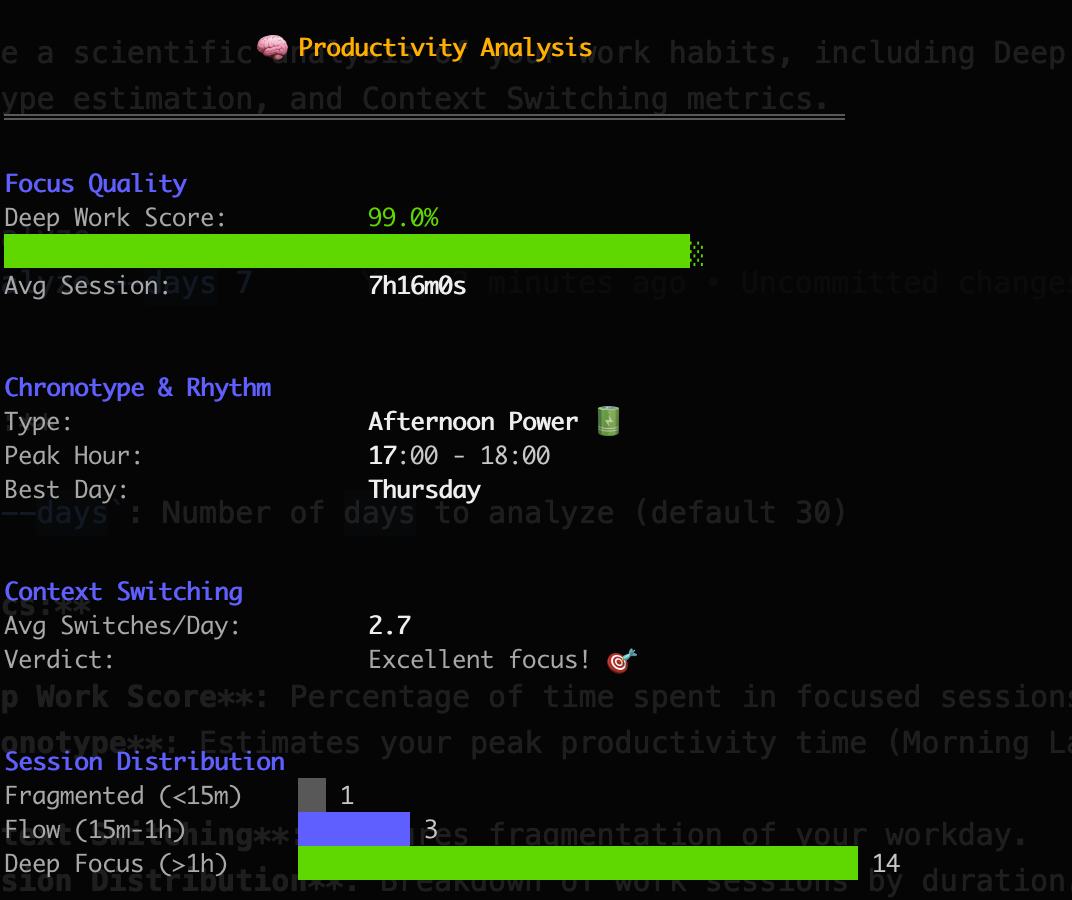 Generate an analysis of your work habits, including Deep Work Score, Chronotype estimation, and Context Switching metrics.
**Metrics:**
- **Deep Work Score**: Percentage of time spent in focused sessions (>1h).
- **Chronotype**: Estimates your peak productivity time (Morning Lark, Night Owl, etc.).
- **Context Switching**: Measures fragmentation of your workday.
- **Session Distribution**: Breakdown of work sessions by duration.
Generate an analysis of your work habits, including Deep Work Score, Chronotype estimation, and Context Switching metrics.
**Metrics:**
- **Deep Work Score**: Percentage of time spent in focused sessions (>1h).
- **Chronotype**: Estimates your peak productivity time (Morning Lark, Night Owl, etc.).
- **Context Switching**: Measures fragmentation of your workday.
- **Session Distribution**: Breakdown of work sessions by duration.