
Learn from your highlights. For free.
Why relego · See it · How it works · Getting started · Documentation
## Why relego. Relego comes from the Latin *relegere*: to read again, go over carefully, review. That is the core idea of the project: bring your highlights back to Kindle so they can be revisited, not forgotten. - **E-ink first**: recaps delivered as native Kindle documents, not push notifications on your phone - **Free and self-hosted**: no subscription, no data leaving your infrastructure - **No lock-in**: your highlights stay yours, in an open format - **Multiple import sources**: Kindle and Kobo supported today - **Privacy**: your reading habits are not sent to any cloud service ## See it 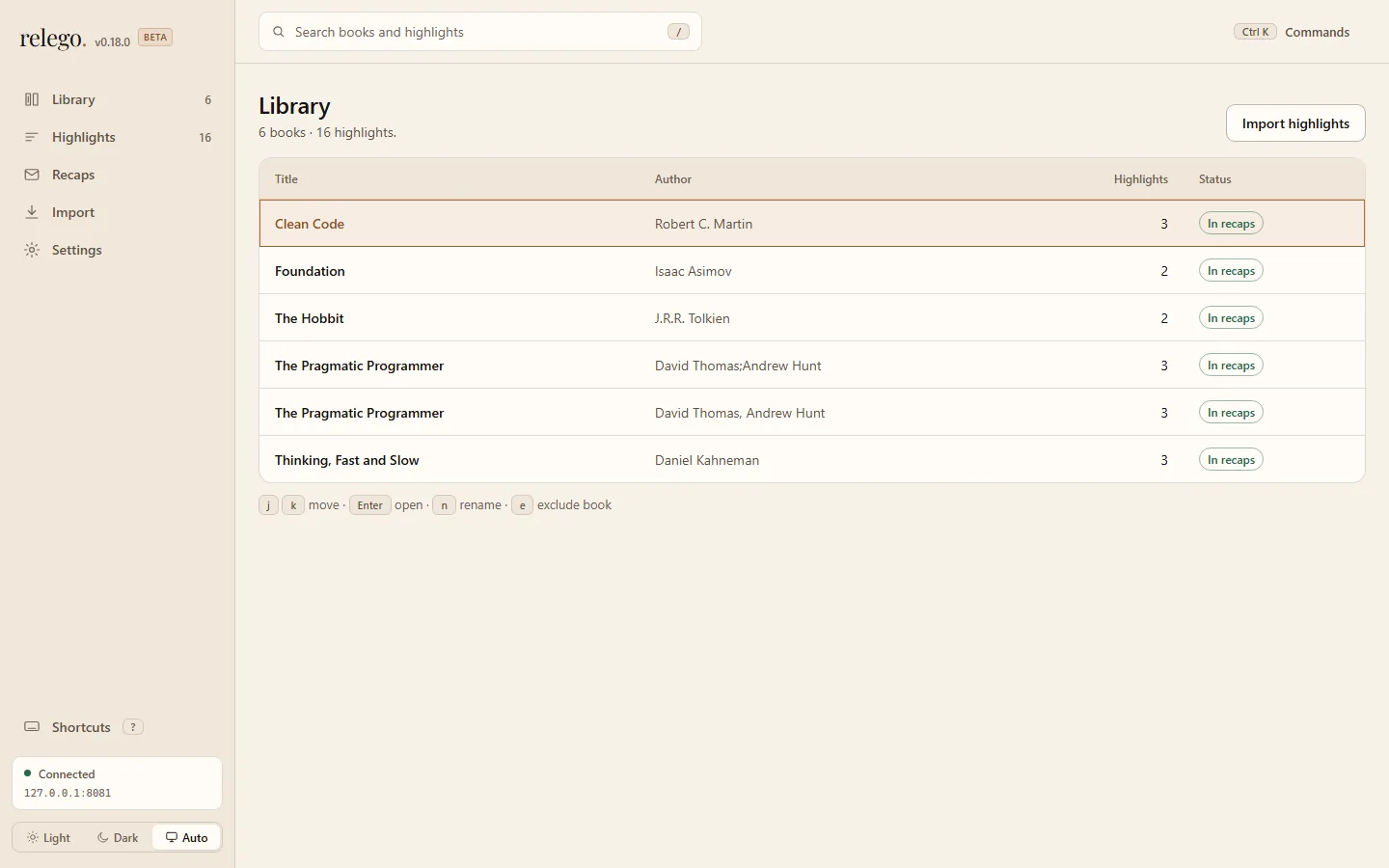 --- ## How it works 1. Import highlights from your Kindle (`My Clippings.txt`) or Kobo (`.kobo/KoboReader.sqlite`) 2. The server selects a daily or weekly subset of highlights using spaced repetition, weighted by your preferences 3. A recap is sent through your configured delivery channel: Send-to-Kindle email for Kindle, or a regular inbox email for Kobo users 4. Open the recap on your Kindle or in your inbox and revisit what mattered Each recap is an EPUB document. Here's a sample of what it contains: > #### Relego Daily Recap (2026-05-21 18:00) > > - _"Care About Your Craft"_ > — **The Pragmatic Programmer** by David Thomas & Andrew Hunt > > - _"Clean code is simple and direct."_ > — **Clean Code** by Robert C. Martin > > - _"In a hole in the ground there lived a hobbit."_ > — **The Hobbit** by J.R.R. Tolkien --- ## Getting started ### 1. Run the server and web UI ```sh docker compose --profile app up -d ``` Then open **http://localhost:8081** in your browser. > [!TIP] > To try Relego without configuring a real mail server, use the `demo` profile instead: > ```sh > docker compose --profile demo up -d > ``` > The demo profile runs a local fake SMTP server (smtp4dev) at http://localhost:5000. ### 2. Import your highlights Drag and drop your `My Clippings.txt` or `KoboReader.sqlite` file onto the **Import** page in the web UI, or use the CLI: ```sh docker compose run --rm relego-cli import "/path/to/My Clippings.txt" ``` > [!TIP] > The [browser extension](https://relego.app/docs/reference/kindle-extension) syncs your Kindle Notebook in the background, replacing the manual file import. ### 3. Set up delivery In the web UI, go to **Settings** and fill in your Kindle email and SMTP server details. > [!IMPORTANT] > Amazon Send-to-Kindle only accepts emails from approved senders. Add the sender address to your Amazon "Approved Personal Document E-mail List" before testing delivery. For full configuration details, SMTP provider options, and troubleshooting, see the **[documentation](https://relego.app/docs)**. --- ## CLI The `relego` CLI can be used instead of the web interface. See the [CLI documentation](https://relego.app/docs/reference/cli) for installation instructions and full command reference. --- ## For contributors Relego is open source and built to be extended. See [CONTRIBUTING.md](CONTRIBUTING.md) and the [Architecture documentation](https://relego.app/docs/architecture). --- ## Supply chain verification Verify Docker image origin via GitHub CLI: ```sh gh attestation verify \ oci://ghcr.io/krusty93/relego.server:latest \ --owner Krusty93 ``` ```sh gh attestation verify \ oci://ghcr.io/krusty93/relego.cli:latest \ --owner Krusty93 ``` --- ## License MIT, see [LICENSE](LICENSE).